Notion Updates

Tracked by the FLO.W team

Notion desktop now has virtual tabs. Previously, every tab in the desktop app took up its own process and its own chunk of memory. With virtual tabs, memory use stays roughly flat no matter how many tabs you open, and the sidebar is more stable too.

The official demo video compares the old and new versions side by side, with the system's list of Notion processes underneath. With only a few tabs open, the old version (left) already runs 5 renderer processes, while the new one (right) runs just 2.
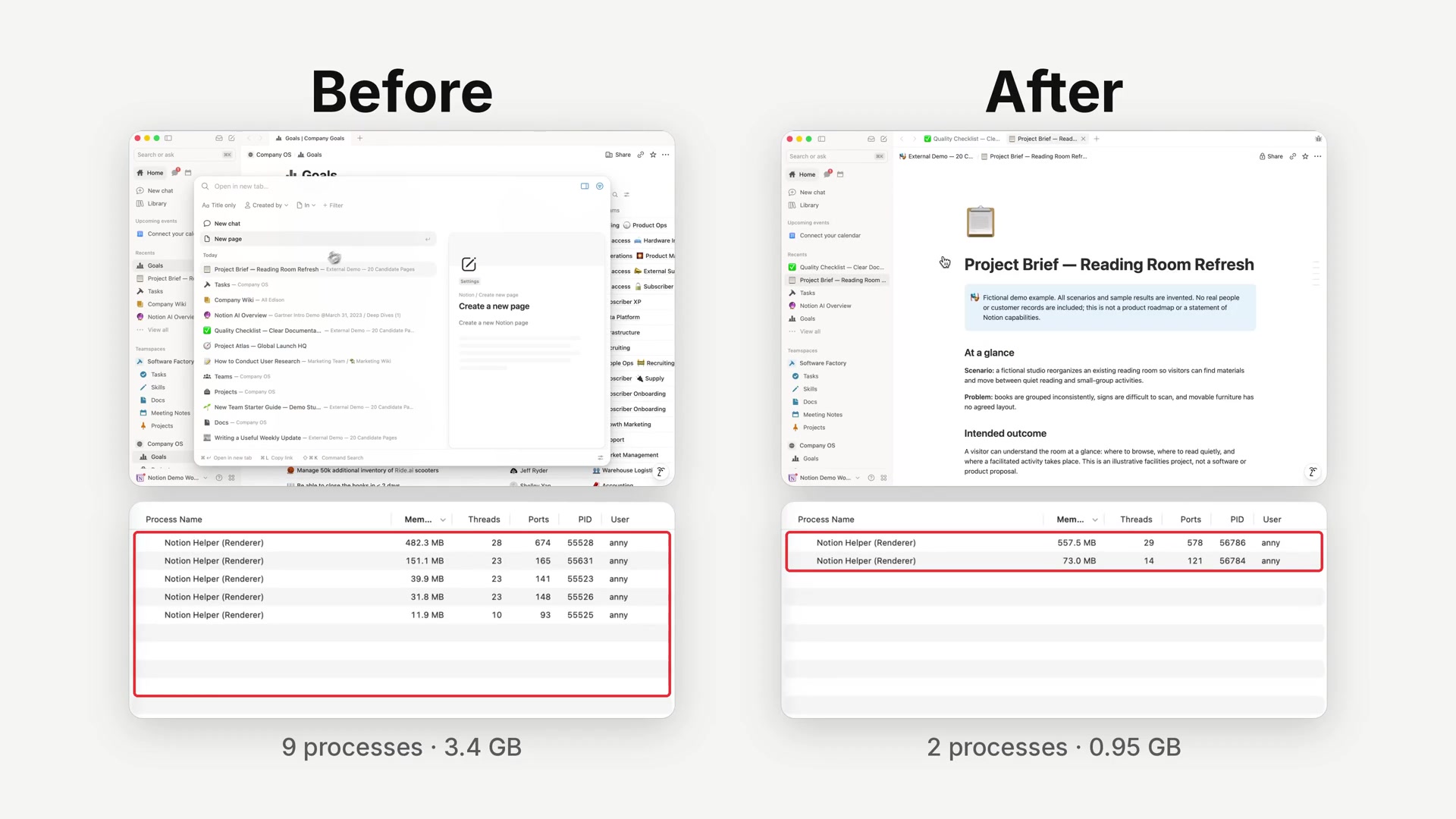
Old and new Notion desktop side by side: with a few tabs open, the old version has 5 renderer processes and the new one has 2

After opening more tabs, the old version climbs to 9 processes using about 3.4 GB of memory in total, while the new version stays at 2 processes and about 0.95 GB.
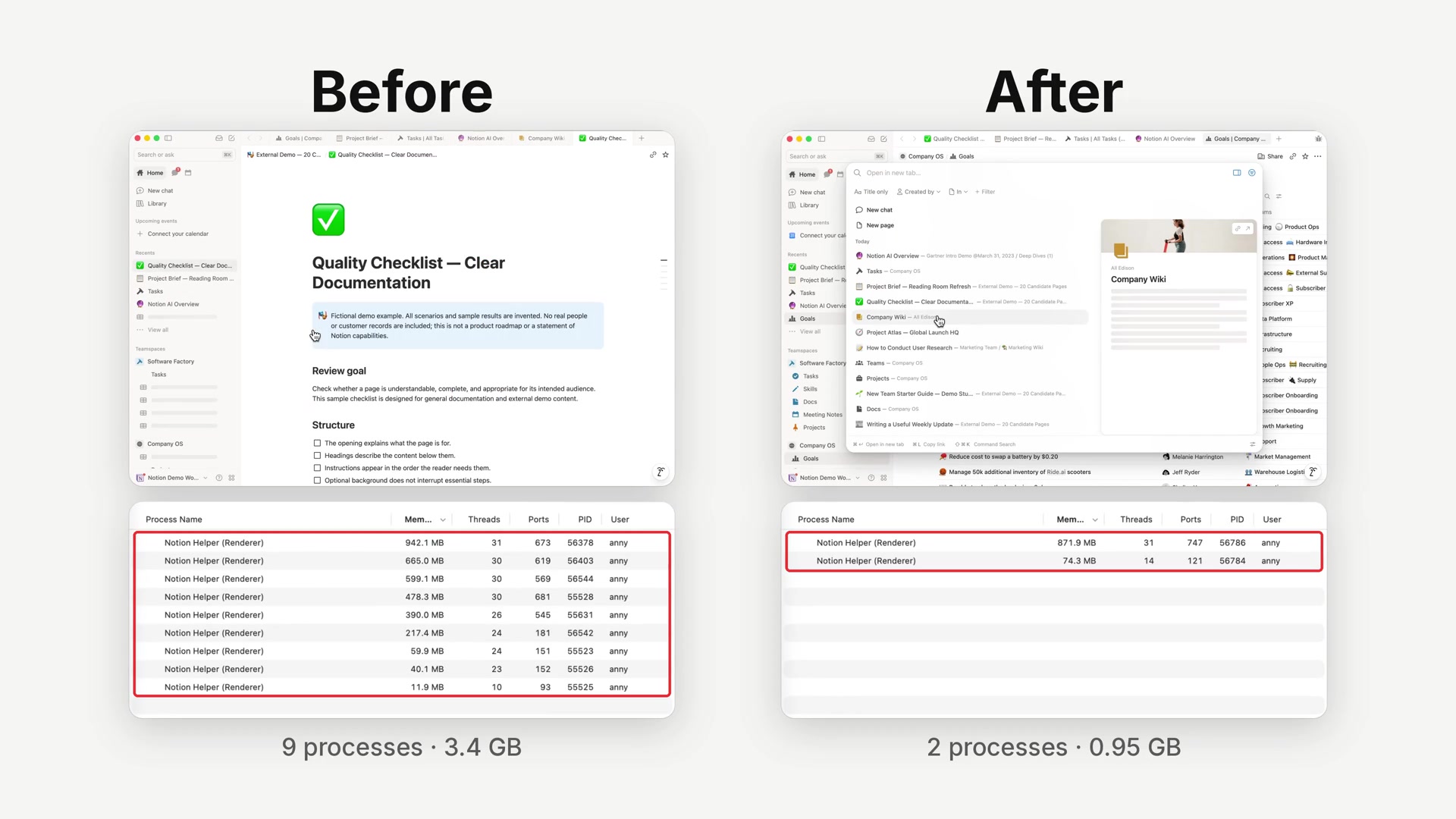
With more tabs open, the old version has 9 processes at about 3.4 GB, while the new one still has 2 processes at about 0.95 GB

To use it: virtual tabs are currently a desktop beta feature. Update the Notion desktop app to the latest version, open Settings → Preferences, and turn on the Desktop beta toggle in the Desktop app section.
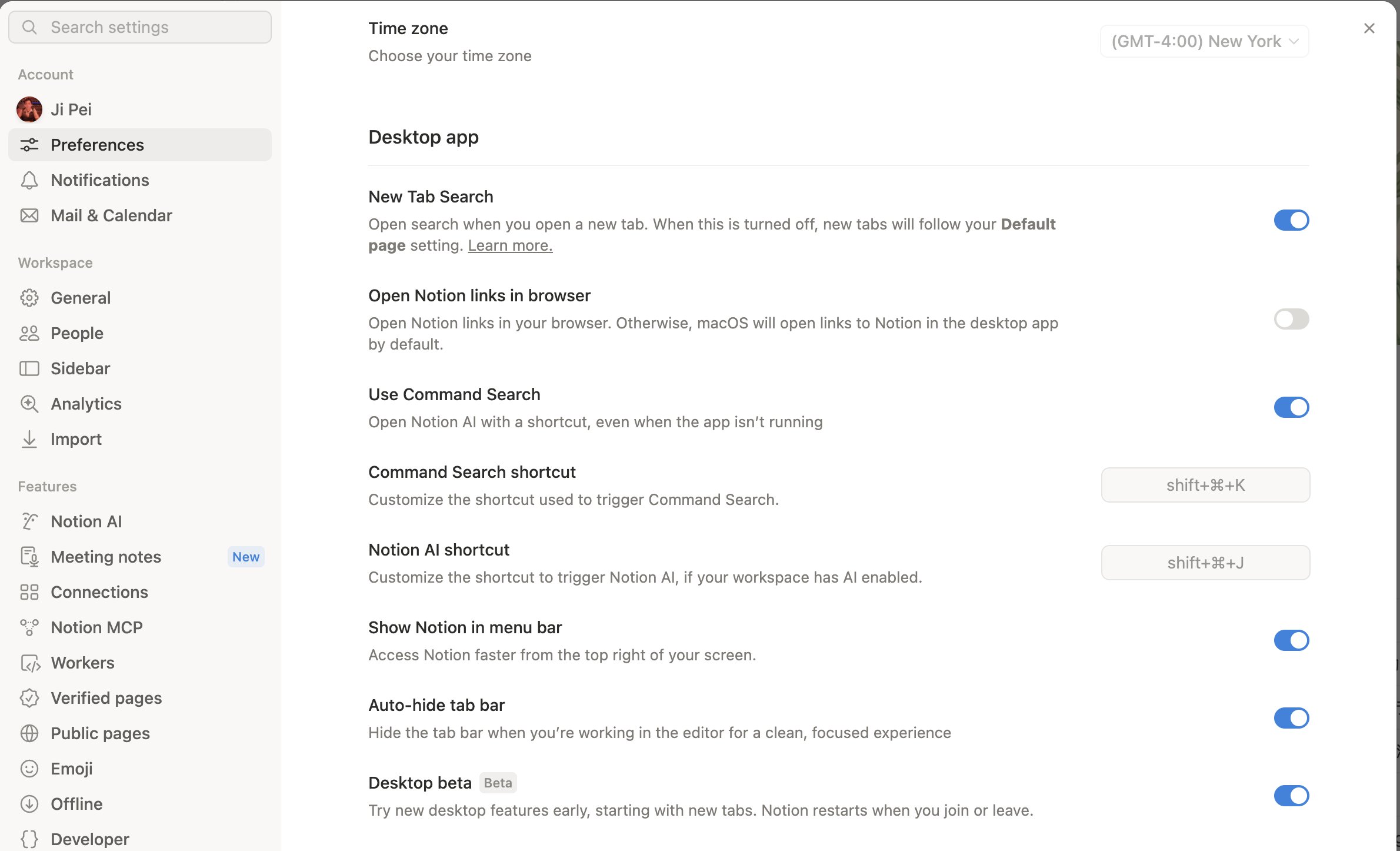
The Preferences page in Notion settings, with the Desktop beta toggle at the bottom of the Desktop app section

The toggle description says you will try new desktop features early, starting with new tabs, and that Notion restarts whenever you join or leave the beta. If the toggle has not appeared in your settings yet, a Notion engineer suggests refreshing with Cmd+Shift+R and checking again.
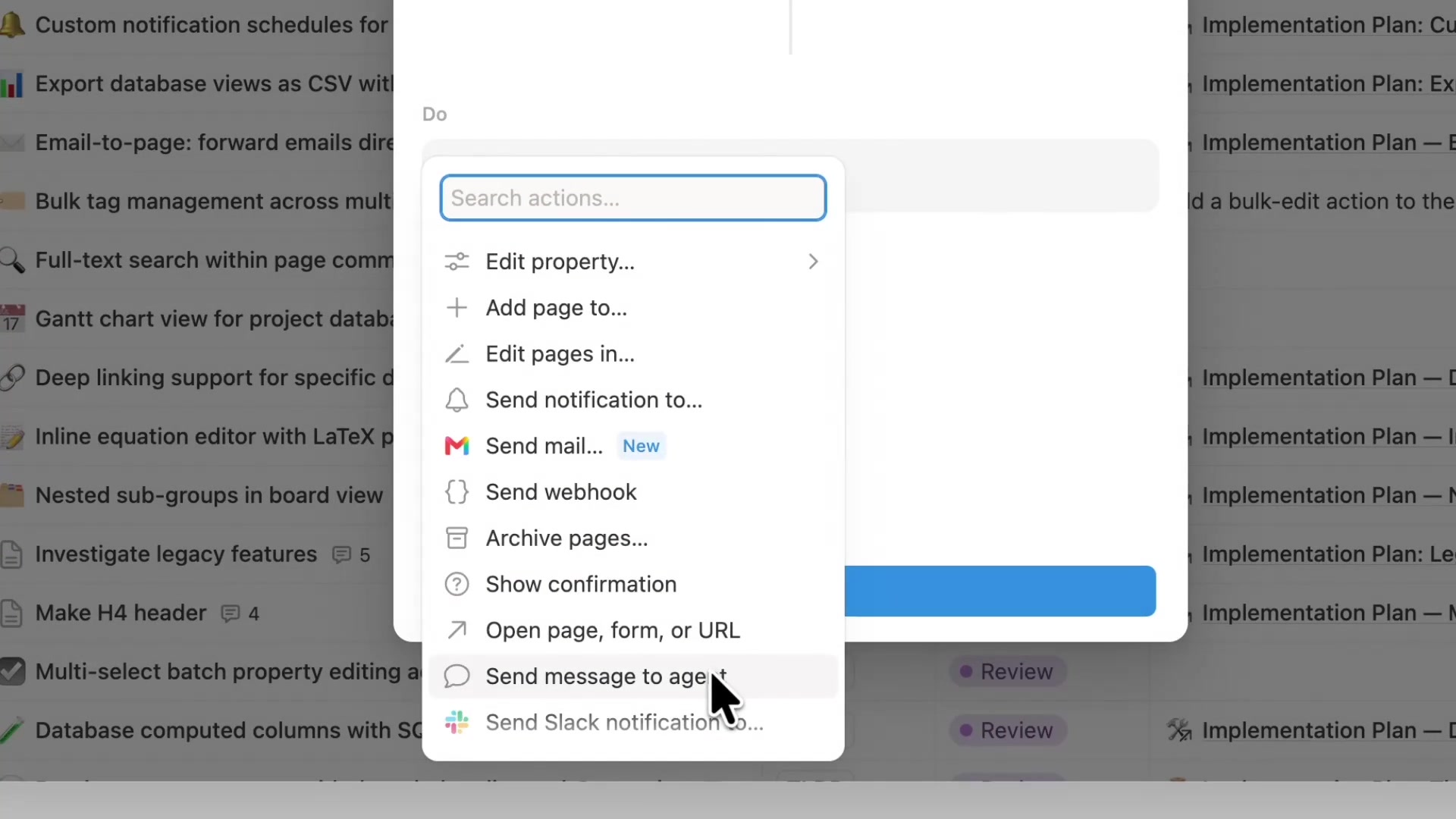
Notion button automations now include a Send message to agent action. Write a prompt into a button, and when anyone on your team clicks it, the prompt goes to the agent you chose and the reply appears right on the page.

To use it, open the automation settings for a button (or a button property in a database), add a new action under Do, and choose Send message to agent.

Notion button automation action list showing the Send message to agent option

The action sits in the same list as sending notifications, sending webhooks, and opening pages.

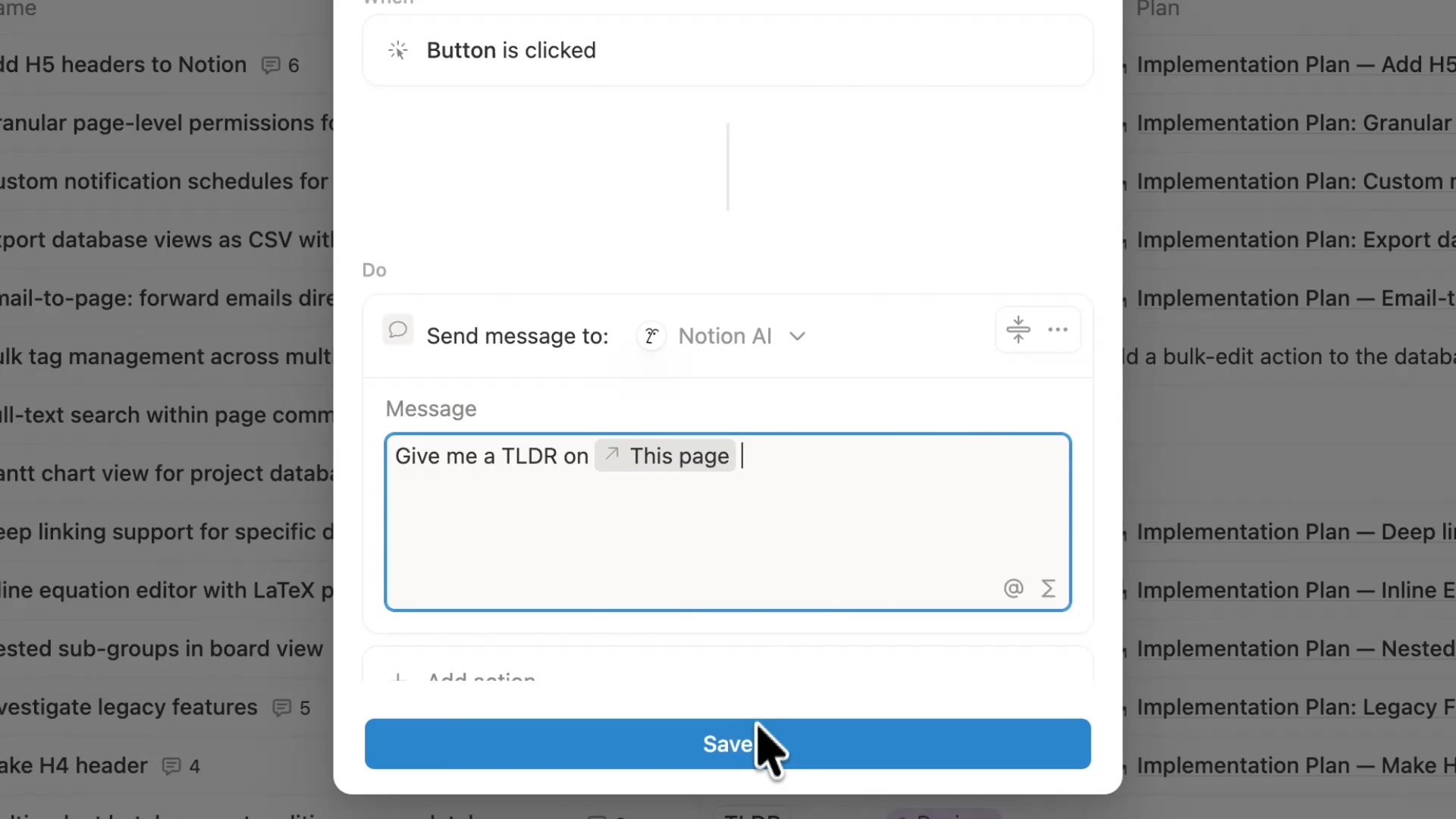
Next, pick the receiving agent under Send message to (Notion AI in the example), then write your prompt in the Message box. You can insert This page into the prompt, so the agent reads whichever row the button was clicked on.

Button action set to send a message to Notion AI asking for a TLDR on This page

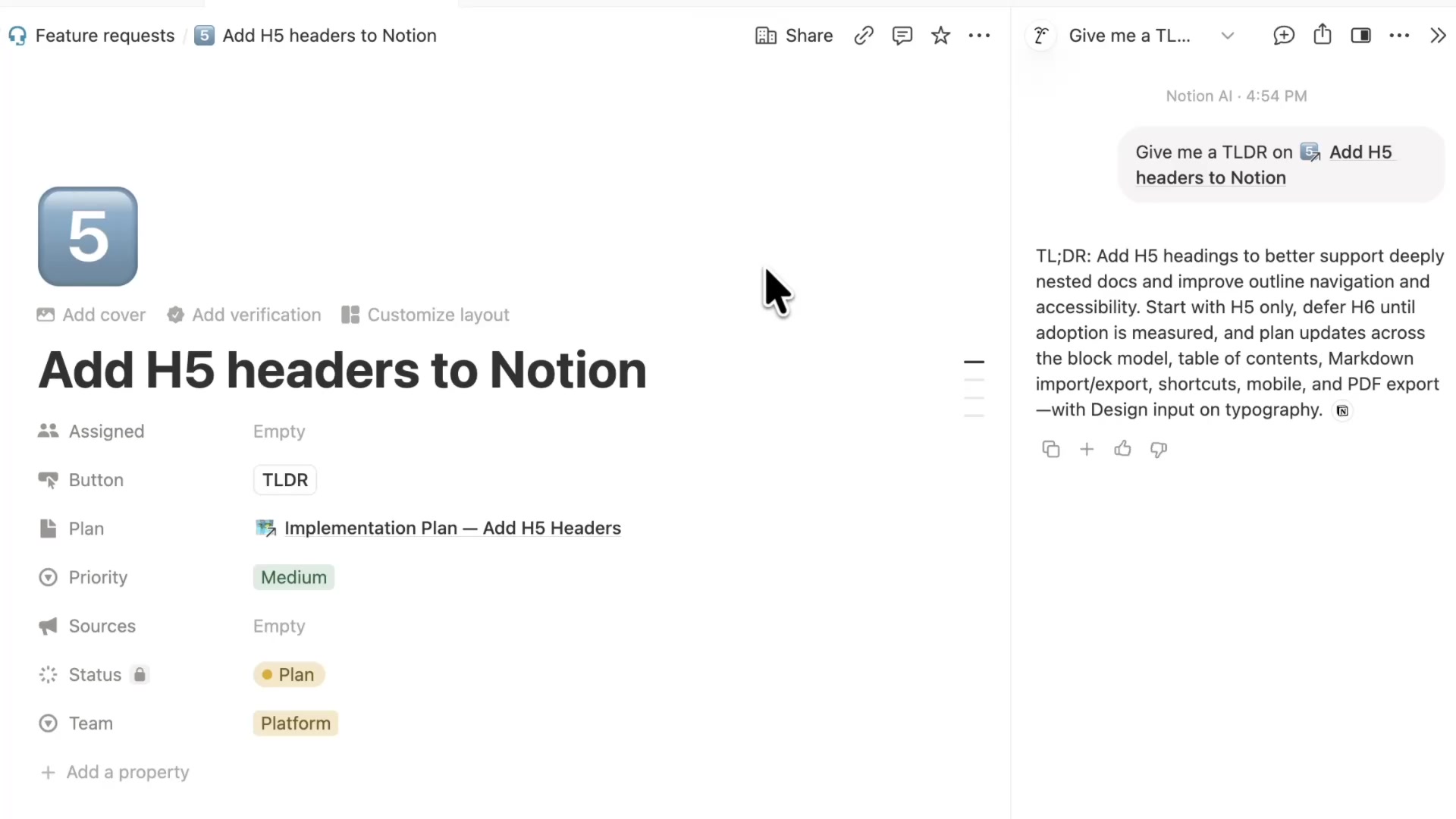
After saving, every row in the example feature request database gets a TLDR button. Open the request Add H5 headers to Notion and click it: a Notion AI chat opens on the right, sends Give me a TLDR on Add H5 headers to Notion automatically, and returns a summary of the request.

After clicking the TLDR button, the Notion AI panel on the right returns a summary of the request

Notion has rebuilt synced databases from the ground up. Live data from GitHub, Jira, and Salesforce now syncs directly into Notion databases, so your team and your agents work from the same data. Once synced, you can add properties and views, relate items to project databases, trigger automations, or hand the work to an agent.

To use it, open Settings, go to Connections, choose the new Database sync type, connect GitHub, Jira, or Salesforce, and pick the repositories, spaces, or records to sync.

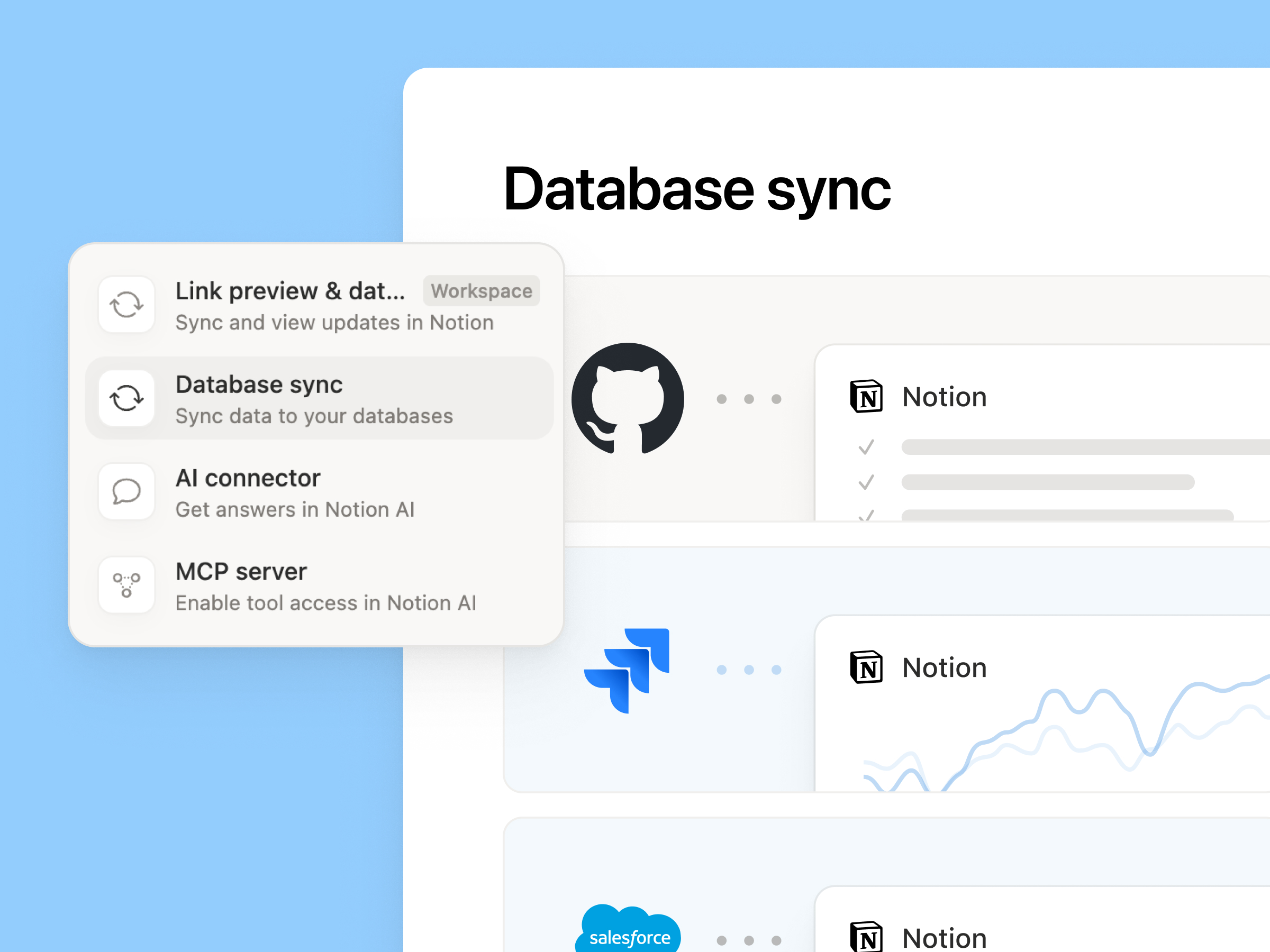
Database sync option in the Notion connection type menu, with GitHub, Jira, and Salesforce as sources

Database sync sits alongside link previews, AI connectors, and MCP servers in the connection types, and currently supports three sources: GitHub, Jira, and Salesforce.

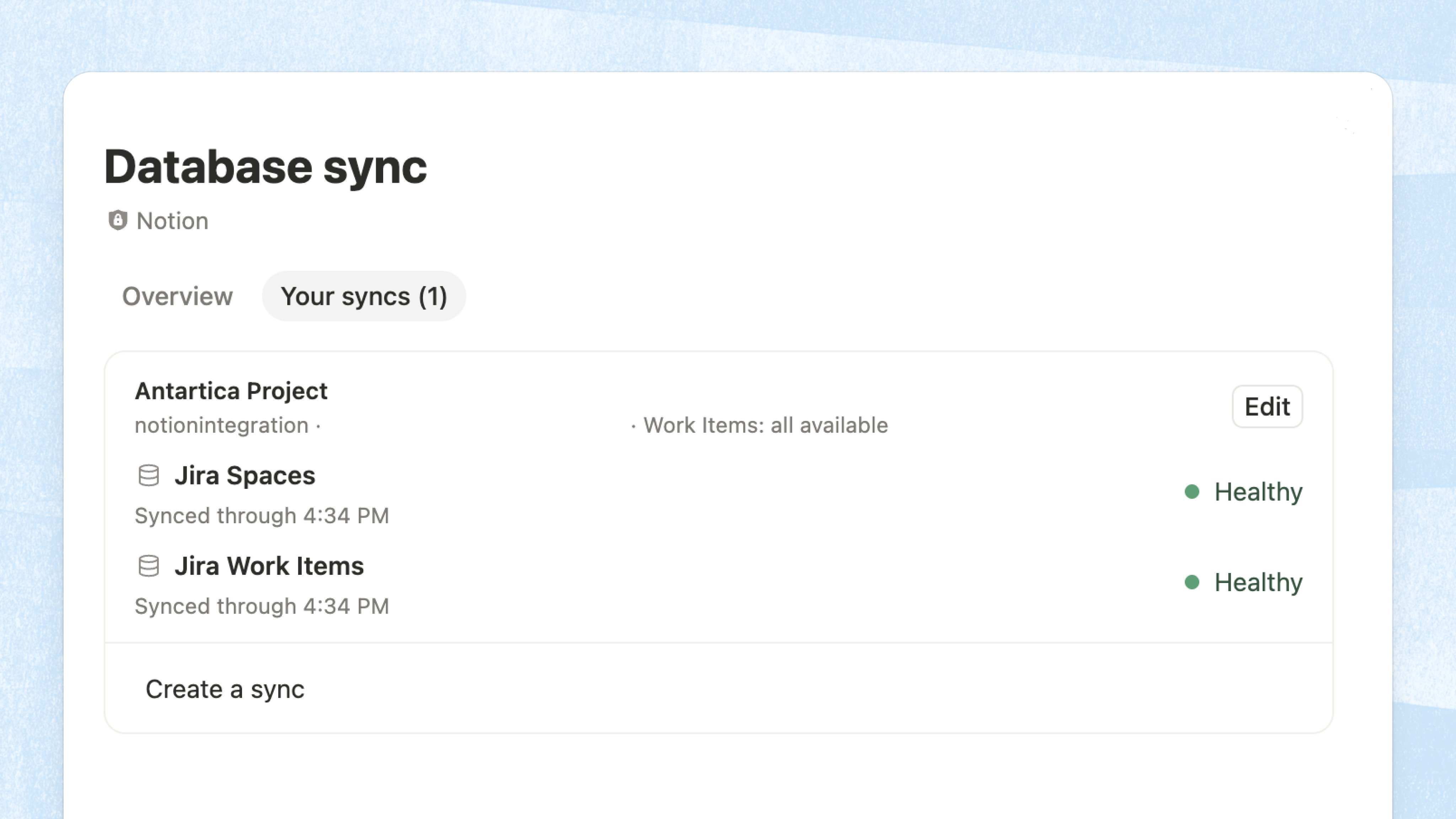
On the same page, the Your syncs tab lists every sync with its last sync time and health status. Click Edit to change what a sync covers.

Your syncs list in Notion settings showing the last sync time and health of each sync

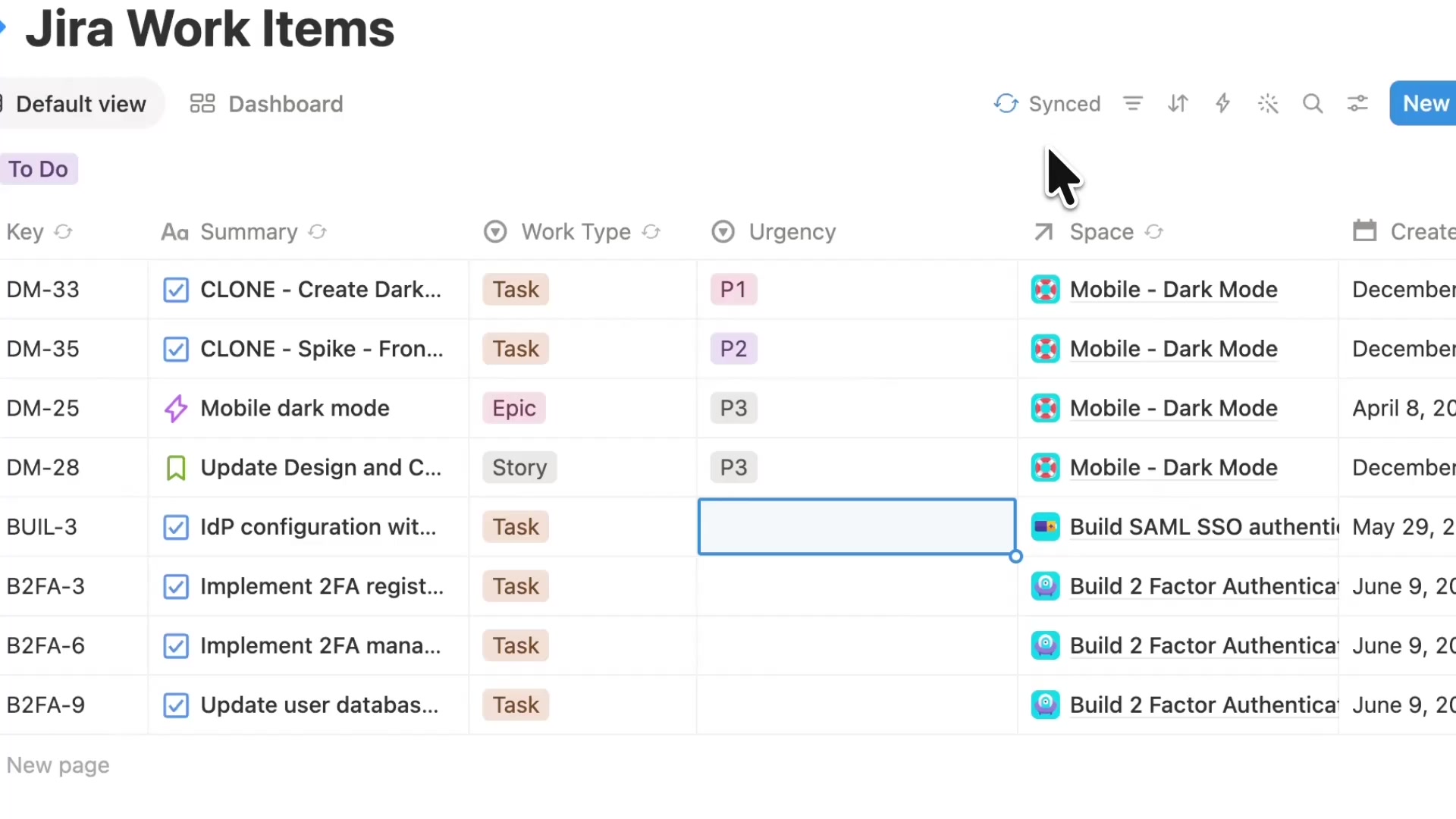
A synced table shows a Synced badge in the top right. The original Jira fields (Key, Summary, Work Type, Space, and more) stay in sync in real time, and you can add your own properties next to them, such as the Urgency column added in this example.

Jira work items synced into a Notion database with a Synced badge and an added Urgency column

This is different from the earlier Notion AI Salesforce connector: the AI connector lets Notion AI search Salesforce data that stays in Salesforce, while database sync brings records into Notion databases in real time, where you can add properties, build views, and run automations.

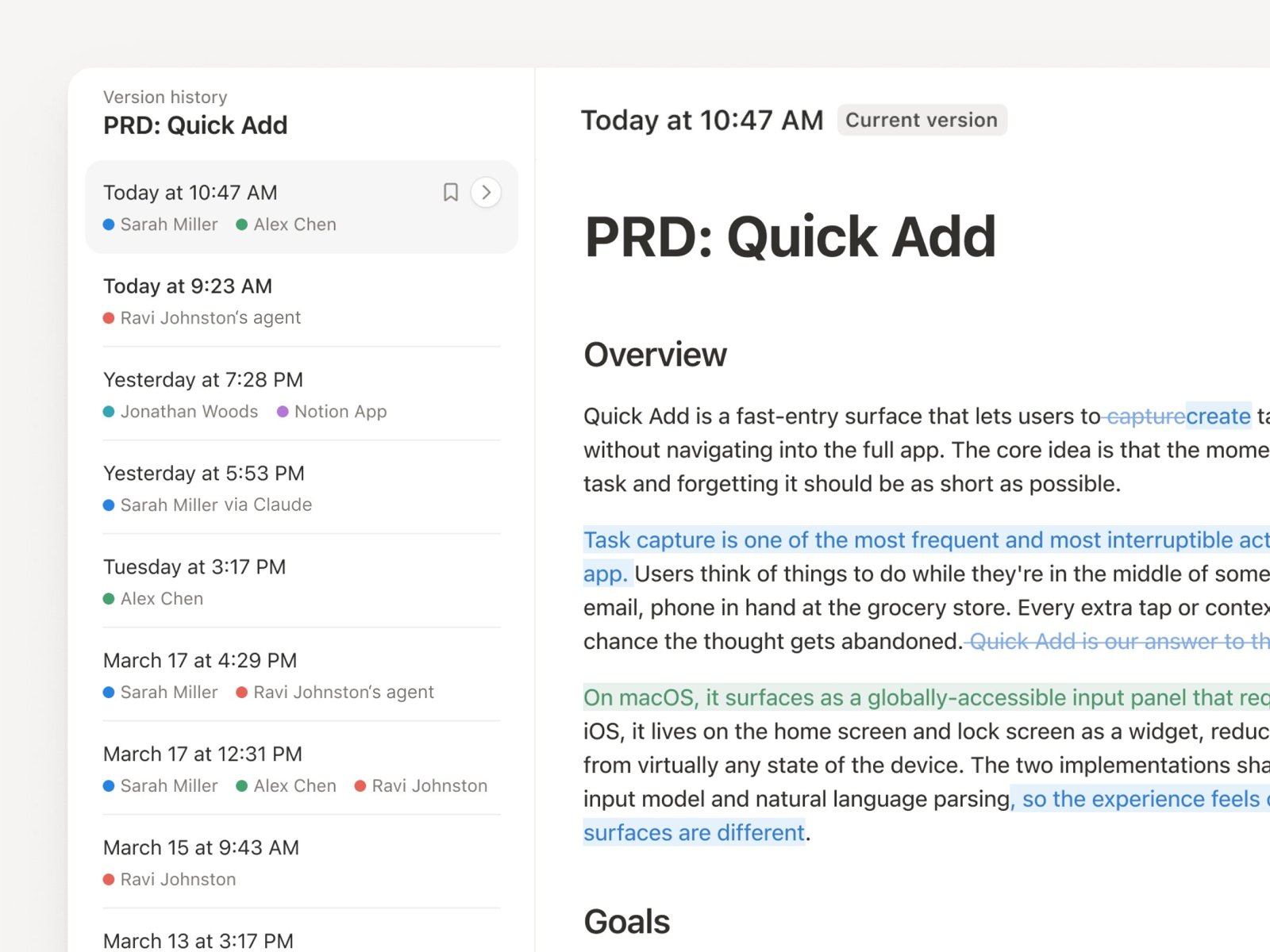
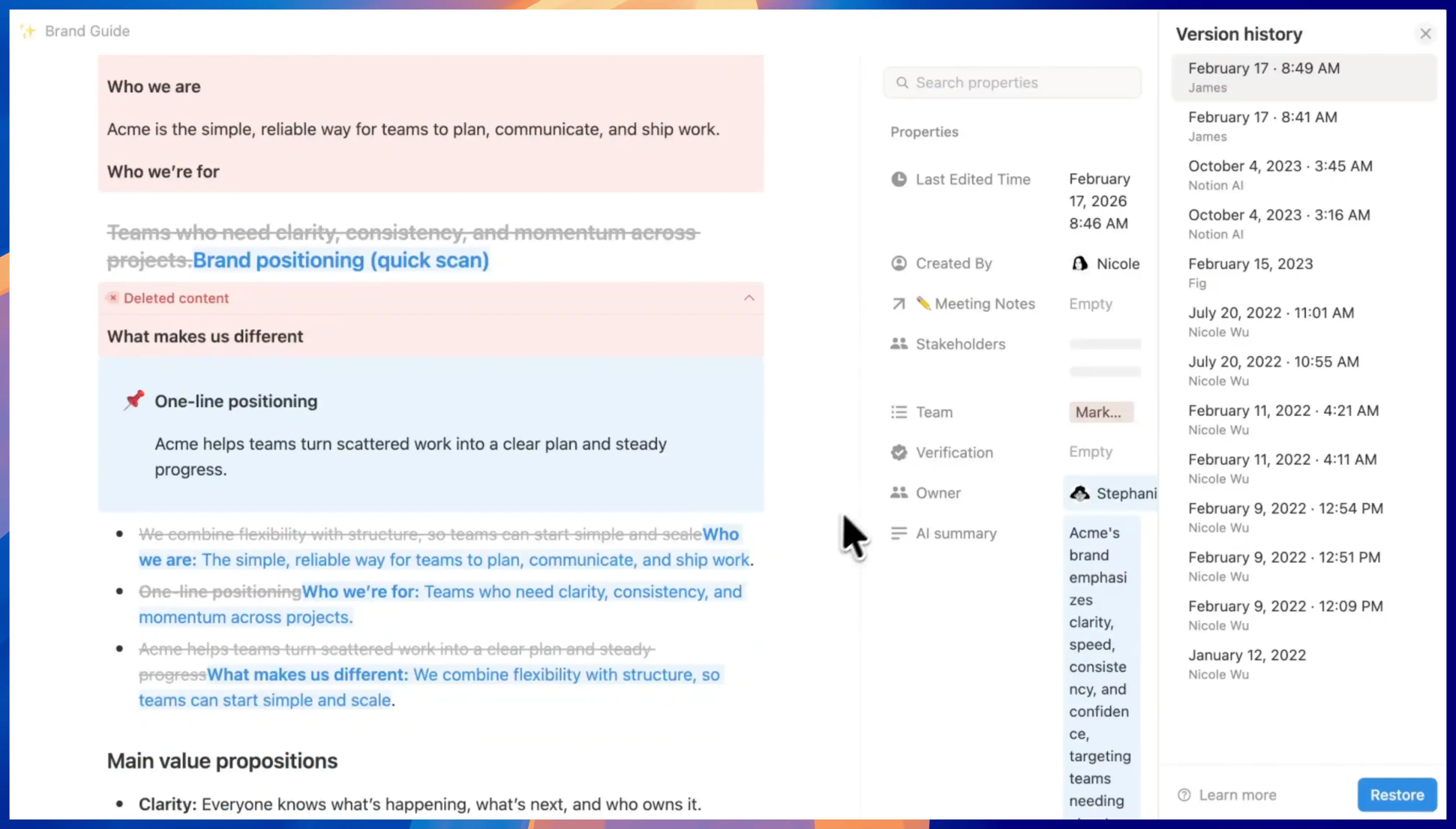
Notion has upgraded Version History: every edit to pages and databases is now recorded in real time, with changes highlighted and labeled by the person or agent who made them. You can restore an earlier version in one click.

To use it, open Version History from the top right of a page and browse changes by time in the sidebar. Click an edit to see the highlighted diff, and restore it if needed.

The sidebar lists the author of each edit, including people and agents (for example, via Claude). In the page on the right, added text is highlighted in color and removed text is shown with a strikethrough.

Notion Version History sidebar listing the author of each edit, with additions and deletions highlighted in the page

This is a complete, real-time log of every edit, covering pages and row-level database changes. It is different from the earlier snapshot diffs in Version History and Agent change diffs: those compare two snapshots or show what an agent changed in one run, while this records every edit by people and agents continuously.

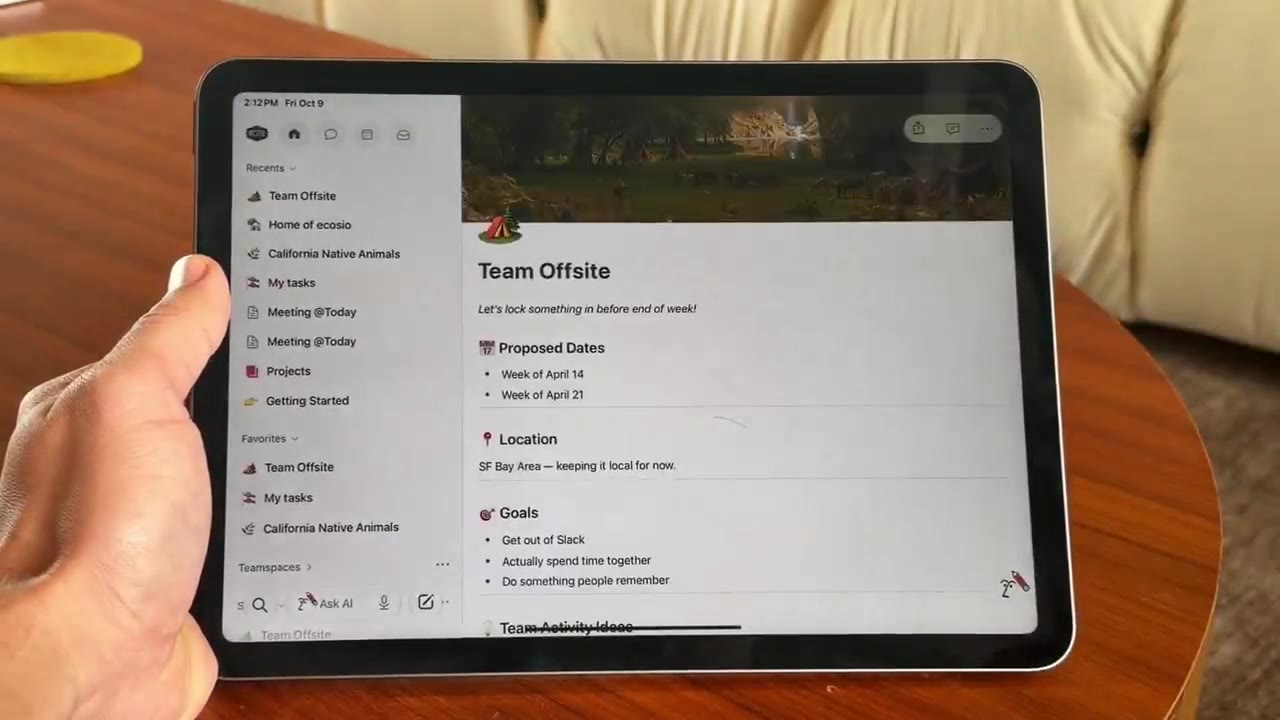
Notion is rebuilding its iPad app natively instead of wrapping the web app. The sidebar, inbox, Notion AI and search are already native and open faster. The native editor is still on the way: Notion plans to finish the native editor on phones first and then test it on iPad, with Apple Pencil support coming later.

The sidebar and inbox on iPad are now native, so the page tree is no longer rendered by a web container.

The native sidebar in Notion for iPad

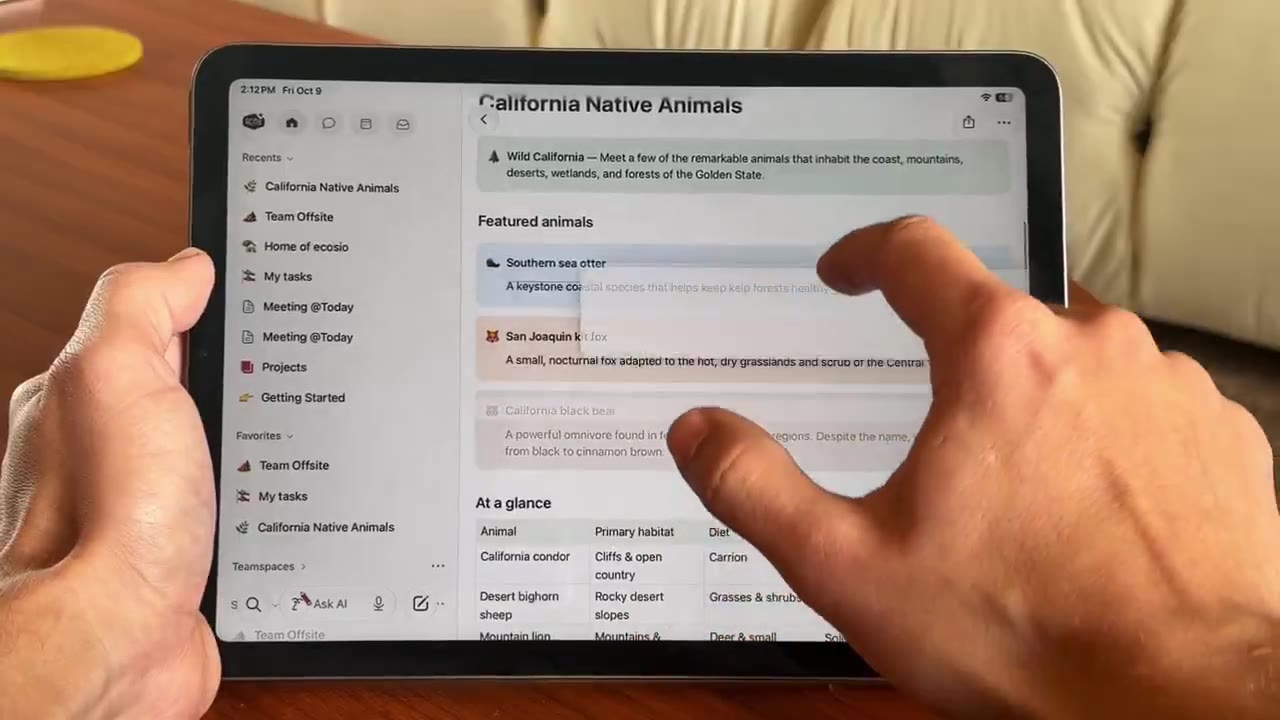
Search and Ask AI sit at the bottom of the sidebar and are native as well, so you can find pages in your workspace directly.

Native search and Ask AI entries at the bottom of the Notion iPad sidebar

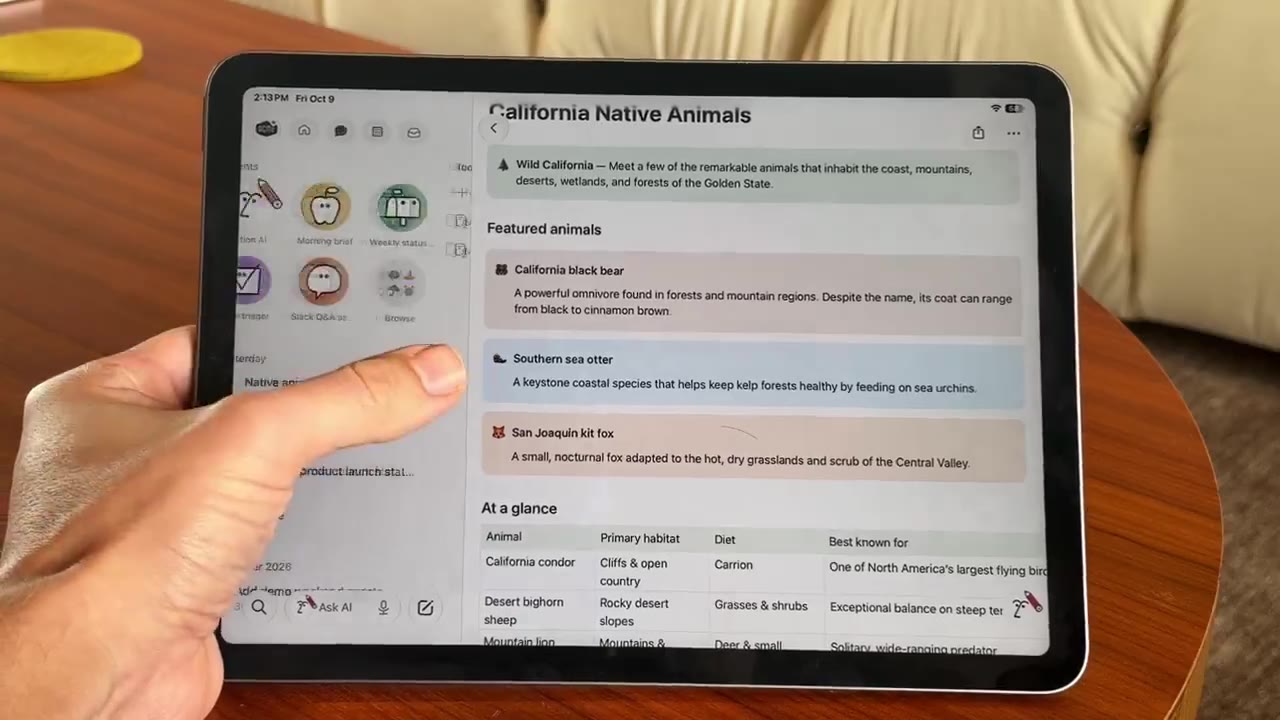
Notion AI is native too: tap Ask AI and the sidebar switches to the AI panel.

The native AI panel in Notion for iPad

In addition, on iOS 27 you can use Siri to find or create pages, start an AI chat, or record meeting notes.

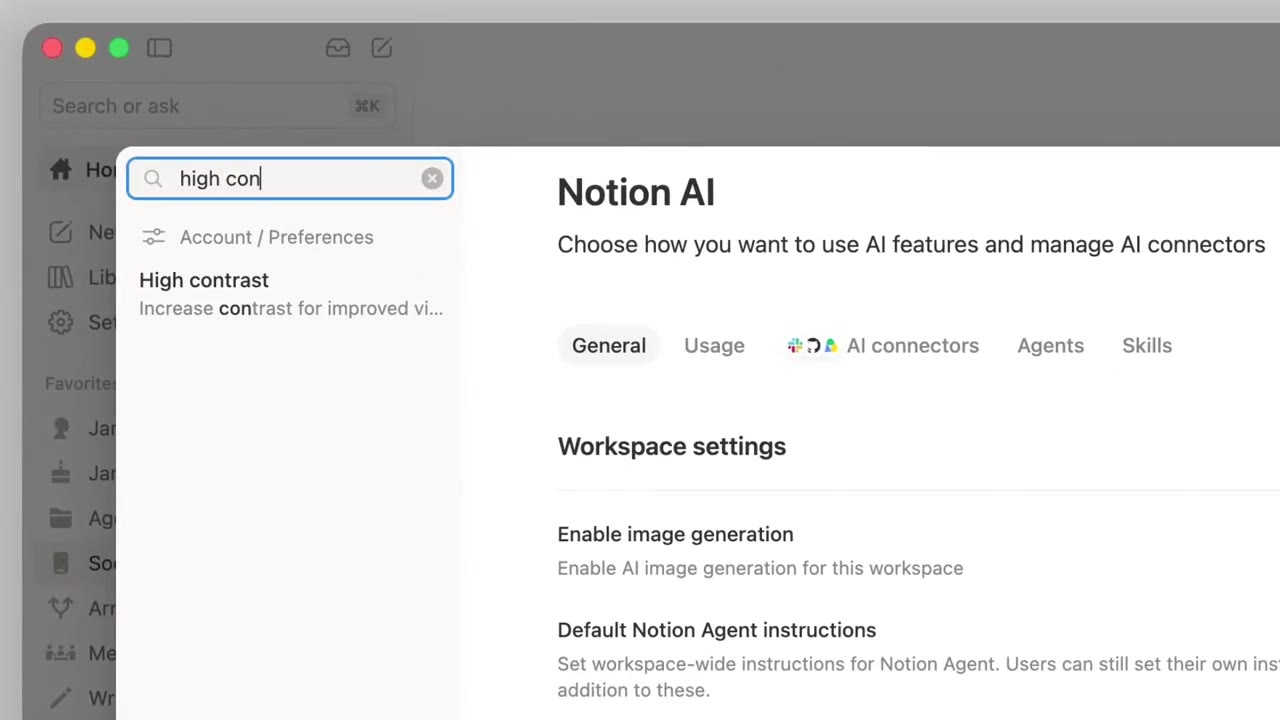
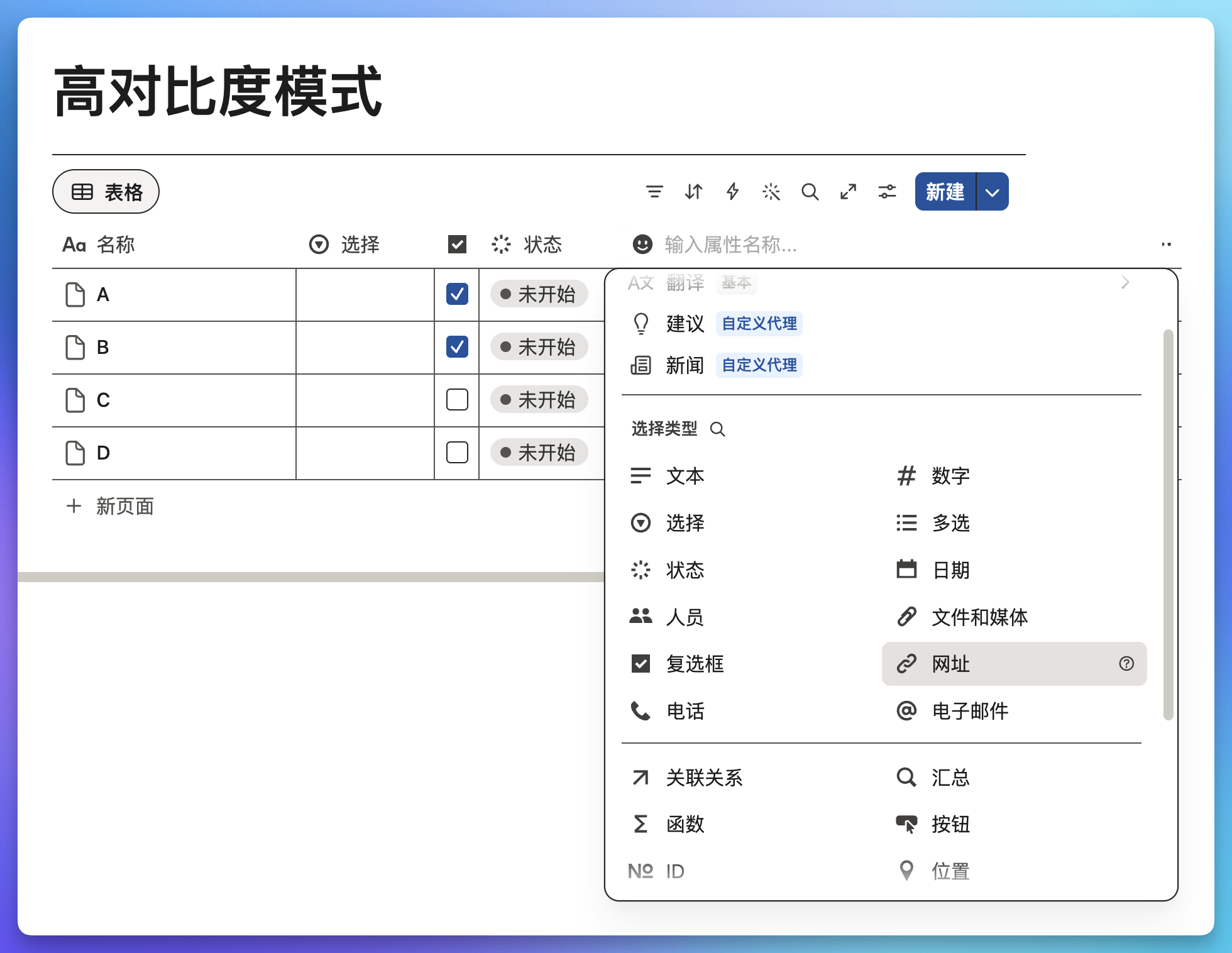
Notion Settings now supports search. Open Settings and use the search box to jump straight to an option instead of paging through every section.

Below is Notion’s demo: type a keyword into the search box at the top left of Settings and the matching options are listed right away.

Typing a keyword into the Notion Settings search box

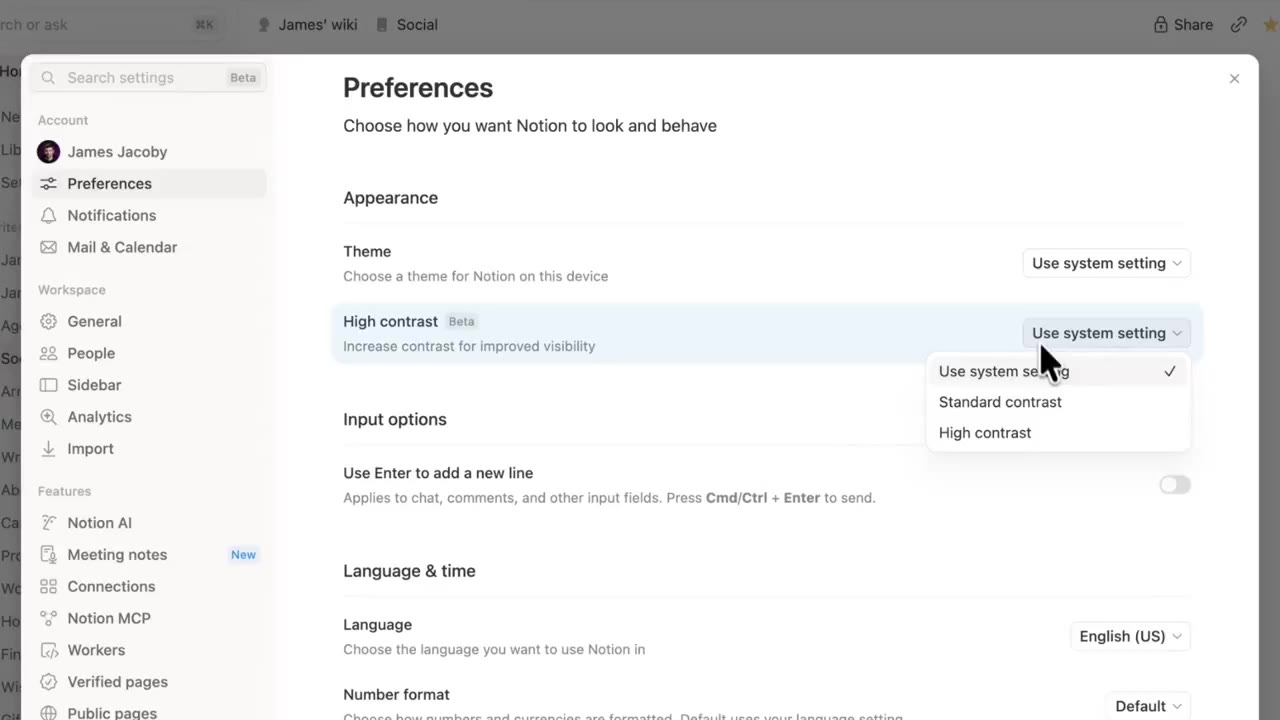
Click a result and Notion jumps to that settings page and highlights the item. For example, searching "high contrast" takes you to the contrast option in Preferences.

A search result jumping to the contrast option in Preferences

Notion has launched sidebar presets for workspace admins. Admins can set a default sidebar for new members, and everyone can add a preset from the "+" menu and then adjust it to their own habits.

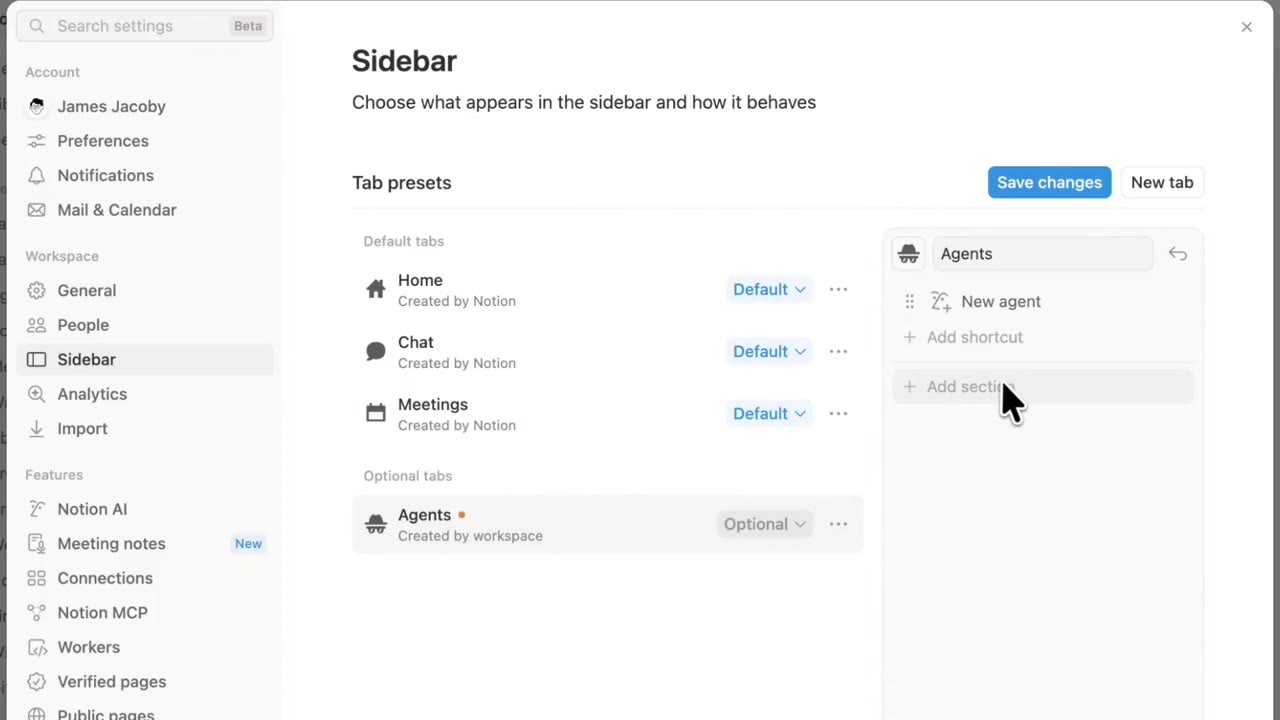
Admins edit presets in Settings → Sidebar and set one as the default sidebar for new members. Below is the settings page from Notion’s demo.

Tab presets in Settings → Sidebar

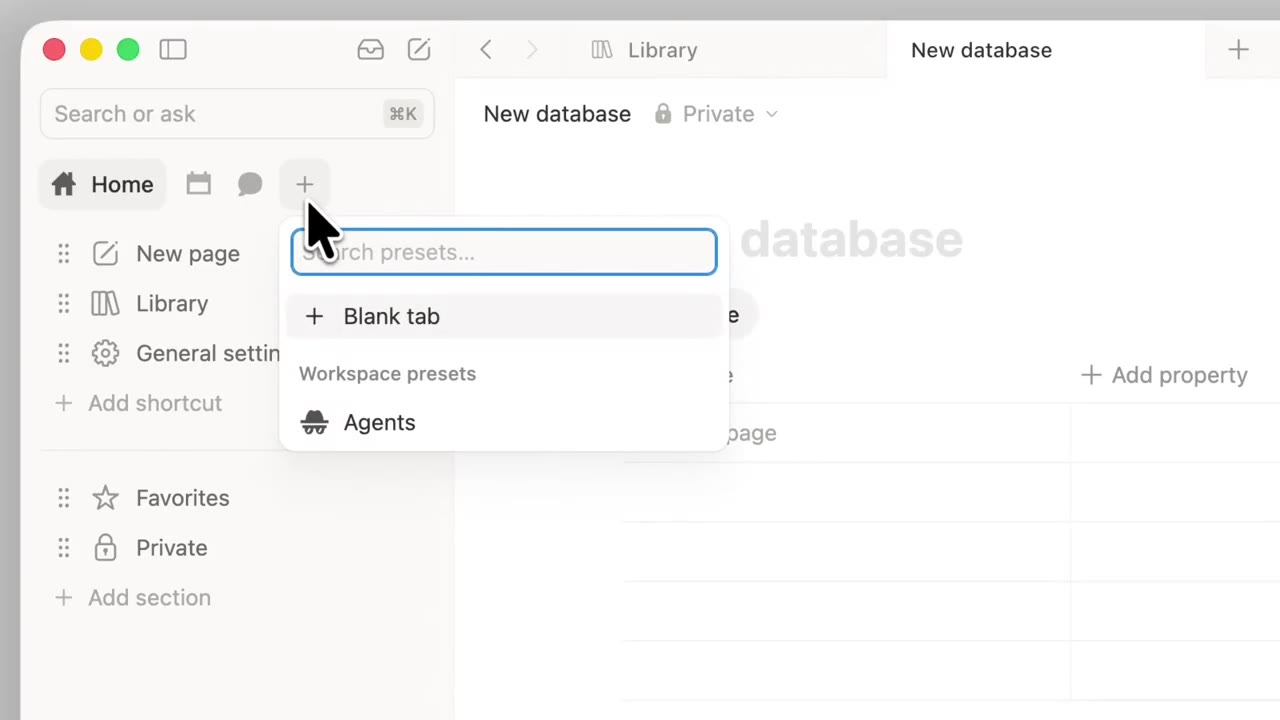
Regular members can click the "+" menu at the top of the sidebar, add a preset under "Workspace presets", then adjust it themselves.

Workspace presets in the sidebar “+” menu

Notion has built a native editor for iOS and is opening it for testing through TestFlight. Notion says the new editor is faster and more stable when you type and edit.

How to join: install TestFlight on your iPhone, open Notion’s test invitation link to join the beta, then open any page to use the new editor.

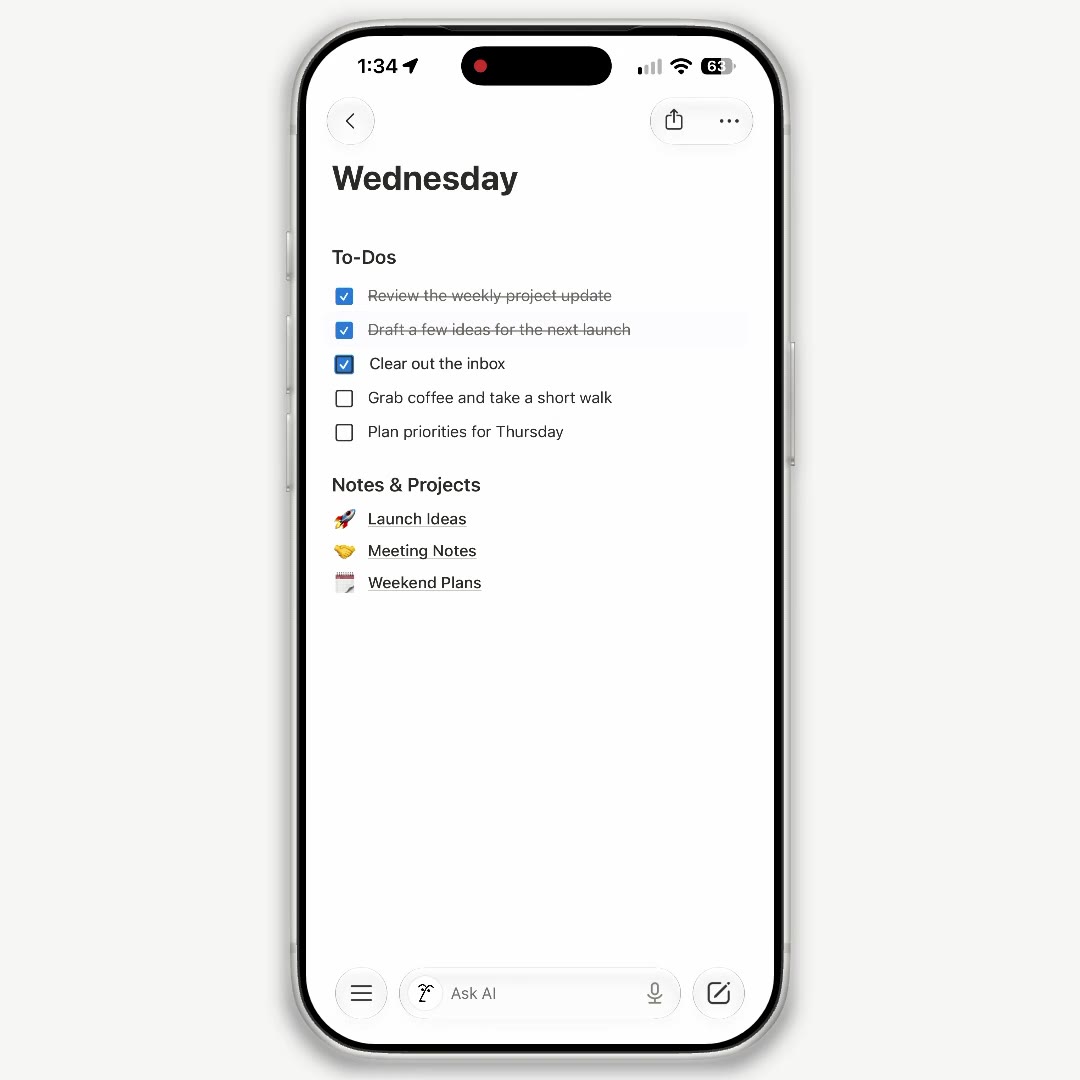
The editing screen of Notion’s native iOS editor

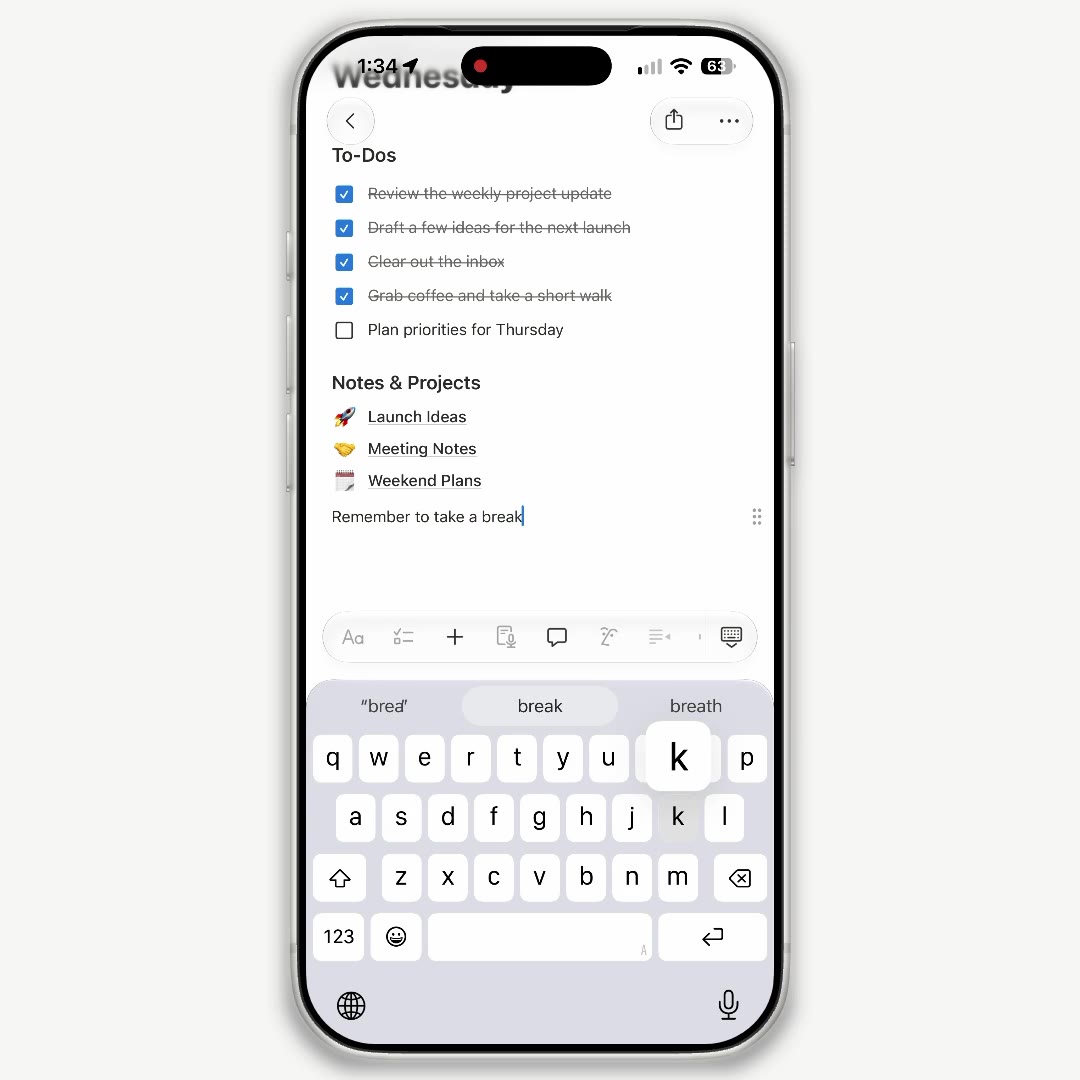
Tap anywhere on a page to start typing. To-dos, lists and page links can all be edited in place.

Editing to-dos, lists and page links in the native iOS editor

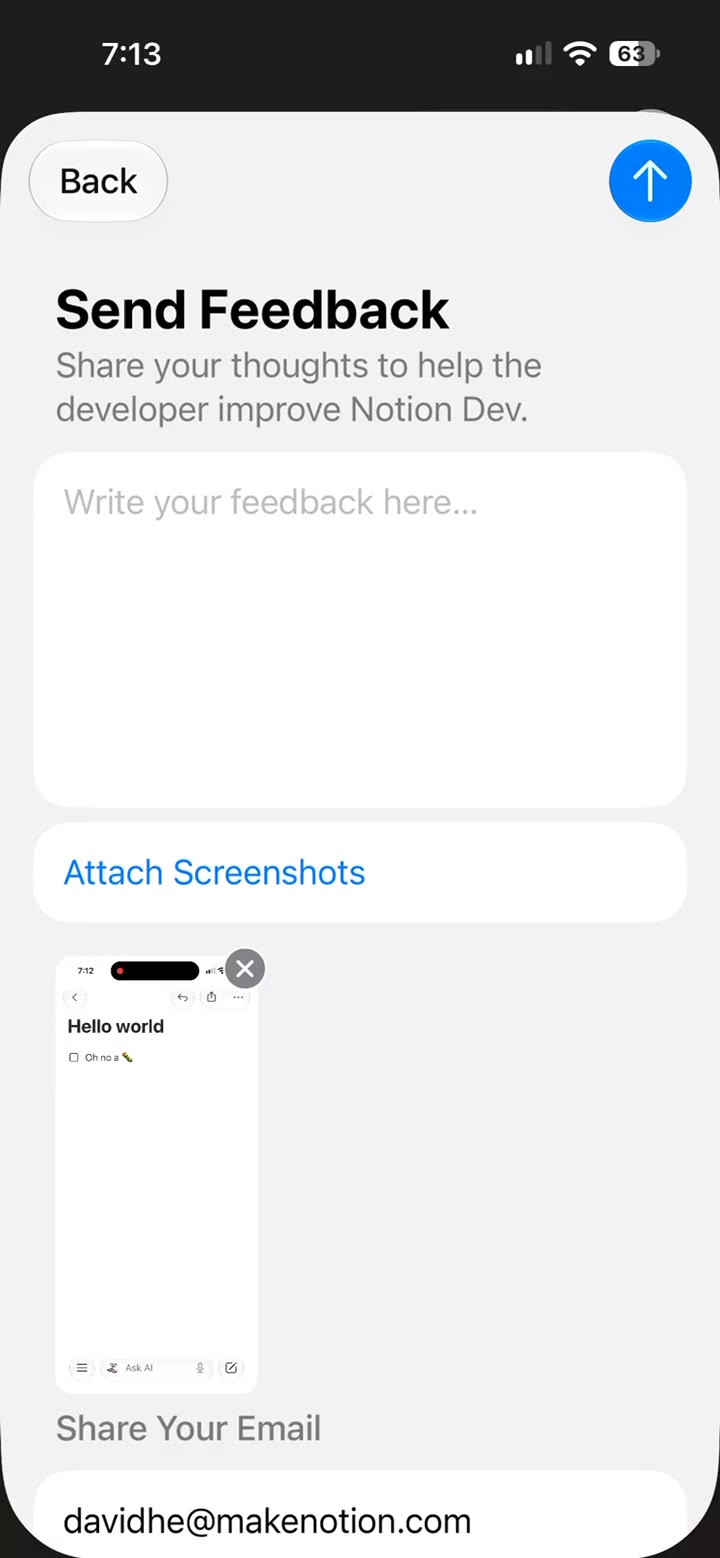
If you run into problems during testing, take a screenshot in the beta, then attach it in the TestFlight feedback window and submit it to Notion.

Submitting a screenshot through the TestFlight feedback window

The native editor for Android is still in development, and Notion says it will open testing when it is ready.

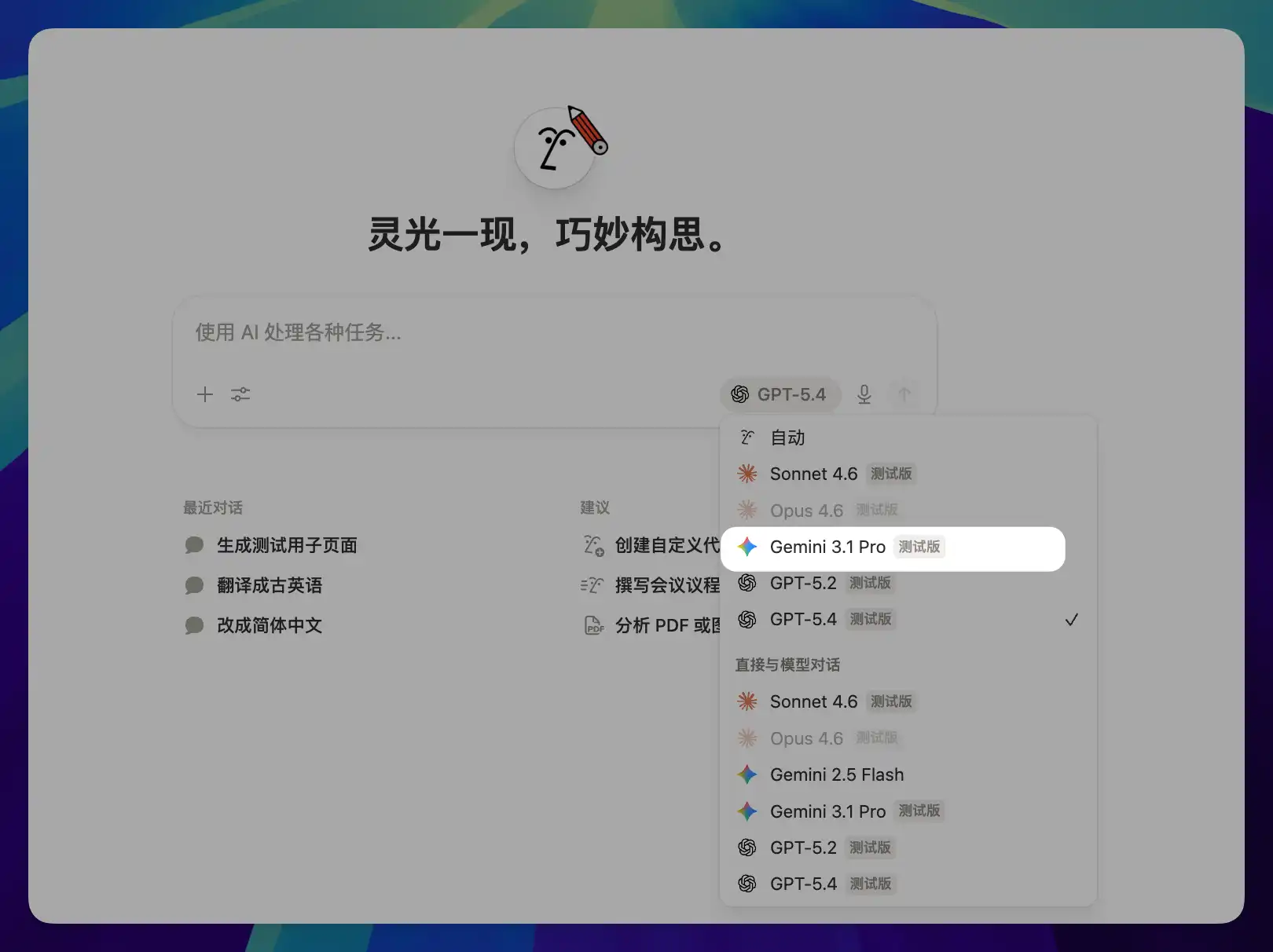
Notion recently added Claude Sonnet 5.5, Haiku 5.5, Fable 5 / 5.1 and GPT-6.1 Sol. You can pick any of them in the model picker.

  • Claude Sonnet 5.5 (Sept 29): available the same day Anthropic released it.
  • GPT-6.1 Sol (Sept 29, Beta): in the Notion Agent model picker, under the "Using ChatGPT plan" group.
  • Claude Haiku 5.5 (Oct 8): available on the day Anthropic released it, under the Claude group.
  • Claude Fable 5 / 5.1 (June 9 / Sept 1): turn it on in Settings → Notion AI → Restricted Access Models. Fable 5 is for Business / Enterprise, and 5.1 works with Custom Agents and Notion Agent.

Notion has added a Notion MCP management page to Settings. It shows the MCP clients connected to your workspace and lets you discover, enable or add more from a directory.

How to use it: open Settings → Notion MCP. Under "Manage workspace clients" you can see the clients that are enabled (for example ChatGPT, Claude and Muse). Under "Discover" you can browse the directory (for example Composio, Cursor, Devin and Figma), then click Enable or Add an MCP client.

On plans: according to Notion’s developer docs, Notion MCP can be connected on every plan, but some tools (such as advanced search and AI search) require Business or Enterprise. Notion has not said separately which plans can see this settings page.

The page lists the clients that are currently enabled, plus the directory entries you can connect next.

Notion now lets you connect ChatGPT Plus, Pro or Go so the GPT models you pick in Notion Agent draw on your ChatGPT allowance. As of 2026-10-09, ChatGPT Go is covered too; it was previously limited to Plus and Pro.

Who can use it: members (not guests) of Business or Enterprise workspaces with ChatGPT Plus, Pro or Go. Your ChatGPT and Notion accounts can use different email addresses. This only applies to Notion Agent, not Custom Agents.

How to use it: open Settings → Notion AI → Usage, or go to "Subscriptions" in the model picker, connect your ChatGPT plan, then choose a GPT model in Agent. Auto and non-GPT models still use Notion credits. If your ChatGPT allowance runs out, Notion asks before switching to Notion Credits.

See the help article "Use your ChatGPT plan with Notion Agent" for the official details.

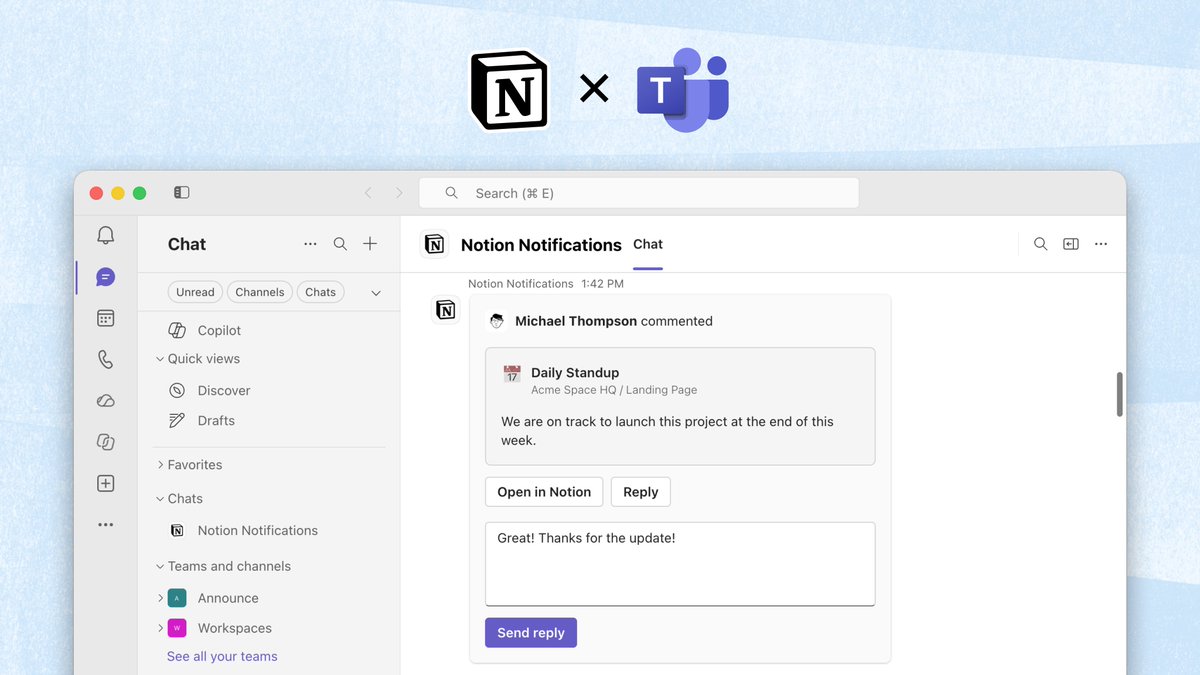
Notion notifications can now be pushed to Microsoft Teams. In the "Notion Notifications" chat in Teams you can see comment cards, open them in Notion, or reply directly.

How to use it: in Notion, open Settings → Notifications → Connected Apps and connect Microsoft Teams.

A Notion comment notification card in Microsoft Teams

Once connected, relevant Notion notifications show up on the Teams side. Click "Open in Notion", or type a reply in the card and send it.

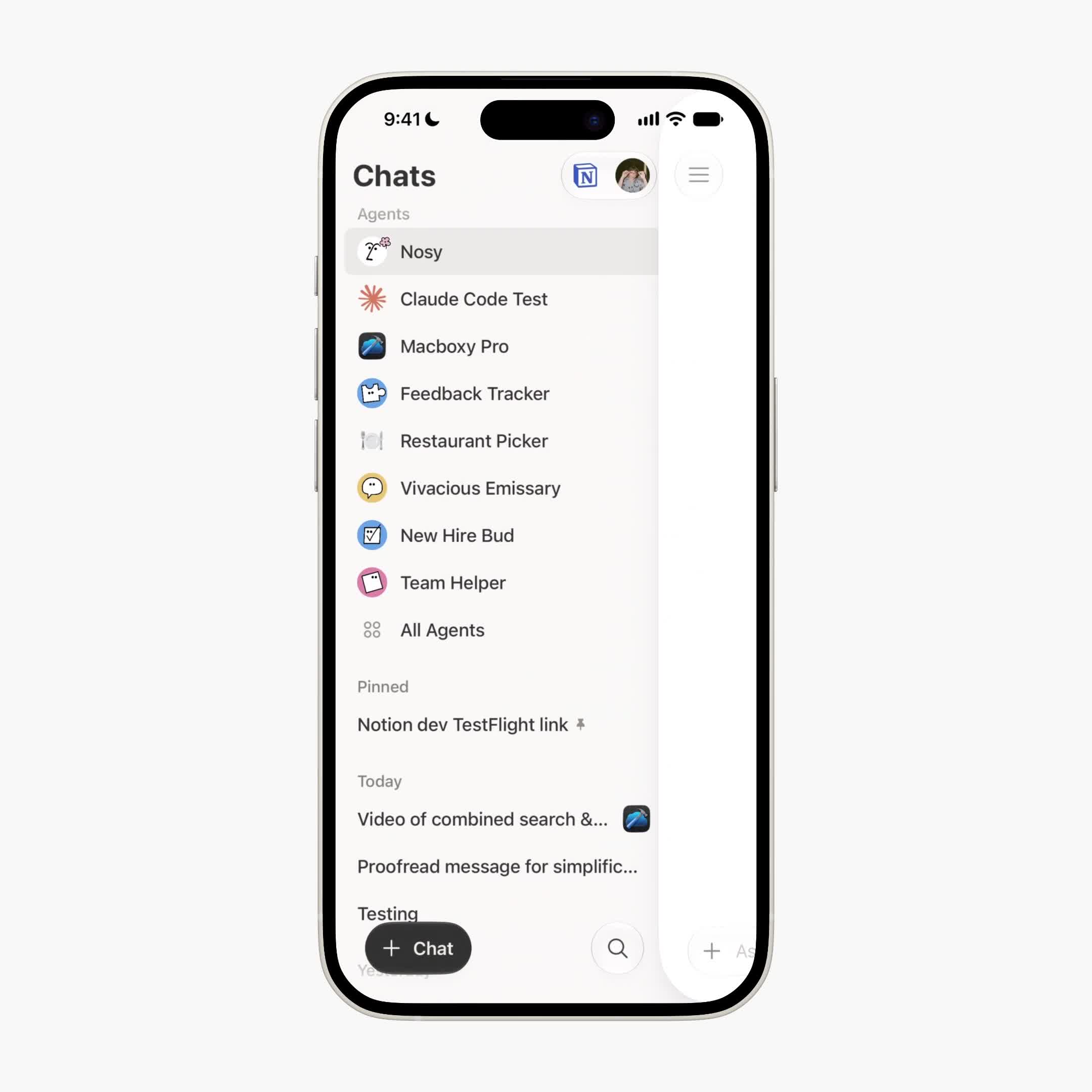
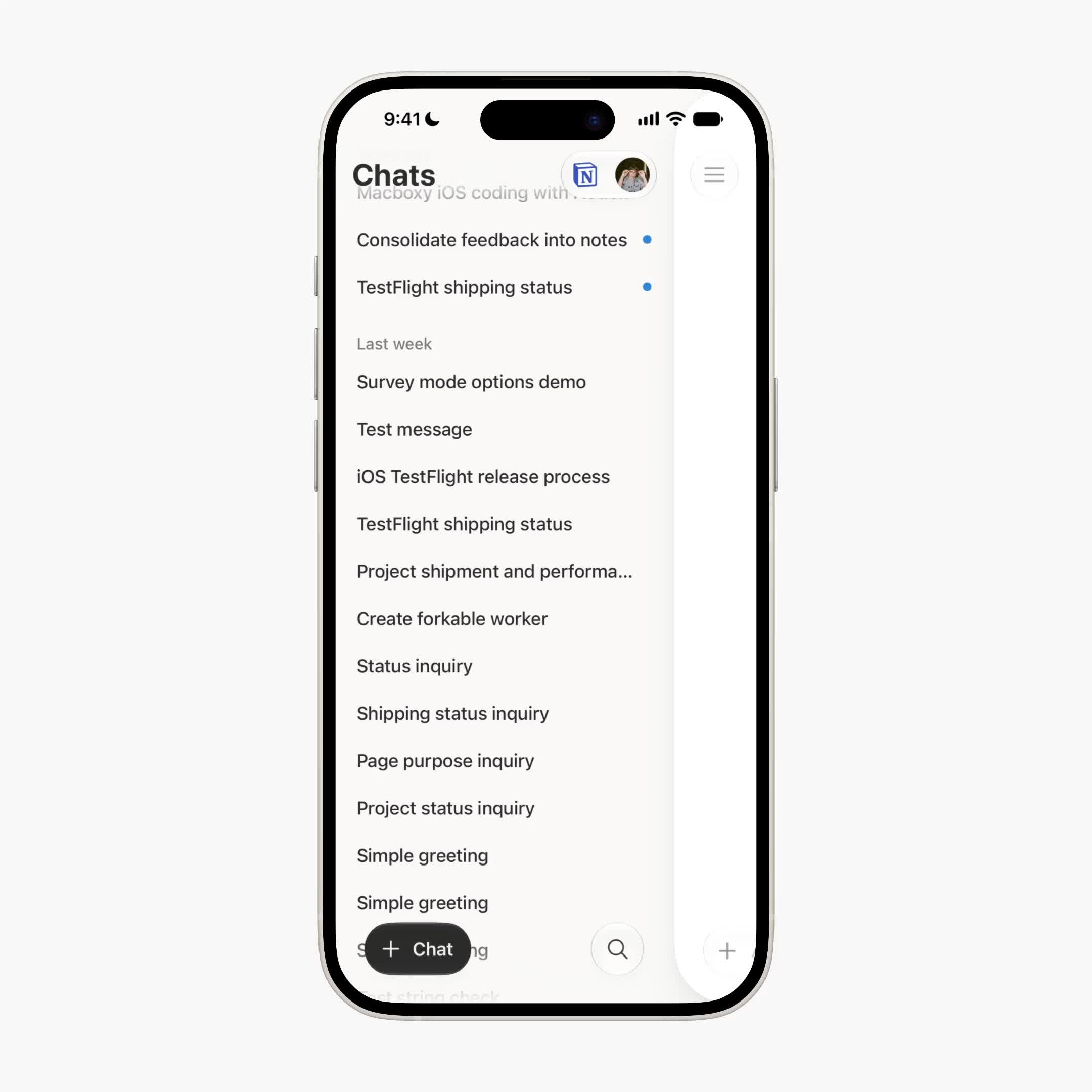
The Notion Agents iOS app has a redesigned sidebar. Both Notion and its designer describe it as rolling out now.

How to use it: update the Notion Agents app from the App Store, then open the sidebar to see the new layout. This is a sidebar redesign inside the Agents iOS app, not the main sidebar on desktop.

The new sidebar in the Notion Agents iOS app

The sidebar’s look and navigation have been refreshed, making it easier to jump between Agent-related entries on your phone.

Navigation entries in the new Notion Agents iOS sidebar

Notion now supports property-level permissions for databases: each column can decide on its own who can view it and who can edit it. Sensitive data can be visible only to the people who need it, and a status or approval column can be editable by just a few.

How to use it:

  1. Open the source database in a table view on web or desktop (not a linked view).
  2. Open the column header menu and choose Property access.
  3. Set the default access for everyone, agents and connections first, then add exceptions by person, group, person property or agent.
  4. Use Preview to see what a given person would get, then save.

Your workspace must be on Business or Enterprise, and you need Full access to the database. People with Full access are never restricted by a column rule. Title, ID, Created time / Created by, Last edited time / Last edited by, certain synced properties, and subitem or parent relation columns cannot be restricted. A database can have permissions on up to 20 properties; wiki databases are not supported, and rules cannot be created or changed on mobile (existing rules still apply). The first rule on a column can take a few minutes to save on a large database.

Agents can get their own column permissions too. If a user cannot see a column, Notion AI or their agent usually cannot read it either, and may report that the column does not exist.

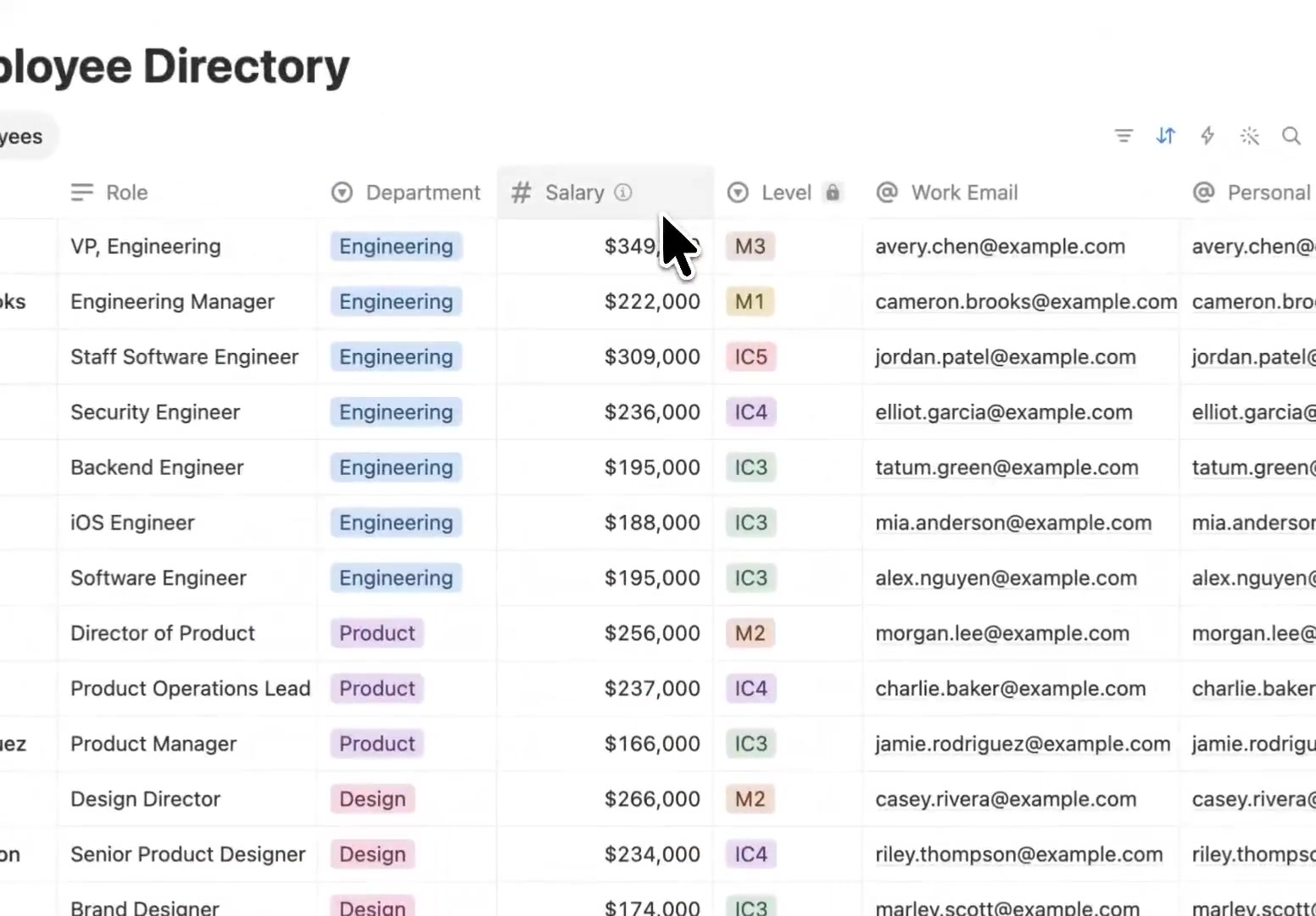
A lock icon next to a restricted column header in a database table

A restricted column shows a lock icon next to its header (the Level column in the image).

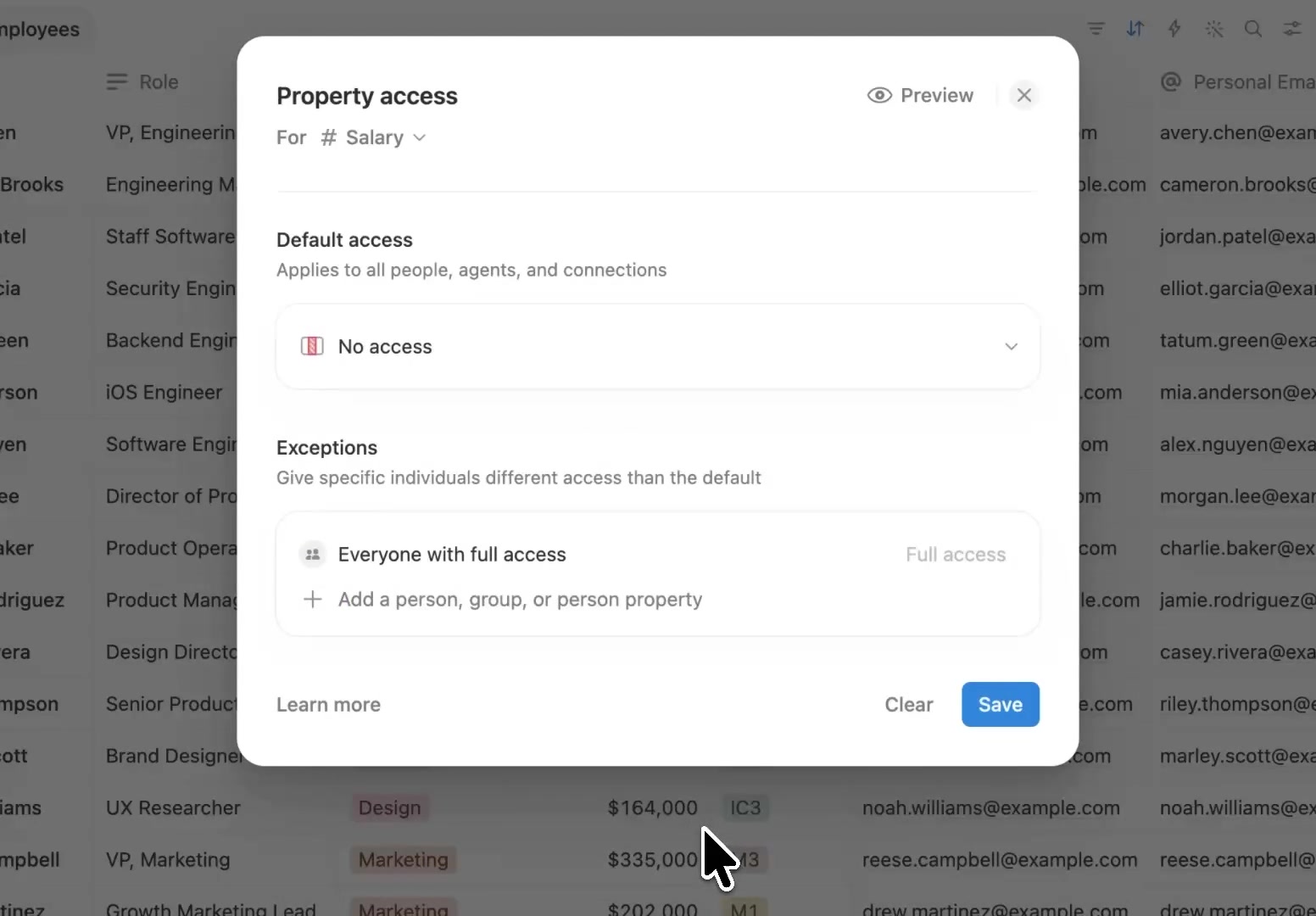
The Property access panel with default access set to No access and an exception for everyone with full access

After setting the default to No access, add exceptions for the people, groups or person properties that need access, and check the result with Preview before saving.

Column permissions control who can see and edit each column of a table. For how to set up permissions at the page, member and teamspace level, see Notion Team Collaboration Guide: Feasibility and Practical Setup for Teams in China. Used together, they give you fairly complete permission control for team collaboration.

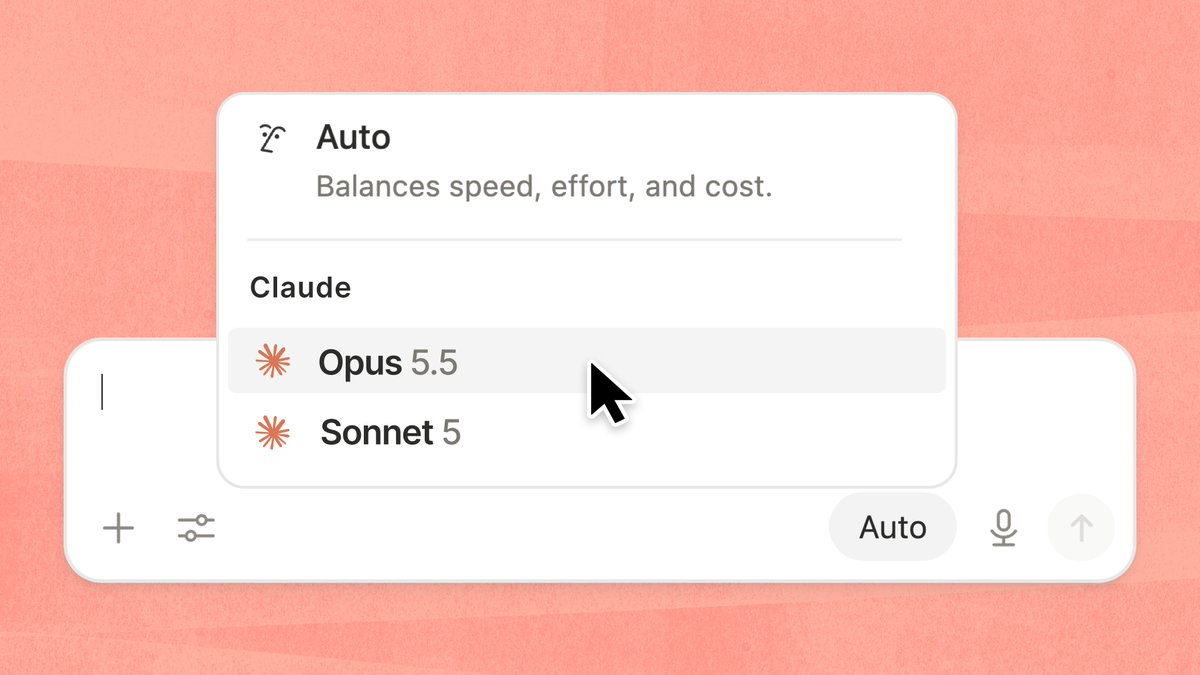
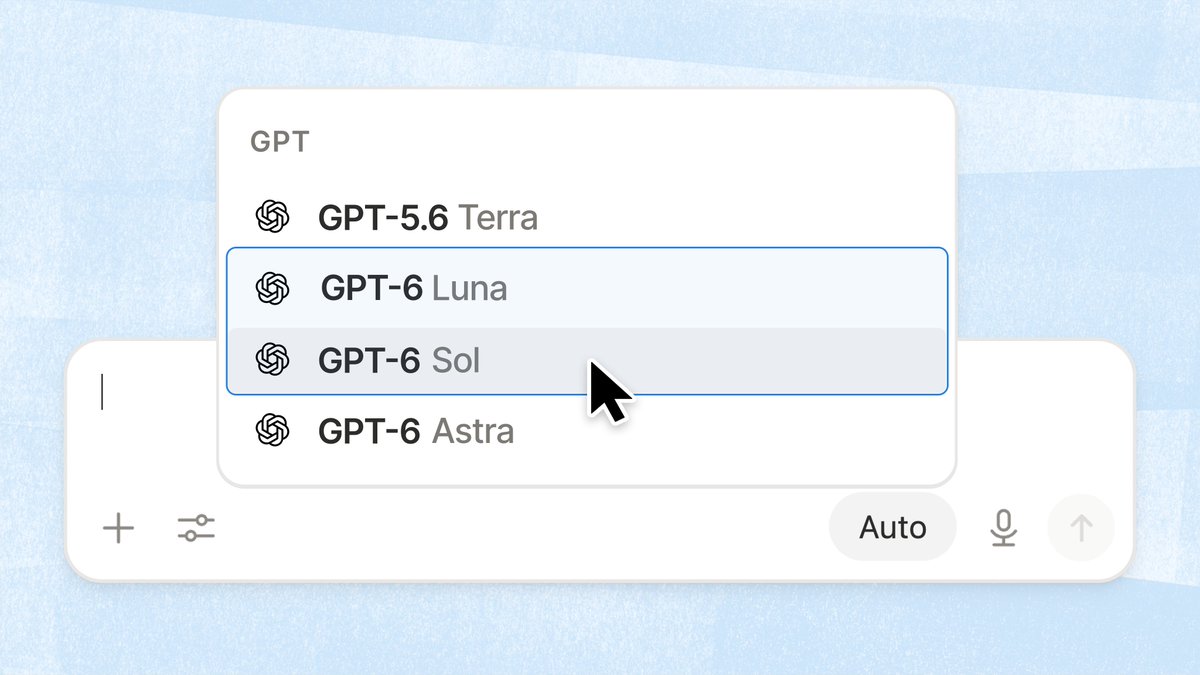
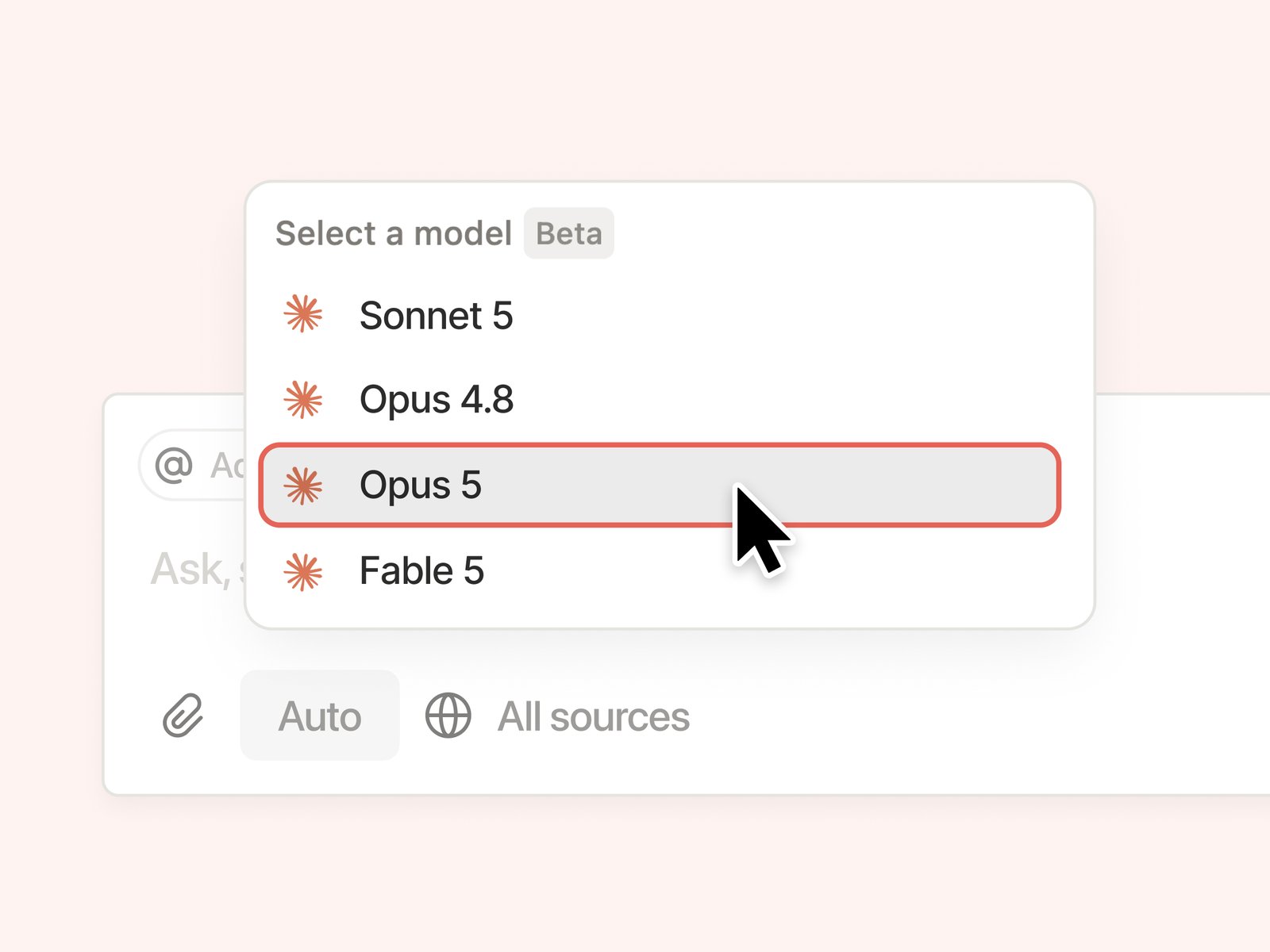
Notion’s model picker now includes Claude Opus 5.5, GPT-6 Luna, and GPT-6 Sol.

Claude Opus 5.5 and GPT-6 Sol work like Fable: they are not in the default list. You opt in separately, and they use separate credits. GPT-6 Luna can be selected directly in the picker.

How to use it: as a workspace admin, open Settings → Notion AI, scroll to Restricted Access Models at the bottom of the page, and enable Claude Opus 5.5 and GPT-6 Sol. Then choose them in the Agent / Custom Agent model list. Business / Enterprise requires a workspace admin.

These two models use separate credits, not the workspace default AI allowance. Check usage under Settings → Notion AI → Usage.

If you are in China and neither the model list nor Settings shows the entry: open Settings → Billing, change the billing address to the United States, save, and refresh. Restricted Access Models usually appears; then enable the models with an admin account.

Claude Opus 5.5 in the Notion model picker

After Opus 5.5 is selected, you can switch to GPT-6 Luna or Sol in the same picker.

GPT-6 Luna and GPT-6 Sol in the Notion model picker

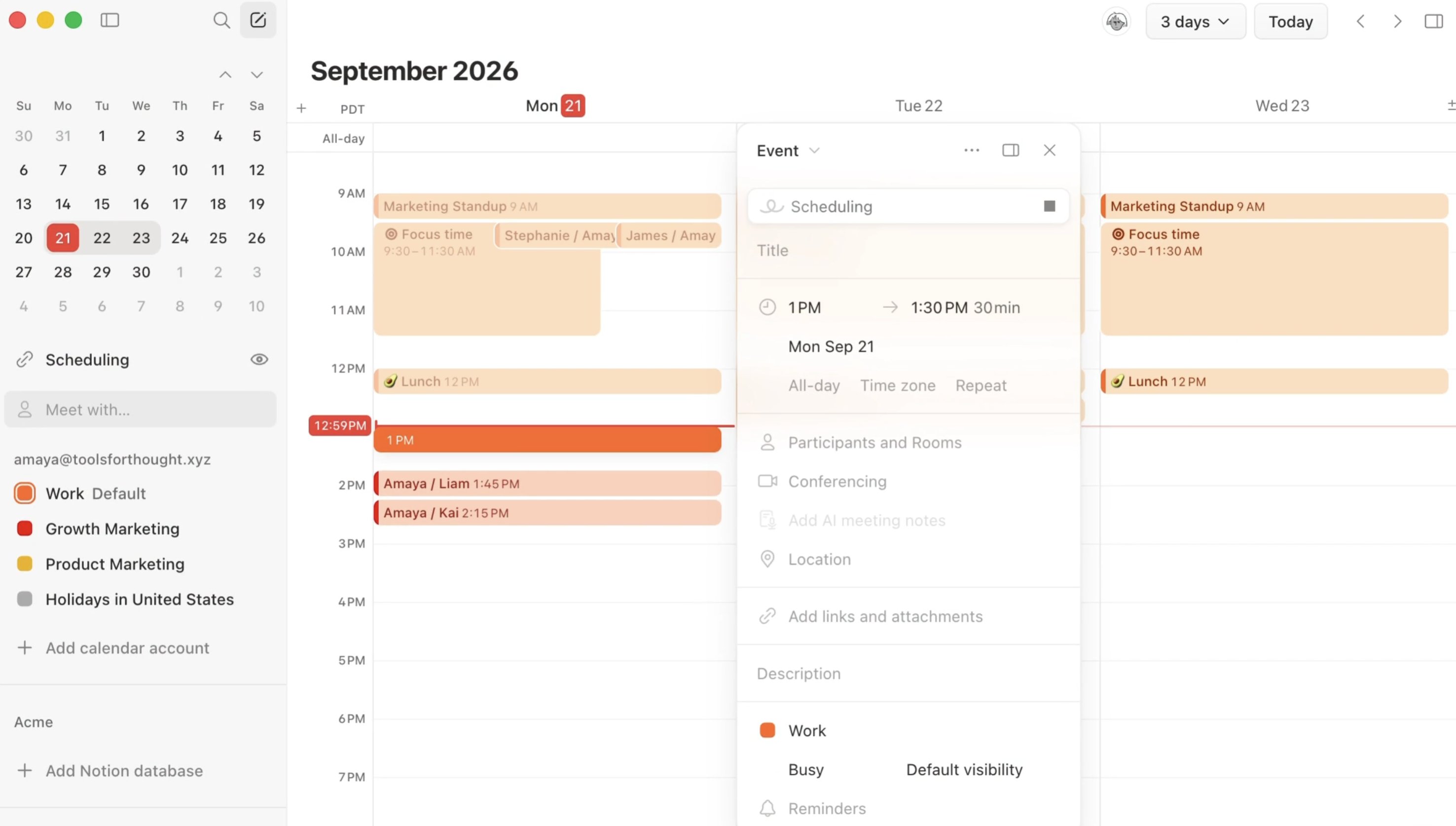
Notion Calendar now supports creating events with natural language. When you create an event, press Space and describe the plan in one sentence — the calendar fills in the rest.

How to use it:

  1. Open Notion Calendar and create a new event.
  2. Press Space and describe the plan in natural language.
  3. Confirm the time, title, and other fields the calendar filled in, then save.
Creating an event in Notion Calendar with a natural-language description

Notion has added two open-weight models to the toolbox: GLM 5.3 and GLM 5.3 Flash. You can choose them in Personal Agent and Custom Agents.

How to use it: open Personal Agent or a Custom Agent, open the model picker, choose GLM 5.3 or GLM 5.3 Flash.

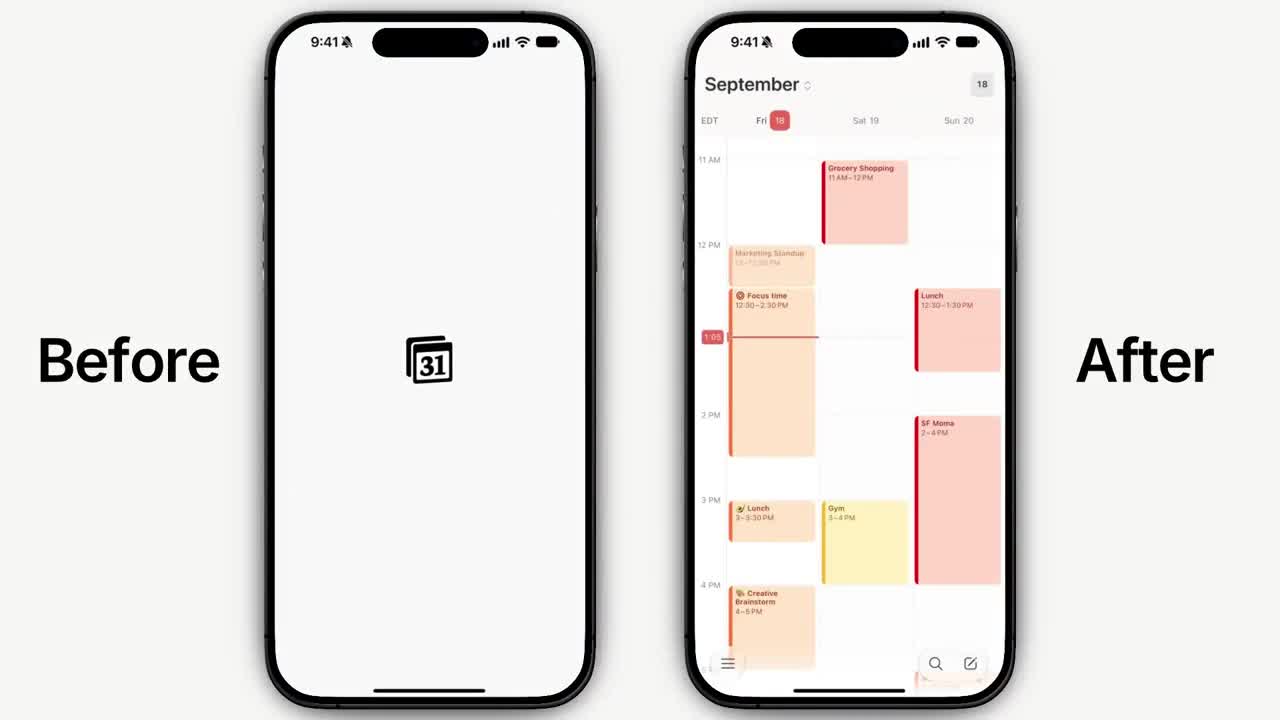
Notion Calendar is being rebuilt natively for iOS. Notion says it will feel faster from the very first tap, and it adds new day, week, month and agenda views.

Product manager Julia Rudansky shared an early demo, and both the NotionHQ and Notion Calendar accounts reposted it. What is open right now is a TestFlight alpha, not a final App Store release.

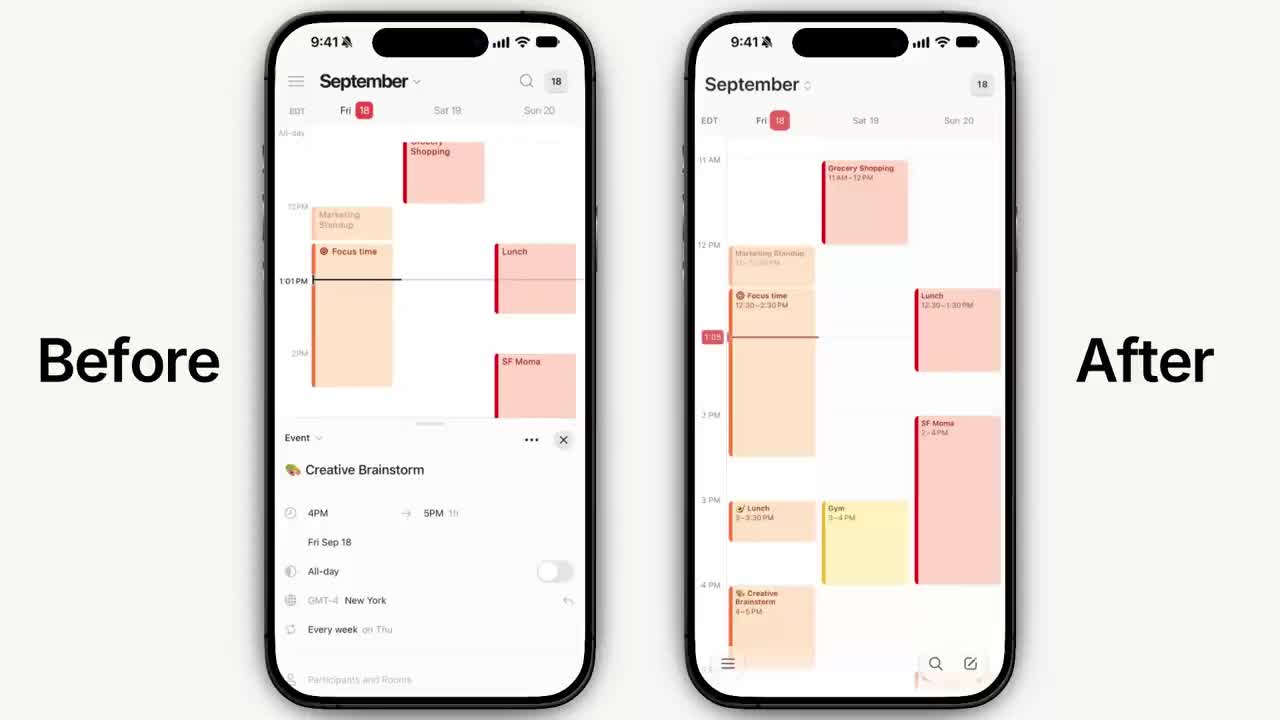
Launch comparison: old Notion Calendar iOS splash screen versus the new native app showing the schedule right away

The demo compares launch with a Before / After split: on the left the old app sits on a splash screen, while the new one on the right opens straight to your schedule.

Event detail comparison: old bottom sheet versus the new full schedule view

Next, opening an event: on the left the old app slides up a detail sheet and squeezes the schedule into the top half of the screen, while the new version on the right keeps the full schedule view.

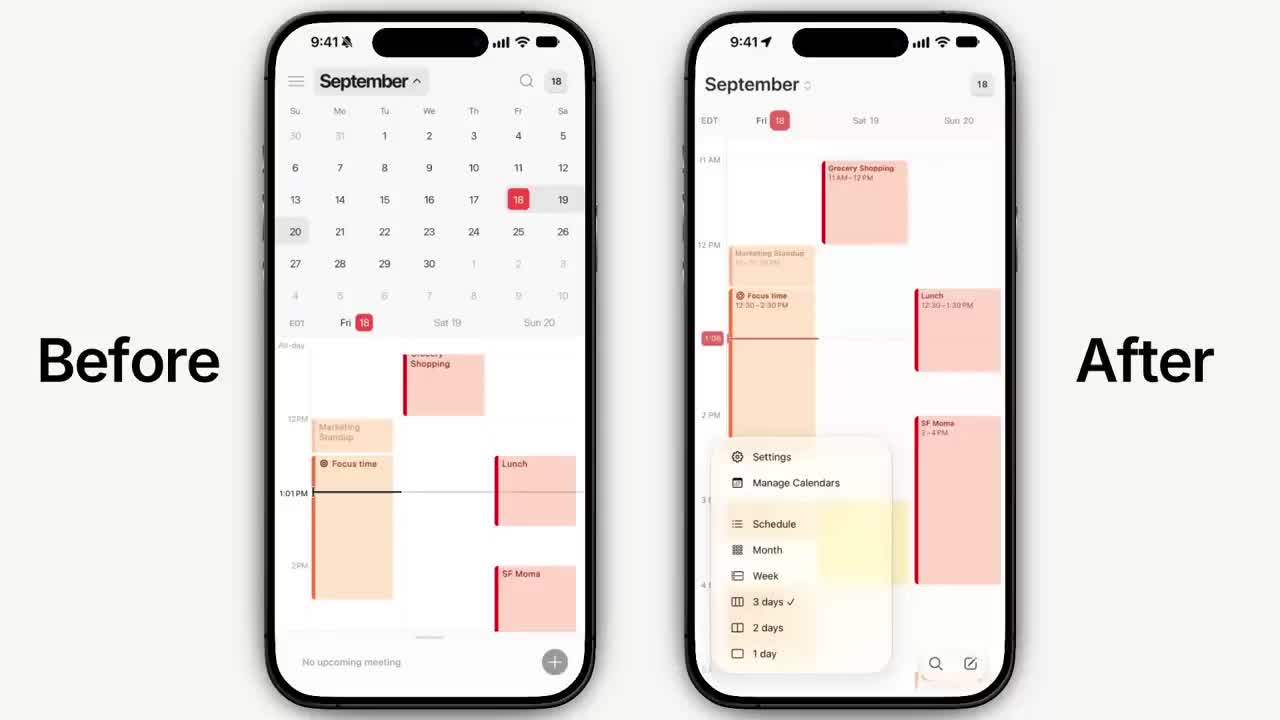
The new view-switcher menu in Notion Calendar for iOS

The right side shows the new view-switcher menu at the bottom, which lets you switch between Schedule, Month, Week, and 3-day, 2-day and 1-day views. The left side is the old expanded month calendar.

How to join:

  1. Sign up for the iOS alpha on the sign-up page: https://notion.pages.dev.notion.co/1783b7cfa8c041929aca9cc5f970ce94
  2. Follow the email instructions to install it through TestFlight.
  3. Try the new day, week, month and agenda views and see how quickly it opens.

Note: this is the native iOS rebuild of the standalone Notion Calendar app. It is a separate effort from the native mobile rebuild of the main Notion app, and smart scheduling (suggesting free slots when you add people) is another feature that has already shipped.

The open-weight model DeepSeek V4.1 Flash is now available in Notion Personal Agent and Custom Agents.

How to use it: open Agent or Custom Agent → open the model picker → choose DeepSeek V4.1 Flash.

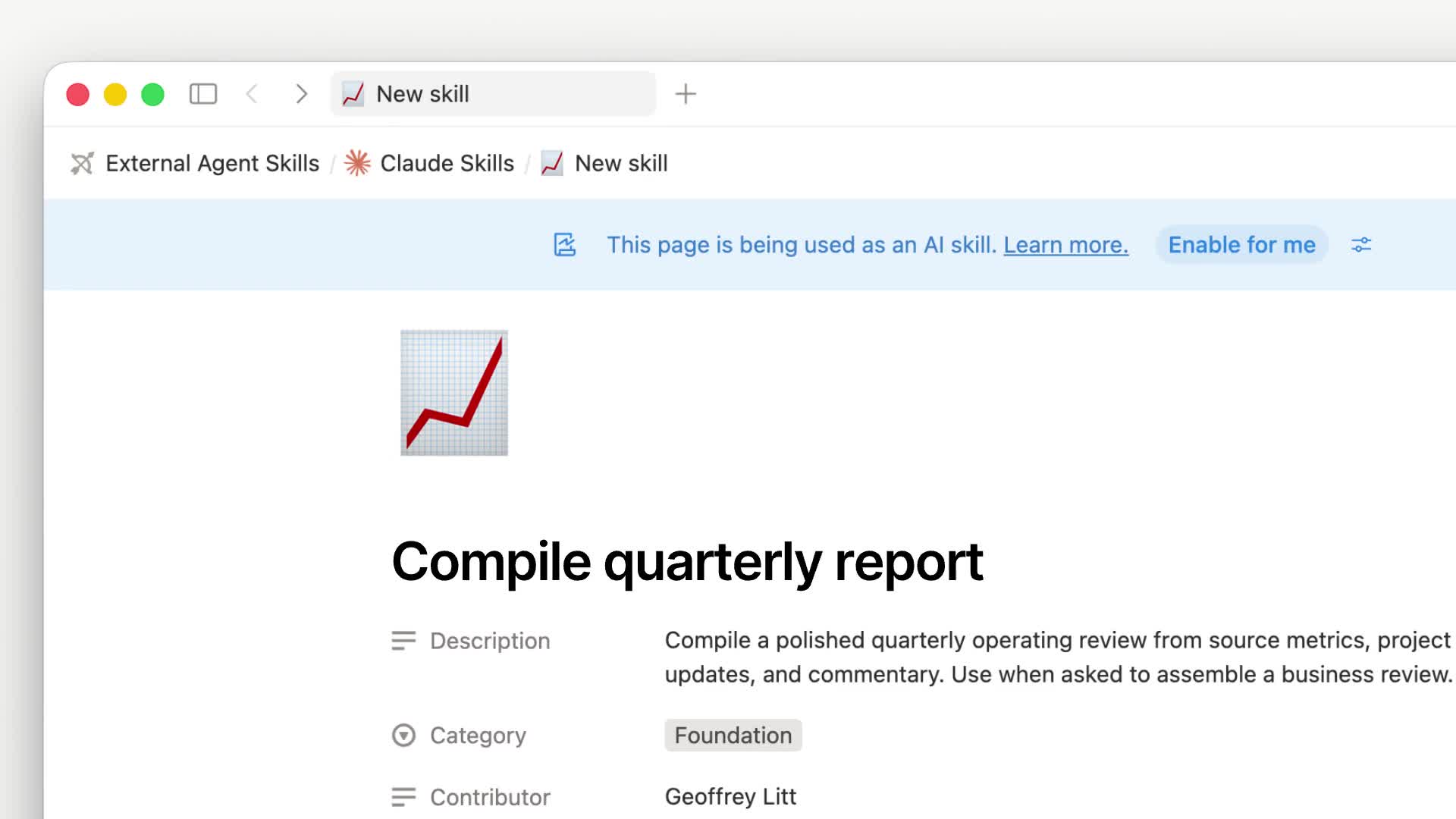
Notion ships a Skills API. Skills still live on Notion pages (the main file is SKILL.md, attachments go in the Files property), then export through the API as skill packages that follow the Agent Skills / Agent Plugins spec, for ChatGPT, Claude, Grok Bot, and local agents.

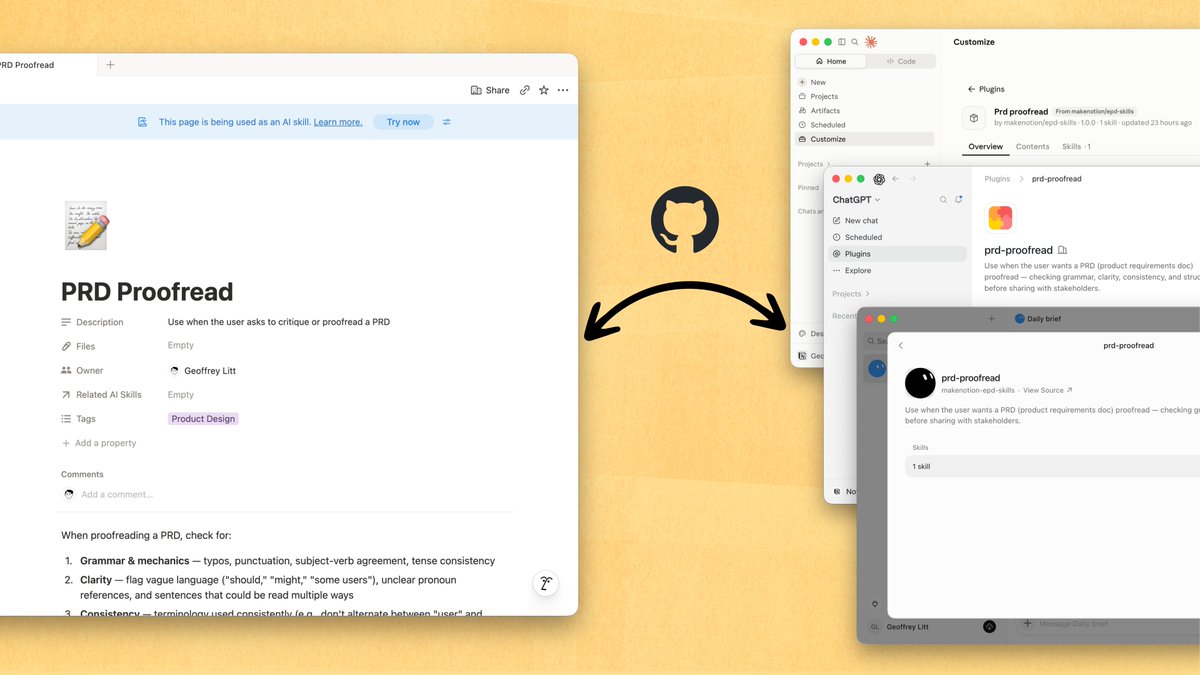
In the official demo, a skill page can sync to GitHub, then enter each agent's plugin marketplace. Slash commands and admin install controls are supported.

A Notion skill page syncs to GitHub and enters an Agent plugin marketplace

After you sync a Notion skill page to GitHub, agents such as ChatGPT can install it from the plugin marketplace.

After a Notion skill syncs to GitHub, install it in the ChatGPT plugin marketplace

How to use it:

  1. In Notion, write the team's working method as a skill page. Put needed code, tables, images, and other files in the Files property.
  2. Team sync: use the open-source repo makenotion/notion-skills-github-sync (https://github.com/makenotion/notion-skills-github-sync) to push skills to GitHub, then connect them to Claude, ChatGPT, and Grok Bot.
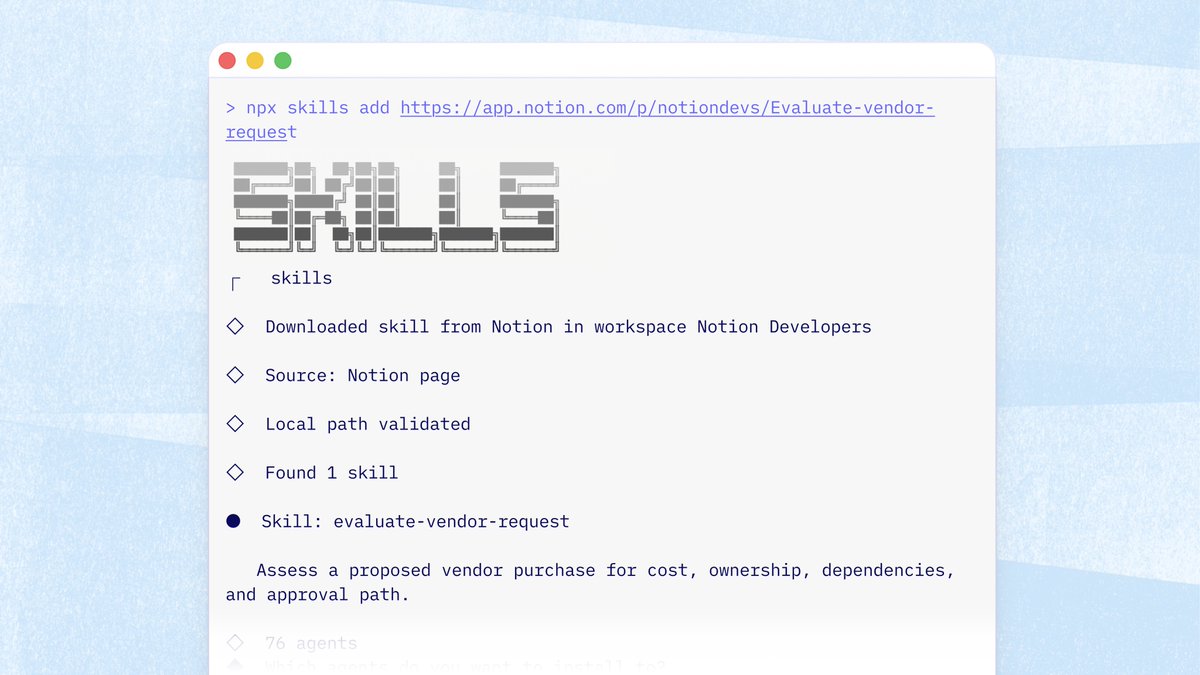
  3. Local agents: run npx skills add <notion-url> to install a single skill, or npx skills add notion to browse and install a workspace collection.
  4. Developers can also call GET https://api.notion.com/v1/ai/plugins (Notion-Version 2026-03-11, needs Read content) and download the plugin .tar.gz by version_id.

The Vercel skills CLI can also download a skill straight from a Notion page URL to a local agent, without creating a Git repo first.

Install a skill from a Notion page to a local agent with npx skills add

The personal path can still read skills through MCP. The Skills API is better for team-wide preinstall, so agents do not have to pull skills through MCP at runtime.

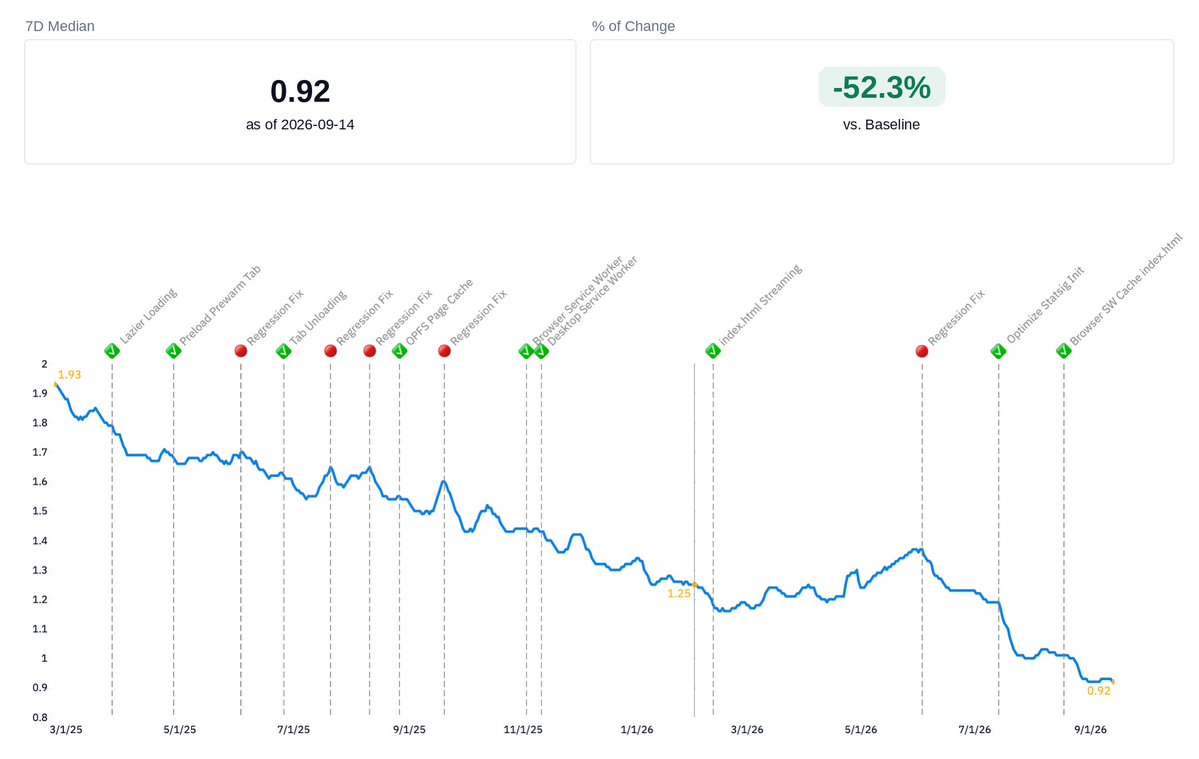
Notion desktop median cold start is now about 0.92 seconds (as of 2026-09-14), roughly 52% faster than baseline. Notion also says the desktop app can open in under a second.

That figure is the median for first launch (half of launches are faster, half are slower). It does not mean every open is under 1 second.

Notion desktop cold-start median chart: about 0.92s, roughly 52% below baseline

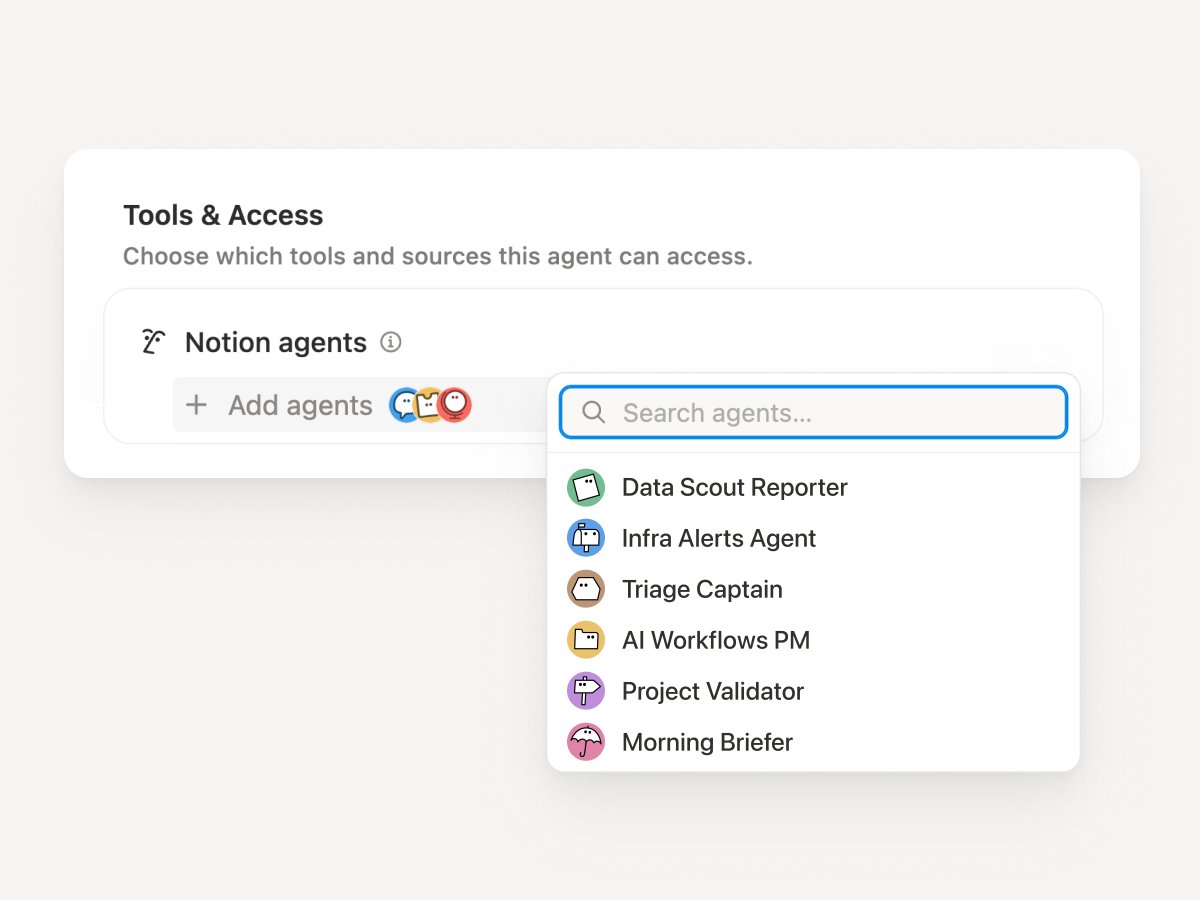
Notion Custom Agents can now call other Custom Agents as sub-agents.

Each sub-agent keeps its own instructions, context, access permissions, and model. The main agent hands off focused work, then brings the results back to finish.

How to use it:

  1. Open the main agent's Settings.
  2. In Tools and access, add the Agents it can call.
  3. In Instructions, spell out what to hand off and what each sub-agent should return.
  4. Give the coordinating main agent a stronger model, and give specialized sub-agents faster, lighter models.
  5. Start with 1–2 sub-agents, test each one on its own, then wire the full flow.
Tools and access in Custom Agent settings, where you can add callable sub-agents

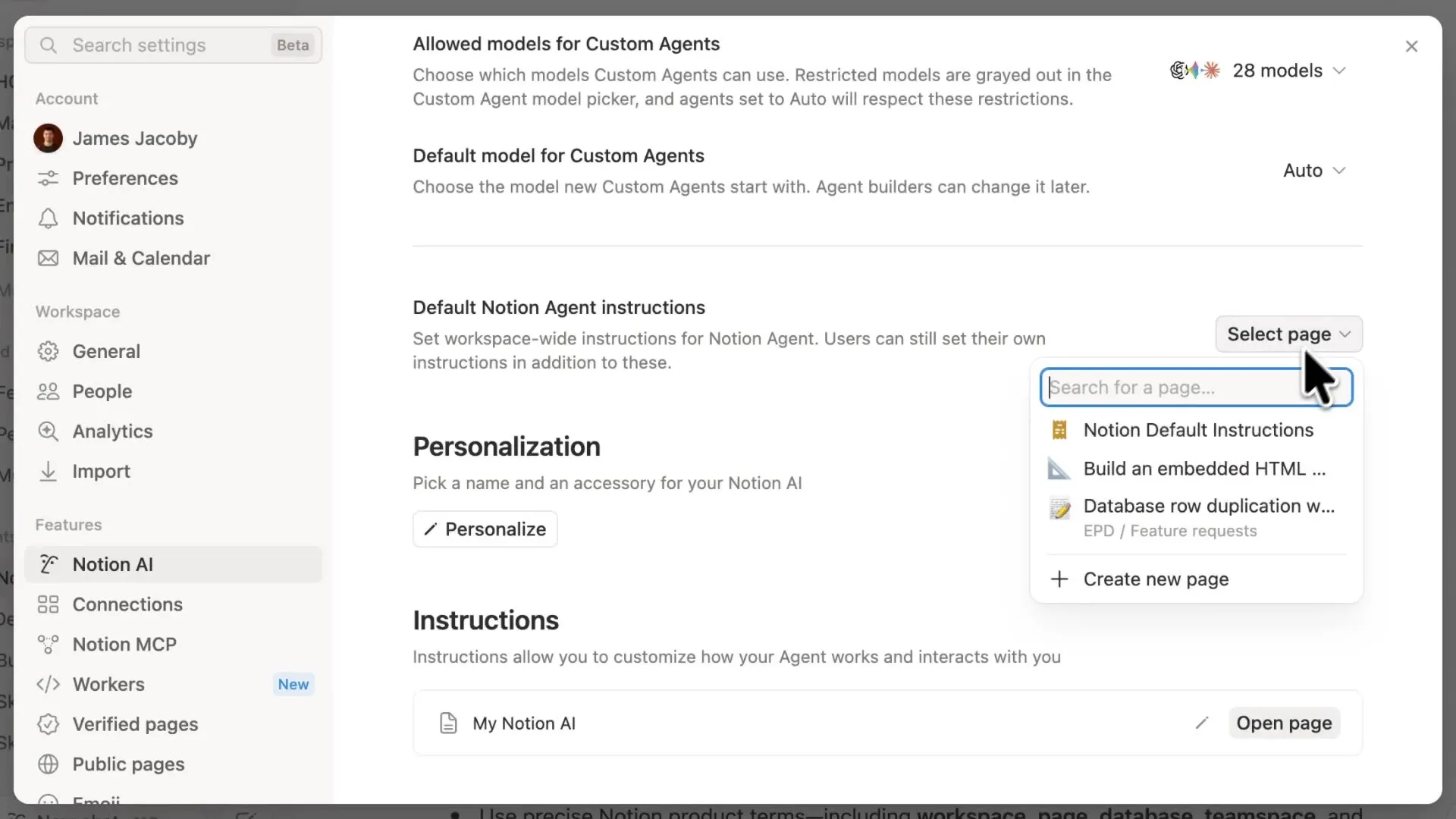
Notion added workspace-level default Agent instructions.

You can write one set of house rules for the whole workspace. Agents in that workspace search, cite, and answer under those rules. It fits team workspaces with many connectors that need a consistent answer style.

How to use it: open default Agent instructions in workspace settings, spell out search scope, citation style, and what to do when connectors have no answer, then verify with real queries.

Workspace default Agent instructions settings

Notion Desktop adjusted how it handles background updates.

Here, "refresh" means the current tab fully reloads. The page flashes and loads again. It is not a manual refresh, and it is not a regular data-sync notice. Background updates can wait until you finish the current action, then refresh the tab you are using. In the new version, these visible refreshes dropped from over 30% to under 3%.
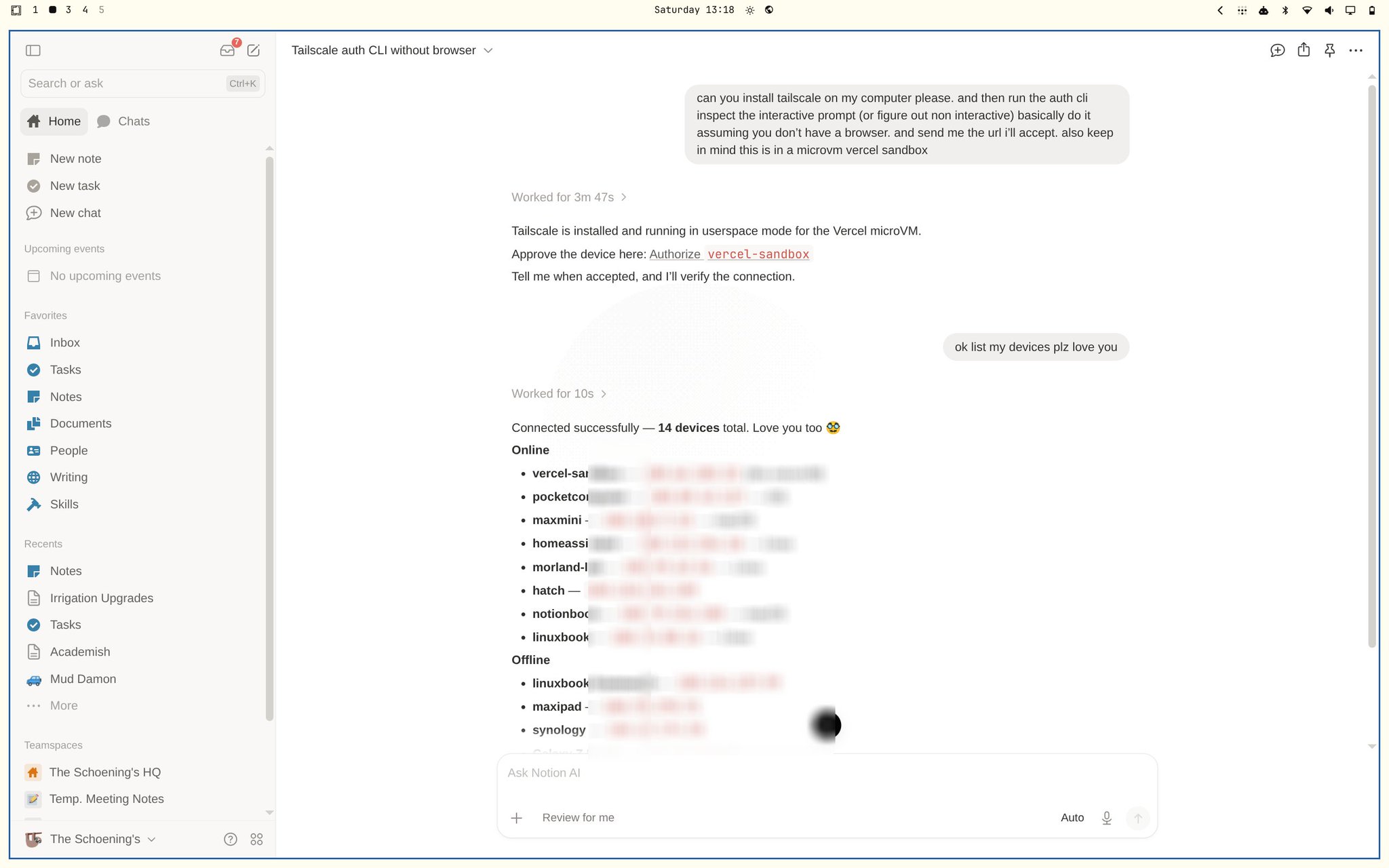
The next-generation Notion Agent will support Tailscale.

The Agent can install Tailscale in a session, complete CLI authorization without a browser, and list online and offline devices. This is not generally available yet.

Agent session installing Tailscale and listing devices

In the demo, the Agent finishes a userspace install inside a microVM sandbox and gives you an authorization link. After you confirm, it can keep going and list devices. The official rollout path and plan tiers will follow later announcements.

Notion MCP can carry your working memory into any tool.

When you switch platforms, models, or agents, you do not have to rebuild context from scratch. Notion acts as the memory layer and connects through MCP to the chats and agents you already use. This is the same Notion MCP path as calling Custom Agents from ChatGPT, Claude, or Grok Bot.

An external chat reading Notion memory through MCP

How to use it: connect Notion MCP in the target tool (for example https://mcp.notion.com/mcp). After you authorize, the chat can read and write Notion content and memory you have permission to access.

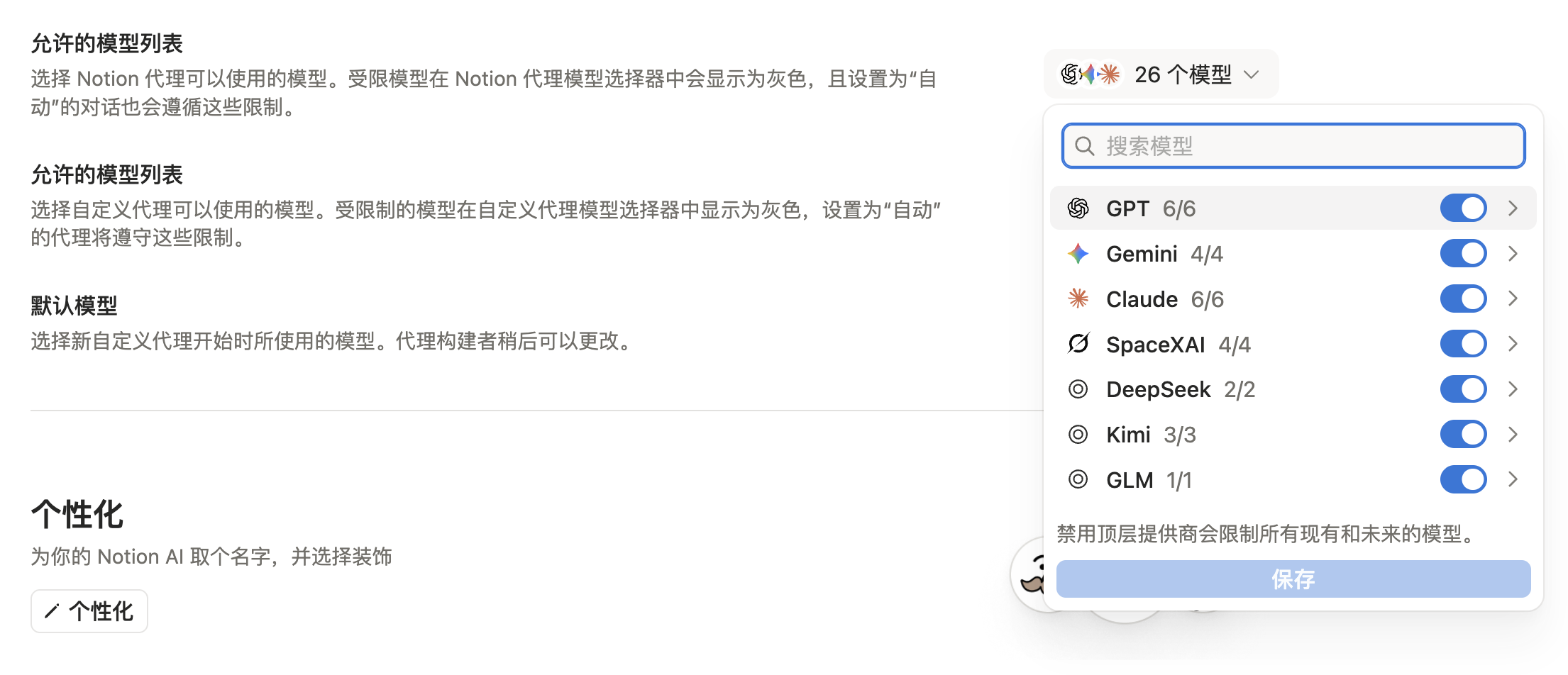
As more models show up in the picker, anyone on the team can switch to a more expensive option, or a provider the workspace has not reviewed yet. Workspace owners can now set allowed models for Notion Agent and Custom Agents separately, and pick a default model for newly created Custom Agents. That default can still be changed later in the builder.

Go to Settings → Notion AI → General → Model controls. Restricted models appear grayed out in the picker, and conversations set to Auto follow the same list. Turning off a provider blocks both its current models and any it adds later.

The current settings page lists GPT, Gemini, Claude, SpaceXAI, DeepSeek, Kimi, and GLM. After Custom Agents launched and Kimi K2.6 joined the picker, this update is about the workspace-level roster.

Notion Agent model controls and provider list

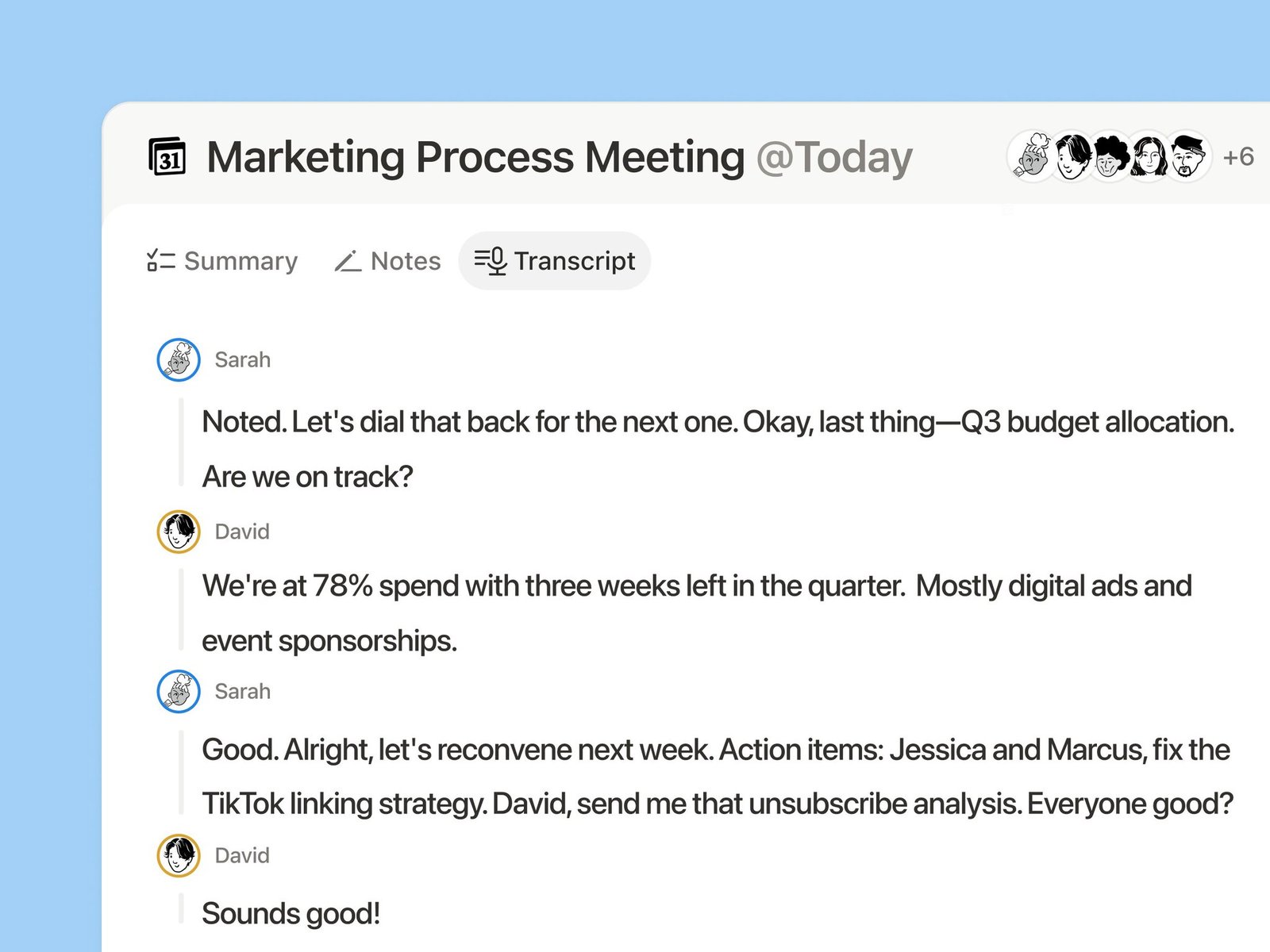
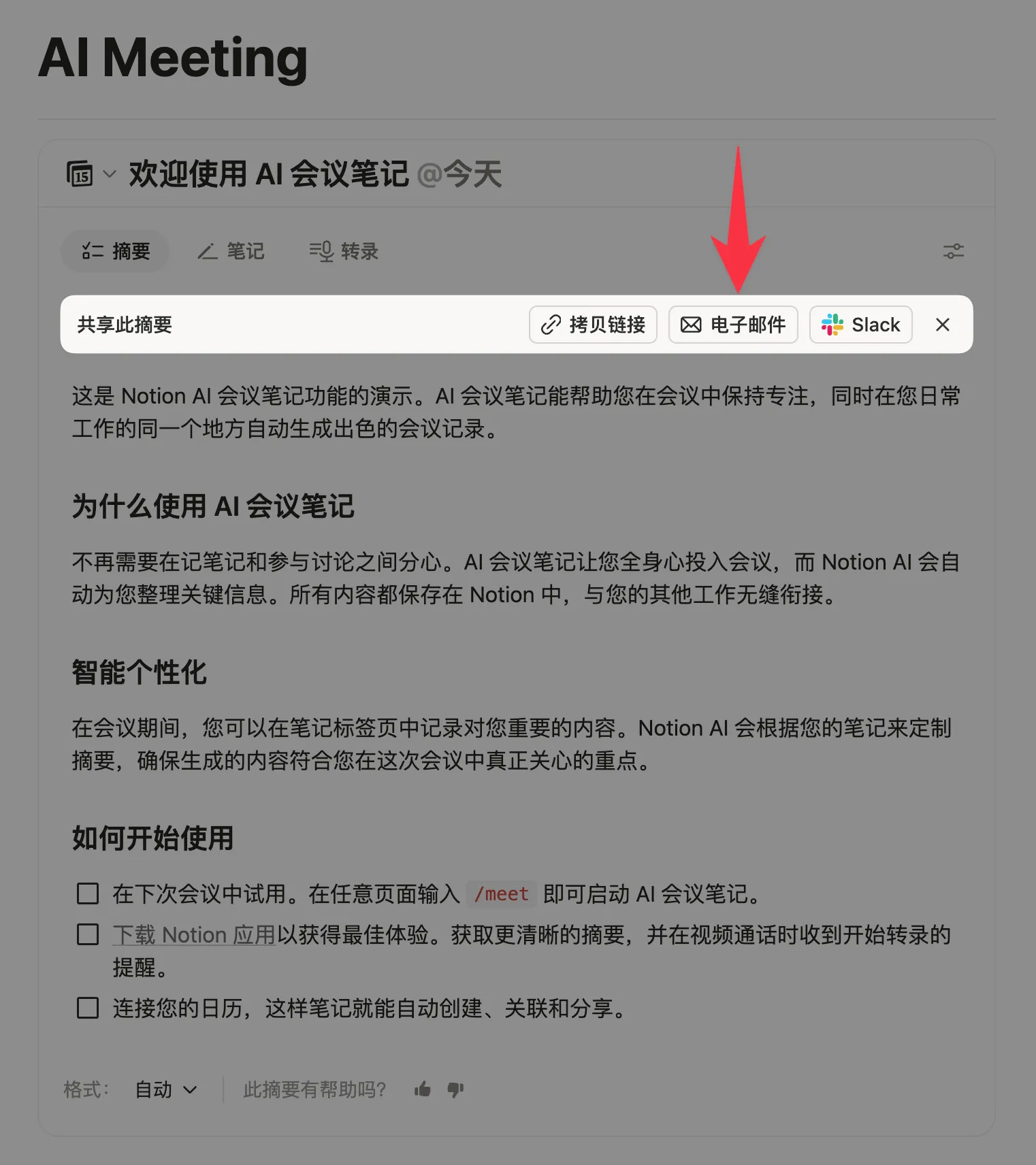
Notion AI meeting notes can now draft recap emails directly.

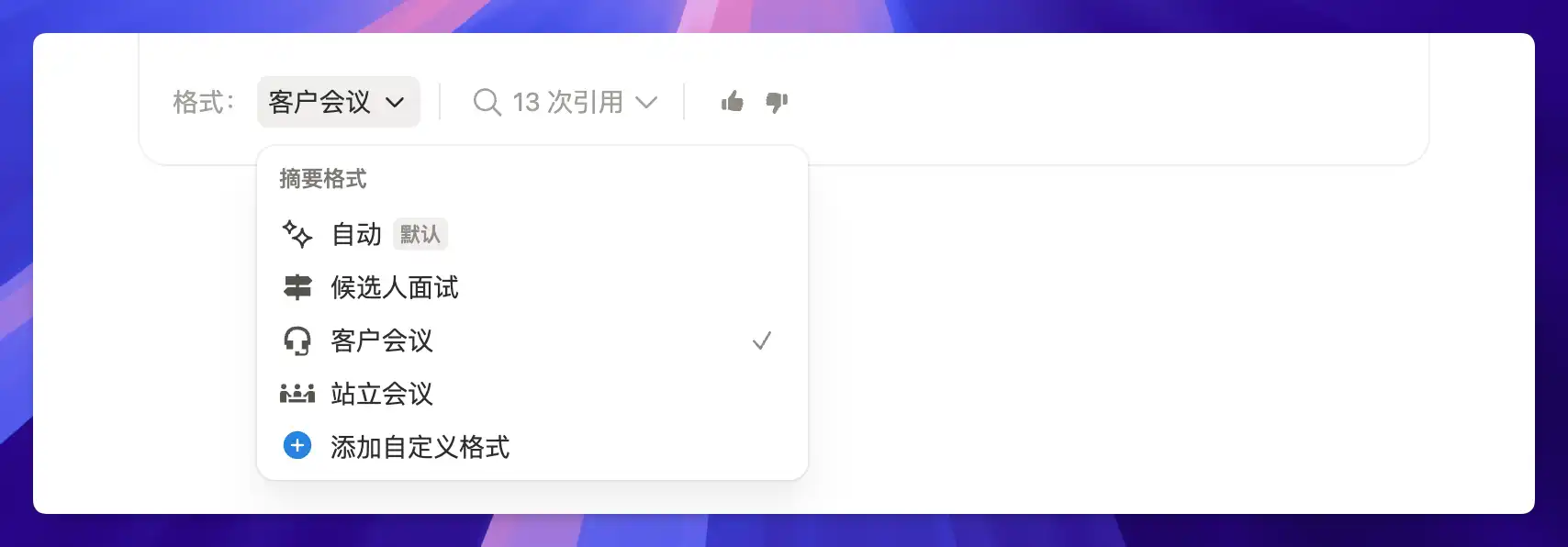
Click the Email button under Share this summary to quickly generate a meeting summary email. After you confirm it, you can send it to the relevant attendees right away.

Email button under Share this summary on the AI meeting notes summary page

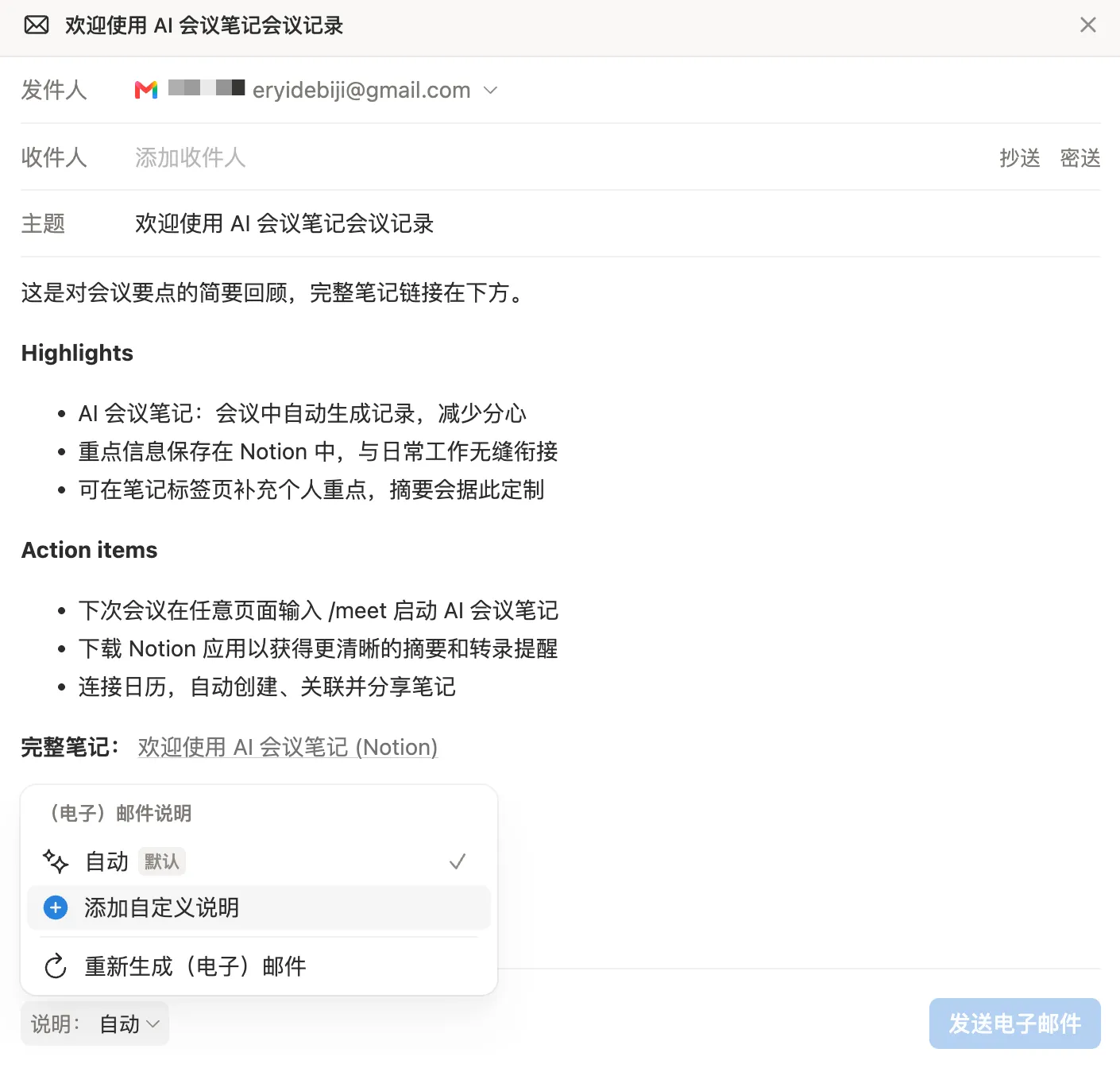
You can use the default AI-generated format, or customize the email instructions so the draft better matches what you need.

Meeting recap email draft and custom email instructions

Notion reduced scrolling stutter in iOS AI chat.

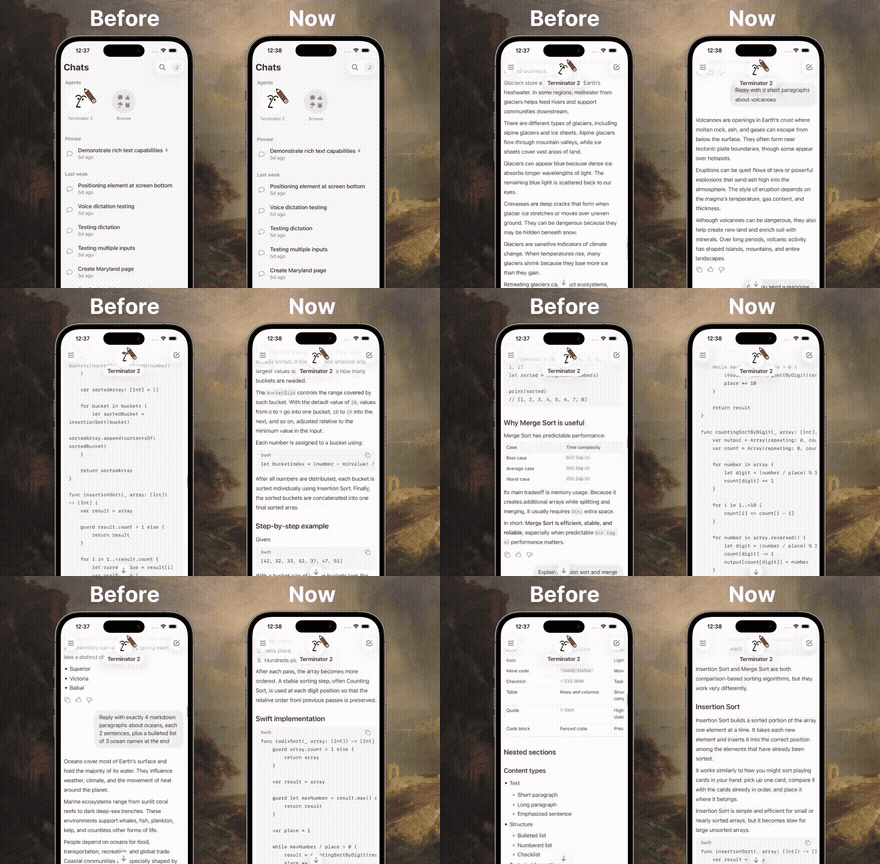
Scrolling stutter dropped by about 74%, replies start appearing about 9% sooner, and memory use dropped by about 26%. You can also double-tap a reply to select and copy only the part you need.

iOS AI chat performance demo: smoother scrolling and double-tap to copy a reply

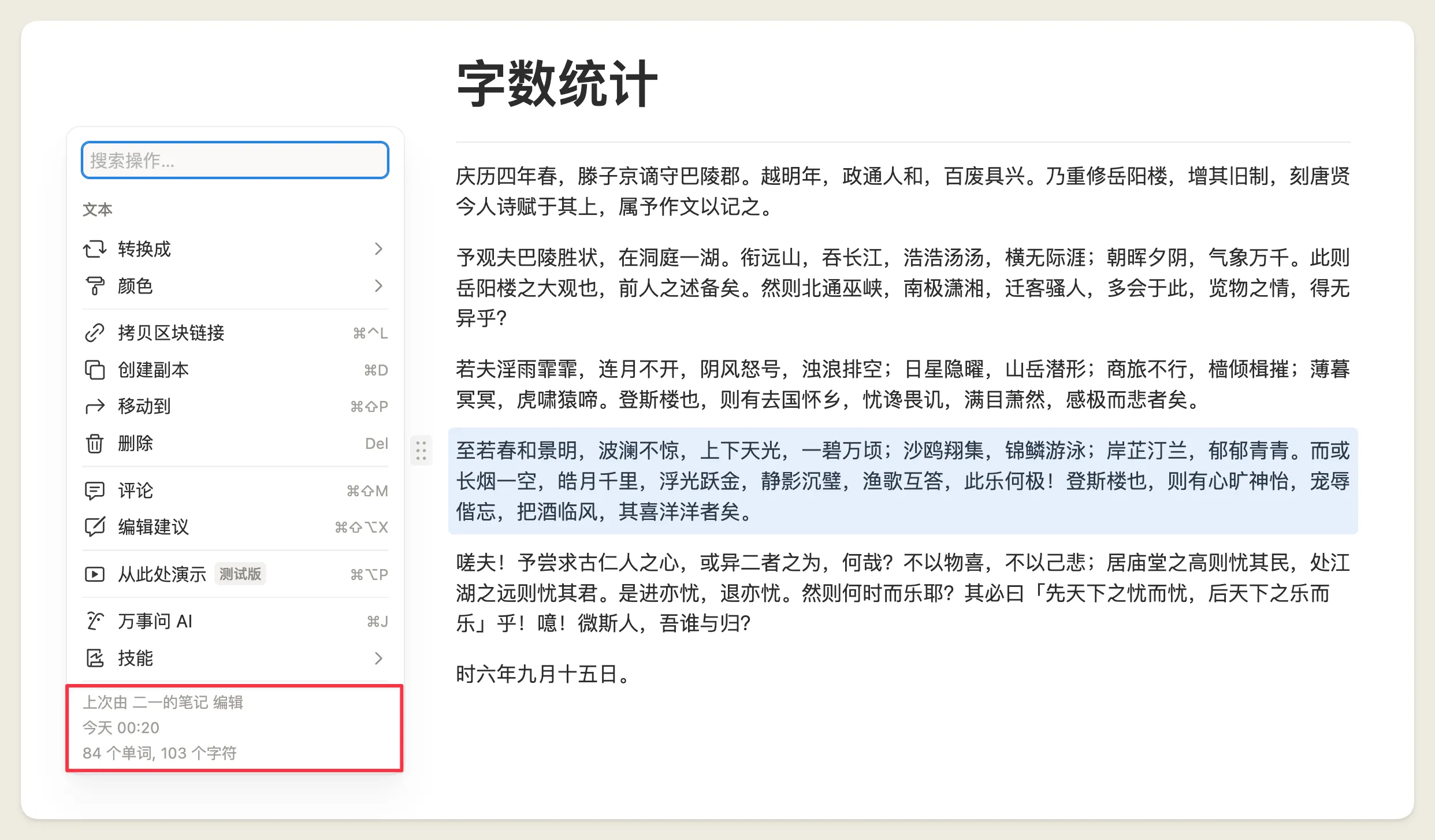
Notion used to show word count only in the page menu. To check one paragraph, you had to copy it out and count it somewhere else.

Click the six-dot handle on the left of a block, or right-click to open the block menu. At the bottom you will now see that block's word count and character count.

Notion block menu showing word and character counts

GPT-6 Astra is now available in Notion. You can choose it directly in the Notion Agent and Custom Agent model pickers.

How to use it: open Agent or Custom Agent → click the model name → choose GPT-6 Astra.

If you are in China and Astra is missing from the list: go to Settings → Billing, change the billing address to the United States, save, refresh, then check the model picker again. This is a common community workaround.
After Notion added the GPT-5.4 series and Kimi K2.6, the picker has one more option.

GPT-6 Astra in the Notion Agent picker

ChatGPT, Claude, and Grok Bot can now call a Notion Custom Agent directly in chat.

After you connect Notion MCP, you can name a Custom Agent you have access to and have it query databases, run tasks, and write results back. You can also search existing sessions, send follow-ups, check progress, or stop a running task.

How to use it:

  1. ChatGPT: Settings → Connectors, add https://mcp.notion.com/mcp.
  2. Claude: use the same URL. Claude Code: claude mcp add --transport http notion https://mcp.notion.com/mcp.
  3. Grok Bot: connect the same way.
  4. After it is connected, name the Custom Agent in chat.
Naming a Notion Custom Agent in chat

Once the Agent gets the request, it starts its own session, queries the database, runs the task, and sends progress back to you.

Custom Agent session querying a database

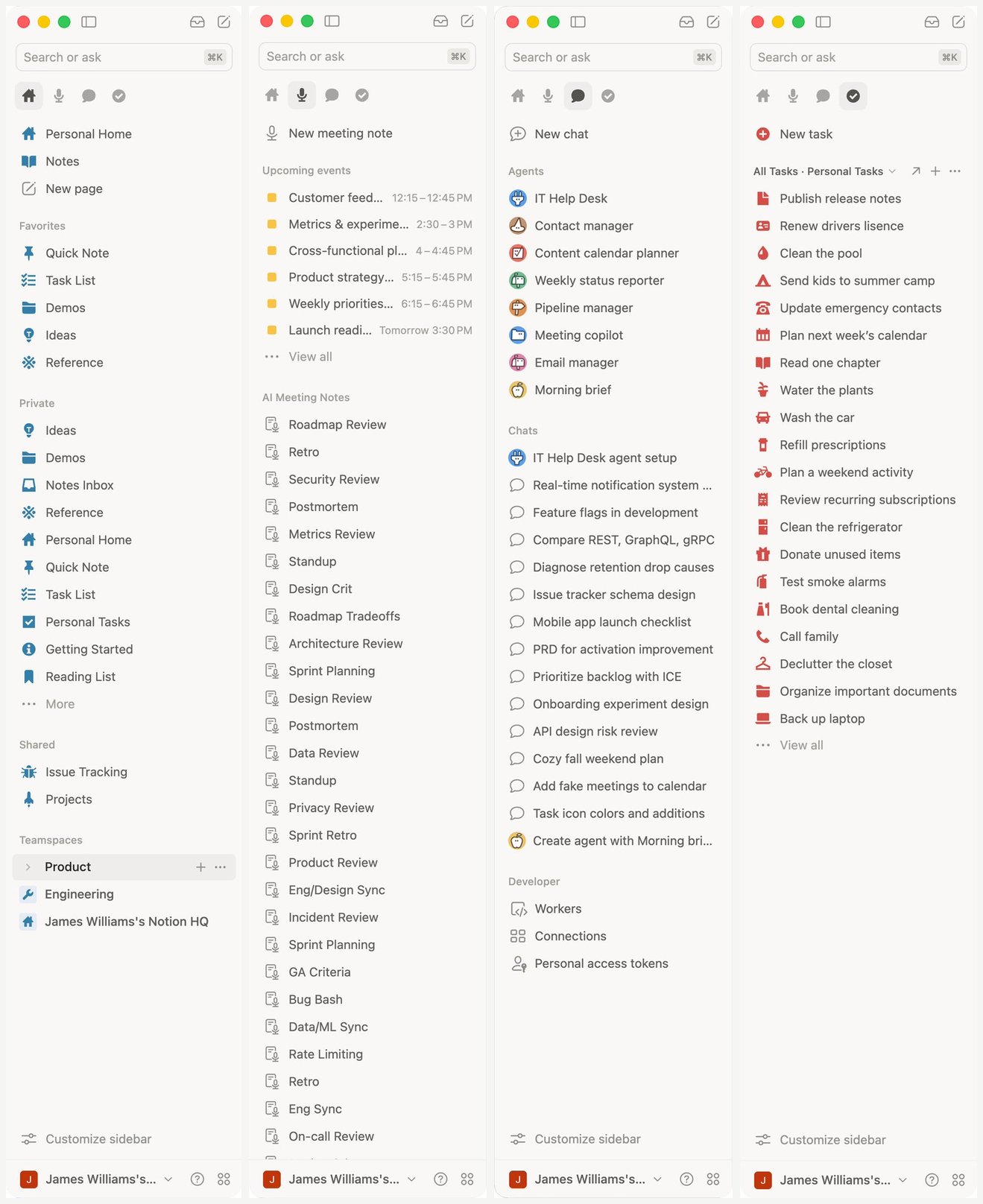
Notion now has a customizable sidebar.

At the top you can switch between Home, Meetings, Chat, and Tasks. At the bottom, Customize sidebar lets you add or remove sections, shortcuts, and pin database table views into the sidebar.

How to use it:

  1. Open Customize sidebar at the bottom of the left sidebar.
  2. Add or remove sections to match how you work — notes, meetings, Agent, tasks, and more.
  3. When you need to keep tasks in view, pin a task list or any database table view.
  4. If you do not see the control yet, wait for the rollout to reach your workspace.
Notion customizable sidebar with notes, meetings, Agent, and tasks sections

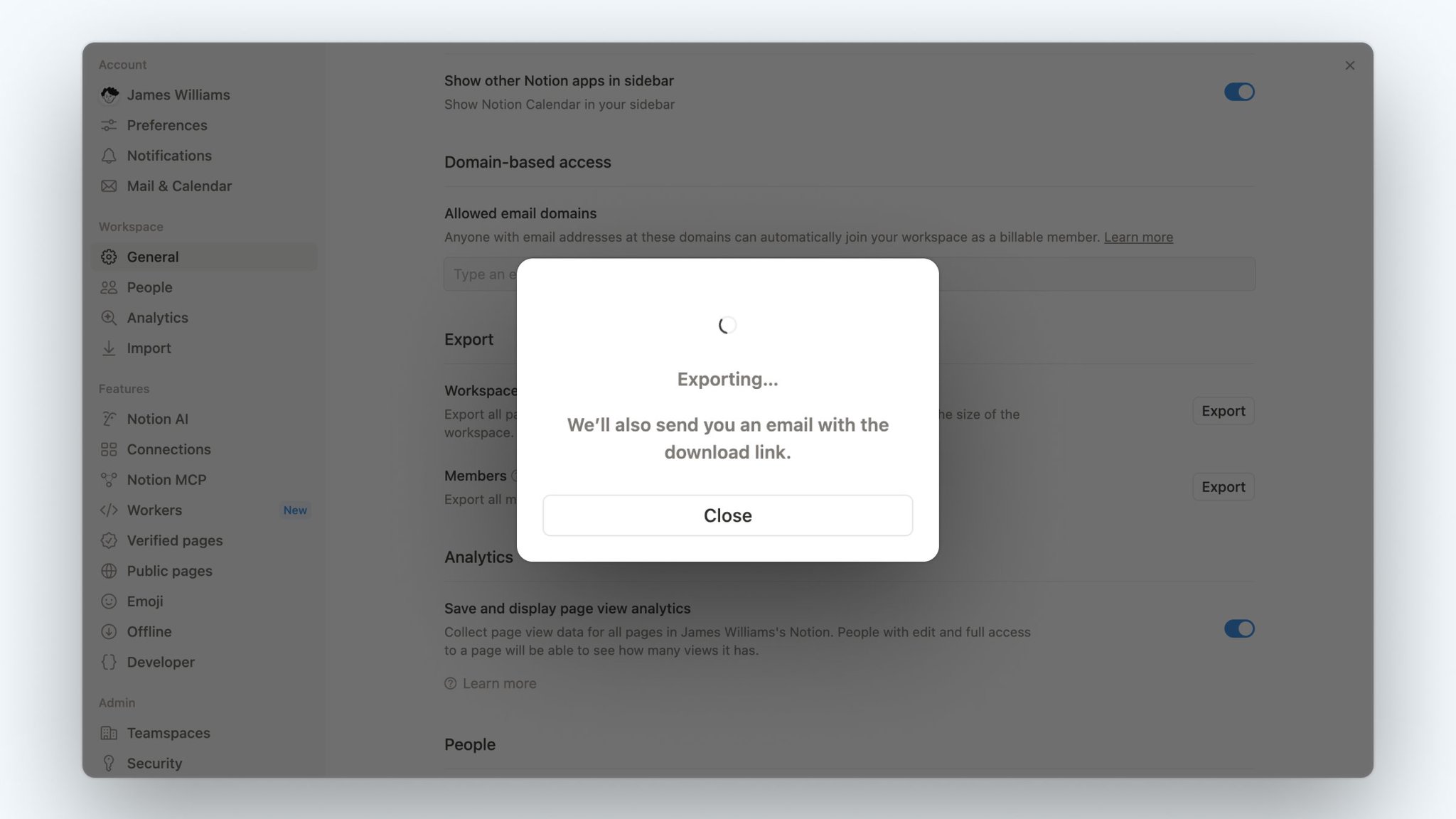
Notion sped up workspace export. The largest exports are about 59% faster, and the average is about 24% faster. The bigger the workspace, the clearer the gain.
How to use it: Settings → Workspace → General → Export all workspace content. The email download link expires in 7 days. Full workspace export is desktop and web only.

Workspace export in progress with an email download link

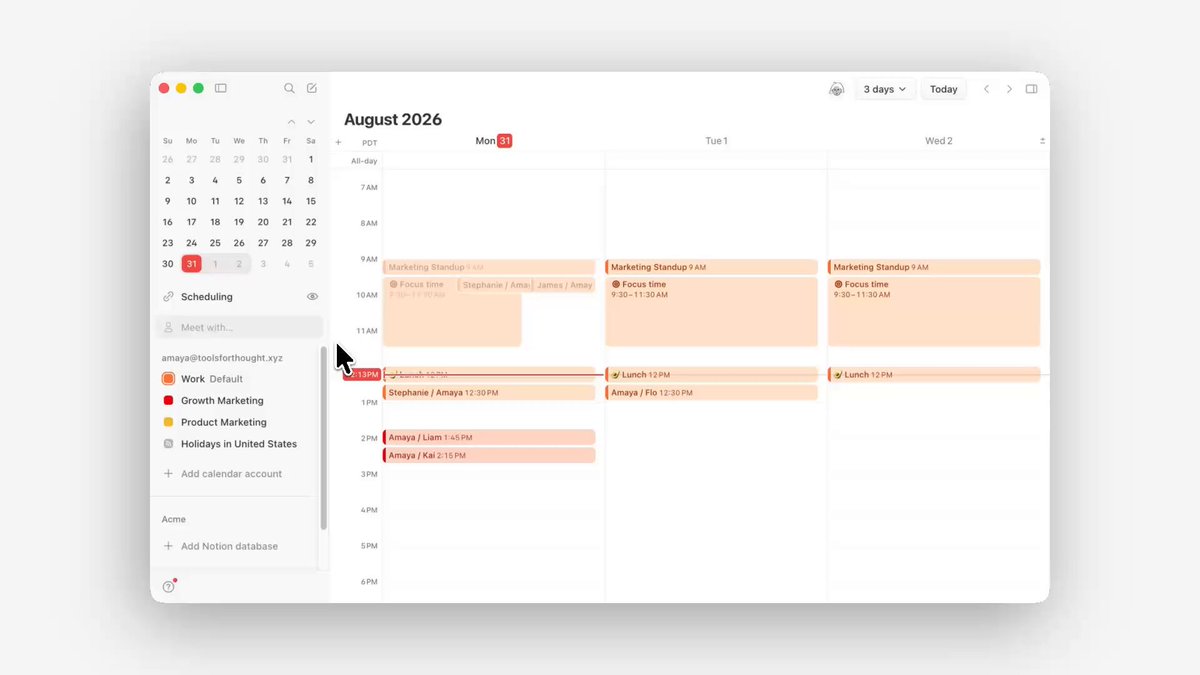
Notion Calendar now has smart scheduling. After you add people to a new event, Notion suggests times when everyone is free.

You can preview conflicts, pick a slot, and keep planning.

How to use it:

  1. Create a new event in Notion Calendar.
  2. Add participants.
  3. Choose a time from the suggested open slots.

Once people are on the invite, you will see shared free-time recommendations.

Notion Calendar smart scheduling suggesting shared free times

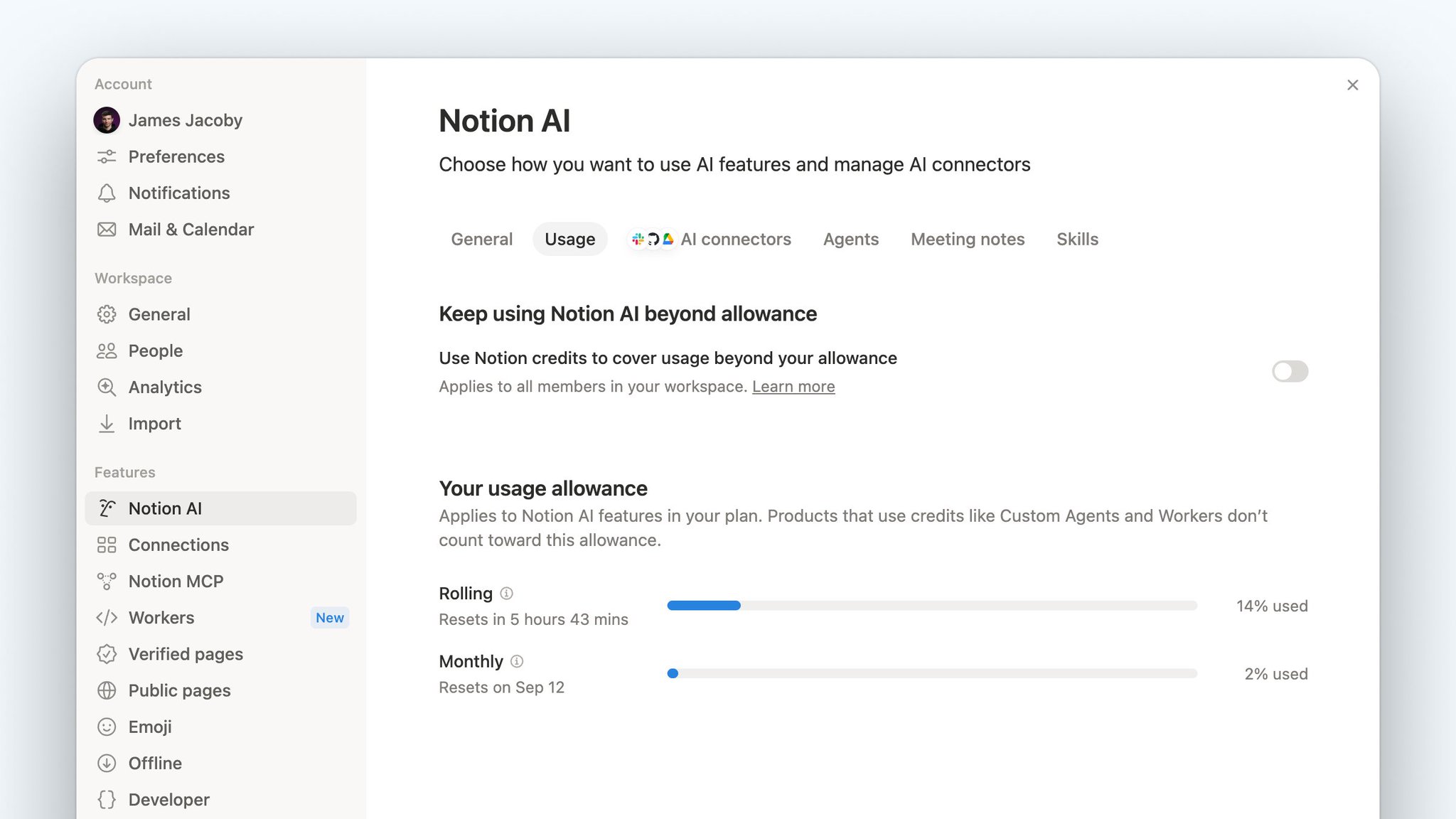
Notion AI usage is now visible in Settings.

Open Settings → Notion AI → Usage to see credit consumption and where those credits went.

Notion AI Usage view in Settings

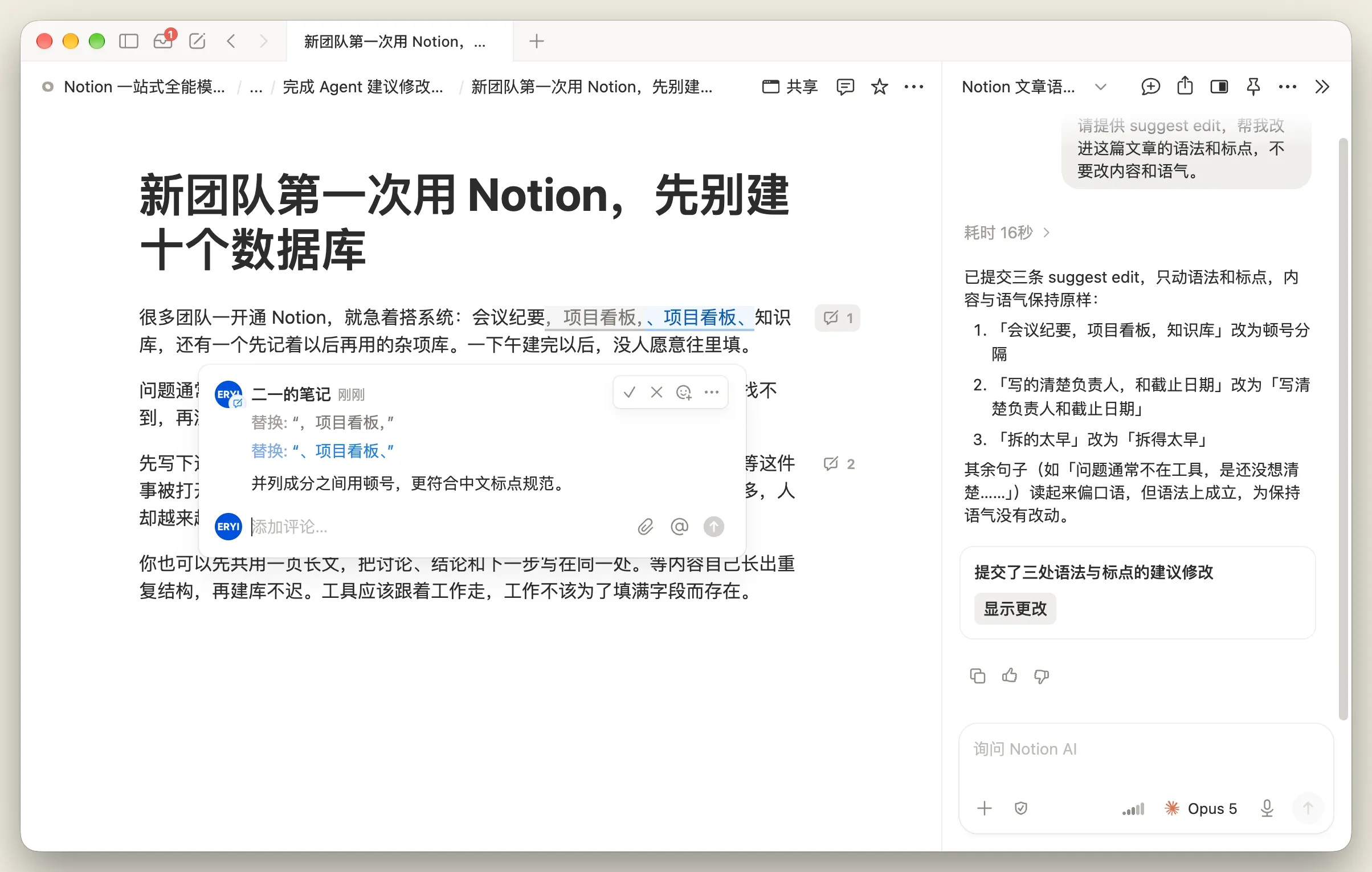
When polishing a draft for publication, you want grammar and punctuation cleaned up without losing your tone or key wording. You can now have Notion Agent propose changes first, creating numbered suggestion cards in the margin where you review and accept or reject each edit with a checkmark or cross.

When prompting the Agent, make sure to explicitly include the keyword suggest edit. For example: "Please review this article for grammar and typos without changing the tone. Please use suggest edit."

If suggestion cards do not appear, check the following:

  1. Turn off auto mode
  2. Make sure suggest edit is clearly stated in the prompt, as translated phrases often fail to trigger the mode

This capability pairs with the earlier change diffs feature as a two-step workflow: approve changes first, then keep a full audit trail afterwards.

Notion Agent displaying suggest edits cards in document

With the Notion Agent SDK, you can connect Custom Agents to tools and workflows your team already uses: chat outside Notion, browse past sessions, and trigger an Agent from any app.

Notion Custom Agents API public beta

There is also an Insights API: track credits and run counts, set usage caps, and enable / disable / archive Agents. Common builds include Teams / Discord Q&A bots, help centers, and internal dashboards.

How to use it: read Notion Agent APIs overview, then wire up chat, triggers, and Insights with the SDK.

Notion Agent got a round of underlying reliability hardening.

Stalled runs fell to 0.17%, unexpected errors to 0.34%, and response success reached 99.91%. You do not need to change settings — existing Notion Agent and Custom Agents sessions benefit directly.

Team Skills are live. A Skill is a Notion page: write the flow, examples, references, and expected format, then share it like any other page. Every Agent on the team can follow the same playbook, and you can keep editing it.

How to use:

  1. Ask Notion Agent to turn a proven workflow into a Skill, or create a page yourself.
  2. Add steps, examples, references, and output format, then share it with the team.
Example Notion Skills page

With auto-use on, Notion Agent picks a matching Skill for the task — no slash command, no memorizing skill names.

Notion Agent auto-selecting a Skill

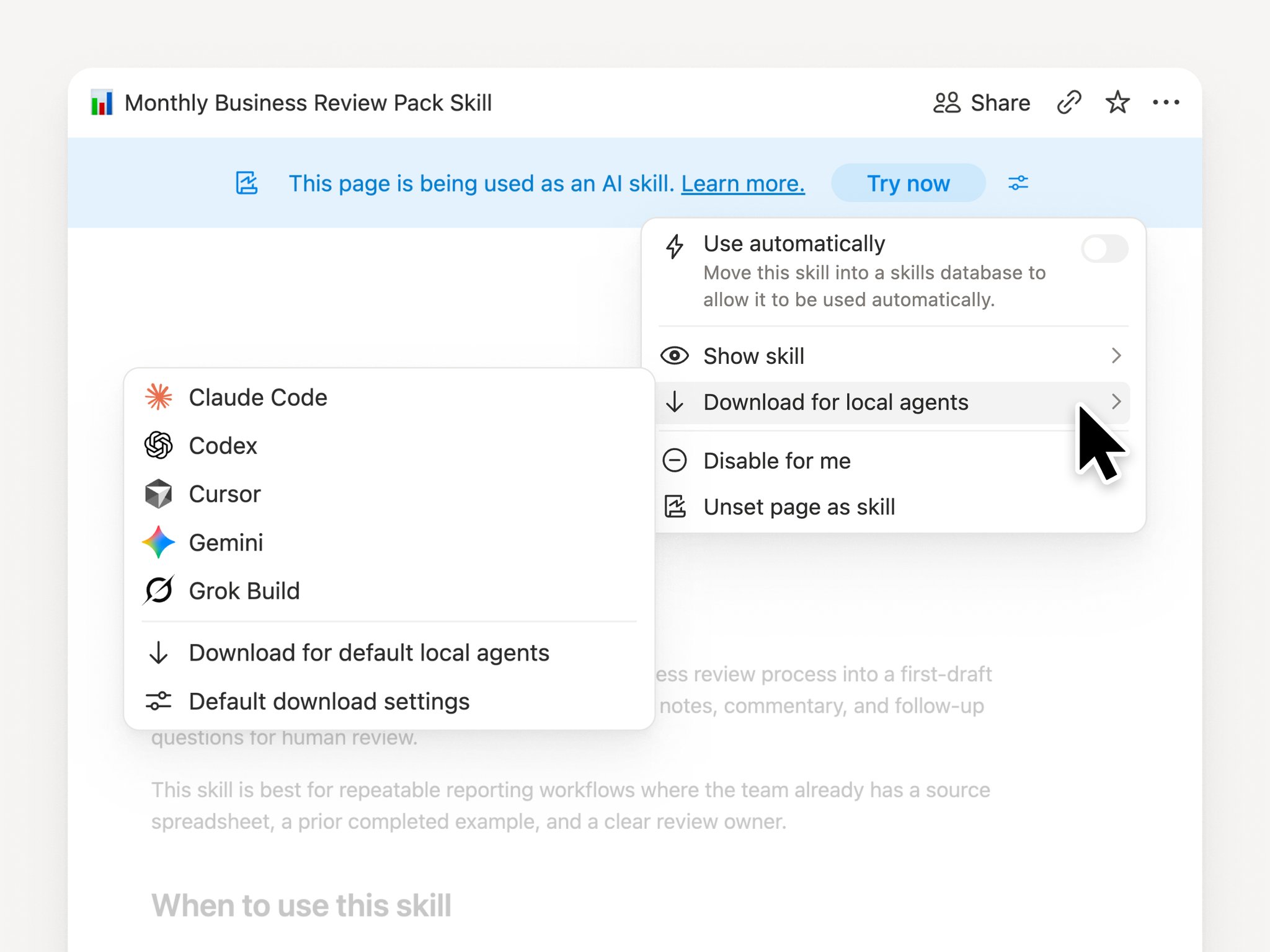
Skills can travel with you. From Notion Desktop, export to Claude Code, Codex, Cursor, Gemini, or Grok. You get a SKILL.md plus allowed attachments for local agents. You can also drop existing files into Notion AI to turn them into Notion Skills.

Export a Notion Skill to a local agent

Share with teammates, or export to a local agent when you’re ready.

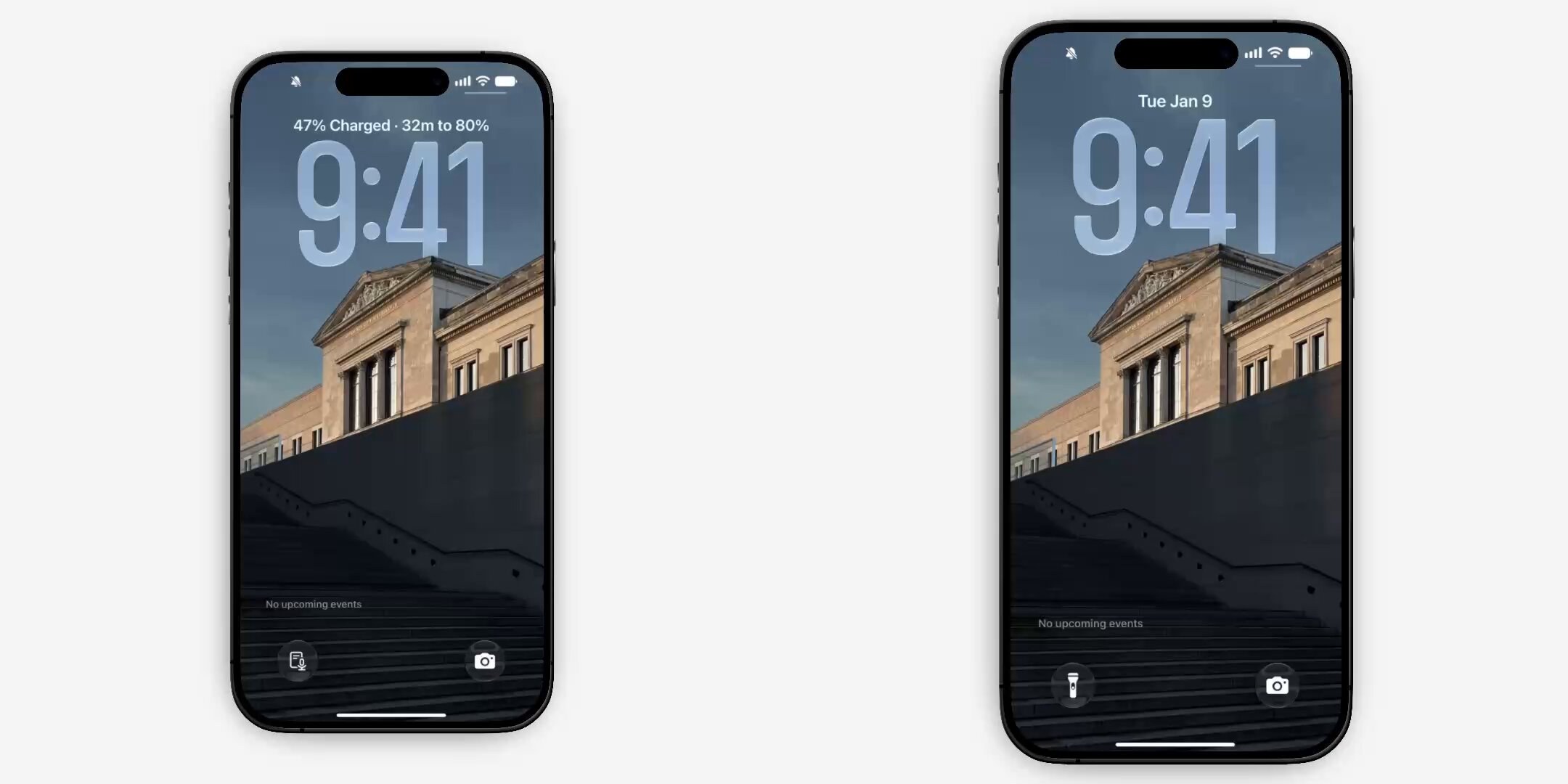
You can add an AI Meeting Notes shortcut to the Home Screen. Two taps and transcription starts.

On iOS you can also put it on the Lock Screen: long-press the Lock Screen → Customize → Notion → Start Meeting Note.

Notion AI Meeting Notes Home Screen and Lock Screen shortcuts

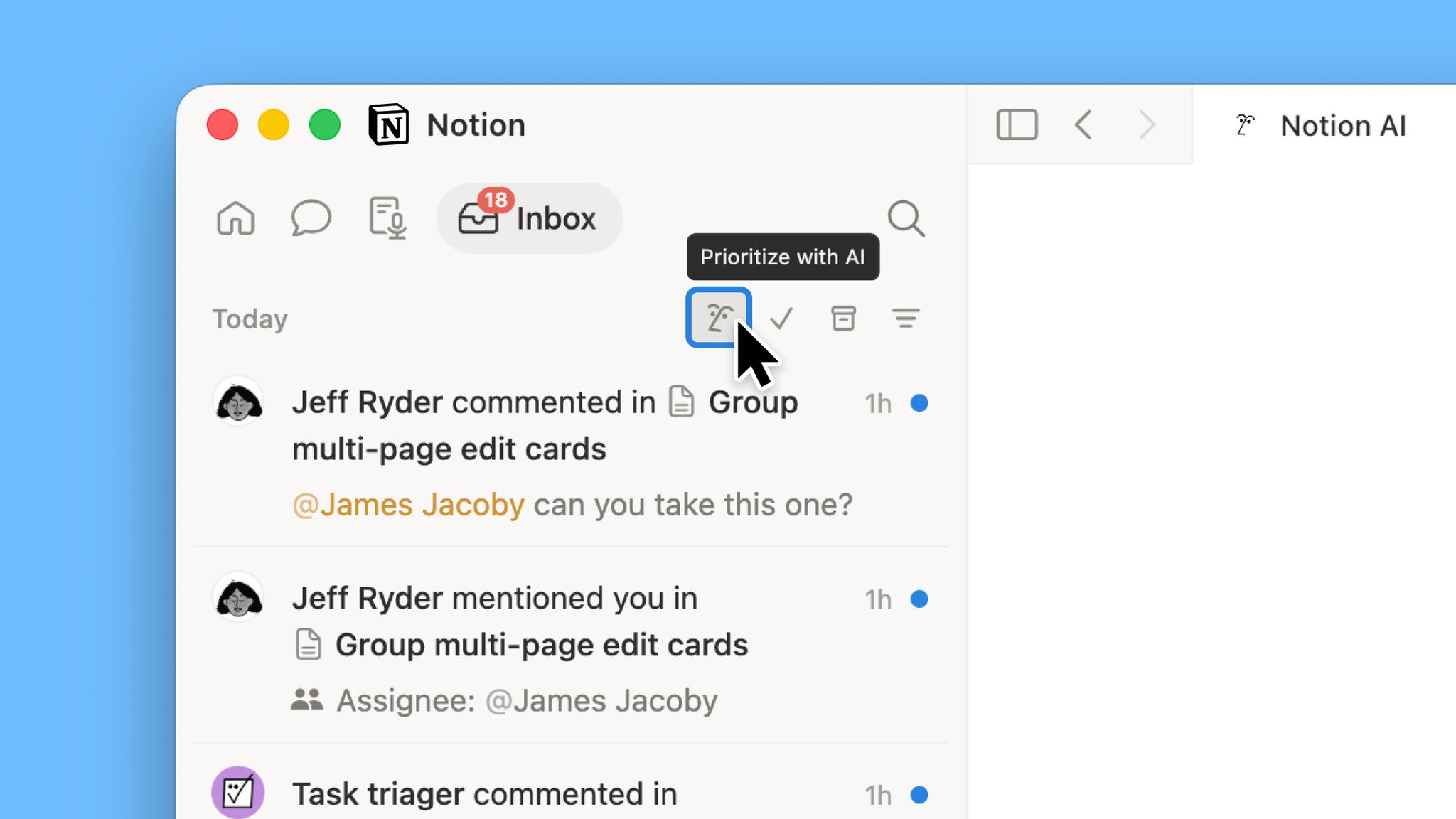
Inbox now supports context-aware triage. Notion AI flags notifications that need you and helps clear the rest.

How to use:

  1. Open Inbox.
  2. Ask Notion AI to highlight what you should look at.
  3. Bulk-clear the remaining notifications.
Context-aware triage in Notion Inbox

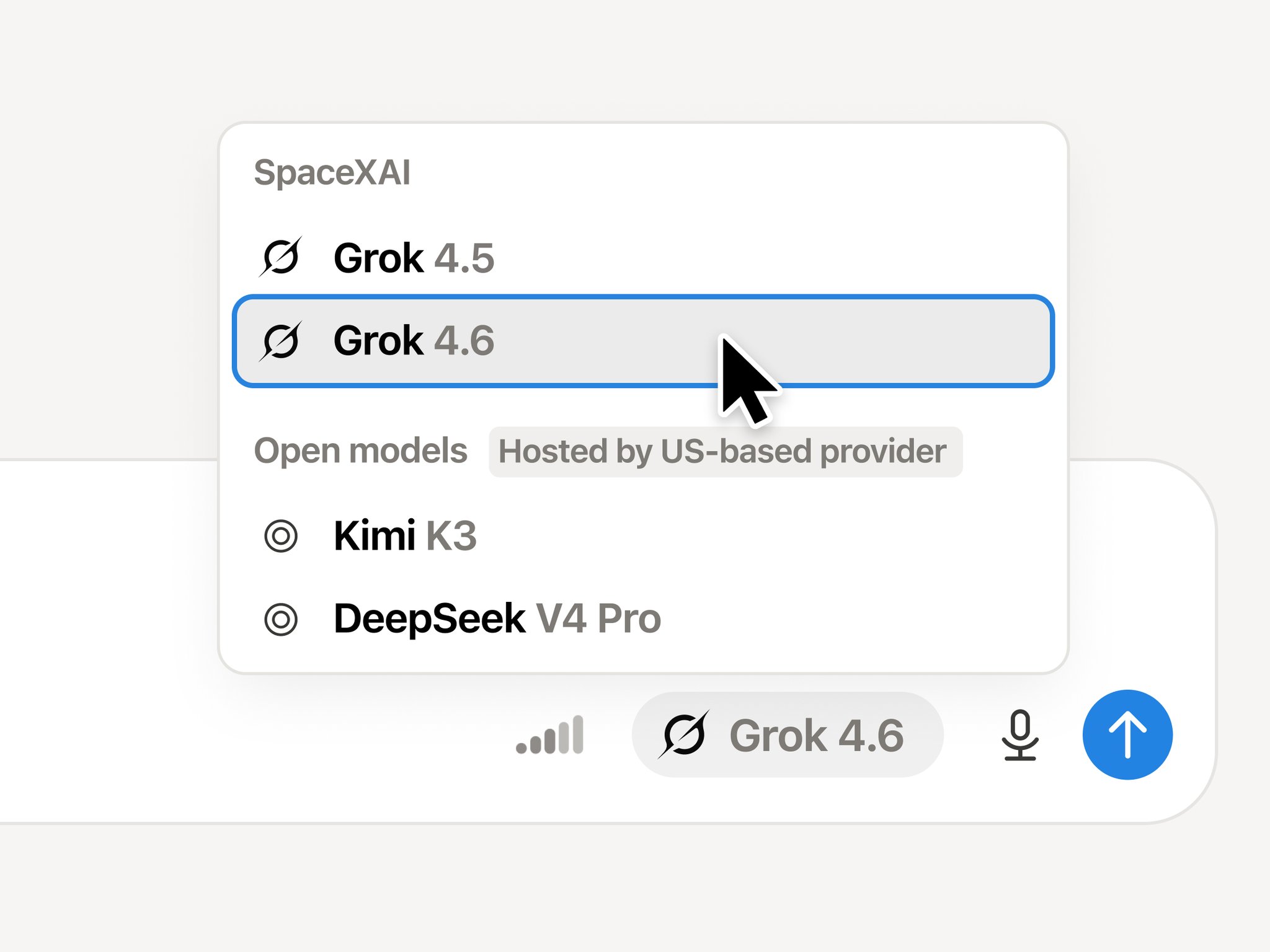
Grok 4.6 is now available in Notion. Pick it directly in the model picker.

How to use:

  1. Open Notion Agent or a Custom Agent.
  2. Tap the model name next to the input.
  3. Choose Grok 4.6.
Choosing Grok 4.6 in the Notion model picker

You can now embed a Custom Agent chat box on any page. Paste the Agent link into Notion and it renders as a chat.

It works well on wikis, onboarding pages, project docs, or anywhere people ask questions.

How to use:

  1. Copy the Custom Agent link.
  2. Paste it onto the target page.
  3. A live chat box appears on the page.

After you paste the Agent link, it becomes an embedded chat box.

Embedded Custom Agent chat box on a Notion page

You can grant a Custom Agent access to a page from the share menu. It works like inviting a teammate: pick the Agent, give it permission, and it can use that page as context.

How to use:

  1. Open Share in the top-right of the page.
  2. Choose the Custom Agent to authorize.
  3. Confirm permissions so the Agent can read the page.

You can select a Custom Agent directly in the share menu.

Sharing a Notion page with a Custom Agent from the share menu

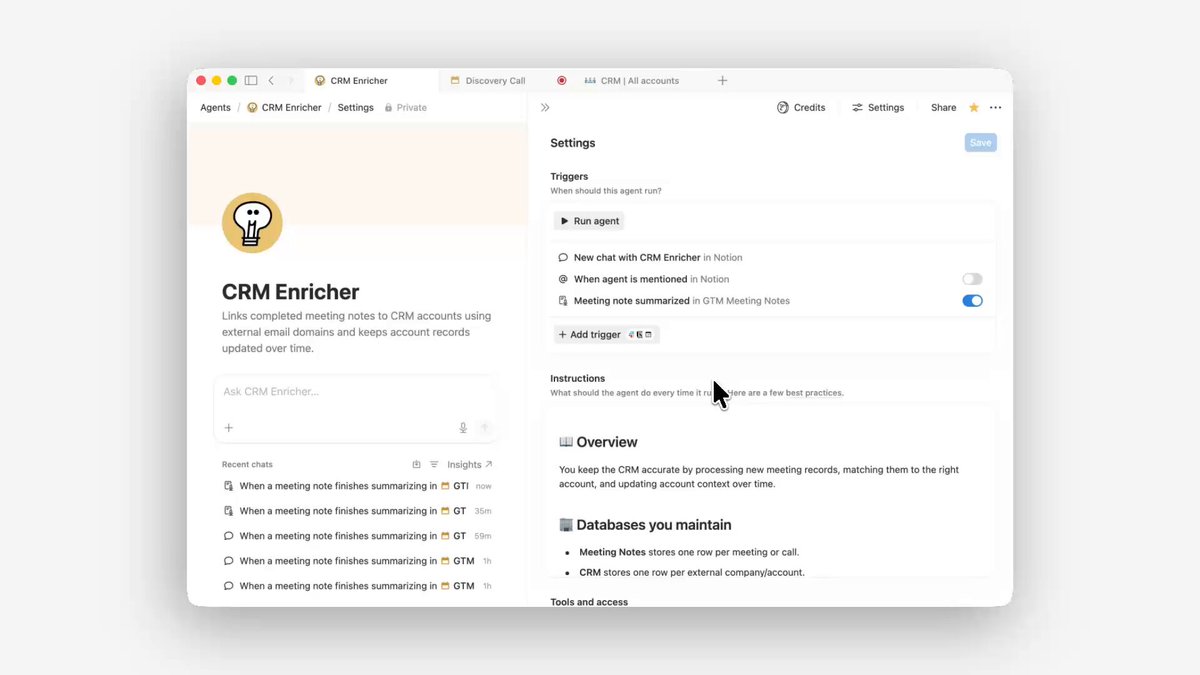
Notion AI Meeting Notes can now trigger a Custom Agent once a summary is ready. As soon as the summary lands, the Agent can turn action items into tasks, update project tracking or your CRM, or post next steps to Slack.

How to use it:

  1. Record a meeting with AI Meeting Notes and wait for the summary.
  2. Choose the Custom Agent that this flow should trigger.
  3. After the meeting, let the Agent create tasks, update pages, or post next steps to Slack.
The “Meeting note summarized” trigger in a Custom Agent’s settings

Next time a meeting ends, follow-up can start the moment the summary appears.

This accessibility update adds a high contrast mode that makes text, icons, and borders easier to read.

Turn it on from Settings → Preferences → Appearance. It is available on desktop and web.

Notion high contrast mode

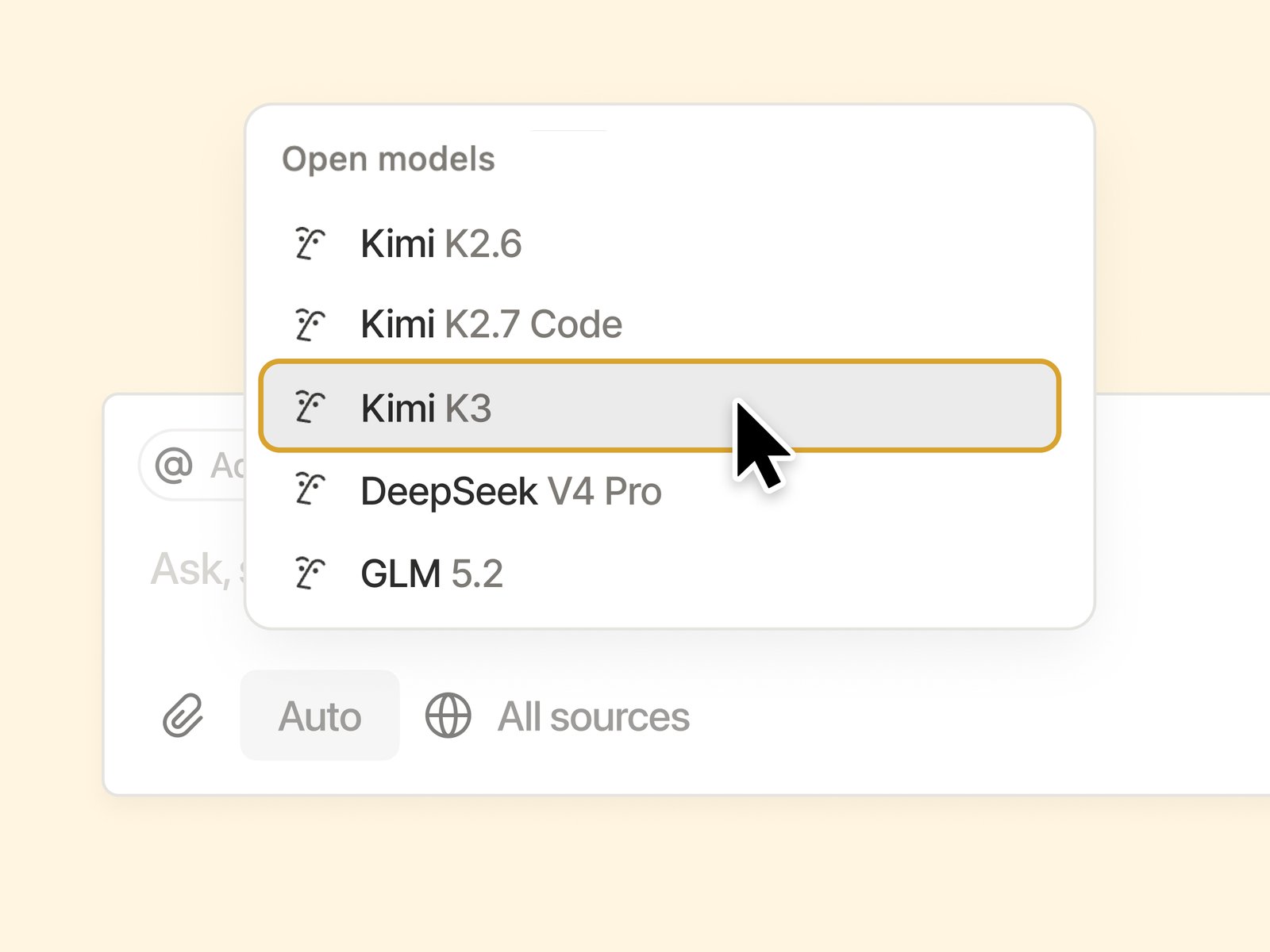
Kimi K3 is now in Notion’s open models list. The model uses open weights and is hosted by U.S. provider Fireworks.

In the Notion AI model picker, expand Open models, then choose Kimi K3 to chat or run tasks.

Choosing Kimi K3 in the Notion model picker

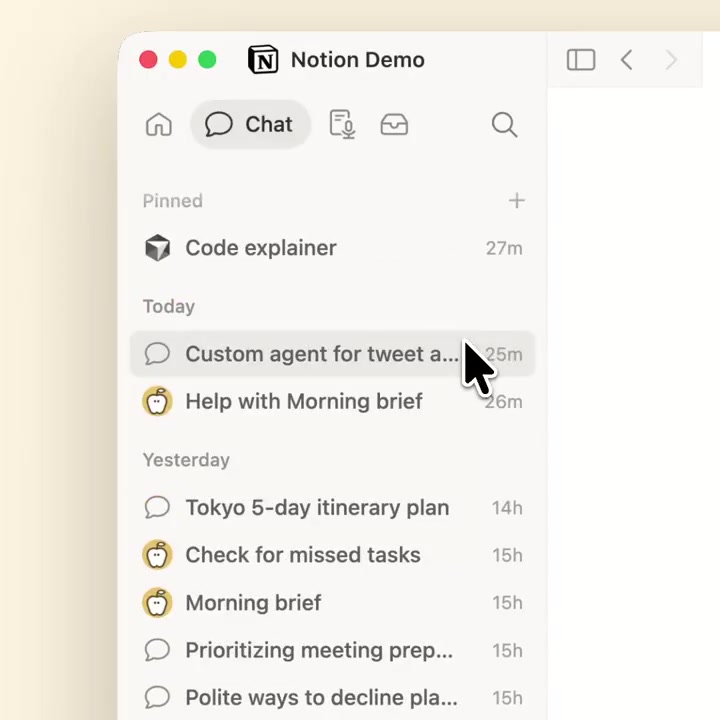
You can now pin favorite Agent Chats. Keep the threads you open often at the top of the list.

How to use:

  1. Open the Agent Chat you want to keep.
  2. Tap Pin to pin it in the chat list.
  3. Open it later from the top of the list.
Pinning a favorite Agent Chat in Notion

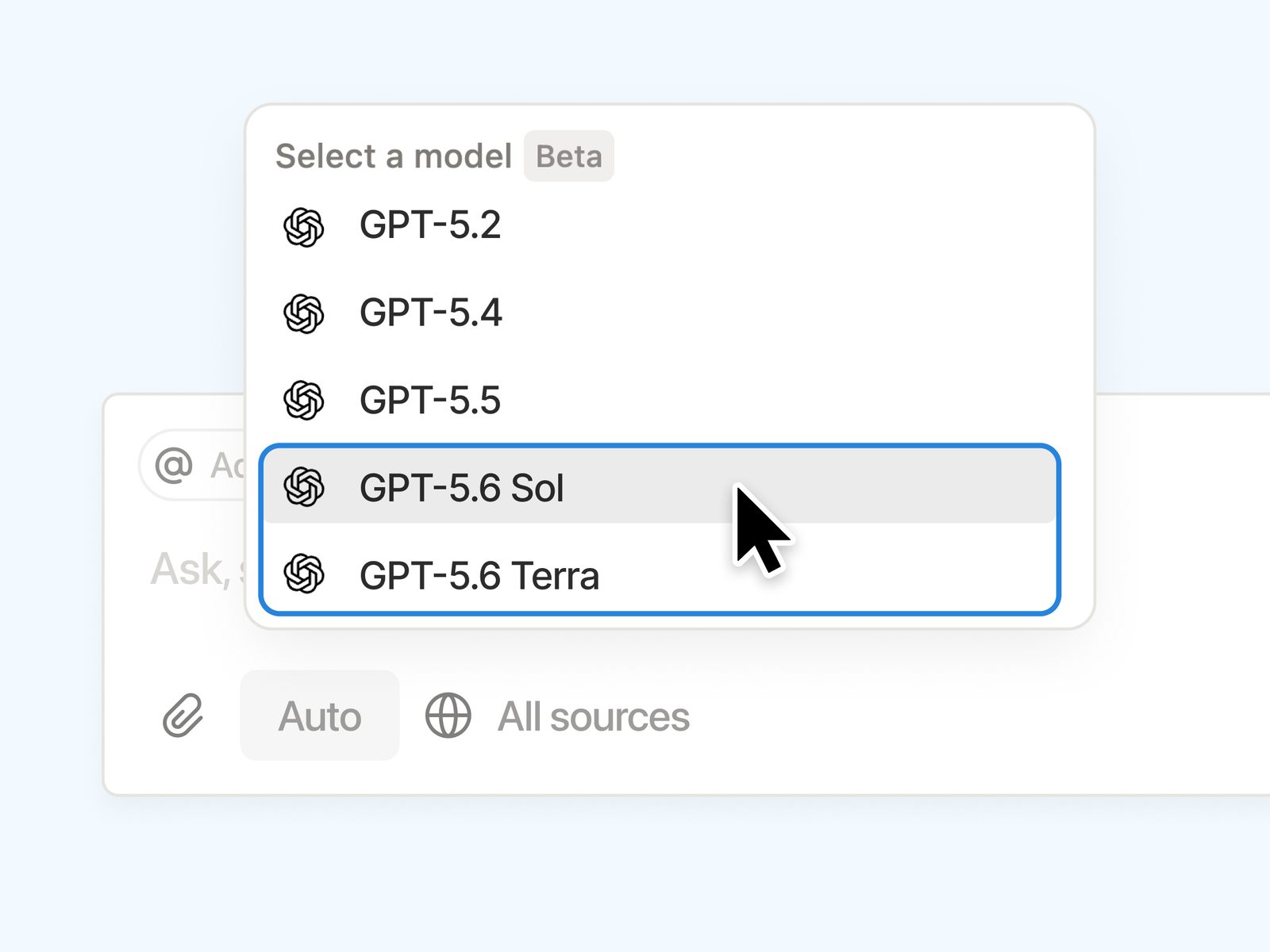
Notion adds three GPT-5.6 models: Sol for multi-day tasks and self-improving Agents; Terra for GPT-5.5-class workloads at roughly half the cost; Luna for fast small tasks, including Custom Agents.

Pick by task type. Use Sol for long-running work, Terra when cost matters, and Luna for lightweight Custom Agent jobs.

Choosing GPT-5.6 Sol, Terra, and Luna in Notion

Grok 4.5 is now available in Notion. Notion says it improves notably over Grok 4.3 on search-heavy tasks.

How to use it:

  1. Open Notion Agent or a Custom Agent.
  2. Click the model name next to the input box.
  3. Choose Grok 4.5 in the model picker.

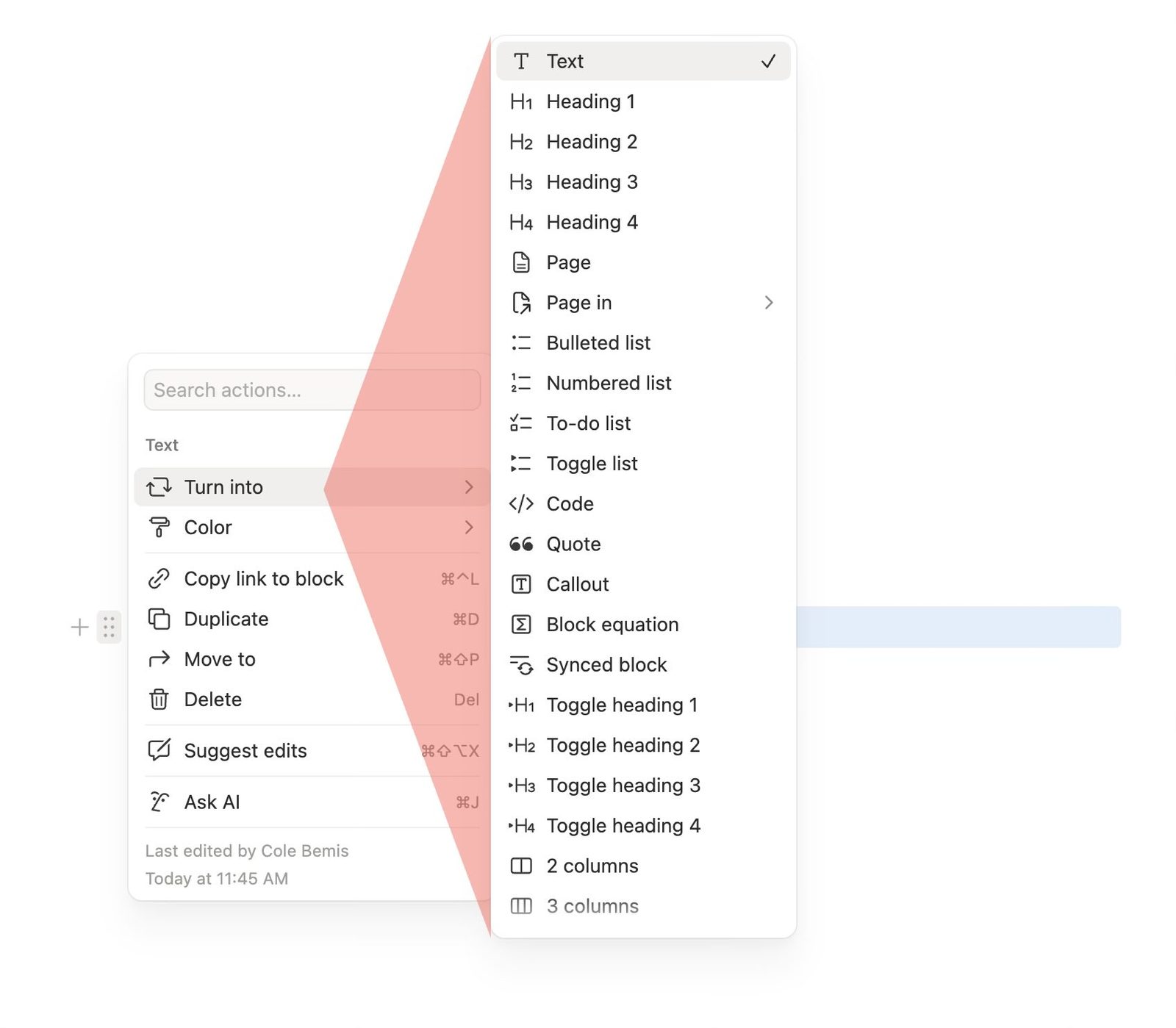
Sidebar nested menus now have a corrected “safe triangle” hit area. When you slide the pointer from a parent menu to a submenu, the menu is less likely to close. You don’t need to change any settings. After the update, open a nested menu in the sidebar and slide in along the diagonal.

Safe-triangle fix for Notion sidebar nested menus

The submenu stays open along your slide path, so it’s easier to reach the item you want.

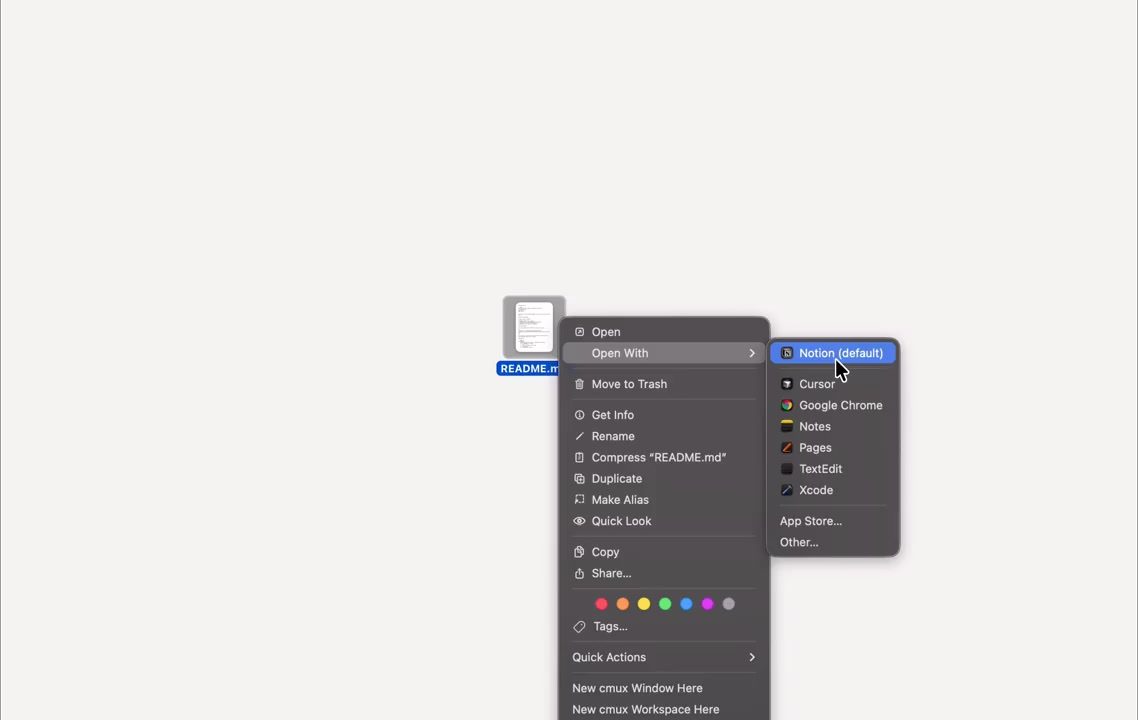
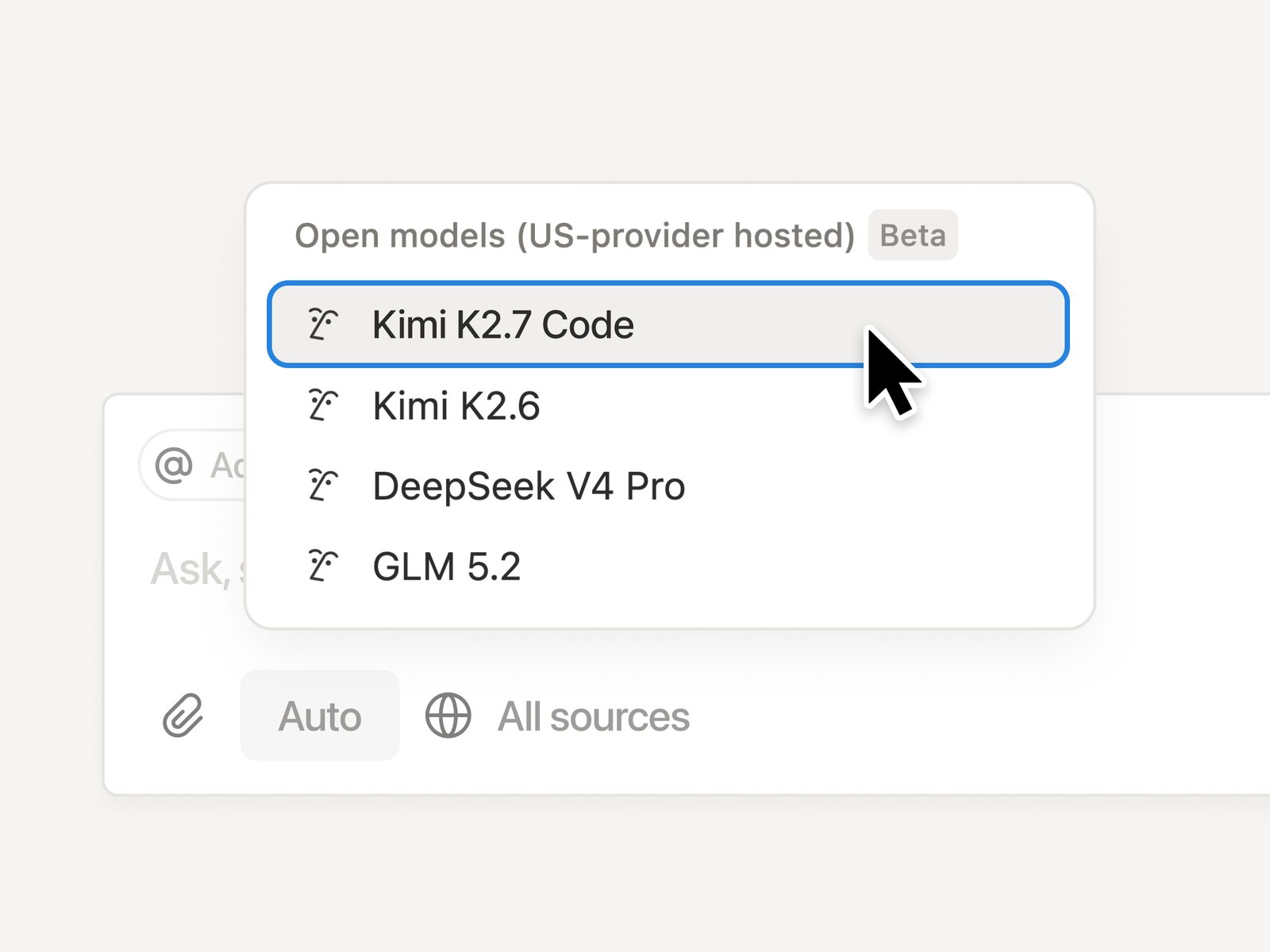
The open-weight coding model Kimi K2.7 Code is now available in Notion.

In the Notion AI model picker, expand Open models, choose Kimi K2.7 Code, then use it for code-related tasks.

Choosing Kimi K2.7 Code in the Notion model picker

The standalone Notion Agents iOS app is now available. Capture an idea with voice, snap a sketch, or open Chat on the go so an Agent can help—without waiting to get back to your computer.

How to use it:

  1. Search for and install Notion Agents on the Apple App Store.
  2. Sign in with your Notion account and grant the needed permissions.
  3. Start a chat with text, voice, or a photo; you can also create pages, draft updates, or search content from connected tools.
  4. For quick actions, use in-app shortcuts to create pages, search, or call connected tools.

Once installed, your Agent team is in your pocket. Download it from the App Store.

Notion Agents iOS app on the App Store

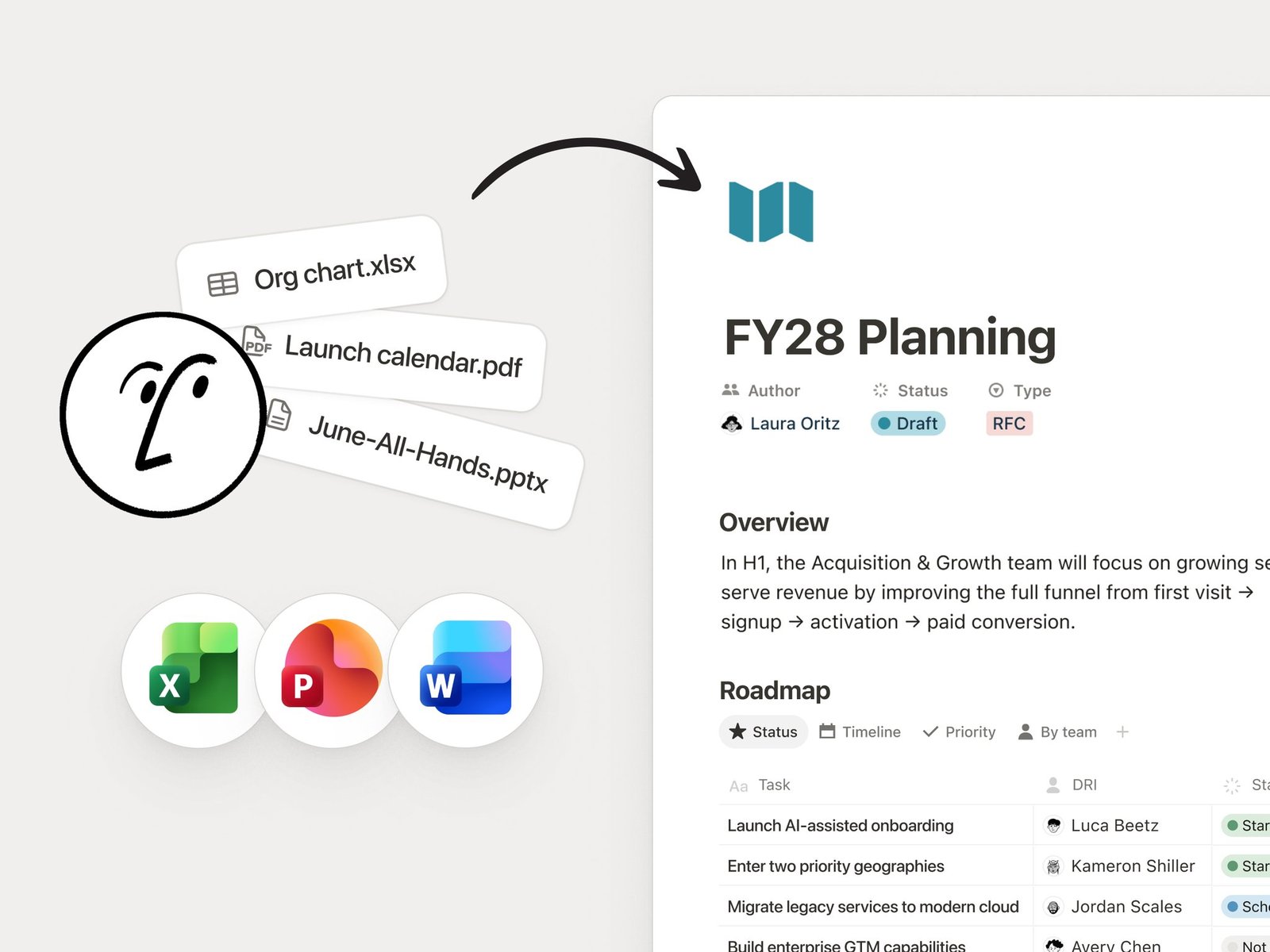
Notion Agent can now read and generate more file types, including PPTX, XLSX, DOCX, and PDF.

How to use it:

  1. Attach files to the chat so the Agent can read them as context.
  2. Ask the Agent to turn a page into a deck, a database into a forecast sheet, or several PDFs into one summary.
  3. Generated files land back on the page or in the chat for download and sharing.

When you need office-file work done, say the target format in the chat.

Notion Agent working with office file types

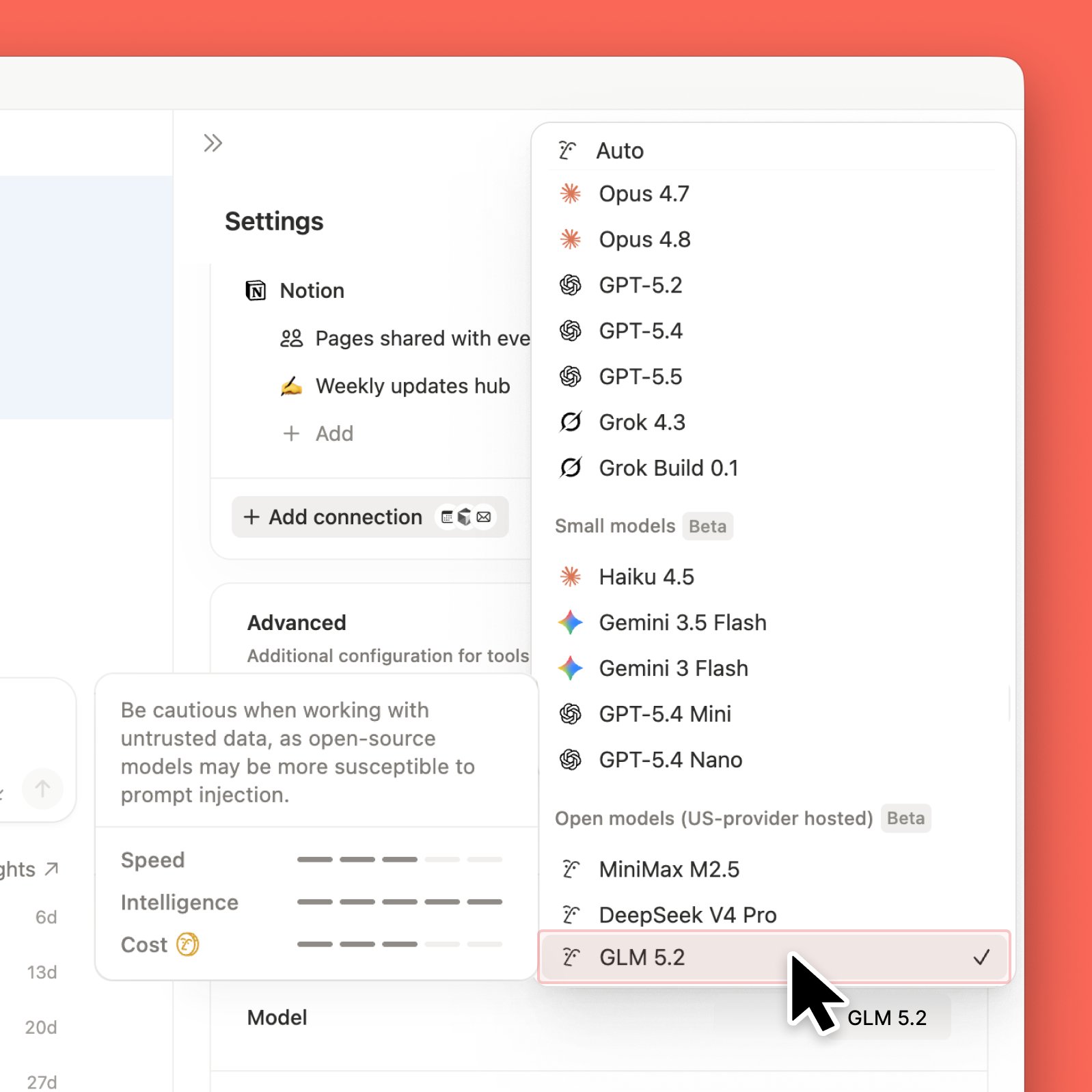
Claude Opus 4.8 is now available in Notion. You can still use Grok, or pick the more cost-efficient open-weight model GLM 5.2.

How to use it: choose Claude Opus 4.8 in the Agent or model picker, then start your task.

Choosing Claude Opus 4.8 in the Notion model picker

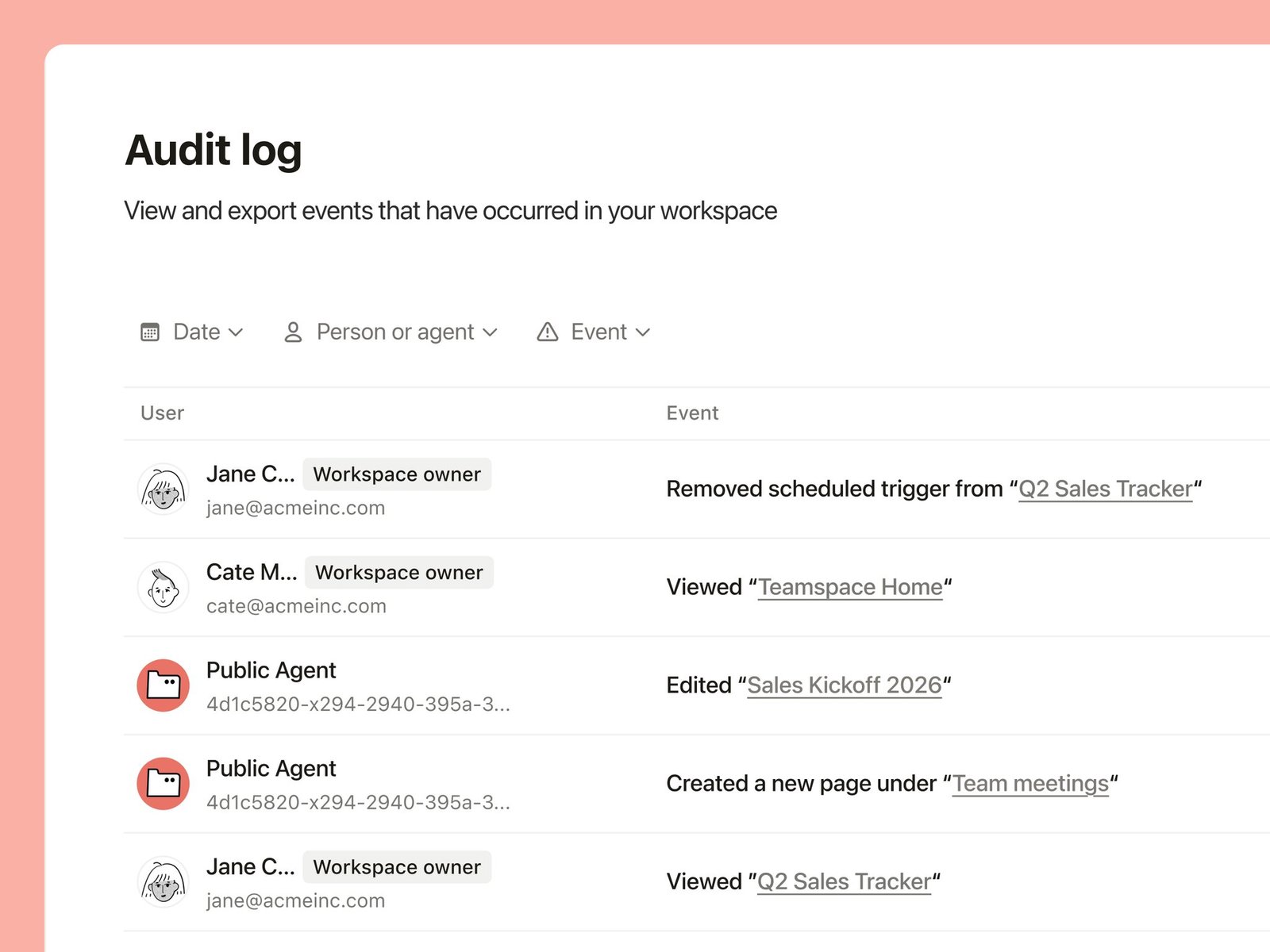
Custom Agent actions now write to the Audit Log. Admins can see when an Agent ran, what it changed, and who triggered it.

How to use it:

  1. Open your workspace Audit Log as an admin.
  2. Filter or search for Custom Agent–related events.
  3. Review run time, changes, and who triggered them.

When you need to verify Agent behavior, check the Audit Log directly.

Custom Agent actions in the Notion Audit Log

AI Meeting Notes now distinguishes speakers by the currently active microphone and adds speaker labels.

How to use it:

  1. Start a transcription with AI Meeting Notes as usual.
  2. After the notes generate, check the speaker labels in the body.
  3. Use clearer attribution to tidy summaries and follow-ups.

In multi-person meetings, summaries and todos map more easily to who said what.

Speaker labels in Notion AI Meeting Notes

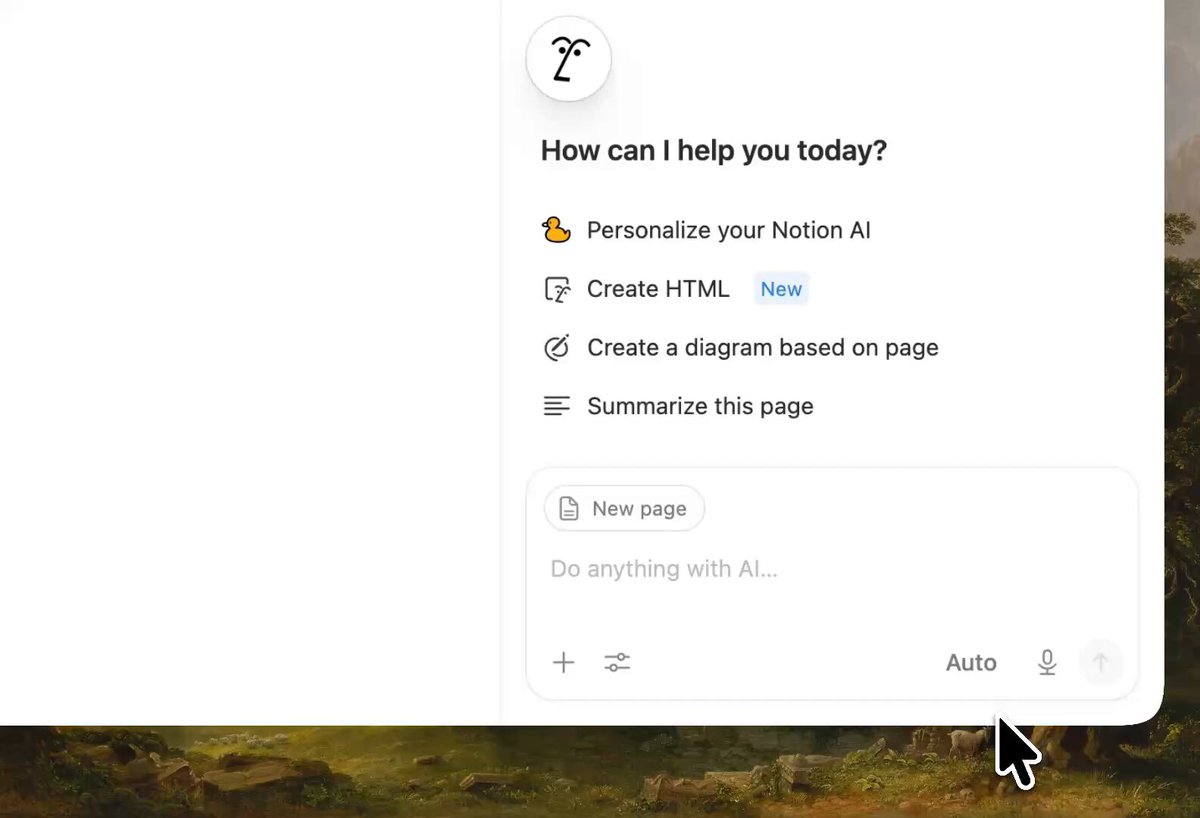
Notion adds an HTML block. You can build interactive HTML on a page, have AI turn existing content into an explainer, prototype, or chart, then share it with teammates to iterate together.

Hand databases, tables, or meeting notes to an Agent to remix: interactive reports, mini demos, and dashboards live right on the page. Point it at a spec, code, or concept for diagrams and quizzes. A PRD can become a clickable lightweight prototype before design work starts.

How to use it:

  1. Insert an HTML block on the page, or ask an Agent to generate one from existing content.
  2. Specify whether you want an explainer, dashboard, or clickable prototype.
  3. Share the page with teammates to try and edit together.
Notion HTML block collage of interactive explainers, prototypes, and dashboards

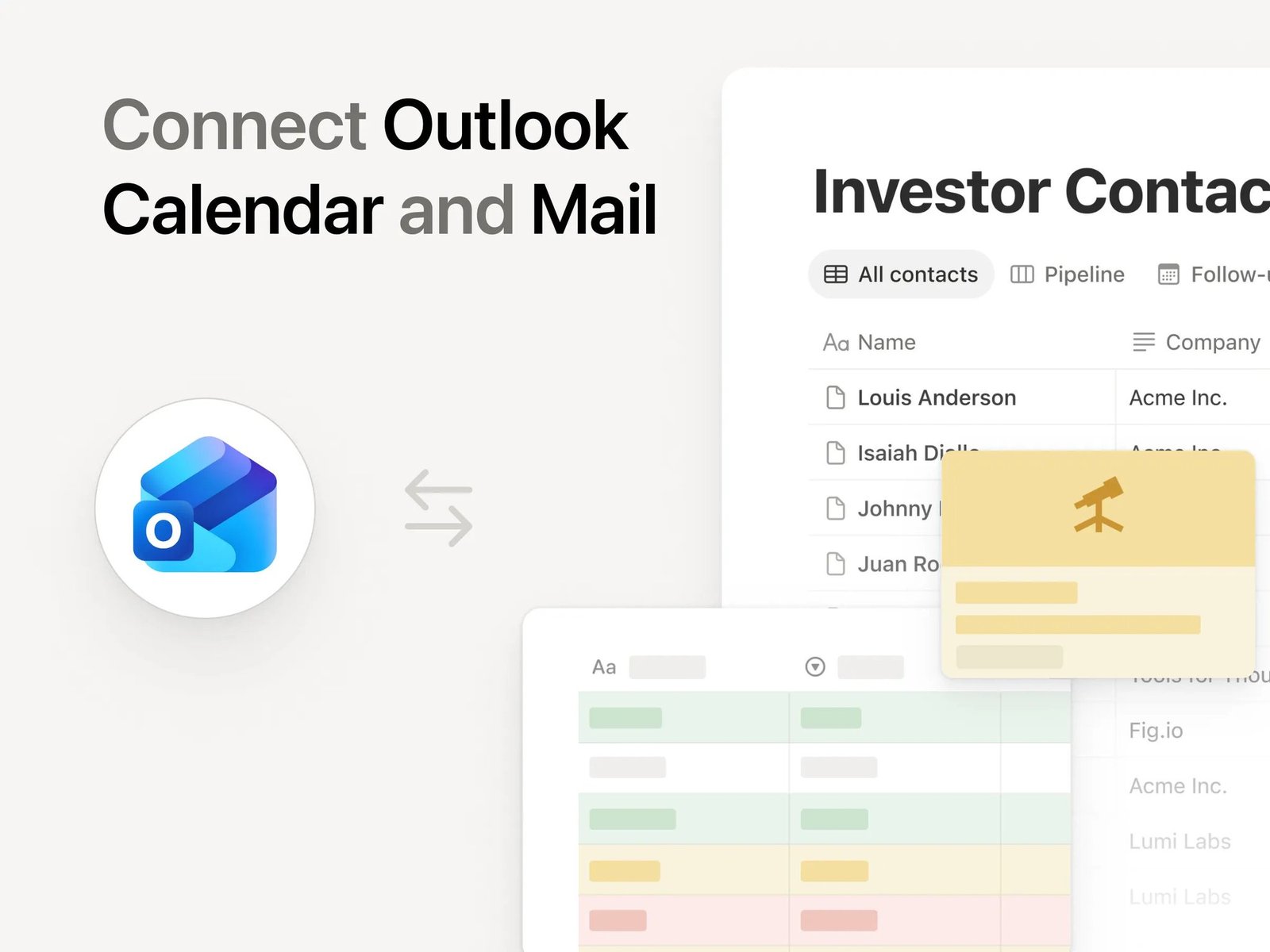
Notion Personal Agent now officially works with Outlook. You can have it view, manage, and schedule calendar events, and also search, triage, and reply to email.

How to use it:

  1. Connect Outlook in Notion (calendar and mail).
  2. Ask Personal Agent to check next week's free slots, or find a message and draft a reply.
  3. Confirm, then let it create or update events, or send and archive mail.

Once connected, calendar and inbox can go through Personal Agent too.

Notion Personal Agent with Outlook calendar and mail shipped

The calendar and mail integration that was teased earlier is now generally available.

Earlier spoiler for Notion Personal Agent Outlook calendar and mail

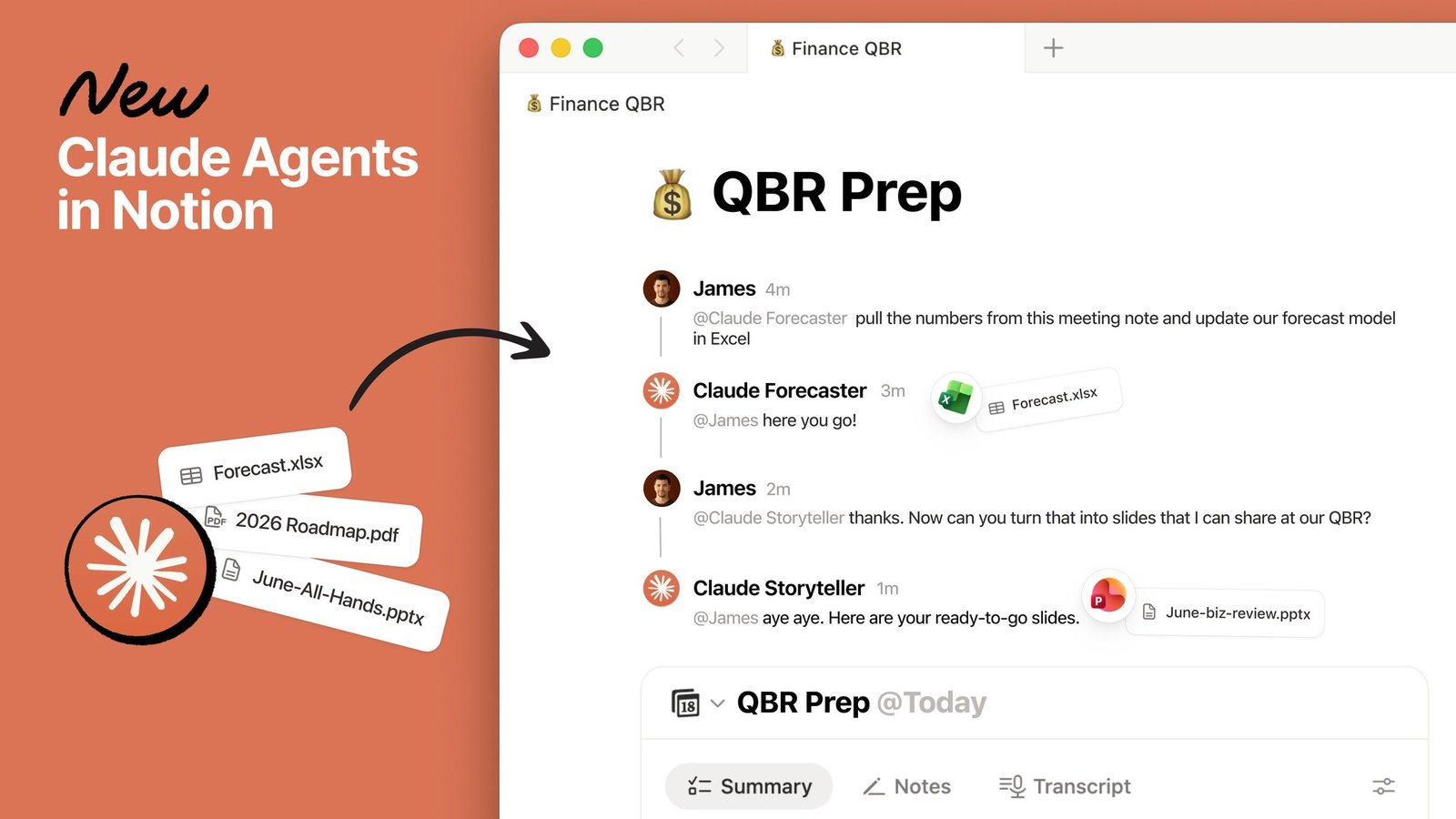
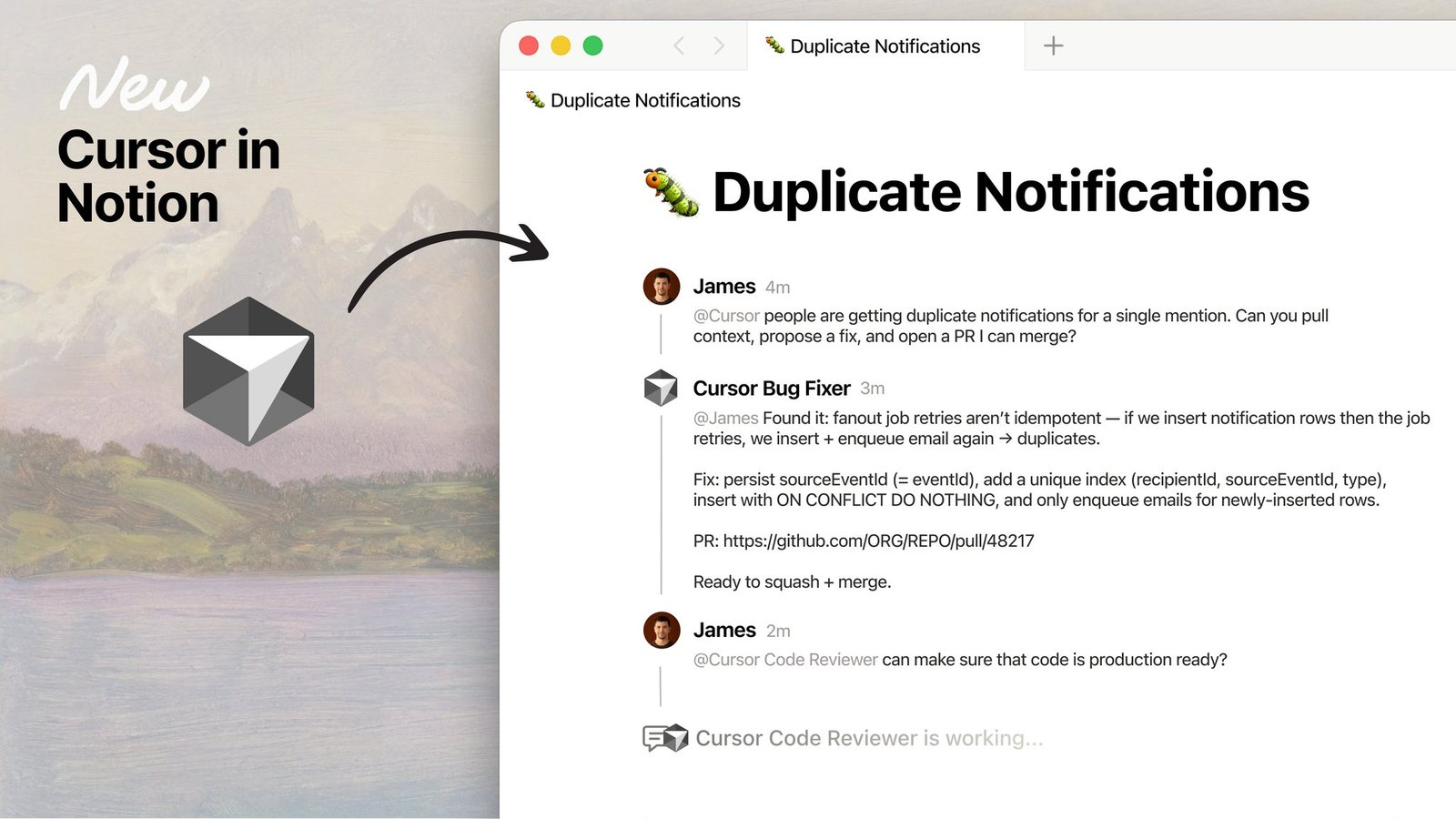
Notion External Agents are live. Claude and Cursor can show up on a shared task board like teammates: assign work, @-mention them, and watch them finish.

How to use it:

  1. Connect Claude agents and Cursor following the help docs.
  2. Create dedicated Agents on a shared board (analysis, coding, docs, bugfixes, and more).
  3. Assign Claude or Cursor as the owner, or @ them in comments.
  4. Set context and permissions per Agent so the team can see every run.
  5. Run multiple tasks in parallel, or schedule an end-to-end flow.

Once Claude and Cursor share the same board, everyone can see progress.

You can create Claude agents by role — data analysis, coding, or generating tables and slides — and schedule them alongside human teammates.

Claude agents as teammates on a Notion task board

Cursor can be a board teammate too, covering bugfixes, features, code review, and other engineering workflows.

Cursor as an engineering teammate on a Notion task board

Open-weight model GLM 5.2 is now available in Notion. It is aimed at long-horizon tasks and served via Baseten.

How to use it: pick GLM 5.2 in the model picker, then hand long-horizon work to an Agent.

Choosing open-weight GLM 5.2 in the Notion model picker

The pin limit for database page properties is now raised from 4 to 15. You can pin more key fields to the top of the page.

How to use it:

  1. Open any database page.
  2. In the properties area, choose the fields to pin.
  3. You can pin up to 15 properties at once.
Notion database pages can pin up to 15 properties

Mobile now supports the database page Layout Builder. You can open any database page on your phone and rearrange the layout.

How to use it:

  1. Open the target database page on your phone.
  2. Enter Layout Builder.
  3. Drag or adjust blocks and property positions; changes take effect after you save.

On the commute or out and about, you can tweak page layouts directly.

Notion mobile database page Layout Builder

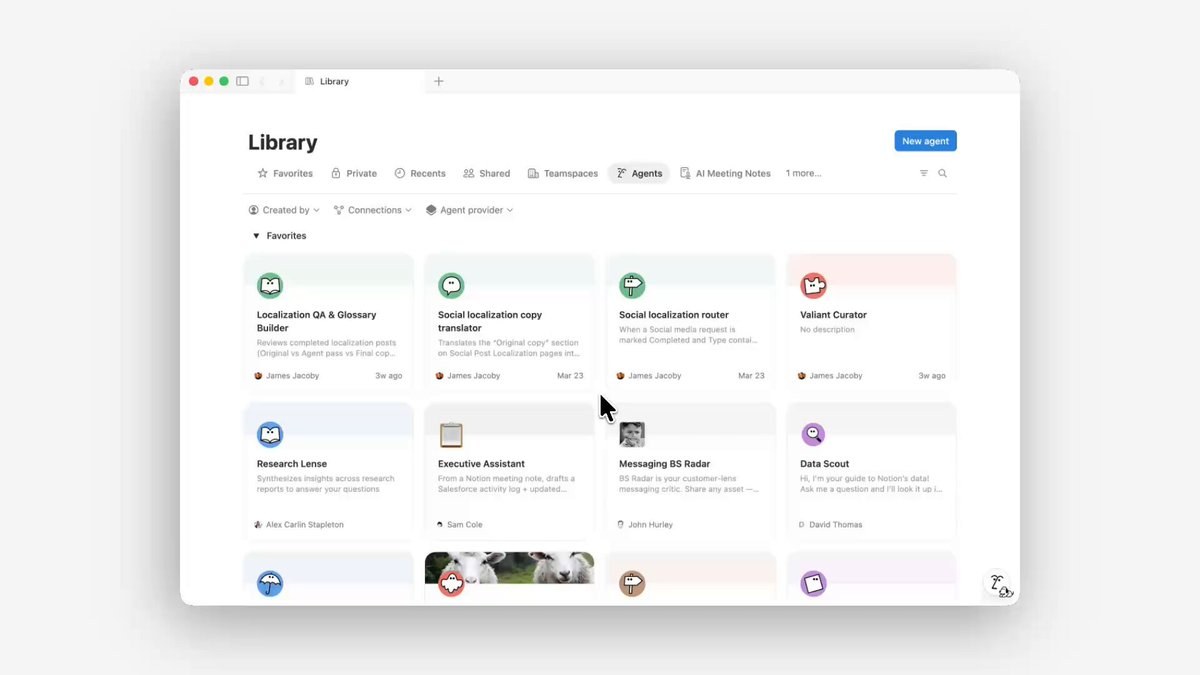
You can now duplicate any Custom Agent you can see and make it your own version.

Open an Agent in Library → Agents, then choose Duplicate. The copy is private by default. Its permission scope is narrowed to what you can currently access — it does not carry over the original author's extra grants.

Notion lets you duplicate any visible Custom Agent

After duplicating, you can change instructions, connections, and triggers, then share with your team as needed.

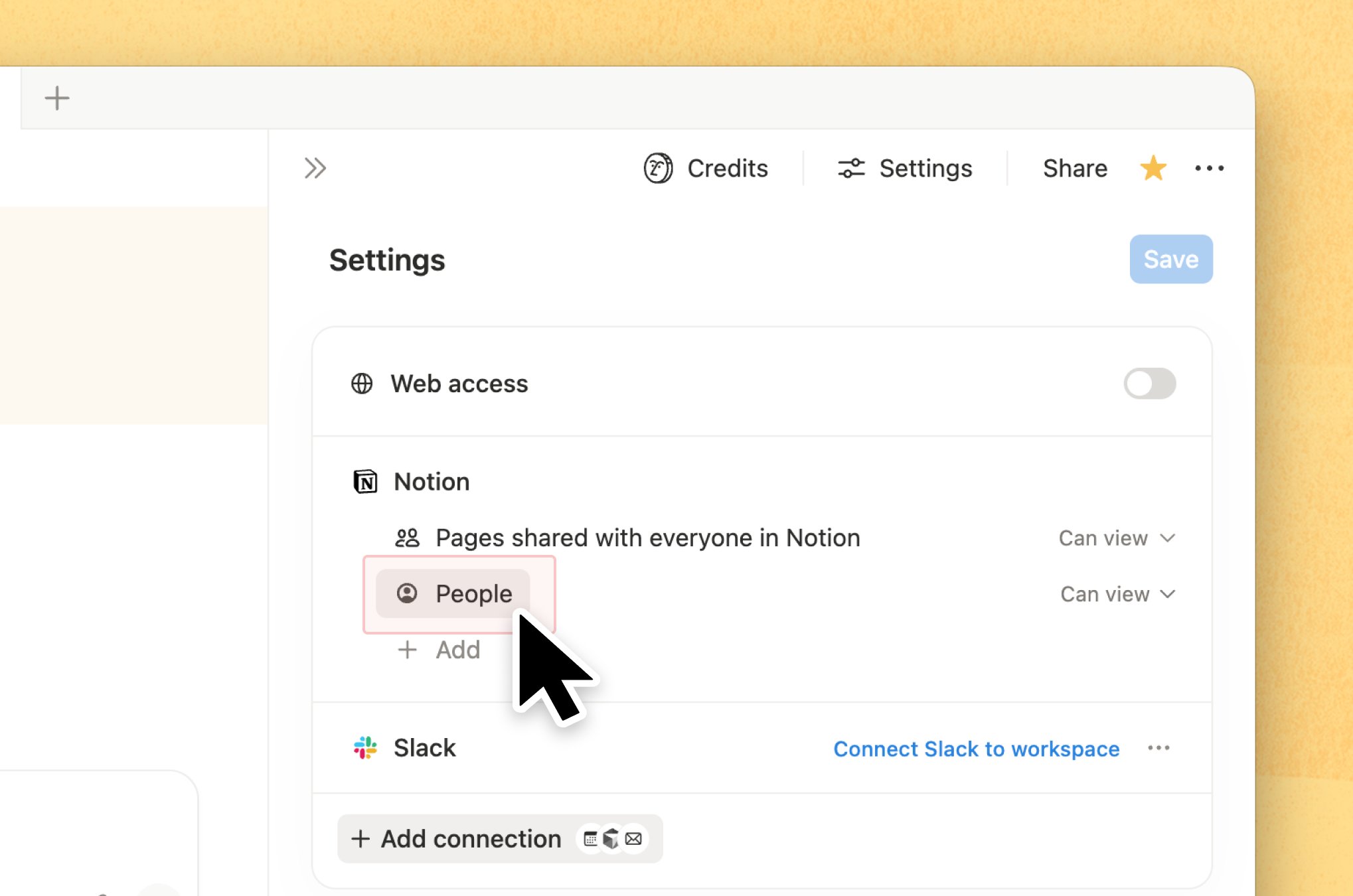
Custom Agents can now read the workspace People directory.

Open the Custom Agent's Settings, find People under Notion permissions, set it to Can view (or the level you need), and save. After that, the Agent can use teammate context when assigning tasks, naming colleagues, or writing briefs.

Notion Custom Agents can read the People directory

Only grant the people range you want the Agent to see; page sharing and People permissions can be controlled separately.

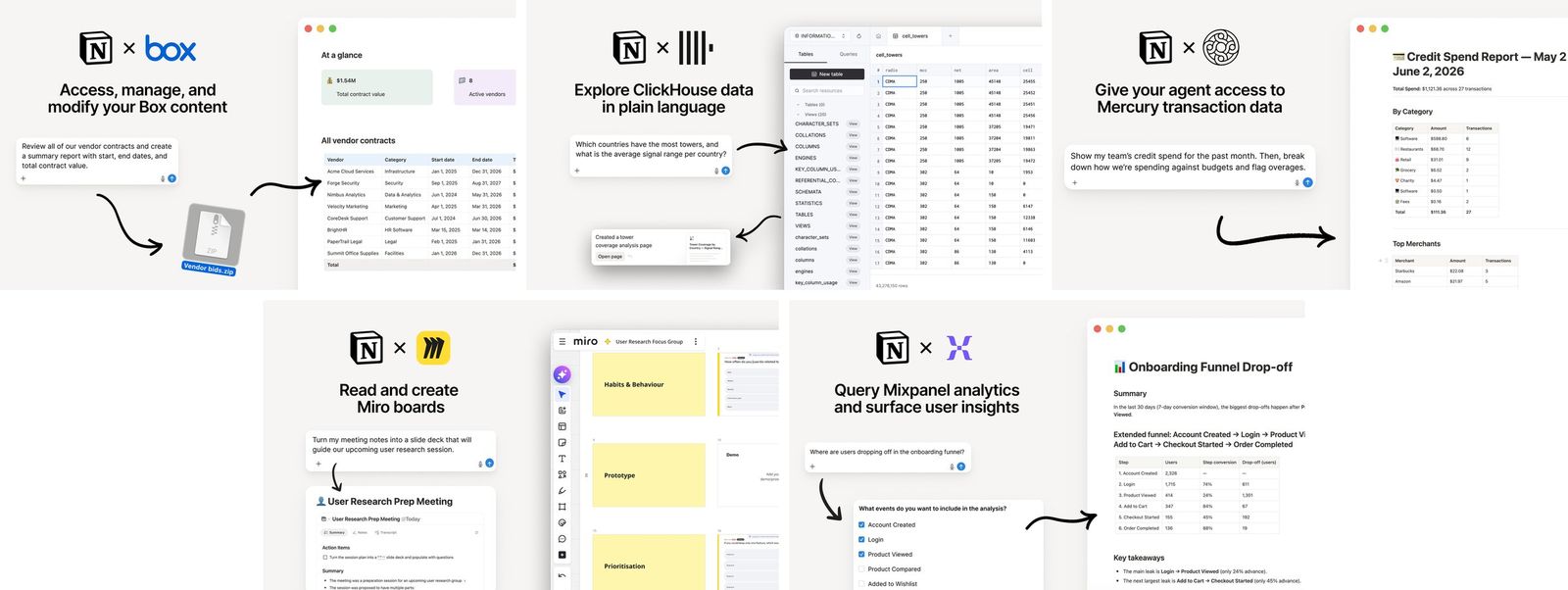
Custom Agents add 5 MCP connectors: Box, ClickHouse, Mercury, Miro, and Mixpanel. Agents can manage Box files, query ClickHouse Cloud and watch resources, pull Mercury balances and transactions on demand, read Miro boards and draw, and query Mixpanel product analytics.

How to use it:

  1. Open the Custom Agent's connector settings.
  2. Connect Box, ClickHouse, Mercury, Miro, or Mixpanel as needed.
  3. In chat, ask the Agent to look up files, run queries, check funds, read boards, or pull product metrics.
Notion Custom Agents add 5 MCPs: Box, ClickHouse, Mercury, Miro, Mixpanel

Once connected, these tools can be called directly in Agent conversations.

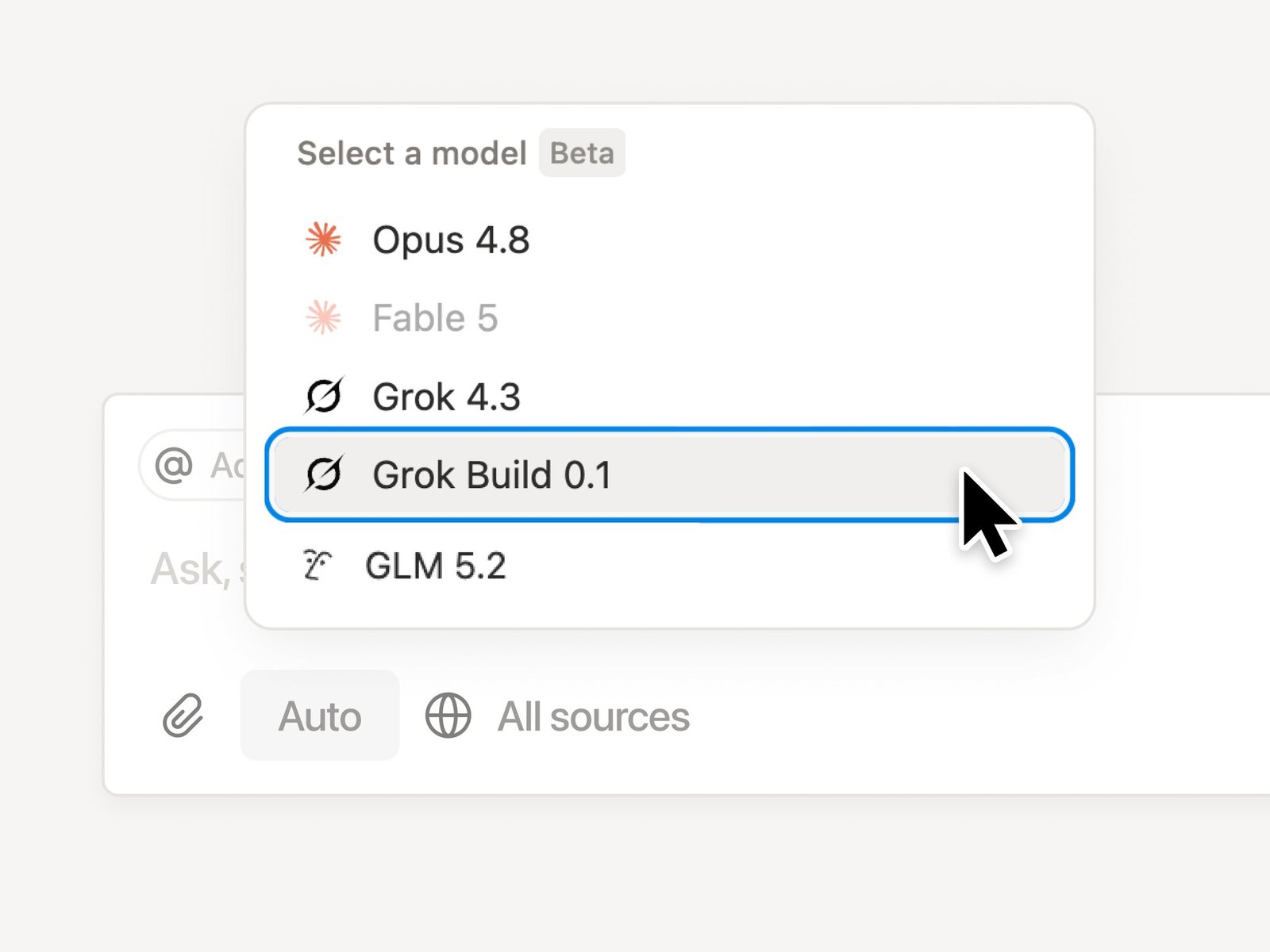
Grok 4.3 and Grok Build 0.1 are now available in Notion Agent and Custom Agents.

Open the model picker in Agent or a Custom Agent, then choose Grok 4.3 or Grok Build 0.1 to get started.

Choosing Grok 4.3 or Grok Build 0.1 in the Notion model picker

Checking Version History in Notion used to mean comparing two versions by eye. Once a page had enough content, it was hard to spot which paragraph changed, which image disappeared, or whether a database property had been edited.

Notion now adds snapshot diffs to Version History. Open a page's version history from the top-right menu, and you can see what moved, changed, or disappeared. Text, images, tables, and database properties are all included in the comparison.

This is especially useful for collaborative pages like documents, brand guides, and project plans. You spend less time hunting for changes across the whole page, and it becomes easier to decide whether a previous version should be restored.

If you have used Notion Agent change diffs, this update brings a more fundamental page-level review flow. It is not limited to AI Agent actions.

Notion Version History snapshot diff interface

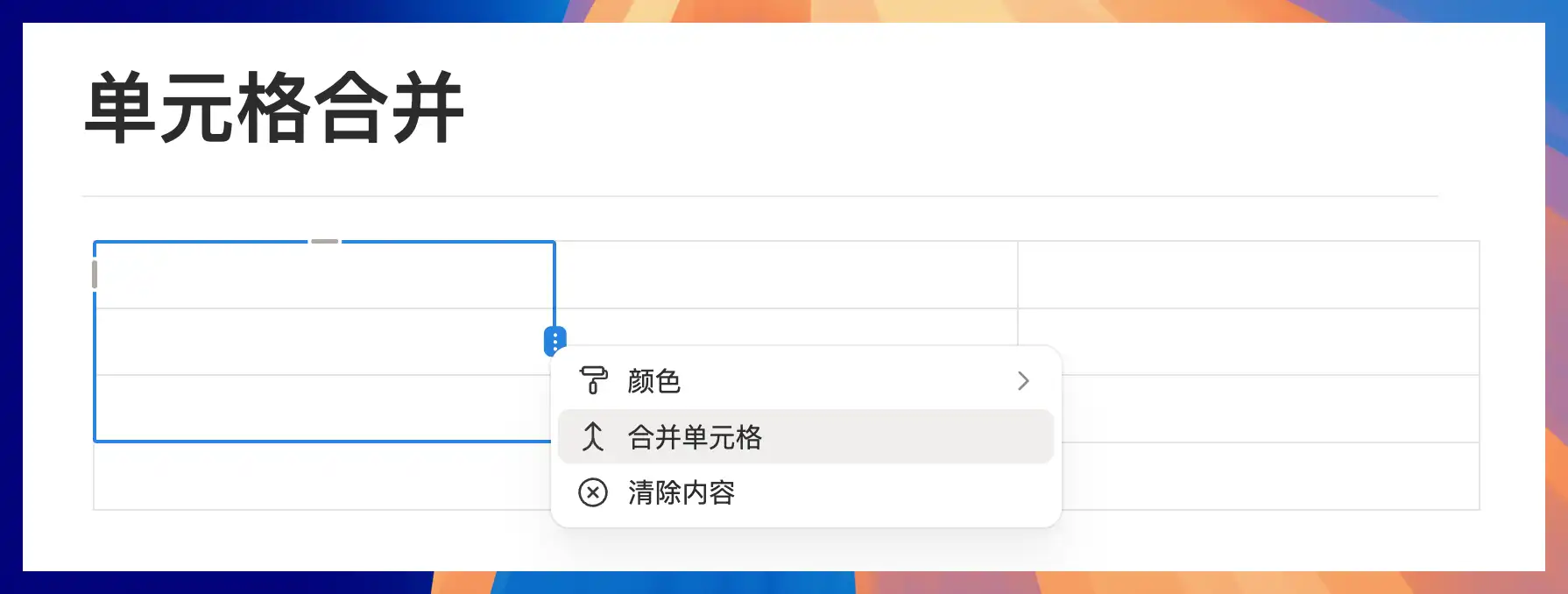
Previously, cells in Notion Simple Tables had to stay inside a fixed row and column structure. If you wanted a header row, a group label, or a wider area across columns, you usually had to fake it with empty cells.

Notion now supports merged cells. Select multiple adjacent table cells, open the cell menu, and choose "Merge cells" to turn them into one larger area.

This is useful for comparison tables, schedules, course tables, and explanatory tables. Together with the earlier bullet list support in table cells, Notion Simple Tables are finally becoming more practical for real layout work.

Notion table cell merge menu

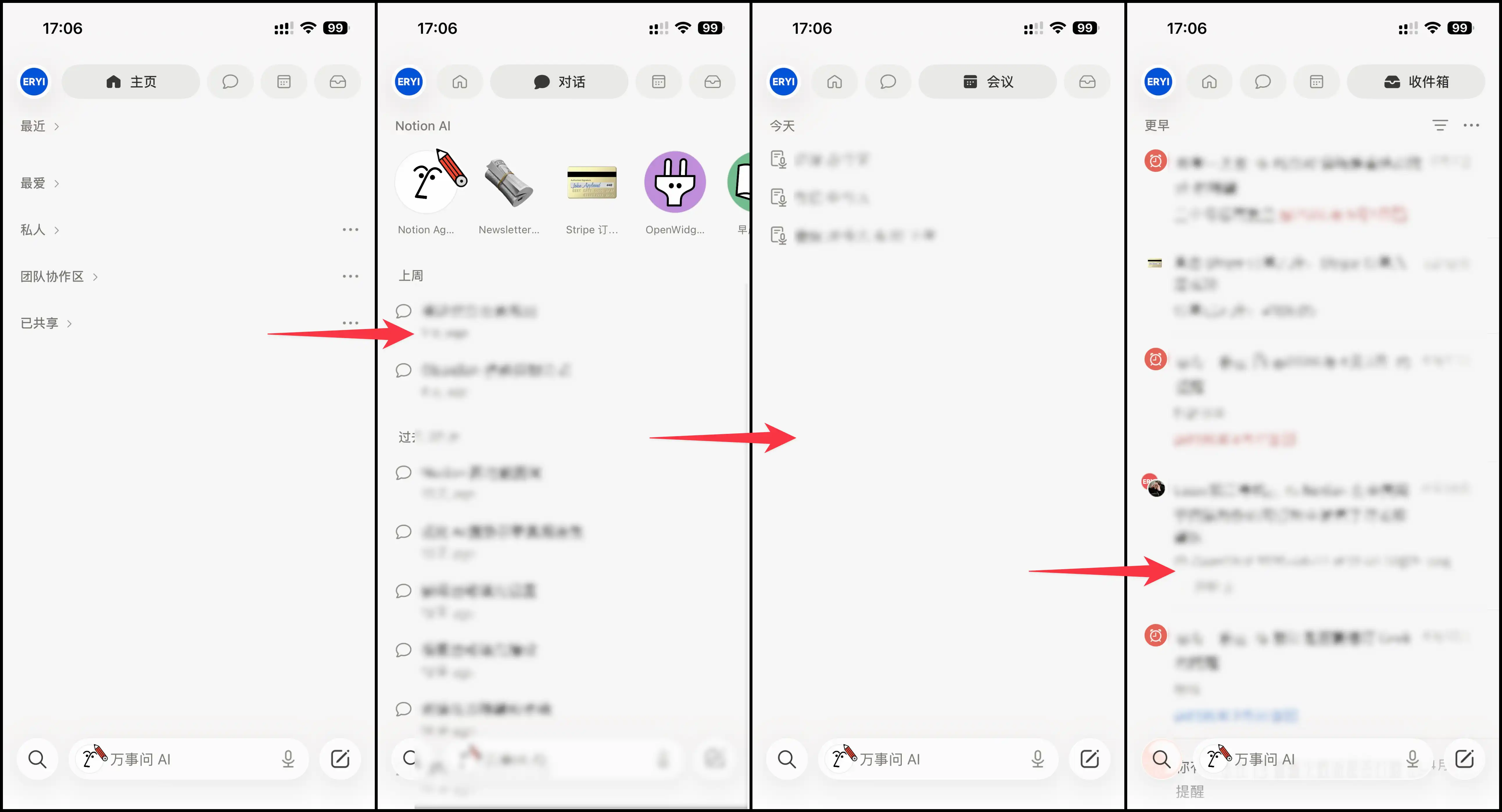
Notion mobile now has a new Home tab.

After opening the mobile app, you can switch between Home, Chat, Meetings, and Inbox from the top of the screen. Common pages, AI chats, meeting notes, and notifications are easier to reach without digging through the sidebar.

This update follows the earlier Notion mobile AI upgrade. Notion is turning the phone experience into a fuller workspace entry point. For people who often check notes, follow up on messages, or review meeting content on mobile, the main routes are now shorter.

Notion mobile Home tab interface

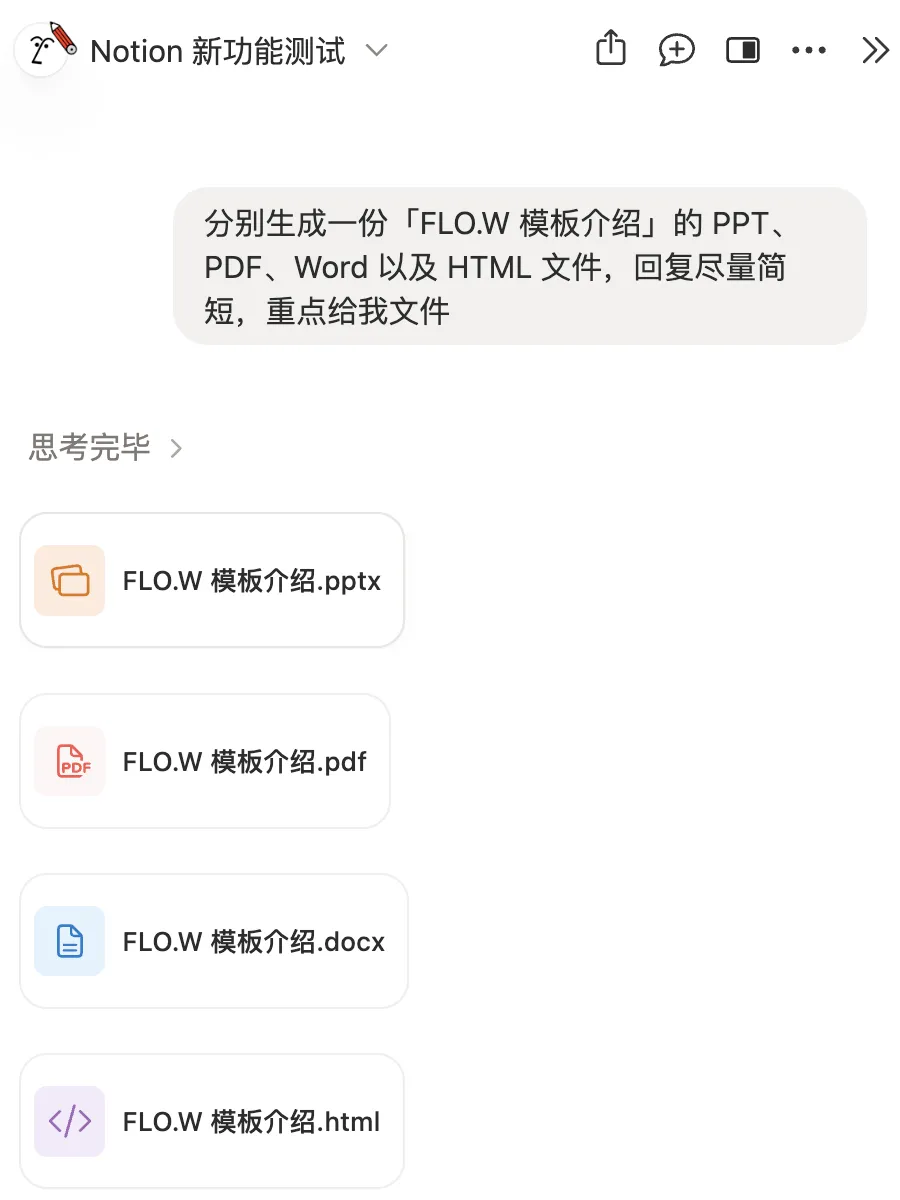
Notion AI can now run or write code inside a conversation and generate files directly.

You can ask it to turn content into a PPT, PDF, Word document, or HTML file. You can also upload files and let AI use command-line tools, Python, Node, and other scripts in a sandboxed environment to process them. Tasks that used to require switching between multiple tools can now happen inside the Notion AI chat.

Notion AI generating PPT, PDF, Word, and HTML files

This follows the same direction as AI image generation: generated output stays inside Notion. Image generation handles visual assets, while this update covers more general file and data tasks, including reports, spreadsheet analysis, document conversion, and batch cleanup.

Combined with Custom Agents, Notion is moving closer to a full work execution environment. For structured templates like FLO.W, project notes, tasks, reviews, and knowledge bases could eventually be read, processed, and exported into usable files by AI.

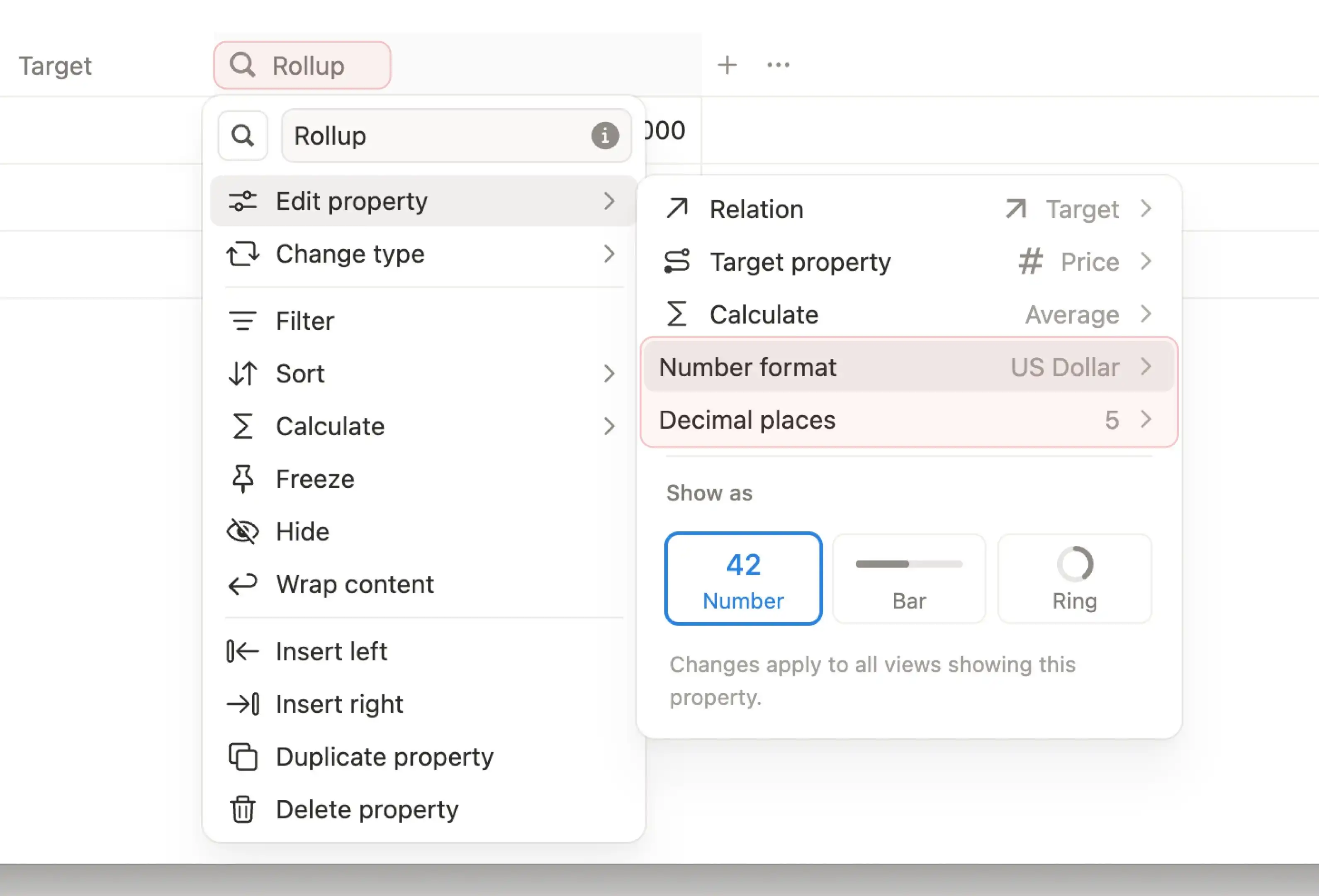
When you used Rollups to summarize budgets, revenue, or progress percentages, the result often appeared as a plain number. To show dollars, euros, percentages, or a specific number of decimal places, you often had to add an extra formula.

Notion rollups can now set number formats and decimal places directly. Open a Rollup property in a database, go to "Number format" and "Decimal places" in the property settings, then choose formats like US Dollar, Euro, or Percent and control how many decimal places to keep.

This is useful for budget tables, sales summaries, and project progress databases. Together with the earlier Dashboard view, rollup results can go straight into an overview page without extra formulas just for display formatting.

Notion rollup number formatting settings

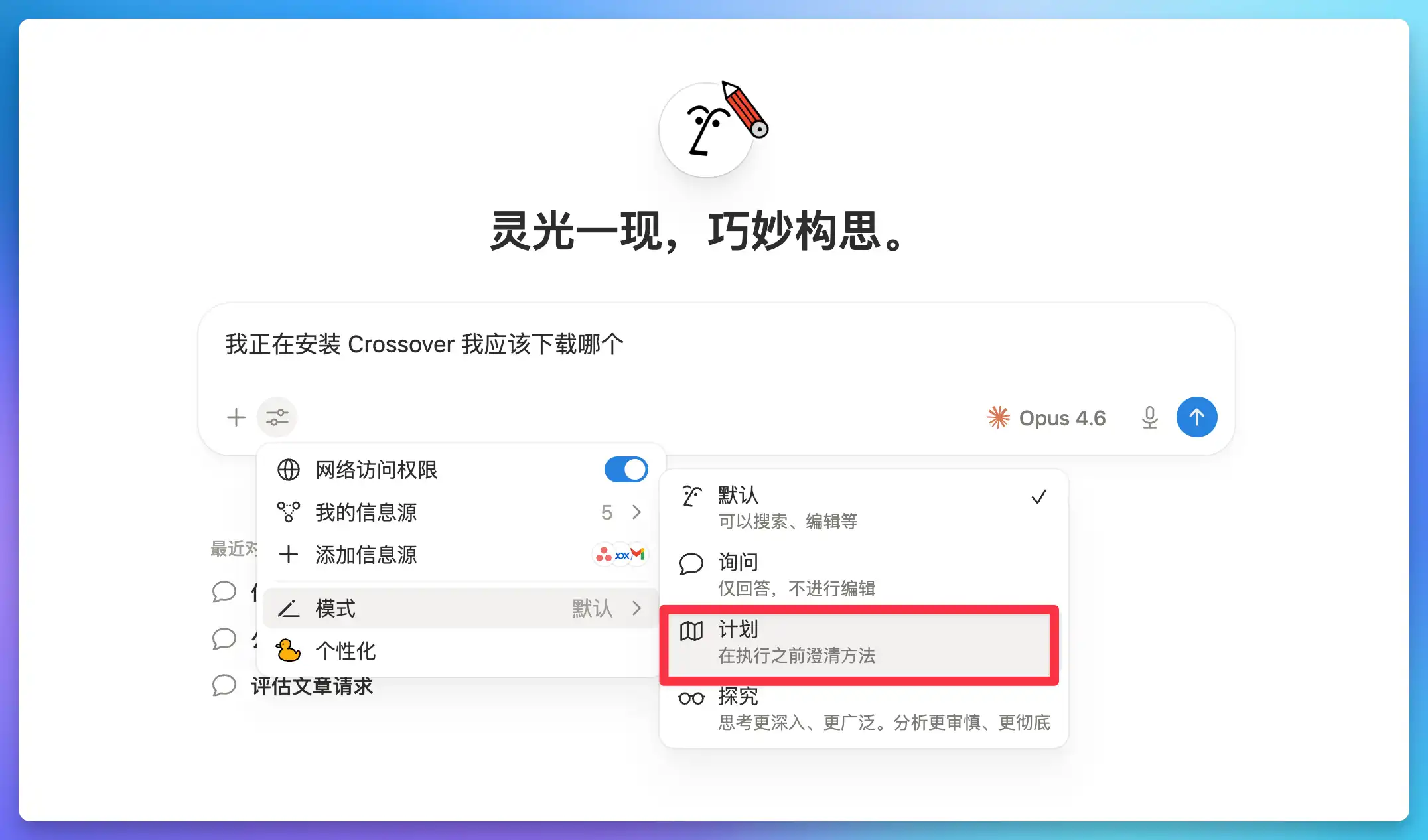
Notion AI now has a Plan mode similar to the one in Claude Code.

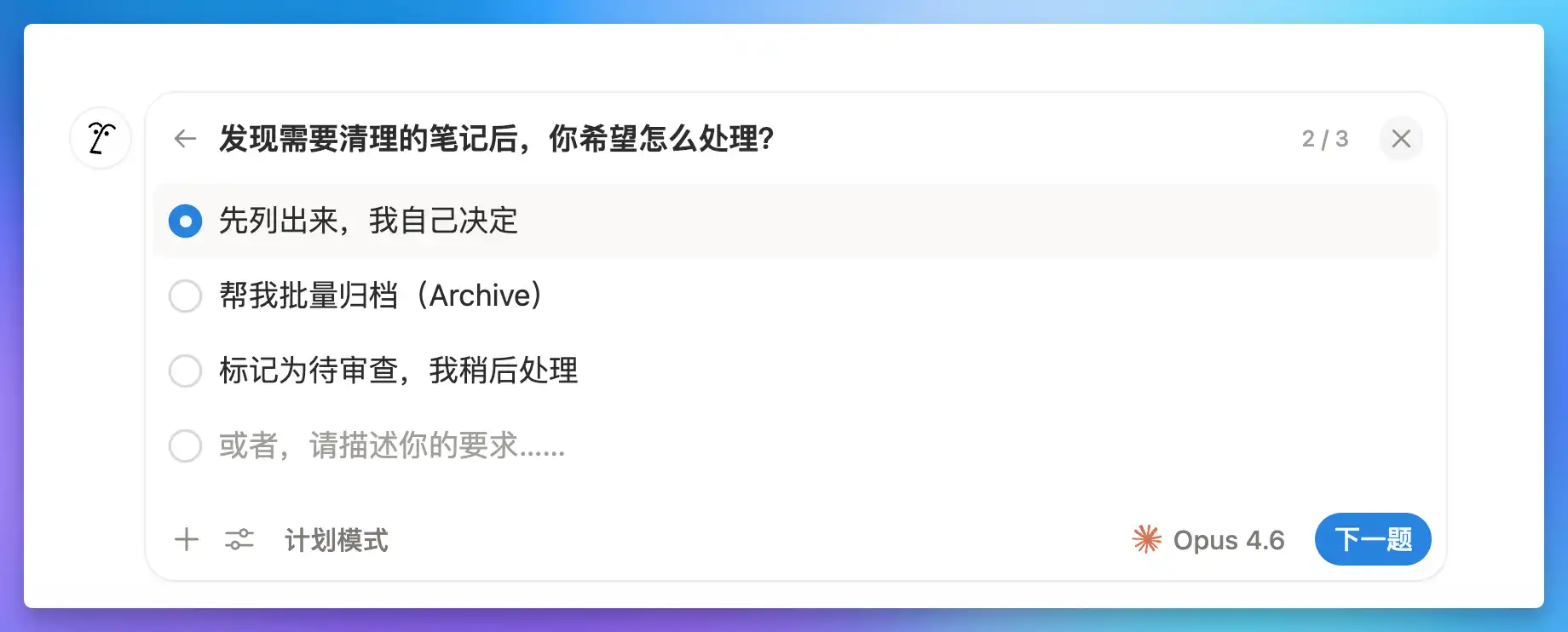
When it is turned on, AI first breaks down the request and gives you a few possible ways to proceed. For example, after finding notes that may need cleanup, it can ask whether you want to review them yourself, archive them in bulk, or mark them for later review. After you choose a direction, it continues by preparing a more specific plan.

Notion AI Plan mode entry

This matters a lot for Notion Agent. AI can move quickly when organizing pages, editing databases, or handling content in bulk, and a wrong step can be annoying to undo. Plan mode puts the thinking step before the action, so you can adjust the direction before AI starts making changes.

Notion AI Plan mode options confirmation

After the Claude AI Agents integration, Notion has added another important safety layer to its Agent workflow. It also fits structured templates like FLO.W well. Projects, tasks, notes, and archives all have clear boundaries, and asking first helps reduce mistaken operations.

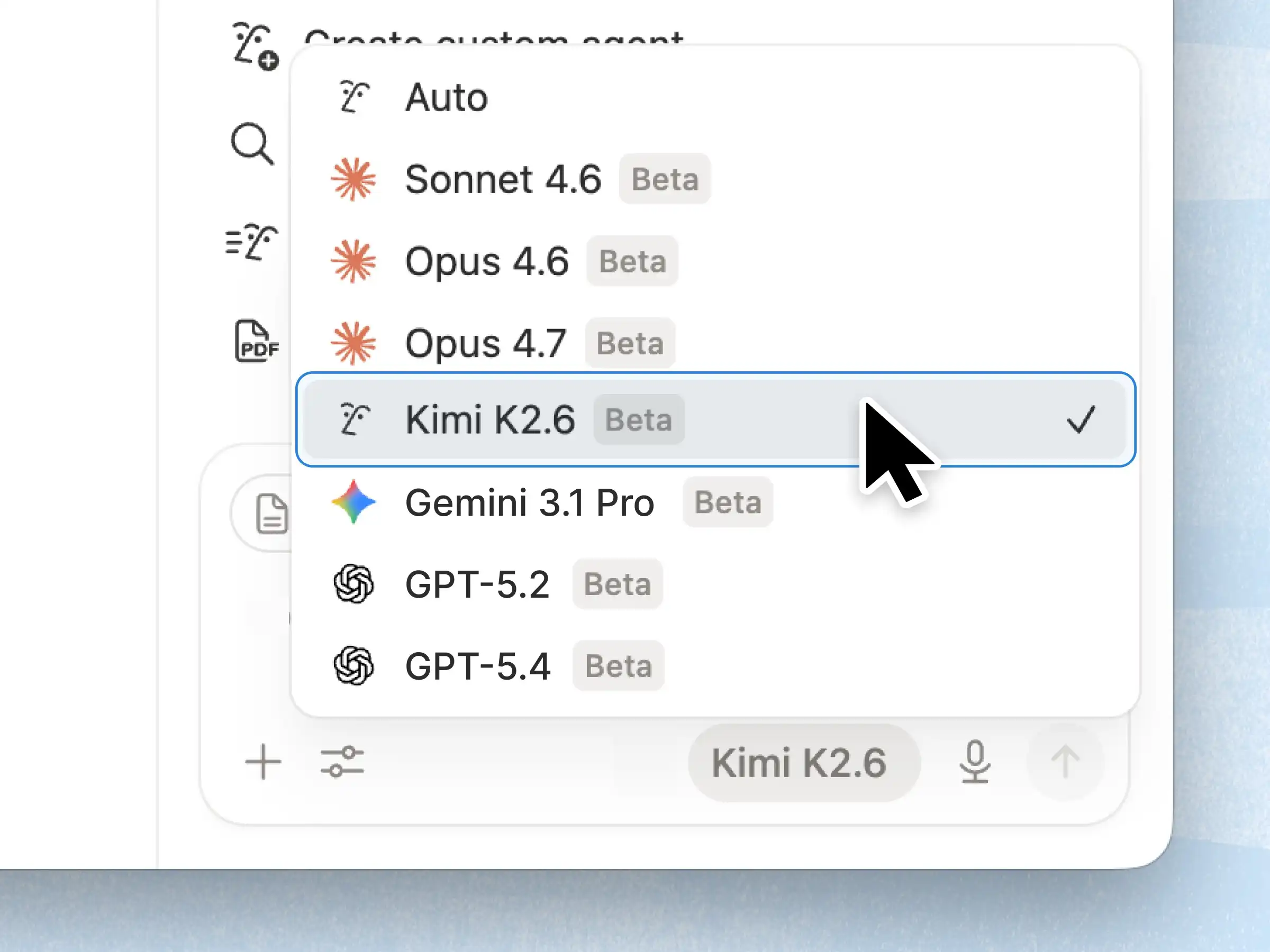
Kimi K2.6 now appears in Notion's model selector inside Agent chat. Once you open an Agent conversation, you can switch to it directly.

From the interface, Kimi K2.6 now sits in the same list as Sonnet, Opus, Gemini, and GPT models. That is another sign that Notion is still expanding the model options available in Agent chat.

After Notion Adds GPT-5.4 Series and Model Comparison and Notion Adds Google Gemini 3.1 Pro, this is one more addition to the lineup. At least from what is visible in the UI, model choice inside Notion is getting broader.

Kimi K2.6 in Notion AI model selector

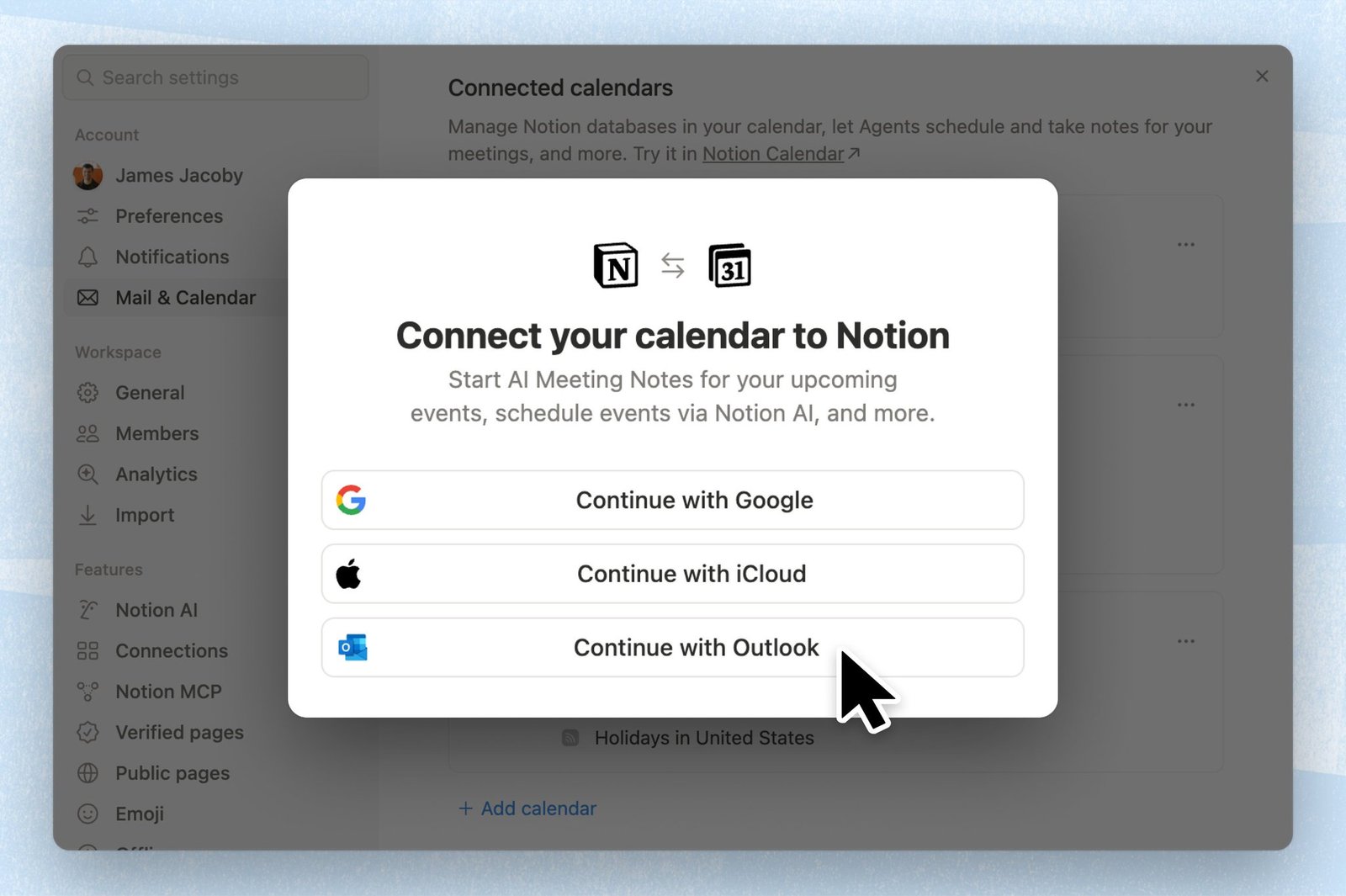
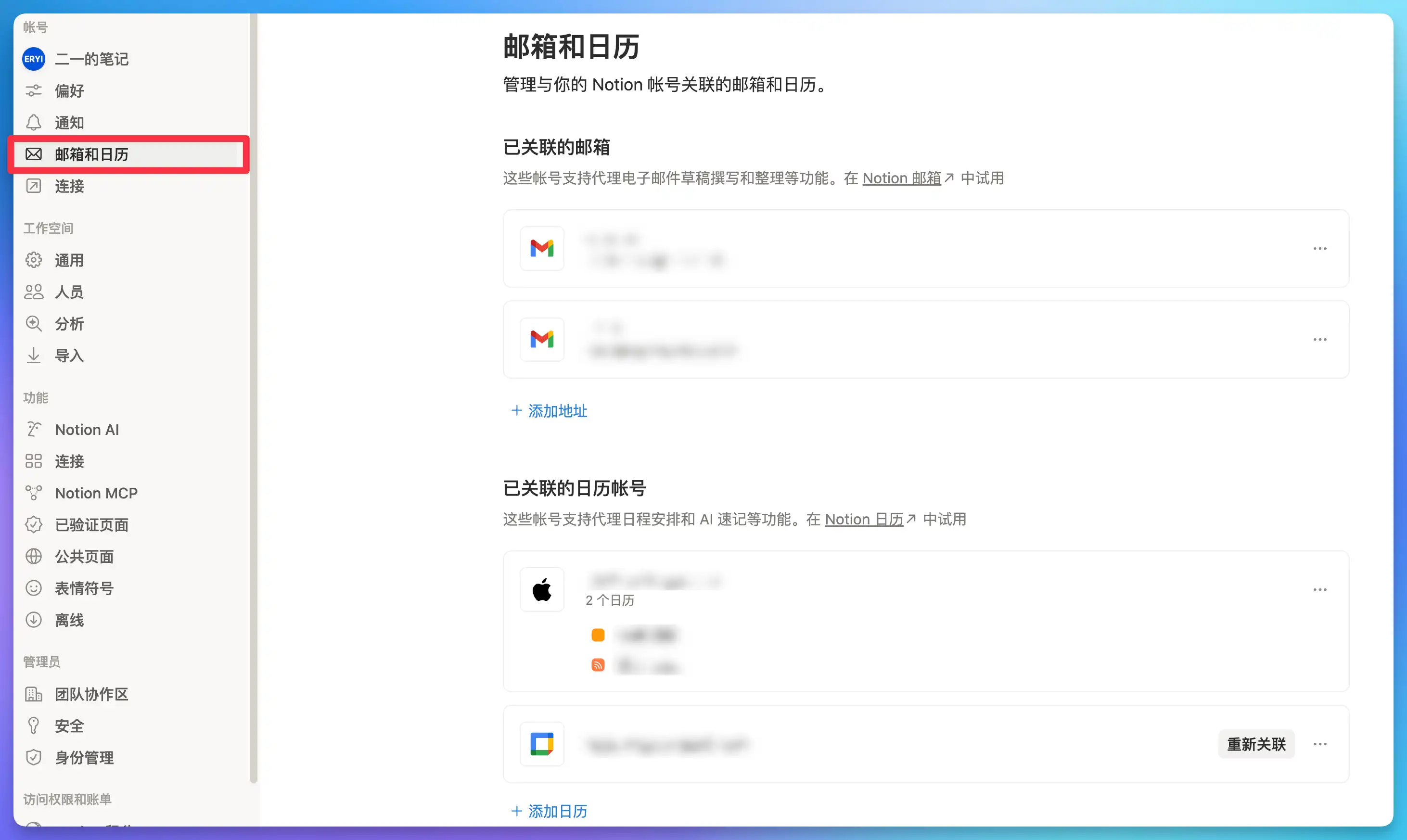
Notion now puts Mail and Calendar account connections into a dedicated Mail & Calendar page in Settings. If you wanted AI to draft emails, check availability, or schedule meetings before, the setup path could feel scattered. Now you can handle those permissions in one place.

From Settings, you can add email addresses and calendar accounts in one flow. Once linked, Notion AI can draft emails, organize your inbox, and schedule meetings more smoothly. Following Mail and Calendar integrations for Custom Agents, the focus here is a clearer and easier setup flow.

Mail and Calendar connections in Notion Settings

If you already run Agent workflows inside FLO.W, this is a practical improvement. It should be easier to reconnect everything on a new device or hand the setup over to a teammate. I covered email triage and scheduling examples in my deep dive on Notion Custom Agent.

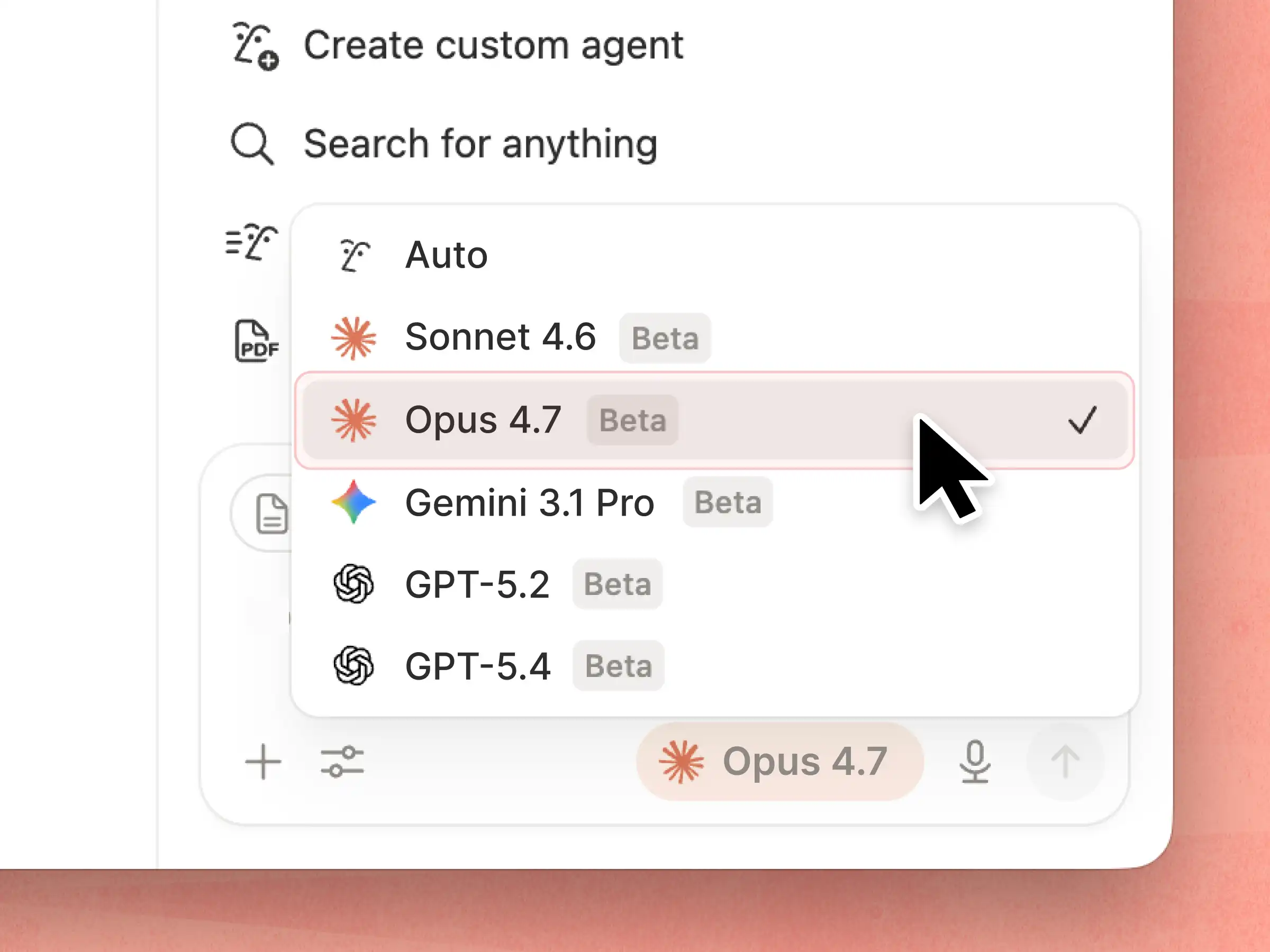
Two months after Claude Opus 4.6 and Sonnet 4.6 arrived, Anthropic's flagship model has been upgraded again. Opus 4.7 is now available in Notion AI's model selector.
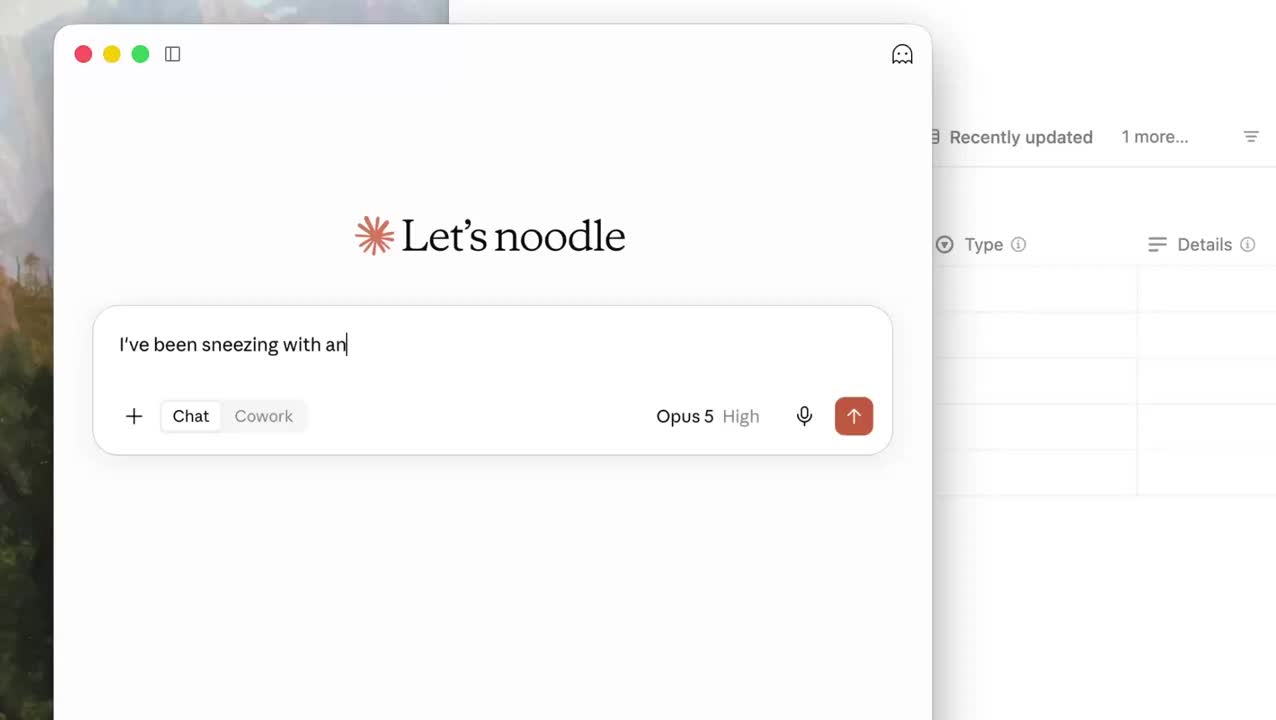
This version focuses on multi-step workflow stability. Compared to 4.6, Opus 4.7 uses fewer tokens and produces roughly 3x fewer errors when calling tools. If your Agent needs to perform multiple operations in sequence, like searching pages, organizing content, and then sending notifications, the failure rate drops significantly.

Opus 4.7 in Notion AI model selector

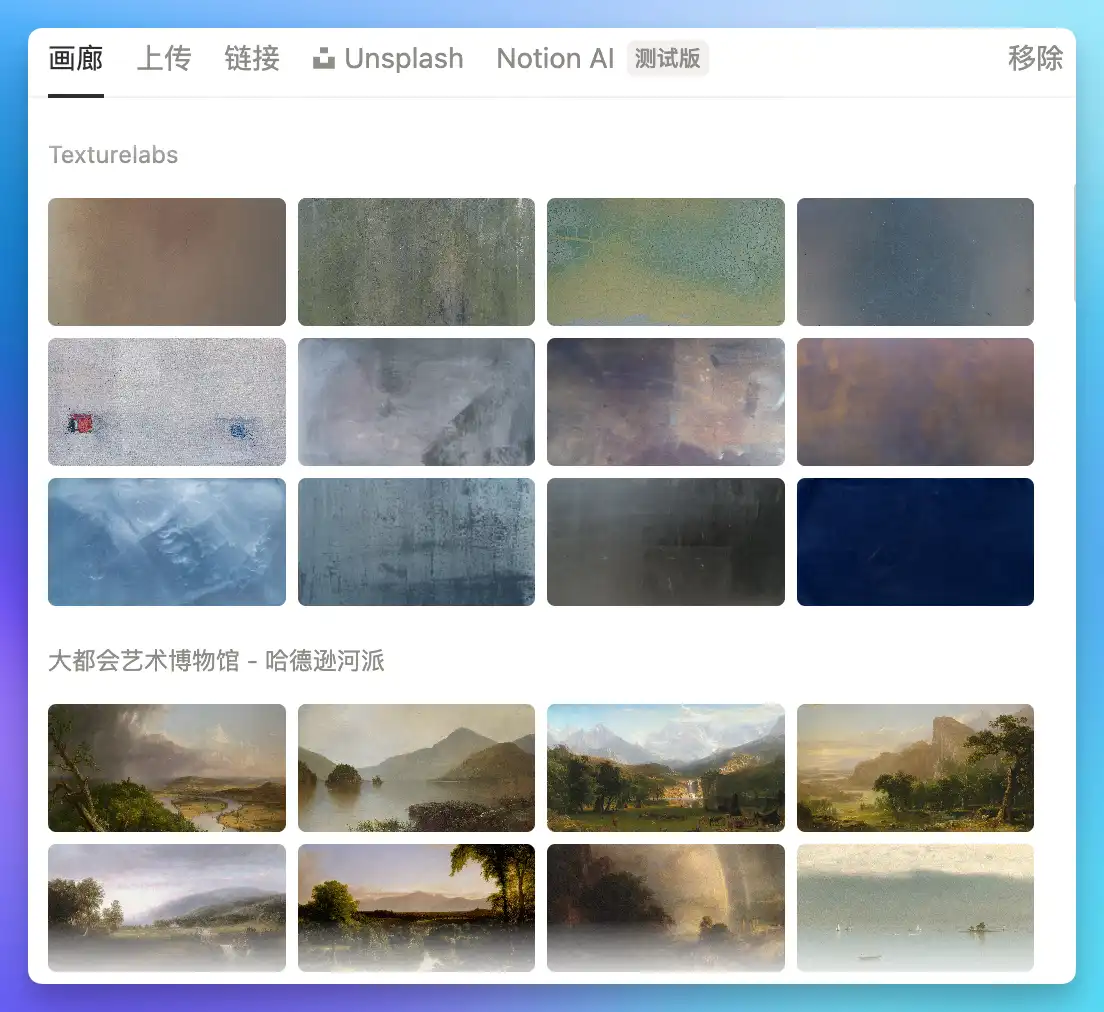
Notion has added four new page cover art collections sourced from museums and public archives: natural textures (Texturelabs), Hudson River School paintings (The Metropolitan Museum of Art), Chinese silk paintings (National Museum of Asian Art), and watercolor fruits (USDA Pomological Watercolors).

Notion new page cover art collections

When setting a page cover, you'll find these four new collections in the cover picker. Each collection includes multiple high-quality images spanning nature, art, and humanities, offering a significant upgrade over the previous default options.

Cover art choices in Notion have always been somewhat limited. These museum-sourced collections bring genuinely high-quality imagery, perfect for notes and documents where visual presentation matters. If you're looking for even more cover options, check out our 1,000 free Notion database covers featuring a wide range of Chinese font styles.

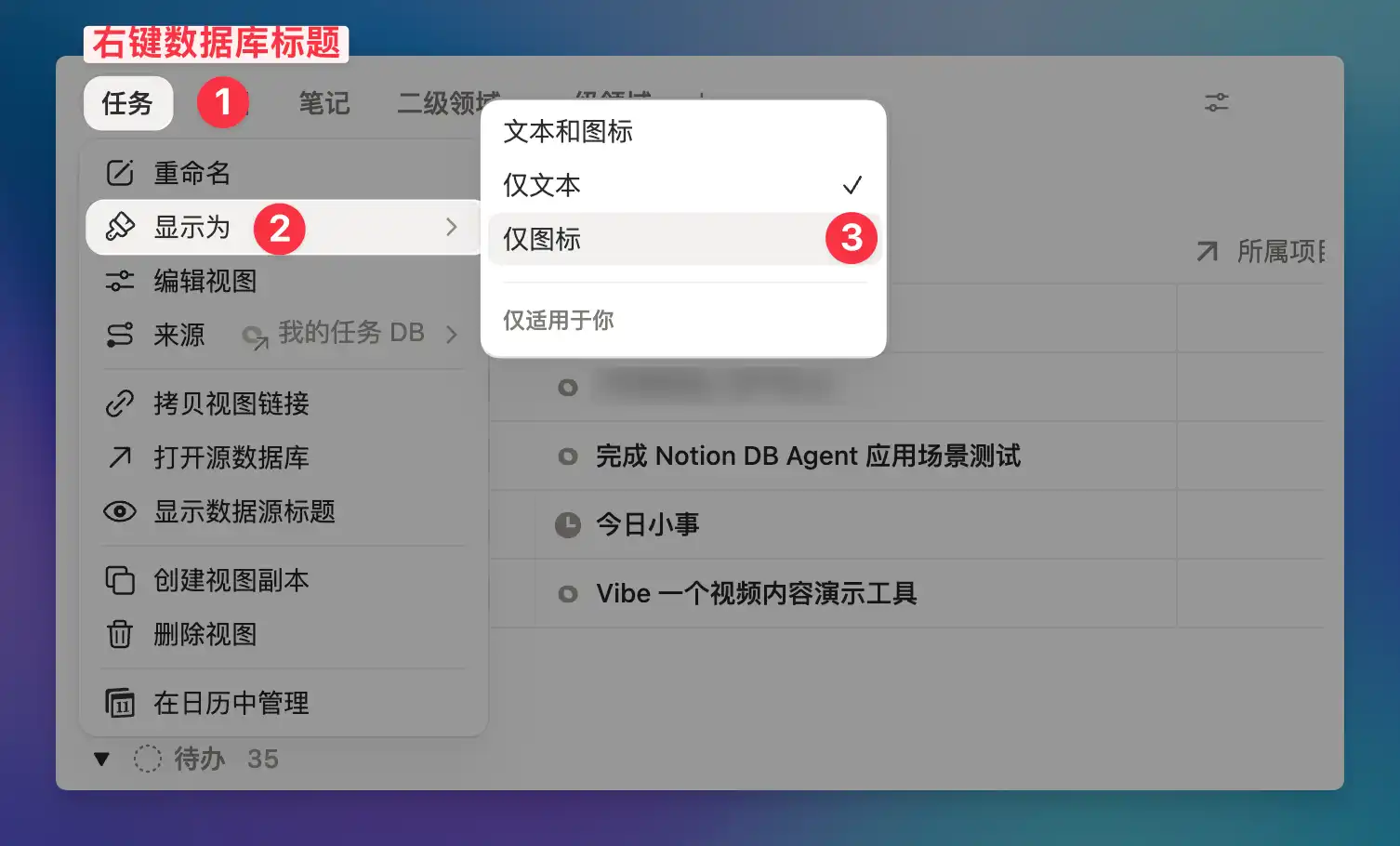
When you have many database views, the tabs at the top can get crowded and cluttered. Notion now supports customizing how tabs are displayed. Right-click on a tab and select "Display as" to switch between three modes: text and icon, text only, or icon only.

This setting only applies to you and won't affect your collaborators' views. If you prefer using icons to distinguish views, switch to "Icon only" mode for a cleaner, more space-efficient look. Along with the earlier Dashboard view, database visualization and personalization keeps getting better.

Notion custom database tab display options

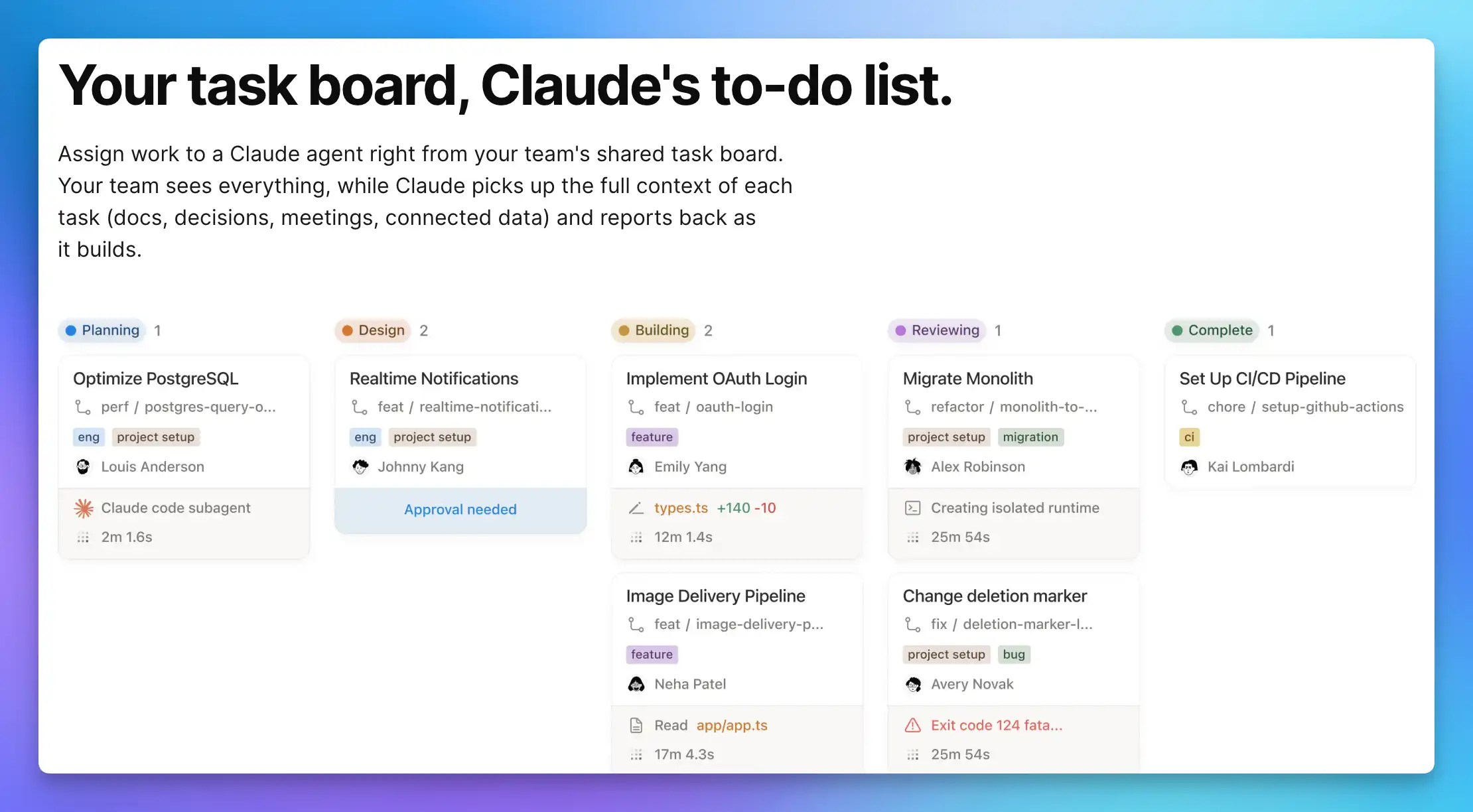
Following Custom Agents and MCP integration, Notion's integration with Claude enters its third phase.

This update brings Claude Managed Agents. Anthropic runs the model and agent harness, while Notion serves as the orchestration layer providing context, UI, and team collaboration space. You can keep working in Notion while Claude executes tasks behind the scenes.

Your task board becomes Claude's to-do list. Team members can view AI execution progress, review results, and trigger follow-up workflows—all within Notion.

Notion Claude AI Agents integration interface

Custom Agents capabilities expand again—this time with Slack integration.

Once connected, Agents can monitor channels for requests, extract action items from conversation threads, and automatically route messages to the right workflows. Tasks from team discussions no longer slip through the cracks—Slack conversations seamlessly sync to Notion for follow-up.

Following email and calendar integrations, Slack becomes another key connector for Custom Agents, making cross-tool collaboration smoother.

Notion Custom Agents Slack integration

Debugging Custom Agents used to be a black box. Now you get a clear runtime view.

This update lets you directly see execution status, call logs, and output results. No more guessing whether your Agent is working as expected—now you have data to refine prompts and configurations.

Take advantage while Custom Agents remain free until May 3.

Notion Custom Agents debugging panel

Copying pages finally won't freeze anymore.

Notion unified the underlying framework for all duplication flows—page copying, template creation, marketplace installs, moves, and recurrence automations. The success rate now reaches 99.9%, with P99 speed improved by 71% for large content.

The UX improvement is even more noticeable: you now navigate to the new page earlier with a progress bar instead of staring at a blank screen.

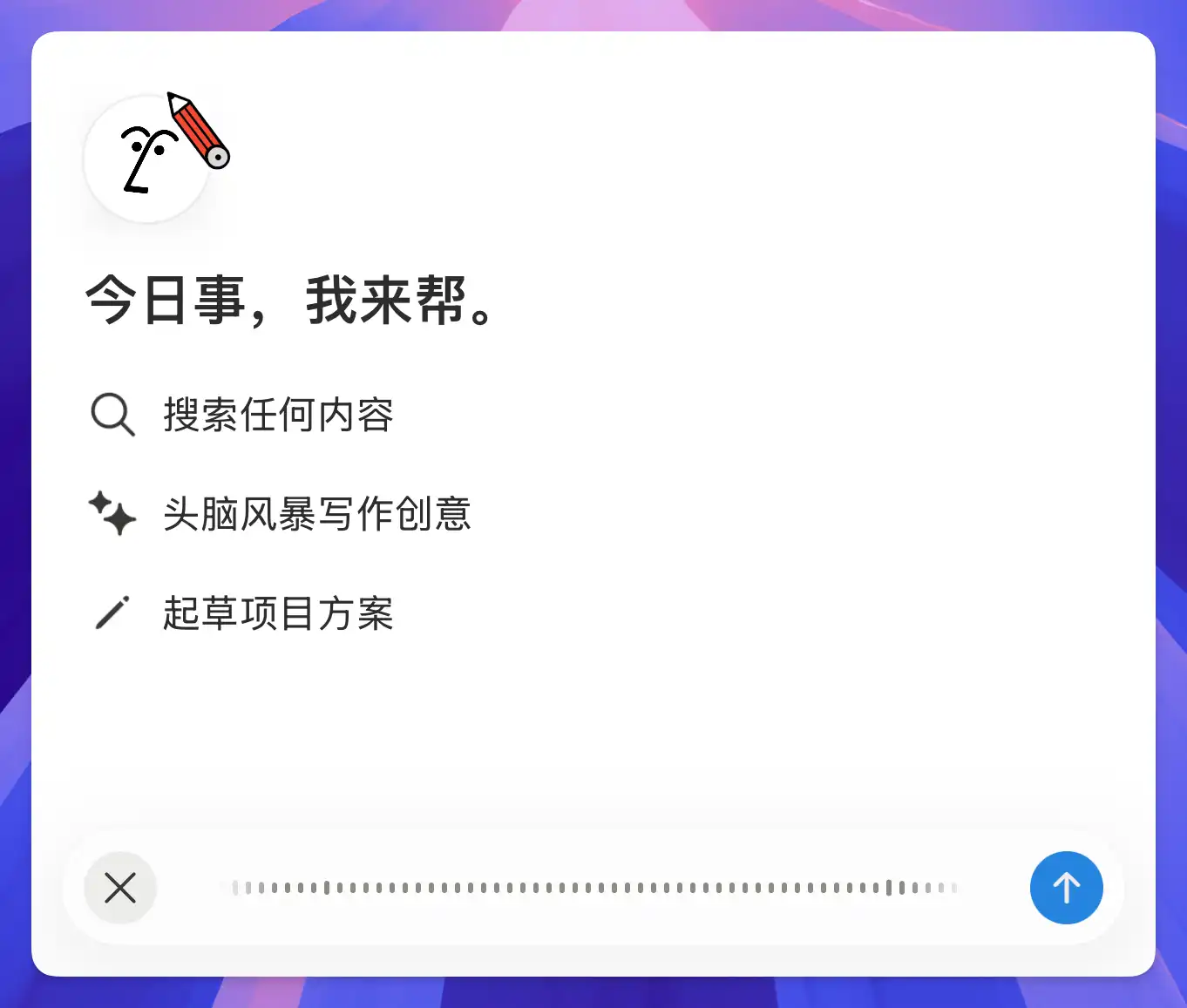
Previously, chatting with Notion AI required typing. Now the desktop app supports voice input too.

Click the microphone icon on the right side of the input box, and AI will automatically recognize and process your request after you finish speaking. For longer prompts or ideas that are hard to put into words, just saying them out loud is much easier.

Notion AI chat voice input interface

Following mobile voice input, the desktop AI chat now has voice capabilities too — Notion keeps pushing forward on voice interaction.

The fastest way to type is to not type at all. Voice input is now available on desktop.

Previously limited to mobile, the speech-to-text feature now works on Mac and Windows clients. Click the microphone icon in the toolbar and speak to convert your words directly into notes.

Perfect for quickly capturing ideas, meeting notes, or whenever you just don't feel like typing.

[Screenshot needed: Desktop voice input button and interface]

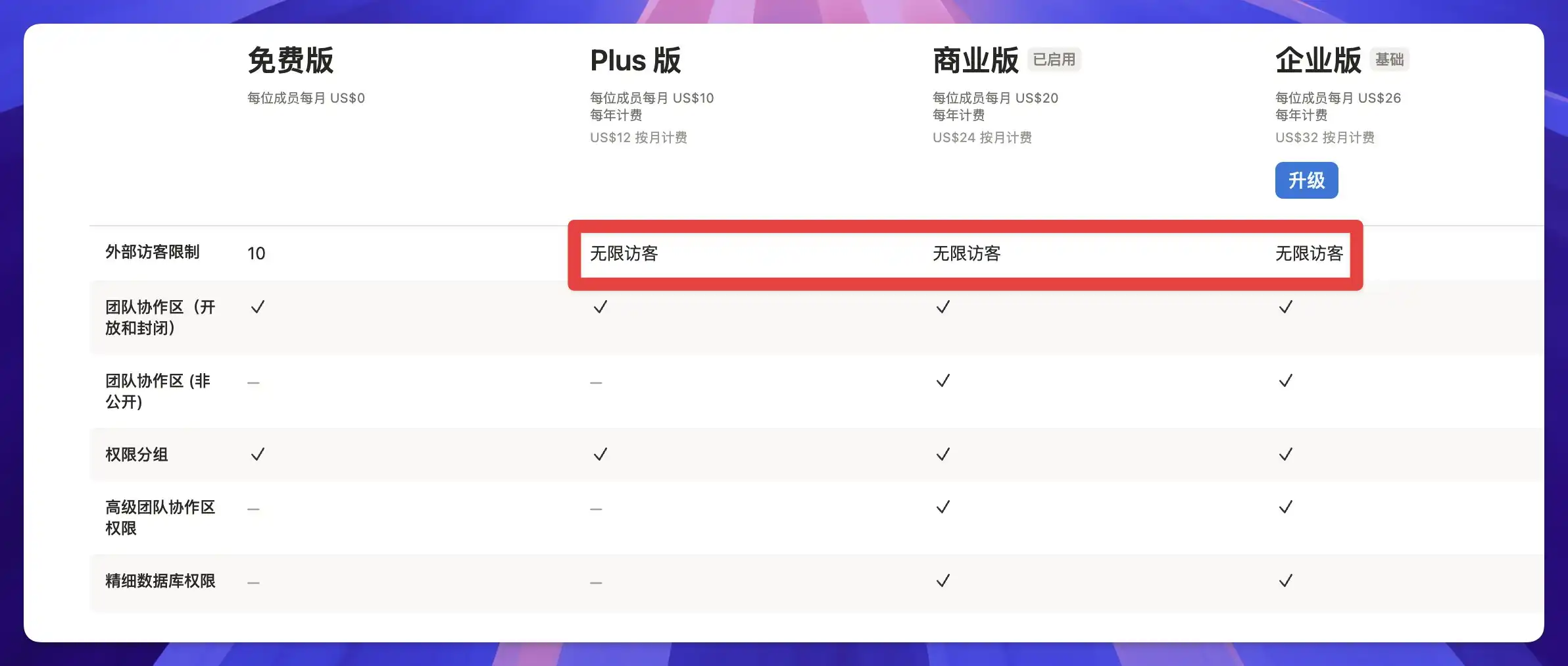
Notion has quietly updated guest limits on paid plans: Plus, Business, and Enterprise now all support unlimited guests, while the Free plan stays at 10.

Notion pricing page guest limit comparison

This change is huge for knowledge base sellers and template creators. Previously, sharing content with a large number of external users required an Enterprise account, which was a high barrier (I wrote a detailed breakdown of guest limits by plan before). Now, Plus ($10/user/month) lets you invite unlimited guests — you can start running a knowledge base business with just one email.

If you're using Notion for paid content, course libraries, or team-shared docs, this update means you no longer need to worry about running out of guest slots.

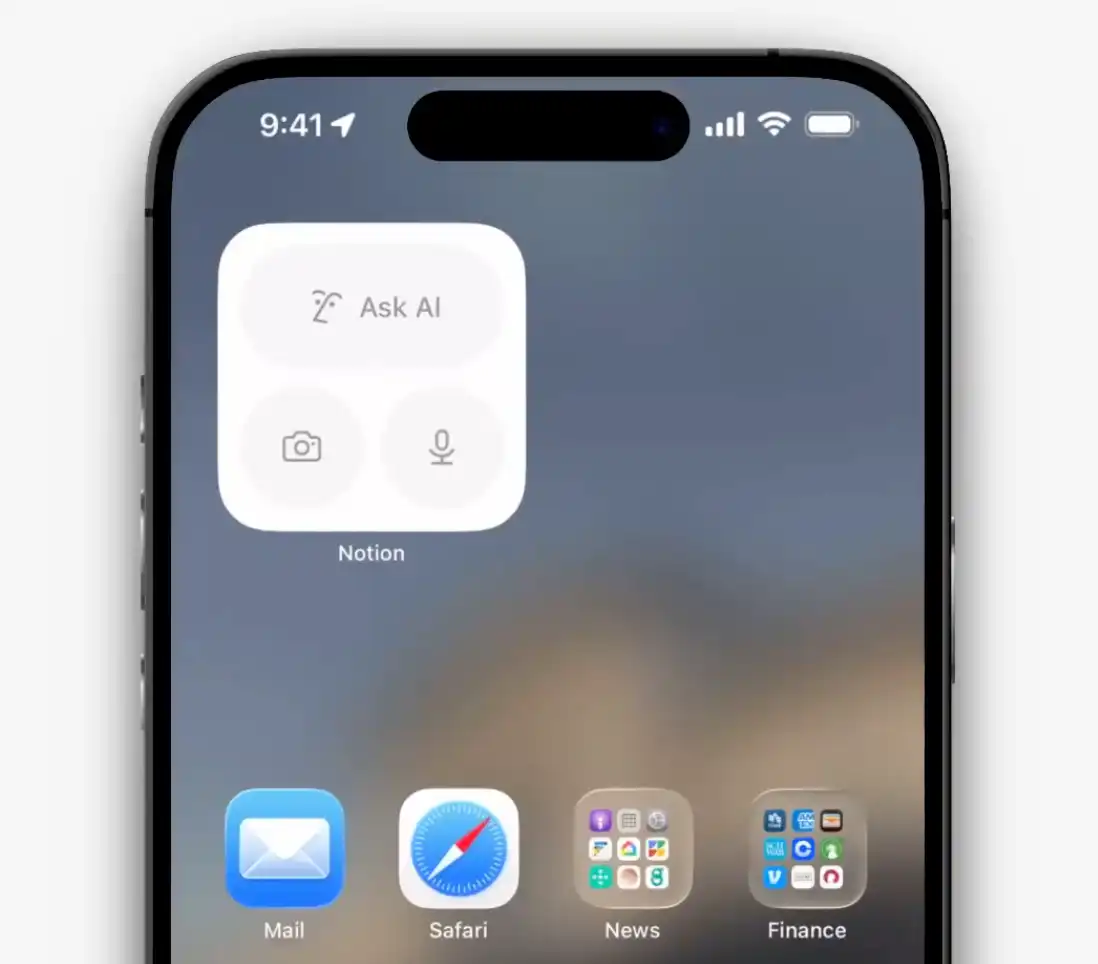
Your Notion entry point on the home screen just got more powerful.

The new iOS widget lets you jump directly to three core features: AI chat, camera scan, and voice input. No need to open the app first and then find the function—launch your most-used actions right from the home screen.

Perfect for quickly capturing ideas, scanning documents, or chatting with AI.

Notion iOS widget quick access

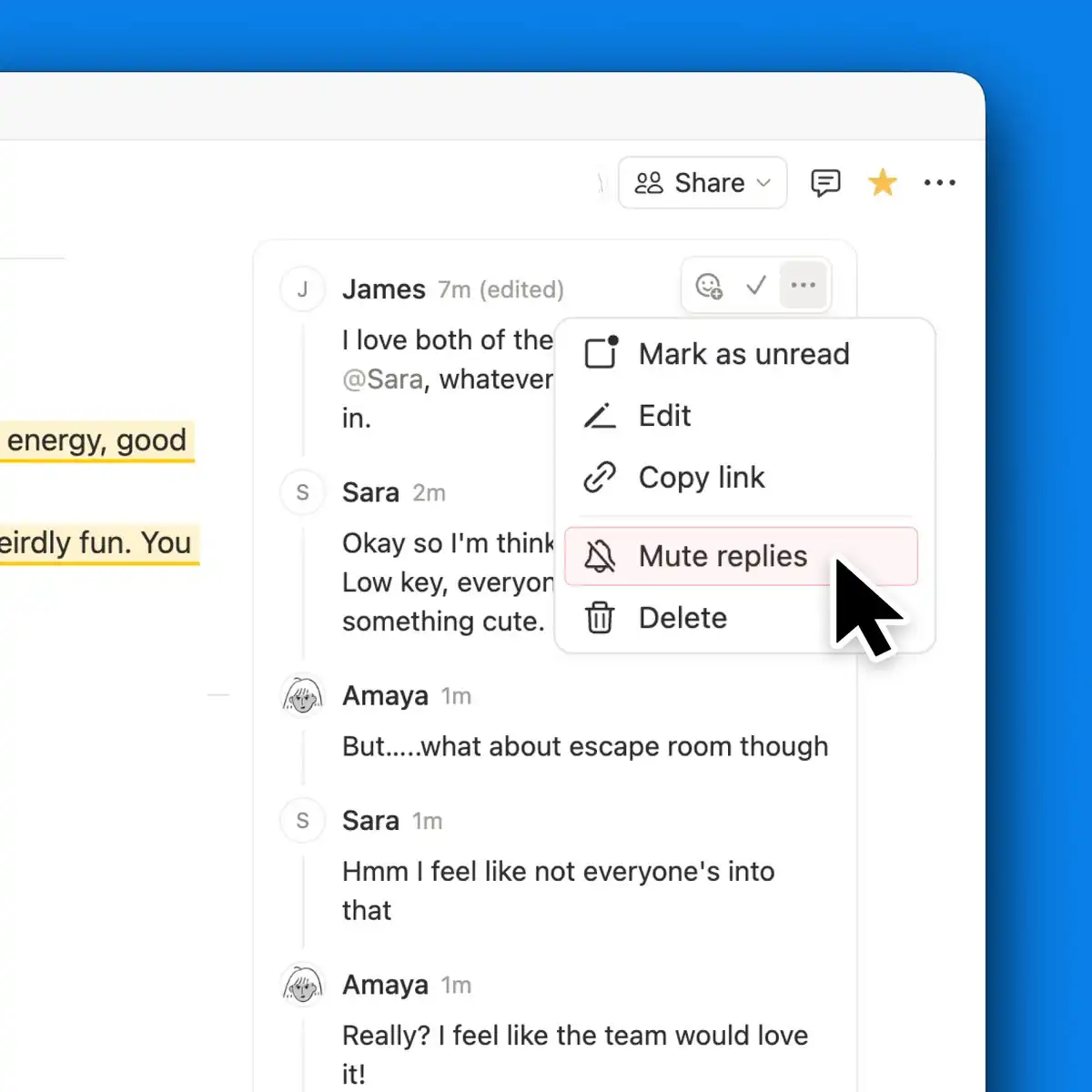
Getting bombarded by irrelevant discussion replies? Now you can mute them.

For discussions you no longer need to follow, you can mute subsequent replies to keep your inbox clean. But don't worry about missing important updates—you'll still get notified if someone @mentions you.

A small feature for better focus, especially useful when working with heavily collaborative pages.

Notion mute discussion replies feature

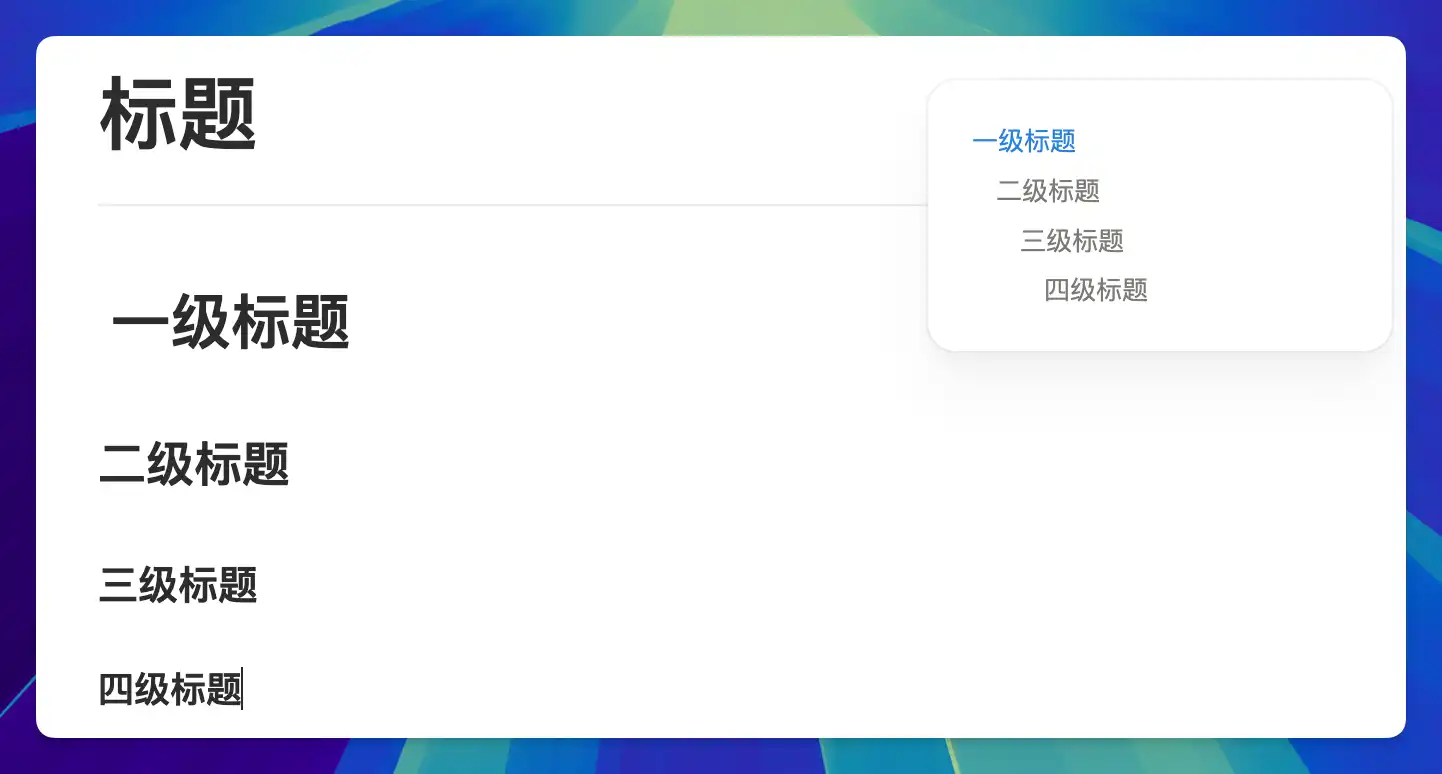
The community has been asking for H4 for years — and it's finally here. Type #### on any page or select "Heading 4" from the menu.

Notion 四级标题效果

Heading 4 appears in the sidebar Table of Contents, making long-document navigation more precise. Many users previously resorted to toggles or bold text to simulate a fourth heading level — that workaround is no longer needed.

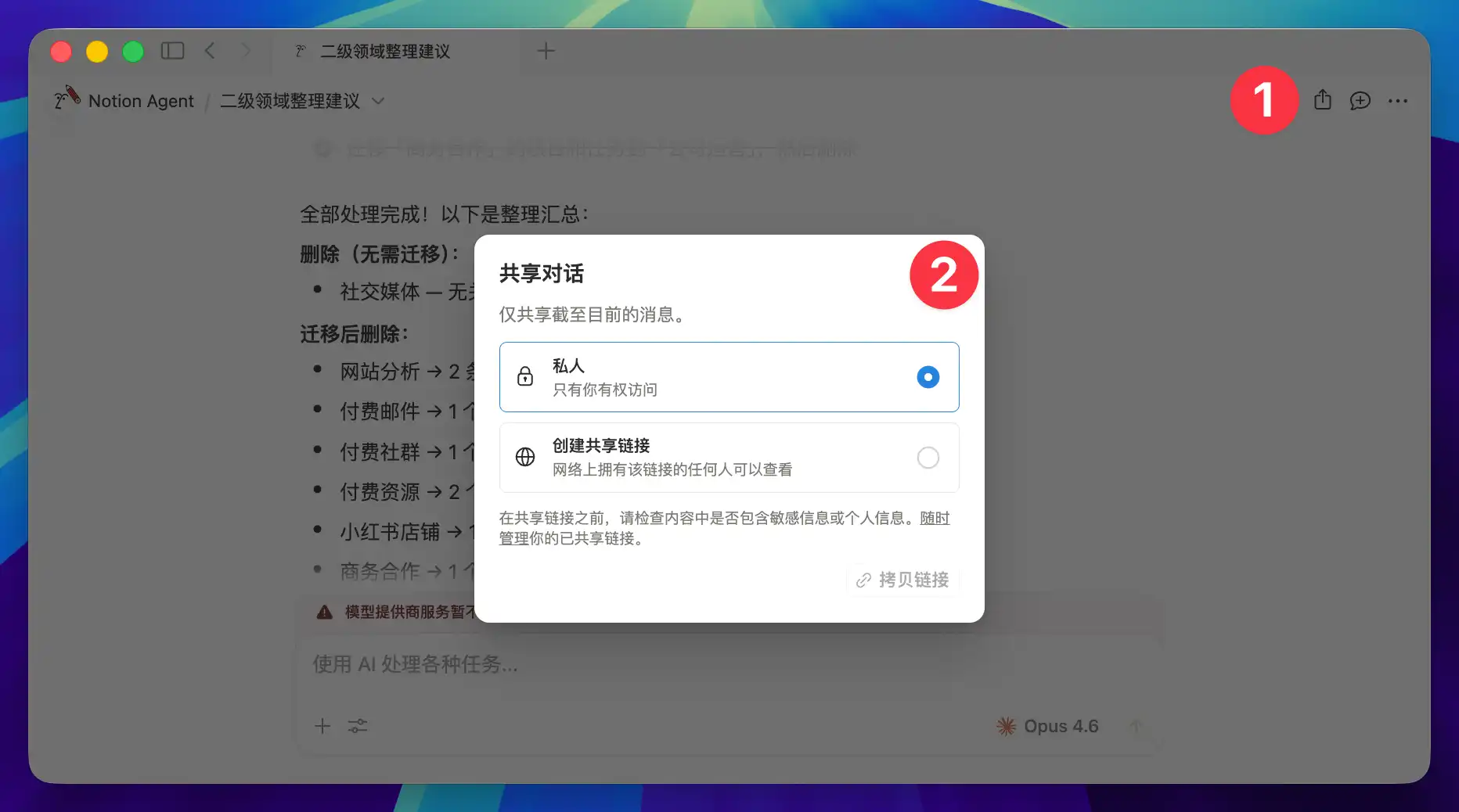
Sharing AI conversation results used to mean taking screenshots or copy-pasting, with formatting often breaking in the process. Now you can generate a read-only link for any AI chat and send it directly.

Recipients can view the full conversation and results but cannot edit. Had AI help summarize meeting notes or compare proposals? Just share the link — no more stitching screenshots together.

Notion AI chat sharing interface

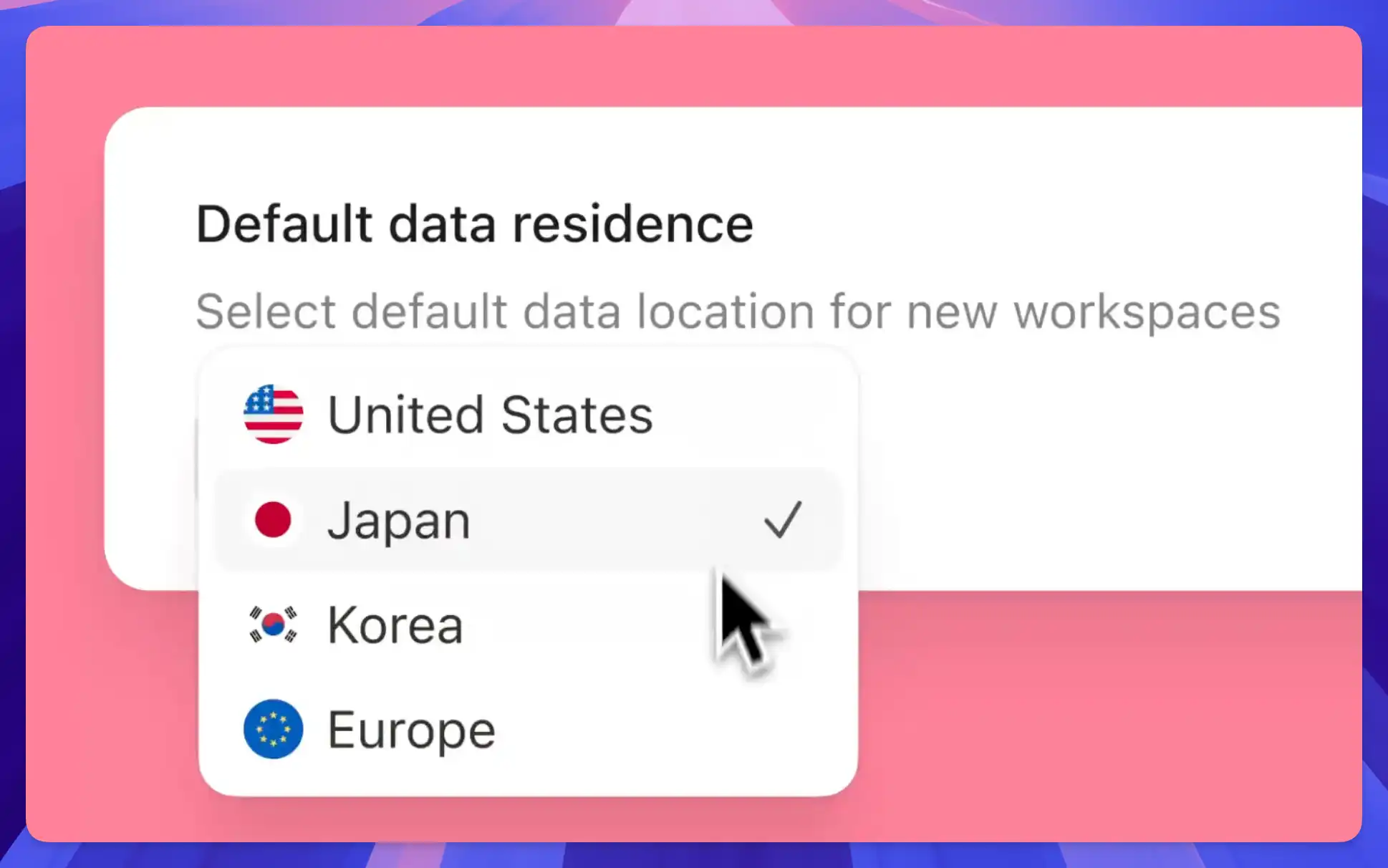
Enterprise users can now choose to store workspace data in data centers located in Tokyo or Seoul, keeping data within the region.

Data residency is a hard requirement for many Japanese and Korean enterprises. Previously, Notion only supported data centers in the US and Europe — this update finally covers the Asia-Pacific region. All collaboration features work normally with no difference in experience.

Notion Japan and Korea data residency announcement

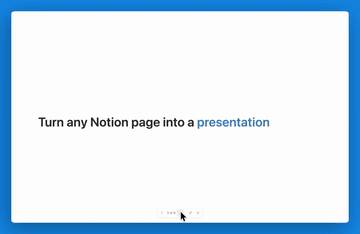
Previously, after writing content in Notion you'd still have to copy your key points into PowerPoint or Google Slides for presentations. Content and slides were always two separate things.

Now Notion has a built-in Presentation Mode. Hit "Present" on any page and your content automatically becomes slides. Your document is your presentation — no more copying between tools.

Notion Presentation Mode in action

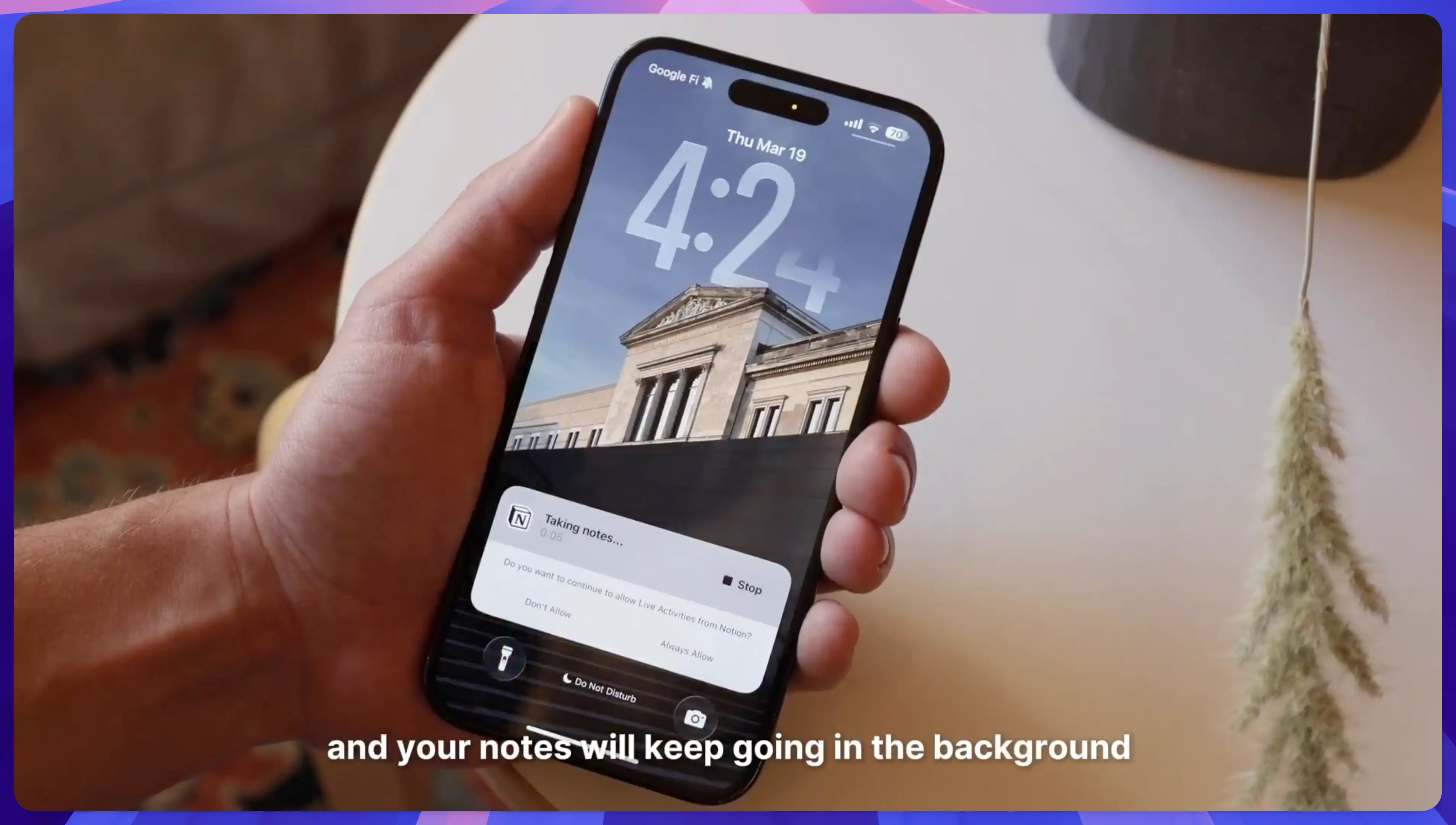
Previously, using Notion's AI meeting notes on mobile was frustrating — switching to another app or locking your screen would stop the recording. You had to keep the screen on and Notion in the foreground the whole time.

Now AI meeting notes support background recording. Start a recording, then go check your files, reply to messages, or even lock your screen — the recording keeps going. Works on both iOS and Android.

Notion AI meeting notes background mode tweet

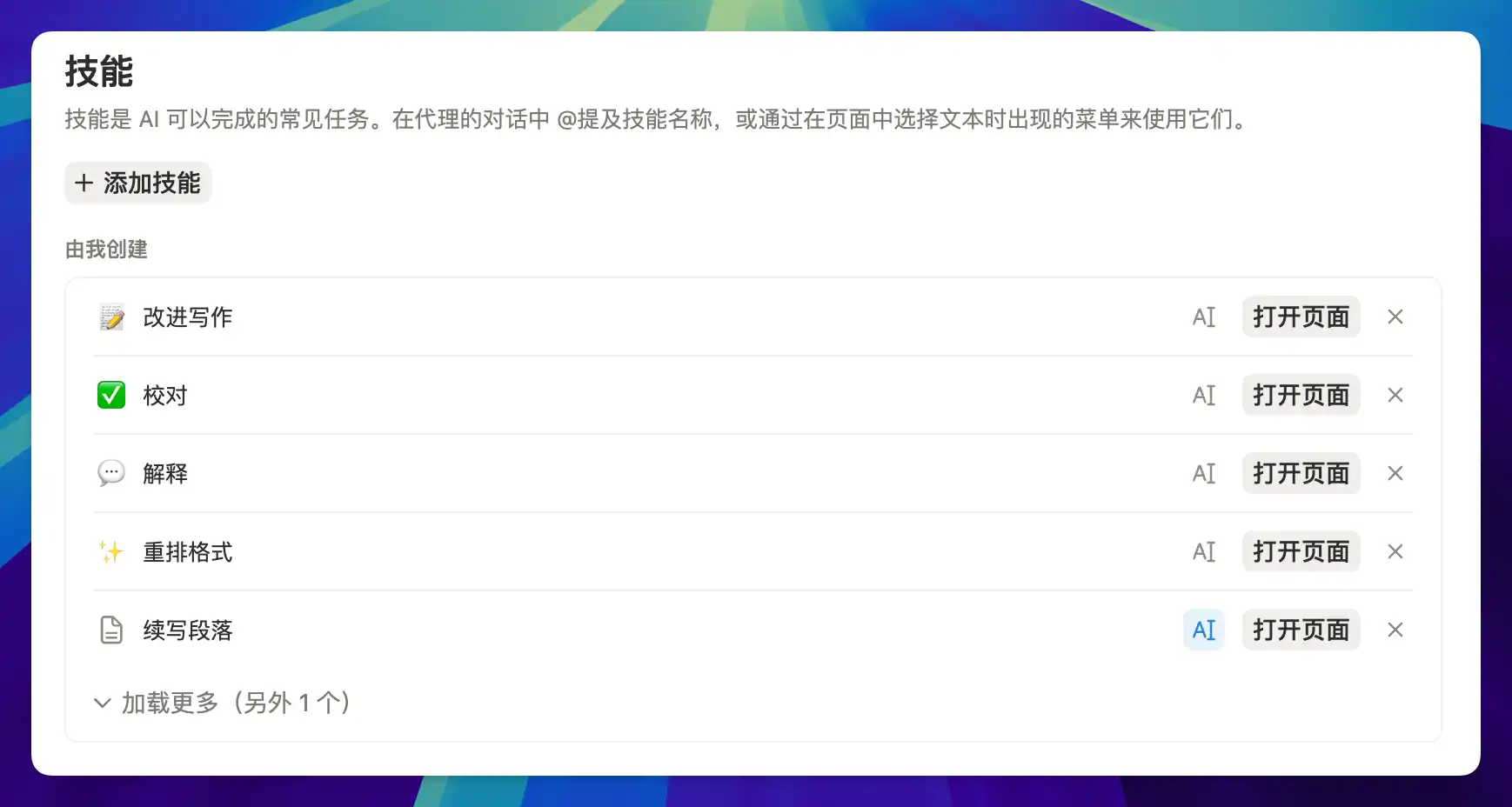
Typing the same AI prompt over and over gets tedious — especially for repetitive tasks like "format my notes into a weekly report" or "extract key points from this article." Notion Skills solves exactly this problem.

Notion custom AI skill creation

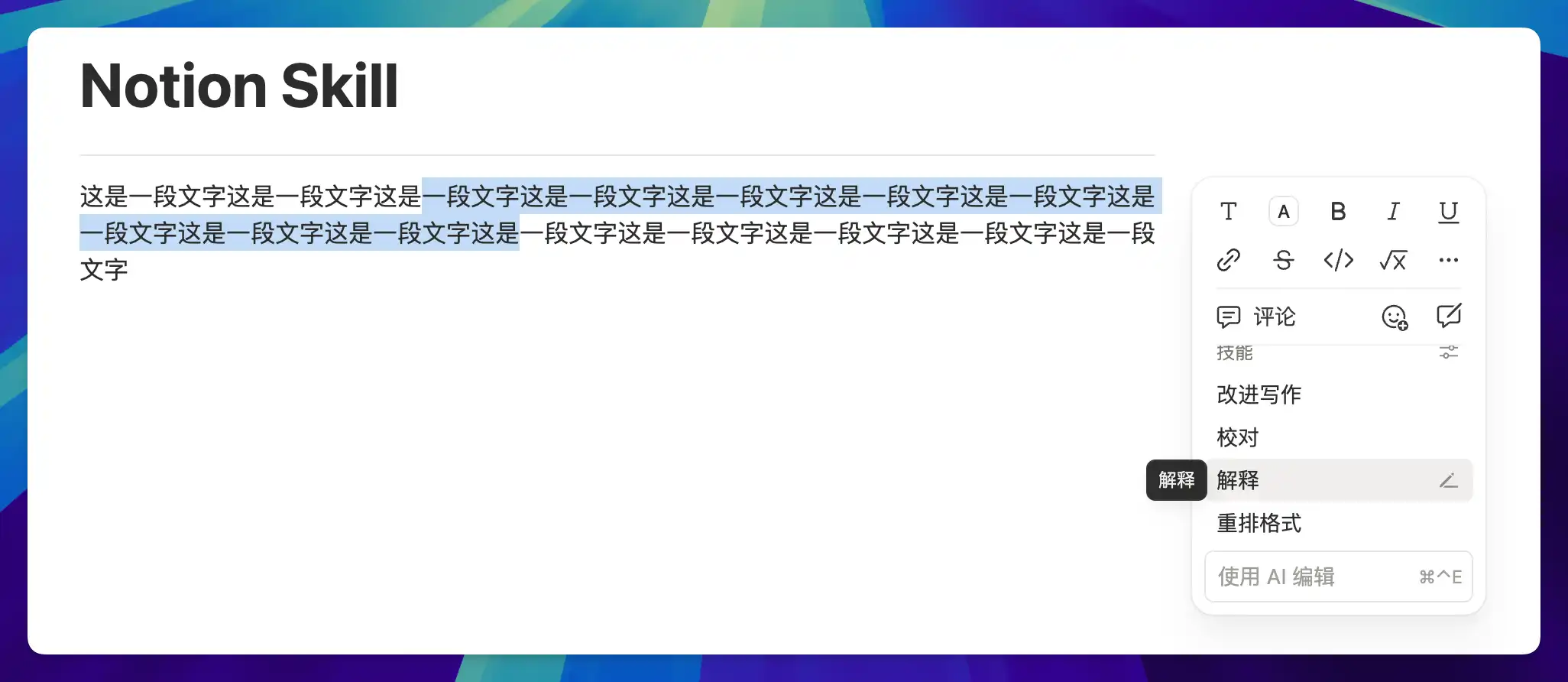
Save your go-to prompts as "skills," then invoke them by selecting text and picking from the menu.

Notion custom AI skill usage example

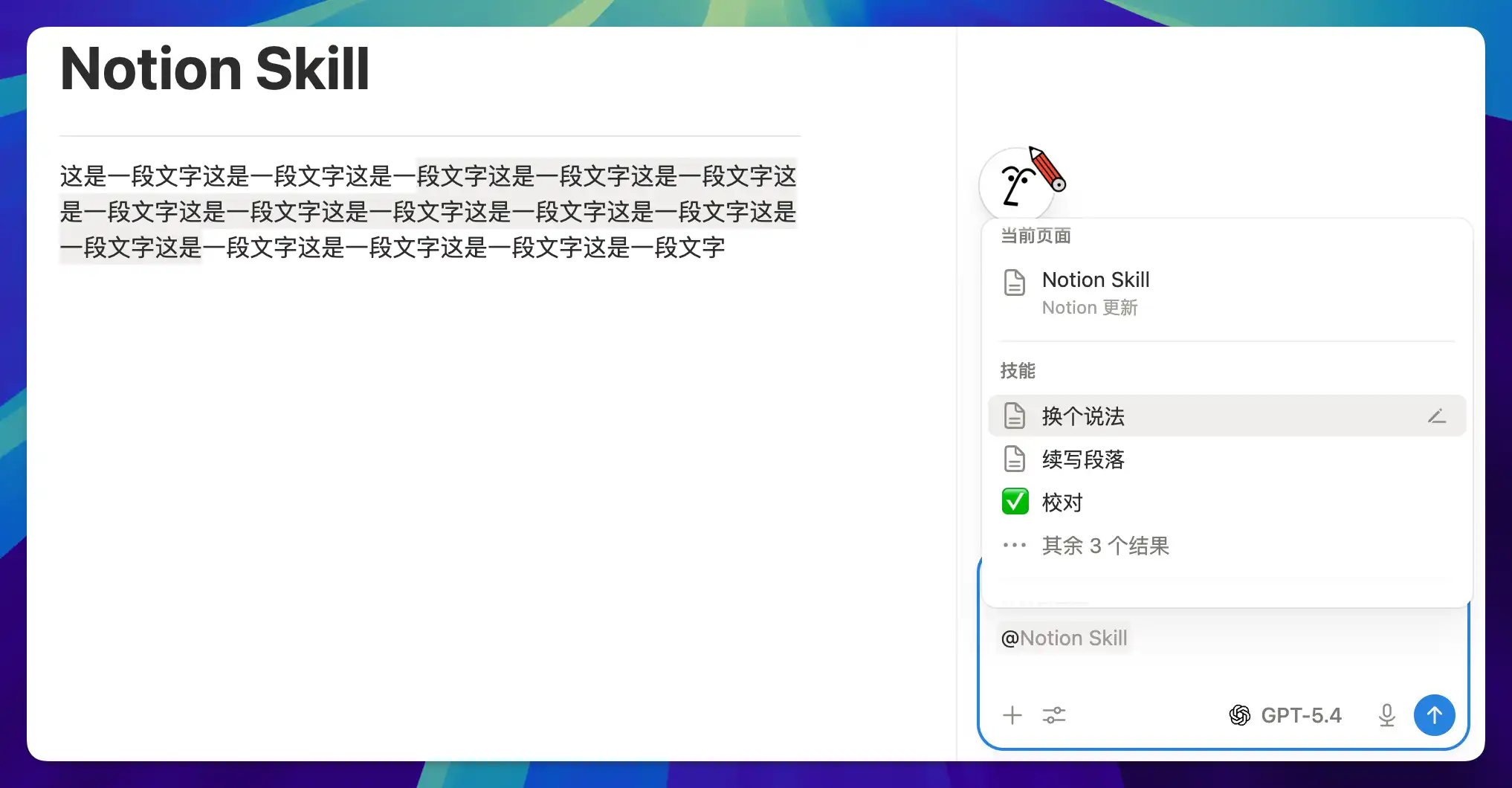
Or @ mention them in AI chat.

Notion custom AI skill sharing

A skill is essentially a Notion page, so it can be shared with your team — everyone follows the same standardized workflow.

Skills are part of the Agent ecosystem. See the Complete Notion Agent Tutorial for the full picture.

After using a workspace long enough, outdated pages pile up. Deleting them feels risky, but keeping them clutters your search results. The old workaround was stuffing them into an "Archive" folder and pretending they didn't exist.

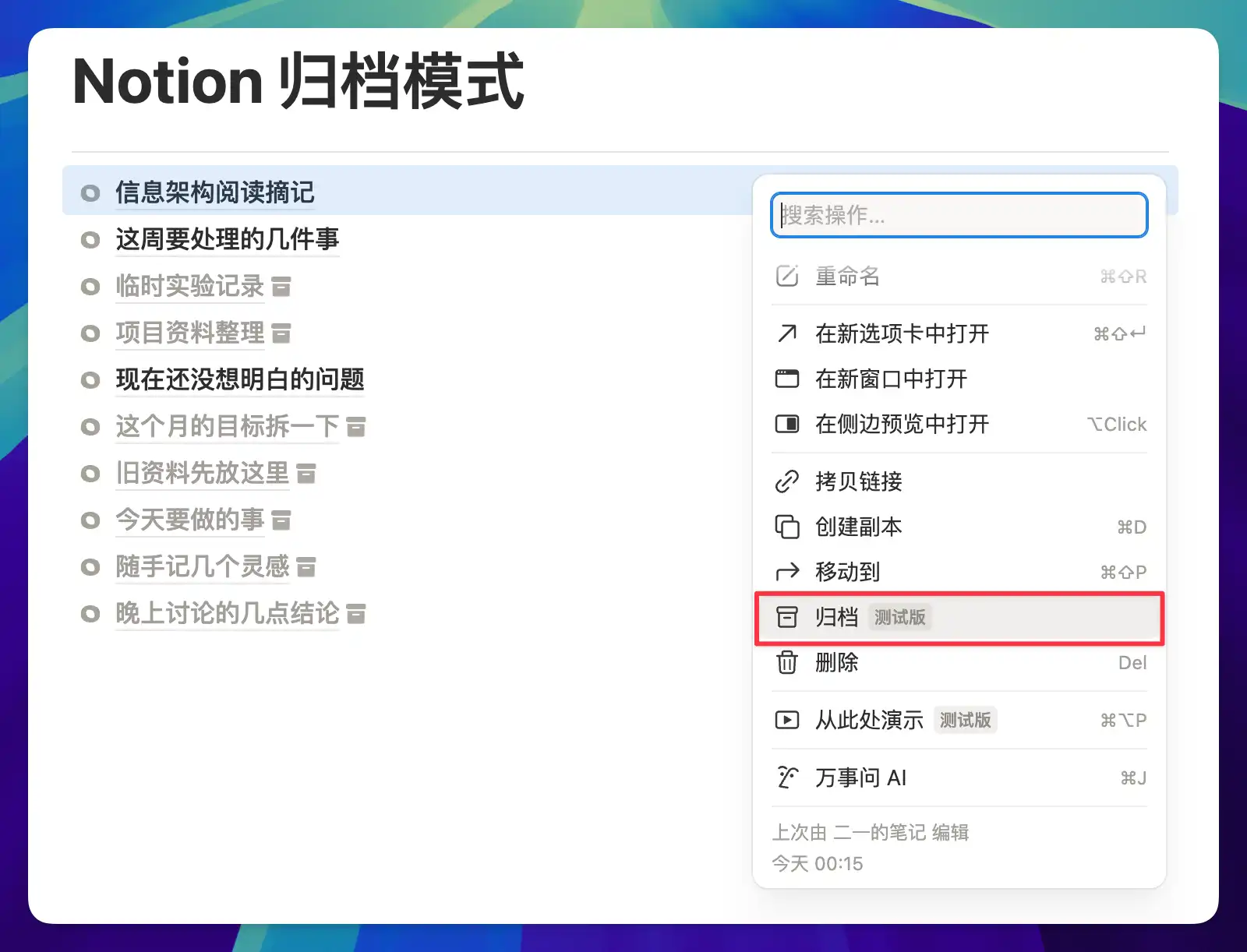
Now Notion has an official Archive feature. Archived pages are hidden from search results by default, child pages get archived along with the parent, and database views automatically filter them out. You can always retrieve them when needed, but they stay out of your way day-to-day.

Available on Business and Enterprise plans.

Notion Archive feature interface

Notion Academy is the official learning platform, but it was previously English-only. That created a real barrier for non-English speakers trying to follow along with video tutorials.

Now Notion Academy is available in six additional languages: Spanish, Portuguese, Japanese, Korean, French, and German. This isn't just a UI translation — videos, templates, and quizzes are all fully localized.

Notion Academy multi-language support page

Previously, Notion's AI meeting notes could only output in a fixed default format. If you wanted a specific structure — say, organized by topic with conclusions and action items per section — you'd have to restructure it manually.

Now you can set custom output instructions for AI meeting notes (AI transcription). Use one of the built-in templates or write your own, then set it as default so it automatically applies to every meeting going forward. You can also add team background information to improve transcription accuracy.

Notion AI meeting notes custom instructions

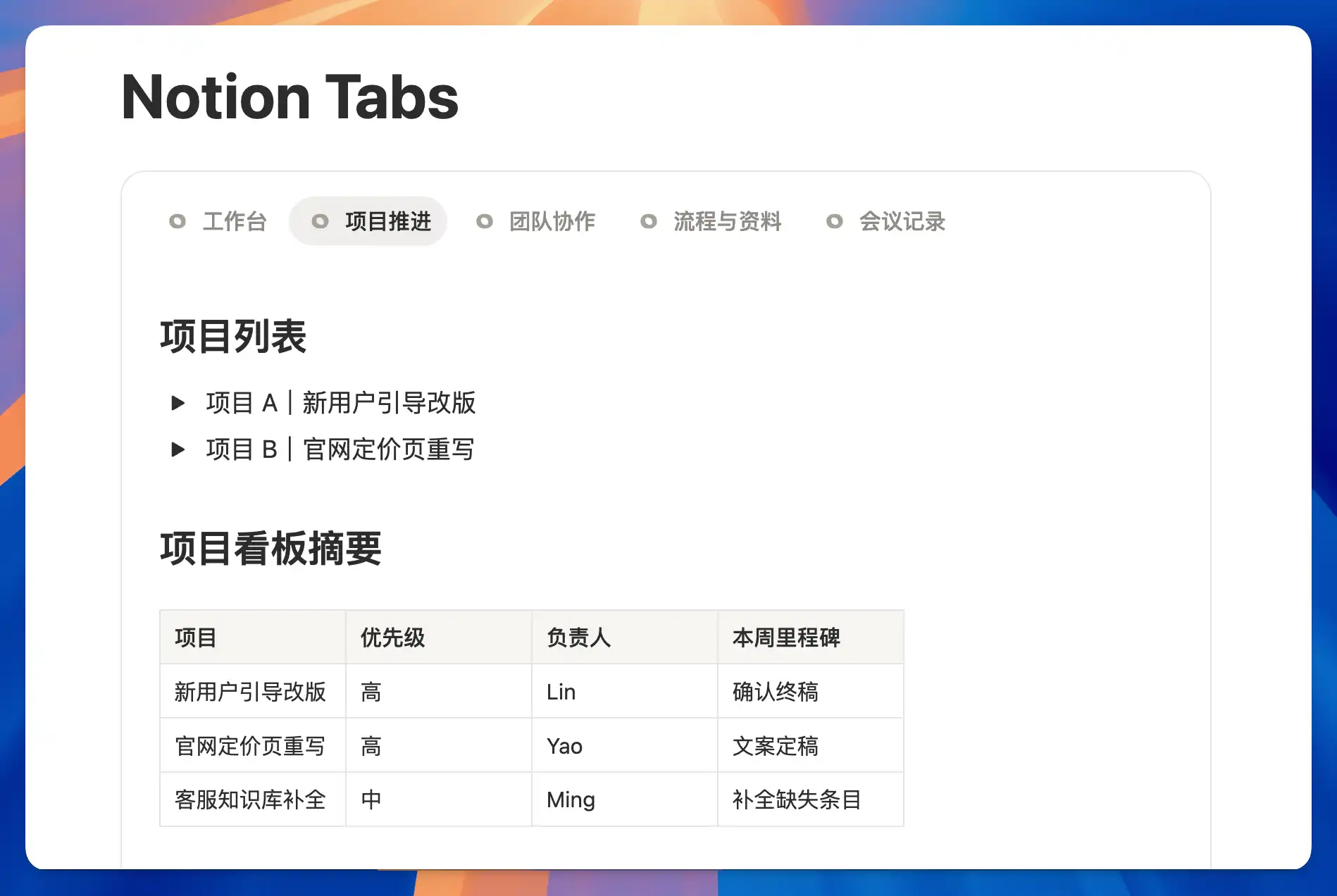
When a page gets long, your options were either splitting content into a maze of sub-pages or scrolling endlessly through a wall of text.

Now Notion has a Tabs block. Type /tabs to create one. Drop different sections into separate tabs — viewers switch between them without leaving the page. Everything stays tidy and nothing gets buried in sub-pages.

For example, a project hub can have tabs for "Overview," "Docs," and "Progress" — all on one page instead of scattered across multiple sub-pages.

Notion Tabs block in action

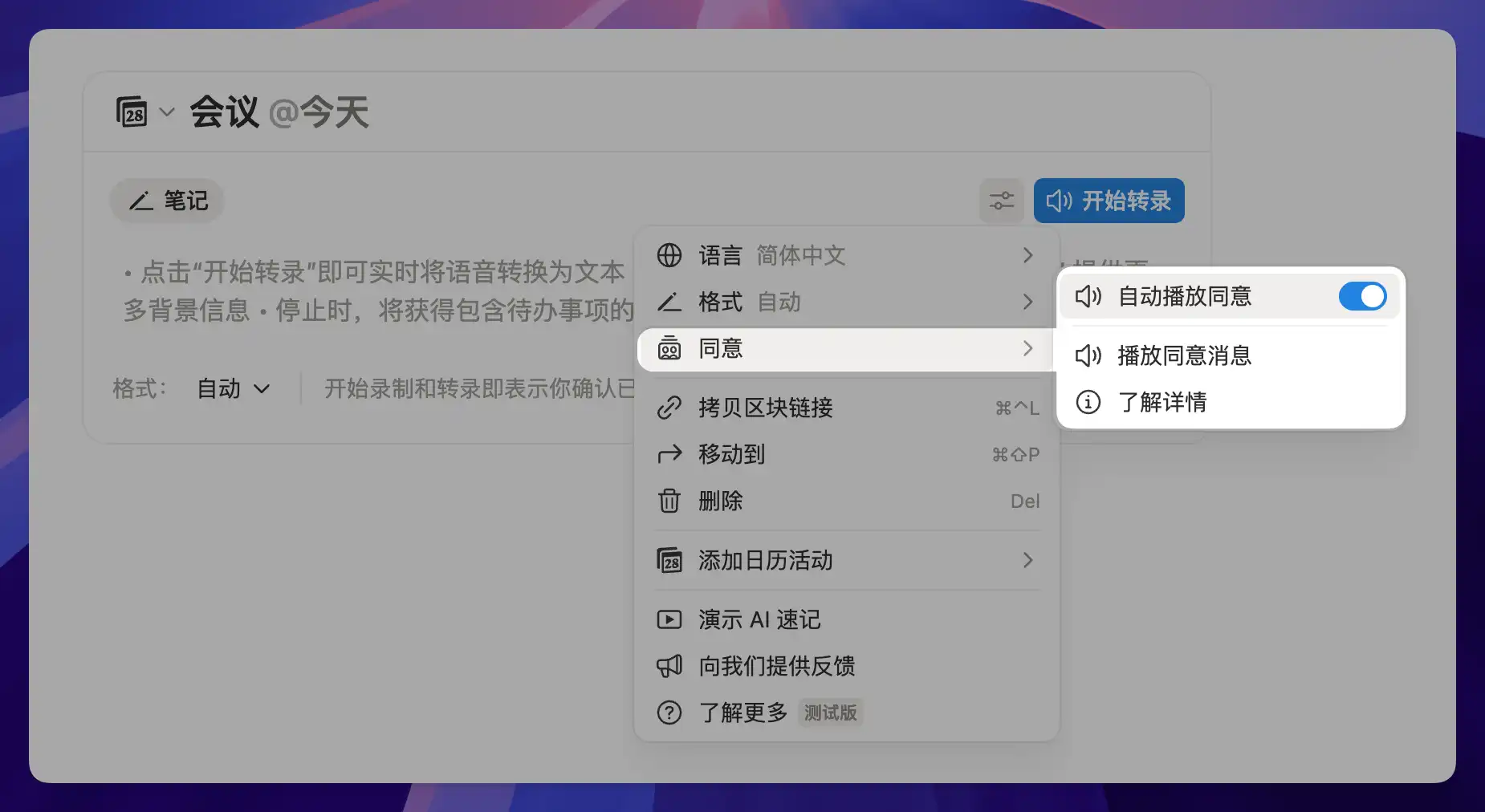
In some countries and industries, recording requires notifying all participants and obtaining consent. Notion has added a global audio consent policy that workspace admins can configure.

Once enabled, AI transcription automatically plays a consent statement before it starts recording. No more manual reminders each time, while still meeting compliance requirements. Primarily designed for enterprise scenarios with legal and regulatory obligations.

Notion AI transcription consent control

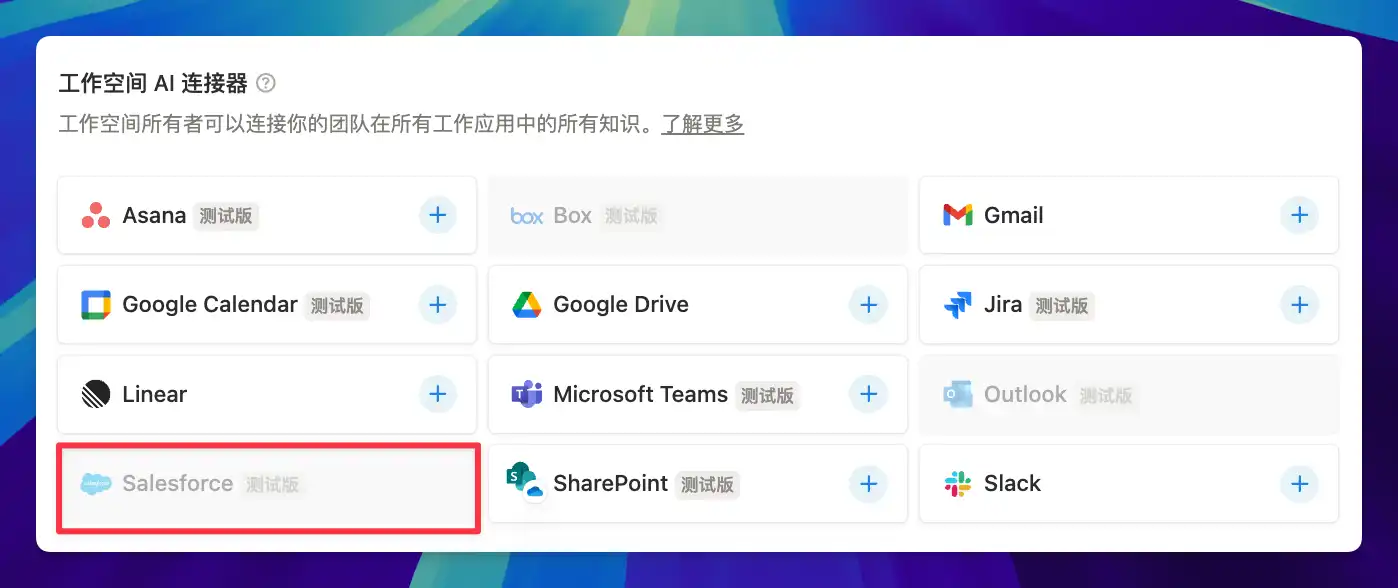
Teams using Salesforce for CRM used to have to switch over to Salesforce every time they needed customer details. With the new AI Connector, you can now search Salesforce accounts, leads, opportunities, and contacts right from Notion.

AI retrieves data across tools so you don't have to jump between systems. Available on Enterprise plans.

Notion AI Salesforce connector

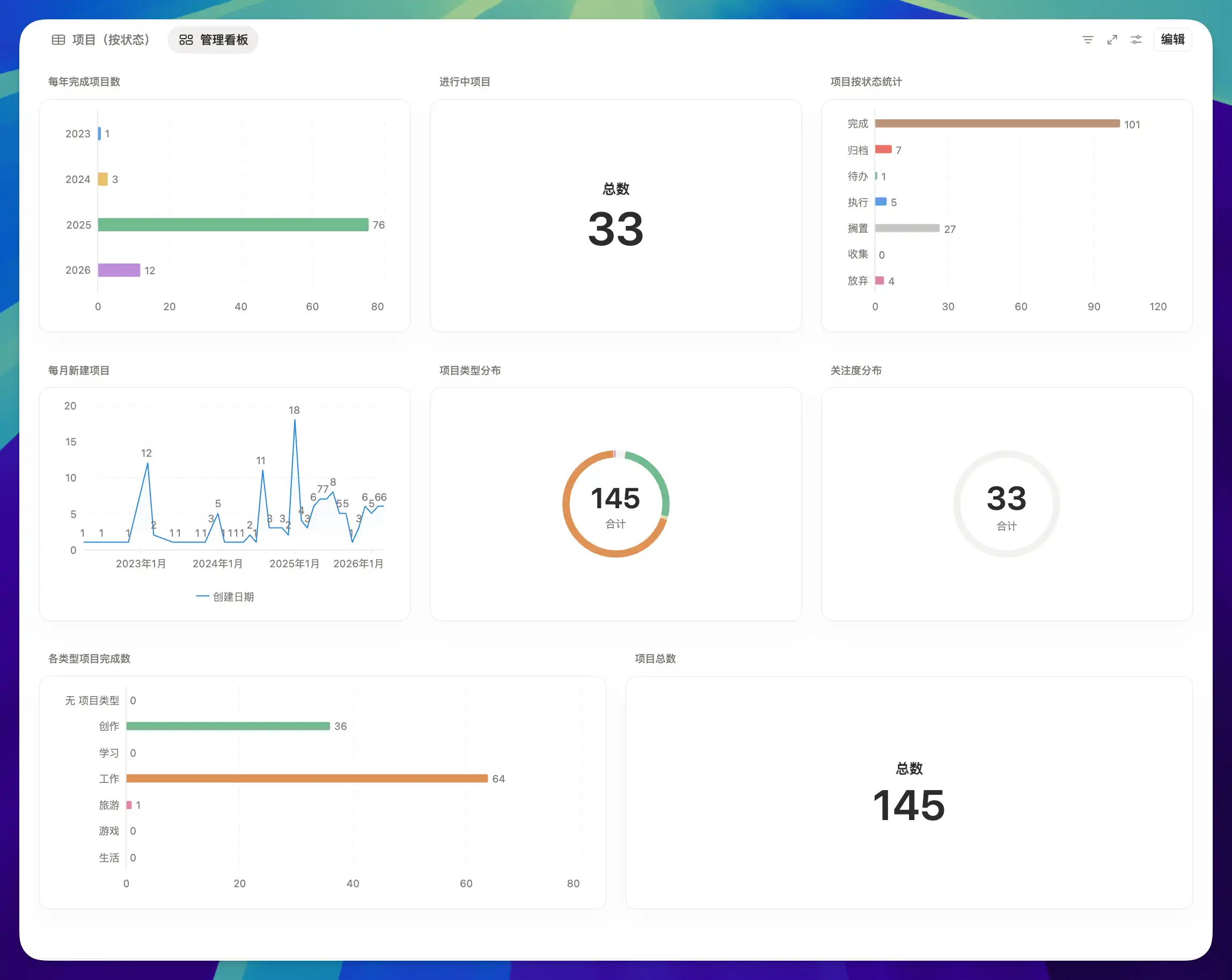
Dashboard is a brand-new database view type that combines boards, tables, charts, timelines, and more into one page. Previously, building an overview page meant stitching together linked views yourself — now Notion provides a native solution.

Notion Dashboard database view

For a detailed guide on using charts in Dashboard, see the Complete Notion Database Charts Guide.

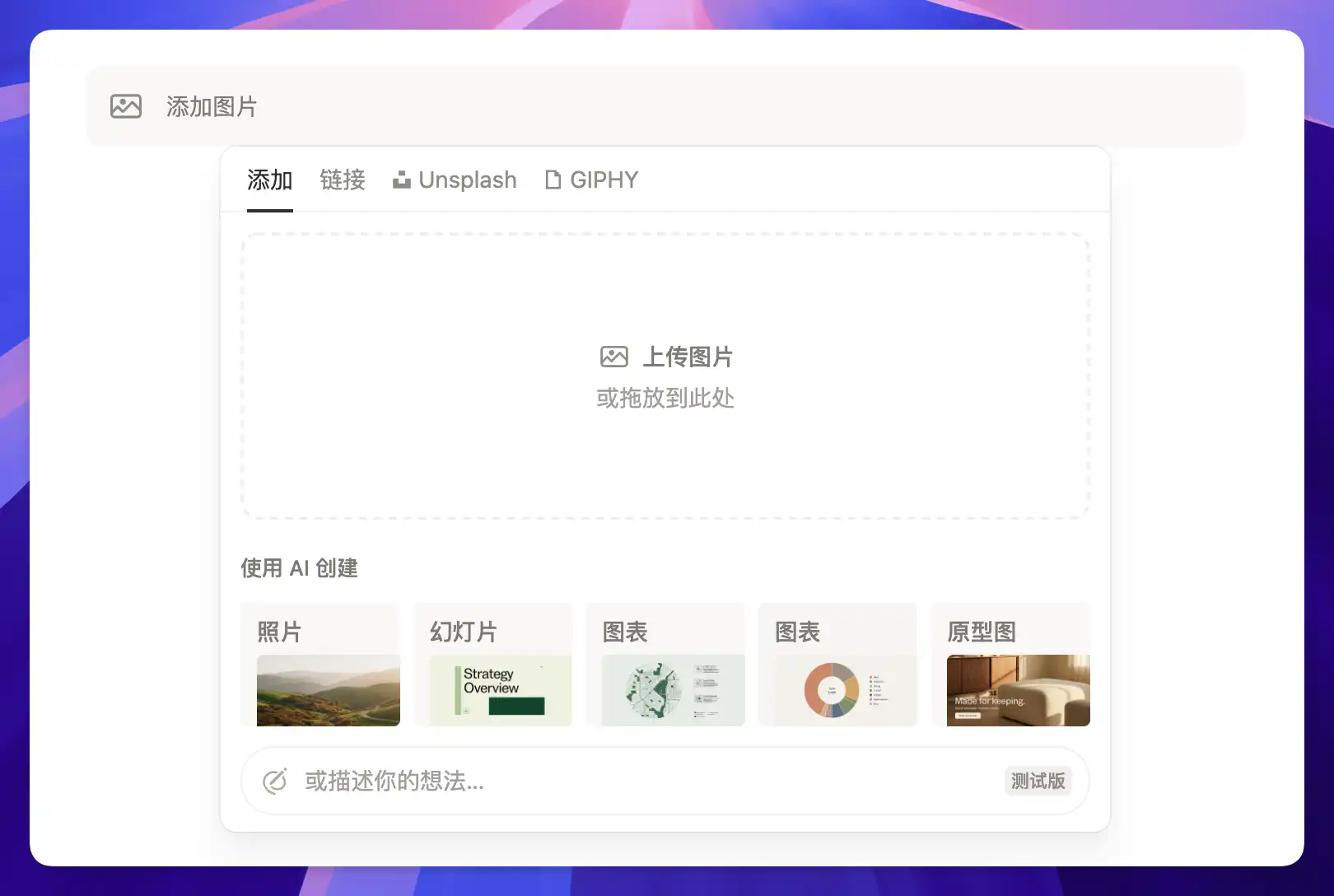
Need an image while writing a doc? Before, you'd have to open a separate AI image tool, generate it, download it, then upload it to Notion — way too many steps.

Now Notion can generate images natively. Type /ai and look for the AI image option, or describe what you need in a conversation with Notion Agent. It can produce cover images, photo-style images, charts, diagrams, and even slide visuals — generated and inserted directly into your page. No more switching back and forth.

Notion AI image generation example

Notion hasn't officially disclosed which image model they're using, but based on the output quality, it's almost certainly powered by Nano Banana's model.

Notion made several AI model updates this month — three in one go:

GPT-5.4 is here, OpenAI's latest flagship model. It excels at long-chain reasoning — planning, breaking down complex problems, and executing multi-step operations across your workspace.

GPT-5.4 mini and Nano have also been added to the Custom Agent model picker. They're faster and cheaper, ideal for simple tasks like formatting text or quick classification.

Notion AI model picker with GPT-5.4

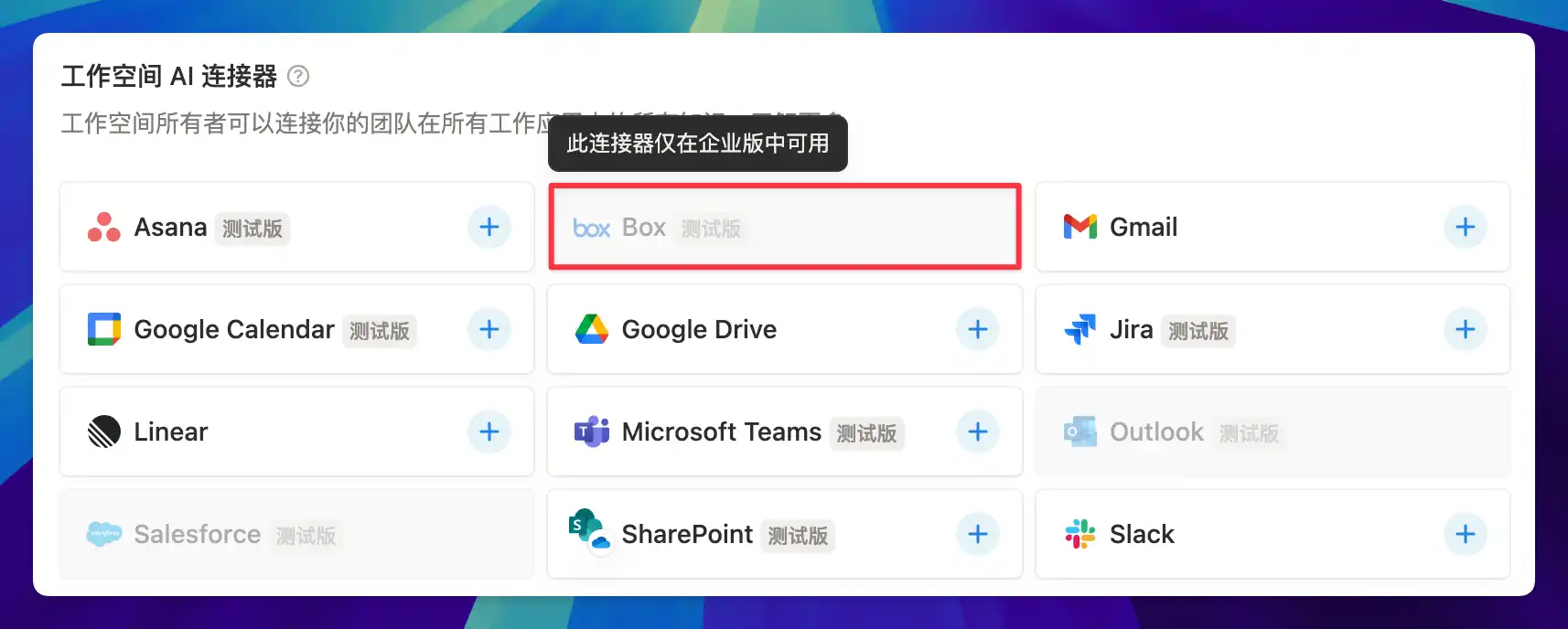
If your team stores files in Box, you can now connect it to Notion via the AI Connector. Once connected, you can search Box files directly in Notion, have AI summarize document contents, and compare file changes.

Setup path: Settings → Notion AI → AI Connectors → Box. Available on Enterprise plans.

Notion AI Box connector

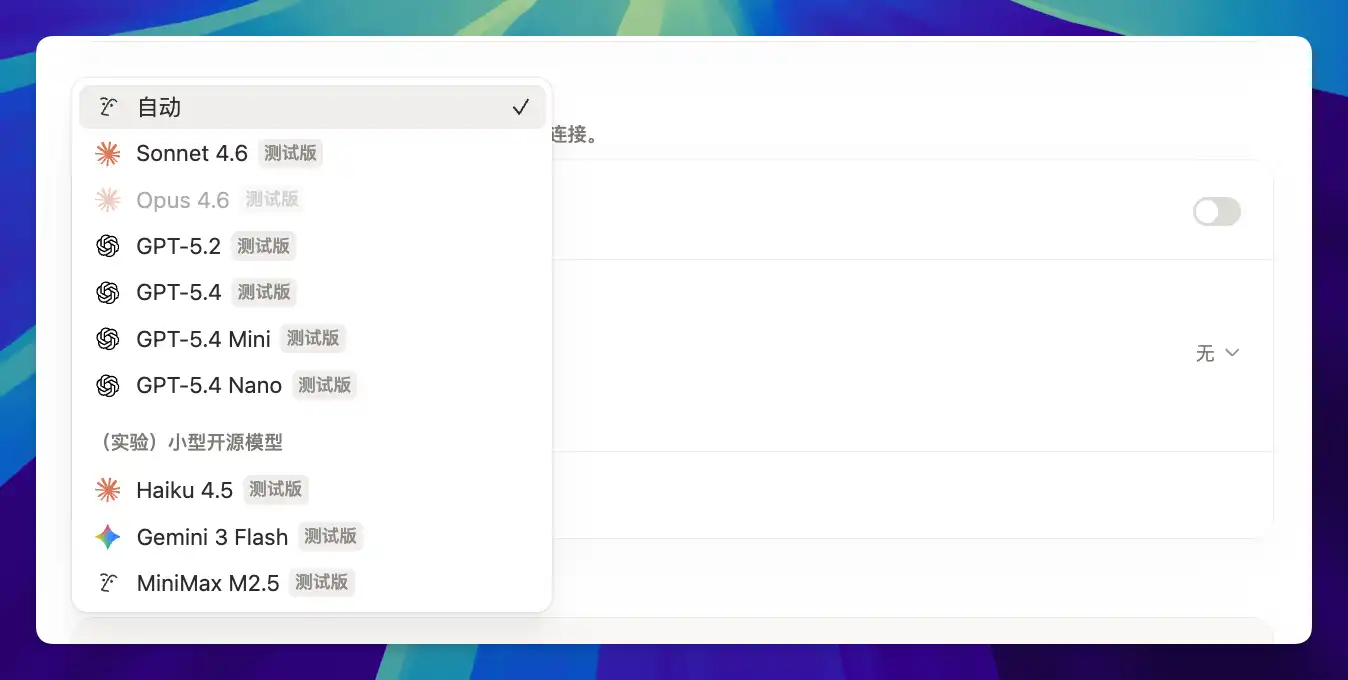
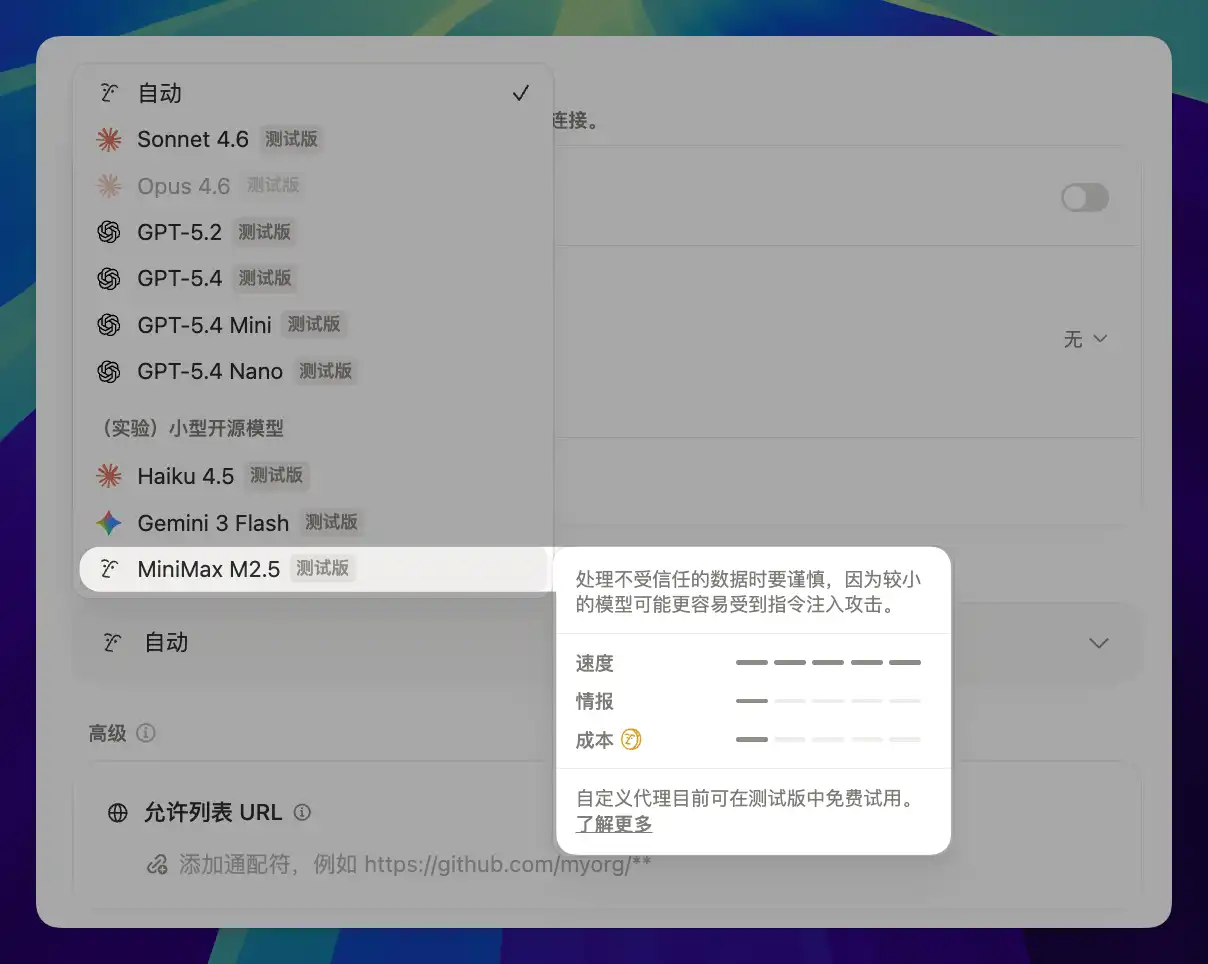
Custom Agent now supports MiniMax M2.5 — the first open-weight model available in Notion.

Compared to proprietary models, basic tasks can cost up to 10x less. It's a great fit for agents that don't need top-tier reasoning, such as simple classification, format conversion, and information extraction. Notion continues to expand its model lineup without locking users into a single vendor.

Notion AI model picker with MiniMax M2.5

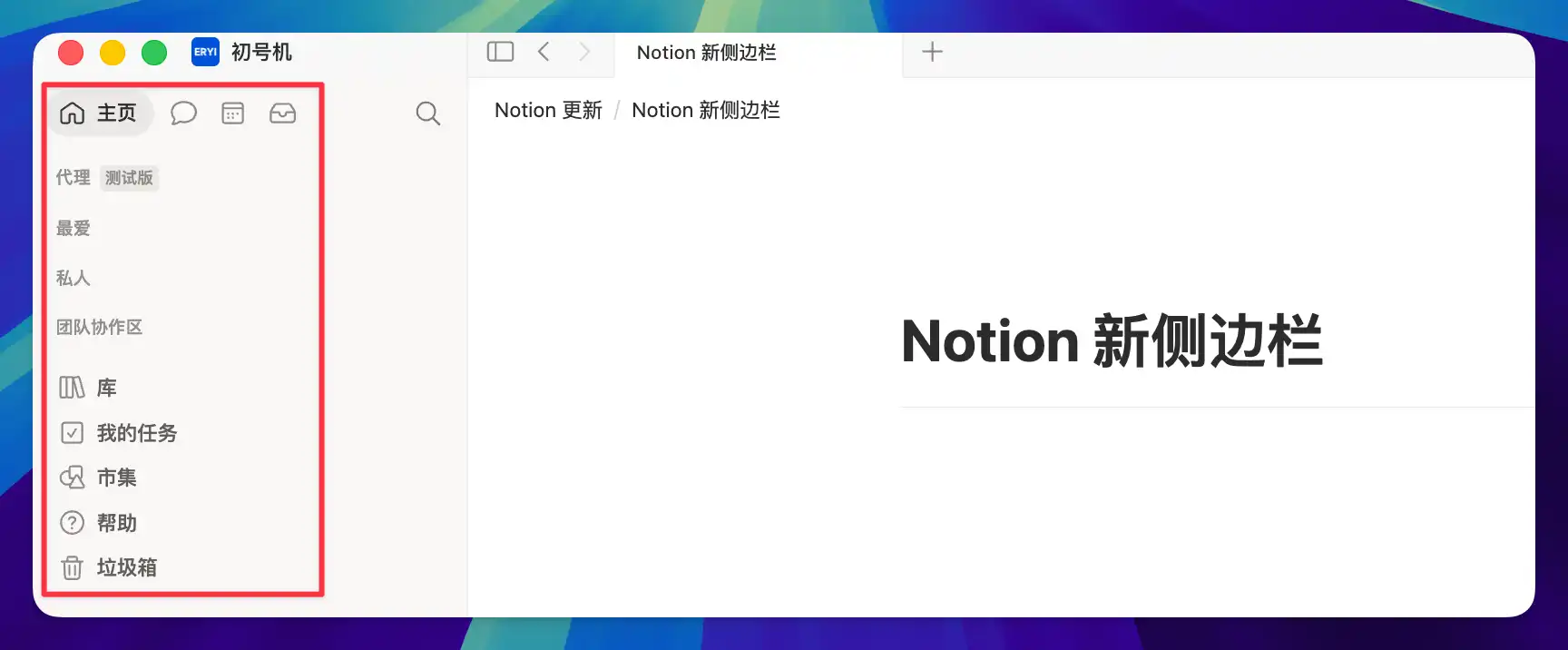
Notion has been refining its sidebar experience, and now it's rolling out a completely redesigned version that brings together content browsing, message threads, and notifications — with much clearer navigation logic.

Notion redesigned sidebar

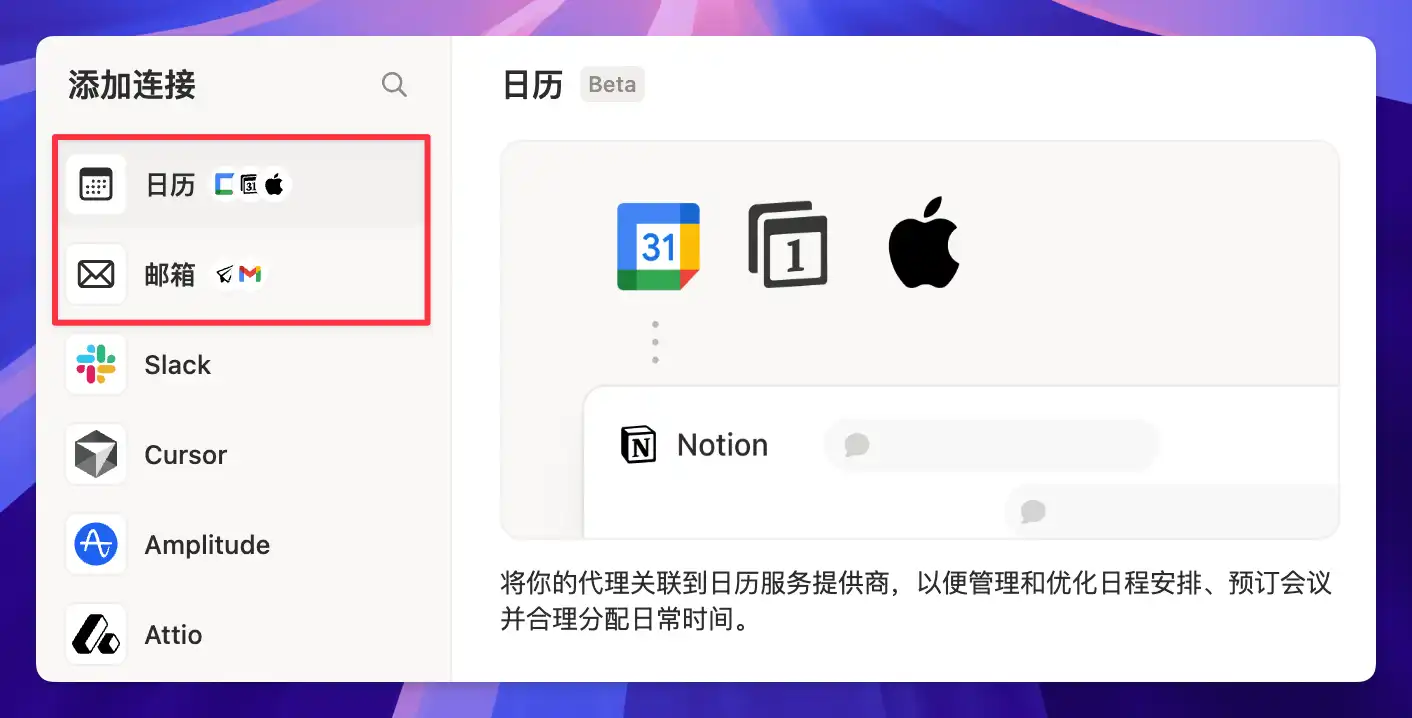
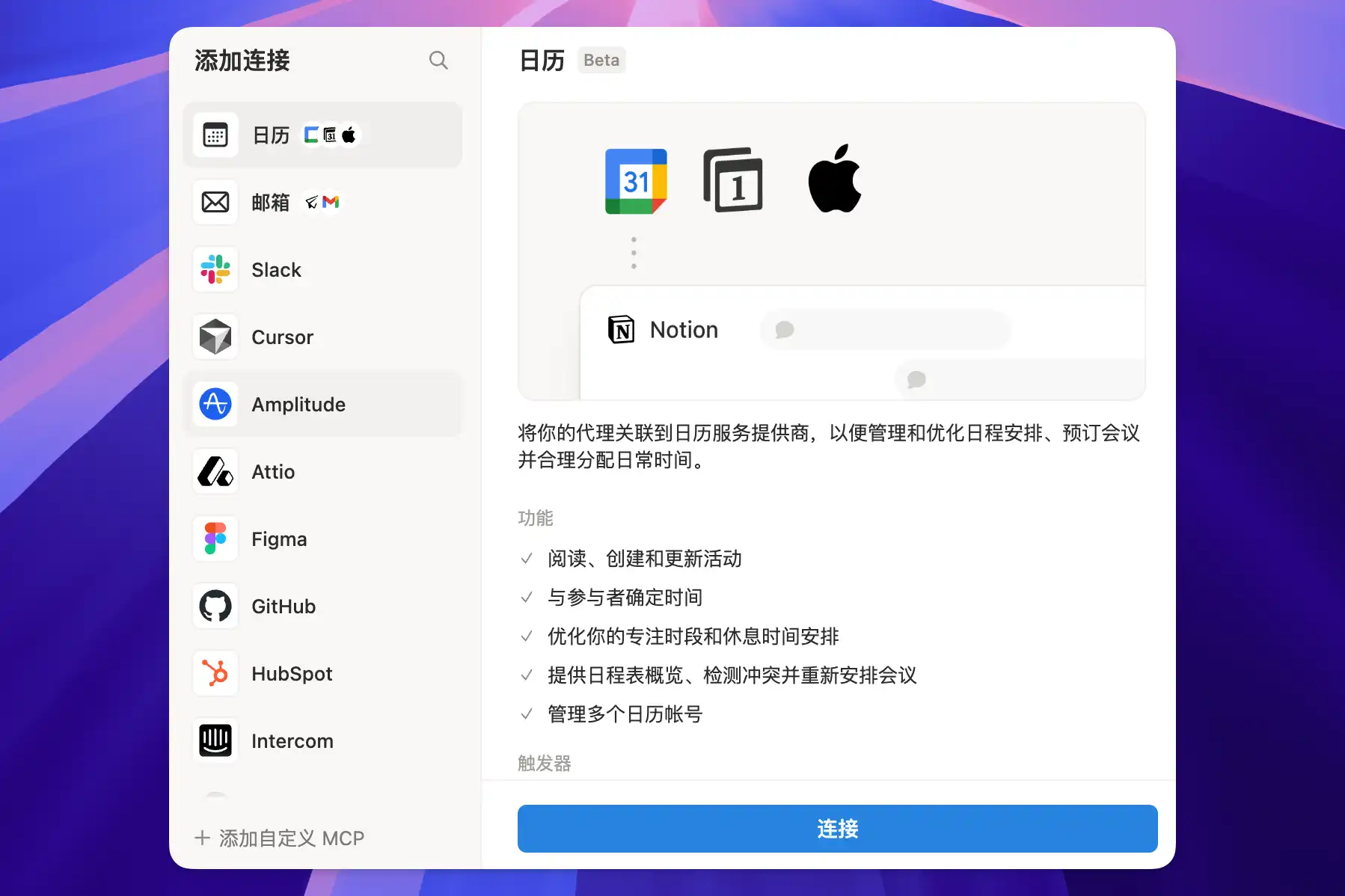
Custom Agents just got more powerful with new Mail and Calendar integrations. Agents can now automatically organize your inbox, schedule meetings, and prepare pre-meeting materials.

Notion Custom Agent mail and calendar setup

For example, you could set up an Agent to categorize unread emails every morning, or automatically compile relevant documents 30 minutes before each meeting. These tasks used to require manual effort or third-party automation tools — now you can handle it all within Notion.

I covered how to build an email Agent in detail in my Custom Agent practical use cases post, if you're interested.

Notion Custom Agents now support the MCP (Model Context Protocol), allowing direct connections to external tools like Slack, Linear, Figma, GitHub, Ramp, HubSpot, and Wiz.

Previously, information across your tools was siloed — you had to jump between tabs to stay on top of everything. Now Agents can monitor activity across these tools and automatically categorize, route, and follow up, essentially adding an intelligent dispatch layer to your entire tool stack.

Notion Custom Agent MCP tool integrations

Want to learn how to use Custom Agents? Check out the Complete Notion Agent Tutorial.

This is the flagship feature of Notion 3.3 and one of the biggest releases of the year.

Custom Agents are essentially virtual team members that run 24/7 in your Notion workspace. Set up their rules and triggers, and they keep working autonomously — no babysitting, no prompting. Routing bugs, answering team questions, updating docs, generating weekly reports — Agents handle the repetitive work.

The best part: no coding required. Non-technical users can build them too. Multi-user collaboration and multi-model switching are both supported.

For real-world use cases, check out Custom Agent practical examples — 7 automation scenarios from beginner to advanced.

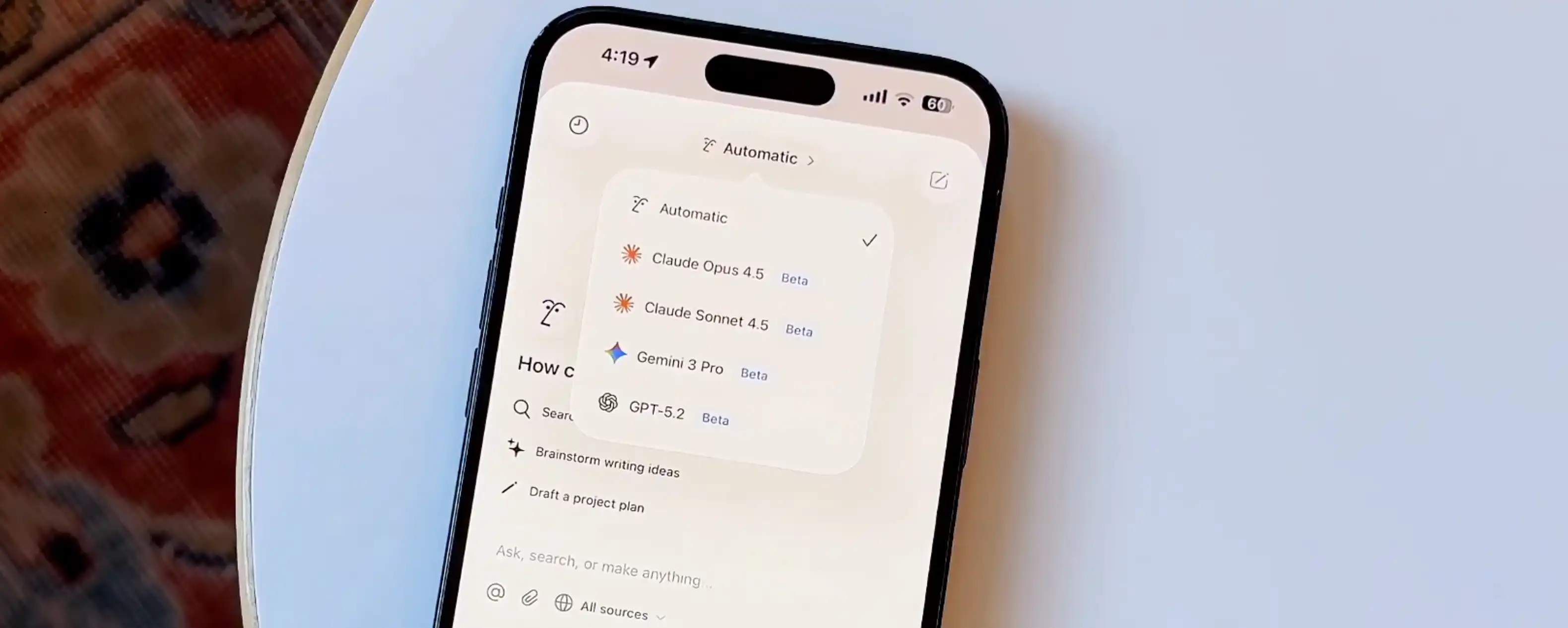
Google's Gemini 3.1 Pro model is now available in Notion. Just open the model picker to switch to it.

With this addition, Notion now supports models from OpenAI (GPT series), Anthropic (Claude series), and Google (Gemini series). You can pick different models for different tasks — no vendor lock-in.
Notion AI model picker with Gemini 3.1 Pro

Mobile AI in Notion used to be fairly limited — most configuration options were desktop-only.

Now Notion brings two key features to mobile: you can customize Agents directly on your phone, and the model selector is back, letting you switch between different AI models on the go.

Notion mobile model selector

Typing notes on a phone is slow, especially while walking or commuting.

Notion mobile now supports voice input. Just speak and your words are written directly into the page. If you think faster than you type, this means no more pausing to thumb out your ideas — just talk and it's captured.

Notion mobile voice input

Want to take voice notes even further? Check out Voice Notes with DeepSeek + Shortcuts.

Latest update: The desktop AI chat now supports voice input too.

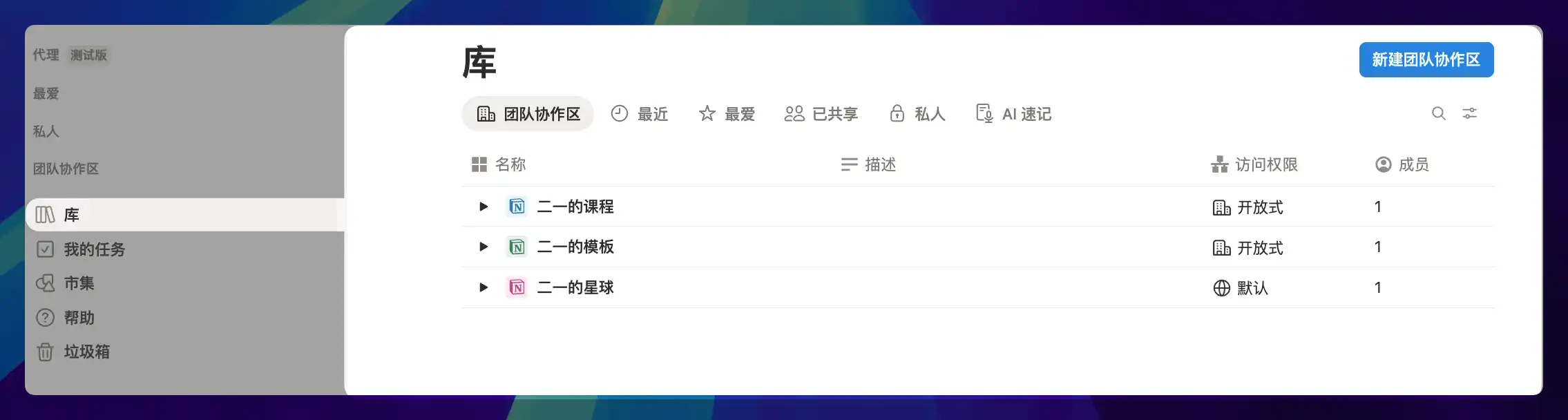
As workspaces grow, the sidebar gets overloaded fast. For many people it's either crammed with pages or given up on entirely.

Library is a full-page content management view that brings together teamspaces, recently visited pages, and favorites in one place. You can slim down the sidebar to just a few key entry points and access everything else from Library. Think of it as a file manager for your workspace.

Notion Library full-page content management

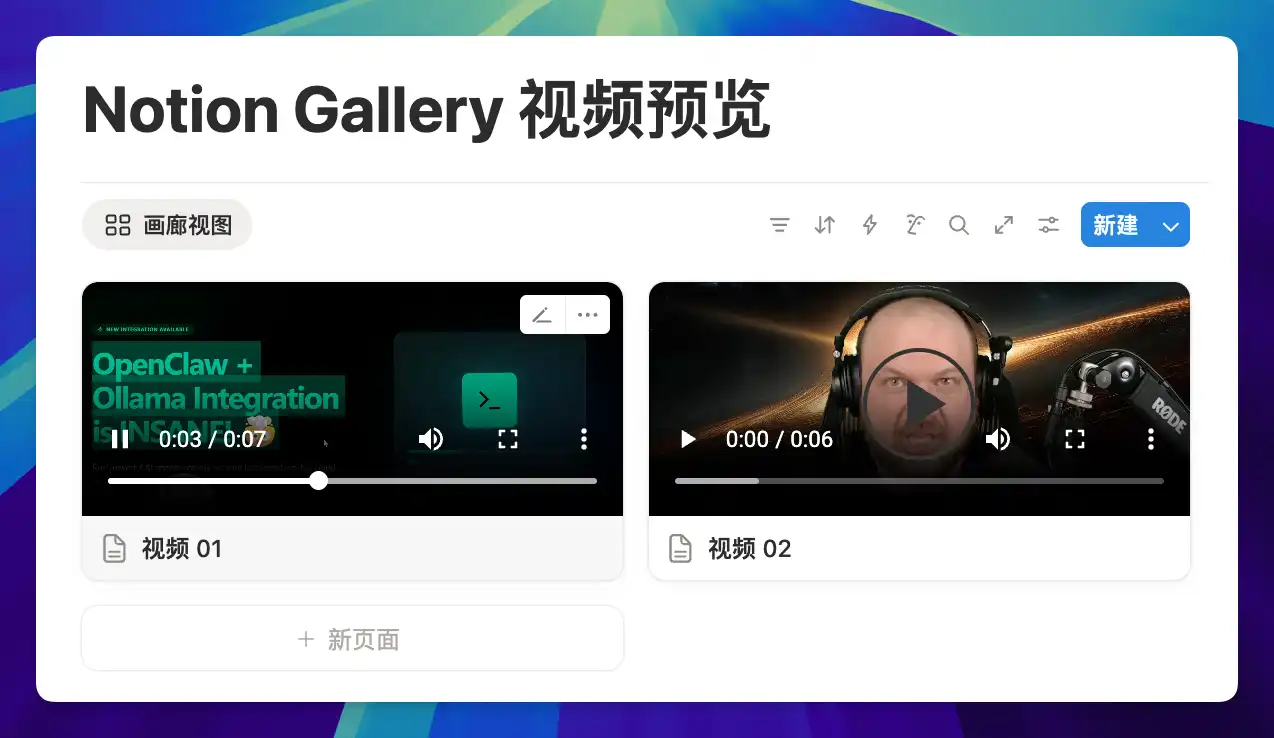
In database Board and Gallery views, pages with embedded videos used to show only a cover image or blank space — no indication of what was inside.

Now you can preview and play videos right on the card. A handy improvement for content management, asset libraries, and video project boards.

Notion gallery view video preview

For more advanced database tips, see Notion Database Advanced Tips.

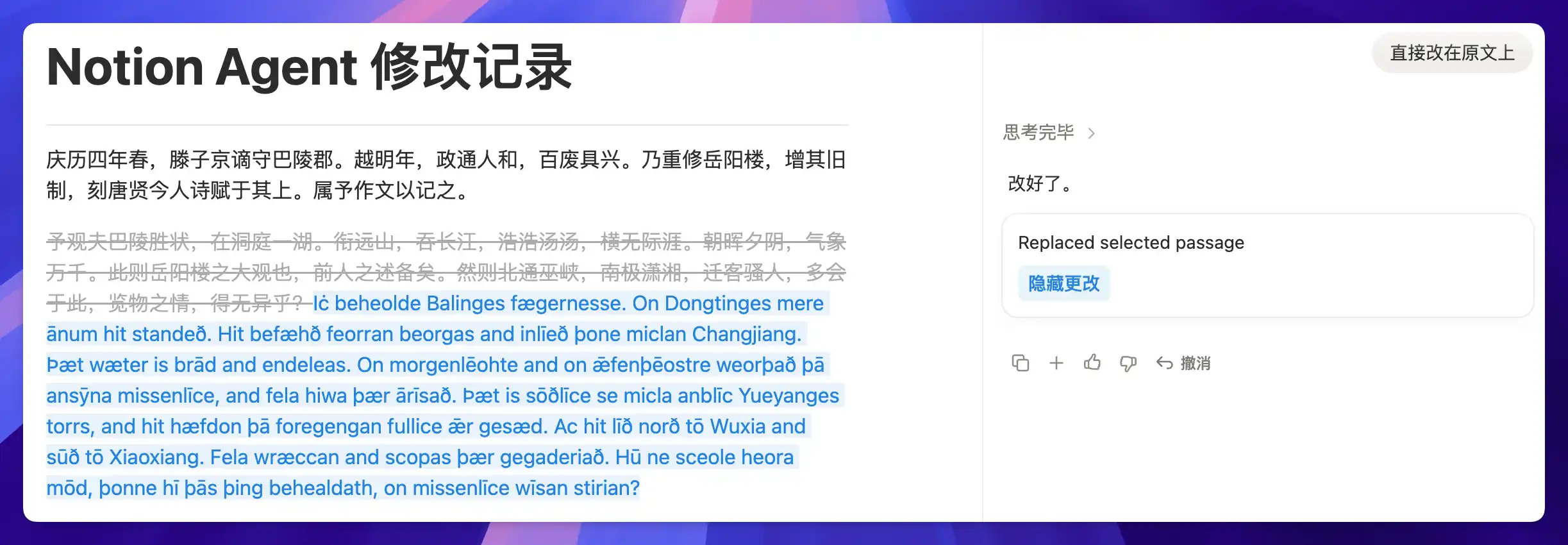
Notion AI Agent can now show exactly what it changed on a page — which text was removed, what was added — so you can review the AI's work at a glance.

Notion Agent change diff cards

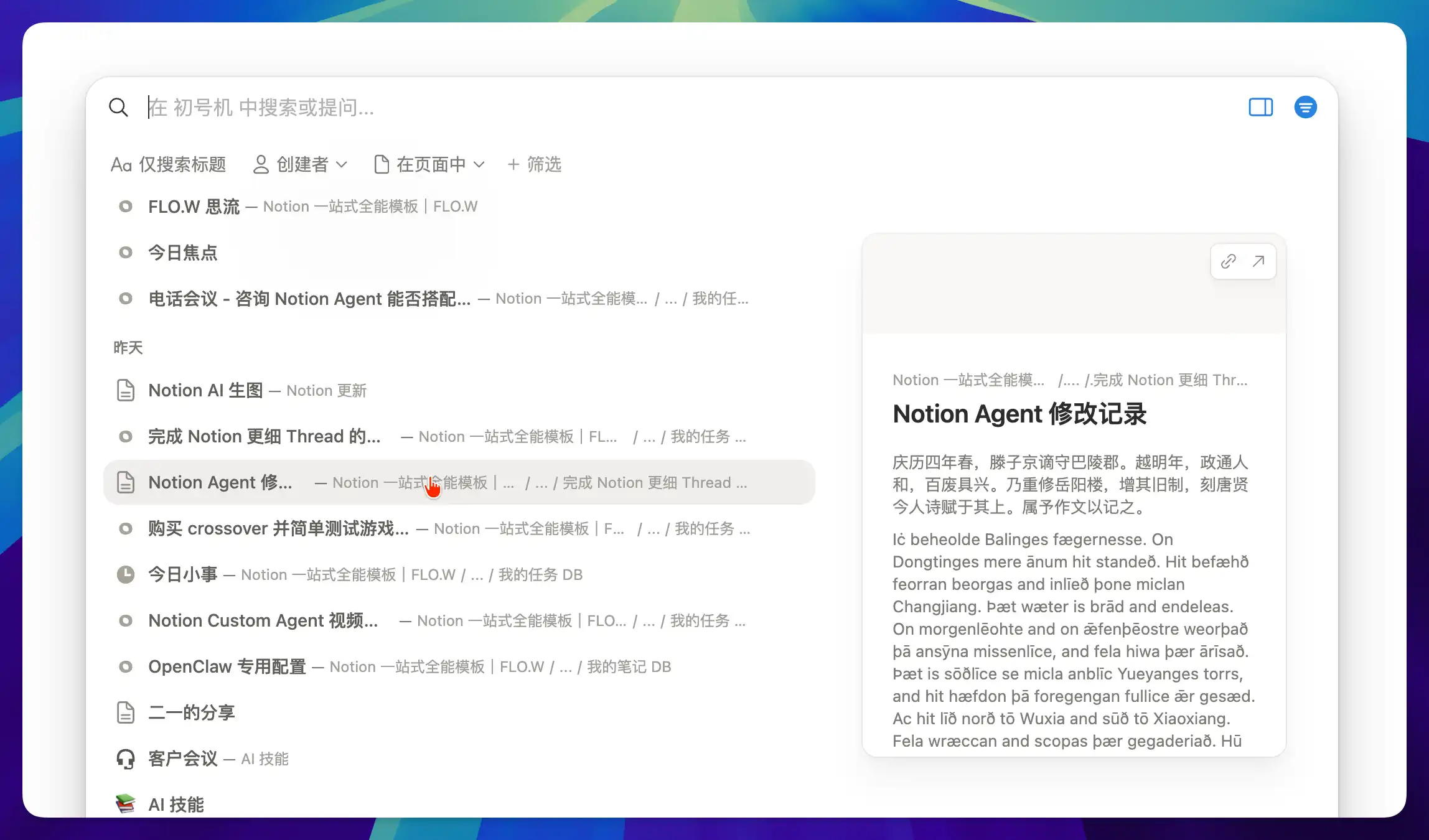
The quick search bar you open with CMD+K (Ctrl+K on Windows) just got a major refresh.

The biggest change is the new page preview. Search results now show a content summary alongside each result, so you can tell if it's the right page without clicking into it. Default filters are smarter too, adjusting the sort order based on your recent usage patterns.

Notion CMD+K search with page preview

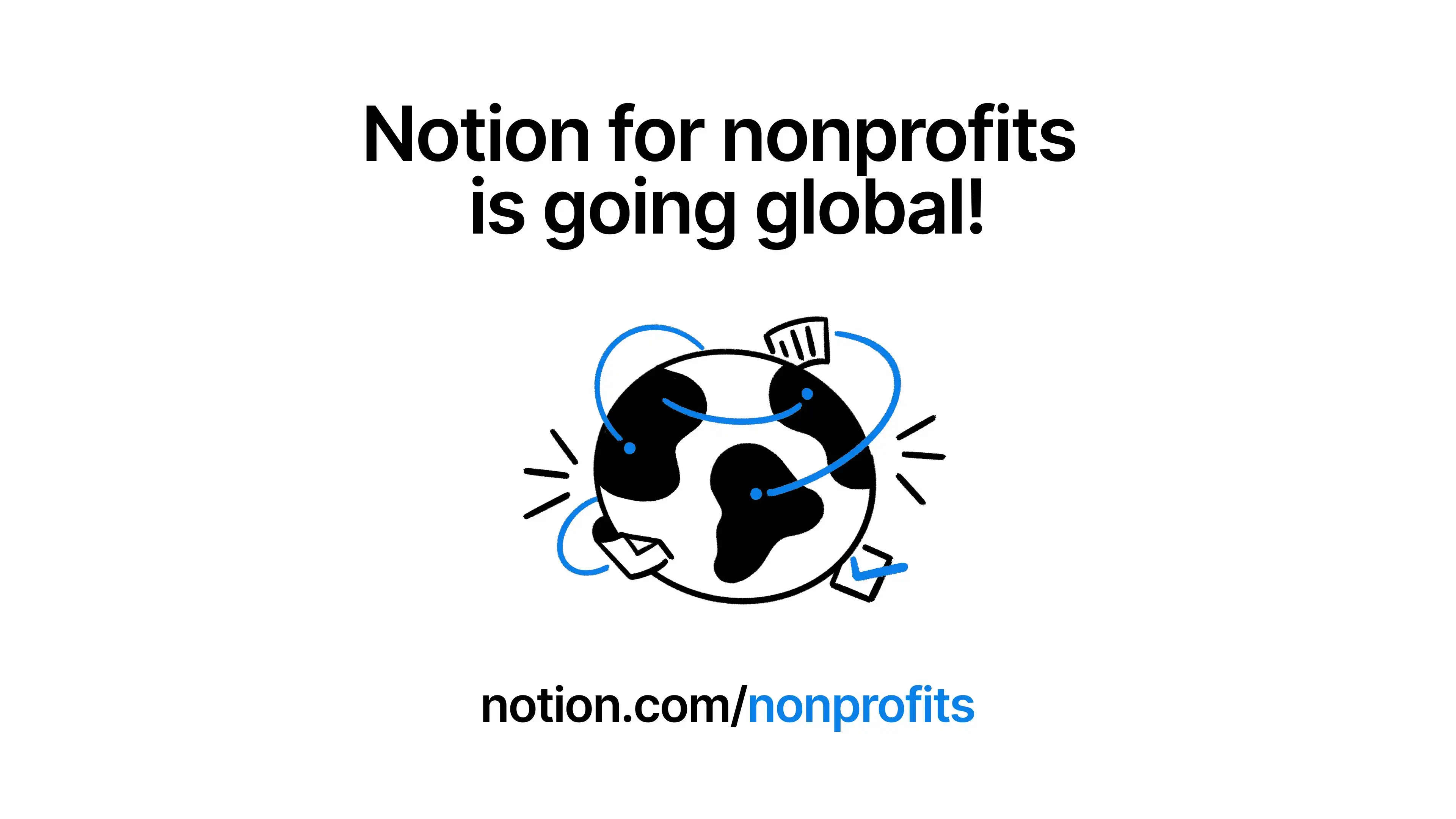
Notion has expanded its nonprofit program. Eligible organizations can now get 50% off the Plus plan.
Previously this discount was only available in a few countries — now it covers over 25 countries and regions. If you know a nonprofit that uses or is considering Notion, it's worth checking eligibility. Notion nonprofit discount page
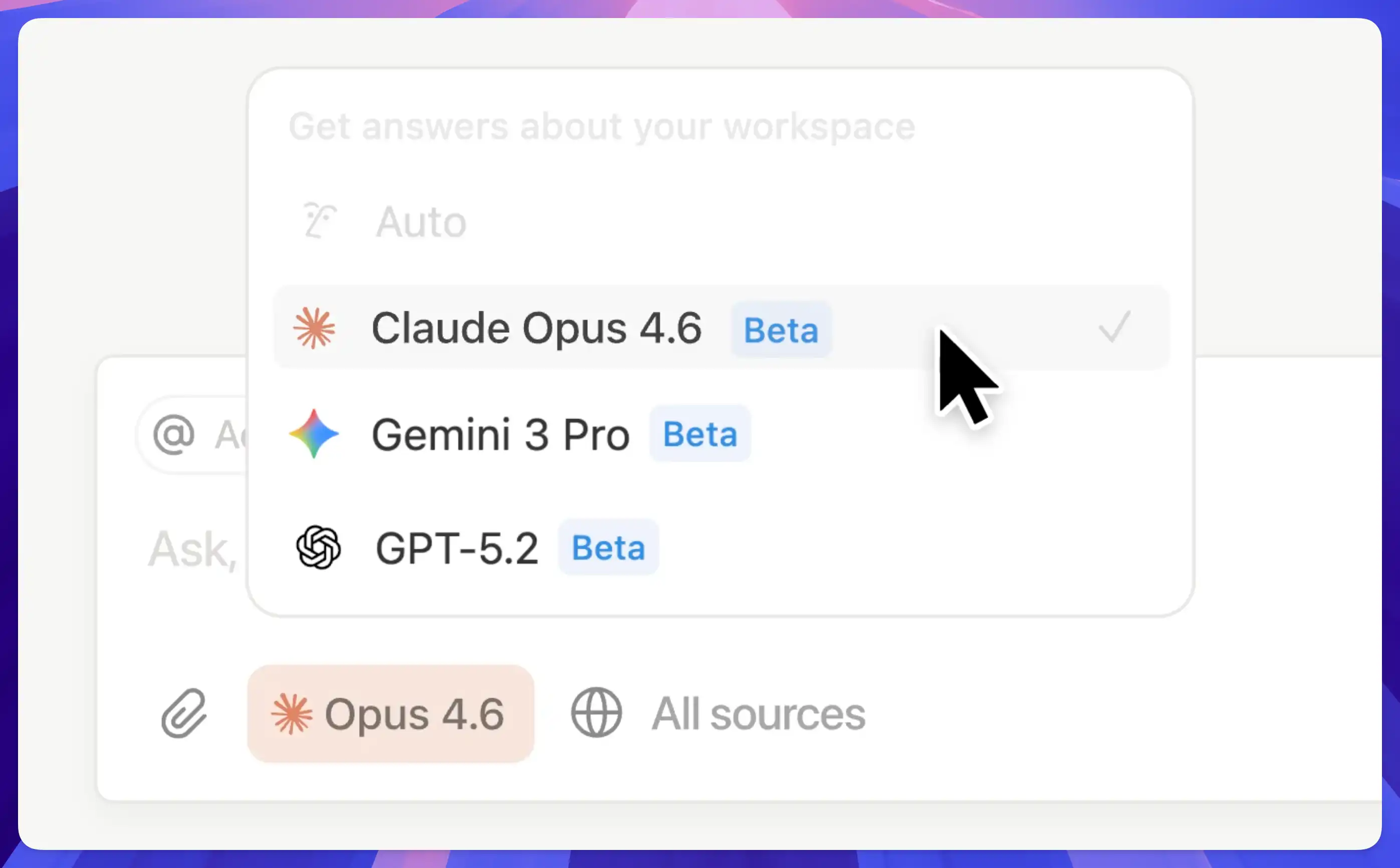
Anthropic's two flagship models are now available in Notion:

Claude Opus 4.6 is the most capable Claude model to date, excelling at complex instructions, long document comprehension, and multi-step reasoning. Ideal for deep analysis and creative work. Claude Sonnet 4.6 is lighter and faster, suited for everyday conversations and quick Q&A.

Notion adds Claude Opus 4.6

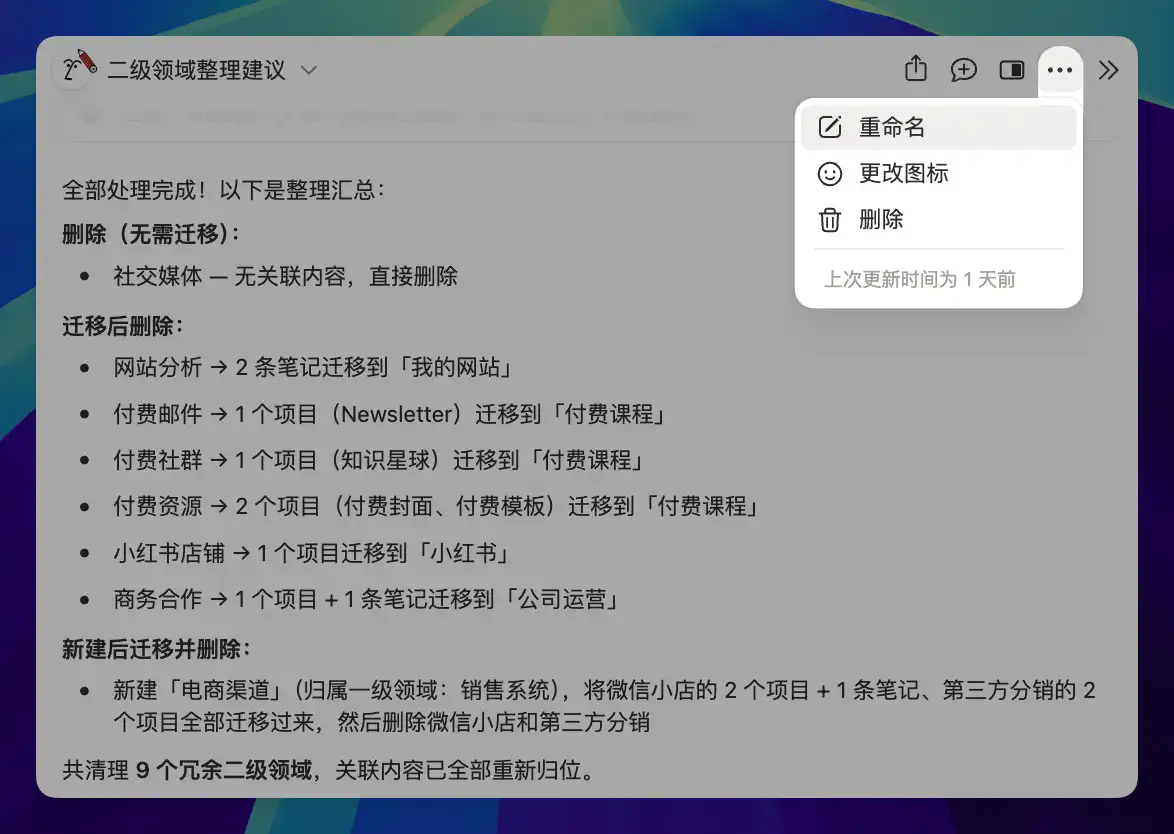
A small but practical improvement. Previously, all Agent conversations used auto-generated titles, making it nearly impossible to find a specific chat among dozens.

Now you can manually rename any conversation — for example, "Q1 Budget Discussion" or "Competitor Analysis v2" — so it's easy to locate later. Available on both desktop and mobile.

Notion Agent chat rename

For more Agent tips, check out the Complete Notion Agent Tutorial.

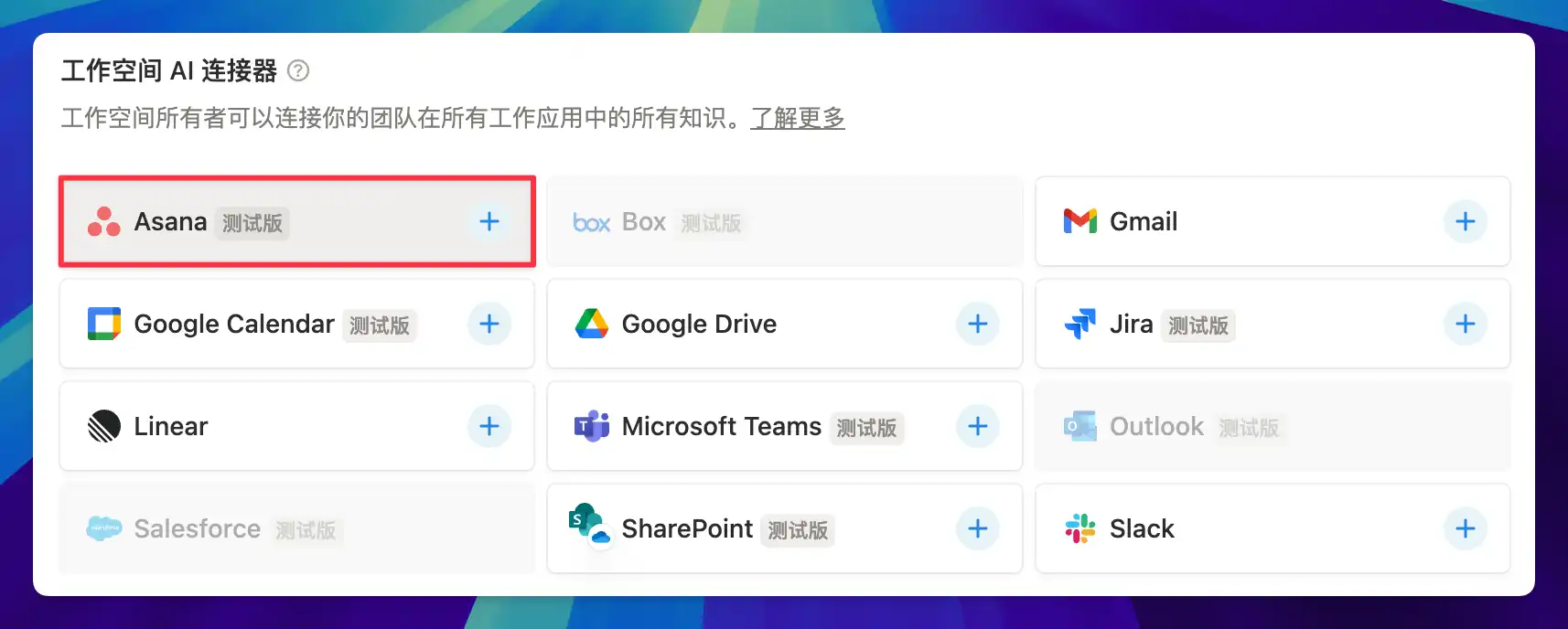
If your team uses both Notion and Asana, checking task statuses used to mean switching back and forth between the two tools.

Now with the AI Connector, you can query Asana projects and task statuses directly within Notion, letting AI retrieve information across tools for you.

Notion AI Asana connector

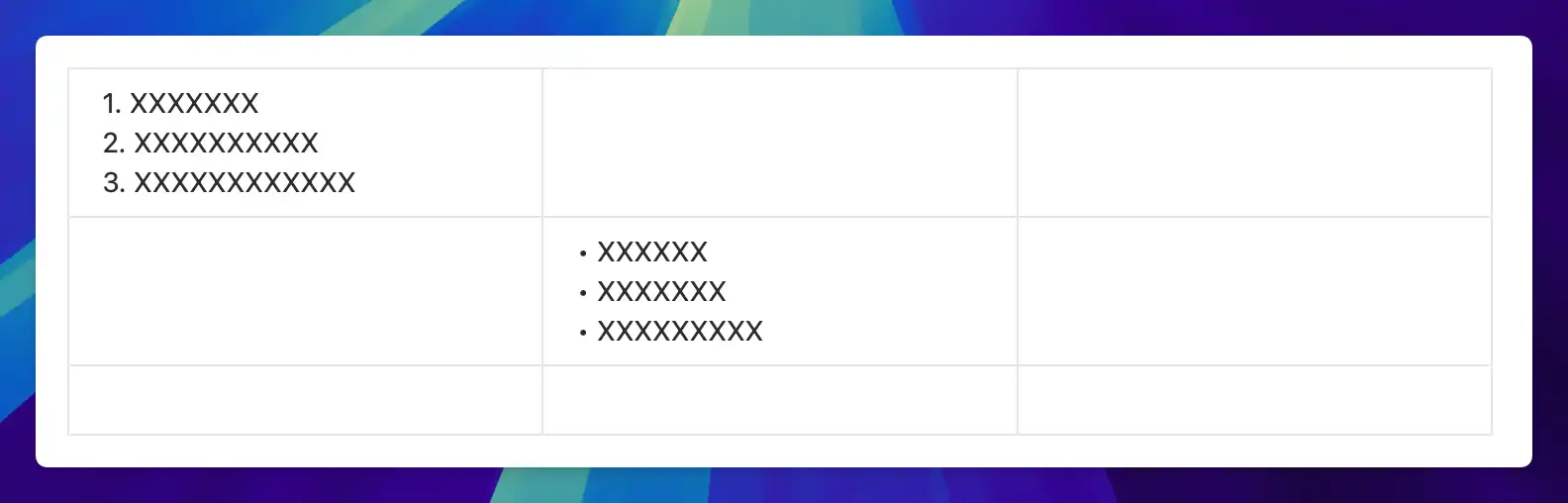
This one's been a long time coming. Previously, Simple Table cells in Notion only supported plain text — listing items meant awkward comma separation or just giving up.

Now you can use bullet lists inside table cells. Comparison tables, spec sheets, and feature checklists finally work the way they should.

Notion table cell bullet list support

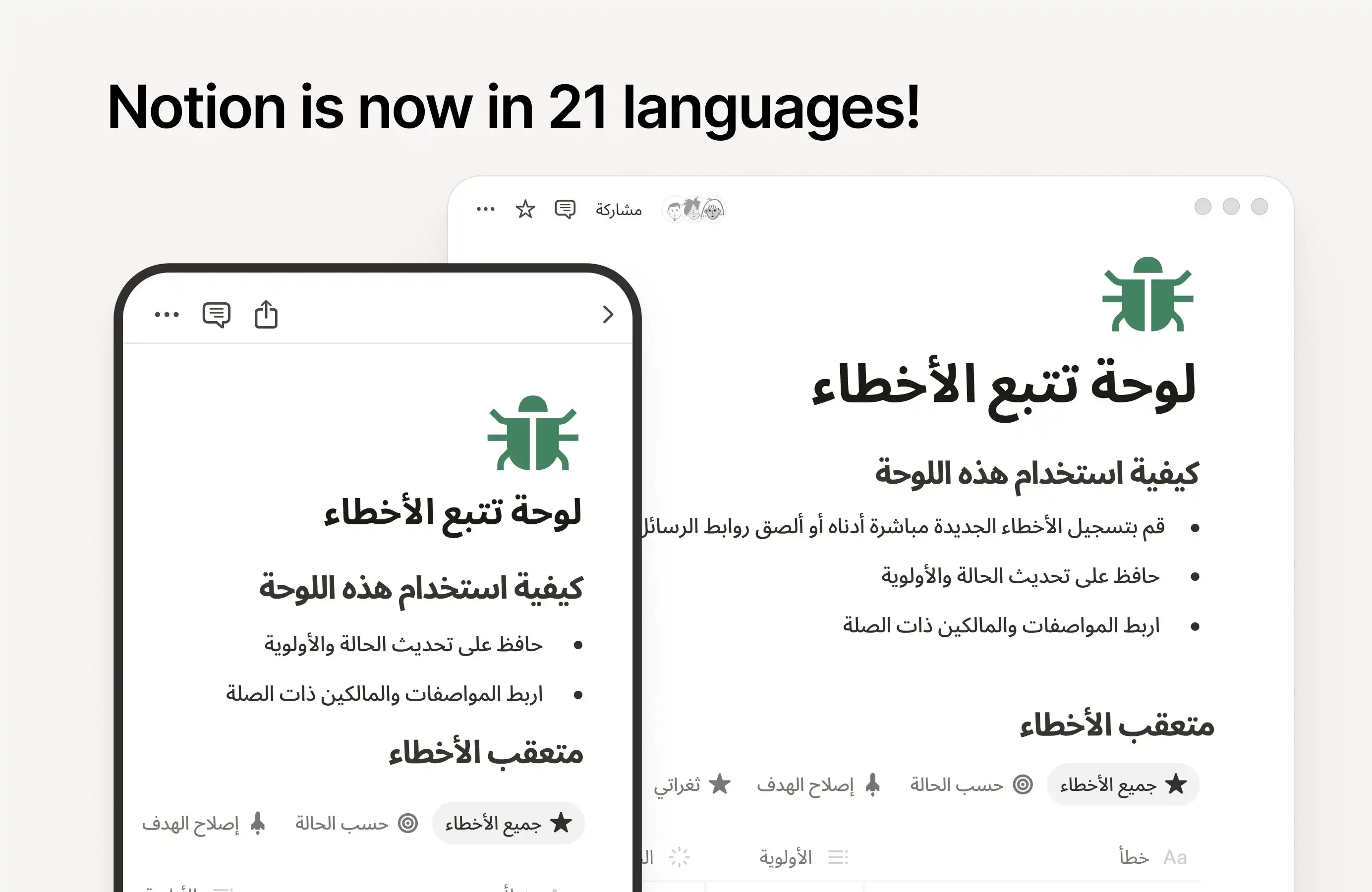
Notion now supports 21 languages, with Arabic and Hebrew joining the lineup. This marks Notion's first-ever support for right-to-left (RTL) languages.

When you type in Arabic, text automatically aligns to the right; switch to English, and it aligns to the left. Notion detects the writing direction based on the first character you type. For mixed-language content, you can manually toggle the direction.
After selecting Arabic or Hebrew in settings, the entire interface mirrors — the sidebar moves to the right side. Both desktop and mobile are supported.
Notion Arabic RTL interface

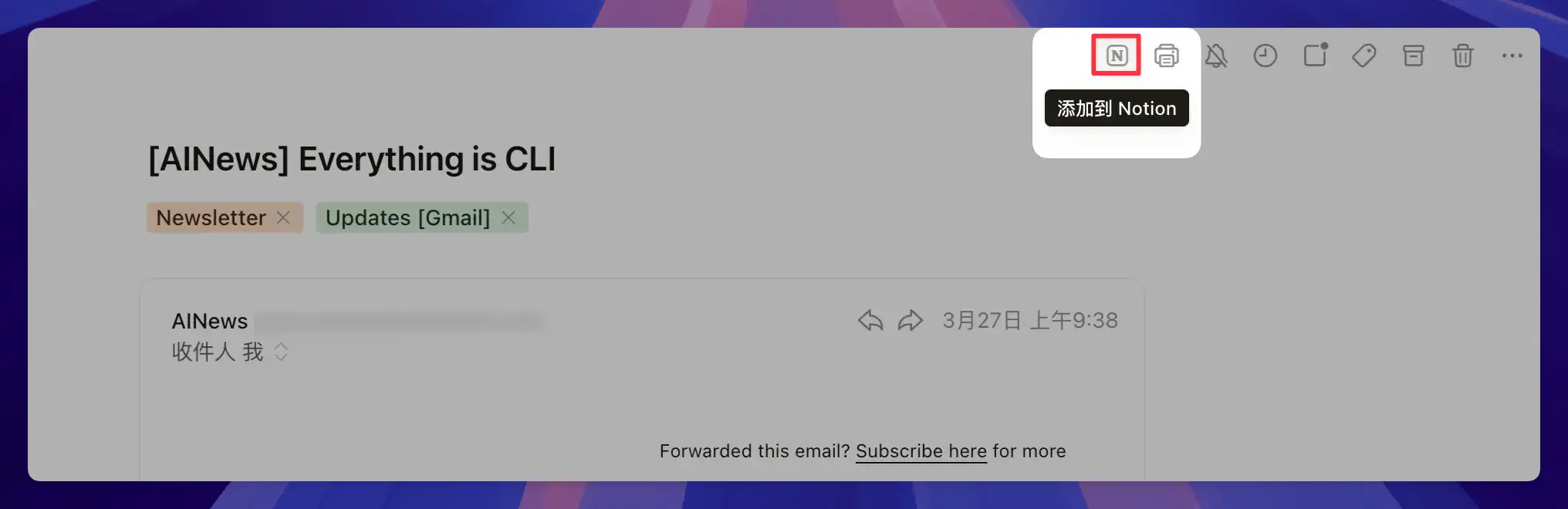
When processing emails in Notion Mail, saving important content used to mean manually copying it into a page. Now you can save an entire email to any database with a single click.

Great for scenarios that need organized archiving — client communication logs, vendor quotes, interview correspondence. Each email becomes a database entry, making it easy to filter and track later.

Notion Mail save email to database

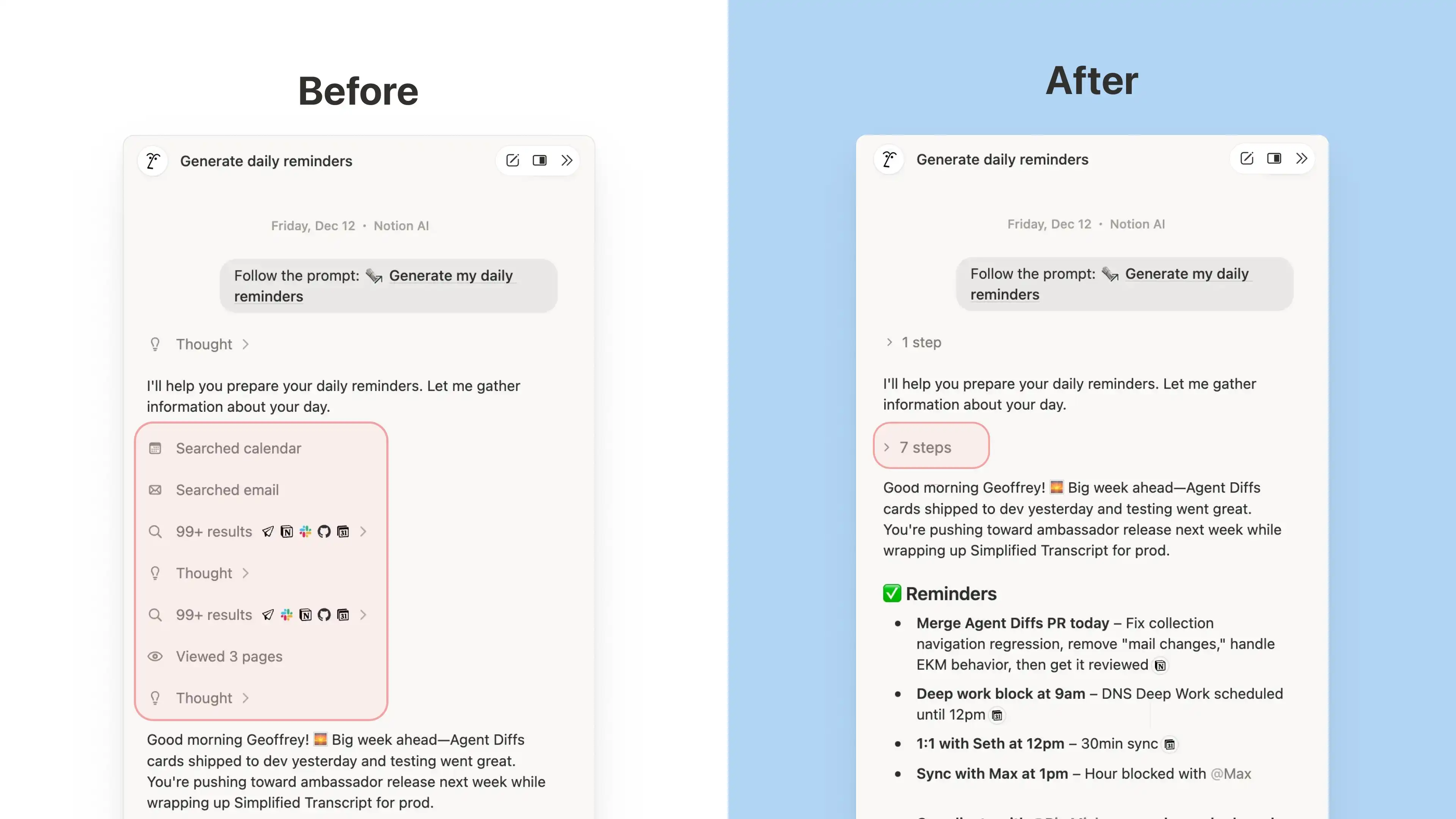
The AI Agent chat interface got a nice UX improvement — thinking processes and intermediate steps are now collapsed by default.

Previously, the Agent would display every single step as it worked through a task, filling up the chat with process details and forcing you to scroll past all of it to find the final result. Now it shows only the conclusion by default — click to expand if you want to see the details. Much cleaner.

Notion Agent collapsed steps view