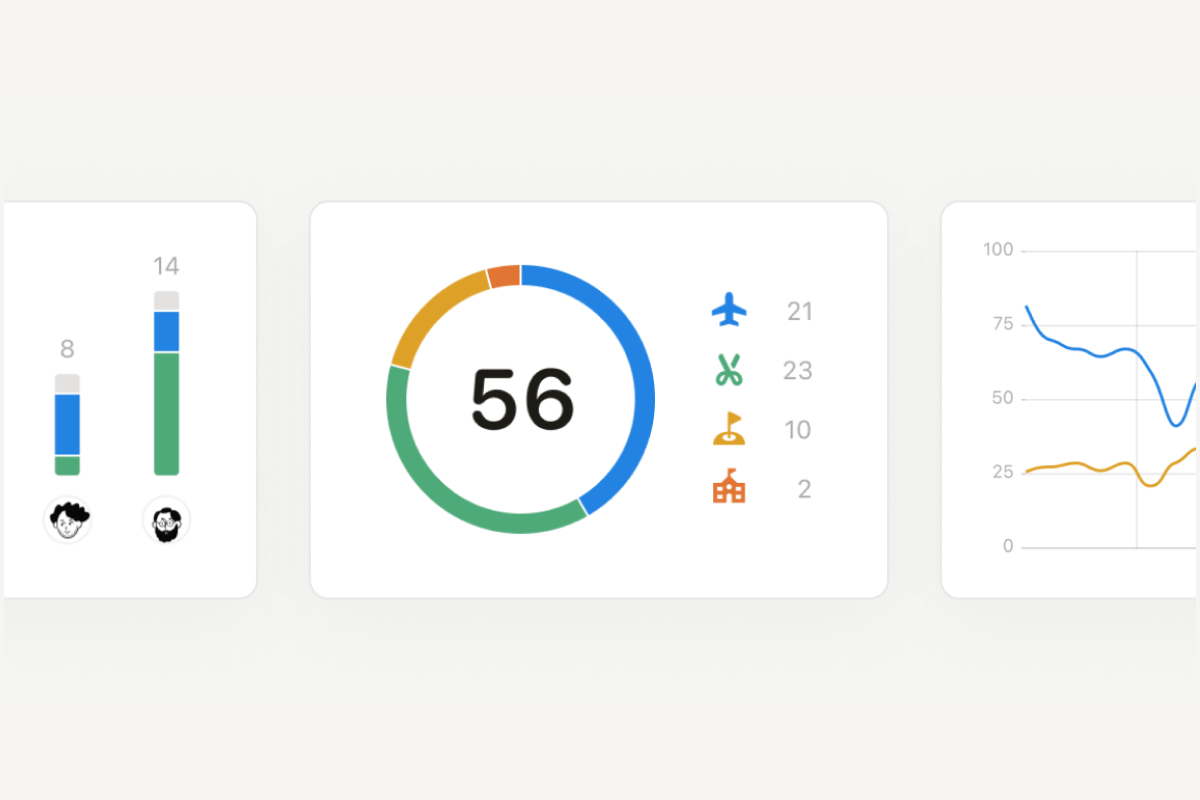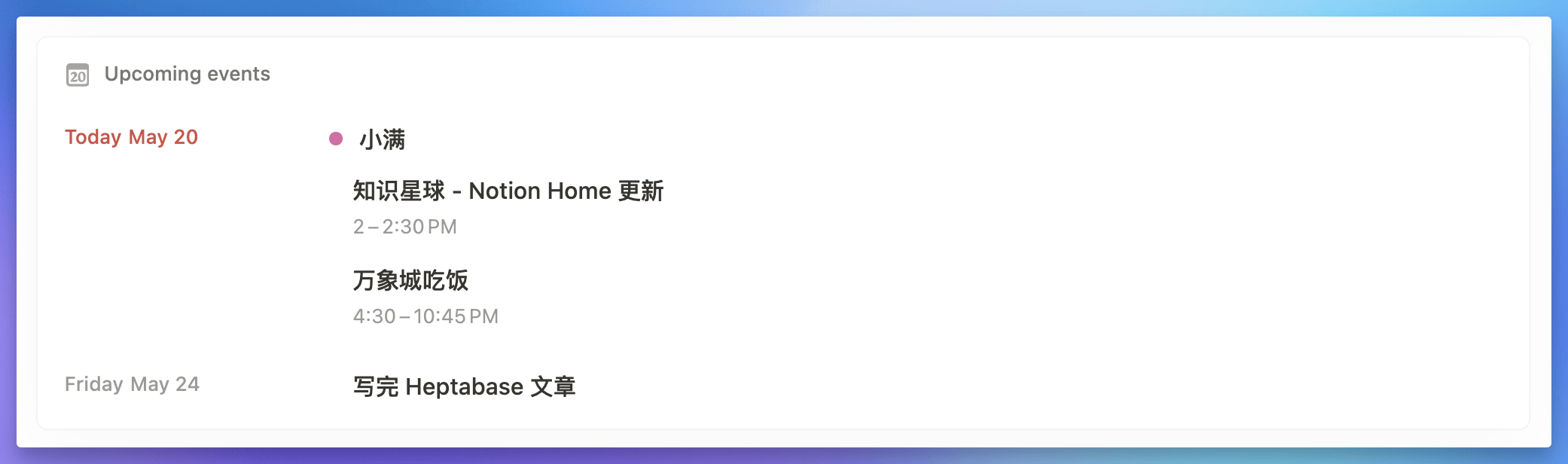
Notion's Chinese version has finally launched officially, with a fully localized interface and features, offering a more convenient experience for Chinese-speaking users. In addition to the language update, Notion has also introduced a brand-new Charts feature supporting multiple chart types, bringing more possibilities for data visualization.
These updates not only further enrich Notion's capabilities but also demonstrate the team's deep understanding of and responsiveness to user needs. Have you tried out these new features yet?
Notion Chinese Version Officially Launches
Last month's rumors have become reality — Notion's Chinese version has finally gone live (I previously showcased the Android beta version in the Chinese version early preview). Although this article primarily uses Android screenshots, the Chinese version is now available across iPhone, Mac, the web, and the Windows desktop app.
If you haven't updated to the Chinese version yet, you can switch it in Settings.
1. Block Names Fully Localized
All basic block functions now have Chinese names. For example, "Breadcrumb," which was literally translated as "面包屑" (bread crumbs), is now called "路径栏" (Path Bar), which is much clearer and more intuitive.
2. Database Fields Fully Localized
As one of the most complex features in Notion, the Database now has fully localized field names.
Now, Select and Status — two features that previously looked and functioned somewhat similarly — have more intuitive Chinese names: "单选" (Single Select) and "状态" (Status), making them easier to distinguish.
3. Formula Field Gets Chinese Descriptions
As the most complex feature within Databases, the Notion Formula field now includes Chinese descriptions. While it's still challenging and hard to get started with, I believe this significantly lowers the difficulty and makes it far less intimidating.
4. Date Field Matches Chinese Reading Habits
In the non-localized version, the default Date field format was "August 11, 2024," which didn't match Chinese reading habits at all. This meant that every time you created a Date field, you had to manually change it to a format like "2024年8月11日," which was quite tedious.
In Notion's Chinese version, not only has the Date field been localized to "日期," but the default date format has also finally been changed to "YYYY/MM/DD."
And we can finally use the @ command to input dates in a format that suits Chinese users. Previously, if you wanted to insert a date on a page, you had to type it in the format August 1, 2024, which wasn't very convenient.
5. Page Settings Fully Localized
Beyond block functions, the page settings — including various Database configuration details — now feature fully localized text.
6. Built-in Templates Get Chinese Names
At this stage, Notion has provided Chinese names for its built-in official templates. However, the content generated after clicking on a template is still in English for now. Even so, this helps new users more quickly understand the range of use cases Notion can cover.
7. Notion AI Fully Localized
As the built-in AI assistant within Notion, Notion AI is arguably the best and most conveniently integrated AI product in any note-taking app — bar none.
In this Chinese beta, Notion AI has also fully localized all built-in prompts, making it even more convenient to use.
Beyond page-level AI features, at the Database level, AI text fields — such as custom AI Prompts, AI Keywords, AI Summary, and AI Translation — all come with thorough localized descriptions:
Notion has officially hired professional translators for both Simplified and Traditional Chinese to work full-time on the localization effort. So while the current localization isn't perfect, it's certain that the experience will continue to improve going forward.
Notion Charts Launch
This month, Notion's Charts feature has finally rolled out to all users (previously previewed in the charts feature preview) — a truly epic update. Let's explore this major feature together. For a more detailed charts usage guide, check out the complete database charts tutorial.
Basic Information
You can create a chart using the shortcut command /charts
You can also create a new Chart View directly within a Database
4 Chart Types Supported
Database Charts support vertical bar charts, horizontal bar charts, line charts, and donut charts — four types in total. The data source is the Database you've created, and Charts functions as one of the Database's Views, coexisting alongside other views.
This means you can place the source Database on the left side of the page and then put the Database's Chart View on the right side using column layout.
Pricing Plan
Users on any paid plan can create an unlimited number of charts, while free users can only create one chart. Personally, I think this feature is well worth paying for — it maintains Notion's consistently high design standards and is quite powerful.
Basic Usage
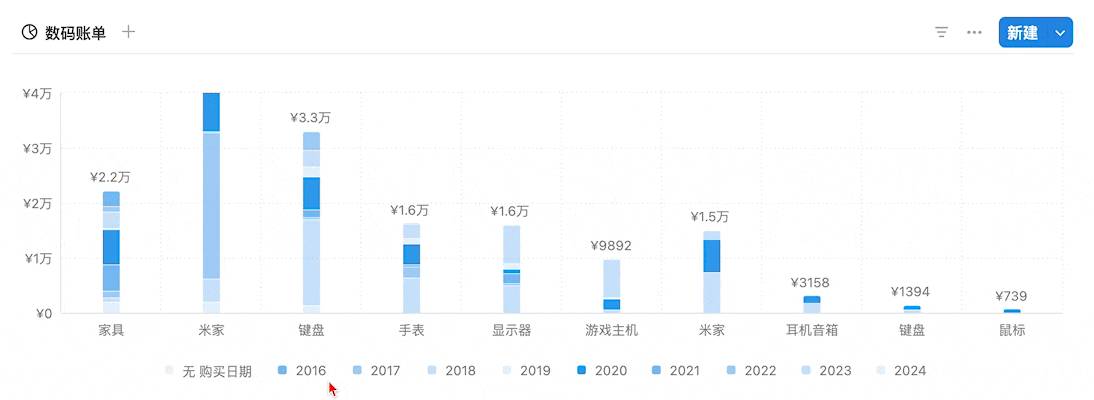
In my digital purchases Database, I can use a vertical bar chart to calculate the total spending across different digital categories:
In the chart's Y-axis options, we can also group the Y-axis data, with the grouping criteria coming from existing fields in the Database.
For example, different products within the same category may have been purchased in different years. I can select "Purchase Date - Year" as the grouping method in the "Group by" option:
This lets me group the data within the bar chart by year:
When you hover your mouse over a legend item, the corresponding section is highlighted:
If there's data you don't want displayed in the chart, or data you'd like to emphasize, you can use the "Filter" feature to filter specific fields.
For example, displaying only items with a single amount exceeding 5,000:
We can also switch to a horizontal bar chart for a different visual effect:
In this View, we can enable the "Cumulative" feature, changing the chart from showing individual yearly totals to a cumulative year-over-year chart:
Line charts also support the "Cumulative" feature:
If some grouped field values are empty, you can enable the "Ignore zero values" feature to hide those empty fields:
The donut chart is relatively simpler and can be used to show the proportional breakdown of different data — for example, task statuses in a task Database:
If you want to adjust the chart size, change chart colors, or toggle the legend, you can do so under "Color" and "More style options":
Export Feature
The Charts feature also supports exporting as an image. Simply click the three dots in the upper right corner of the Database, then click "Save chart as" to export in PNG or SVG format.
The export result looks like this:
Other Updates
Two New Formulas
Last month I missed two new Formulas added by Notion — padStart and padEnd — so here's a quick overview to make up for it.
Both of these Formulas can quickly pad a string to a specified length, which is very useful when you need to format text or align text lengths.
Basic Usage
The usage of these two Formulas is nearly identical, with the only difference being obvious: padStart pads characters at the beginning, while padEnd pads them at the end.
Taking the image above as an example, "Hello" has 5 characters, and I want to pad it with asterisks * to reach 10 characters. The Formula is written as:
padStart("Hello",10,"*")
For padEnd, the asterisks would be added after "Hello":
Use Cases
In the example below, these 3 cases have serial numbers of 1, 10, and 100. We can use the padStart Formula to pad them to a specified length of 10 digits, generating a neat case number:
The same applies to employee numbers:
Things to Note
The pad Formula only accepts strings, so if you're working with numbers, remember to first convert them to strings using the format Formula.
Images Now Support Hyperlinks
Notion now lets you add hyperlinks to images. Hover your mouse over an image and click the "More actions" button in the upper right corner.
That's all for this month's feature roundup. See you next time!
📘 FLO.W — Notion Personal Management System
FLO.W is a Notion-based personal management template that integrates tasks, notes, projects, habits, and more, complete with comprehensive tutorials.