This question comes from a reader of the Notion course. It has been organized and shared here. If you encounter similar issues while using Notion, feel free to leave a comment.
Notion's database chart feature has now been rolled out to all users — a truly epic update. This article will walk you through this powerful new feature. For details about the chart feature release, check out Notion Chinese version and charts launch.
Basic Information
How to Create
You can use the shortcut command /charts to create a chart:
You can also create a new chart view directly within a database:
4 Supported Chart Types
Database charts support vertical bar charts, horizontal bar charts, line charts, and donut charts — four chart types in total. The data source is the database you created, and Charts will exist as one of the database views, alongside other views.
So you can place the source database on the left side of the page and the chart view of that database on the right side using column layout:
Pricing
Users on any paid plan can create unlimited charts, while free users can only create one chart. Personally, I think this feature is well worth paying for — it maintains Notion's consistently high design quality and is powerful enough for most use cases.
Basic Usage
Vertical Bar Chart + Grouping
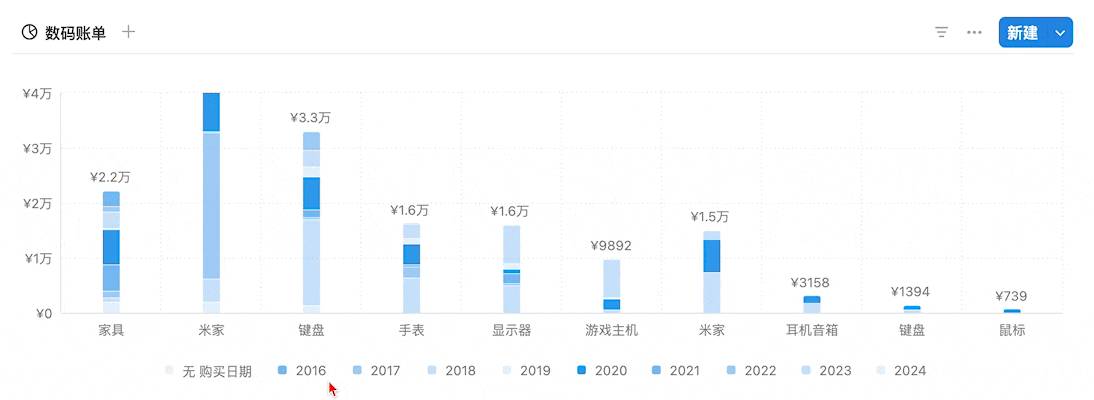
Using a tech purchases database as an example, you can use a vertical bar chart to display total spending by category:
In the chart's Y-axis options, you can also group the Y-axis. The grouping criteria come from existing fields in the database.
For example, products under the same category may have been purchased in different years. In the "Group by" tab, you can select "Purchase date - Year" as the grouping method:
Then the bar chart will be grouped by year:
When you hover your mouse over the legend, the corresponding section will be highlighted:
Filtering
If you don't want certain data to be displayed, or want to highlight specific data, you can use the "Filter" feature to filter by specific fields:
For example, showing only items with a unit price exceeding 5,000:
Horizontal Bar Chart + Cumulative Mode
Switching to a horizontal bar chart gives you a different presentation:
In this view, you can enable the "Cumulative" feature to change the chart from per-year statistics to a cumulative year-over-year view:
Line Chart
Line charts also support the "Cumulative" feature:
If some grouped fields have empty values, you can enable "Ignore zero values" to hide that empty data:
Donut Chart
The donut chart is relatively simple and is ideal for showing the proportion of different data. If you need more precise percentage statistics, you can also use formulas to calculate Select field option percentages. For example, the distribution of task statuses in a task database:
Styling
If you want to adjust the chart size, chart colors, or toggle the legend, you can do so in the "Color" and "More style options" sections:
Latest Update: In 2026, Notion launched the all-new Dashboard database view, combining boards, tables, charts, and timelines in a single page — a major upgrade to the charting experience.
📘 FLO.W — Notion Personal Management System
FLO.W is a Notion-based personal management template that integrates tasks, notes, projects, habits, and more, complete with comprehensive tutorials.