Notion Updates

Tracked by the FLO.W team

Notion has upgraded Version History: every edit to pages and databases is now recorded in real time, with changes highlighted and labeled by the person or agent who made them. You can restore an earlier version in one click.

To use it, open Version History from the top right of a page and browse changes by time in the sidebar. Click an edit to see the highlighted diff, and restore it if needed.

The sidebar lists the author of each edit, including people and agents (for example, via Claude). In the page on the right, added text is highlighted in color and removed text is shown with a strikethrough.
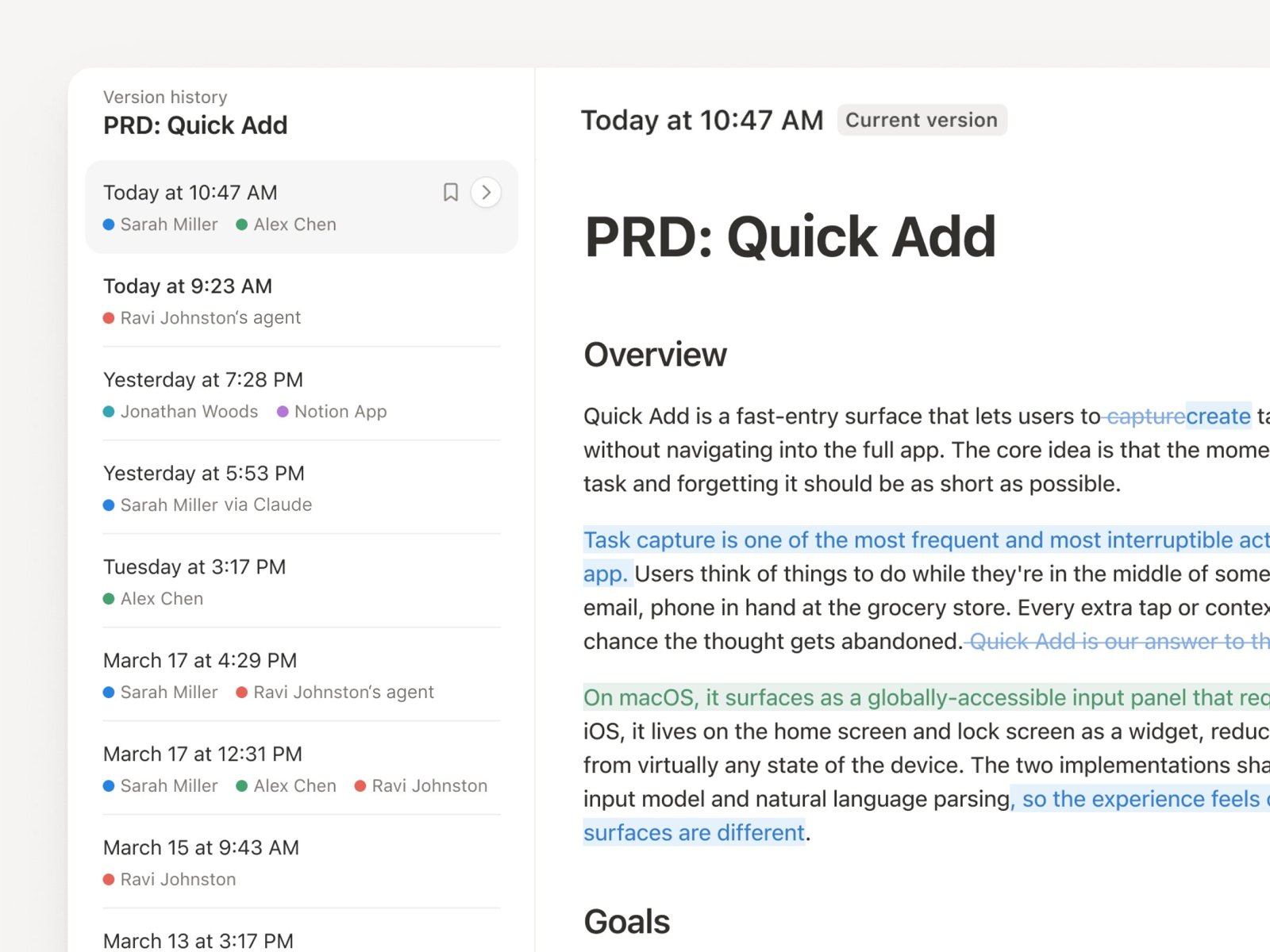
Notion Version History sidebar listing the author of each edit, with additions and deletions highlighted in the page

This is a complete, real-time log of every edit, covering pages and row-level database changes. It is different from the earlier snapshot diffs in Version History and Agent change diffs: those compare two snapshots or show what an agent changed in one run, while this records every edit by people and agents continuously.
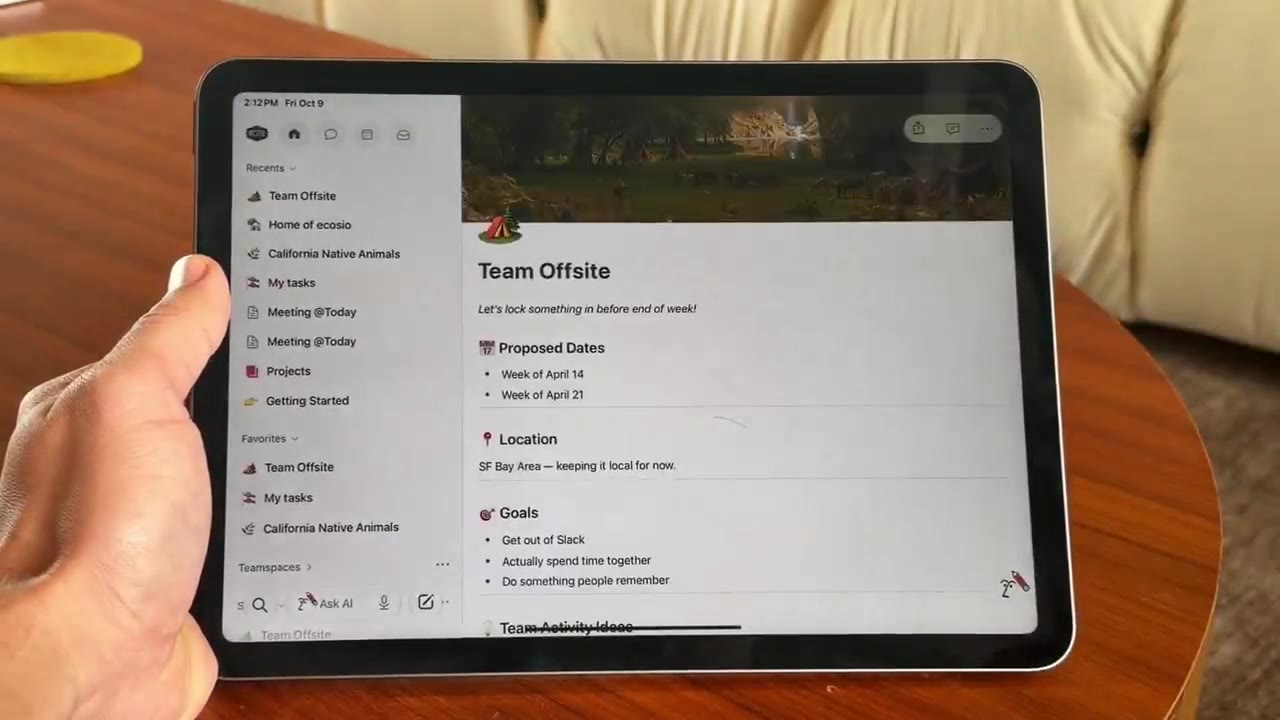
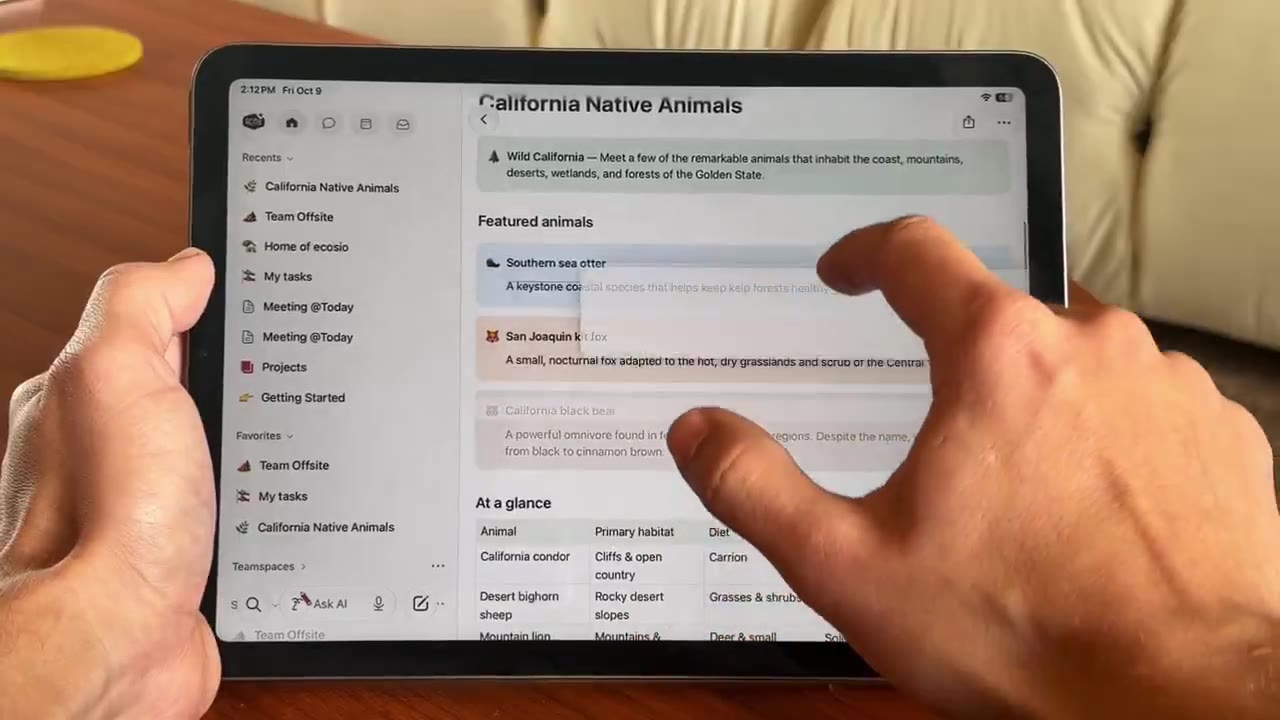
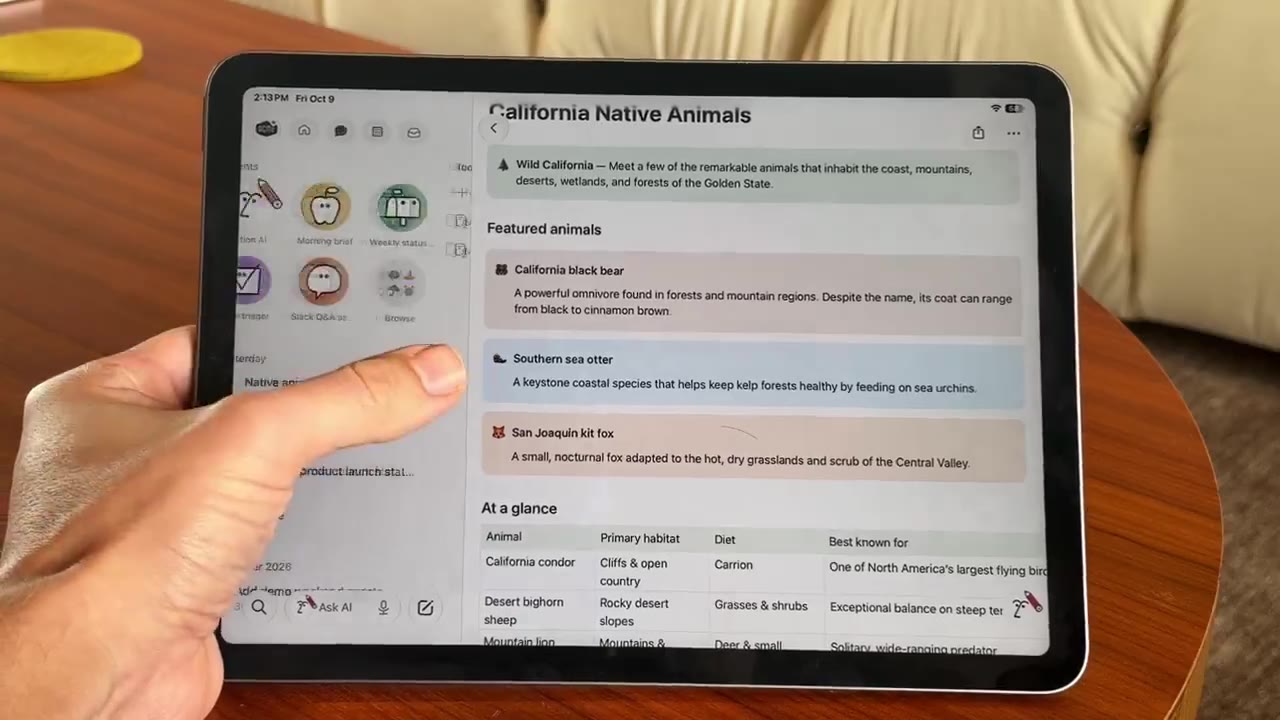
Notion is rebuilding its iPad app natively instead of wrapping the web app. The sidebar, inbox, Notion AI and search are already native and open faster. The native editor is still on the way: Notion plans to finish the native editor on phones first and then test it on iPad, with Apple Pencil support coming later.

The sidebar and inbox on iPad are now native, so the page tree is no longer rendered by a web container.

The native sidebar in Notion for iPad

Search and Ask AI sit at the bottom of the sidebar and are native as well, so you can find pages in your workspace directly.

Native search and Ask AI entries at the bottom of the Notion iPad sidebar

Notion AI is native too: tap Ask AI and the sidebar switches to the AI panel.

The native AI panel in Notion for iPad

In addition, on iOS 27 you can use Siri to find or create pages, start an AI chat, or record meeting notes.

Notion Settings now supports search. Open Settings and use the search box to jump straight to an option instead of paging through every section.

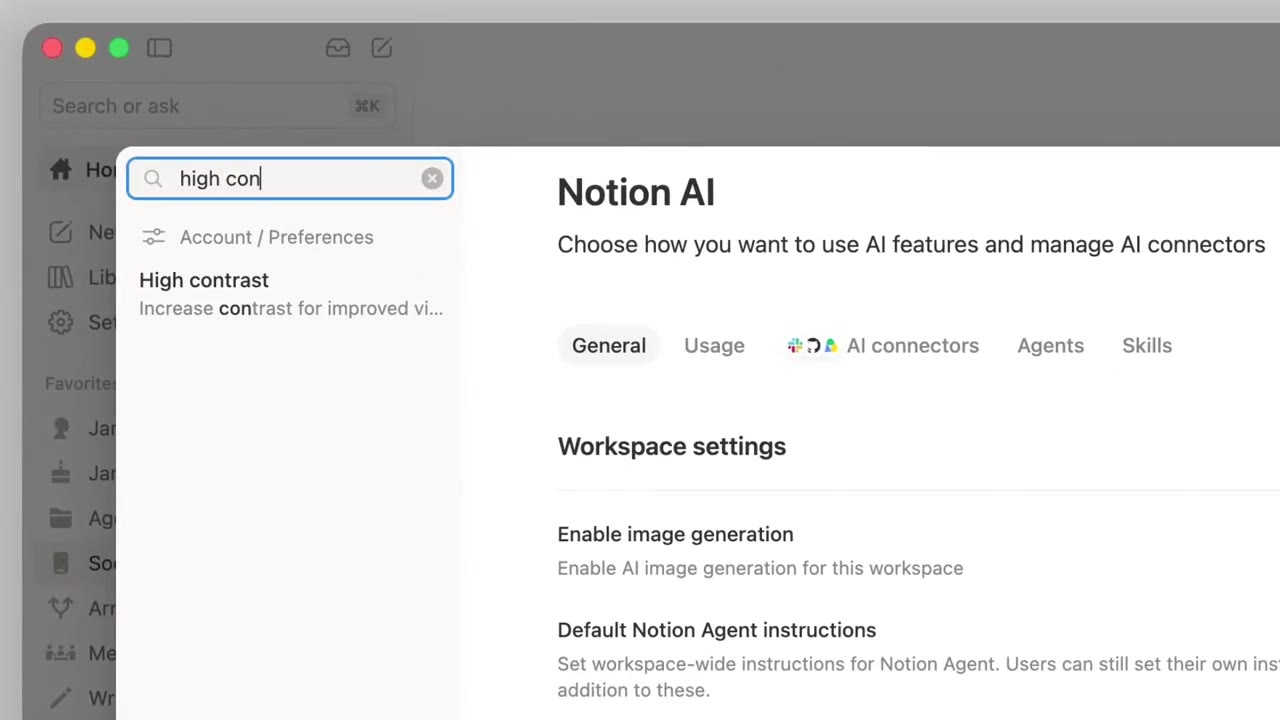
Below is Notion’s demo: type a keyword into the search box at the top left of Settings and the matching options are listed right away.

Typing a keyword into the Notion Settings search box

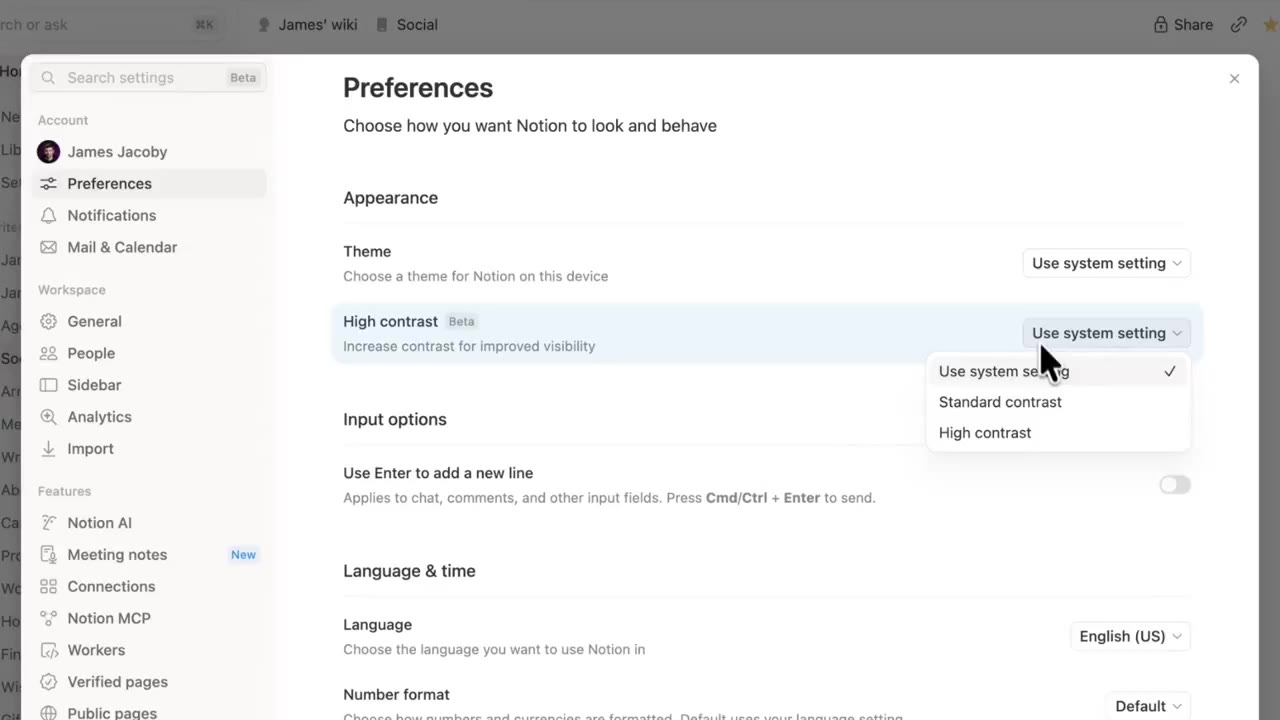
Click a result and Notion jumps to that settings page and highlights the item. For example, searching "high contrast" takes you to the contrast option in Preferences.

A search result jumping to the contrast option in Preferences

Notion has launched sidebar presets for workspace admins. Admins can set a default sidebar for new members, and everyone can add a preset from the "+" menu and then adjust it to their own habits.

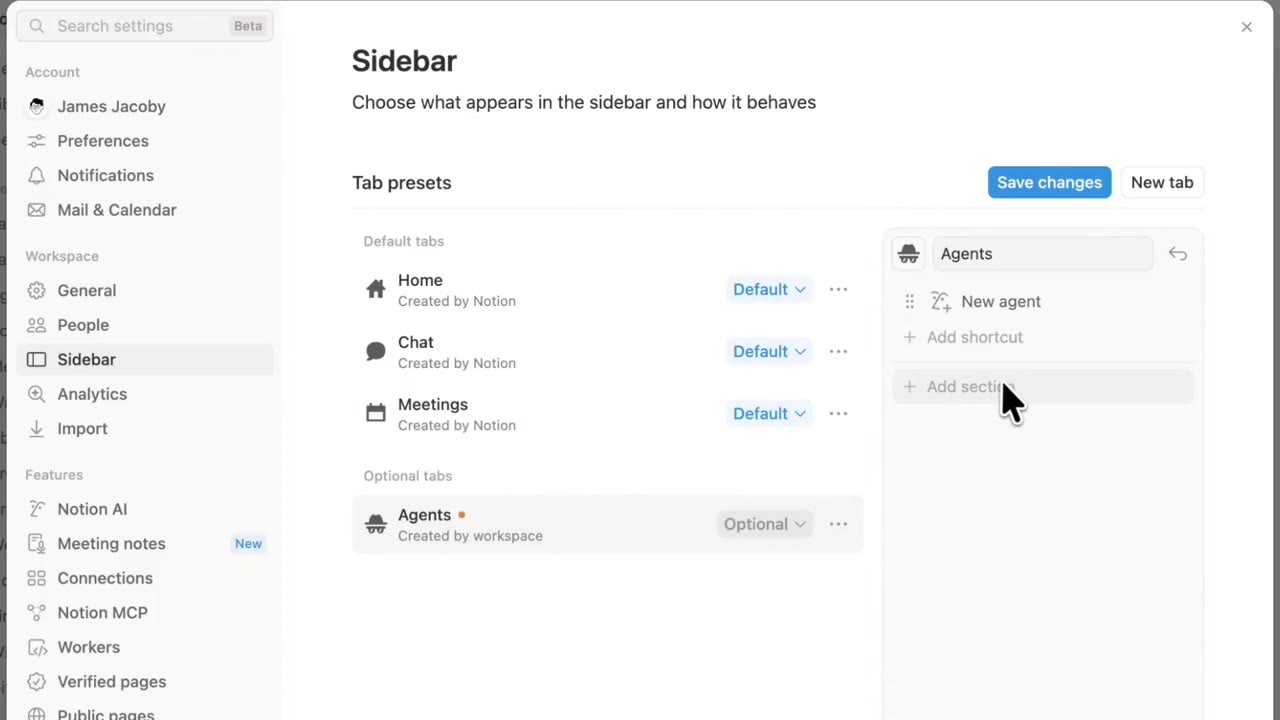
Admins edit presets in Settings → Sidebar and set one as the default sidebar for new members. Below is the settings page from Notion’s demo.

Tab presets in Settings → Sidebar

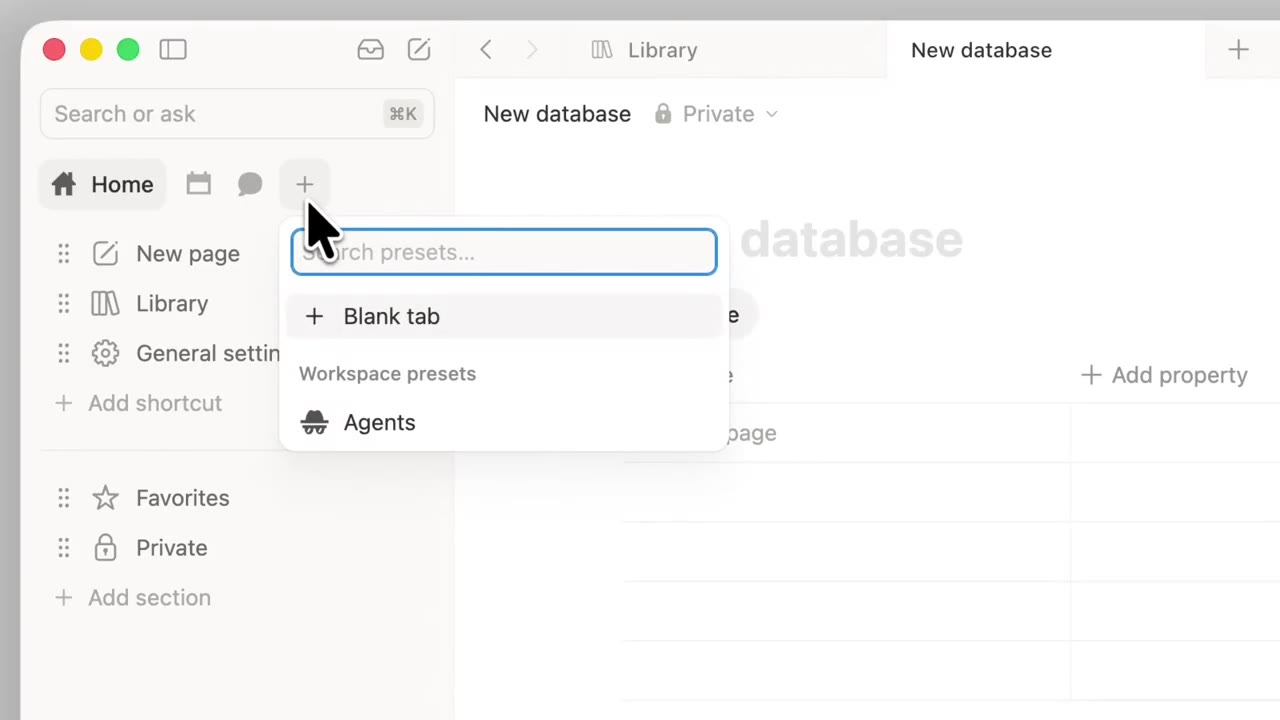
Regular members can click the "+" menu at the top of the sidebar, add a preset under "Workspace presets", then adjust it themselves.

Workspace presets in the sidebar “+” menu

Notion has built a native editor for iOS and is opening it for testing through TestFlight. Notion says the new editor is faster and more stable when you type and edit.

How to join: install TestFlight on your iPhone, open Notion’s test invitation link to join the beta, then open any page to use the new editor.

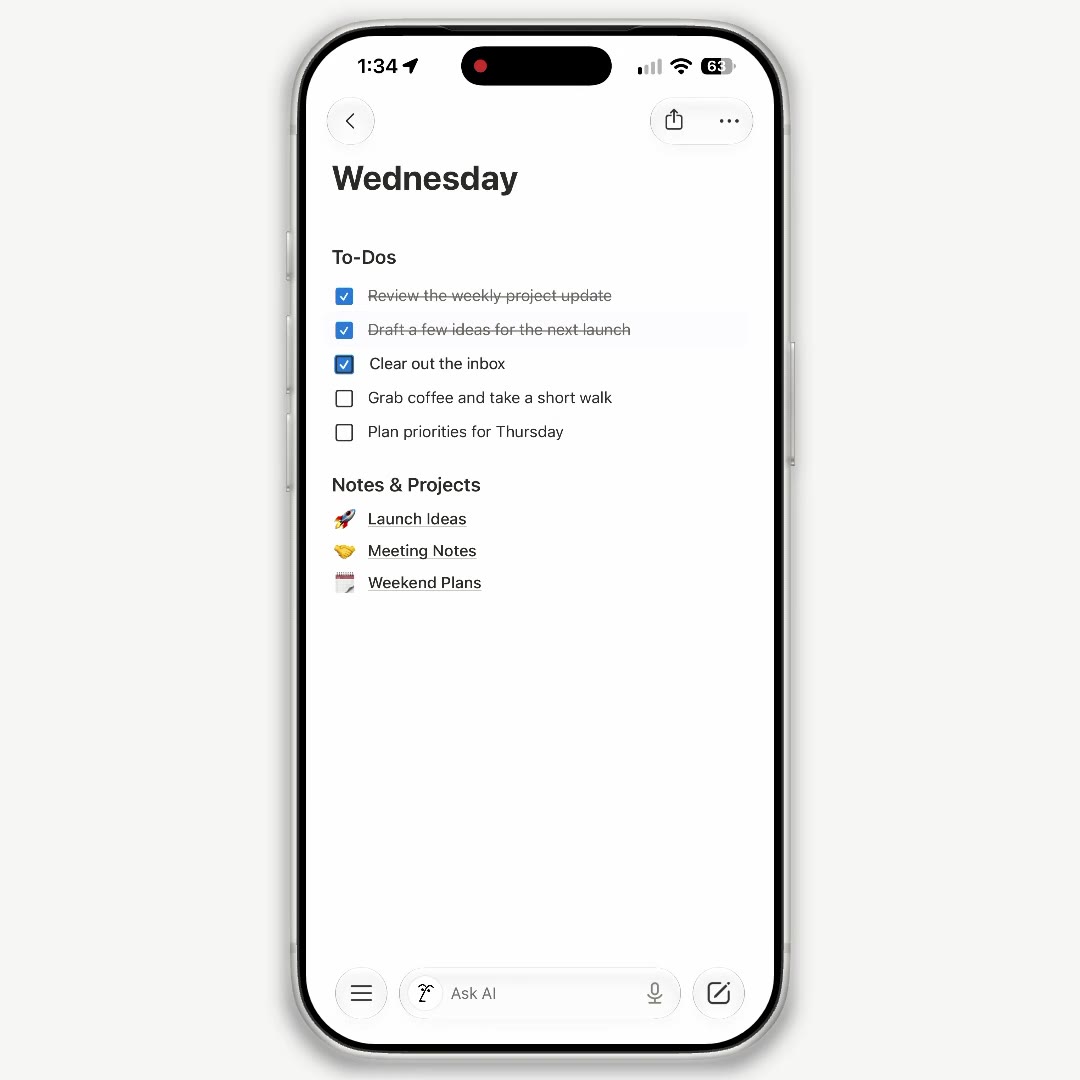
The editing screen of Notion’s native iOS editor

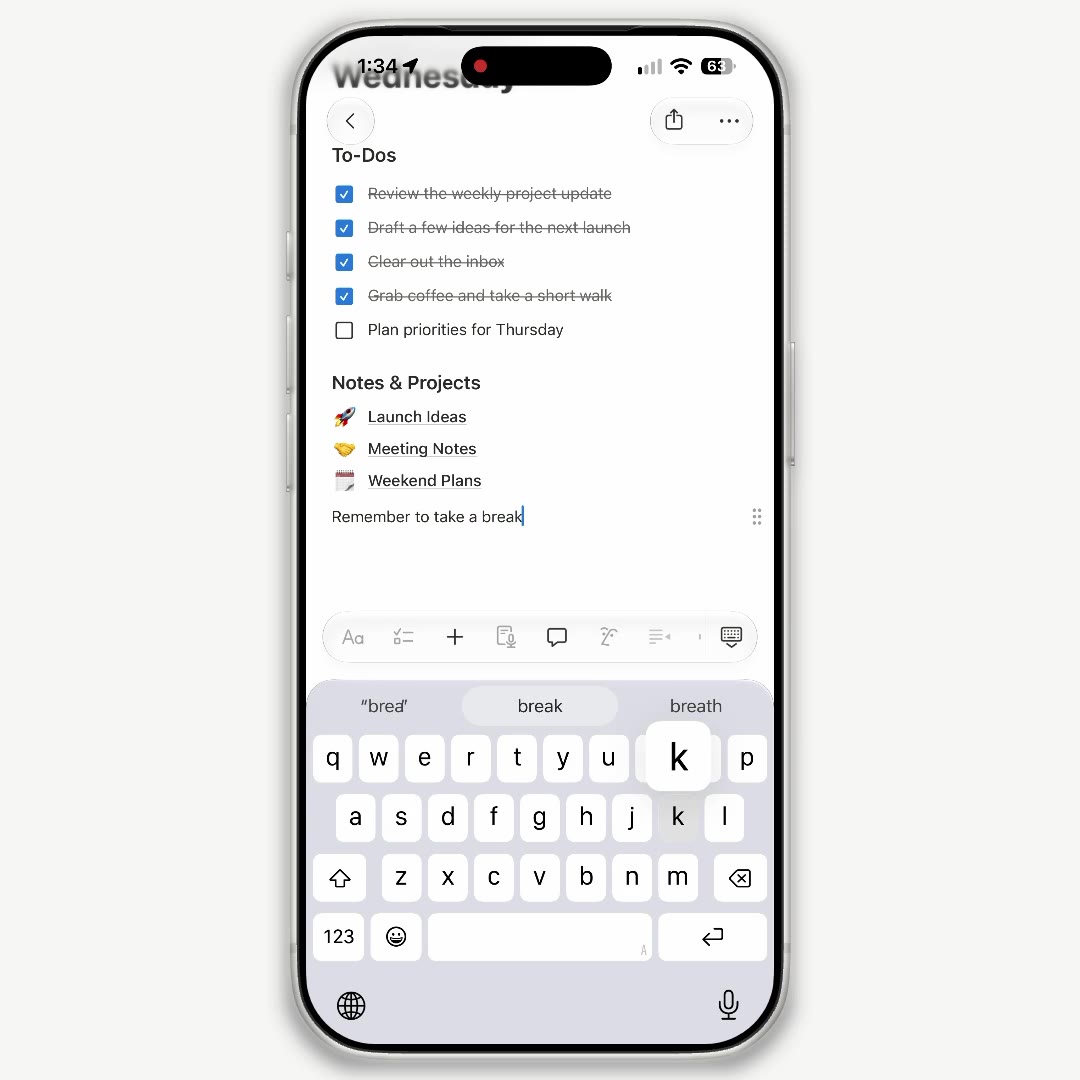
Tap anywhere on a page to start typing. To-dos, lists and page links can all be edited in place.

Editing to-dos, lists and page links in the native iOS editor

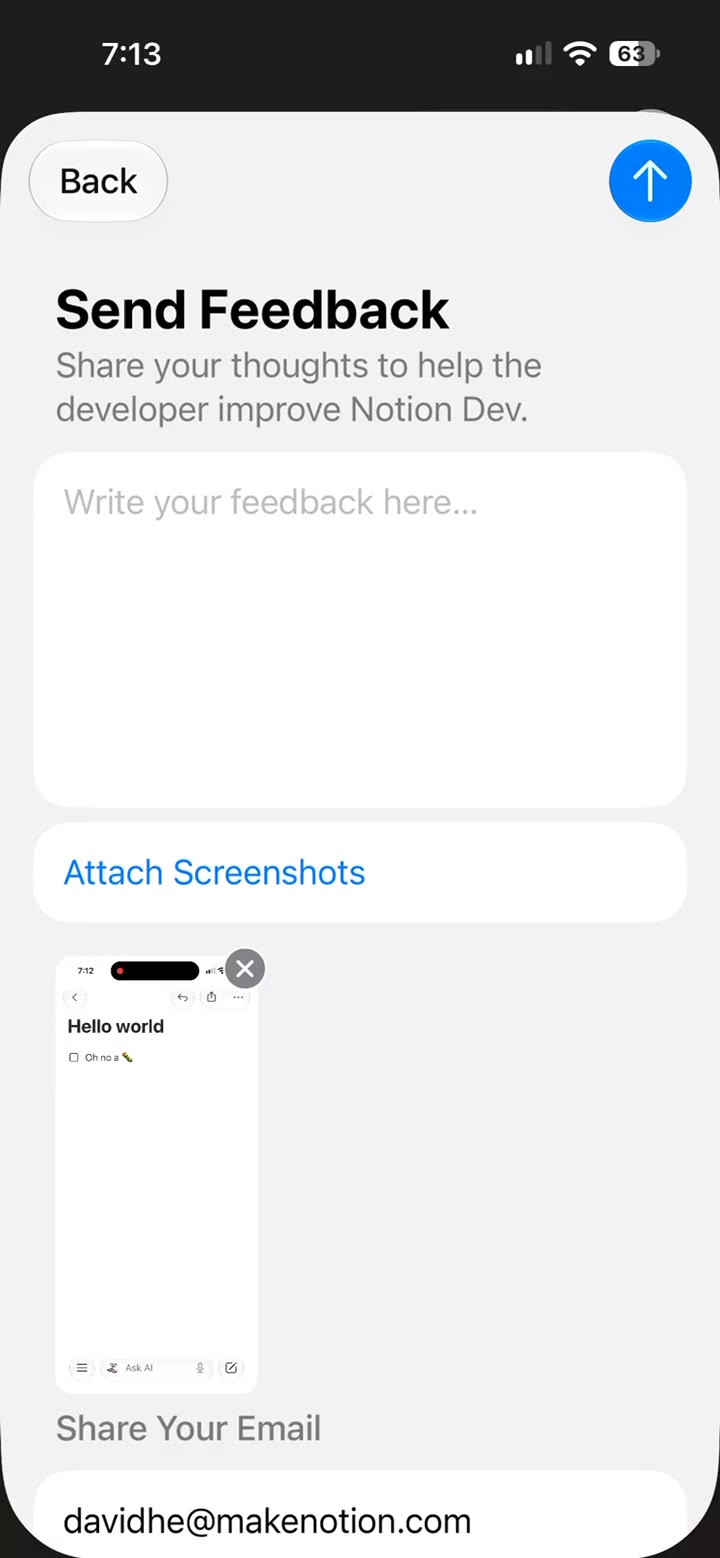
If you run into problems during testing, take a screenshot in the beta, then attach it in the TestFlight feedback window and submit it to Notion.

Submitting a screenshot through the TestFlight feedback window

The native editor for Android is still in development, and Notion says it will open testing when it is ready.

Notion recently added Claude Sonnet 5.5, Haiku 5.5, Fable 5 / 5.1 and GPT-6.1 Sol. You can pick any of them in the model picker.

  • Claude Sonnet 5.5 (Sept 29): available the same day Anthropic released it.
  • GPT-6.1 Sol (Sept 29, Beta): in the Notion Agent model picker, under the "Using ChatGPT plan" group.
  • Claude Haiku 5.5 (Oct 8): available on the day Anthropic released it, under the Claude group.
  • Claude Fable 5 / 5.1 (June 9 / Sept 1): turn it on in Settings → Notion AI → Restricted Access Models. Fable 5 is for Business / Enterprise, and 5.1 works with Custom Agents and Notion Agent.

Notion has added a Notion MCP management page to Settings. It shows the MCP clients connected to your workspace and lets you discover, enable or add more from a directory.

How to use it: open Settings → Notion MCP. Under "Manage workspace clients" you can see the clients that are enabled (for example ChatGPT, Claude and Muse). Under "Discover" you can browse the directory (for example Composio, Cursor, Devin and Figma), then click Enable or Add an MCP client.

On plans: according to Notion’s developer docs, Notion MCP can be connected on every plan, but some tools (such as advanced search and AI search) require Business or Enterprise. Notion has not said separately which plans can see this settings page.

The page lists the clients that are currently enabled, plus the directory entries you can connect next.

Notion now lets you connect ChatGPT Plus, Pro or Go so the GPT models you pick in Notion Agent draw on your ChatGPT allowance. As of 2026-10-09, ChatGPT Go is covered too; it was previously limited to Plus and Pro.

Who can use it: members (not guests) of Business or Enterprise workspaces with ChatGPT Plus, Pro or Go. Your ChatGPT and Notion accounts can use different email addresses. This only applies to Notion Agent, not Custom Agents.

How to use it: open Settings → Notion AI → Usage, or go to "Subscriptions" in the model picker, connect your ChatGPT plan, then choose a GPT model in Agent. Auto and non-GPT models still use Notion credits. If your ChatGPT allowance runs out, Notion asks before switching to Notion Credits.

See the help article "Use your ChatGPT plan with Notion Agent" for the official details.

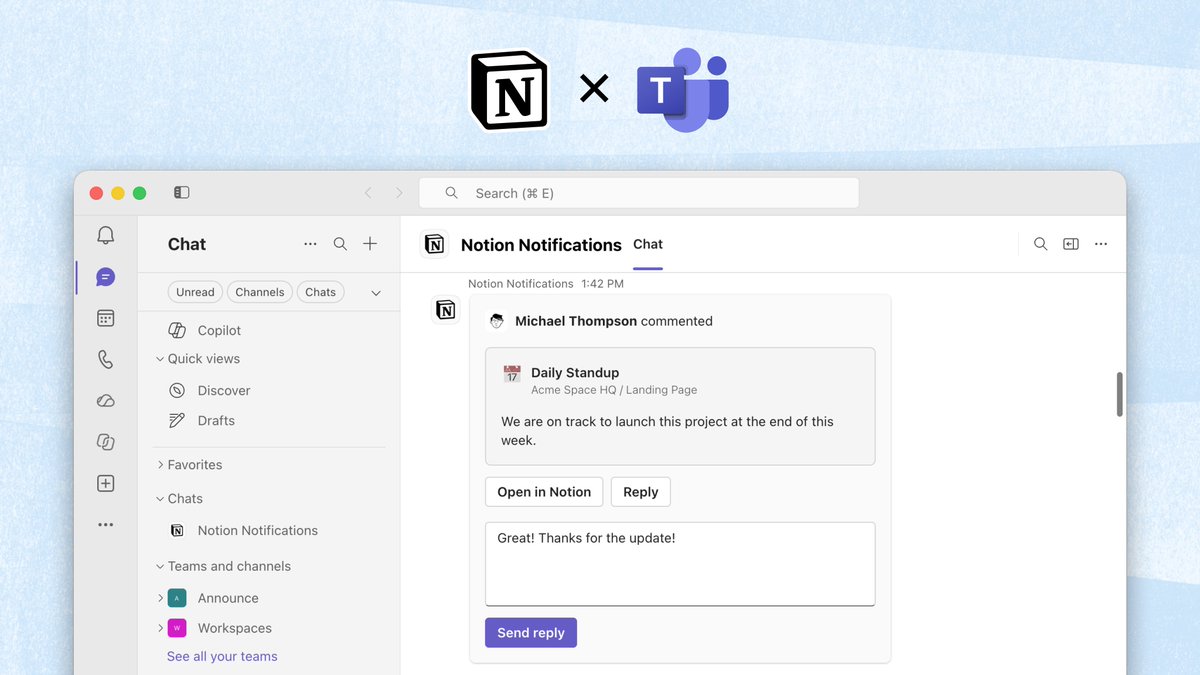
Notion notifications can now be pushed to Microsoft Teams. In the "Notion Notifications" chat in Teams you can see comment cards, open them in Notion, or reply directly.

How to use it: in Notion, open Settings → Notifications → Connected Apps and connect Microsoft Teams.

A Notion comment notification card in Microsoft Teams

Once connected, relevant Notion notifications show up on the Teams side. Click "Open in Notion", or type a reply in the card and send it.

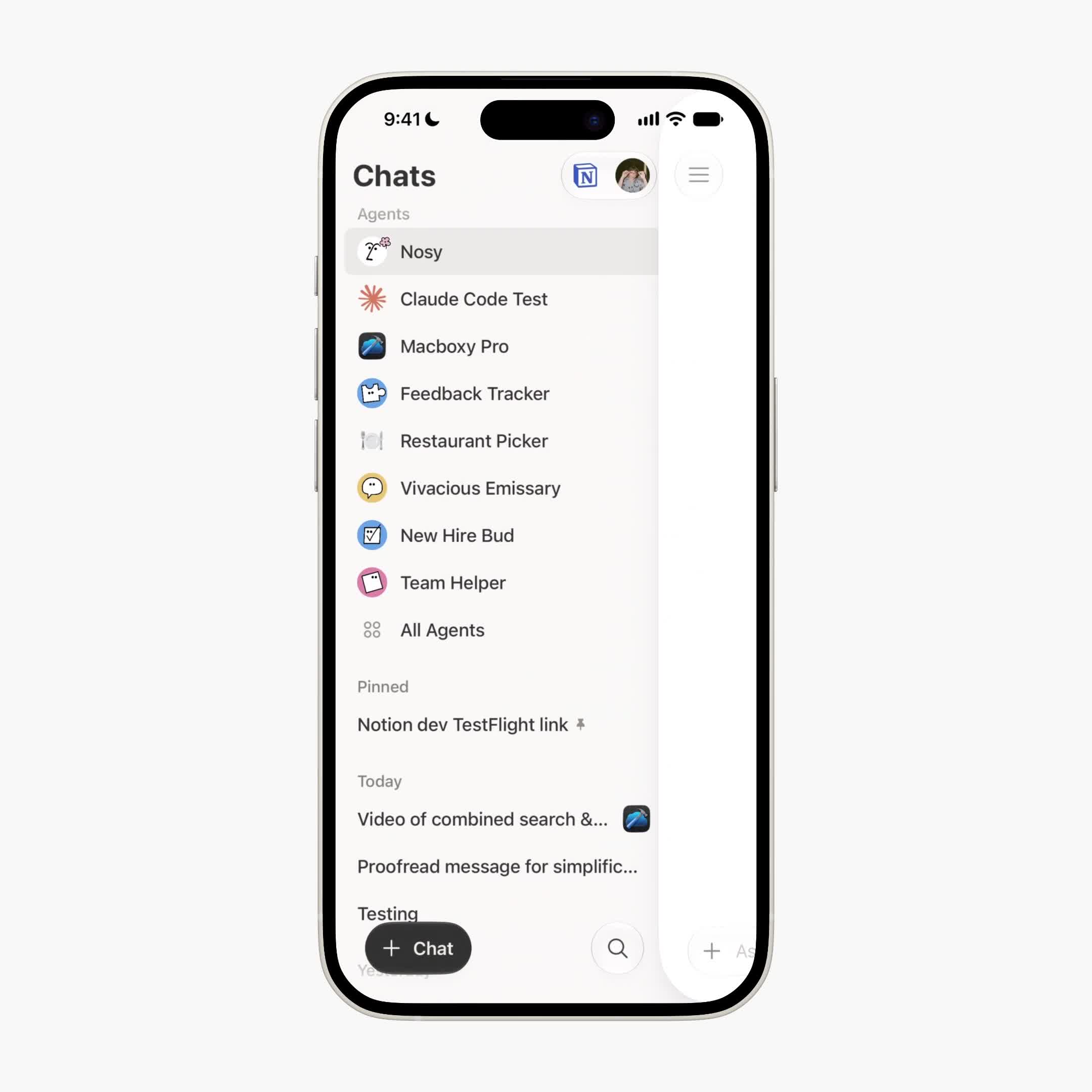
The Notion Agents iOS app has a redesigned sidebar. Both Notion and its designer describe it as rolling out now.

How to use it: update the Notion Agents app from the App Store, then open the sidebar to see the new layout. This is a sidebar redesign inside the Agents iOS app, not the main sidebar on desktop.

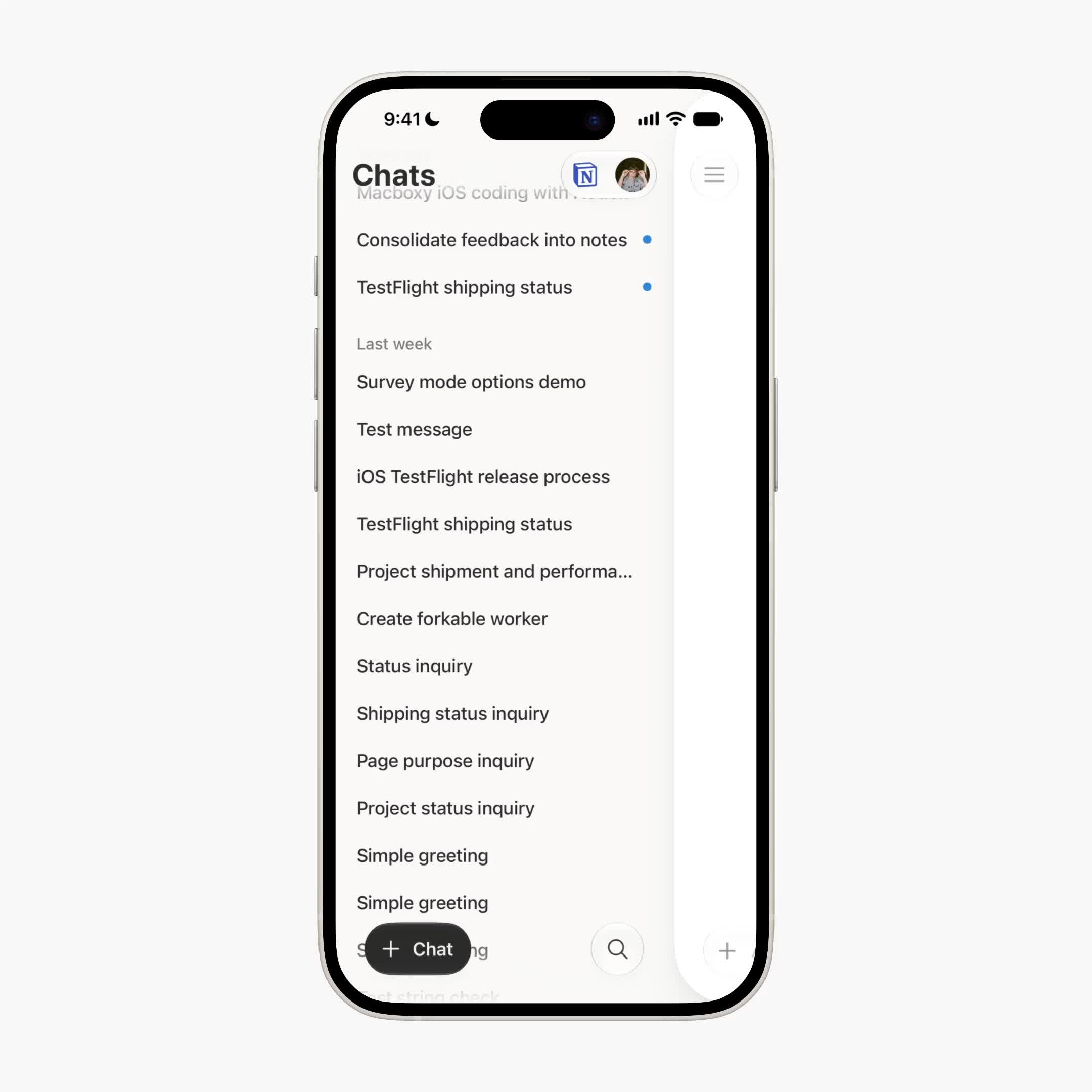
The new sidebar in the Notion Agents iOS app

The sidebar’s look and navigation have been refreshed, making it easier to jump between Agent-related entries on your phone.

Navigation entries in the new Notion Agents iOS sidebar