Notion Updates

Tracked by the FLO.W team

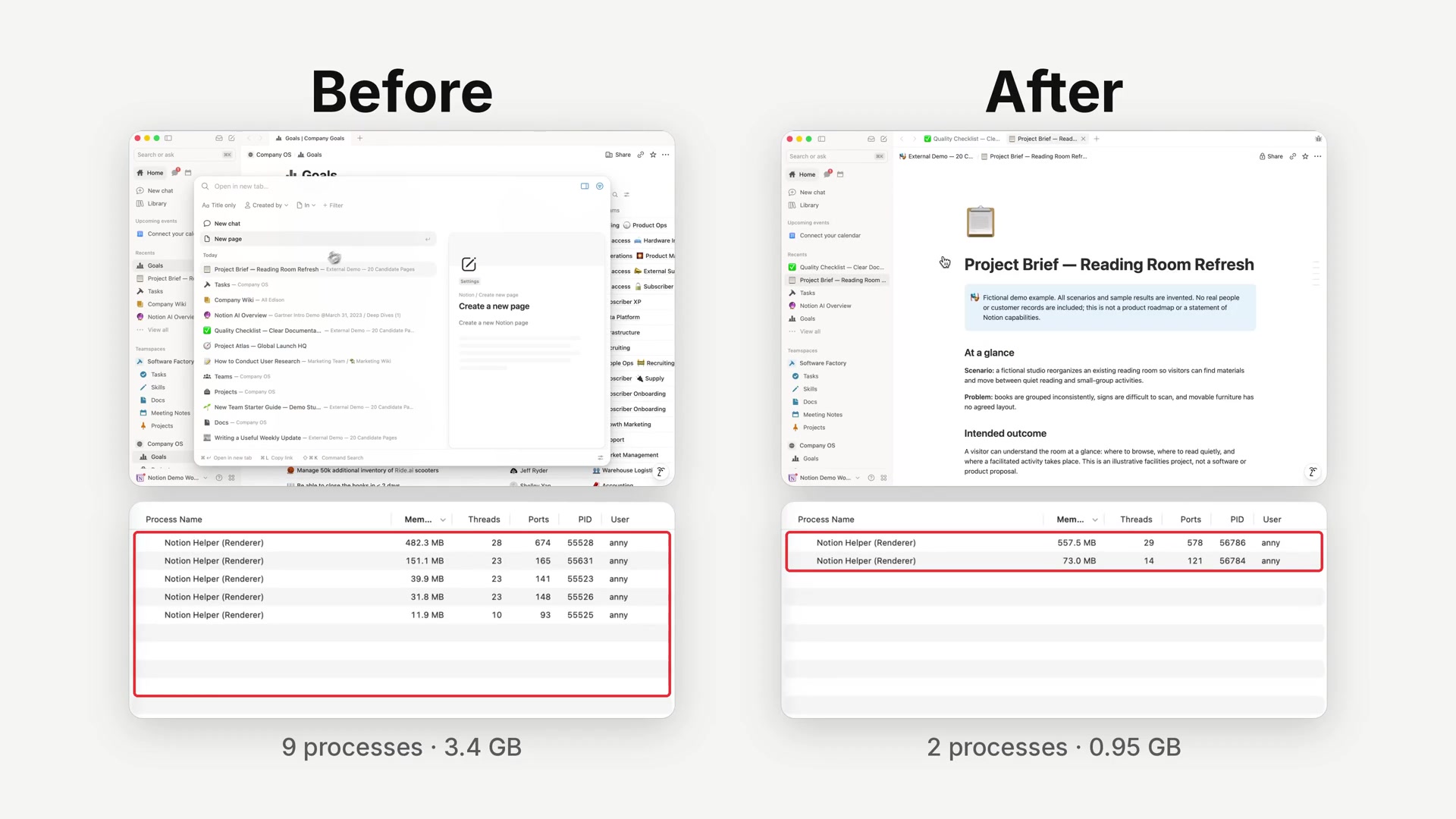
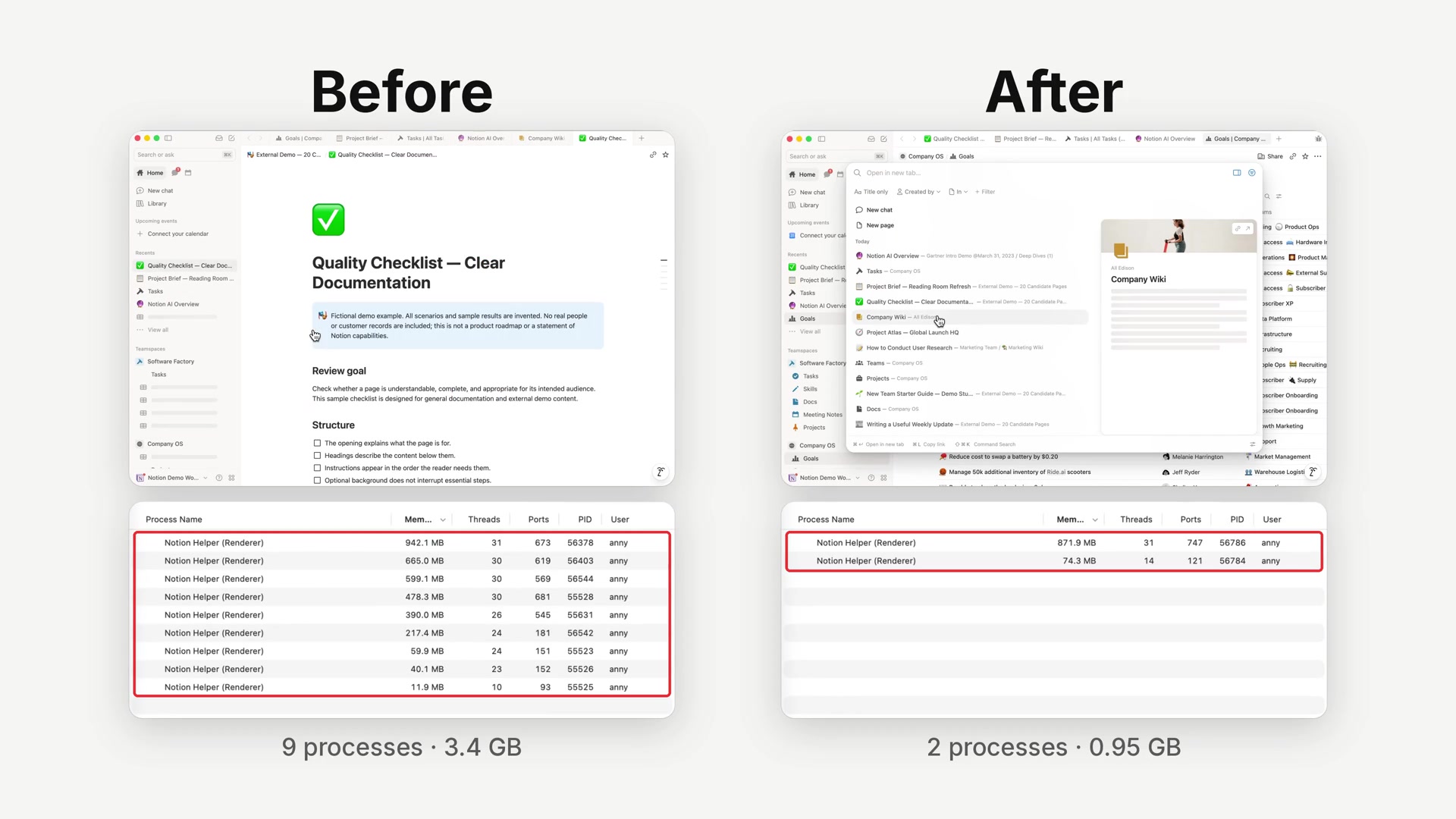
Notion Desktop adjusted how it handles background updates.

Here, "refresh" means the current tab fully reloads. The page flashes and loads again. It is not a manual refresh, and it is not a regular data-sync notice. Background updates can wait until you finish the current action, then refresh the tab you are using. In the new version, these visible refreshes dropped from over 30% to under 3%.

As more models show up in the picker, anyone on the team can switch to a more expensive option, or a provider the workspace has not reviewed yet. Workspace owners can now set allowed models for Notion Agent and Custom Agents separately, and pick a default model for newly created Custom Agents. That default can still be changed later in the builder.

Go to SettingsNotion AIGeneralModel controls. Restricted models appear grayed out in the picker, and conversations set to Auto follow the same list. Turning off a provider blocks both its current models and any it adds later.

The current settings page lists GPT, Gemini, Claude, SpaceXAI, DeepSeek, Kimi, and GLM. After Custom Agents launched and Kimi K2.6 joined the picker, this update is about the workspace-level roster.

Notion Agent model controls and provider list

Notion AI meeting notes can now draft recap emails directly.

Click the Email button under Share this summary to quickly generate a meeting summary email. After you confirm it, you can send it to the relevant attendees right away.

Email button under Share this summary on the AI meeting notes summary page

You can use the default AI-generated format, or customize the email instructions so the draft better matches what you need.

Meeting recap email draft and custom email instructions

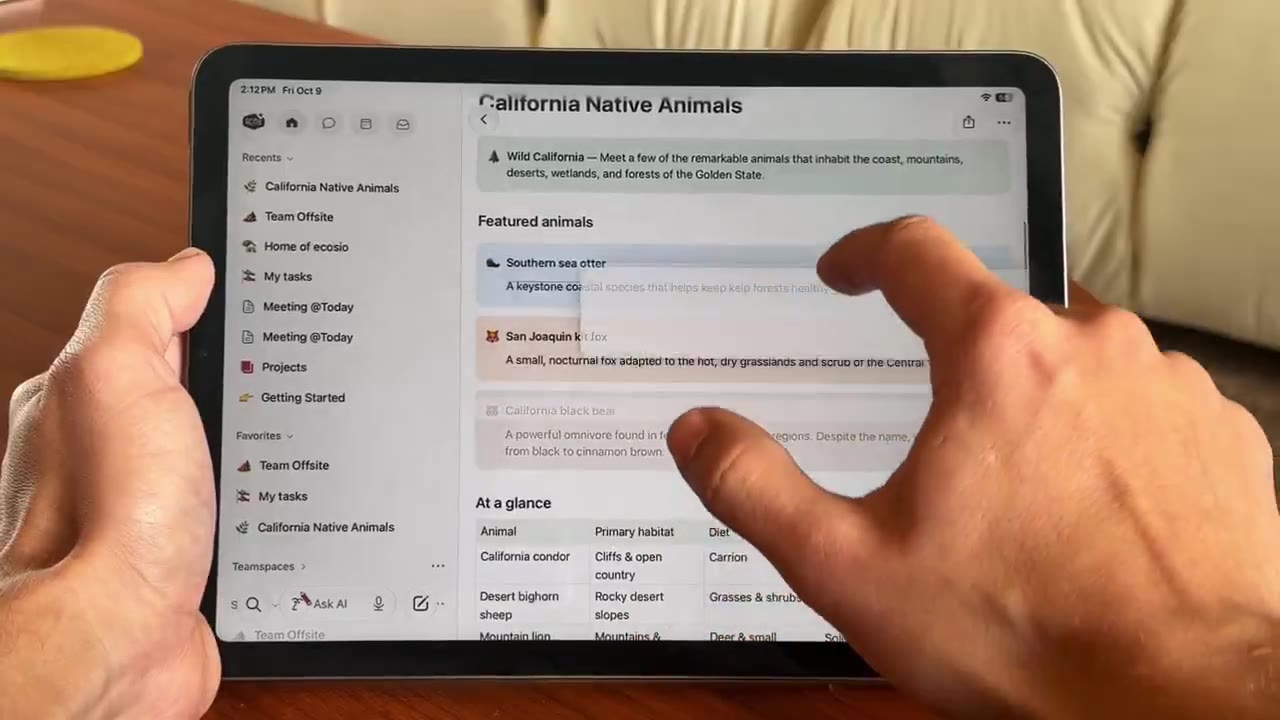
Notion reduced scrolling stutter in iOS AI chat.

Scrolling stutter dropped by about 74%, replies start appearing about 9% sooner, and memory use dropped by about 26%. You can also double-tap a reply to select and copy only the part you need.

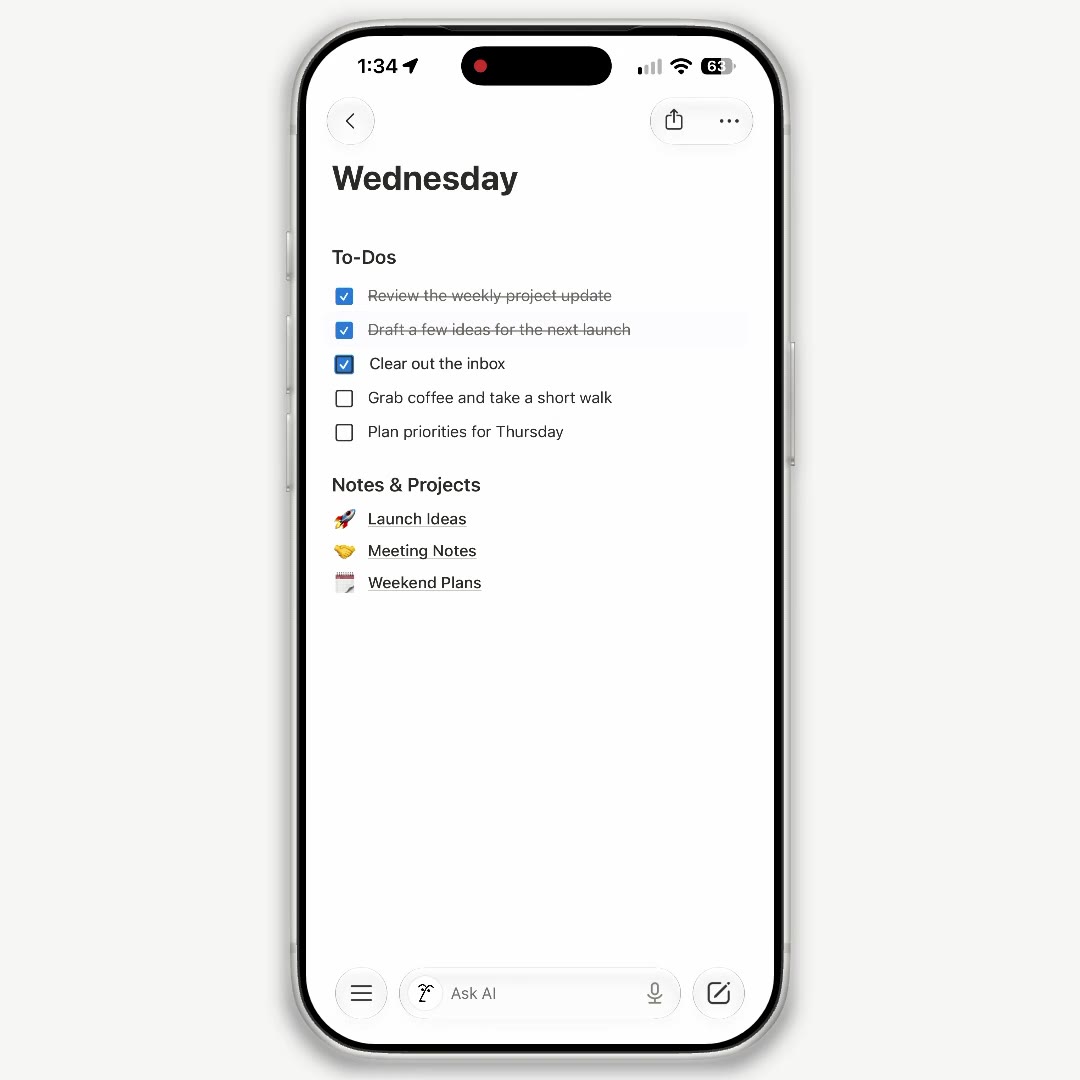
iOS AI chat performance demo: smoother scrolling and double-tap to copy a reply

Notion used to show word count only in the page menu. To check one paragraph, you had to copy it out and count it somewhere else.

Click the six-dot handle on the left of a block, or right-click to open the block menu. At the bottom you will now see that block's word count and character count.

Notion block menu showing word and character counts

When polishing a draft for publication, you want grammar and punctuation cleaned up without losing your tone or key wording. You can now have Notion Agent propose changes first, creating numbered suggestion cards in the margin where you review and accept or reject each edit with a checkmark or cross.

When prompting the Agent, make sure to explicitly include the keyword suggest edit. For example: "Please review this article for grammar and typos without changing the tone. Please use suggest edit."

If suggestion cards do not appear, check the following:

  1. Turn off auto mode
  2. Make sure suggest edit is clearly stated in the prompt, as translated phrases often fail to trigger the mode

This capability pairs with the earlier change diffs feature as a two-step workflow: approve changes first, then keep a full audit trail afterwards.

Notion Agent displaying suggest edits cards in document

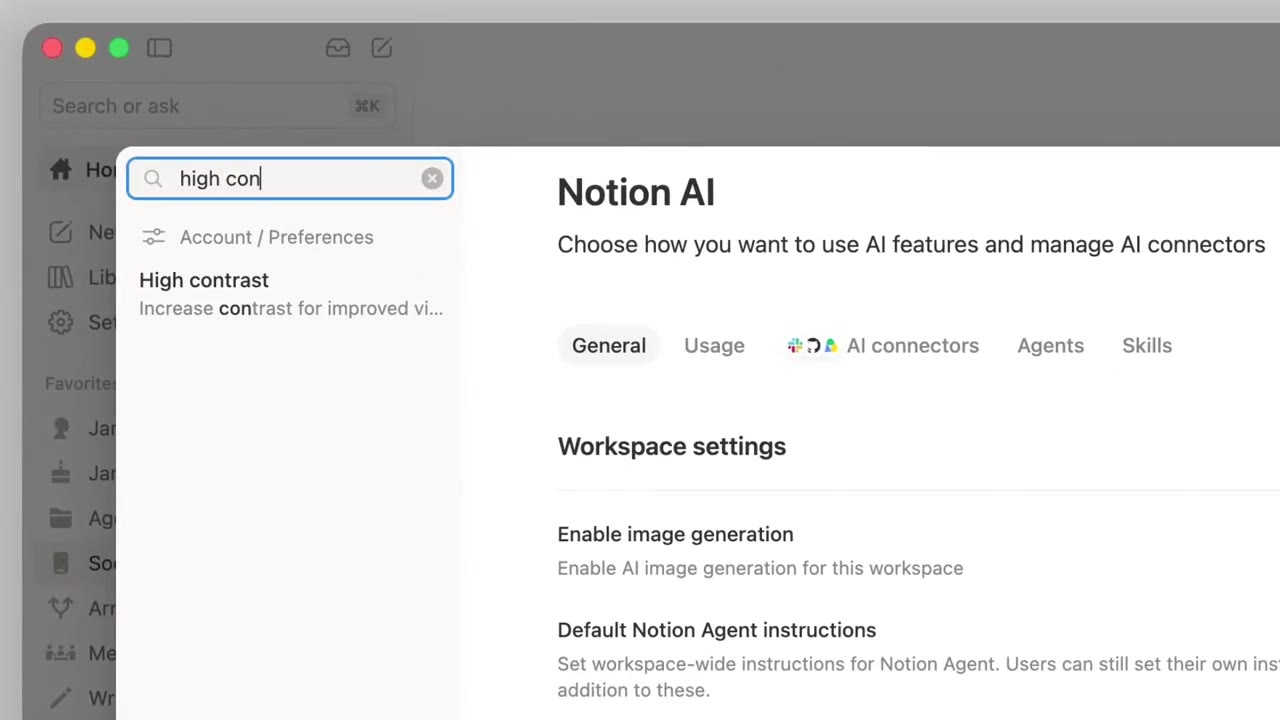
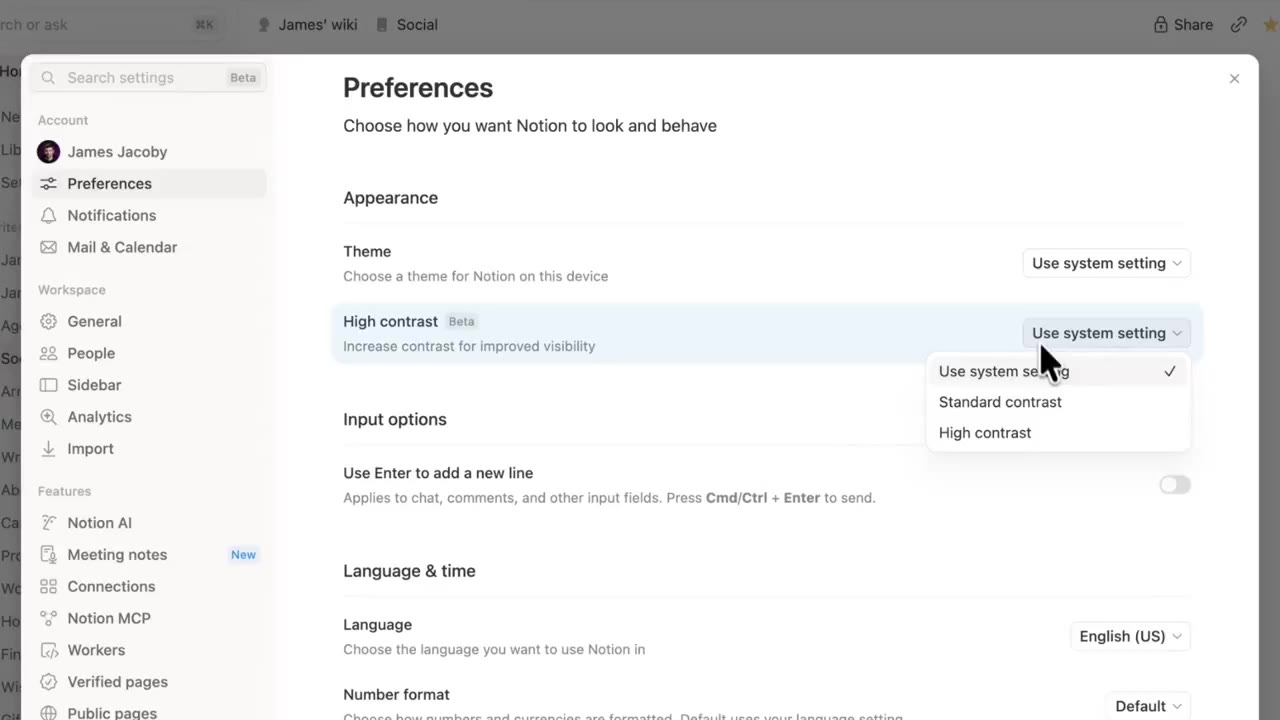
This accessibility update adds a high contrast mode that makes text, icons, and borders easier to read.

Turn it on from SettingsPreferencesAppearance. It is available on desktop and web.

Notion high contrast mode

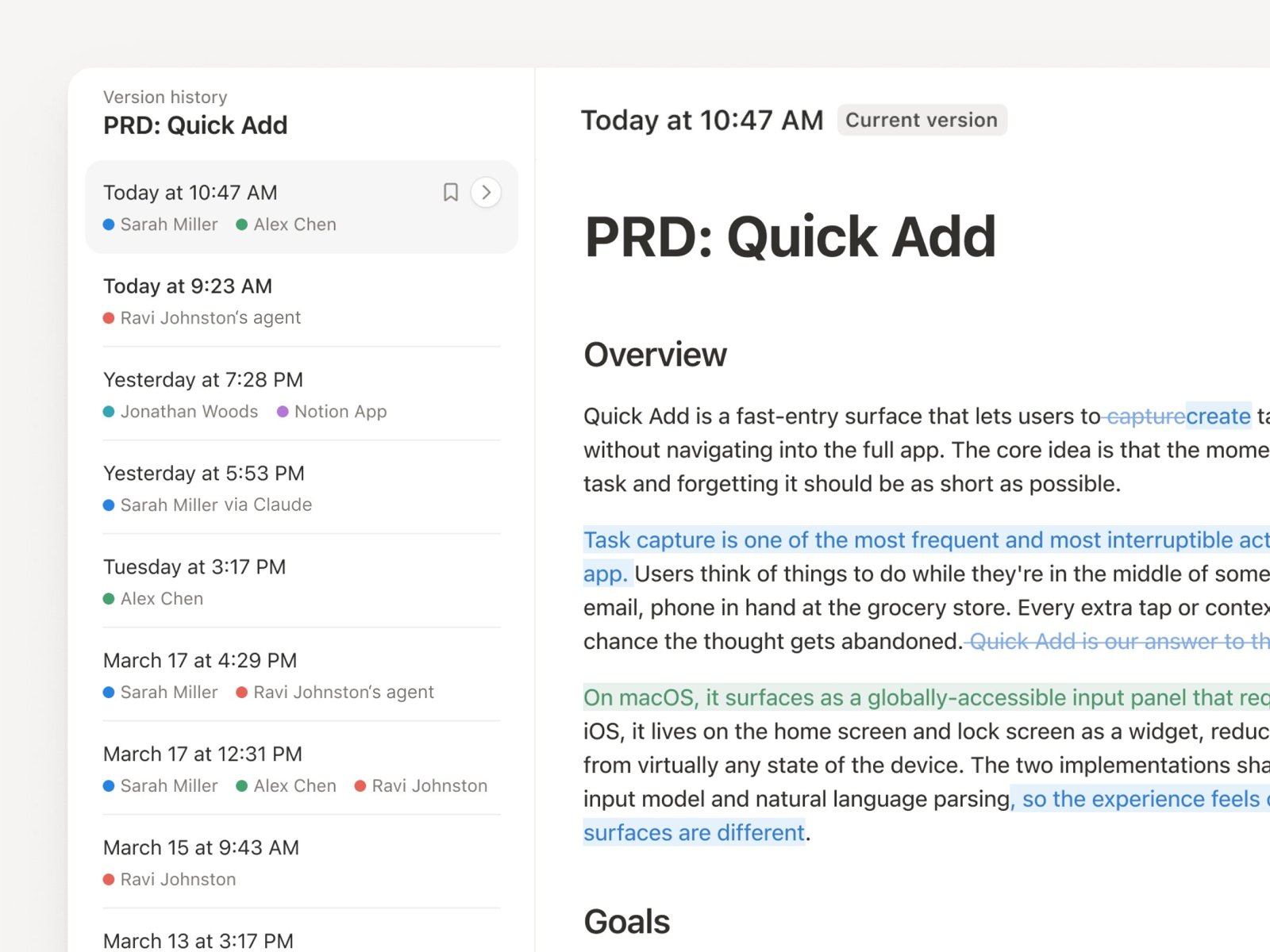
Checking Version History in Notion used to mean comparing two versions by eye. Once a page had enough content, it was hard to spot which paragraph changed, which image disappeared, or whether a database property had been edited.

Notion now adds snapshot diffs to Version History. Open a page's version history from the top-right menu, and you can see what moved, changed, or disappeared. Text, images, tables, and database properties are all included in the comparison.

This is especially useful for collaborative pages like documents, brand guides, and project plans. You spend less time hunting for changes across the whole page, and it becomes easier to decide whether a previous version should be restored.

If you have used Notion Agent change diffs, this update brings a more fundamental page-level review flow. It is not limited to AI Agent actions.

Notion Version History snapshot diff interface

Previously, cells in Notion Simple Tables had to stay inside a fixed row and column structure. If you wanted a header row, a group label, or a wider area across columns, you usually had to fake it with empty cells.

Notion now supports merged cells. Select multiple adjacent table cells, open the cell menu, and choose "Merge cells" to turn them into one larger area.

This is useful for comparison tables, schedules, course tables, and explanatory tables. Together with the earlier bullet list support in table cells, Notion Simple Tables are finally becoming more practical for real layout work.

Notion table cell merge menu

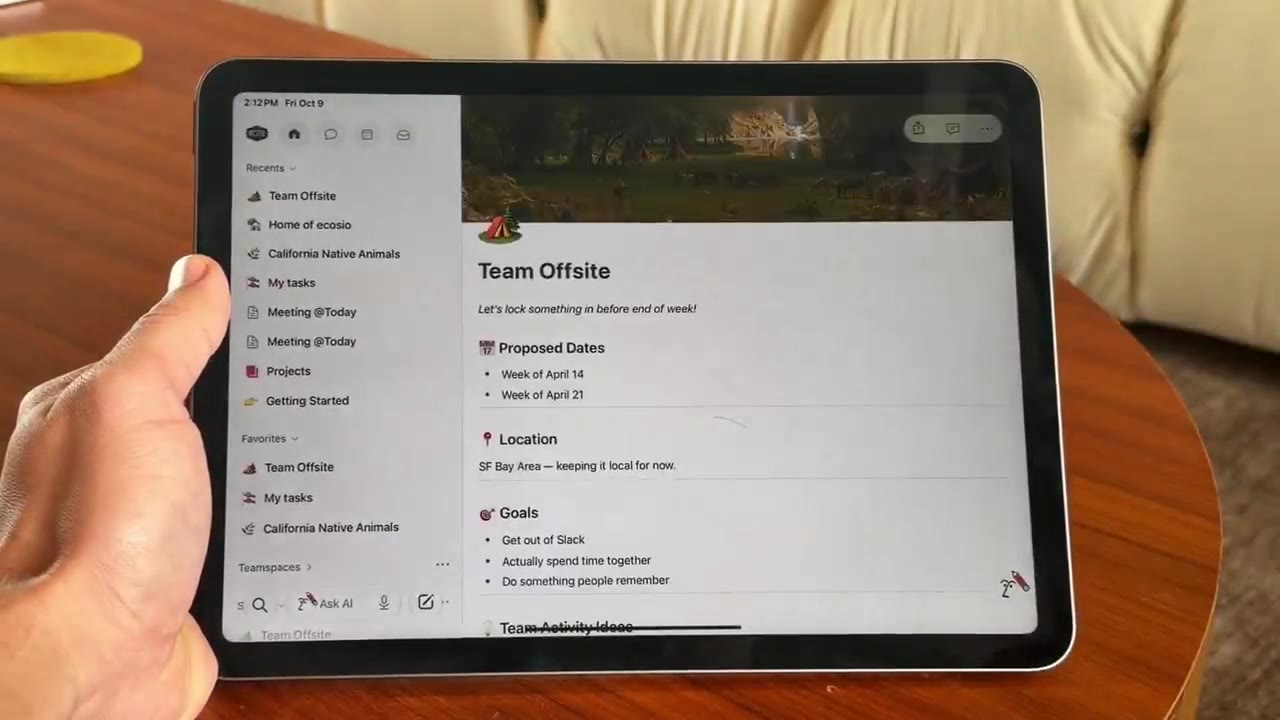
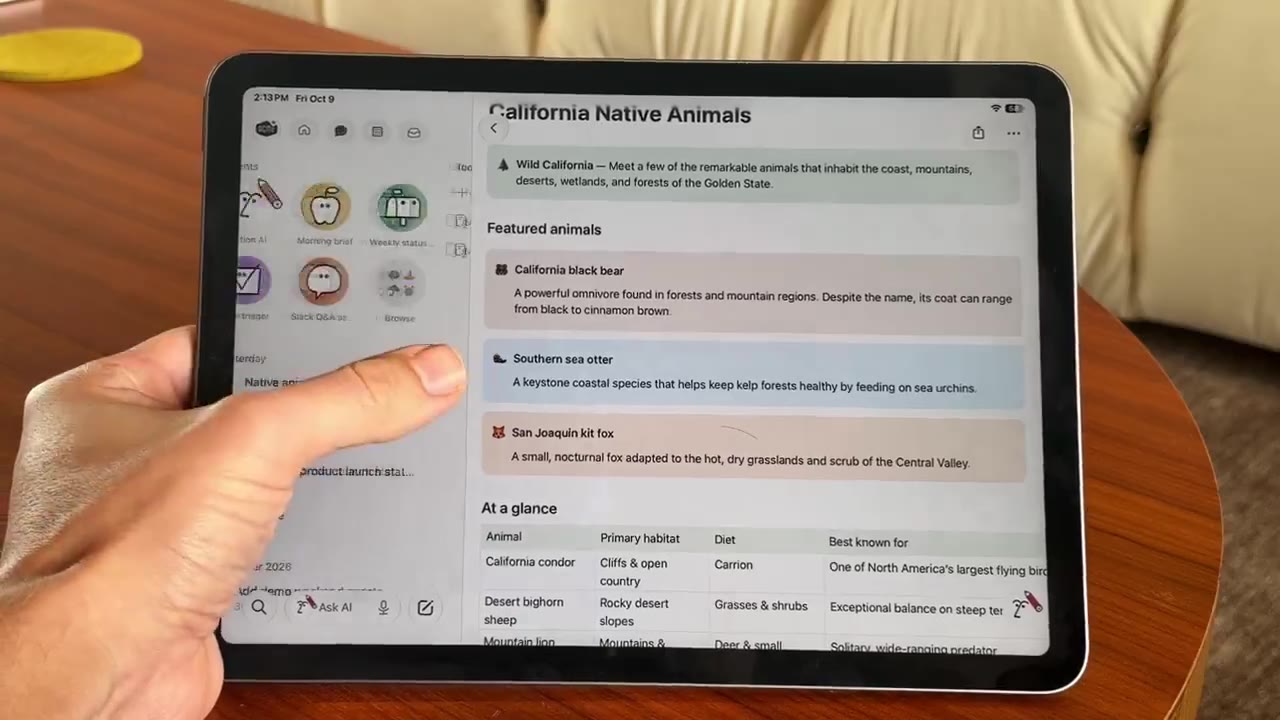
Notion mobile now has a new Home tab.

After opening the mobile app, you can switch between Home, Chat, Meetings, and Inbox from the top of the screen. Common pages, AI chats, meeting notes, and notifications are easier to reach without digging through the sidebar.

This update follows the earlier Notion mobile AI upgrade. Notion is turning the phone experience into a fuller workspace entry point. For people who often check notes, follow up on messages, or review meeting content on mobile, the main routes are now shorter.

Notion mobile Home tab interface