LogoFLO.W
  • Pricing
  • Blog
  • Docs
  • Thinking
  • About
Get Started
  • Reader's Question
  • My Answer
  • How to Get a Page Link
  • Related Reading
Notion 问答·
2025/02/01

How to Build a Global Navigation Bar with Synced Blocks in Notion

A step-by-step guide to building a global navigation bar using Notion Synced Blocks, enabling one-click cross-page navigation menus.

avatar for 二一
二一
How to Build a Global Navigation Bar with Synced Blocks in Notion

This question comes from a reader of the Notion course. It has been organized and shared here. If you encounter similar issues while using Notion, feel free to leave a comment.

Reader's Question

Could you please explain the steps for setting up the global synced navigation bar from Lesson 1.4 in more detail? I'm having trouble wrapping my head around it. Thanks!

My Answer

First, use the /sync command to create a Synced Block.

Create a Synced Block

Then, inside the Synced Block, create a Callout block using /callout. This makes the navigation bar look nicer.

Create a callout inside the Synced Block

Next, type the navigation text you want inside the callout, as shown below:

Enter navigation bar text

Then paste the corresponding page links onto the matching text, as shown below. This way, clicking "Page 01" will navigate to the corresponding page.

Add links to navigation bar text

After setting up all the hyperlinks in the callout, click the Synced Block button and select "Copy link to block".

Copy the Synced Block link

Then paste this link into any page. When pasting, choose "Synced Block", and you can sync this navigation bar anywhere.

Paste the Synced Block

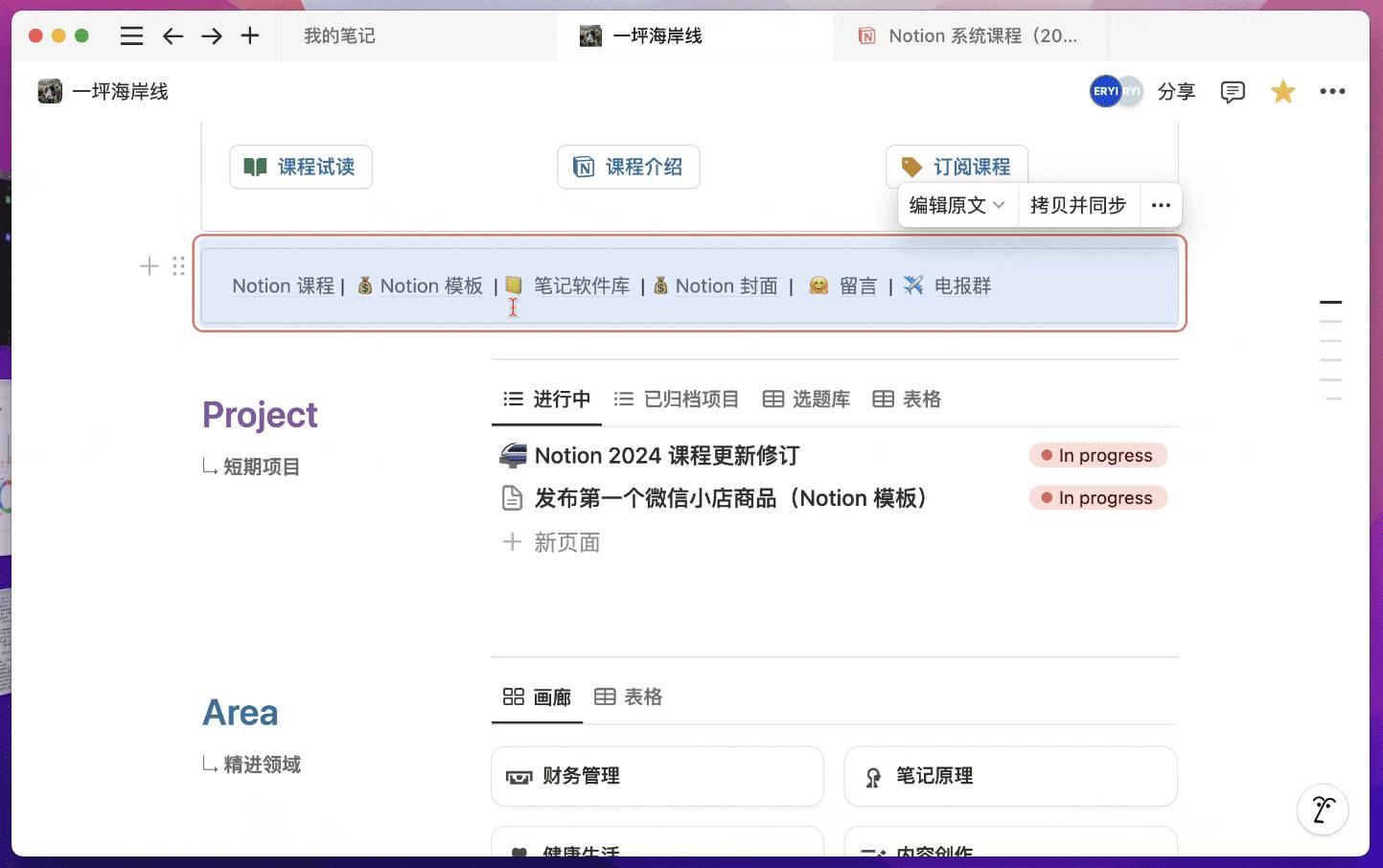
Here's what it looks like in action:

Synced navigation bar demo

How to Get a Page Link

You can click the three dots in the upper right corner and select "Copy link", or use the shortcut Ctrl+L.

Get a Notion page link

Related Reading

  • Lesson 1.2 | Complete Guide to Basic Features — 20+ Essential Operations to Boost Your Notion Productivity
  • Lesson 1.4 | Block Features Explained — 10+ Advanced Tips for Replicating Premium Templates and Custom Layouts

📘 FLO.W — Notion Personal Management System

FLO.W is a Notion-based personal management template that integrates tasks, notes, projects, habits, and more, complete with comprehensive tutorials.
Ready-to-use Notion template system
Complete tutorials included, beginner-friendly
Continuously updated and maintained
Learn About FLO.W Template✨ 1237+ users chose FLO.W
2025/02/01
Share this post
All Posts

More Posts

What to Do When Notion Database Nesting Is Too Deep
#Notion 问答

What to Do When Notion Database Nesting Is Too Deep

Struggling with deeply nested Notion databases? This article explains how to control nesting depth using the PARA methodology, and how to create a Desk shortcut page to quickly access deeply nested content.

2024/11/15
Notion Database Accounting: How to Automatically Update Account Balances
#Notion 问答

Notion Database Accounting: How to Automatically Update Account Balances

Build a simple accounting system in Notion using Relation limits and Formula functions to automatically update asset account balances — no manual maintenance needed.

2025/04/09
How to Remove the Database Scrollbar in Notion (Mac & Windows Guide)
#Notion 问答

How to Remove the Database Scrollbar in Notion (Mac & Windows Guide)

Seeing an ugly gray scrollbar in your Notion database? This article explains how to remove the Notion database scrollbar on both Mac and Windows, no plugins required.

2024/03/24

Newsletter

Join the community

Subscribe to our newsletter for the latest news and updates

LogoFLO.W
TwitterX (Twitter)YouTubeYouTubeBilibiliXiaoHongShuEmail
Product
  • Features
  • Pricing
  • FAQ
Resources
  • Blog
  • Documentation
  • Notion Custom Agent
Company
  • About
  • Contact
Legal
  • Cookie Policy
  • Privacy Policy
  • Terms of Service

Subscribe for more Notion tips and updates

© 2026 FLO.W, All rights reservedNotion is a trademark of Notion Labs, Inc. This is an independent third-party site, not affiliated with or endorsed by Notion.
Featured on Uneed