 FLO.W Docs
Homepage Navigation
Master FLO.W Notion template's homepage layout and navigation: understand how the nav bar works and customize module positions for your ideal workspace.
Homepage Layout
Quickly understand the layout and features of the FLO.W Template homepage through video:
Top Navigation Bar
Navigation Bar Principle
Understand how the navigation bar works in Notion Template:
Move Navigation Bar Position
Learn how to adjust and move the navigation bar position:
Detailed Feature Modules in Navigation Bar
In actual use, you may feel that the position of some modules is not satisfactory or appropriate enough. The following tutorial will teach you how to migrate feature module positions.
Clarify Navigation Bar Structure
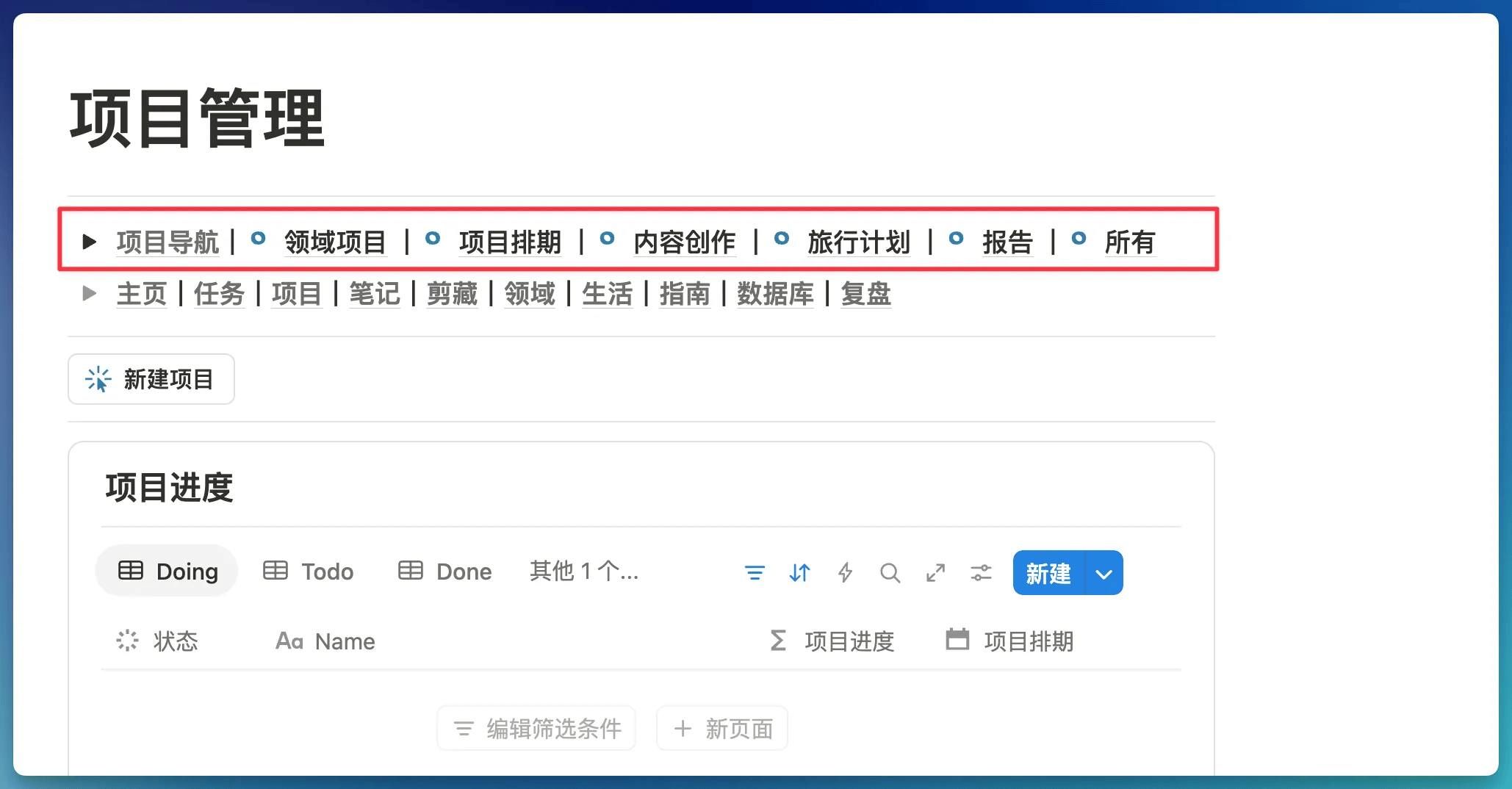
First, in the FLO.W system, all feature modules are placed in the top navigation bar. For example, the specific project subdivision features circled in the red box below
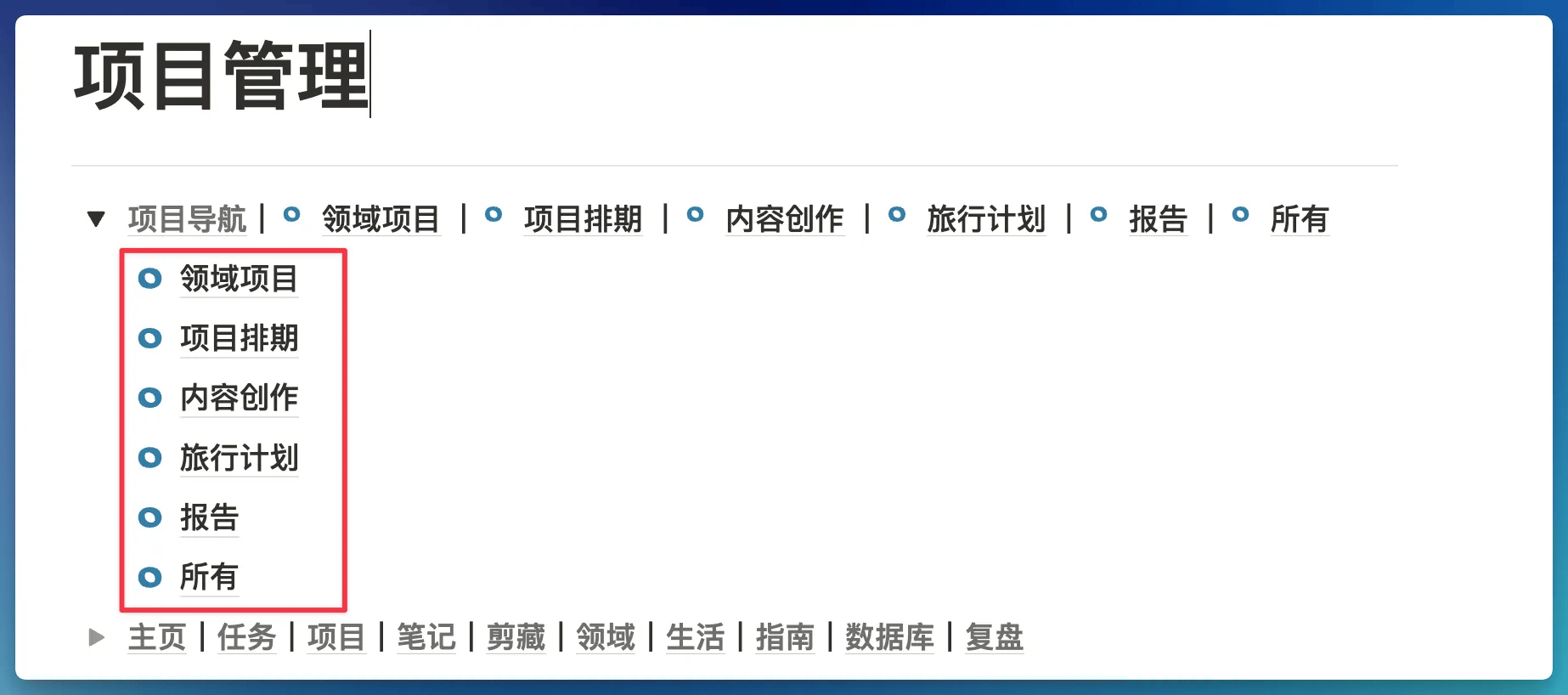
Expand the small triangle on the left side of "Project Navigation Bar", and you'll find that there are some identical pages inside the small triangle, as shown below
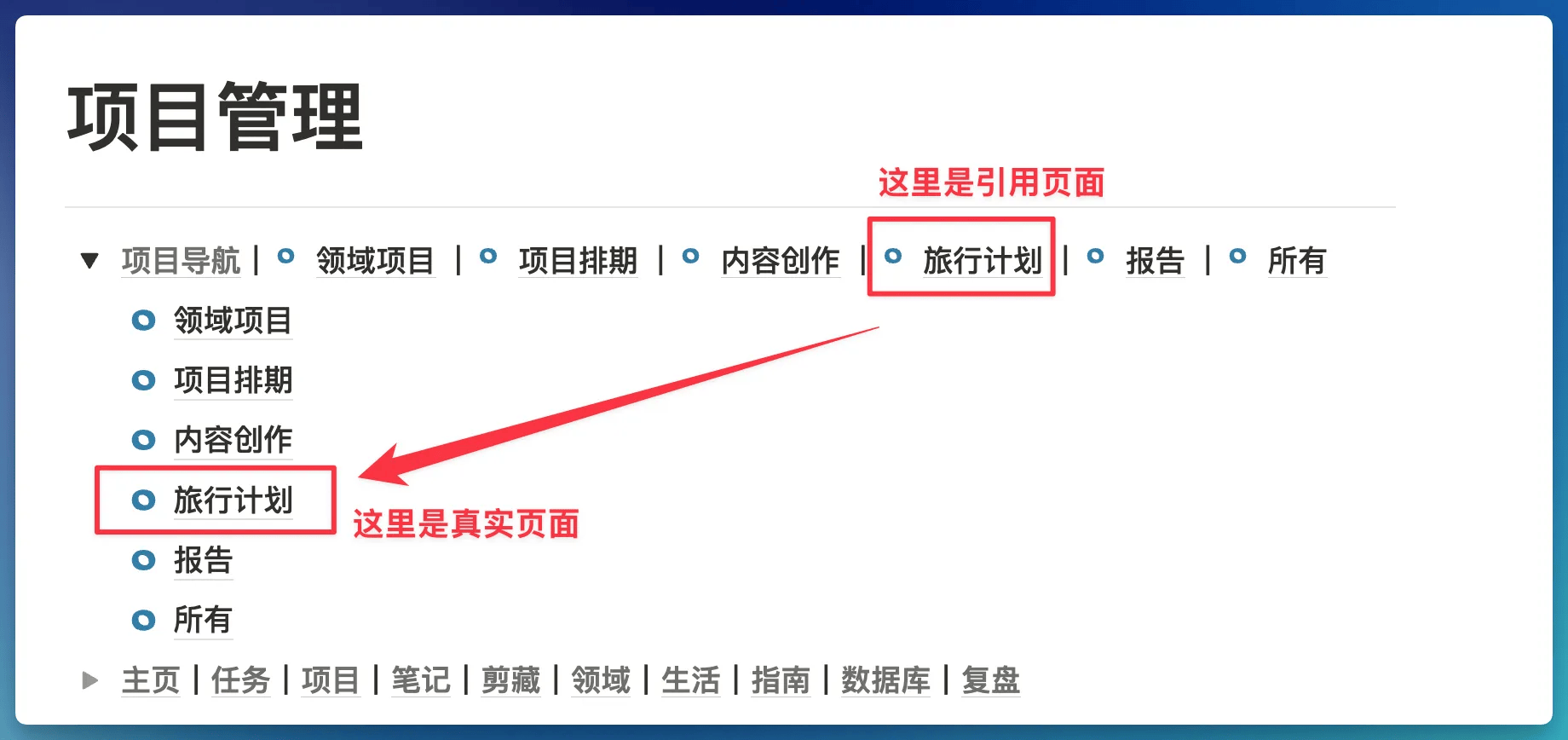
Actually, this is where the detailed feature module "actual pages" (i.e., the page body) are stored, while the pages on the navigation bar are just a type of "page reference"
Change Feature Module Position
Now if I want to move the "Travel Plan" navigation bar to the "Lifestyle Module", what should I do? There are two approaches.
Last updated on
Quick Start
Start fast with the FLO.W Notion template: follow three beginner tips, watch the intro video, read the design docs, and build lasting productivity habits.
Note Management
Build a knowledge base in the FLO.W Notion template: six note types, diary creation, periodic reviews, and quick capture for scattered thoughts.