 FLO.W Docs
Template Import
Master FLO.W Notion template import: step-by-step tutorials with troubleshooting tips and a complete guide to safely migrating your existing notes.
This document will guide you through the complete Template import process so you can quickly start using the FLO.W Template.
Template Import
Video Tutorial
I've prepared a detailed video tutorial to help you quickly master the Template import method:
Illustrated Tutorial
After successful payment, you will receive a Template link. Enter the Template link in your browser's address bar (Chrome or Edge recommended), then press Enter
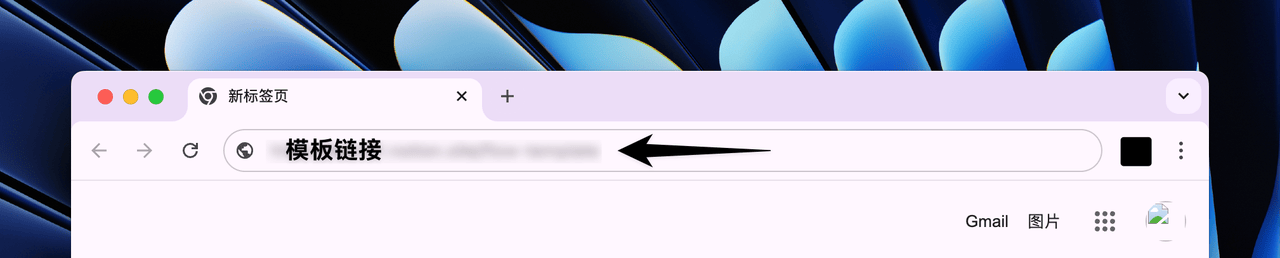
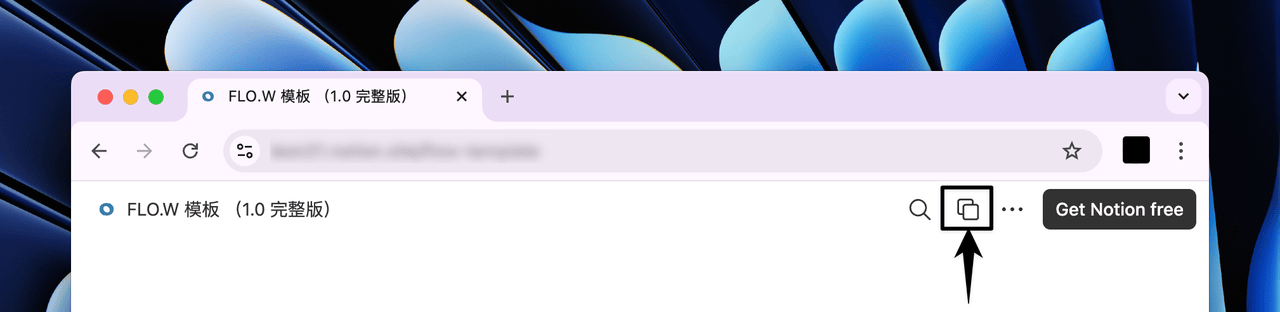
Click the Template duplicate button in the top right corner
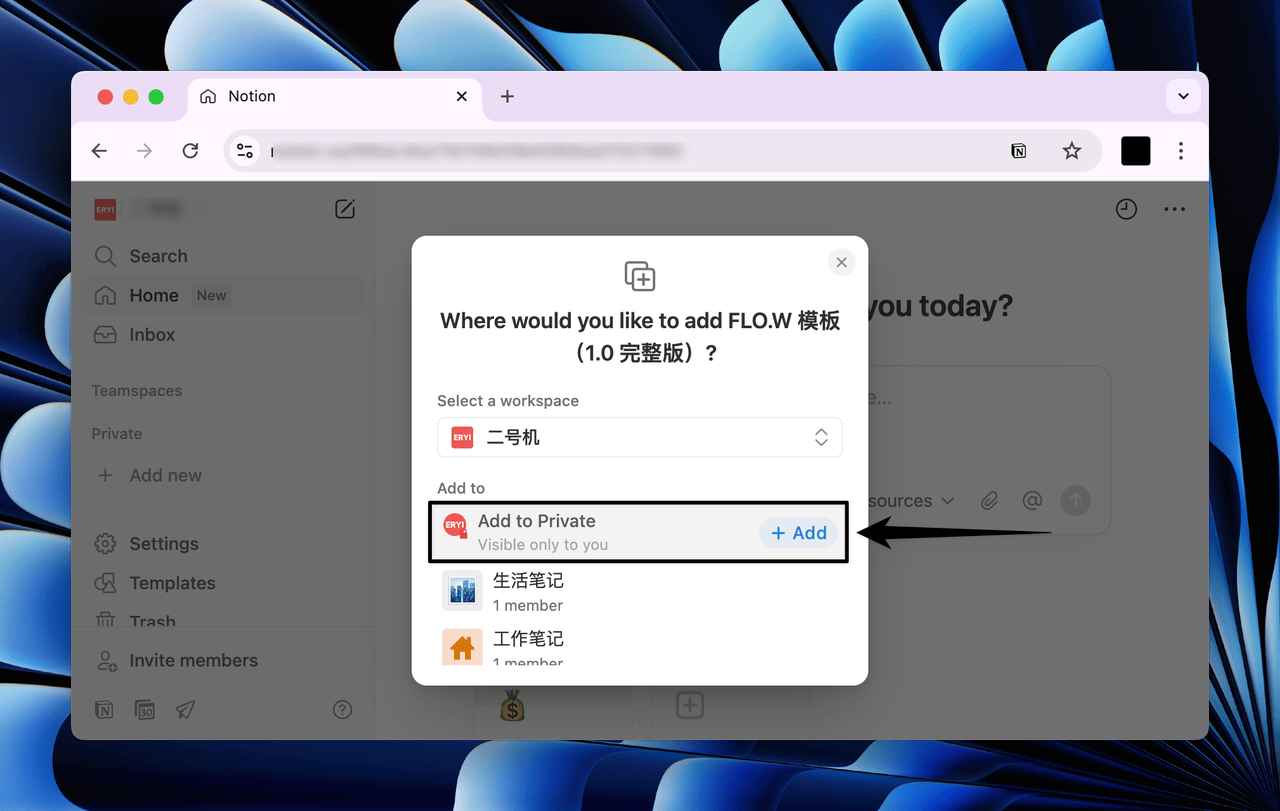
Click the "Add to Private" button (or add to private section) to duplicate the Template to your Notion library
Template Duplication Failed
If you encounter an error when duplicating the FLO.W Template, don't worry. This doesn't mean the Template has a problem, but rather that Notion occasionally has some "unexpected situations" when duplicating very large Templates.
Since the Template contains a lot of content, Notion will pull data gradually during duplication, which may take a bit longer. Therefore, if the first duplication fails, you can try these 3 methods:
- Wait about 1 hour before trying again; don't duplicate multiple times in a short period
- Network environment affects duplication speed. You can try using Notion Faster to optimize loading, which is usually smoother
- Create a new workspace, then duplicate to the new space. Specific method 👉 Click Here
Cannot Duplicate Template
If after trying the above methods, Template duplication still fails, you can provide feedback through the following channels, and I'll respond as soon as possible:
- Send email feedback: eryidebiji@gmail.com
- Fill out form feedback:
Old Notes Migration
The best way to use the FLO.W system is to start recording from scratch, giving yourself a fresh start. Keep your old note data in its original location, review if necessary, and when you feel something is truly important enough, migrate it to the FLO.W system.
If you're certain you want to migrate old notes, please refer to the following methods.
The FLO.W system is absolutely centered around Databases, with all pages uniformly stored in Databases. However, different types of pages (such as Tasks, Projects, Notes, etc.) belong to different Databases. You can find the centralized Database page entries in the "Databases" module of the homepage navigation.
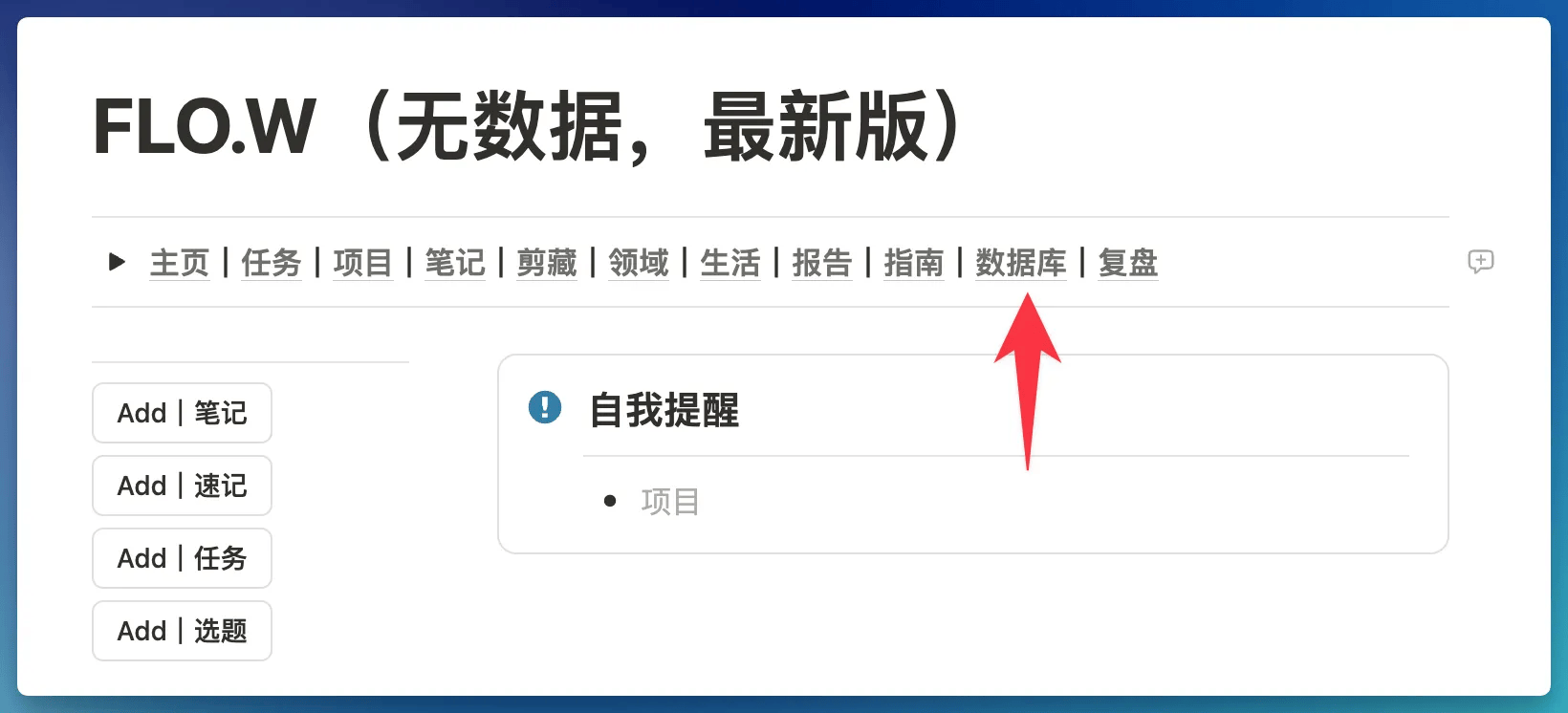
This means the basic logic for migrating pages is:
- Confirm what type of Notion page you want to migrate
- Move it to the corresponding type of Database
Migrate Scattered Pages
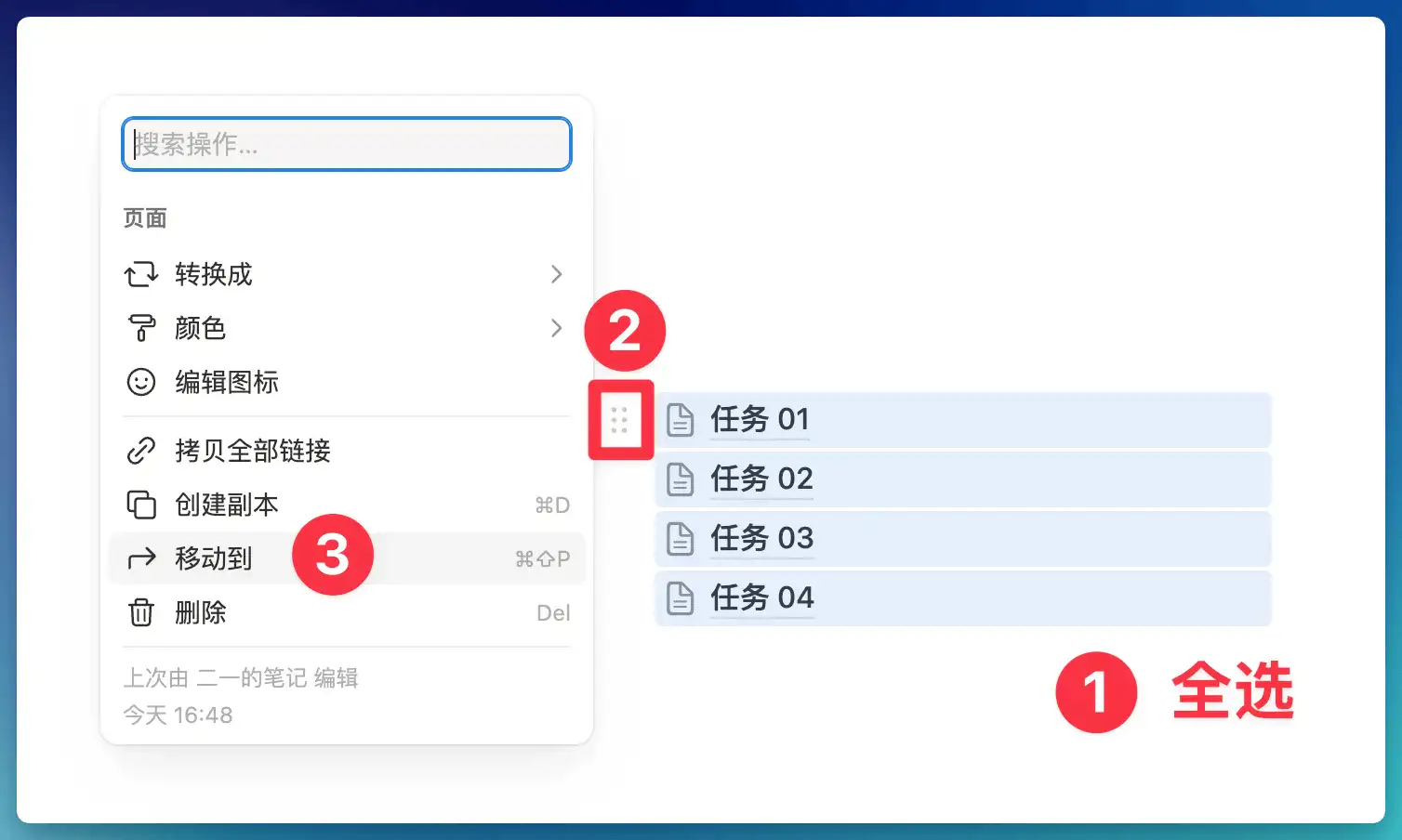
Suppose you have several scattered Task pages. You can select all these pages, then click the function button in the top left corner, and use the "Move to" function to move these pages to the "FLO.W Task Management DB" Database
Migrate Database Pages
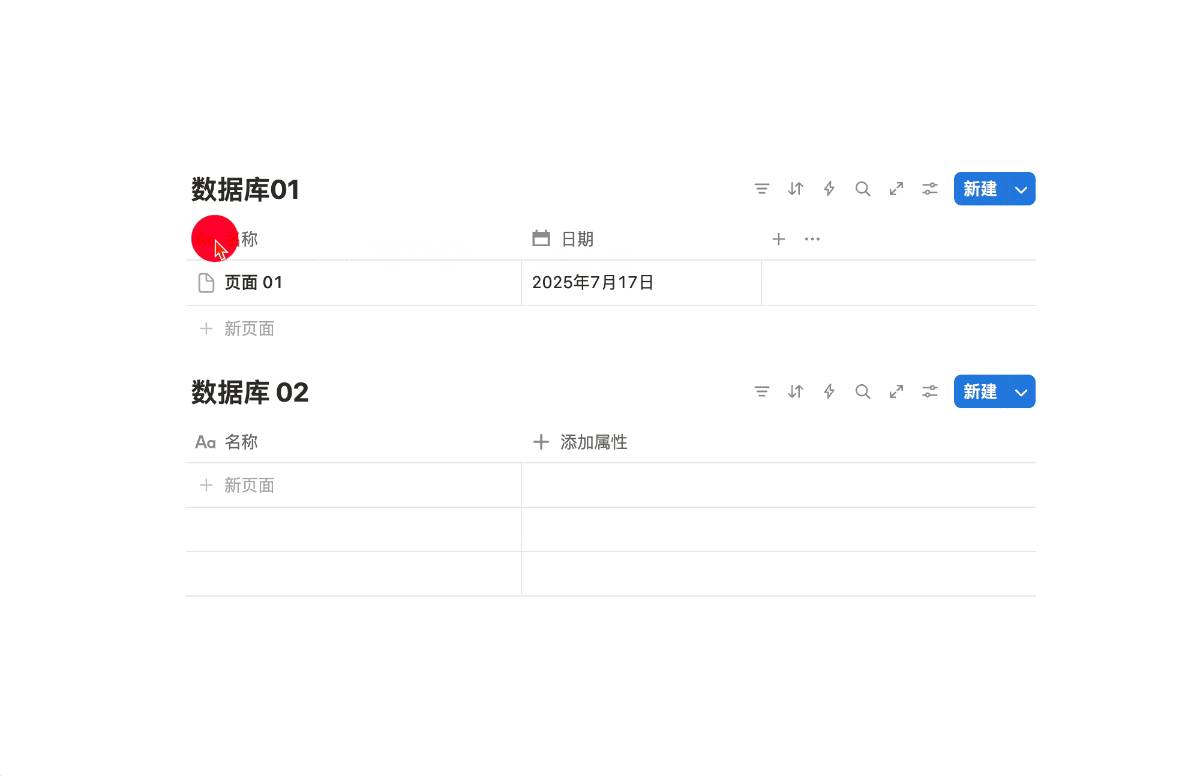
Since Database pages have Properties, when you migrate pages from an old Database to a new Database, the new Database will automatically add corresponding Properties to accommodate these property values.
For example, in the GIF below, "Database 01" has a "Date" Property, while "Database 02" doesn't. When I move a page to "Database 02", you'll see it automatically adds a Date Property:
Therefore, before migrating Database pages, here are 3 important recommendations - please read them completely:
-
Clean up old Database Properties before moving pages to remove unnecessary property information, avoiding making FLOW's Database Properties too cluttered.
-
If some Properties must be kept and FLOW Database also has the same type of Property, you need to first rename the old Database Property to match FLOW's, then move. This way FLOW's Database won't add extra Properties.
For example, if both Databases have a "Date" type Property, the old Database calls it "Task Time" while FLOW Database calls it "Task Schedule Date", then you need to first rename "Task Time" to "Task Schedule Date" before moving.
-
Recommended to familiarize yourself with the FLOW system before migrating pages, to avoid the situation where you can't find your notes after migration
Batch Migrate Database Pages
Before batch migrating Database pages, please first migrate scattered pages to test if the entire process works properly. Confirm everything is correct before proceeding to the next step. Otherwise, if the Database page structure is damaged, it will be very difficult to recover.
Last updated on
Notion Download
Current Notion installation guidance for Windows, Mac, and iPhone, plus Android fallback options, browser access, and localization setup tips.
Quick Start
Start fast with the FLO.W Notion template: follow three beginner tips, watch the intro video, read the design docs, and build lasting productivity habits.