 FLO.W Docs
Note Management
Build a knowledge base in the FLO.W Notion template: six note types, diary creation, periodic reviews, and quick capture for scattered thoughts.
This document will teach you how to create, edit, and organize notes in the FLO.W Template to build your knowledge management system.
Add a Note
Note Properties Description
Learn about the configuration and usage of various Properties in the note system:
Note Type
Six preset note types: Exp, Log, Ask, How, Idea, Ref
Outgoing and Incoming Links
Build sense of direction and associations between notes
Parent and Child
Create hierarchical structure and organization relationships for notes
Sibling Notes
View related notes at the same level
Topic Notes
Manage topic content with child notes
Attention Level
Mark note content that needs attention
Completion Level
Track the lifecycle status of notes
Common Notes
Quick access and record common content
Random Sort
Randomly review note content
Create Notes in Tasks
Diary Creation Methods
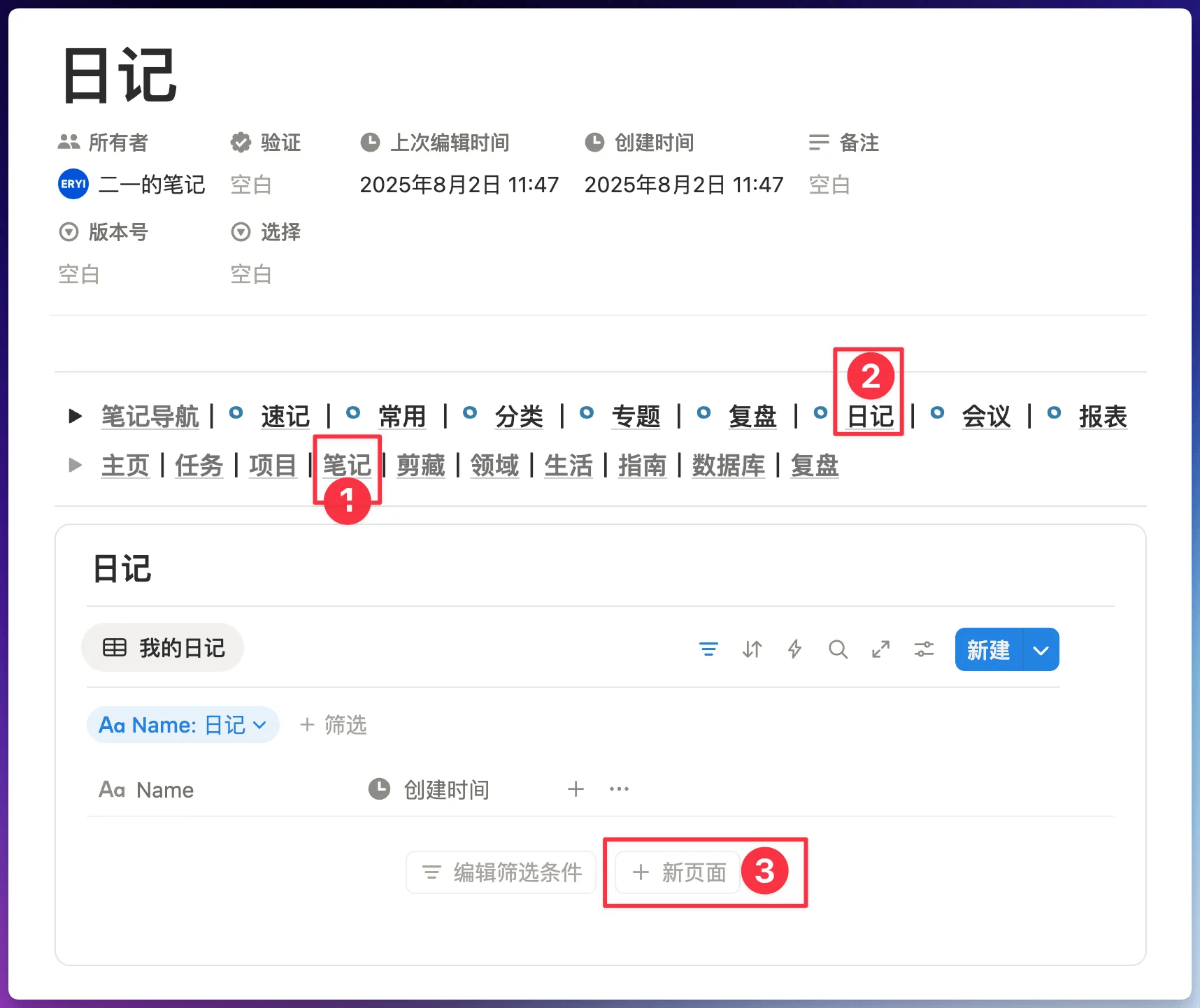
Diary Storage Location
Follow the path shown below, access the Template navigation bar, and enter the diary module. This will centrally store all diaries you create
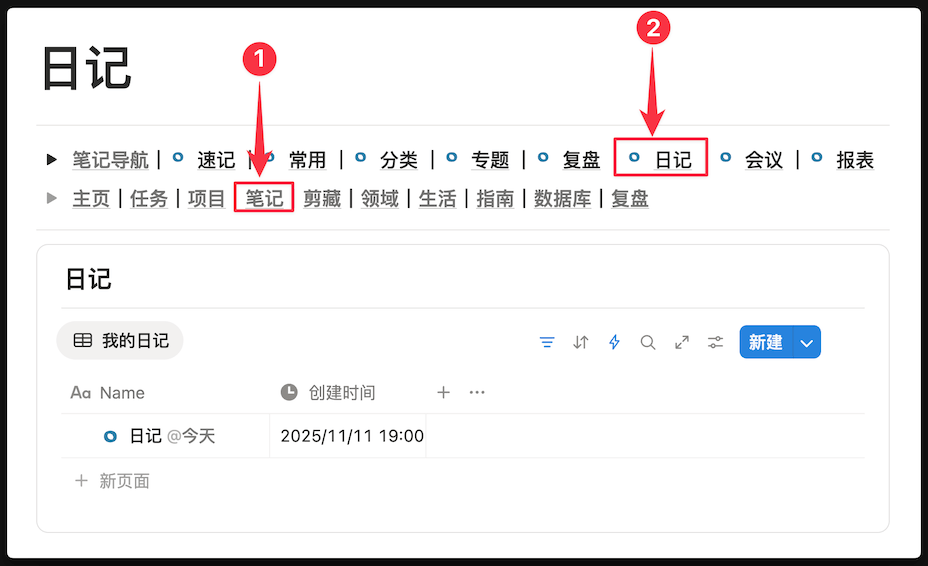
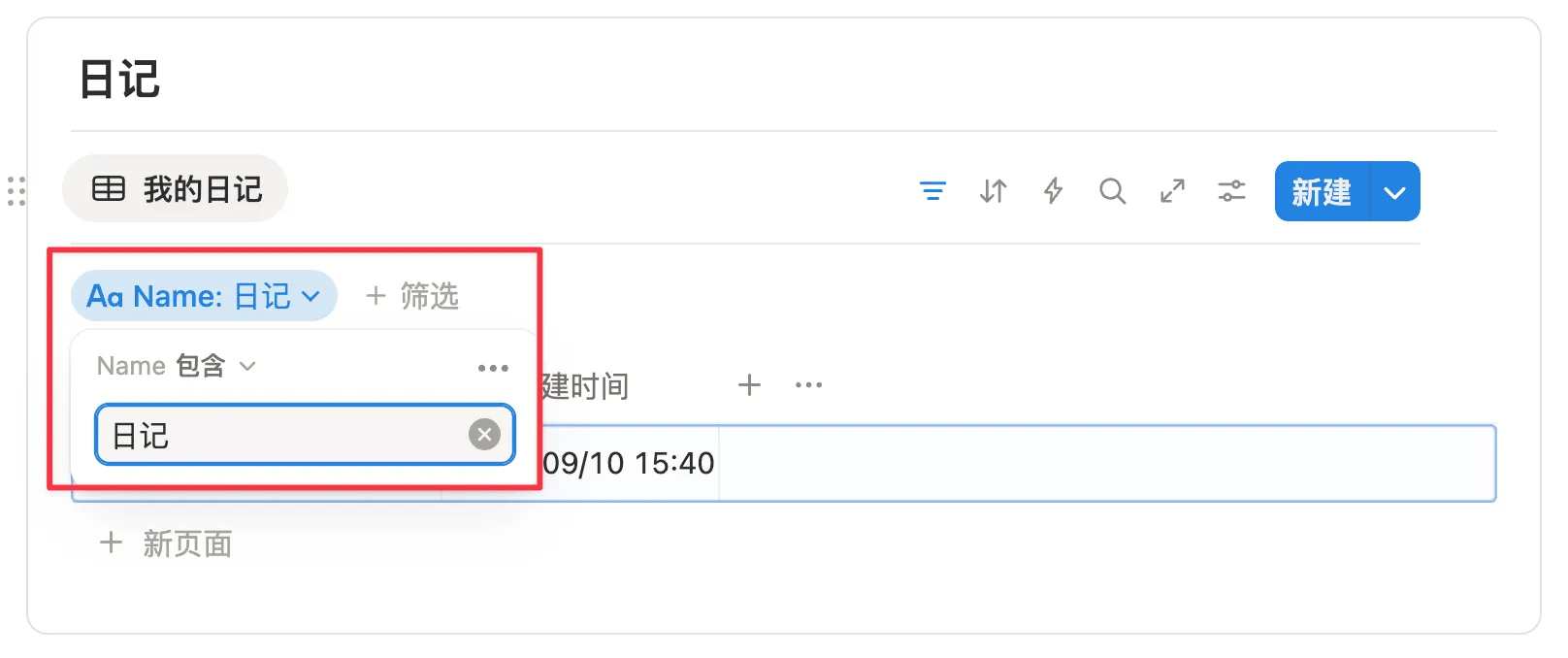
If you want your created "Diary" to appear in this Database, please ensure your title includes the word "Diary".
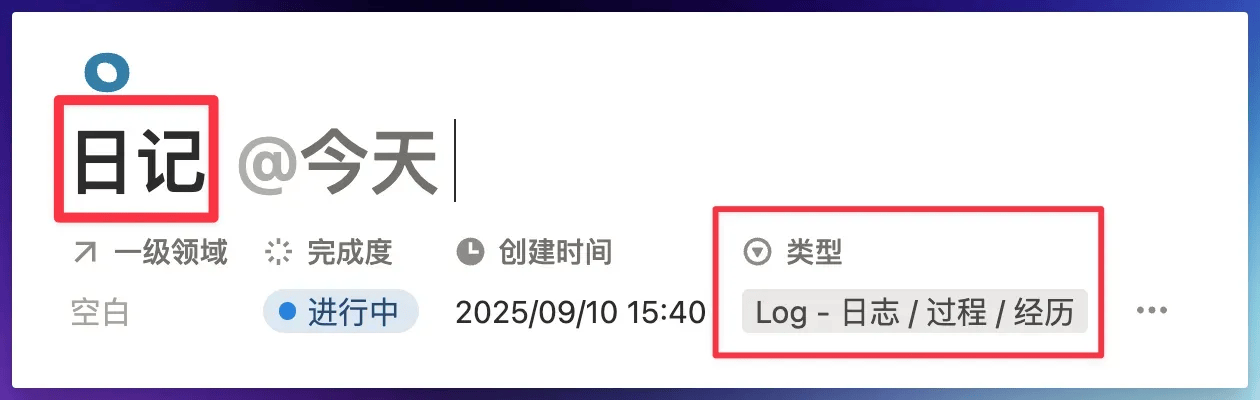
Diary Definition
According to the Note Type definition, "Diary" belongs to the "Log" category.
Diaries are used to simply and directly record daily experiences or feelings. They don't need deliberate refinement and summary, only to authentically capture the "moment". Their value lies in preserving unadorned records, providing material for future review, reflection, or simple reflection.
Diary Creation Methods
Please note that in the 3 methods below, the description of "Note" specifically refers to "Notes" that exist in the "Note Database"
Method 1: Create through process
Follow the process shown below to create a "Diary".
Method 2: Title keyword
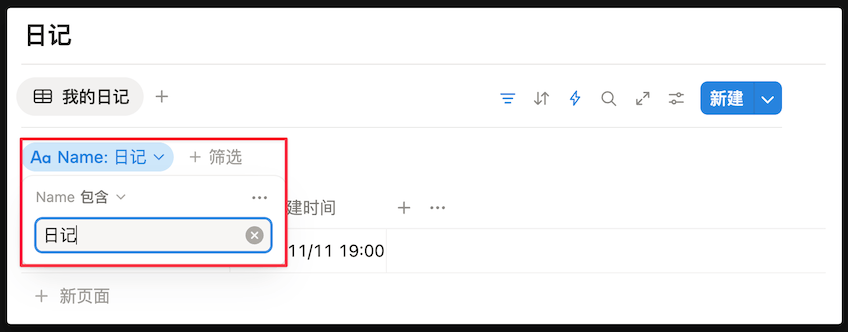
Add the word "Diary" to the "Title" of any "Note", and it will appear in the "Diary Database"
As shown below, this Database has set a filter condition of "contains Diary" for "Title"
Method 3: Activate diary template
In the "Note Page", activate the "Diary Template"
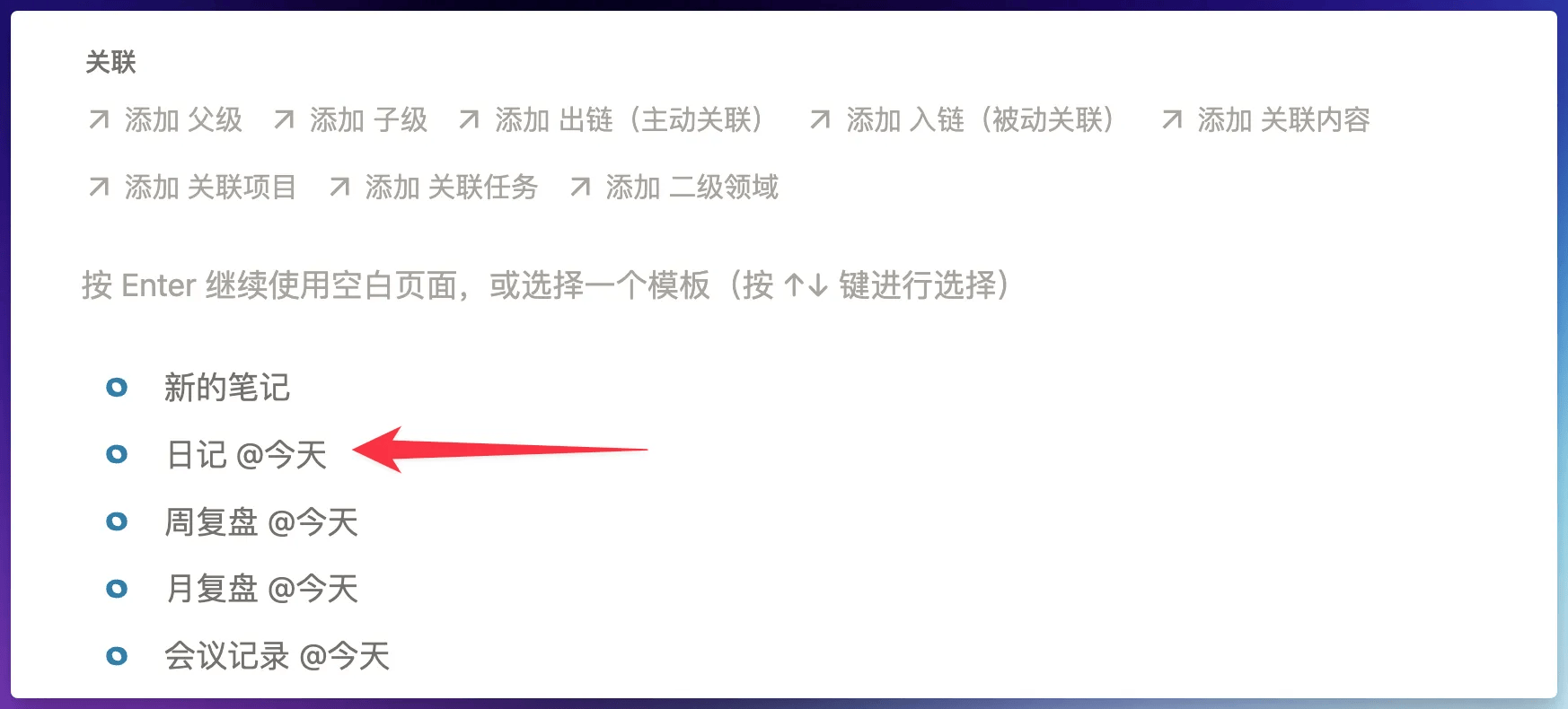
If you don't see the "Diary Template" shown above in the "Note Page", please refer to this solution: Template not showing
Modify Diary Template Method
The current preset diary template is shown below with a relatively simple structure.
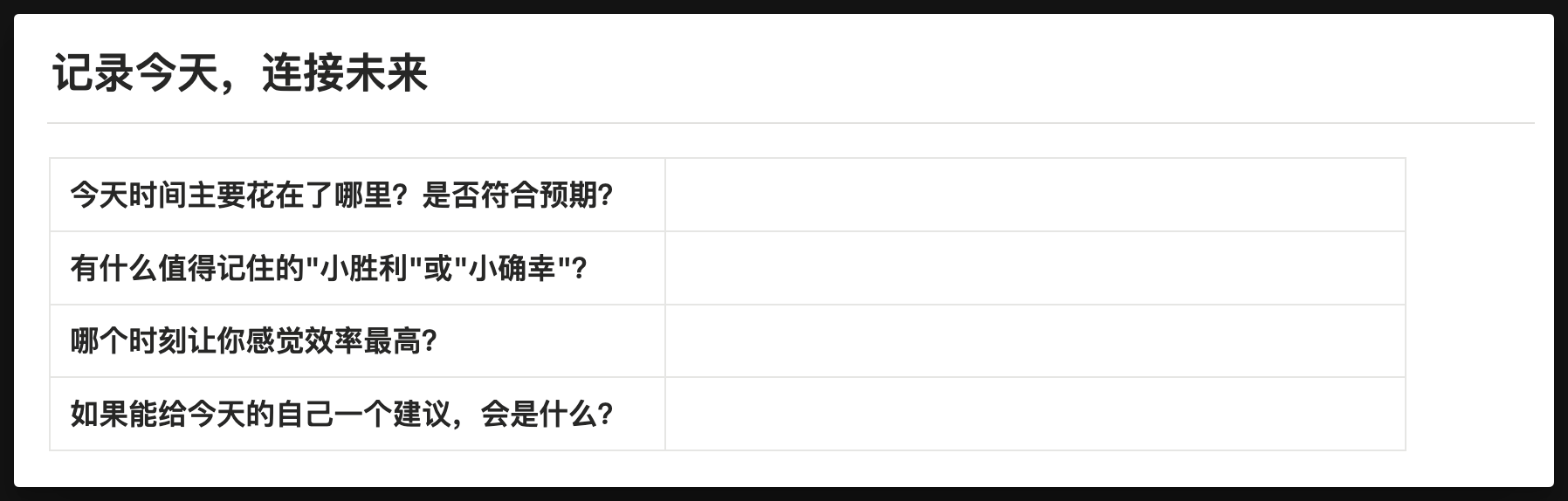
If you want to modify this diary template, you can refer to this instruction: How to modify Database default template
Periodic Review
Review Note Definition
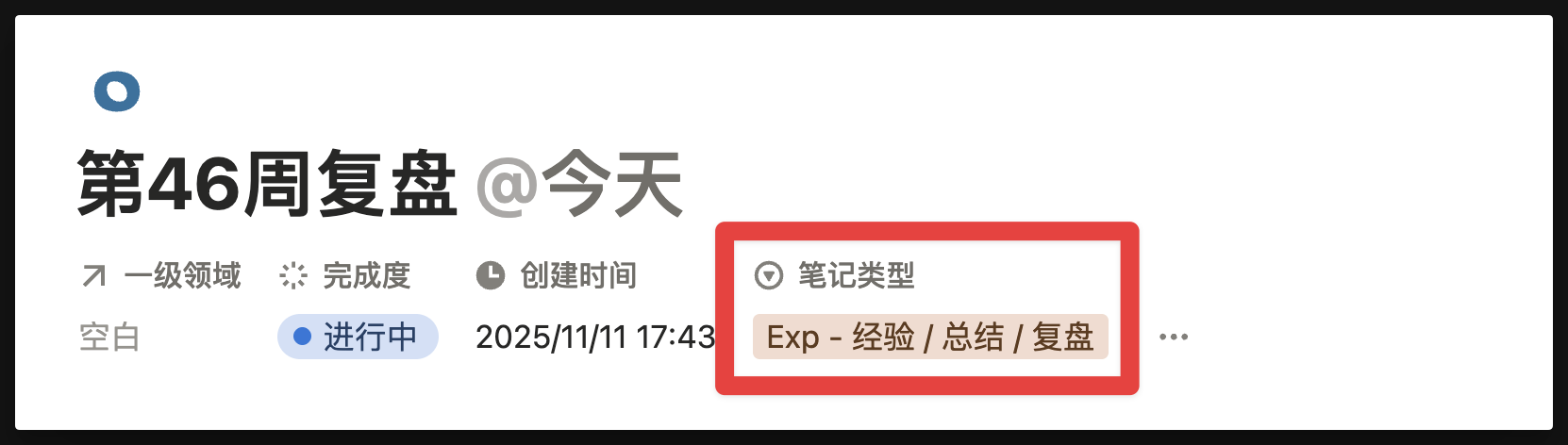
In the FLO.W system, "Review Notes" are notes with Note Type as "Exp", so theoretically you don't actually need to create a separate so-called "Review Module", because any note you mark as "Exp" type can become a review note.
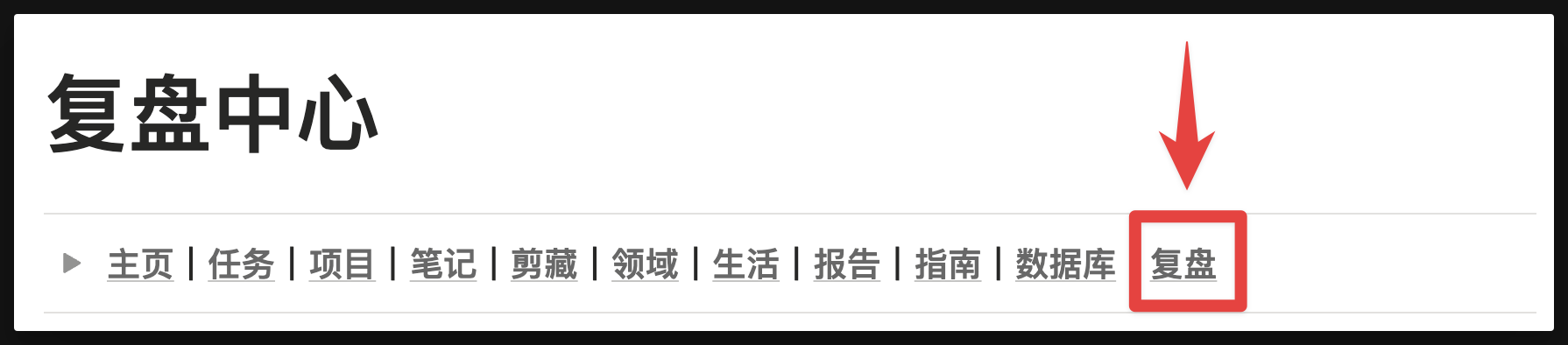
However, to make it more convenient for you to create and manage review-related notes, and improve the efficiency of the "Periodic Review" action, I've added a "Review" button in the homepage navigation bar. Clicking it will take you to the "Review Center".
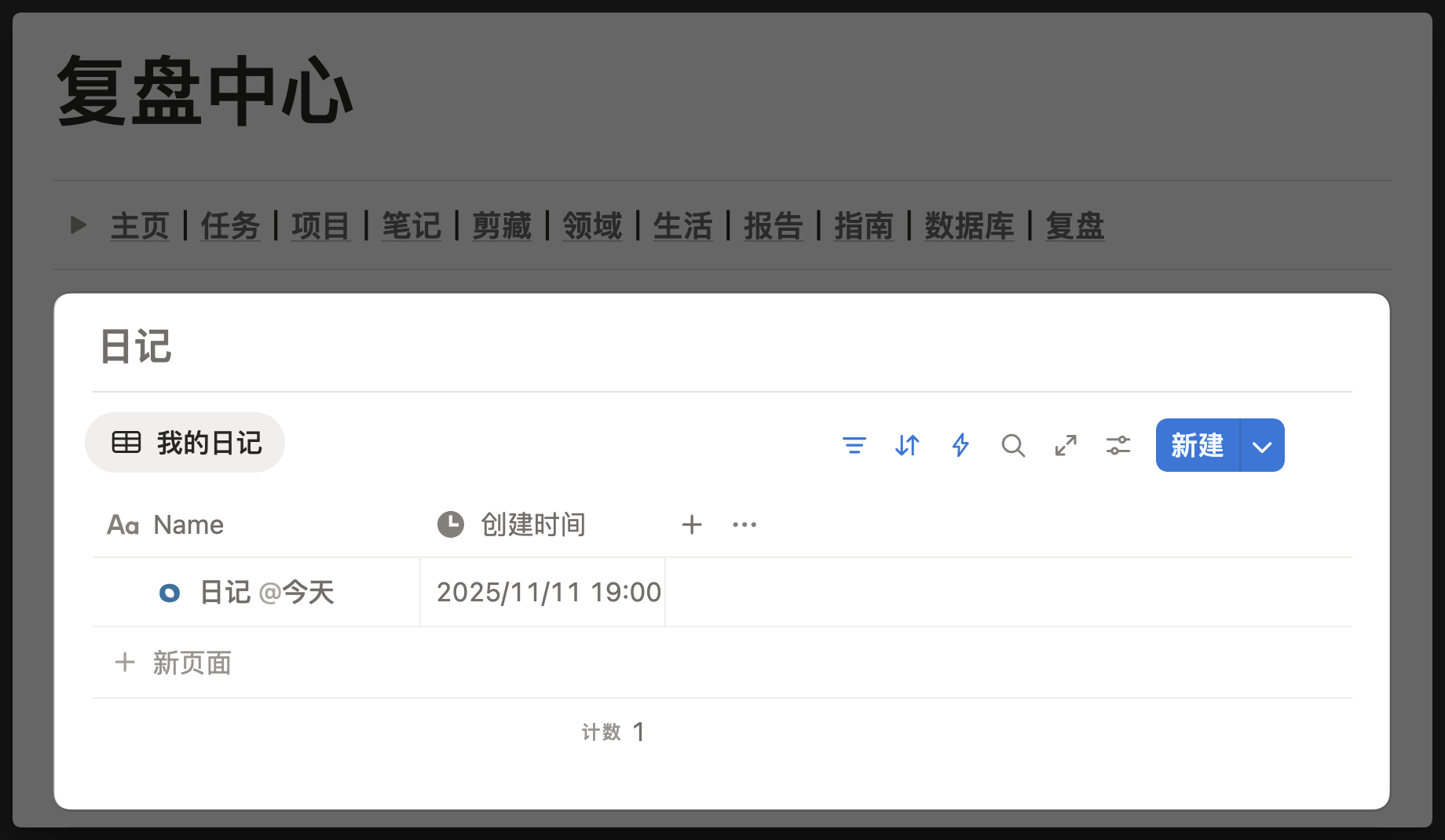
Periodic Review - Diary
The creation method for Diary has been introduced in detail earlier, so I won't repeat it here.
From an information type perspective, diaries are "Log" type raw records, while weekly review and monthly review are "Exp" type experience refinements. Putting them in the same module also conveys a philosophy: recording and reflection form a complete closed loop. You can only keep diaries without reviewing, or only do reviews without keeping diaries, but when you combine both, "Log" in diaries has the opportunity to be refined into "Exp" in reviews, forming higher-density personal insights.
Periodic Review - Weekly Review
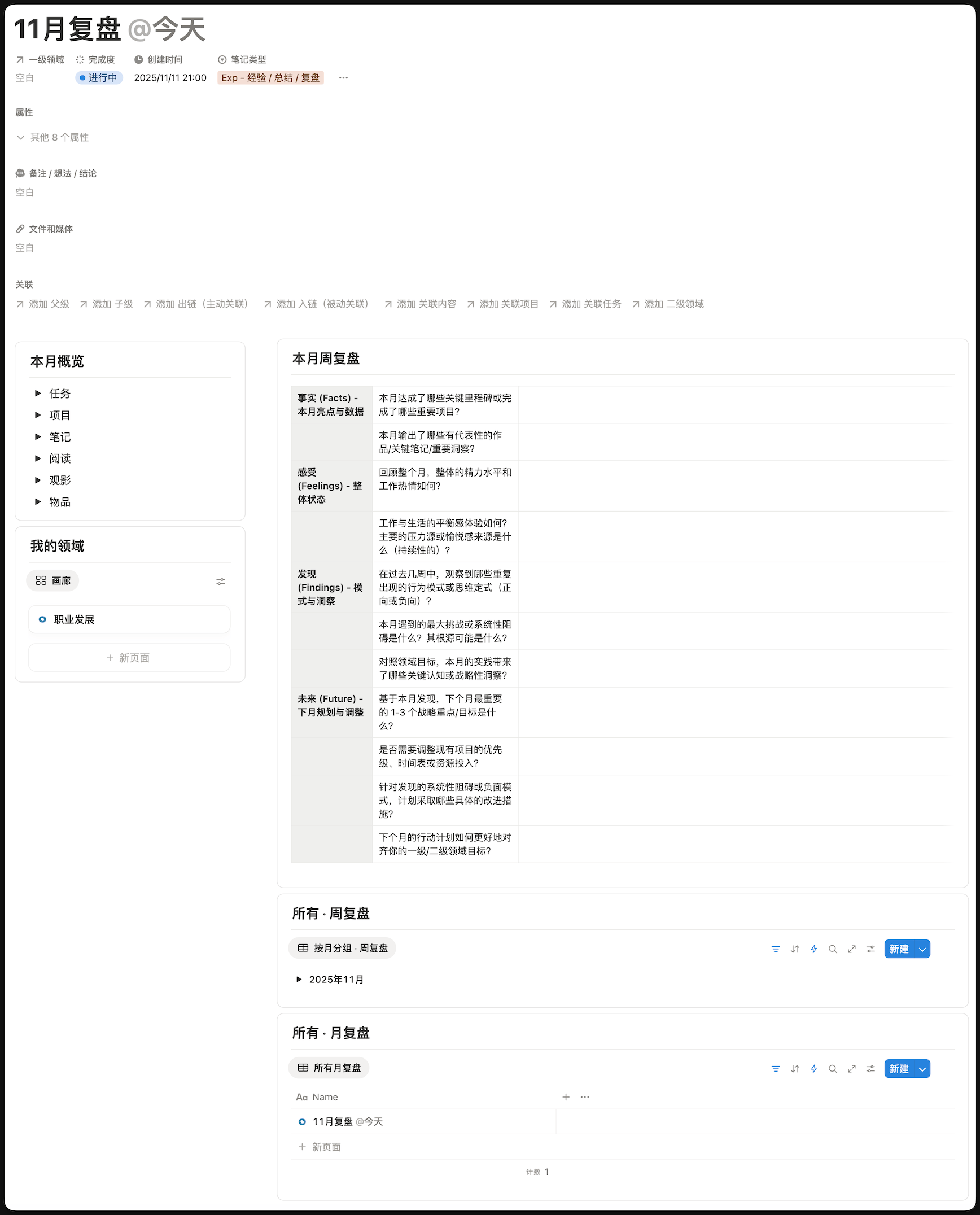
In the "Review Center - Weekly Review" Database, create a new page to activate the "Weekly Review" template, and the preset template content shown below will appear:
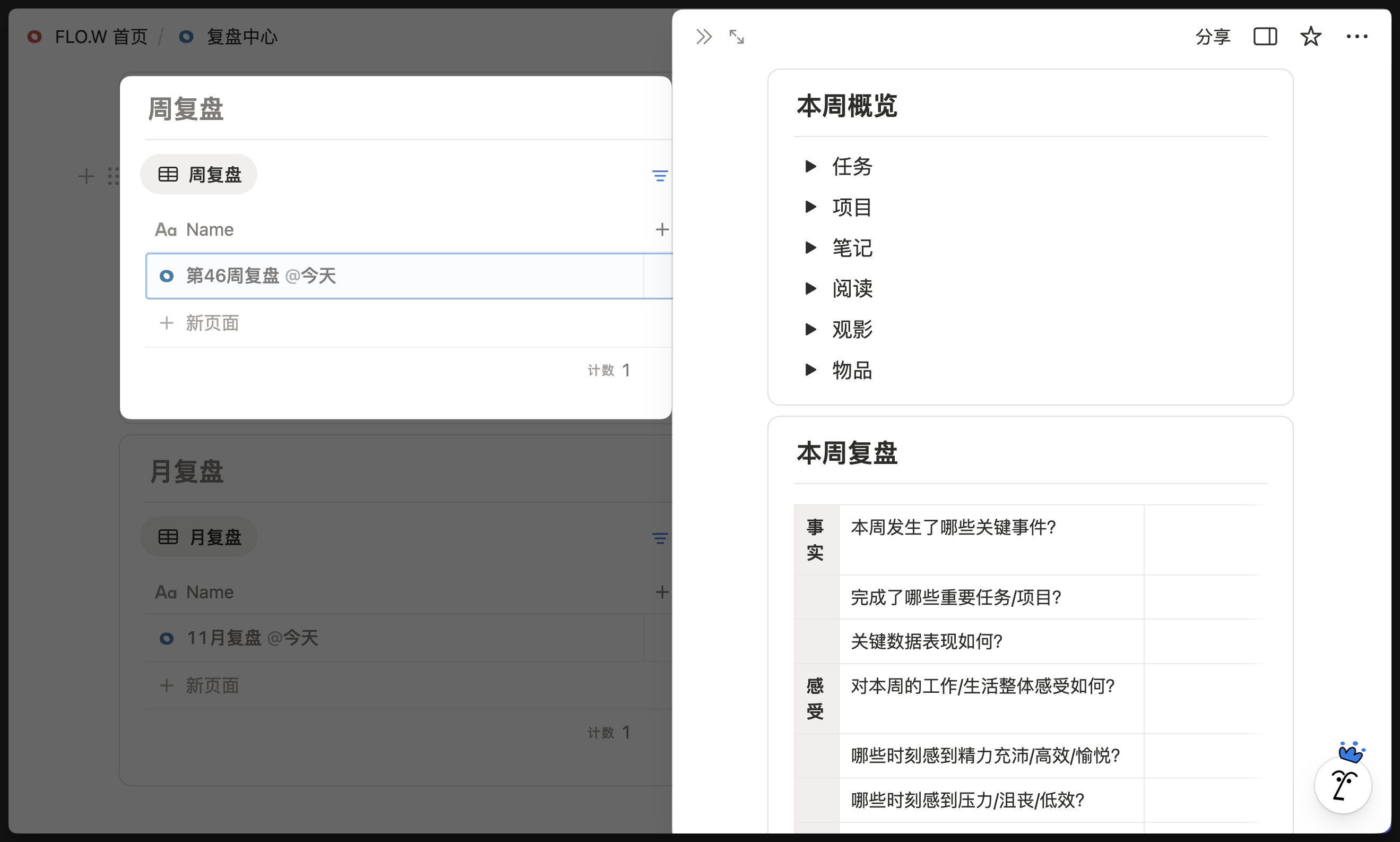
You can centrally review tasks and projects completed in this week, notes, clips, movies watched, and even items purchased in this week in "This Week Overview"
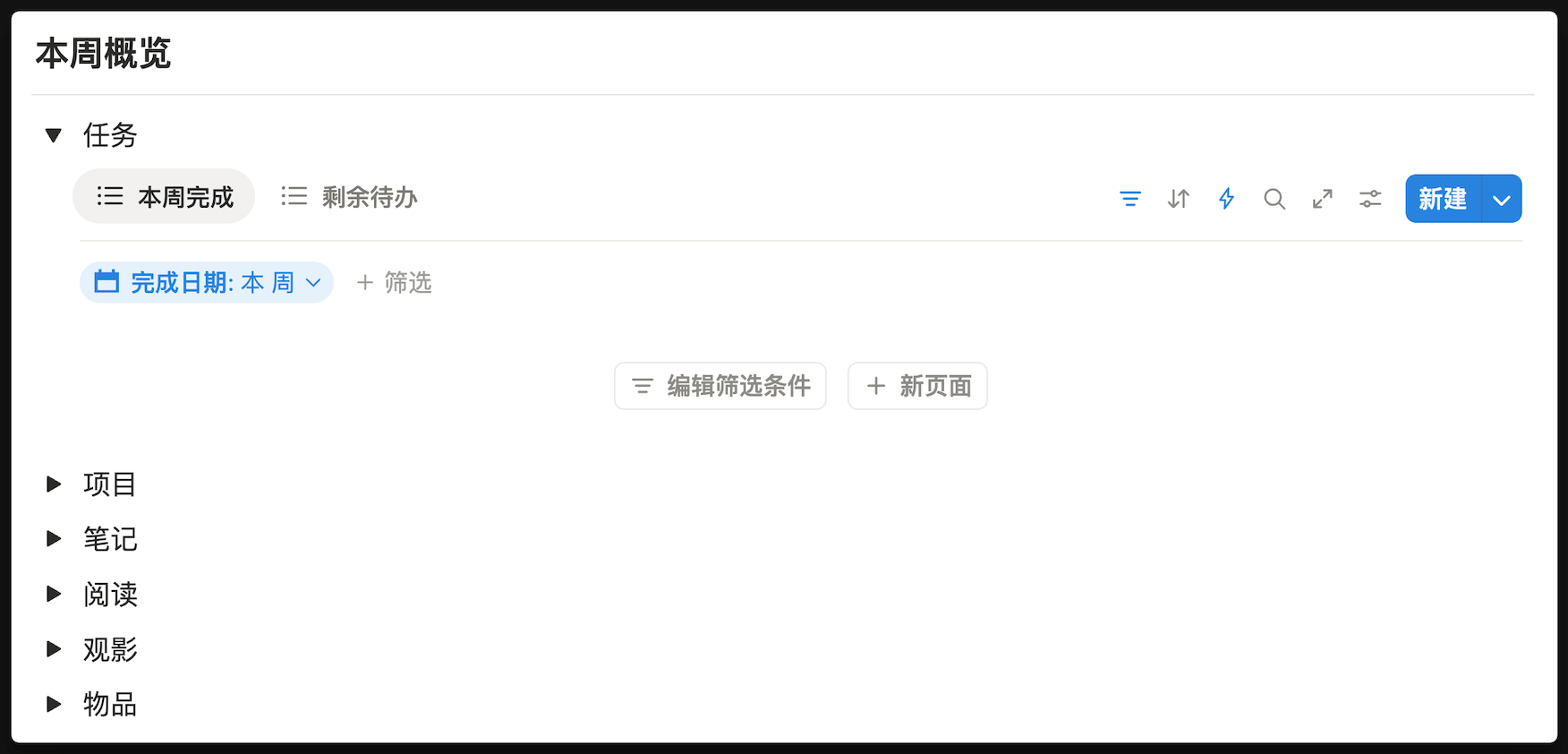
Taking this week's tasks as an example, this filters out "tasks completed this week" through preset filter conditions. So every time you activate the "Weekly Review" template, you can only see this week's completed tasks, not last week's.
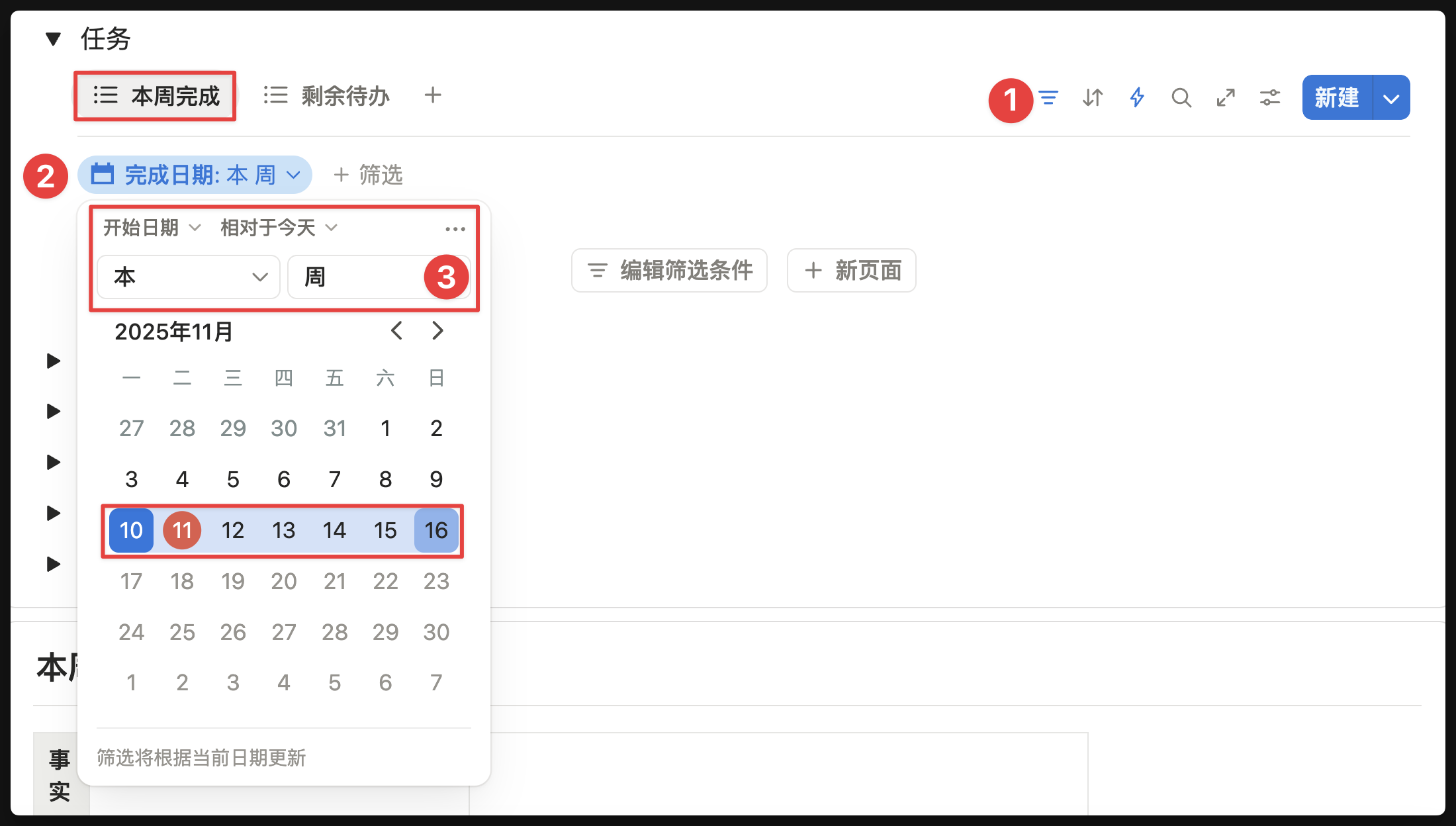
But some users may be accustomed to reviewing the previous week's content on every Monday (new week). Based on the preset conditions above, they can only see this week's tasks, not last week's. So the key here is how to add a new filter view in the "Weekly Review" template to also filter out "tasks completed last week".
Since Notion's filter conditions don't have a "Last Week" filter condition, only "Last 7 Days", the following steps will be somewhat tortuous. The specific method is as follows:
Periodic Review - Monthly Review
The implementation logic of monthly review is similar to weekly review, just changing the grouping unit from "Week" to "Month", so I won't go into too much detail. If you have questions, you can also ask and exchange in the Lark group.
Quick Note Module Usage Logic
Basic Usage
The feature location of the quick note module is shown below:
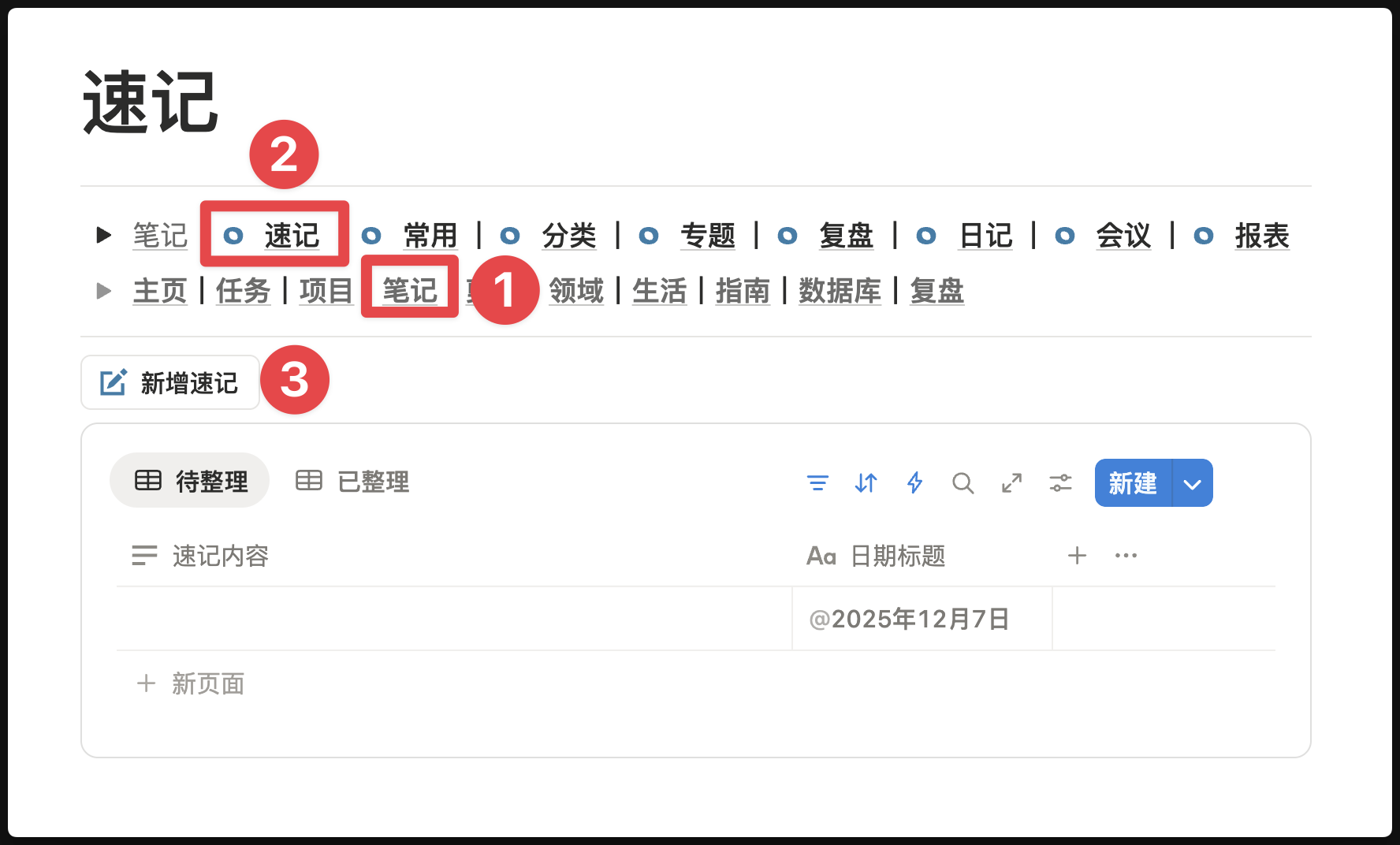
You can click the "Add Quick Note" button, then record in the popup sidebar
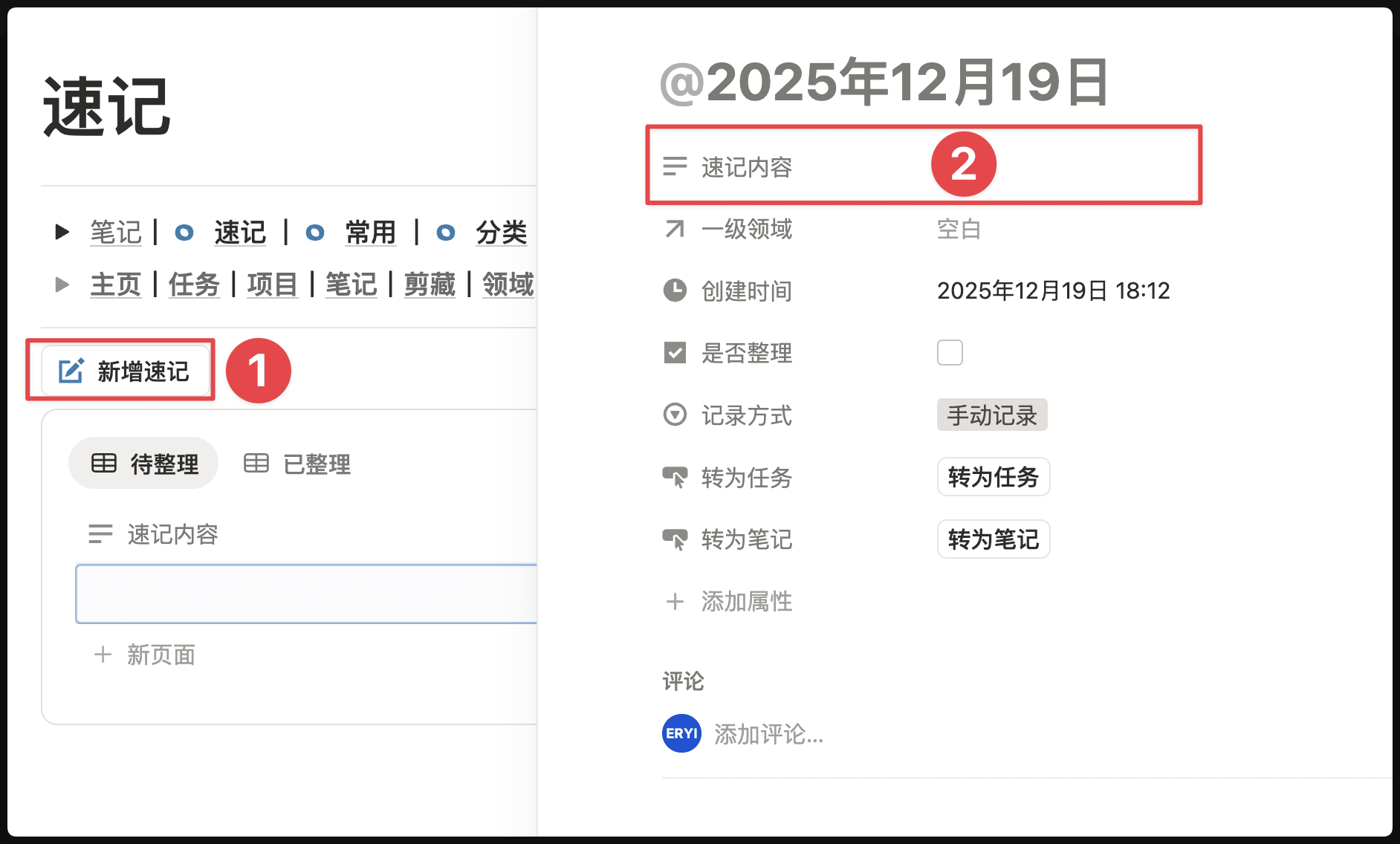
But it's more recommended to directly click the "New Page" button, then quickly enter in the "Quick Note Content" property

This property is the content that the conversion buttons read later. The page body below is better for temporary screenshots, links, or extra materials, but it will not automatically enter the Note or Task created later.
Convert Quick Note to Note
After opening the quick note page, you'll see there are two buttons like this
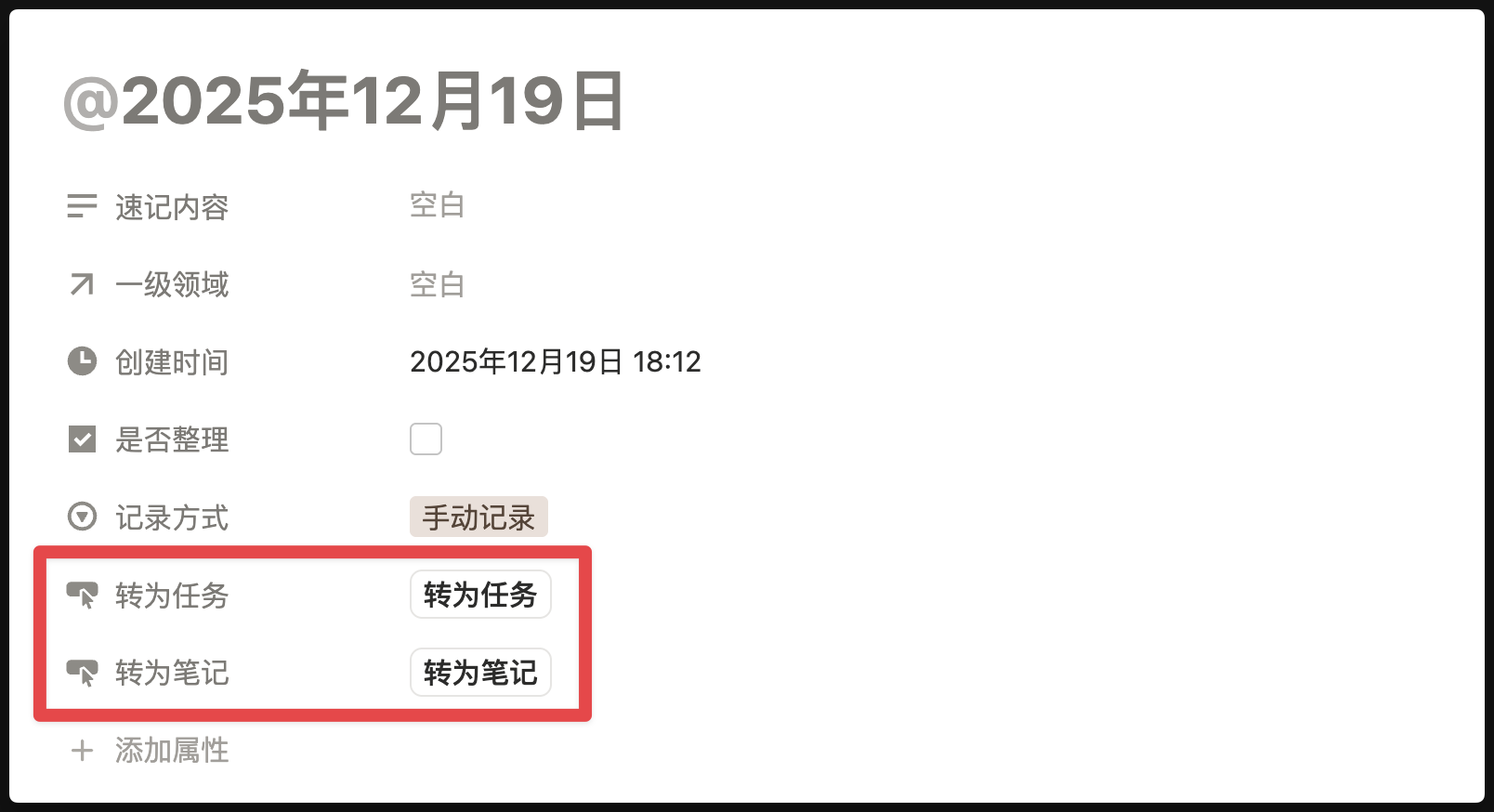
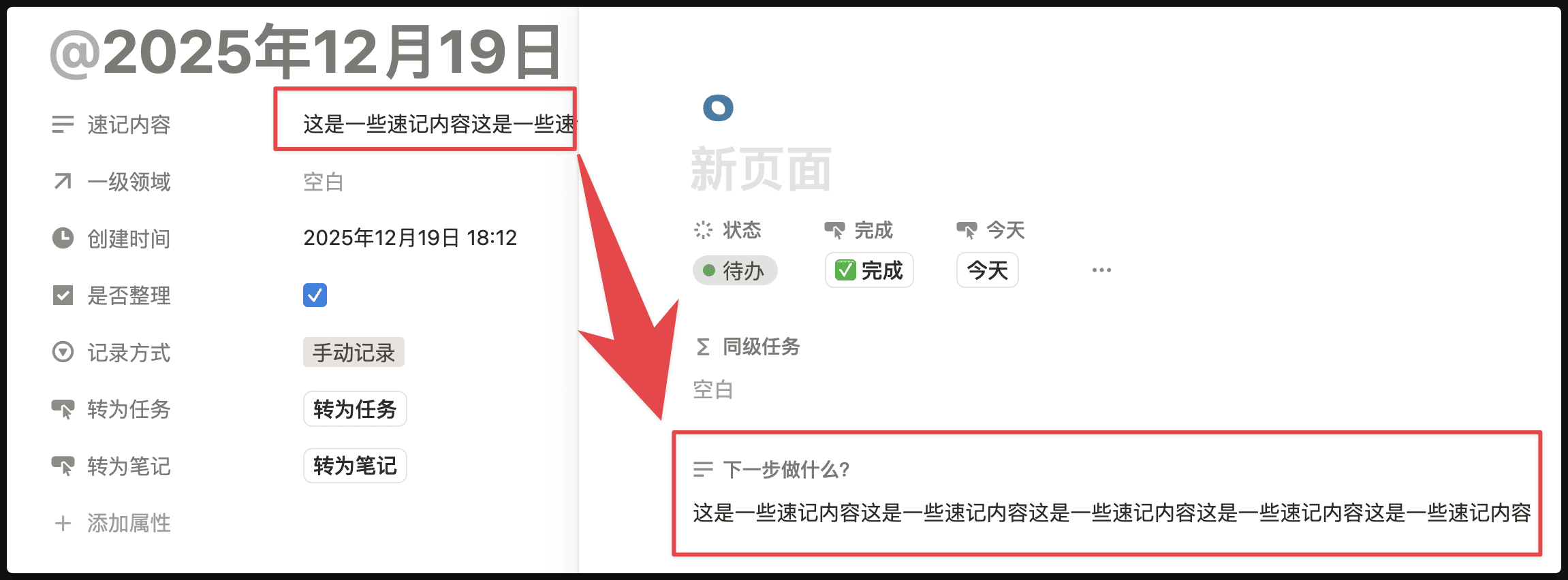
Taking the "Convert to Note" button as an example, after clicking, it will create a "Note Page" and copy the content from the "Quick Note Content" property to the "Remarks" property of the "Note Page":
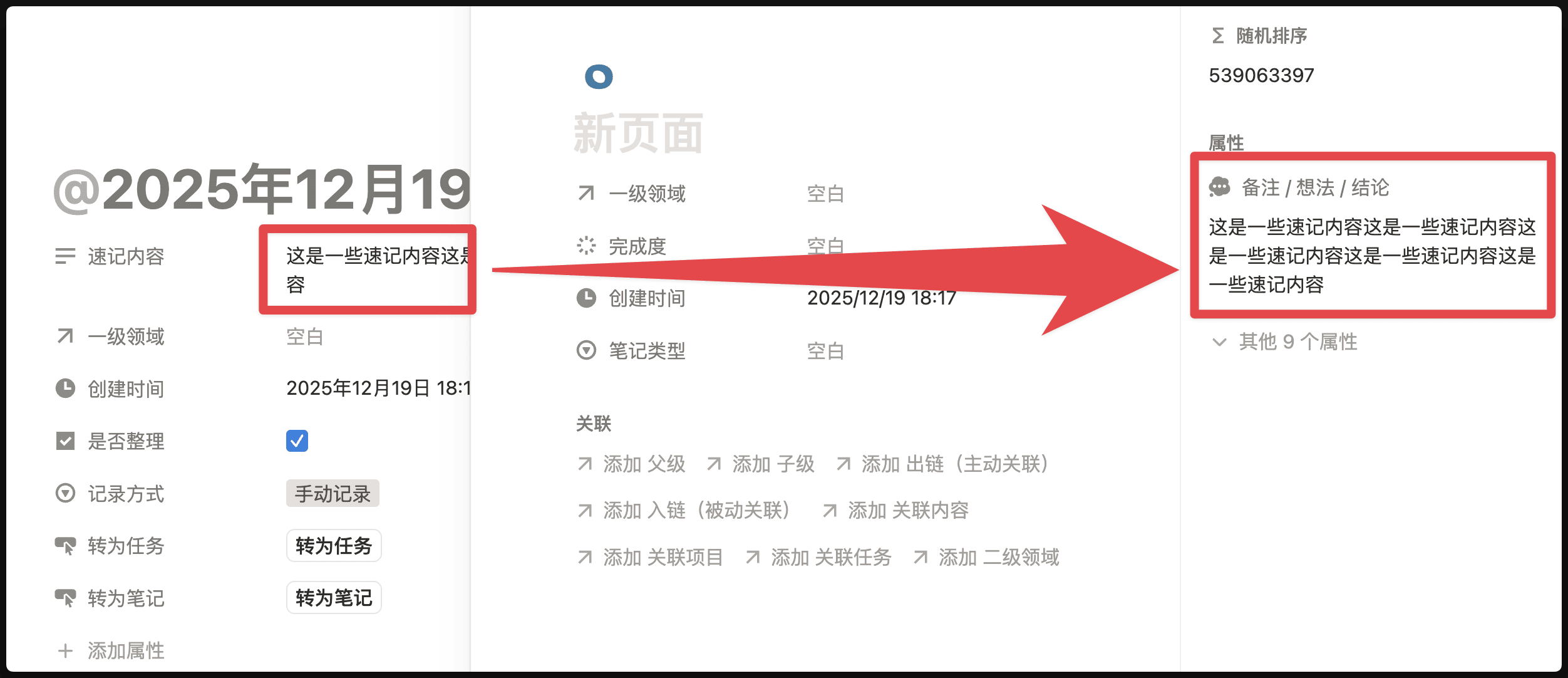
That is, you can use the "Quick Note" feature to capture some unformed, random inspirations or ideas. When inputting, you don't need to think about whether it's complete or how to categorize it. Then you can choose a fixed time to organize all quick note content. If you think a certain "Quick Note" has value for continued improvement, click the "Convert to Note" button to migrate these fragmented thoughts to the more fully functional "Note Page".
One point is easy to misunderstand: the conversion button essentially creates a new Note record and copies the "Quick Note Content" property into it. Due to Notion button limitations, it cannot automatically read or move paragraphs, images, or lists in the page body.
So the "Convert to Note" button can only migrate information from the "Quick Note Content" property, not information below the "Quick Note" page.
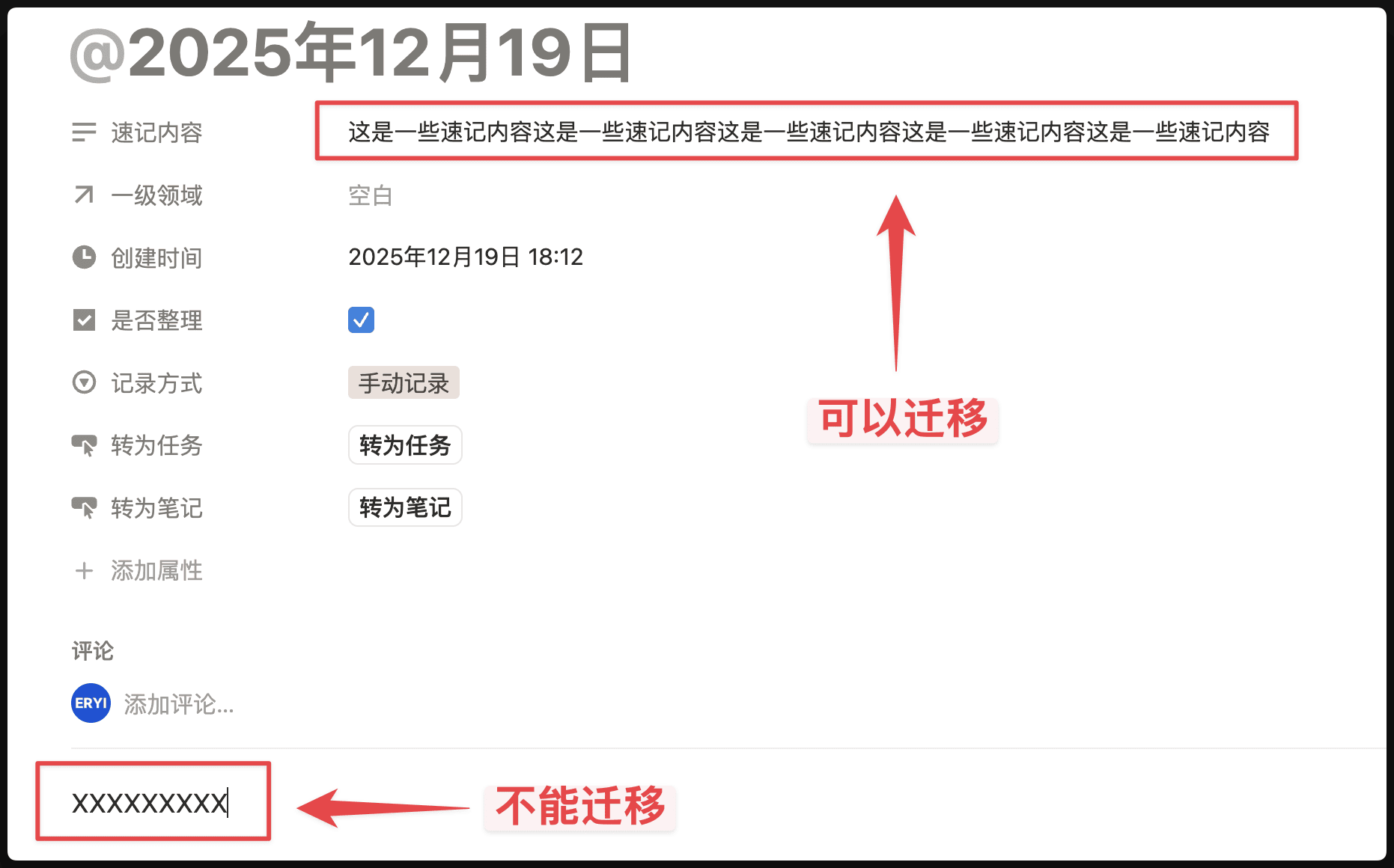
If you have already written a lot of content below the quick note page, there are three ways to handle it:
- Click "Convert to Note" or "Convert to Task" first, then manually copy the page body into the new page.
- If the content is only text, organize it into the "Quick Note Content" property first, then click the conversion button.
- If you know from the beginning that you will write a lot of body content, create a "Note" or "Task" directly instead of starting from "Quick Note".
If you subscribe to Notion AI, you can also ask AI to organize and move the page body for you. But this is AI-assisted work, not something the template button can complete automatically by itself.
Convert Quick Note to Task
The basic logic of "Convert to Task" is the same as "Convert to Note". If this quick note is more like an action item, click "Convert to Task".
Also note that it only brings the "Quick Note Content" property into the Task. The page body still needs to be handled manually or organized with the help of Notion AI.
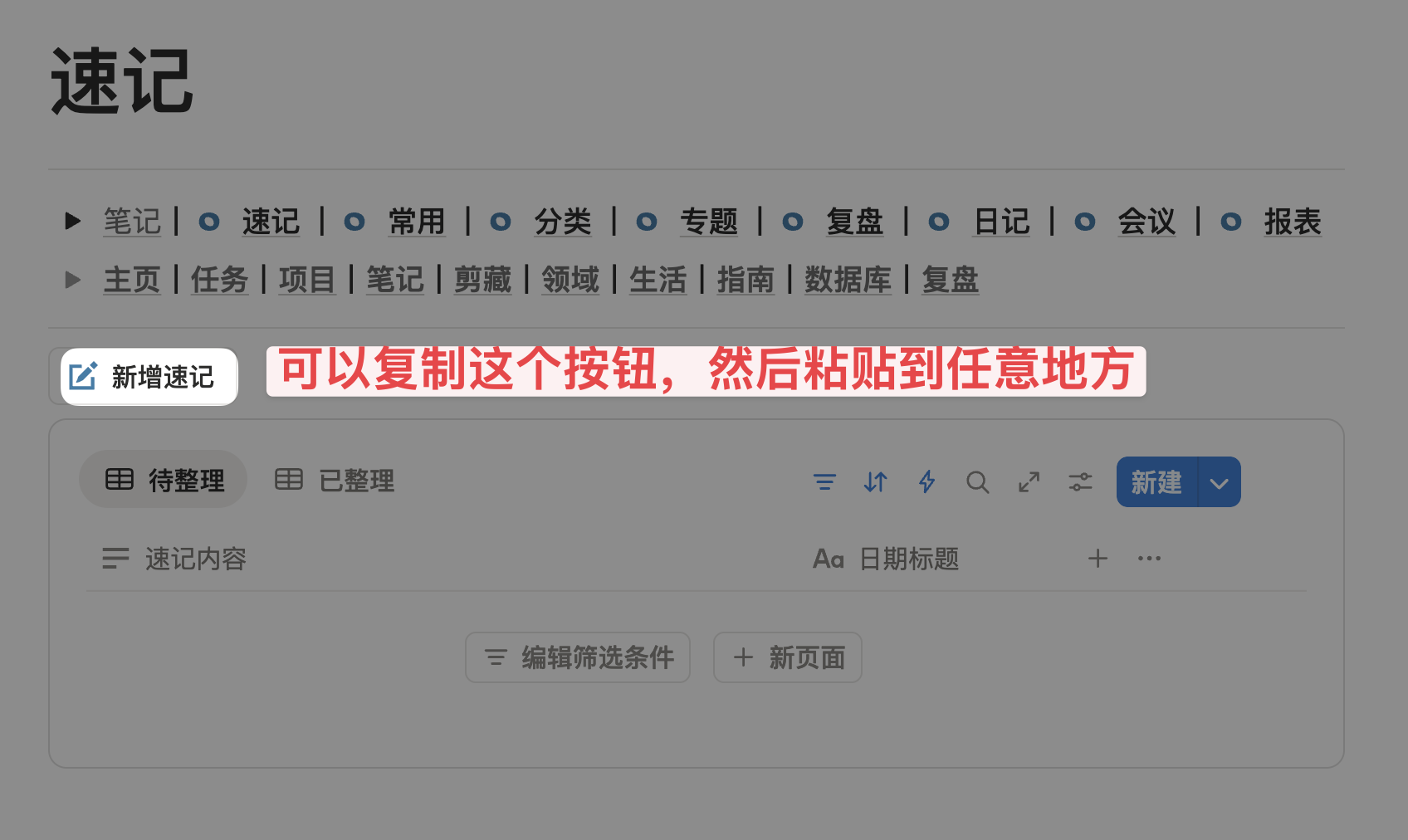
Copy Quick Note Button to Other Places
First, the "Quick Note" button exists in two places: one is the "Homepage", and the other is the "Note Module - Quick Note Page" demonstrated earlier. If you want this button to be placed in other pages, just copy this "Add Quick Note" button and paste it anywhere else.
Last updated on
Homepage Navigation
Master FLO.W Notion template's homepage layout and navigation: understand how the nav bar works and customize module positions for your ideal workspace.
Task Management
Manage daily tasks with FLO.W Notion template: quick task creation, auto-recurring setup, and Notion Calendar sync to keep everything on track.