 FLO.W Docs
iPhone Shortcuts
Capture ideas on the go with iPhone Shortcuts that transcribe voice notes directly into your FLO.W Notion template—anytime, anywhere.
Description
- All shortcuts listed on this page currently only support iPhone
- Shortcuts are currently only available to [Pro Edition] and [Max Edition] users
2026 Update: Notion now has official mobile voice input for direct speech-to-text in the app. The Shortcuts approach on this page still has unique advantages — AI processing and custom database targeting.
Voice Quick Note Shortcut
Demo
First activate the shortcut on iPhone, then speak directly what you want to record
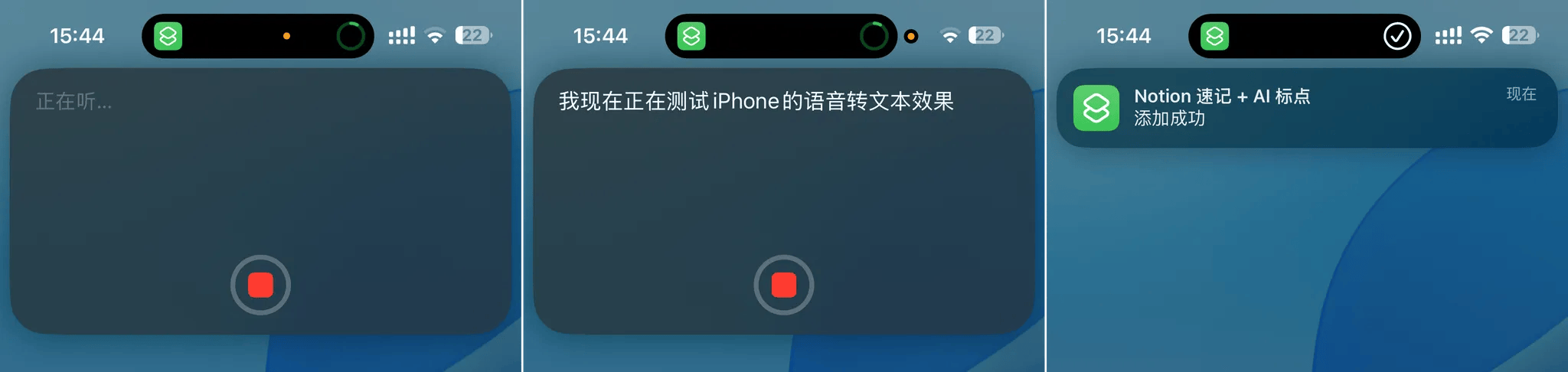
This shortcut will automatically perform the following operations:
- Transcribe voice to text
- Process the text with DeepSeek API to add appropriate punctuation based on semantics
- Store the text from step 2 into the Notion Database
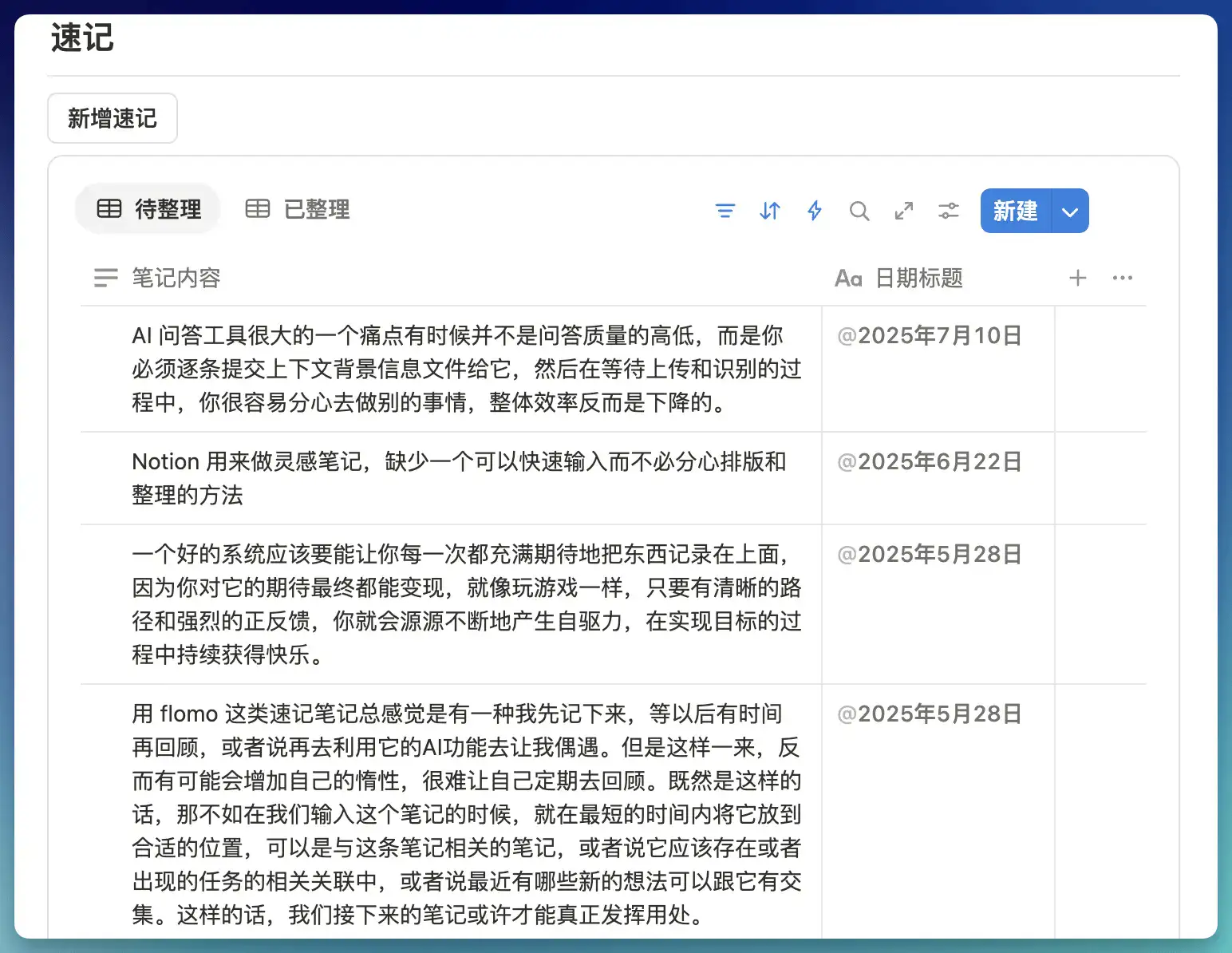
The voice note effect is as follows
Next, let's go a bit further.
Since we have already stored the voice in text form in the Notion Database, based on the powerful Database features, we can use Database Buttons to convert the current voice note into a formal Note with one click, or quickly convert it into a Task.
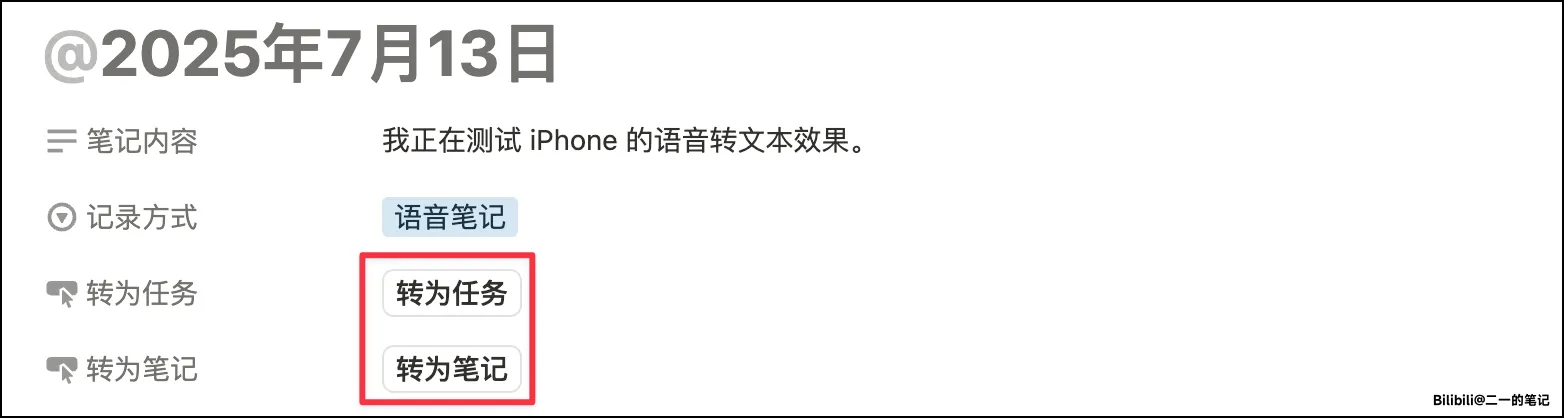
I can create a "Convert to Task" button. Its operation logic is shown below:
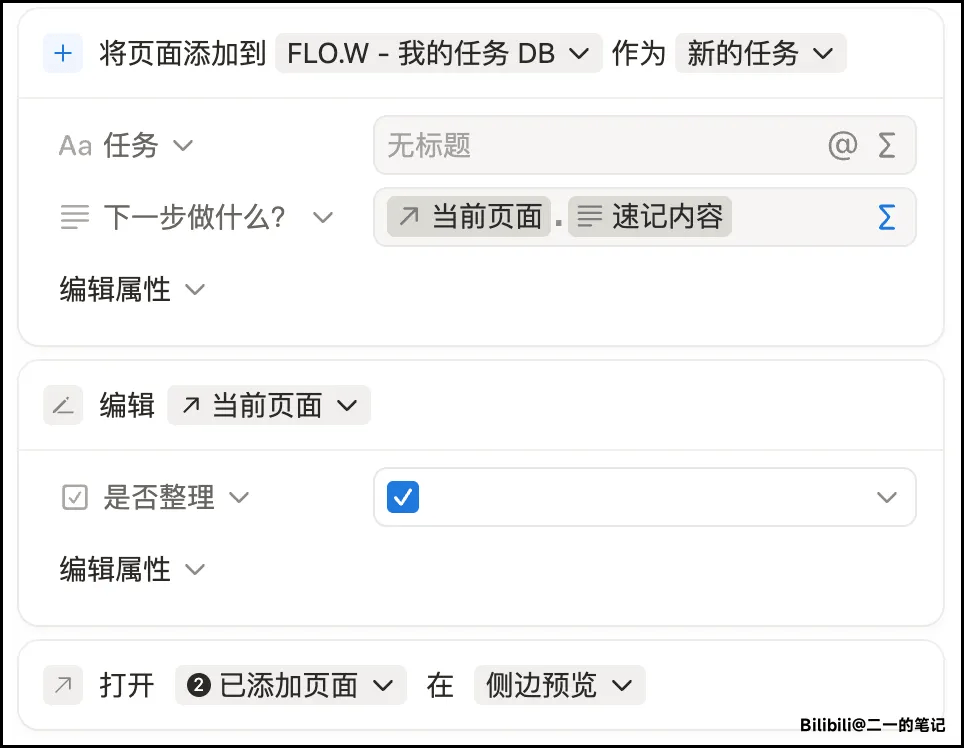
Clicking this button will execute the following flow:
- Create a new page in your Task Database
- Store the text transcribed by the shortcut into the Task's remarks property
- Open this newly created Task page
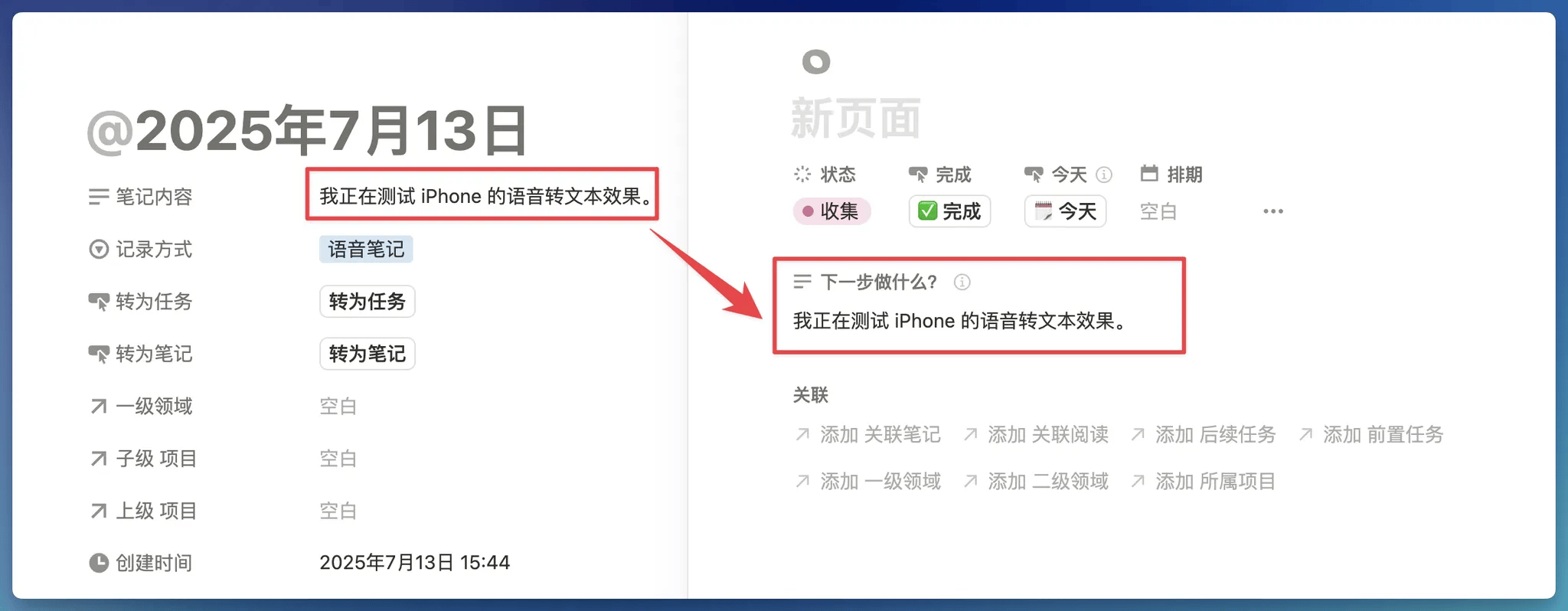
Now that we've covered the effects and logic, let me teach you how to deploy your own shortcut.
Configuration Tutorial
1. Get Notion Database ID
- Find the FLO.W Template's Quick Note Database
- Confirm that the current property name is [Quick Note Content]. If it is [Note Content], please change it to [Quick Note Content]
- Enter the source Database as shown below
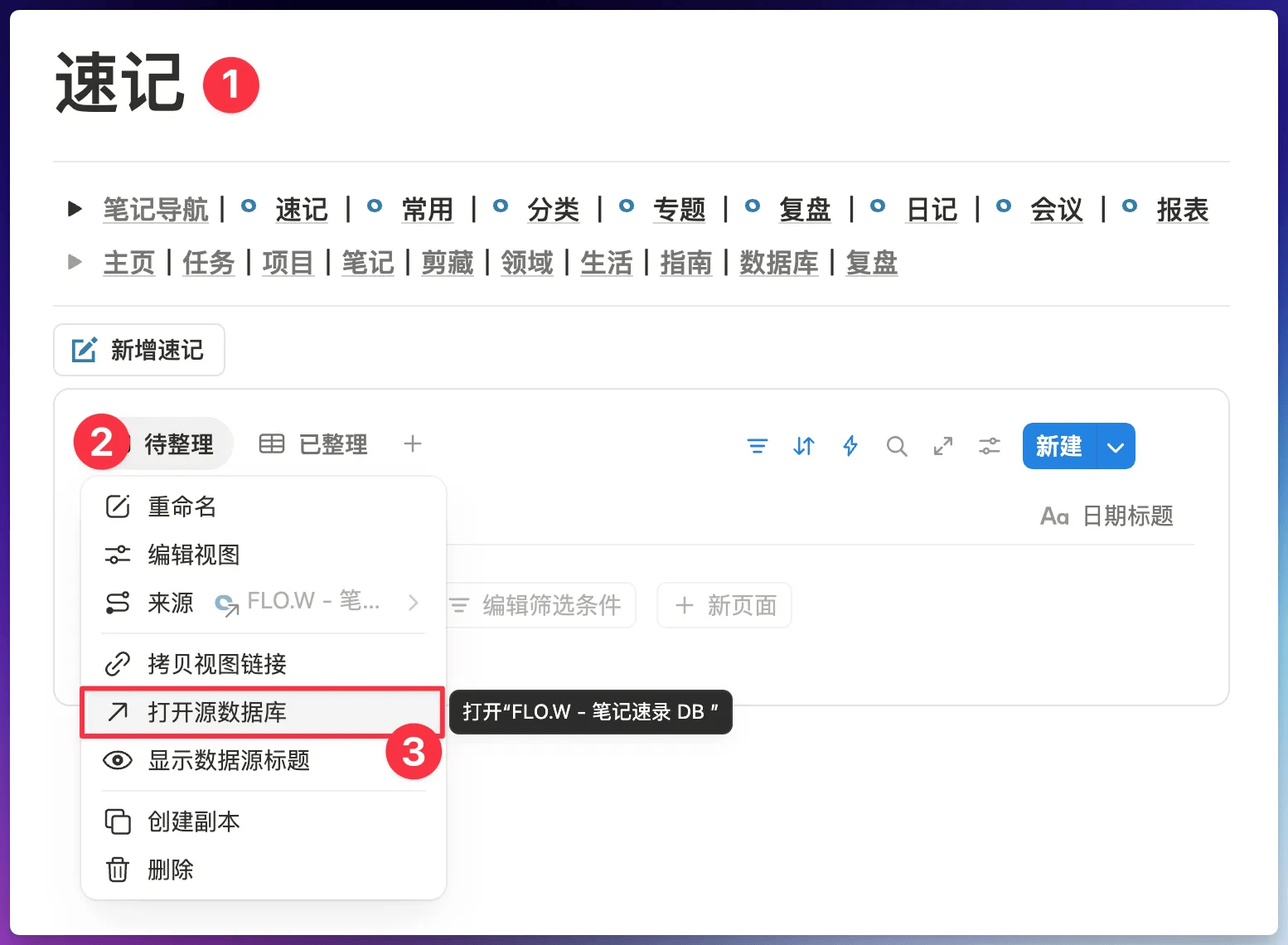
- Use the shortcut Ctrl+L (or CMD+L) to get the Database link.
- This link format is generally:
https://www.notion.so/yourworkspace/xxxxxxxxxxxxxxxxxxxxx?v=... - Get the code xxxxxxxxxxxxxxxxxxxxxx before the question mark, which is the Database ID
- Save this Database ID, it will be useful later
2. Create Notion Account API Key
- Visit Notion Integration and log in to your Notion account
- Create a new integration, you can customize the name, relate it to your Notion workspace, then click the save button in the bottom right corner
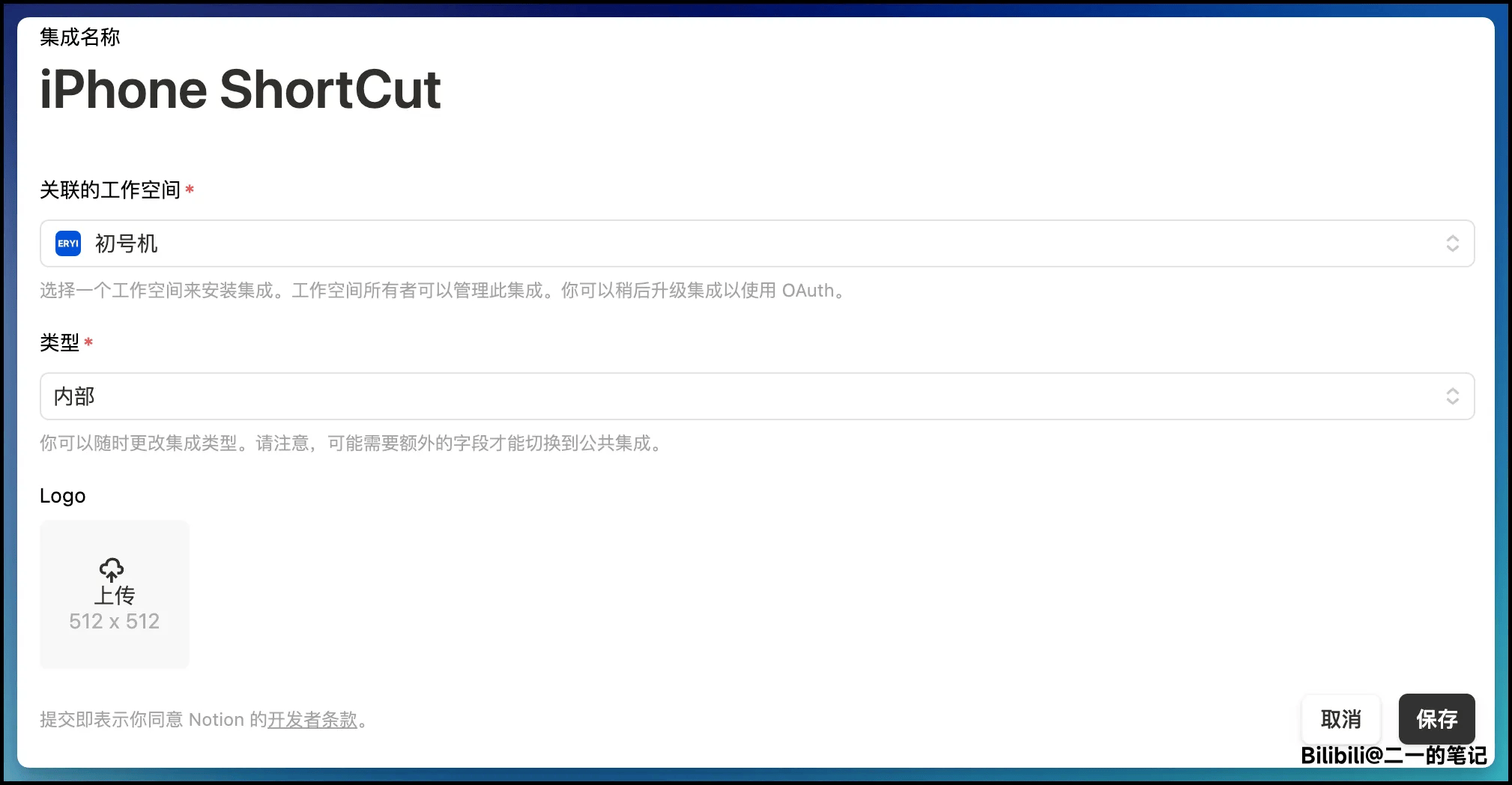
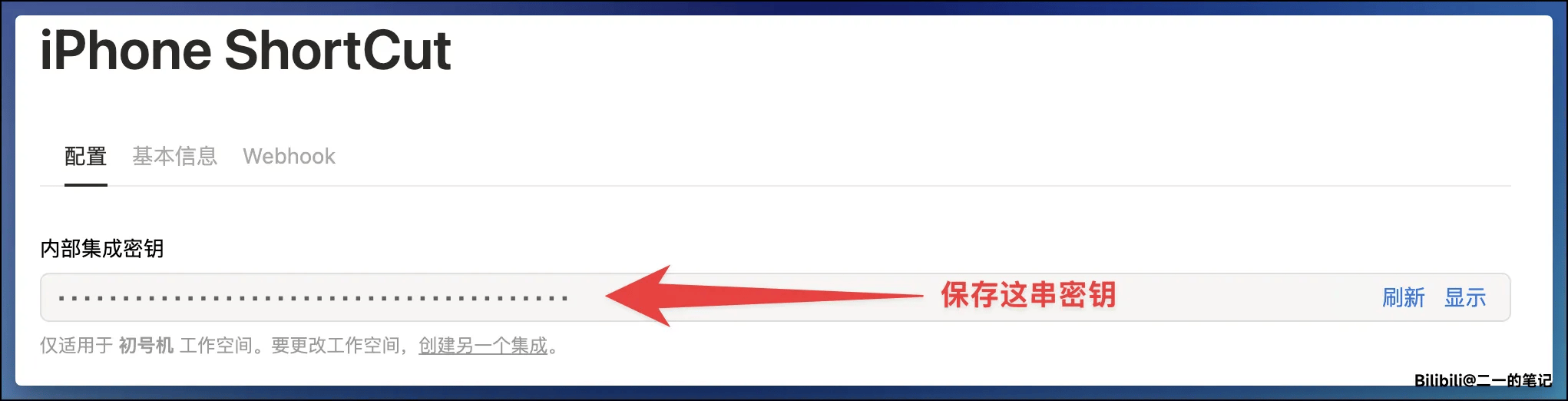
- Click "Configure integration settings" to get the "Internal Integration Secret"
Click the show button to copy this secret. Remember to save this secret, it will be useful later.
The secret format is similar to: ntn_b386784XXXXXXXXXXXXXXXXXX
- Relate this integration to the Quick Note Database
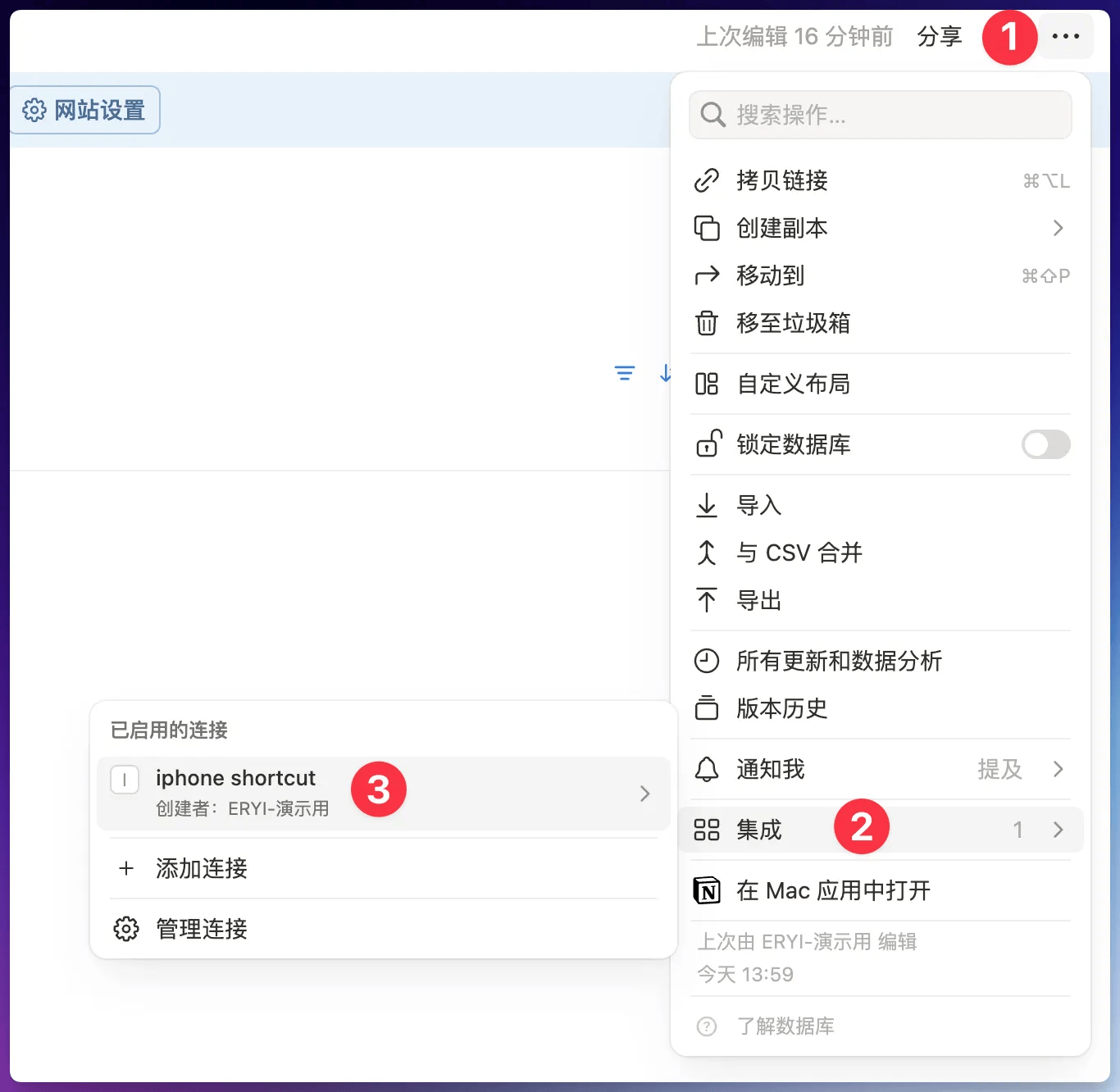
As shown below, re-enter the source Database of the Quick Note Database

Then as shown below, relate the [Integration] you created to this source Database
3. Apply for SiliconFlow API
For specific tutorial, see this article: "DeepSeek R1 Free Usage Tutorial".
In this step, you should obtain the following two things:
- SiliconFlow API, format similar to:
sk-ddguwXXXXXXXXX - The model name you want to set, format similar to:
deepseek-ai/DeepSeek-V3. The model name in this step can be freely chosen, it doesn't have to be DeepSeek, but don't use reasoning models like R1
⚠️ Important reminder: After obtaining the API Key, please make sure your SiliconFlow account has a positive balance (even a small top-up works). The free granted quota may not support the API calls required by this shortcut. The "execution failed" error that many users encounter is usually caused by an empty balance.
Save these two things, they will be needed in later steps.
4. Get and Configure Your Shortcut
- Save the iPhone shortcut template I created. It is currently only available to [Pro Edition] & [Max Edition] users. Please get the shortcut link in [Lark Group Announcement] or [Discord Related Channel]
- Follow the prompts in the shortcut to modify the parameters in the four places shown below. Please replace the string "Enter XXXXX here", do not modify any other content
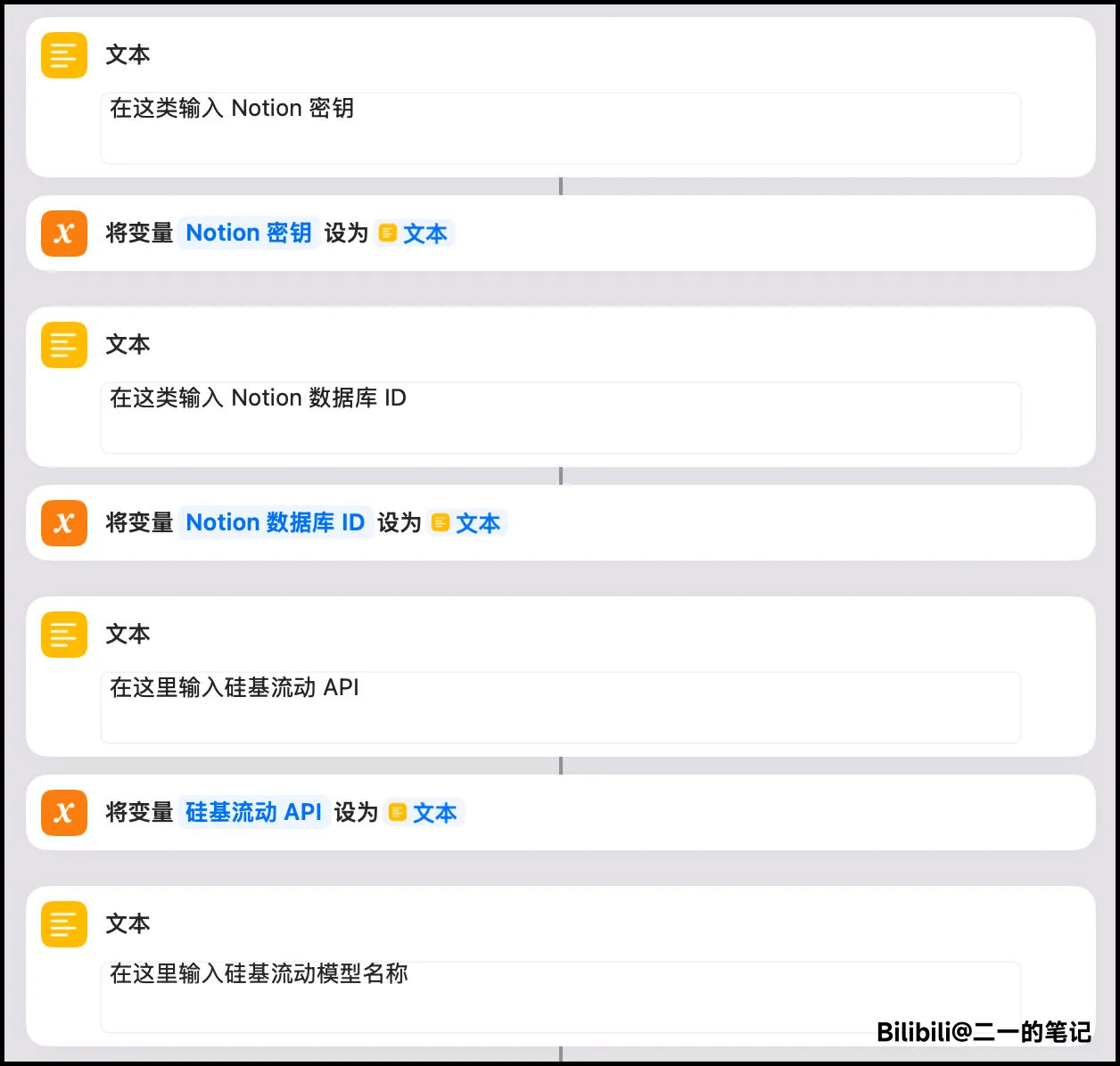
The 4 parameters needed in the image above have been prepared in the previous steps. You just need to fill them in in order. Please note that you need to delete my remark information first, then fill in your personal information in the box.
If everything is filled in correctly, you can now activate this shortcut and use voice to record notes.
Frequently Asked Questions
Last updated on
Formulas and Reports
Master the formula logic behind FLO.W Notion template reports. Learn to fix report links manually and keep your dashboards accurate.
Getting Started
Get started with the FLO.W Notion template after purchase: import the template, download and set up Notion, and migrate notes from Basic to Max editions.