This question comes from a reader of the Notion course. It has been organized and shared here. If you encounter similar issues while using Notion, feel free to leave a comment.
Problem Background
I've recently received several questions about "how to merge multiple Notion calendars into one," so I'm writing this article to explain the display logic of calendar views. If you haven't used Notion Calendar yet, check out the Notion Calendar launch guide to learn about this standalone calendar app.
First, we need to know that a piece of data in a database must have a Date property to be displayed in a calendar view:
At the same time, a calendar view can only select one Date property as the calendar source (as shown in the red box below). So even if a piece of data has multiple Date properties, such as "Start Time" and "End Time," the calendar can only choose one to display.
Since even a single database can only select one Date property to display, and different databases inevitably have different Date properties, generally speaking, we cannot merge multiple database calendars together.
But if you really want to achieve this, there are actually two methods:
- Use multiple linked views to "subscribe" to multiple databases
- Use the Notion Home view to subscribe to multiple databases
Method 1: Use Multiple Linked Views to "Subscribe" to Multiple Databases
First, you need to understand a concept — Notion databases are divided into source databases and linked databases:
How to create a source database should be clear — use the command /da and then select Database - Inline or Database - Full page.
The Table View or Board View options below mean pulling data from other source databases in the form of a "table database" or "board database":

Additionally, different views of a linked database can select different source databases as their data source:
This way, we can browse calendars from different databases through different views:
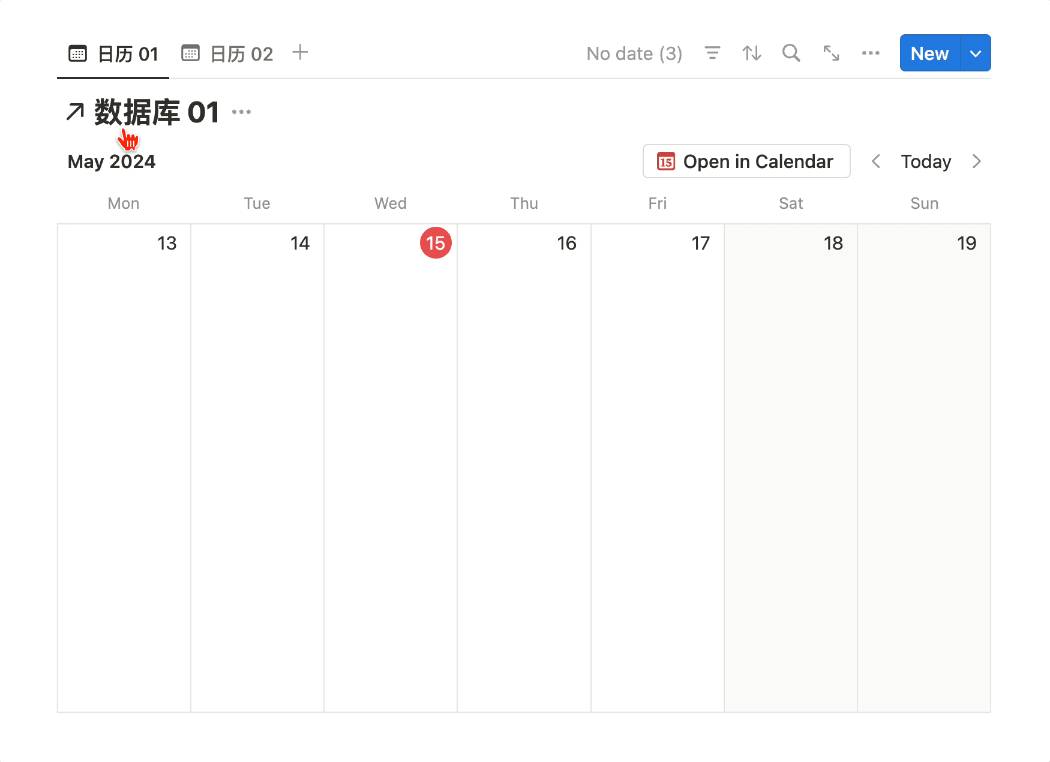
Although we've successfully placed different calendars on the same database, the downside of this method is that we still cannot browse all schedules in a single calendar — we can only switch between different views to browse different calendars.
So next, we'll use the second method.
Method 2: Use the Notion Home View to Subscribe to Multiple Databases
Activate the Home View
First, the Home view is a feature that Notion released recently. If you don't have this tab yet, try inviting a user to your Workspace. Once Notion activates the Home view, you can remove that user from the Workspace (otherwise you'll need to pay for that user).
Here's how to invite:
After successfully activating the Home view using the method above, you can proceed to the next step.
Convert Databases to Task Databases
Suppose you have three calendar databases that you want to merge. You can perform the following operation on each database one by one:
- Click the three dots on the database, then select Turn into task database
- In the popup tab, click the Create New button for each field. However, if the corresponding property already exists, you don't need to create a new one — just select it directly. Then click the Turn into task database button in the bottom right corner.
After performing the same operation on all the calendar databases you want to merge, you'll see in the Home view that calendars from different databases have been merged into one place:
FAQ
FAQ 1
If you find that the Home view shows a view other than Calendar, you can click the three dots and switch the database's view mode.
FAQ 2
If you find that the calendar you want to merge doesn't appear in the Home view, try clicking the filter button and deleting all filter conditions.
📘 FLO.W — Notion Personal Management System
FLO.W is a Notion-based personal management template that integrates tasks, notes, projects, habits, and more, complete with comprehensive tutorials.