 FLO.W Docs
Task Properties Guide
Complete task property guide for FLO.W Notion template—status workflow, smart reminders, and scheduling for an efficient execution system.
This document will provide a detailed explanation of each Property in the FLO.W Template's Task Database, helping you better understand and use the task management features.
Task Types: Schedule vs Todo
| Feature | 📅 Schedule (Appointment) | ✅ Todo (Assignment) |
|---|---|---|
| Time Characteristic | Fixed time point (3 PM meeting) | Deadline (complete by Friday) |
| Flexibility | Not adjustable (meeting room booked) | Self-arrangeable (based on status) |
| Common Scenarios | Meetings, flights, weddings, birthdays | Writing reports, shopping, picking up packages |
| Notes | Must arrive on time, ensure time slot isn't disturbed | Time flexible, pay attention to deadline |
Schedule Date vs Completion Date
Many people confuse these two properties. The key difference is:
- Schedule Date = when you plan to do it (expectation)
- Completion Date = when you actually finished it (result)
For example: you plan to write an article from Monday to Friday, so Schedule Date is Mon ~ Fri. You finish it on Wednesday, so Completion Date is Wednesday.
Next Action
Set an immediately executable action for the current task, so that next time you see the current task, you can execute it without any thinking, then rely on inertia to further break down and complete this task
Sibling Tasks
Sibling Tasks is a formula property that automatically lists other tasks under the same project, helping you quickly see the progress of related work.
Display rules:
- Finds all tasks under the same project via the Project Relation, excluding the current task
- Sorted by creation date (newest first), up to 20 entries
- Each task shows: task name + creation date (blue) + current status (color-coded)
- Green: Completed
- Blue: In Progress
- Red: Todo / On Hold / Collect / Abandoned
Use case: When working on a task within a project, you can see the status of other tasks in the same project without switching to the project page.
This is an Max Edition update exclusive feature.
Task Reminders
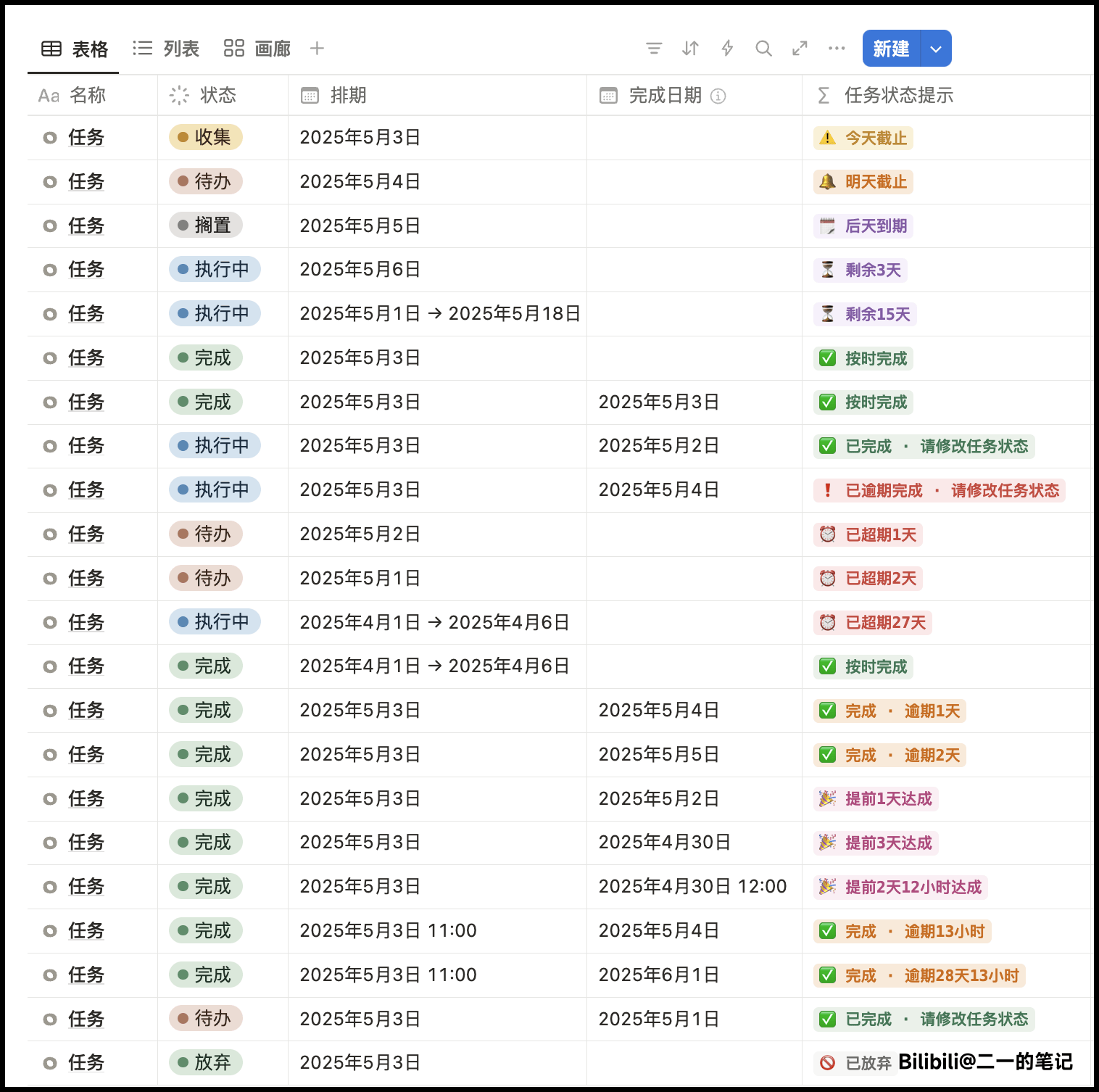
Task Status Usage Guide
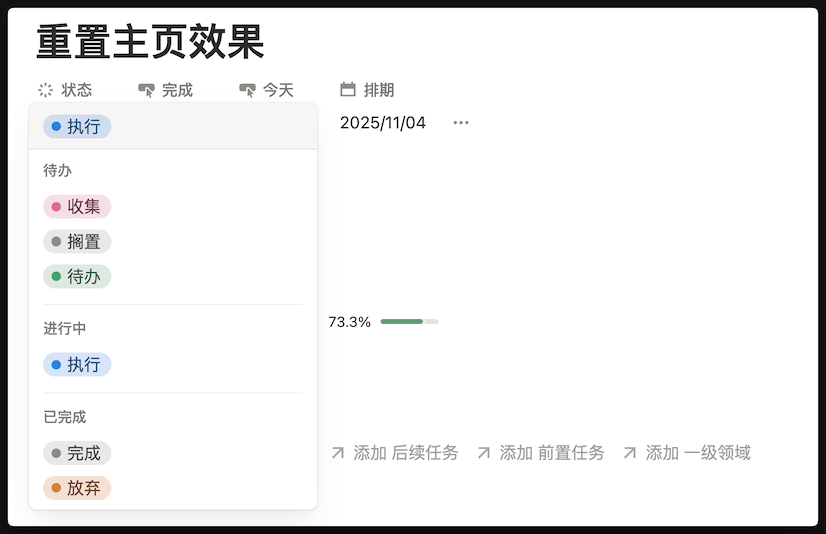
In the FLO.W system, task status is used to mark which life cycle stage a task is in. Understanding the meaning of each status helps you manage task flow more efficiently.
Practice Recommendations
Daily Usage Flow:
- Anytime record ideas in Collect
- Daily or weekly organize Collect, convert clear tasks to Todo
- Daily select tasks from Todo, change to In Progress when starting
- Mark as Completed after finishing, or if can't continue can On Hold or Abandon
Common Pitfalls:
- ❌ Mark all tasks as In Progress → leads to inability to focus
- ❌ Use Collect as a trash can → need periodic cleanup, otherwise loses meaning
- ❌ Afraid to use Abandoned → promptly abandoning worthless tasks is key to keeping system clean
Core Principle: The essence of status is to help you see the right tasks at the right time. Tasks with different statuses will appear in different views, keeping your workflow clear and efficient.
Last updated on
Note Properties Guide
Unlock the complete note fields in FLO.W Notion template—six note types, bidirectional linking, and parent-child hierarchy for a directed knowledge network.
Project Properties Guide
Master advanced project properties in FLO.W Notion template—dependency chains, related item tracking, keeping large projects organized.