 FLO.W Docs
Note Properties Guide
Unlock the complete note fields in FLO.W Notion template—six note types, bidirectional linking, and parent-child hierarchy for a directed knowledge network.
Note Types
Focusing on the essential purpose of notes, "questions" need answers, "processes" mean they can be reused—try to use limited tags to cover your daily note types, so you can quickly find where to store a note when it's created. Because everyone's daily note types are different, the "types" here are highly customizable, but we don't recommend setting too many note types, otherwise it will increase the burden of categorization.
In the FLO.W system, appropriate fuzziness is allowed, because besides "Note Type" serving as a categorization dimension for notes, there are more methods and perspectives to help you find the notes you need.
Current six preset note types
| Type | Description |
|---|---|
| Exp - Experience / Summary / Review | Used to record lessons learned from practice (Projects, Tasks, life experiences), in-depth research summaries on complex topics, or periodic personal/work review reflections. This type of note is key to knowledge internalization and refinement. |
| Log - Journal / Process / Experience | Used to record daily diaries, work logs, specific processes of project progress, important personal experiences or observational discoveries. |
| Ask - Confusion / Unknown / Problem | Used to record specific questions arising in learning, work, or life, problems needing further investigation, challenges or difficulties faced |
| How - Method / Process / Guide | Used to record specific operation methods, workflows, SOPs (Standard Operating Procedures), skill acquisition guides or tutorials |
| Idea - Thought / Inspiration / Viewpoint | Used to quickly capture any fleeting inspiration, initial ideas, unique personal viewpoints or innovative solutions |
| Ref - Resource / Excerpt / Tool | Used to store valuable external resource links, curated excerpts from articles/books, recommended tool lists, or other material fragments worth saving. |
Outgoing Links and Incoming Links
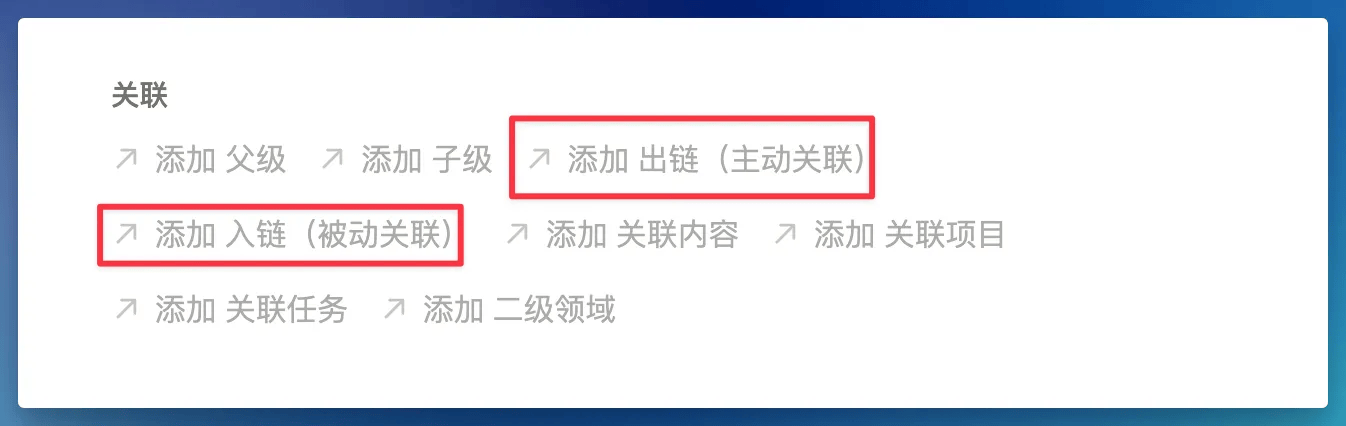
In the FLO.W system's note page, you can see the Outgoing Links and Incoming Links options in the Related module. Their usage is the same—both let you link notes with other notes.
- Outgoing links are active associations—it's me remembering which notes are related to this one
- Incoming links are passive associations—it's me being linked by which notes
This mechanism is to build a sense of direction between notes
What is a Sense of Direction
It refers to the ability to clearly perceive the contextual structure, causal relationships, or development paths of information starting from a certain note. That is, not just knowing which related notes exist, but also knowing which is the starting point, which is the extension, which is the summary, which is the supplement between them.
The Nature of Outgoing and Incoming Links
- Outgoing Links: Current note actively mentions or cites other notes. Means "I depend on it, I explain it, I extend viewpoints based on it."
- Incoming Links: Other notes mention or cite the current note. Means "who pays attention to it, for which topic is it the foundation or source."
How to Use Outgoing and Incoming Links
- View Outgoing Links → Get "what it cites," suitable for extended reading (such as progressive reading, concept breakdown)
- View Incoming Links → Get "who cites it," suitable for review and summary (such as finding upper-level structures, summary-type notes)
Parent and Child
Sibling Notes
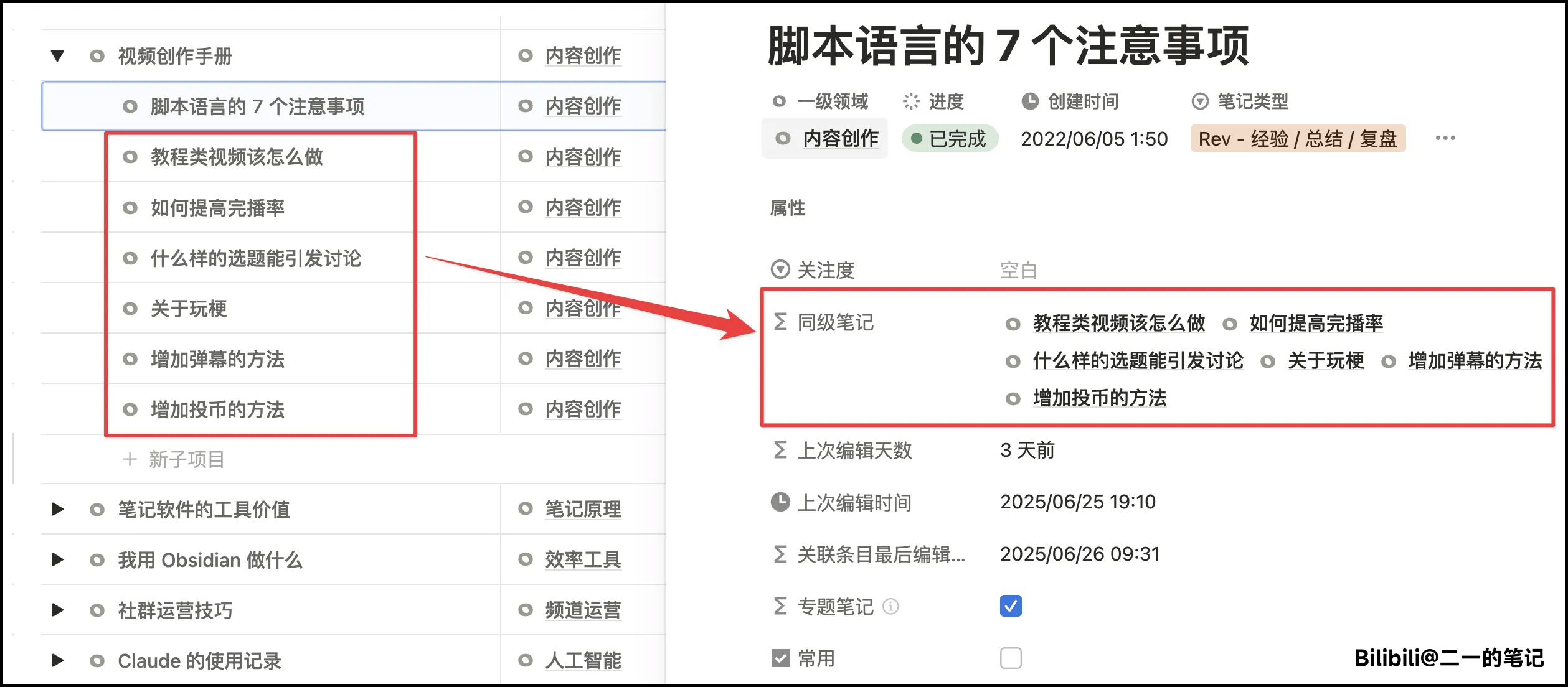
In the Note Management Database, with the "Sub-items" feature enabled, assuming the following note structure exists
- Parent note
- Child note A
- Child note B
- Child note C
- …
Then when you visit "Child note A," "Child notes B, C, D…." will be displayed in the "Sibling Notes" section
Topic Notes
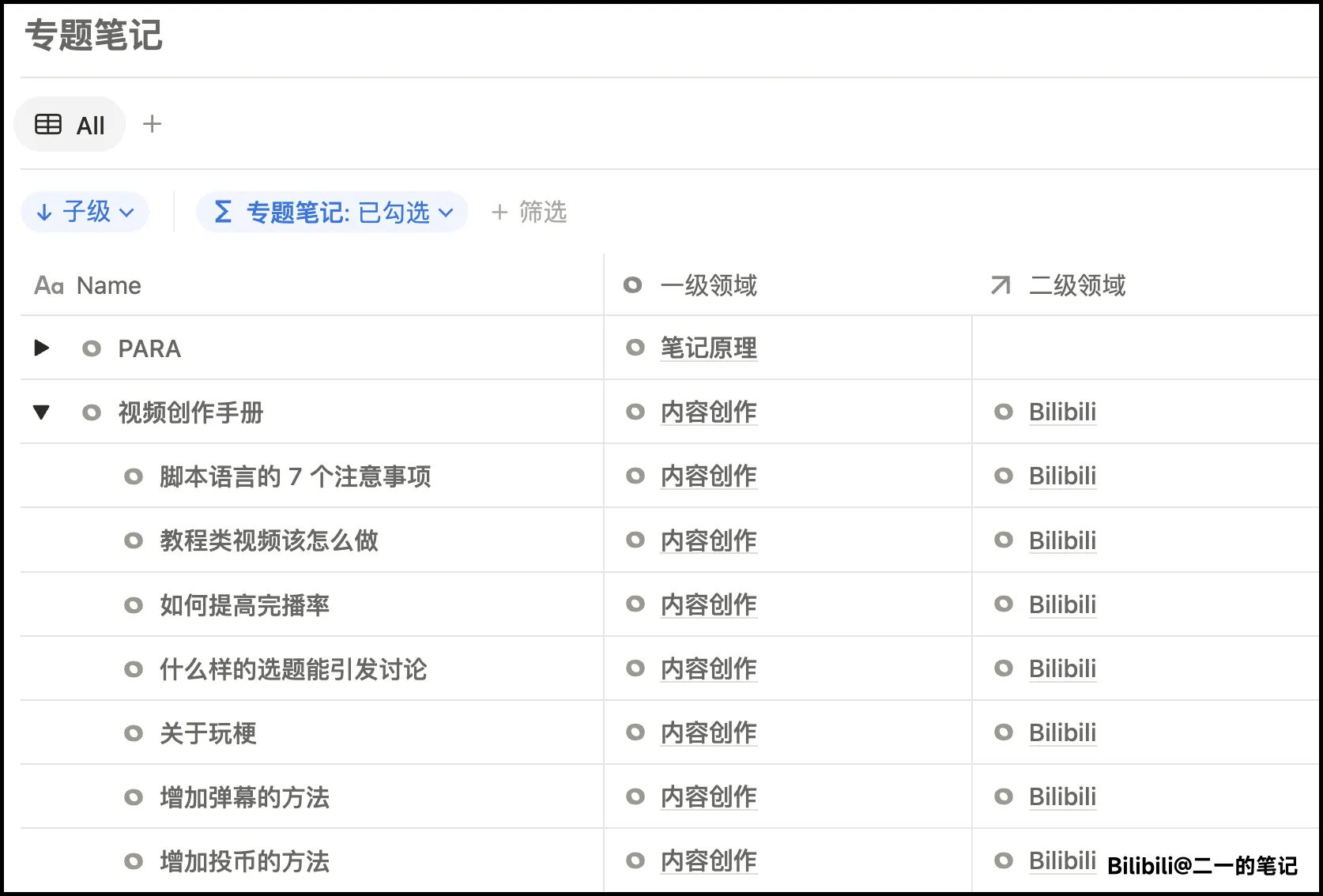
When a note has child notes, we can call it a topic note.
Topic Note Implementation Logic
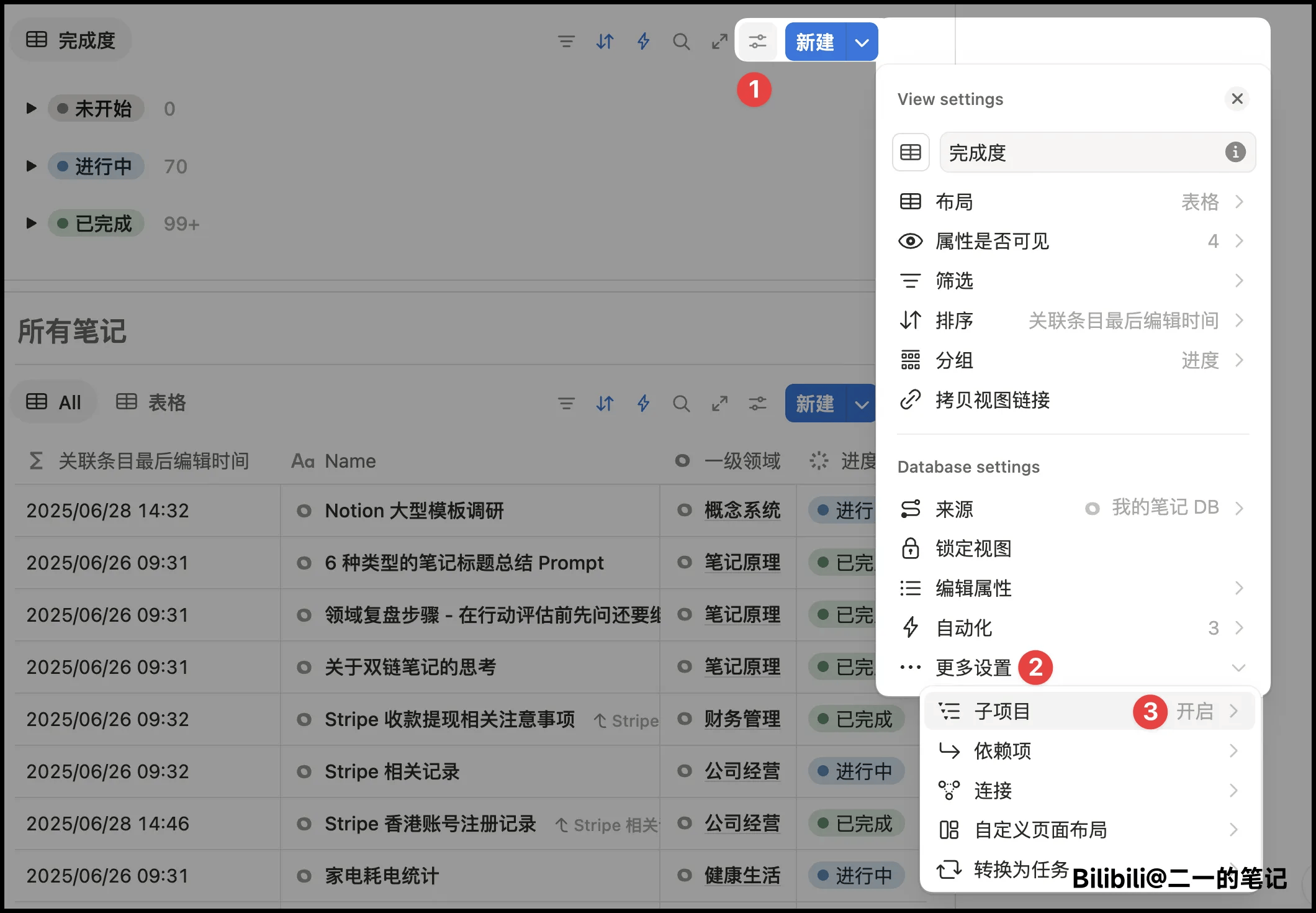
- Enable the "Sub-items" feature of the Note Database. If already enabled, ignore this. The location of the Sub-items feature may vary
-
Use a Formula to determine whether a note is a "topic note"
empty(prop("Sub-items")).not() or empty(prop("Parent")).not()If the result is true, the Formula will automatically check the box
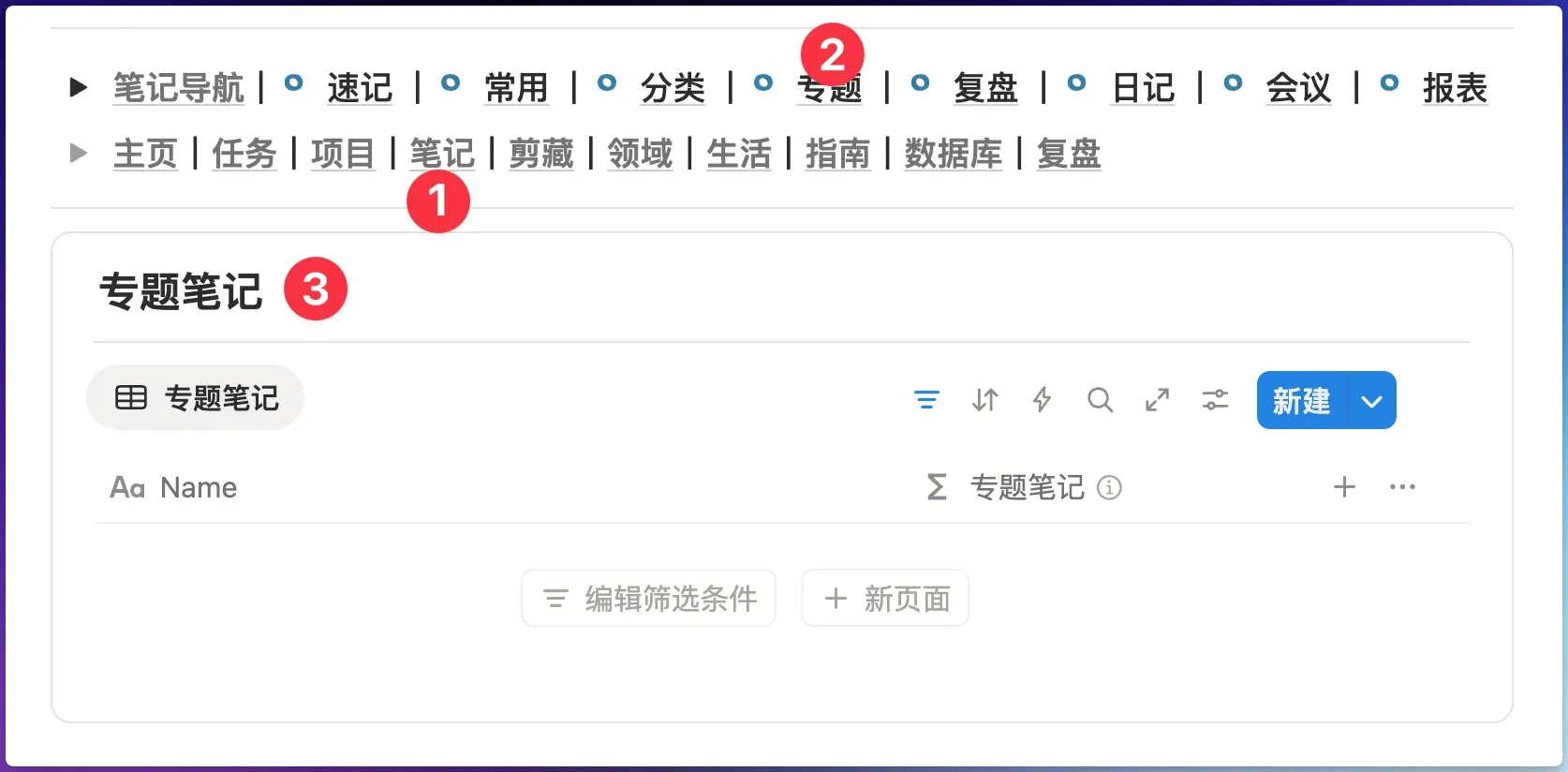
Then filter all results to this page
How to Add Child Notes
Please refer to: Parent and Child
Topic Note Application Example
Attention Level
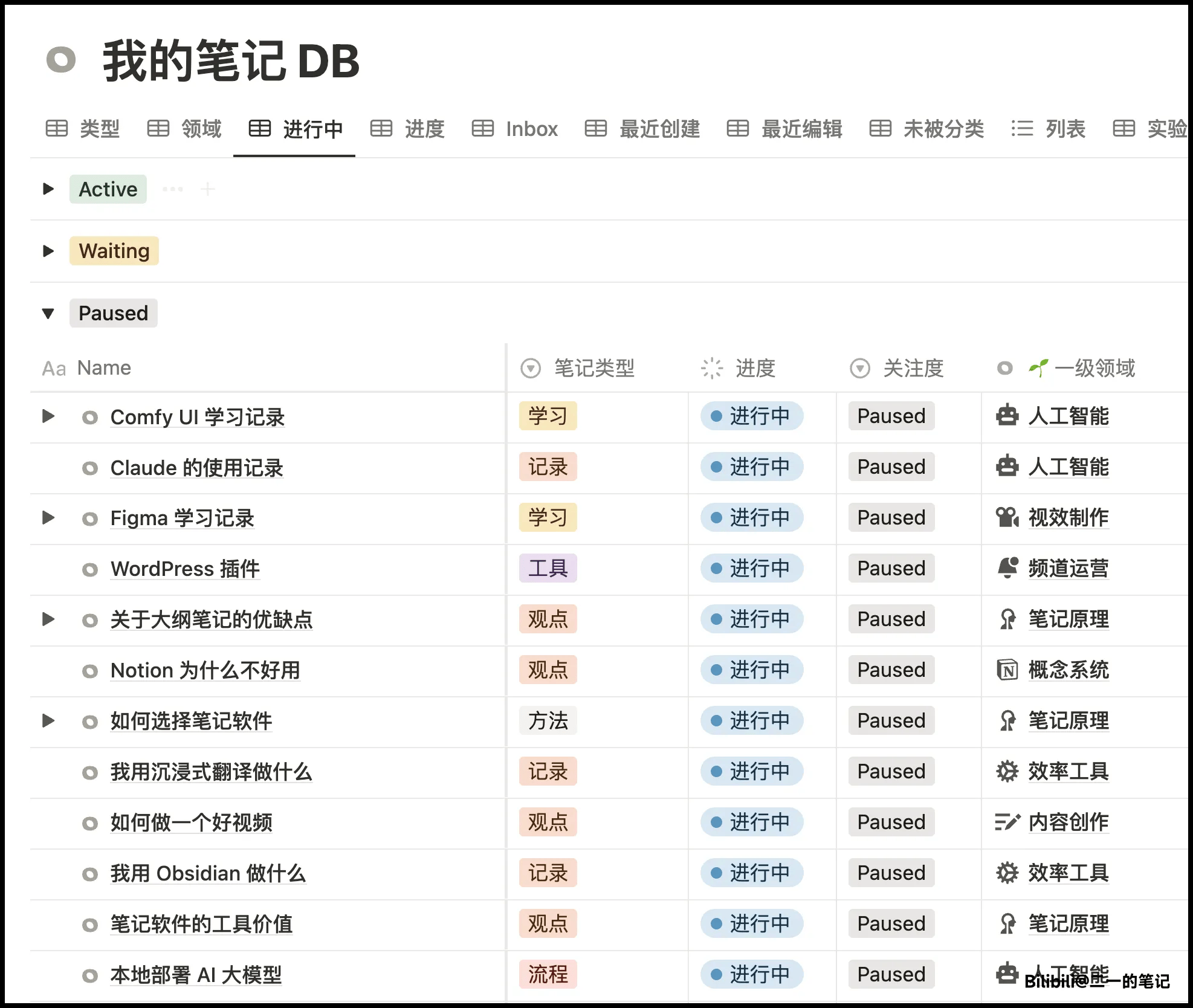
Use "Attention Level" to mark note content that needs attention "right now"
Only when a note's "Completion Status" is in "In Progress" do you need to allocate attention to it, but normally when there are enough notes, if there's only the "In Progress" category, it will be overloaded, so further focus is needed—use "Attention Level" to mark notes that currently need more attention
- Active:Note content being processed in the last few days
- Waiting:Blocked and temporarily on hold, waiting for more material to further improve and supplement
- Paused:Current note is half-done and not yet completed, completion is necessary but temporarily impossible and low priority, can be paused
Supplement
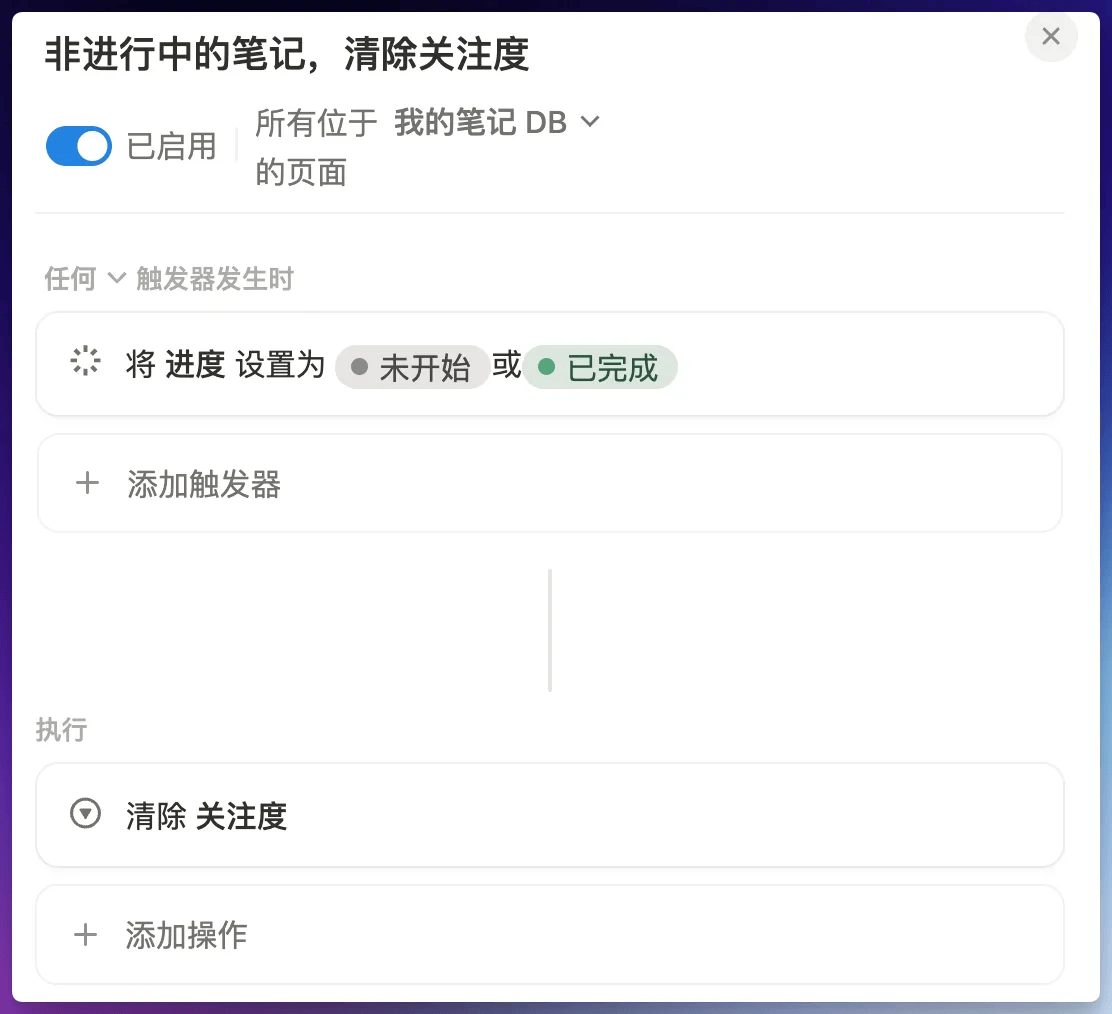
- If a note is not in "In Progress" status, there's no need to set "Attention Level"
- If you're a Notion paid user, you can set an Automation to automatically cancel "Attention Level"
Completion Status
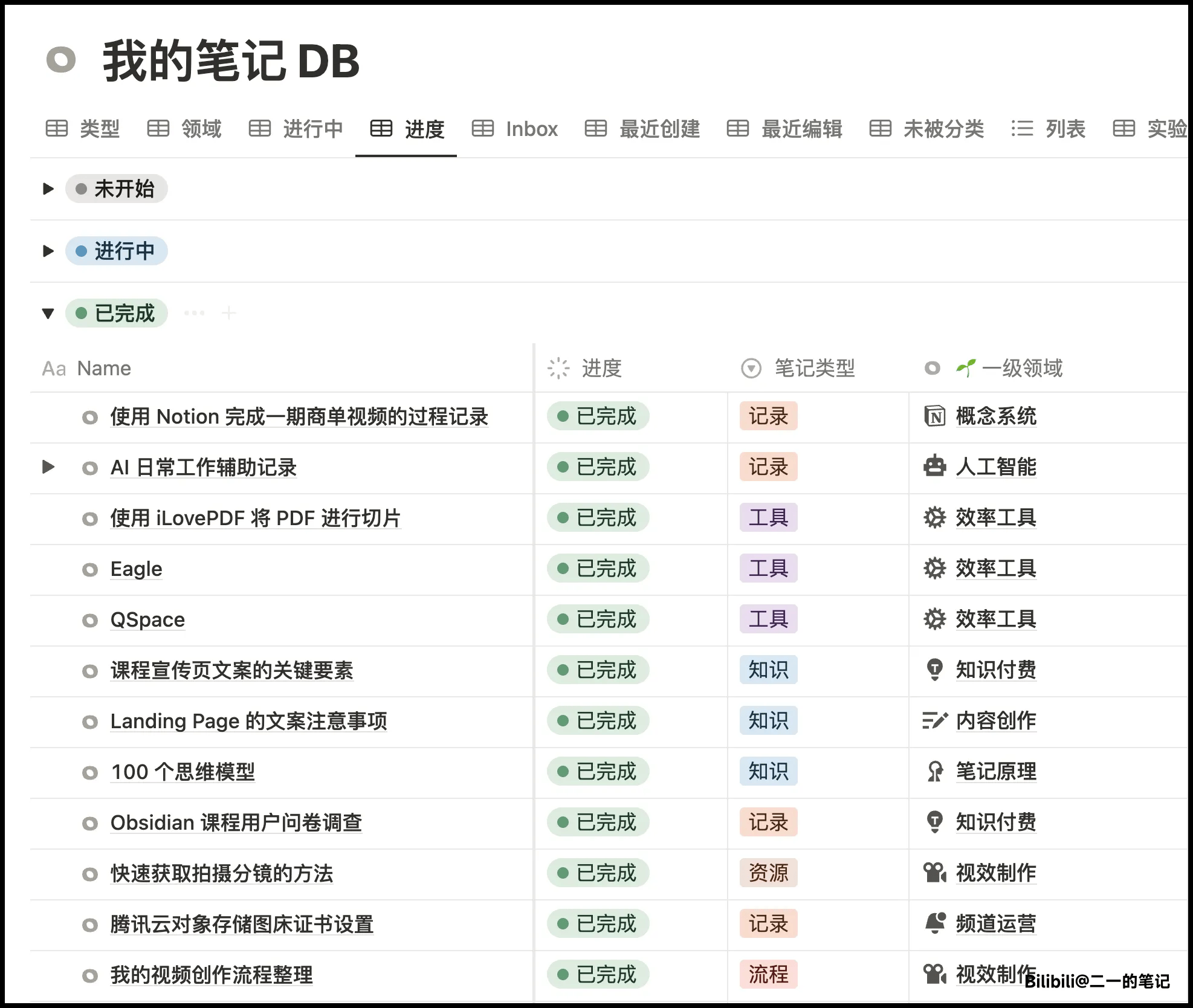
Every note has three life cycles: Not Started, In Progress, Completed, used to indicate my processing progress
- Not Started:Only note title or rough idea, record first to prevent loss
- In Progress:Currently being edited
- Completed:The content covered by the note title is finished
Supplement
- Don't overly pursue precise categorization
- Just follow your first instinct to set the note's Completion Status
Frequently Used
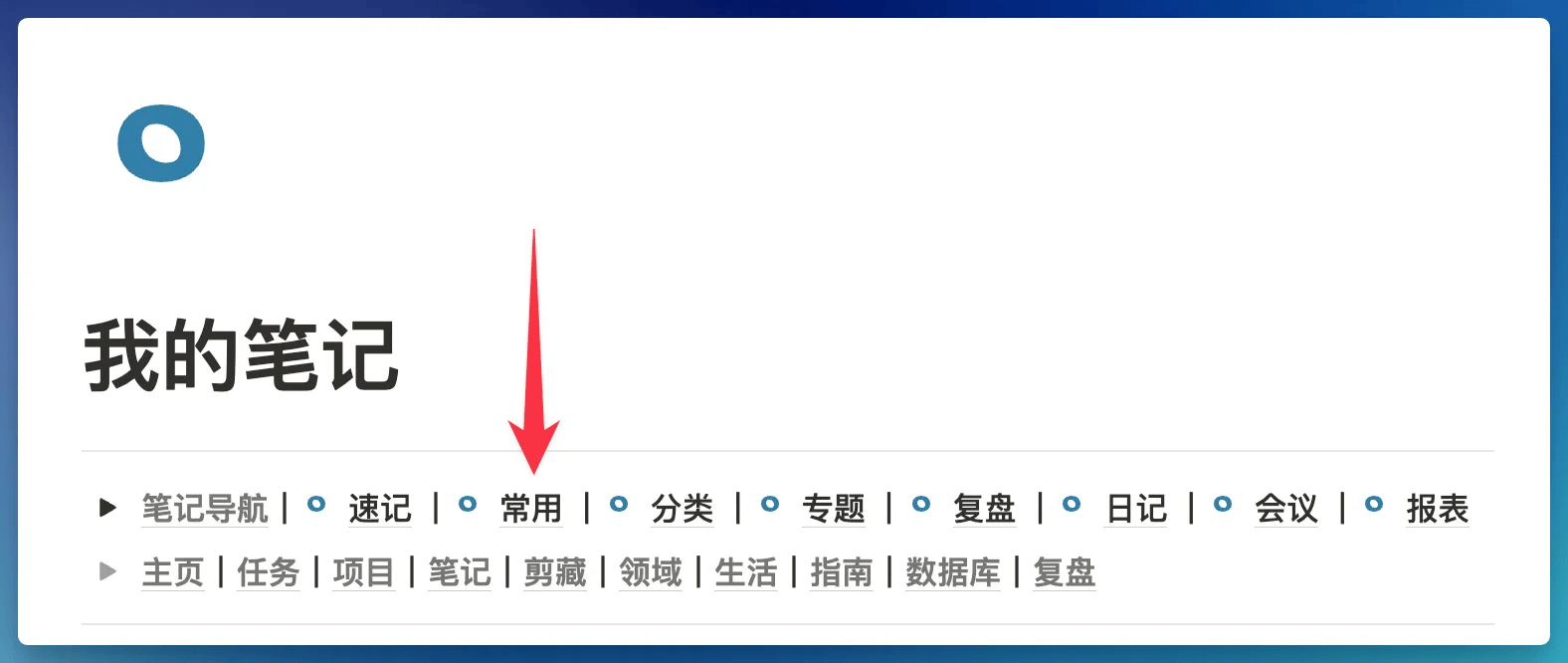
Filter for frequently used notes for quick access and quick recording. For example, commonly used Prompts, frequently referenced manuals, processes, guides, etc.
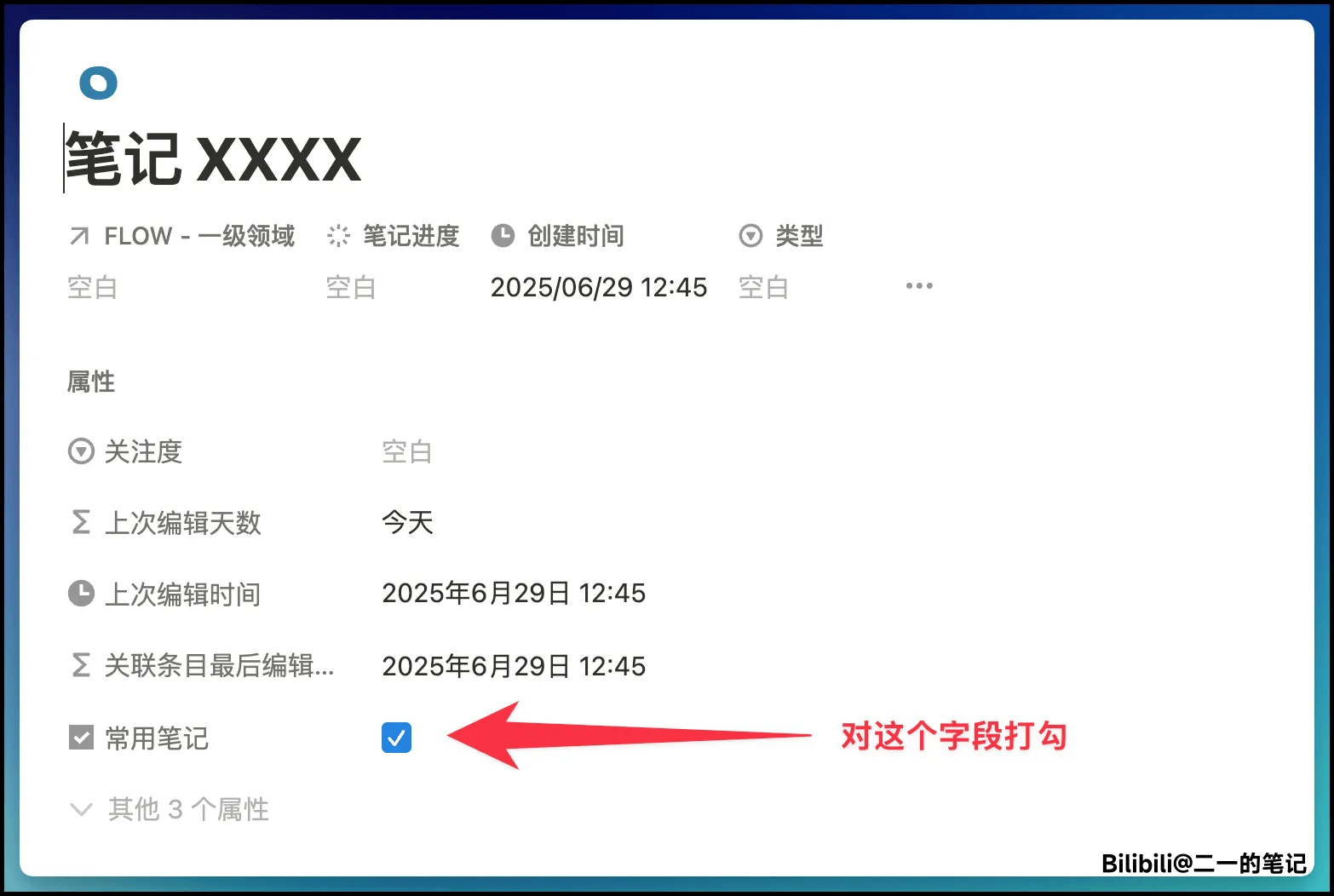 Subsequently, these notes will appear in the position shown below
Random Sort
Property Location
This Property currently exists in the following locations:
- Note Database
- Project Management - Content Creation - Topic Library
Property Explanation
- This is an auto-calculated Formula, no manual intervention needed
- Can automatically generate a string of random numbers based on the current page's Created Time
Property Usage
- Sort by the Random Sort Property (ascending or descending both work), and you can achieve random browsing of Database pages
Function Scenario
Randomly sort notes or topics, etc., to achieve random review of note content, helping you discover (stumble upon) forgotten old notes, rather than viewing by creation time or alphabetical order
Last updated on
Web Clipper
Set up the web clipper in the FLO.W Notion template: install Save to Notion, fix sync and property mapping issues, and collect web content efficiently.
Task Properties Guide
Complete task property guide for FLO.W Notion template—status workflow, smart reminders, and scheduling for an efficient execution system.