The Old Method and Its Problems
Previously, if you wanted to build spaced repetition tasks in a Notion database, the best approach was to use the database's "Recurring Template" to periodically generate tasks:
However, this approach had two problems:
- Even if the previous task wasn't completed, the next task would still be automatically generated
- Periodically generated tasks would clutter the database
But now that Notion's Automation and Buttons support function variables, we can finally build more efficient and smarter spaced repetition tasks.
Demo
- Customizable "interval days"
After clicking the "Check-in" button, the "Next check-in date" will be updated to the date after the specified interval days. For example, in the image below, the initial check-in dates are all December 14, with interval days of 1, 2, and 3 respectively. After clicking "Check-in", they become the 15th, 16th, and 17th:
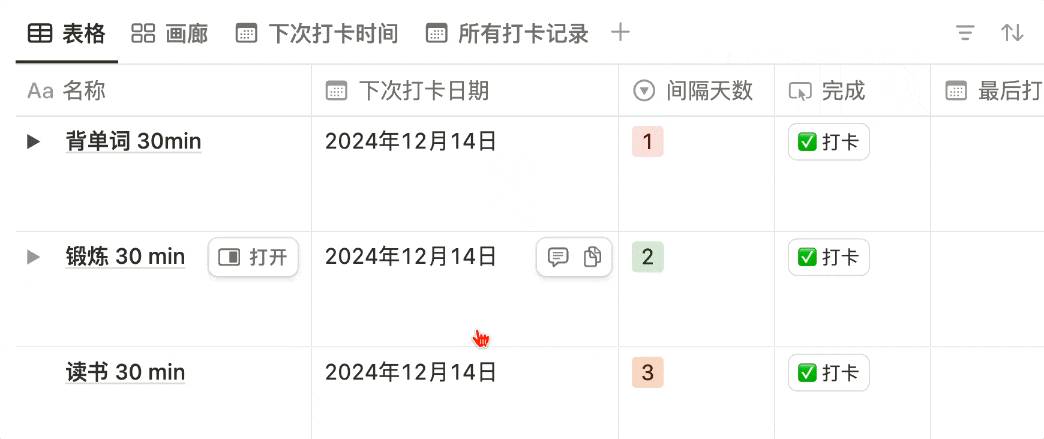
- After checking in, a check-in sub-item is automatically created
- You can track the total number of check-ins
In the "Gallery" view, it looks more like check-in cards
- Shows the next check-in date
Most importantly, since we directly modify the date of this check-in task, no extra check-in tasks are generated, preventing the calendar view from becoming bloated and messy.
- A separate calendar view displays all generated check-in sub-items, making it easy to review what you checked in on each date
Implementation
All the above actions are encapsulated in a single button. Let's break down this button step by step.
Define Variables
Variable 1
Since we need to generate a check-in record as a sub-item of the current check-in task, and we want the sub-item's title to match the parent item, I defined a variable that assigns the parent item's name to it.
Variable 2
Since we want to add the interval days to the "Next check-in date" after each check-in, we need to define another variable with the following value:
This involves two functions (for more on formula usage, refer to the Formula 2.0 deep dive):
- dateAdd
- toNumber
Variable 3
Since we want the total check-in count to increase by 1 each time the "Check-in" button is clicked, the simplest approach is to define an "add one on completion" variable as shown below:
Create Check-in Sub-item
-
Since we want the check-in sub-item's title to match the parent item, we need to set the sub-item's title to Variable 1.
-
Since we want the sub-item to be placed under the parent item, we need to set the sub-item's Relation to the current page (i.e., the parent item page that triggered the action).
-
Set the sub-item's check-in date to the action's trigger date.
Edit the Parent Item
-
Set the next check-in date to Variable 2
-
Set the completion count to Variable 3
With this setup, you can achieve the spaced repetition check-in effect described at the beginning of this article.
Spaced Repetition Template
- Template link: Click here
📘 FLO.W — Notion Personal Management System
FLO.W is a Notion-based personal management template that integrates tasks, notes, projects, habits, and more, complete with comprehensive tutorials.