This article demonstrates how to use iPhone Shortcuts with DeepSeek API to quickly record voice notes, transcribe voice into text, and save it to a specific Notion database.
Demo
First, activate the Shortcut on your iPhone, then speak the content you want to record.
This Shortcut automatically performs the following steps:
- Transcribes voice into text
- Sends the text to DeepSeek API for AI processing, adding proper punctuation based on context
- Saves the processed text to a Notion database
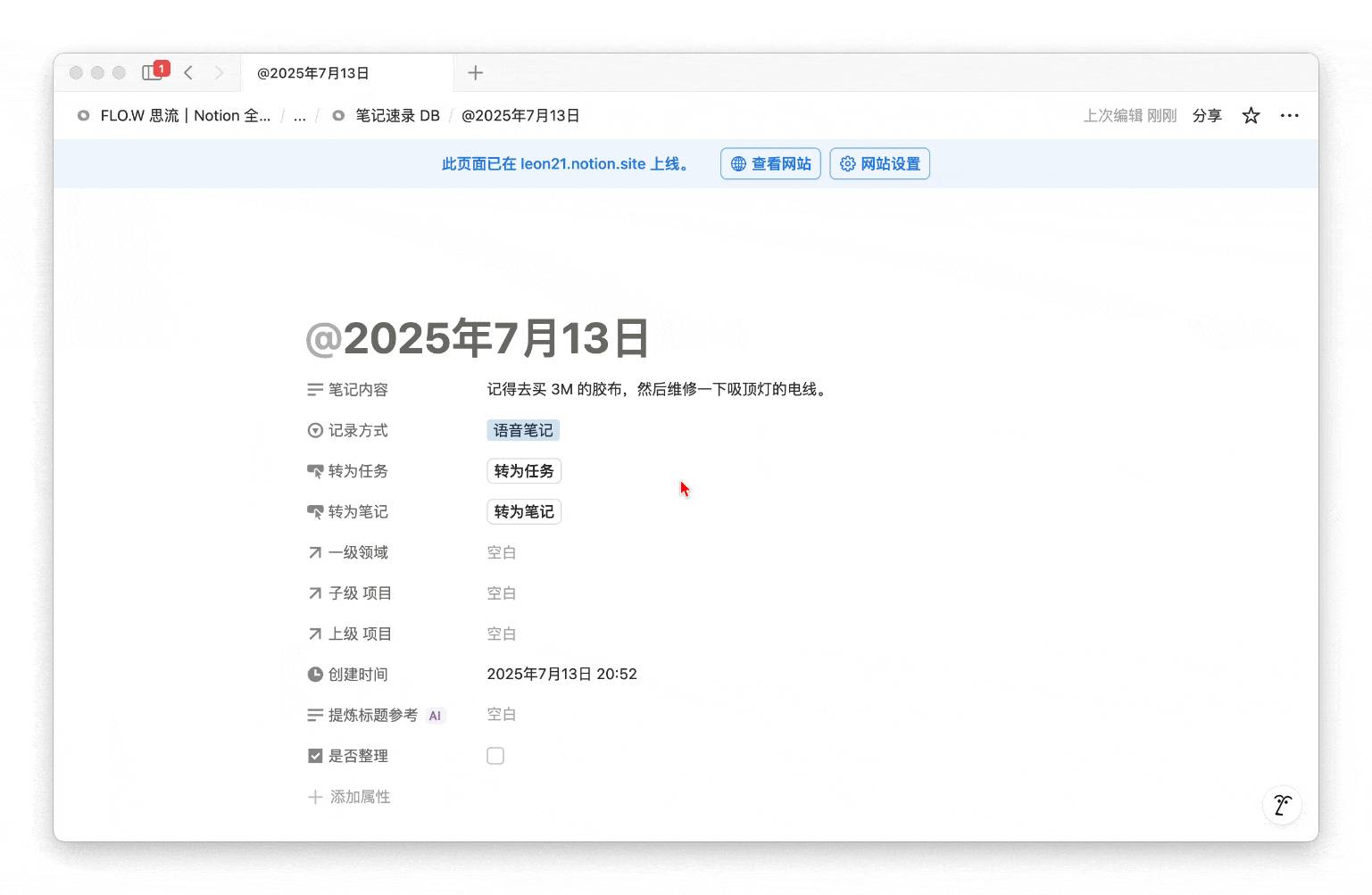
Here's what the voice note looks like:
Now let's take it a step further.
Since we've already saved the voice as text in a Notion database, we can leverage the powerful features of databases. Using database buttons, we can convert the current voice note into a formal note with one click, or quickly turn it into a task. If you want to learn more about database automation techniques, check out building spaced repetition tasks with automation.
I can create a "Convert to Task" button with the following logic:
Clicking this button executes the following workflow:
- Creates a new page in your task database
- Stores the transcribed text from Shortcuts into the task's notes field
- Opens the newly created task page
Here's an animated demo:
Now that we've covered the results and logic, let me show you how to set up your own Shortcut.
Setup Tutorial
Step 1: Get Your Notion Database ID
- Copy this database to your Notion workspace. This database will be used to store voice notes.
- Open this database as a full page.
- Use the keyboard shortcut Ctrl+L (or CMD+L) to get the database link.
- The link format typically looks like this: https://www.notion.so/yourworkspace/`xxxxxxxxxxxxxxxxxxxxxxxxxxxxxxxx`?v=...
- Copy the string of characters
xxxxxxxxxxxxxxxxxxxxxxxxxxxxxxxxbefore the question mark — this is the database ID. - Save this database ID — you'll need it later.
Step 2: Create a Notion Integration Secret
- Visit Notion Integration and log in to your Notion account.
- Create a new integration. Give it a custom name, associate it with your Notion workspace, then click the Save button in the bottom right corner.
- Click "Configure integration settings" to get the "Internal Integration Secret".
Click the Show button to copy the secret. Make sure to save this secret — you'll need it later.
- Connect this integration to the database you saved earlier.
In the previous step, you copied a database I provided. Now you need to go to that database (make sure to open it as a full page, i.e., Full-page mode), then click the three dots in the top right corner of the page and follow the steps shown below:
In this step, you need to connect the integration you created to this database.
Step 3: Get a SiliconFlow API Key
In this step, you should obtain the following two things:
- A SiliconFlow API key, formatted like: sk-ddguwXXXXXXXXX
- The model name you want to use, formatted like: deepseek-ai/DeepSeek-V3
- The model name in step 2 is flexible — it doesn't have to be DeepSeek.
Save these two items — you'll need them in the following steps.
Step 4: Get and Configure Your iPhone Shortcut
- Get the pre-built iPhone Shortcut template.
Shortcut link: https://www.icloud.com/shortcuts/315948d2f5e644e8b5a14242d63b95a7
If you have any questions, please contact: eryidebiji@gmail.com
- Follow the instructions in the Shortcut and modify the four parameters shown below:
All 4 parameters shown in the image were prepared in the previous steps — simply fill them in one by one. Note that you need to delete my placeholder notes first, then enter your own information in the fields.
If everything is filled in correctly, you can now activate the Shortcut and start recording notes with your voice. If you also want to pair it with the Notion web clipper for collecting web content, you can build an even more complete information gathering workflow.
Latest Update: Notion officially launched mobile voice input in 2026 for direct speech-to-text in the app. The Shortcuts approach in this article still has unique advantages — AI processing and custom database targeting.
📘 FLO.W — Notion Personal Management System
FLO.W is a Notion-based personal management template that integrates tasks, notes, projects, habits, and more, complete with comprehensive tutorials.