 MkSaaS Docs
Content Creation
Using FLO.W Template for content creation workflow, from inspiration management to content publishing complete process
Content creation is the process of transforming ideas into valuable content. In the FLO.W Template, you can start from inspiration capture, go through content planning, material organization, draft writing, and finally complete content publishing, forming a complete creation workflow.
Method 1: Use Notes Module to Record Inspiration
Use Case: Creative ideas that pop up in daily life need to be recorded quickly to avoid forgetting.
💡 Related Features: Learn more about using the Notes module
📝 - Learn how to use the Notes module to record inspiration, write diaries, conduct periodic reviews, etc.
Create a new Note in the Notes Database
Select type "Idea - Thought/Inspiration"
Just write down the core idea, no need to complete the full text
Link to "Content Creation" through the "Area" Property for easy filtering later
After accumulating a certain number, filter by Area in the Notes module, review inspirations in batch, and pick topics worth deep diving
Method 2: Use Clipper Module to Record Inspiration
Use Case: Seeing a good article or an interesting video and wanting to save it as creative material or reference.
💡 Related Features: Learn more about using the Clipper module
🔗 - Learn how to use the Clipper module to save articles, videos, and other materials
Create a new entry in Clipper/Information Hub
Set reading status to distinguish between "To Read" and "Read"
When creating, search for relevant materials in the Clipper library to quickly find inspiration sources
Method 3: Use Topic Module for Creation Management
Use Case: Have a clear creative direction, need to plan topics and track progress.
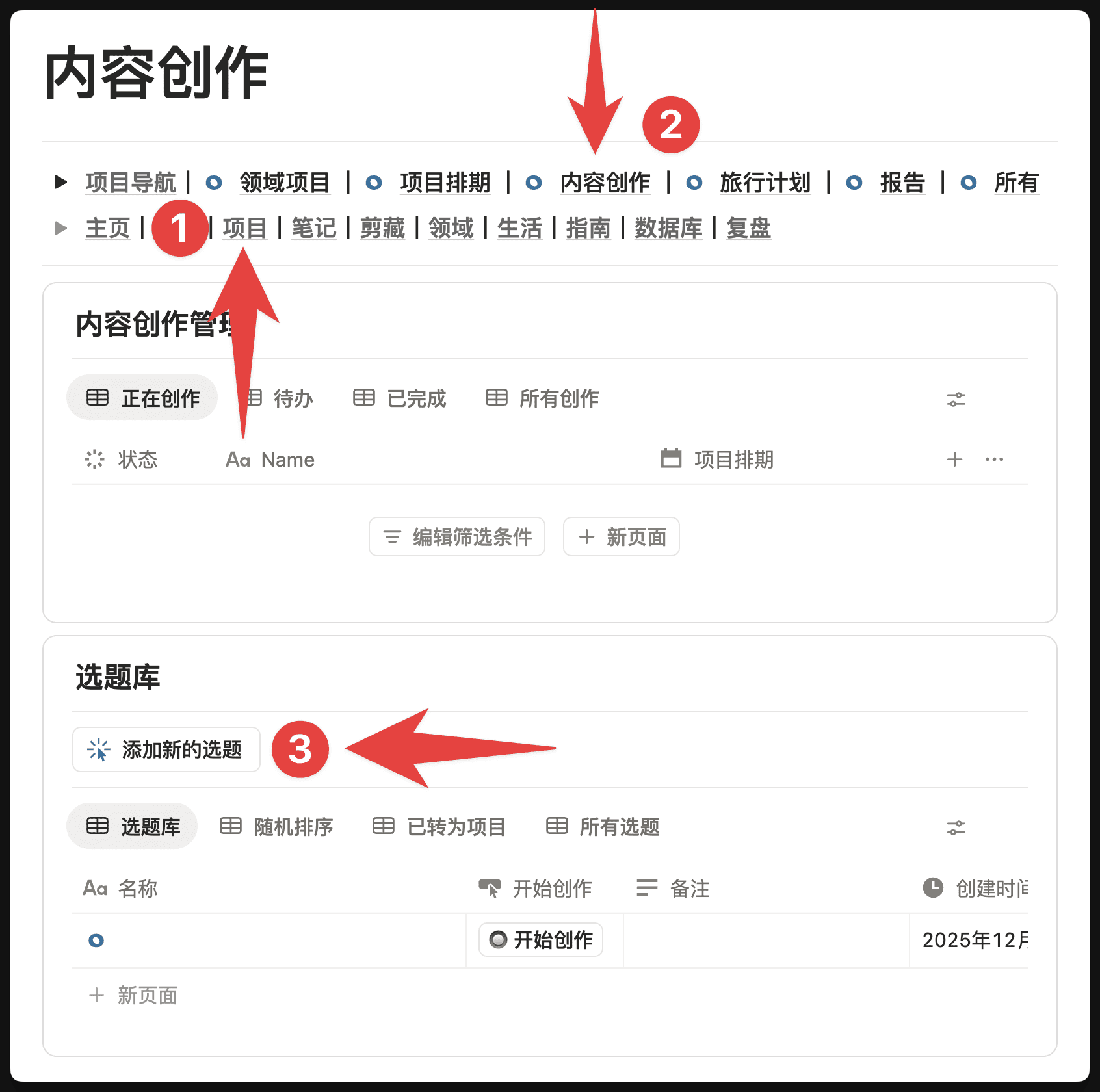
Find the [Topic] Module
Follow the path shown below to find [Project - Content Creation - Topic Library]
Then click the [Add New Topic] button to immediately add a topic
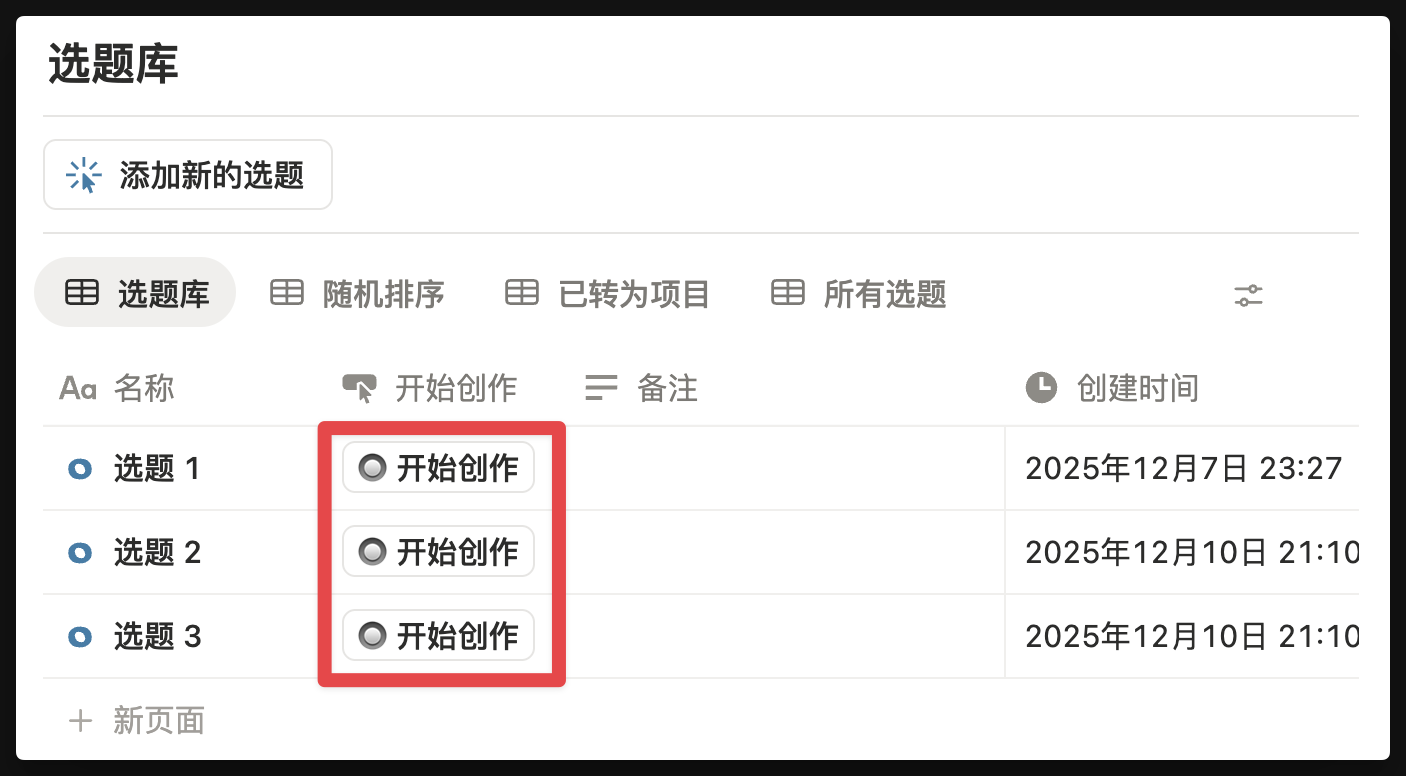
Click the [Start Creating] Button
When you decide to start creating a topic, you can click the [Start Creating] button for that topic, and a [Project Page] will be automatically created. This means that in the FLO.W framework, each creation can be treated as launching a new Project
Select Creation Type
In this topic page, you will see two default buttons: [Bilibili Video] and [Article Creation]. You can click the corresponding button as needed
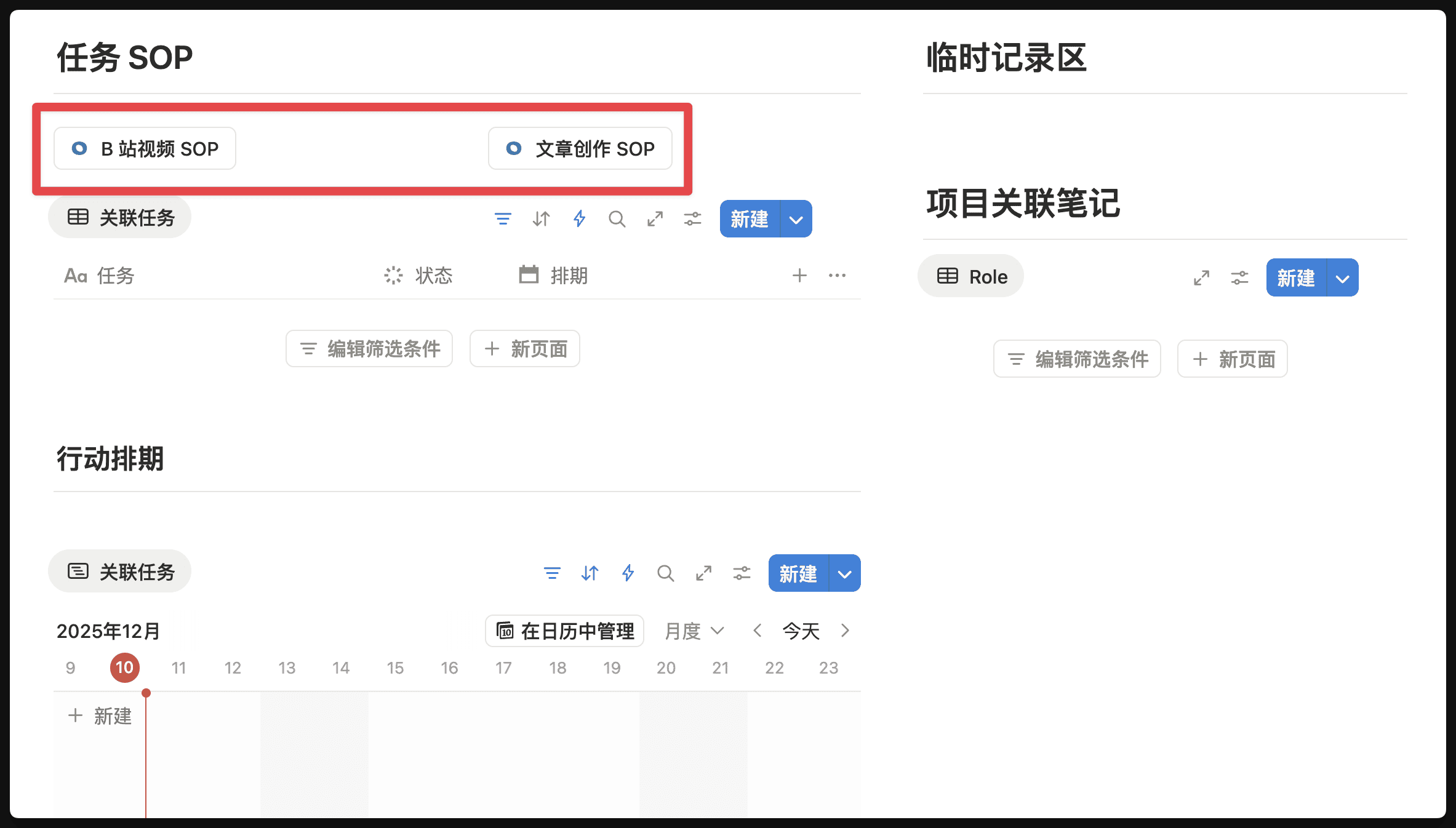
Video Creation Management
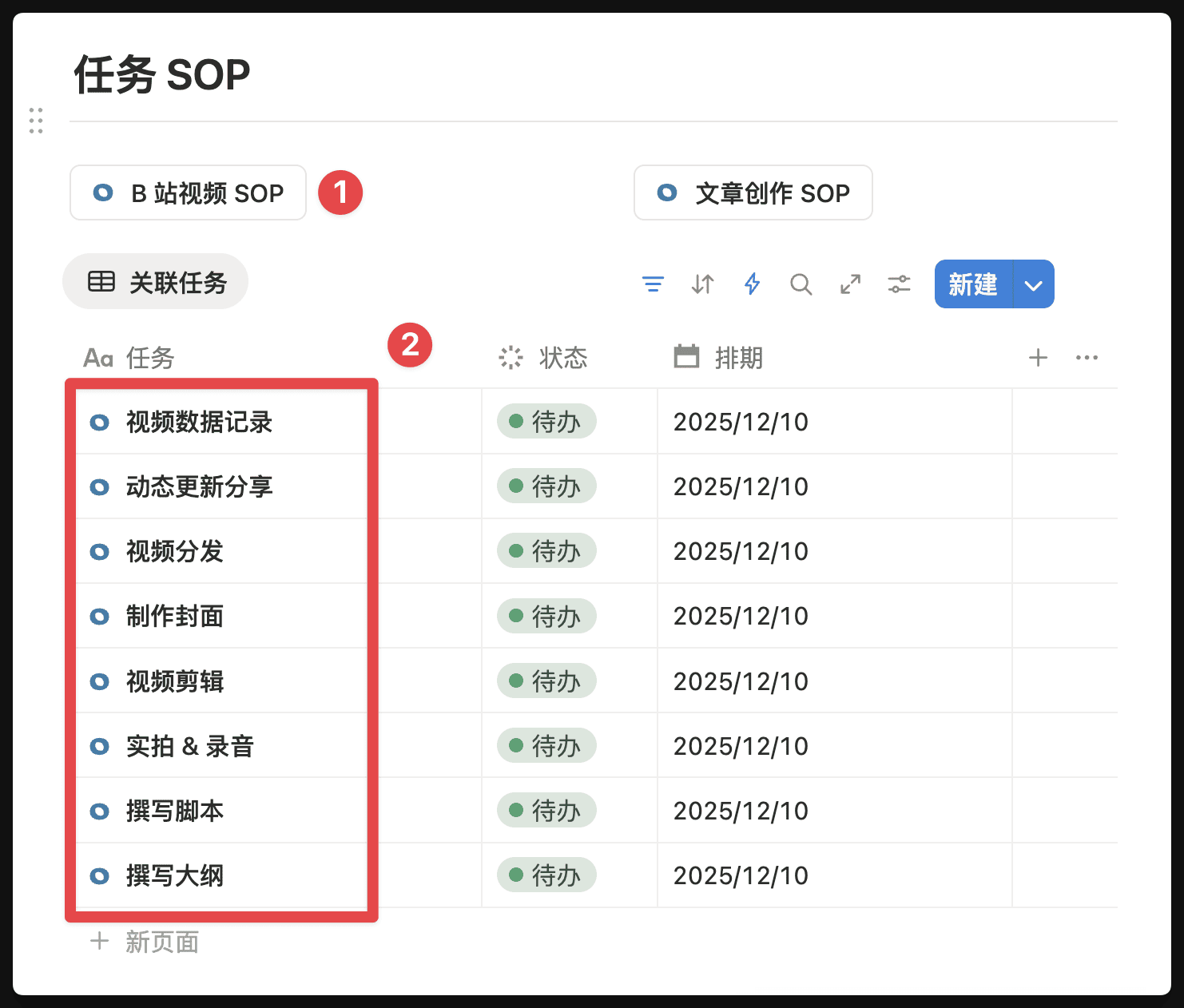
If you click the [Bilibili Video] button, Tasks will be automatically created as shown below. Then you can manage your creation progress by managing [Tasks]