# Task Properties Guide (https://21notion.com/en/docs/properties/task)
import { Accordion, Accordions } from 'fumadocs-ui/components/accordion';
This document will provide a detailed explanation of each Property in the FLO.W Template's Task Database, helping you better understand and use the task management features.
## Task Types: Schedule vs Todo
| **Feature** | **📅 Schedule (Appointment)** | **✅ Todo (Assignment)** |
| ------------------- | ----------------------------------------------------- | ---------------------------------------------- |
| Time Characteristic | Fixed time point (3 PM meeting) | Deadline (complete by Friday) |
| Flexibility | Not adjustable (meeting room booked) | Self-arrangeable (based on status) |
| Common Scenarios | Meetings, flights, weddings, birthdays | Writing reports, shopping, picking up packages |
| Notes | Must arrive on time, ensure time slot isn't disturbed | Time flexible, pay attention to deadline |
## Schedule Date vs Completion Date
Many people confuse these two properties. The key difference is:
* **Schedule Date** = when you **plan** to do it (expectation)
* **Completion Date** = when you **actually** finished it (result)
For example: you plan to write an article from Monday to Friday, so **Schedule Date** is Mon \~ Fri. You finish it on Wednesday, so **Completion Date** is Wednesday.
## Next Action
Set an immediately executable action for the current task, so that next time you see the current task, you can execute it without any thinking, then rely on inertia to further break down and complete this task
## Sibling Tasks
**Sibling Tasks** is a formula property that automatically lists **other tasks under the same project**, helping you quickly see the progress of related work.
**Display rules:**
* Finds all tasks under the same project via the **Project Relation**, excluding the current task
* Sorted by creation date (newest first), up to 20 entries
* Each task shows: task name + creation date (blue) + current status (color-coded)
* Green: Completed
* Blue: In Progress
* Red: Todo / On Hold / Collect / Abandoned
**Use case:** When working on a task within a project, you can see the status of other tasks in the same project without switching to the project page.
> This is an [Advanced Edition update](/docs/faq/support#upgrade-pricing) exclusive feature.
## Task Reminders
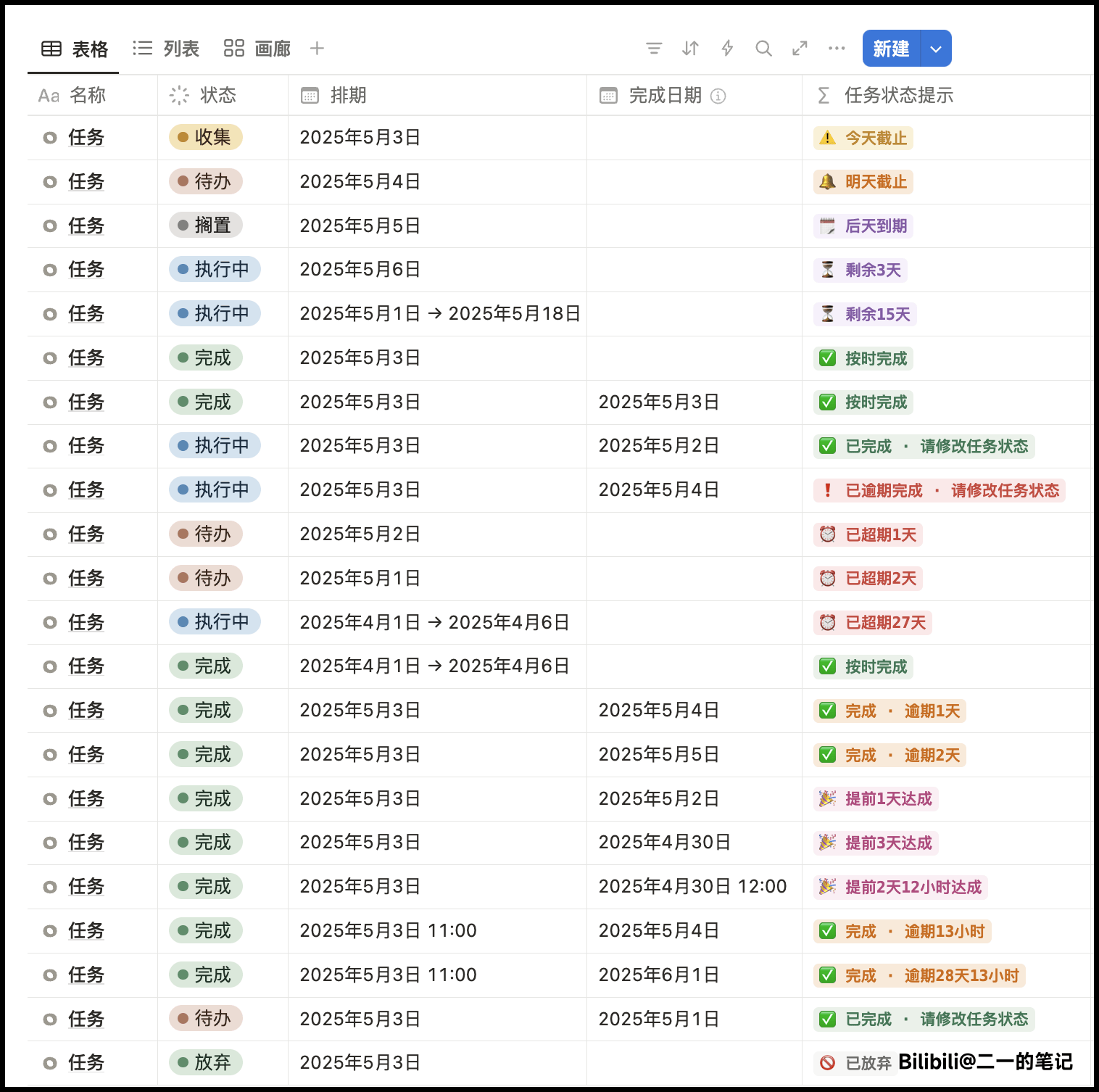
**Reason:** You've filled in **Completion Date**, but **Status** is not yet **Completed** or **Abandoned**.
* If the task is actually complete: Change **Status** to **Completed**.
* If the task was abandoned: Change **Status** to **Abandoned**. You can keep the Completion Date as a record.
* If the Completion Date was filled by mistake: Clear the **Completion Date**.
This means the task has passed its deadline but is not yet completed.
* **Overdue N days**: The due date has passed by N days (calculated by day).
* **Overtime X hours Y minutes**: A specific time was set in the schedule, and that time has passed today (calculated by hours/minutes).
* Solution: Complete the task, change **Status** to **Completed**, and fill in **Completion Date**.
**Reason:** The **Status** field is empty, but **Completion Date** has been filled in, so the system infers the task is complete.
* Solution: Change **Status** to **Completed**, and the prompt will switch to normal completion info.
* No **specific time** is set in the schedule. When the schedule only has dates (all-day events), the system only prompts by **day**.
* Solution: Add a specific time to the due date in **Schedule Date** (e.g., 17:00), and it will show hour/minute-level prompts.
* "Completed on Time" requires the completion time and deadline to be exactly the same, which rarely happens in practice.
* Seeing "Early" or "Overdue" completion prompts is perfectly normal.
* **Pending Schedule**: The task has no schedule set, and status is Collect/On Hold/Todo.
* **In Progress (no schedule)**: Status is already **In Progress**, but no schedule has been set.
* Solution: Set at least a due date. If not arranging for now, you can put it **On Hold**.
* **Completion Date** is empty or inconsistent with the actual time.
* Solution: Fill in the actual completion time in **Completion Date**. Once status is **Completed**, the corresponding completion info will display.
* When the schedule's start or due date is tomorrow, the system prioritizes showing a "Starts Tomorrow / Due Tomorrow" reminder.
* If you want a more precise countdown, set a specific time in the schedule.
1. **Is status correct?** Select **Completed** if done, **Abandoned** if dropped.
2. **Is schedule empty?** If empty, it will show **Pending Schedule**.
3. **Need precise time?** Add a specific time to the schedule; all-day events default to day-level prompts.
4. **Completion Date**: Fill in promptly after completion; correct promptly if filled by mistake.
* In Notion, if only a date is set without a specific time, the time defaults to 00:00.
* When calculating time differences, the system uses 00:00, which may differ from your intuition.
## Task Status Usage Guide
In the FLO.W system, task status is used to mark which life cycle stage a task is in. Understanding the meaning of each status helps you manage task flow more efficiently.
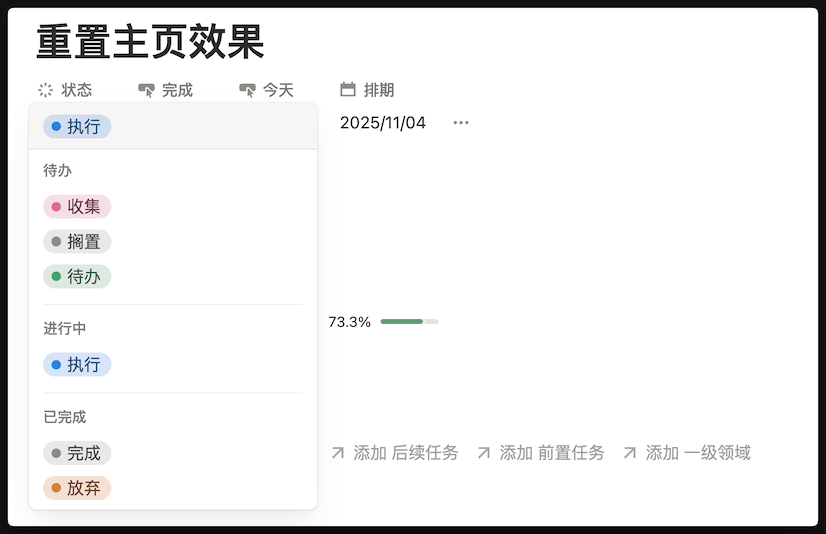
🟣 **Collect**: Ideas not yet clarified or items to be organized
When an idea suddenly pops into your mind, but what exactly to do or whether to do it isn't certain yet, record it in the **Collect** status.
**Next Action**: Periodically review tasks in **Collect**, decide whether to convert to **Todo**, or directly delete/abandon.
***
🟢 **Todo**: Clear and confirmed tasks to do
When a task already has clarity on "what it is," "why do it," "how to do it," just hasn't reached the execution time point yet, mark as **Todo**.
**Next Action**: When ready to start executing, change status to **In Progress**.
***
🟤 **On Hold**: Not doing for now, but may restart in the future
When a task cannot continue progressing for some reason, but you don't want to completely abandon it, mark as **On Hold**.
**Difference from "Abandoned"**: On Hold is "pause," Abandoned is "terminate." Tasks on hold remain in the system, and you can periodically review whether to reactivate.
🔵 **In Progress**: Task currently in progress
As long as you've started working on this, or are starting it today, mark as **In Progress**. This is your current work focus.
**Recommendation**: Don't have too many tasks in **In Progress** status simultaneously—suggest controlling within 3-5 to maintain focus.
**Next Action**: After completion, change status to **Completed**; if temporarily can't continue, can change back to **Todo** or **On Hold**.
⚫ **Completed**: Tasks already finished
After a task achieves its goal, mark as **Completed**. This is the normal ending of a task.
**System Behavior**: Completed tasks will automatically archive, and you can view statistics of completed tasks in review reports.
***
🟠 **Abandoned**: Tasks confirmed no longer to be executed
When you clearly decide not to do a task, mark as **Abandoned**.
**Difference from "On Hold"**: Abandonment is a definite ending, meaning this task won't appear in your workflow again.
### Practice Recommendations
**Daily Usage Flow**:
1. Anytime record ideas in **Collect**
2. Daily or weekly organize **Collect**, convert clear tasks to **Todo**
3. Daily select tasks from **Todo**, change to **In Progress** when starting
4. Mark as **Completed** after finishing, or if can't continue can **On Hold** or **Abandon**
**Common Pitfalls**:
* ❌ Mark all tasks as **In Progress** → leads to inability to focus
* ❌ Use **Collect** as a trash can → need periodic cleanup, otherwise loses meaning
* ❌ Afraid to use **Abandoned** → promptly abandoning worthless tasks is key to keeping system clean
**Core Principle**: The essence of status is to help you **see the right tasks at the right time**. Tasks with different statuses will appear in different views, keeping your workflow clear and efficient.