# Project Properties Guide (https://21notion.com/en/docs/properties/project)
## Prerequisites and Dependencies
### Property Explanation
The current FLO.W system has a basic framework with "Area" as the top-level design. Specifically, you can see this article in the [Template Manual](/docs): [Understanding Areas](/docs/basic-feature/area).
* Area
* sub-Area
* Project A
* Project B
* Task 1
* Task 2
Under this framework design, all projects are parallel to each other, unless they're all linked to the same **sub-Area**
For example:
* sub-Area - Python Data Analysis
* Project A
* Project B
But this way, some special situations may arise.
### Possible Scenarios
import { Accordion, Accordions } from 'fumadocs-ui/components/accordion';
Sometimes, the granularity of a "Project" is too large, making it impossible for us to start taking action. For example, you want to create a project called "Learn Notion Course," but this goal is too massive and vague. You might want to break it down into smaller, manageable units, such as:
* Learn Notion Course (parent project)
* Learn Chapter 1: Basics (sub-project)
* Learn Chapter 2: Database Deep Dive (sub-project)
* Learn Chapter 3: Advanced Formulas (sub-project)
Here, you might feel that "Learn Chapter 1" is complex enough that it needs to link to its own Tasks and Notes, so it can't just be a simple Task—it should be a "sub-project."
Some projects have strict sequential relationships—you must complete one before starting the next.
For example:
1. You must first complete the project "Complete APP UI Design."
2. Then you can start the project "Start APP Frontend Development."
In the current parallel structure, we can't clearly express this dependency where "A is B's prerequisite."
To address both needs above, you can use the project's Prerequisites and Dependencies feature
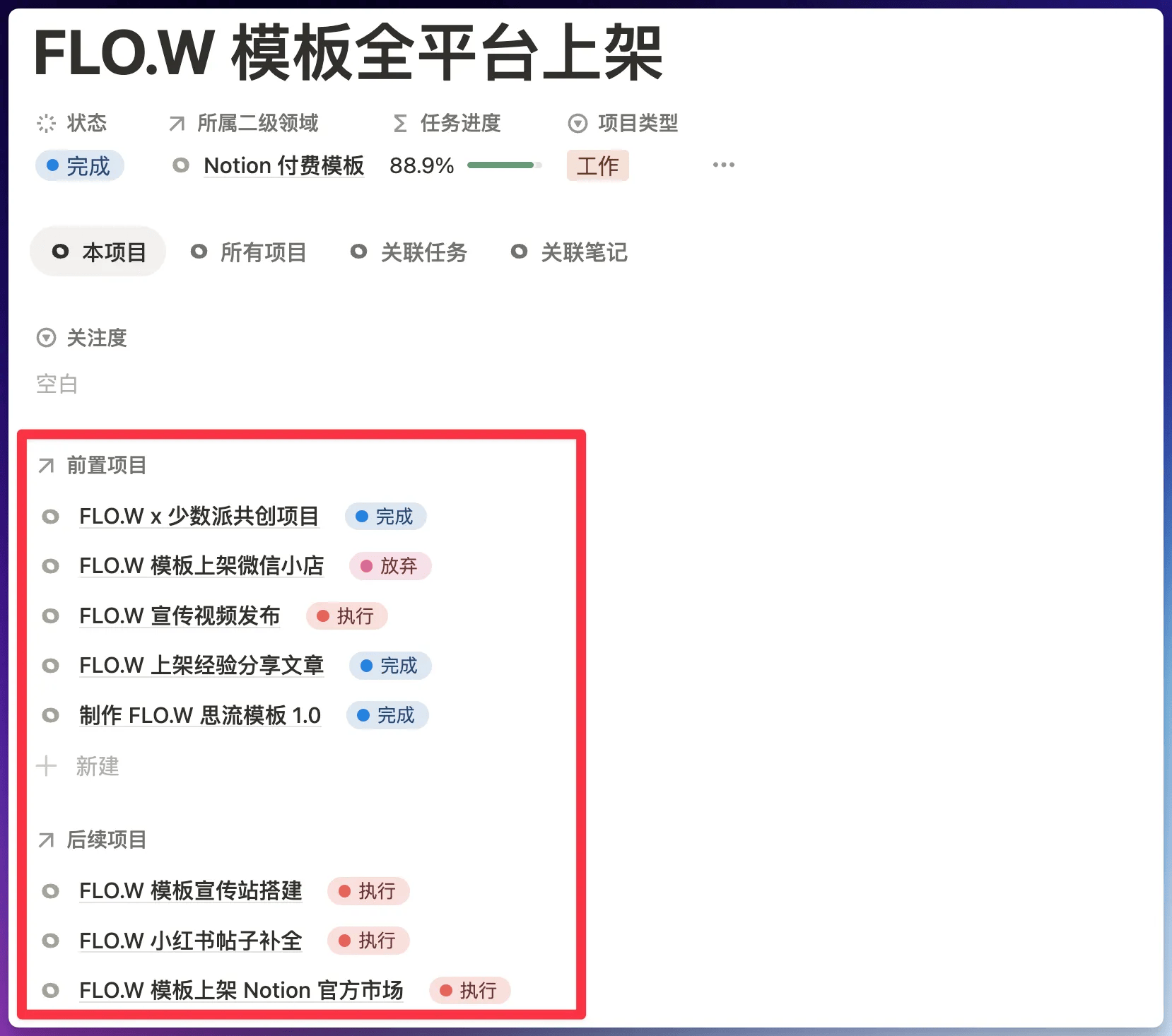
1. This feature is an upgrade benefit of \[Advanced Edition · Major Version Free Upgrade]
2. If you're an Advanced Edition user, please find the update method and detailed instructions in the group announcement
3. Basic Edition / Professional Edition upgrade to Advanced Edition method → [Version Upgrade](/docs/faq/support)
## Related Items Last Edited Time
In the FLO.W system, you'll see a Property called "Related Items Last Edited Time" in many Databases, for example:
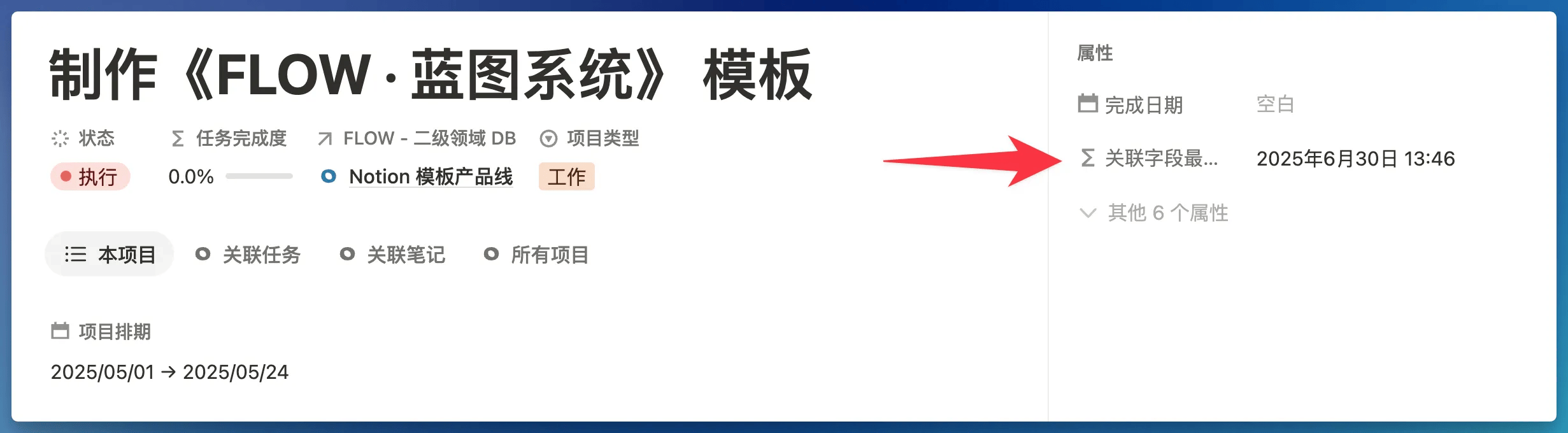
The basic purpose of this Property is to display the last edited time of all pages associated with the current page.
Notion's built-in "Last Edited Time" only tells you when **this page itself** was last modified. The "Related Items Last Edited Time" Property automatically checks all **content linked to this page** (such as related Tasks, Projects, child notes, parent notes, outgoing links, incoming links, etc.), then tells you which was the most recent edit time among all this content.
When you link an old note written months ago to a new project, this old note's **`Related Items Last Edited Time`** will immediately update to today. This means it has a chance to reappear in your view. This mechanism helps you connect past accumulated wisdom with current work, creating unexpected chemistry.