# Getting Started (https://21notion.com/en/docs/faq/getting-started)

import { Accordion, Accordions } from 'fumadocs-ui/components/accordion';
import { Steps, Step } from 'fumadocs-ui/components/steps';
import { Card, Cards } from 'fumadocs-ui/components/card';

After purchasing the template, start your FLO.W journey here.

<Cards>
  <Card title="Quick Start Guide" href="/docs/quick-start" />

  <Card title="Notion Download & Install" href="/docs/notion-download" />

  <Card title="Template Import Tutorial" href="/docs/template-import-guide" />
</Cards>

## Getting Started

<Accordions type="single">
  <Accordion title="I bought the Notion course. How should I use it with the template?" id="course-template">
    Based on your Notion experience level, we recommend different learning strategies:

    **Notion Beginners**

    * We suggest at least skimming through chapters 1 and 2 of the course to understand the most basic Notion operations before using the template
    * This helps avoid basic operation issues when using the template

    **Users with Some Experience**

    * You can start using the template directly and refer to the course content when you encounter questions
    * When asking questions in the Lark group, mention that you're a course student, and I'll provide the relevant course chapter for better understanding

    **Experienced Users**

    * With sufficient hands-on experience and research ability, you can use the template directly
    * When encountering issues, you can explore independently or refer to relevant documentation

    **Best Practice**: Learning with the course is most effective, but you can also start with simple note-taking to avoid learning without practicing, maintaining a sense of accomplishment.
  </Accordion>

  <Accordion title="Where should beginners start?" id="where-to-start">
    We've prepared a complete onboarding path for beginners:

    1. **Read the Quick Start Guide** - Check out [Quick Start](/docs/quick-start) for three basic recommendations
    2. **Download and Install Notion** - If you haven't installed it yet, refer to [Notion Download & Install](/docs/notion-download)
    3. **Import the Template** - Follow the [Template Import Tutorial](/docs/template-import-guide) to complete the template copy
    4. **Watch the Tutorial Videos** - The template includes detailed video tutorials - just follow along

    **Important**: We don't recommend making extensive modifications to the template at the beginning. Use it as-is for 2-4 weeks, understand what each part does, then make adjustments.
  </Accordion>
</Accordions>

## Template Import

<Accordions type="single">
  <Accordion title="What should I do if template import fails?" id="import-failed">
    Template import failures usually fall into these categories:

    1. **Network Issues** - Notion servers are overseas. Use a stable network connection
    2. **Browser Compatibility** - We recommend using Chrome or Edge browsers
    3. **Account Issues** - Make sure you're logged into your Notion account

    For detailed solutions, check [Template Import Tutorial - Copy Failed](/docs/template-import-guide#copy-failed).
  </Accordion>

  <Accordion title="How do I download and install Notion?" id="notion-install">
    We provide a complete Notion installation guide, including:

    * Windows / Mac desktop client download
    * iPhone / iPad / Android app download
    * Account registration process
    * Chinese localization settings
    * Access acceleration tools

    For details, see [Notion Download & Install](/docs/notion-download).
  </Accordion>
</Accordions>

## Version Migration

<Accordions type="single">
  <Accordion title="How do I migrate notes after upgrading from Basic to Advanced Edition?" id="basic-to-advanced-migration">
    First, you need to understand that in the FLO.W system, all data is stored in specific databases. Note pages are stored in the Note database, and Project pages are stored in the Project database.

    Using Notes as an example, the basic principle of migration is to batch migrate all pages from the Basic Edition Note database to the Advanced Edition Note database.

    So you need to know:

    * Where is the database?
    * How to batch migrate?

    Let's use migrating Notes as an example.

    <Steps>
      <Step>
        <h4>
          Find the Note Database
        </h4>

        <p>
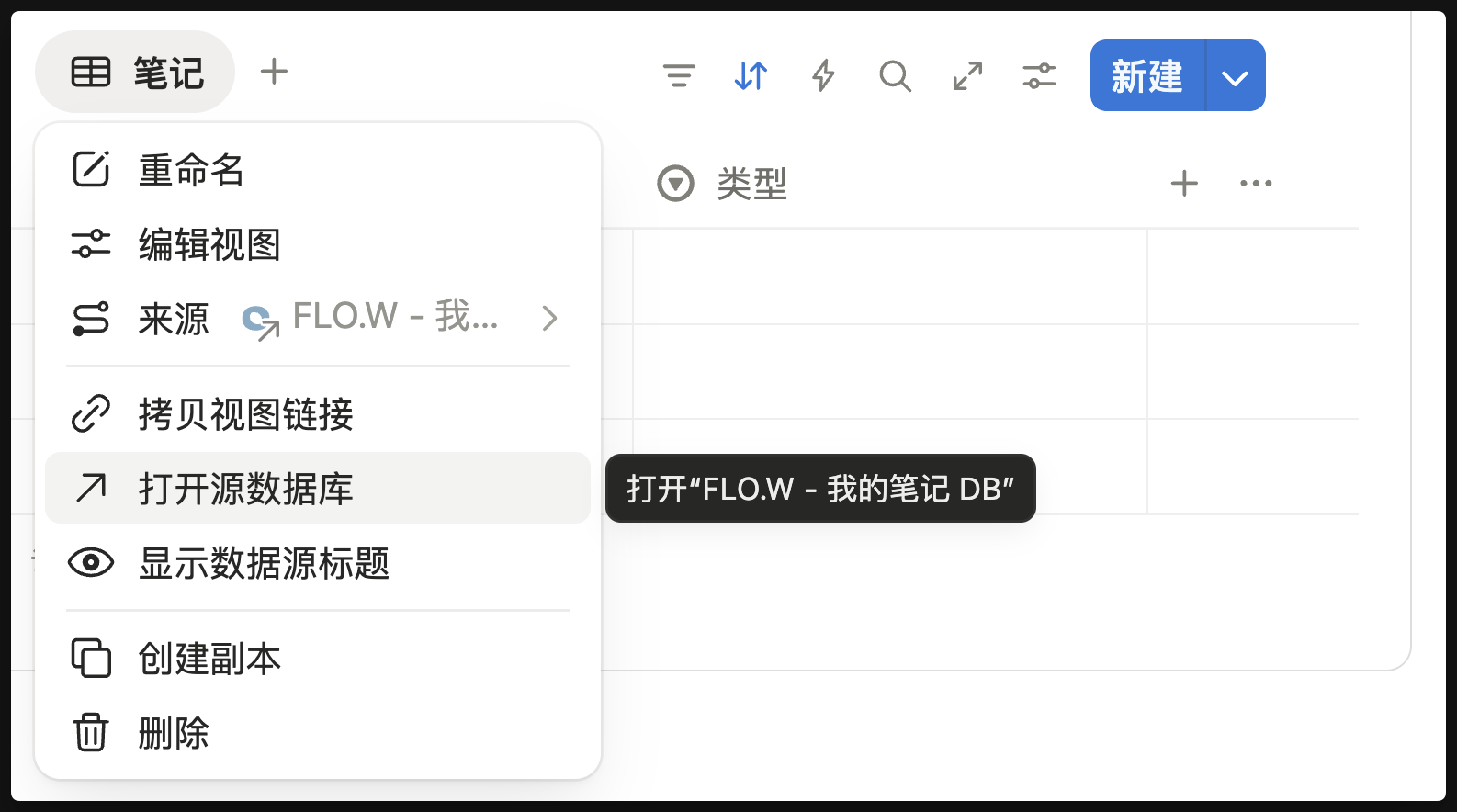
          Click on the Note database tab, then click "Open source database", and note the title of this source database
        </p>

        <img src="https://pic.eryinote.com/PicGo/202511031633474.png" alt="Open source database" />
      </Step>

      <Step>
        <h4>
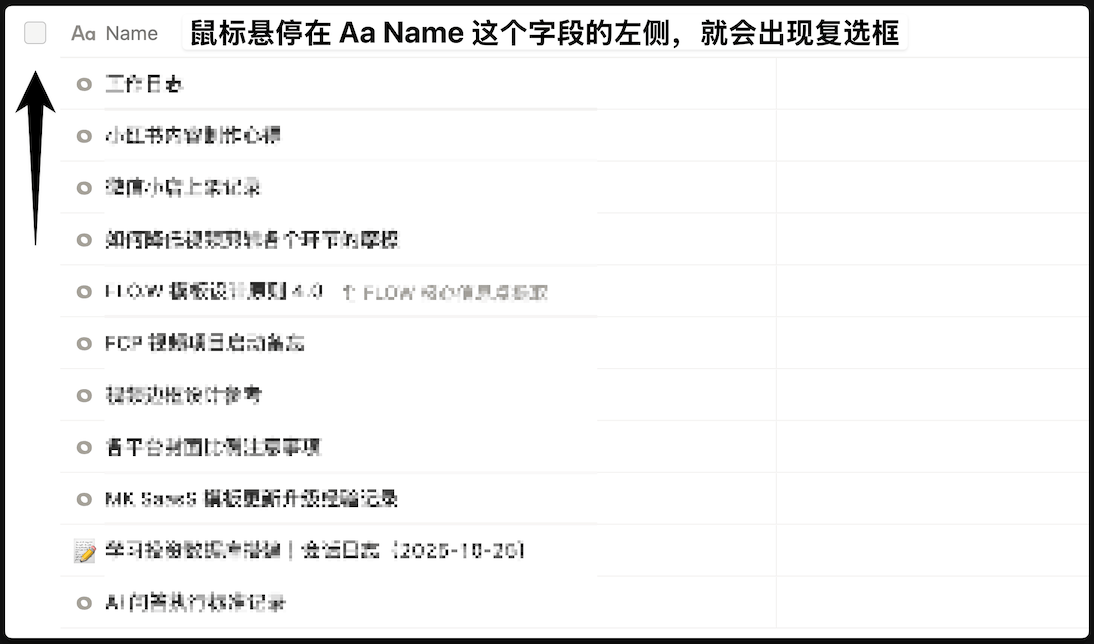
          Select All Note Pages
        </h4>

        <p>
          Select all Note pages
        </p>

        <img src="https://pic.eryinote.com/PicGo/202511031635733.png" alt="Select all note pages" />
      </Step>

      <Step>
        <h4>
          Batch Move to Advanced Edition Database
        </h4>

        <p>
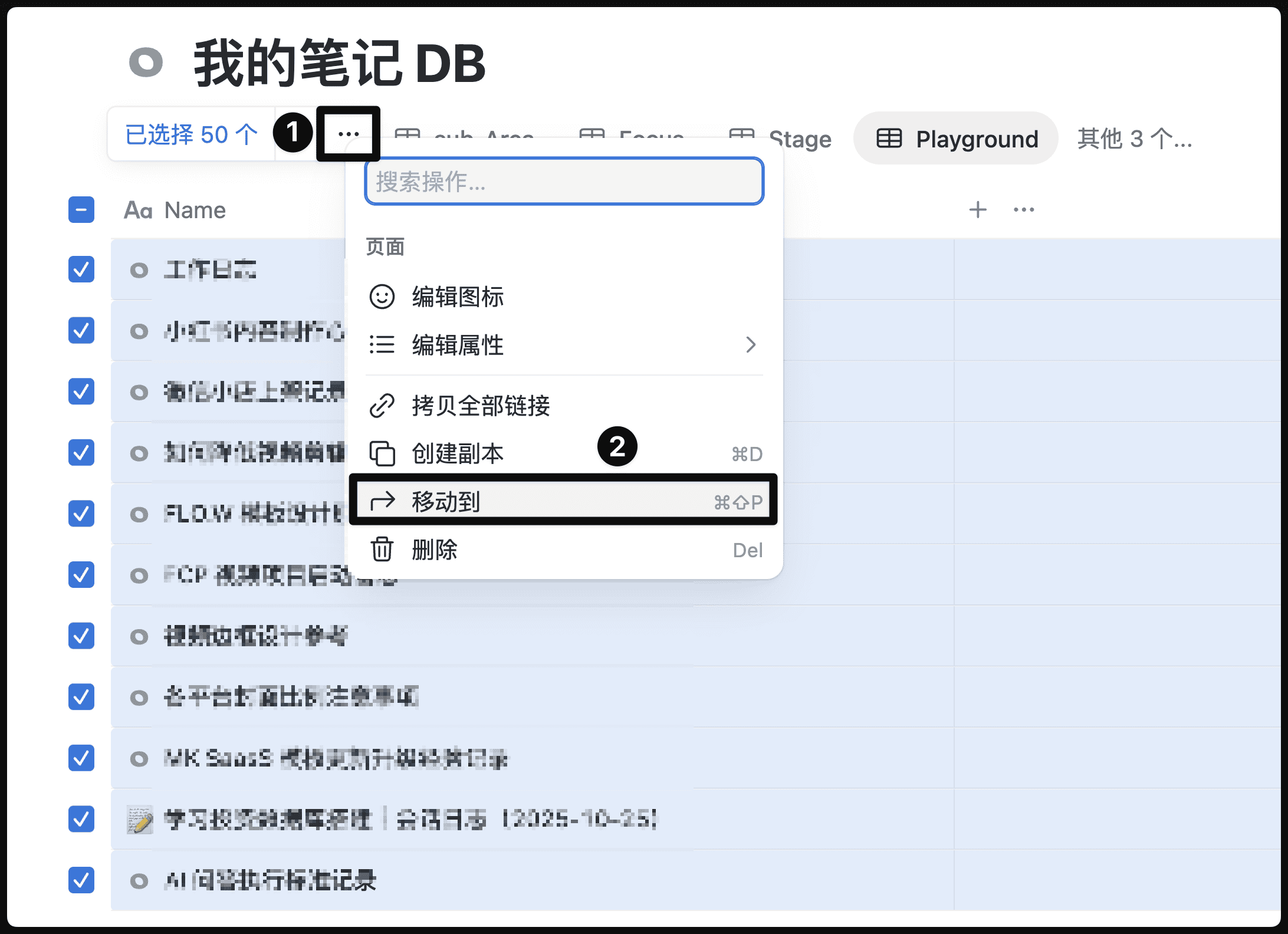
          After selecting all, follow the method shown below to batch move these note pages to the Advanced Edition Note database
        </p>

        <img src="https://pic.eryinote.com/PicGo/202511031636071.png" alt="Batch move pages" />
      </Step>
    </Steps>

    **Important Tips**

    1. Before batch moving, always migrate one or two pages first to test the process and avoid errors.
    2. After migrating Notes, you can proceed to migrate Projects, Areas, and other database content
  </Accordion>
</Accordions>

***

**Having issues?** Check [Troubleshooting](/docs/faq/troubleshooting) or [Technical Support](/docs/faq/support) for help.