# Customization & Modifications (https://21notion.com/en/docs/faq/customization)
import { Accordion, Accordions } from 'fumadocs-ui/components/accordion';
import { Card, Cards } from 'fumadocs-ui/components/card';
The template is your personal space and can be adjusted according to your needs. This page helps you understand what can be freely modified and what requires caution.
## Template Modification Principles
**Database Property Modifications**
| Safe to Do | Not Recommended |
| -------------------------------------------------------------------------- | -------------------------------------------------------------------------------- |
| Rename properties (e.g., change "Task Name" to "To-do") | Change property types (will cause all existing data in that property to be lost) |
| Add new properties (e.g., add "Estimated Time", "Priority", etc.) | Delete relation properties (will break information flow) |
| Reorder properties (put frequently used ones first, hide rarely used ones) | Delete formula properties (will break automatic calculations) |
| | Delete date properties (will affect calendar views and time filters) |
**Special Note for Advanced Edition Users**:
* If you're an Advanced Edition user with upgrade benefits, we strongly recommend NOT renaming properties
* During upgrades, the new version identifies and updates based on property names. Renamed properties may cause upgrade failures
* If you must make changes, add new properties instead of renaming existing ones
***
**View and Filter Modifications**
You can freely modify these without affecting template functionality:
* Adjust filter conditions (e.g., show only your tasks, incomplete tasks)
* Change sorting methods (e.g., sort by due date, priority)
* Add or delete views (e.g., remove unnecessary report views)
* Adjust grouping methods (e.g., group by project, by status)
* Rename views
***
**Page Content Modifications**
You can freely modify these - this is your personal space:
* Clear or edit demo data and sample text
* Delete tutorial pages
* Change page icons and covers
* Adjust page navigation structure
* Add your own notes and explanations
**Note**:
* Before deleting pages, confirm they aren't linked or referenced elsewhere
* If you delete important demo pages, you can re-copy the template to recover them
***
**Data Record Modifications**
You can freely modify these - this is your data:
* Batch delete demo tasks, projects, notes
* Edit existing records
* Add your own tasks, projects, notes
***
**When is the Right Time to Modify**
* After using the template for 2-4 weeks and clearly knowing which parts don't work for you
* Not recommended to make extensive modifications right after starting
* Suggested to use as-is for a while first, understand what each part does
***
**How to Modify Safely**
* Make a backup copy of the template before making changes
* Test on a test page first, confirm everything works before making full changes
* Take screenshots of original settings before modifying, for easy recovery if needed
## Database Templates
**What are Default Templates**
In the FLO.W system, database templates are the "core mechanism" that ensures features work properly. All database pages automatically apply these templates when created. For example, when creating a Task, the Task Title is automatically named "New Task", and the page icon is set to the default blue circle:
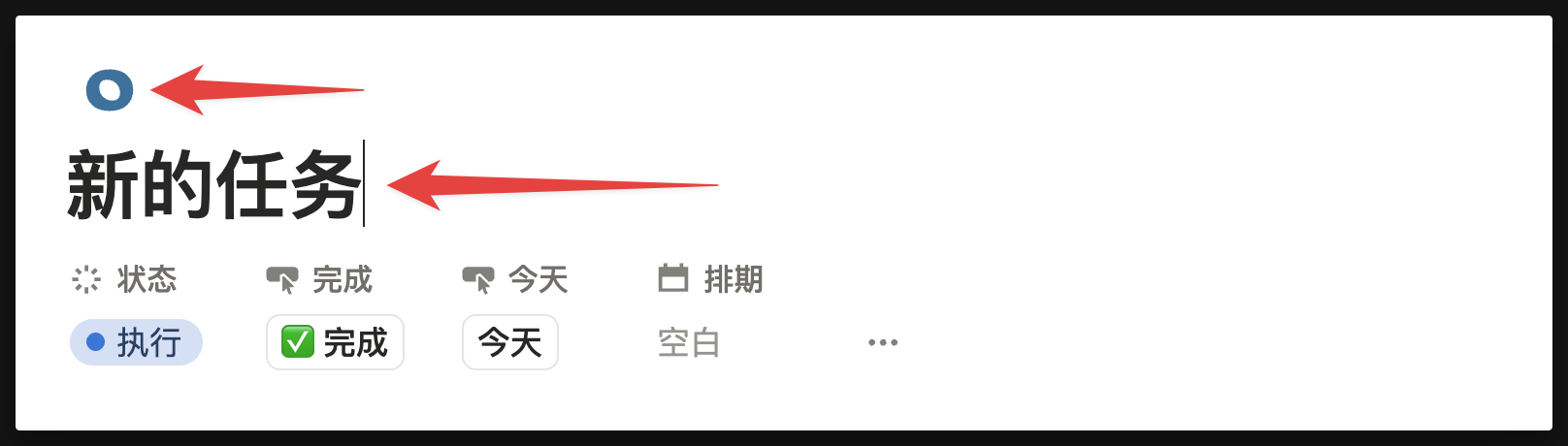
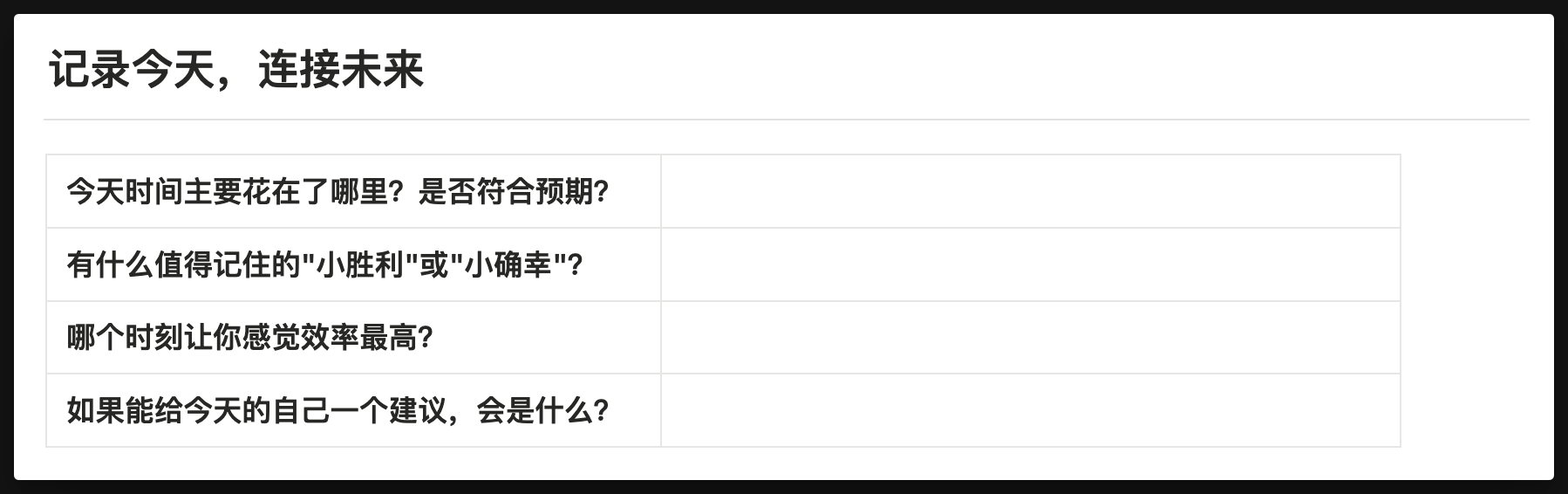
Or, some database pages may include default page content when created.
For example, when you create a [Diary](/docs/basic-feature/note-taking#create-diary), the diary page will show content like this:
**How to Modify Default Templates**
1. Find the template location for the database you want to modify
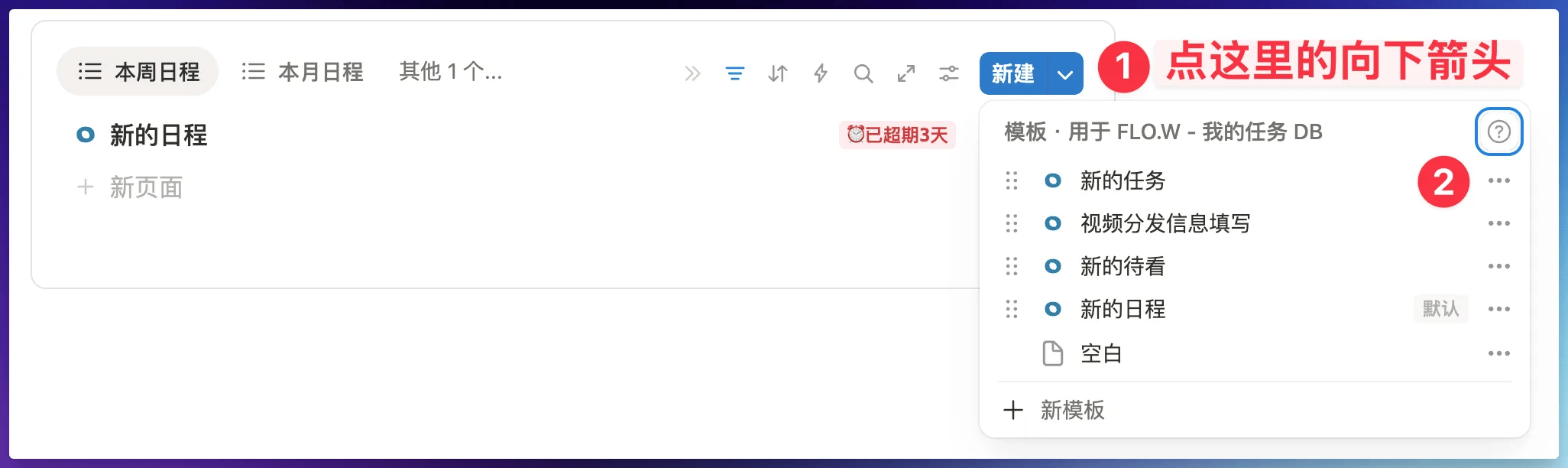
2. Click step 2 in the image above to enter the template editing interface
3. Modify the default icon or default page content in the template
4. When finished, click on blank space to close the template editing window
This way, the next time you activate the template, the new template content will be applied.
**Tip**: Since templates contain many relational logic elements, unless necessary, we don't recommend making changes casually. It's best to confirm in the community group before modifying.
## Properties & Views
In the various databases of the FLO.W system, there are many properties. You may not need certain properties temporarily, or some important properties might be hidden.
**Method 1: Click the property header**
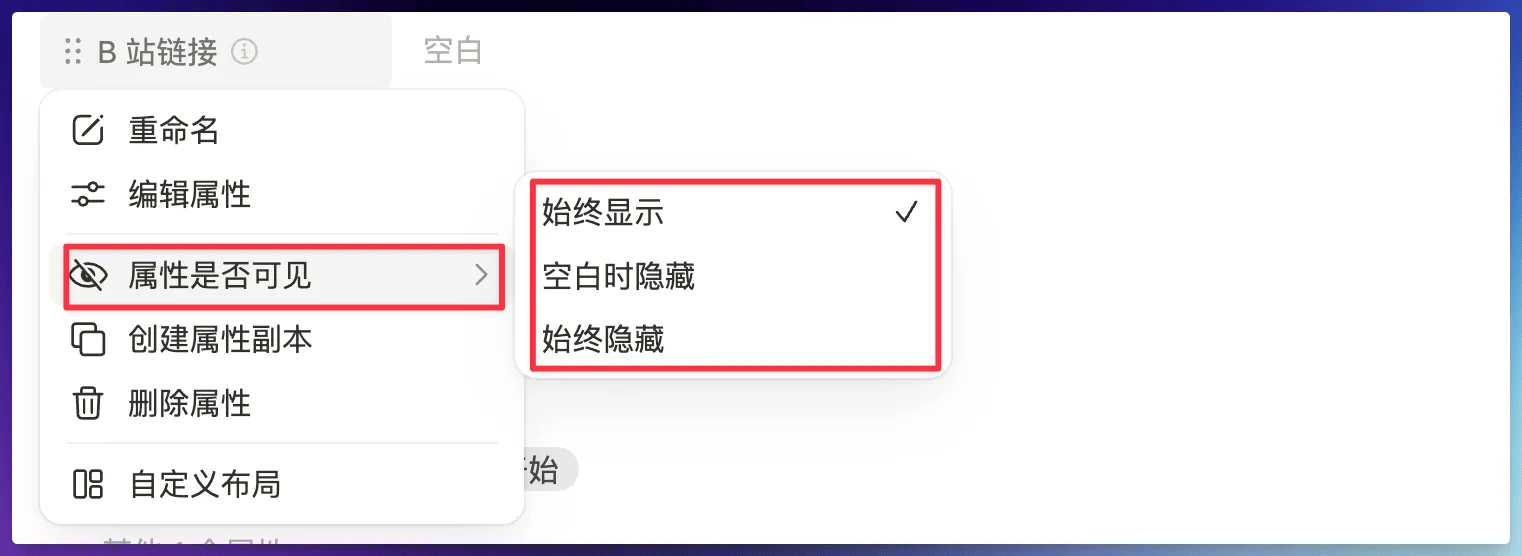
* Click directly on the property header to quickly toggle show/hide status
**Method 2: Customize layout**
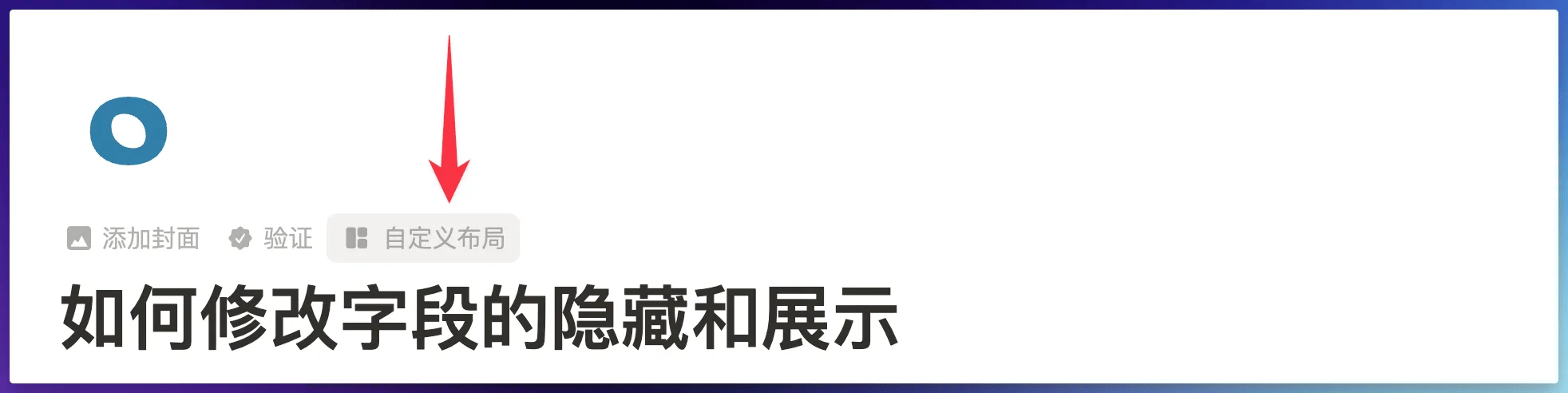
* Click "Customize layout" above the page title
* Make detailed adjustments to properties in the "Layout" options
* Batch manage visibility of multiple properties
**Usage Tips**
* Show relevant properties based on work needs
* On mobile, hide infrequently used properties to optimize display
* Create different views for different use cases
The homepage layout can be fully customized to your preferences. For detailed customization methods, see [Homepage Layout](/docs/basic-feature/homepage#homepage-layout).
For navigation bar adjustment methods, see [Top Navigation Bar](/docs/basic-feature/homepage#top-navigation), including:
* Navigation bar principles
* How to adjust module positions
* How to add/remove navigation items
***
**Want to understand the design philosophy?** Check out [System Design Philosophy](/docs/faq/system-design) to learn why things are designed this way.