# Web Clipper (https://21notion.com/en/docs/basic-feature/web-clipper)
import { Card } from 'fumadocs-ui/components/card';
import { Accordion, Accordions } from 'fumadocs-ui/components/accordion';
{/*
[IN]: Save to Notion plugin, fumadocs components
[OUT]: Web Clipper usage guide and FAQ
[POS]: Core feature documentation for information gathering
Protocol: Update this file header and the folder's .folder.md when modifying this file
*/}
## Install Plugin
The FLO.W system includes a reading management center that allows you to conveniently manage clipped articles, videos, and posts, or build a systematic reading list. Of course, first you need to install the Save to Notion plugin in your browser. I've prepared a detailed installation tutorial for you.
📖}>
Detailed browser plugin installation and configuration tutorial to help you quickly get started with web clipping
## FAQ
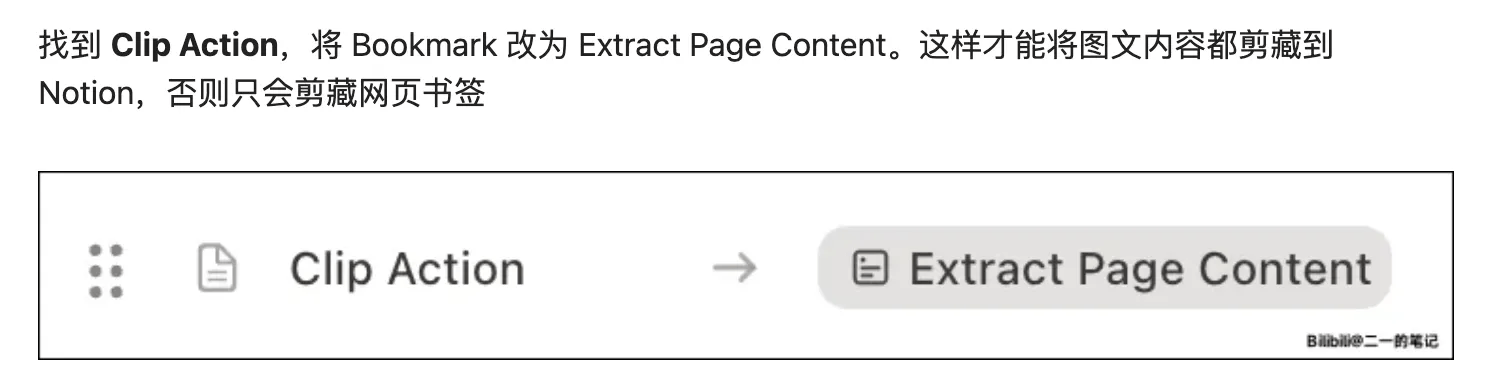
Please pay attention to this step in the clipping tutorial
Free users can create 4 Forms, which is generally enough.
It depends on the website. Some websites set images to not allow syncing. This is not caused by the plugin or Notion. I cannot solve this issue unless the website allows it.
You can clip without opening the web version of Notion, as long as your browser and clipping plugin are working properly.
The problem occurs when you want to modify the custom Properties of the clip Database, but you find no Properties to select.
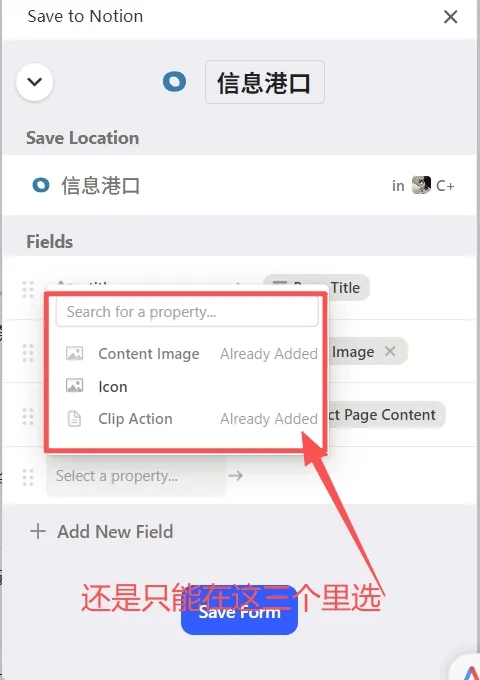
The reason is that you haven't associated the correct Database. The Save to Notion plugin should associate with the Database named "FLO.W - Information Harbor DB".
Yes. If you need to use your preferred clipping tool on other platforms, just set the clipping destination to "FLO.W - Information Harbor DB".
**Question**
If I've used other clipping tools before, such as Cubox, Readwise, or Jianyue, and already have an existing clipping Database in Notion, how can I move these clipped articles to the FLO.W system?
**Answer**
In the FLO.W system, all clipped articles are stored in the "**FLO.W Information Harbor DB**" Database, so you can batch move articles from your old clipping Database to the "**FLO.W Information Harbor DB**" Database.
However, before moving, please make sure to read this [important notice](/docs/template-import-guide#migrate-old-notes).
First, Save to Notion is not an official Notion plugin, so the Save to Notion account is unrelated to your Notion account.
Second, it supports Google email direct login, or you can fill in any of your own email addresses, but both methods require you to ensure you can log in to these email accounts.
If none of the above methods work, you need to contact Save to Notion plugin's official email: [hello@savetonotion.so](mailto:hello@savetonotion.so)
When searching for the Database name while clipping, it shows "No databases or pages found". You can try the following methods:
1. **Shorten search keywords**: Don't search the full name, search for "Information Harbor" instead of "FLO.W - Information Harbor DB"
2. **Re-login plugin account**: Log out of Save to Notion plugin, completely close and restart your browser, then log in again and try searching
3. **Refresh Notion Database index**: First manually create a few pages in the target Database, press `Ctrl+R` (Mac press `Cmd+R`) in Notion to refresh, then go back to the plugin to search
Currently, direct conversion is not supported.
**Reason:**
If something truly has value to become a [Note](/docs/basic-feature/note-taking), it's better to have an extra manual organization step. Otherwise, there's no difference between [Clipping](#) and [Notes](/docs/basic-feature/note-taking), and eventually your [Note Database](/docs/basic-feature/note-taking) will be filled up.
**Recommended approach:**
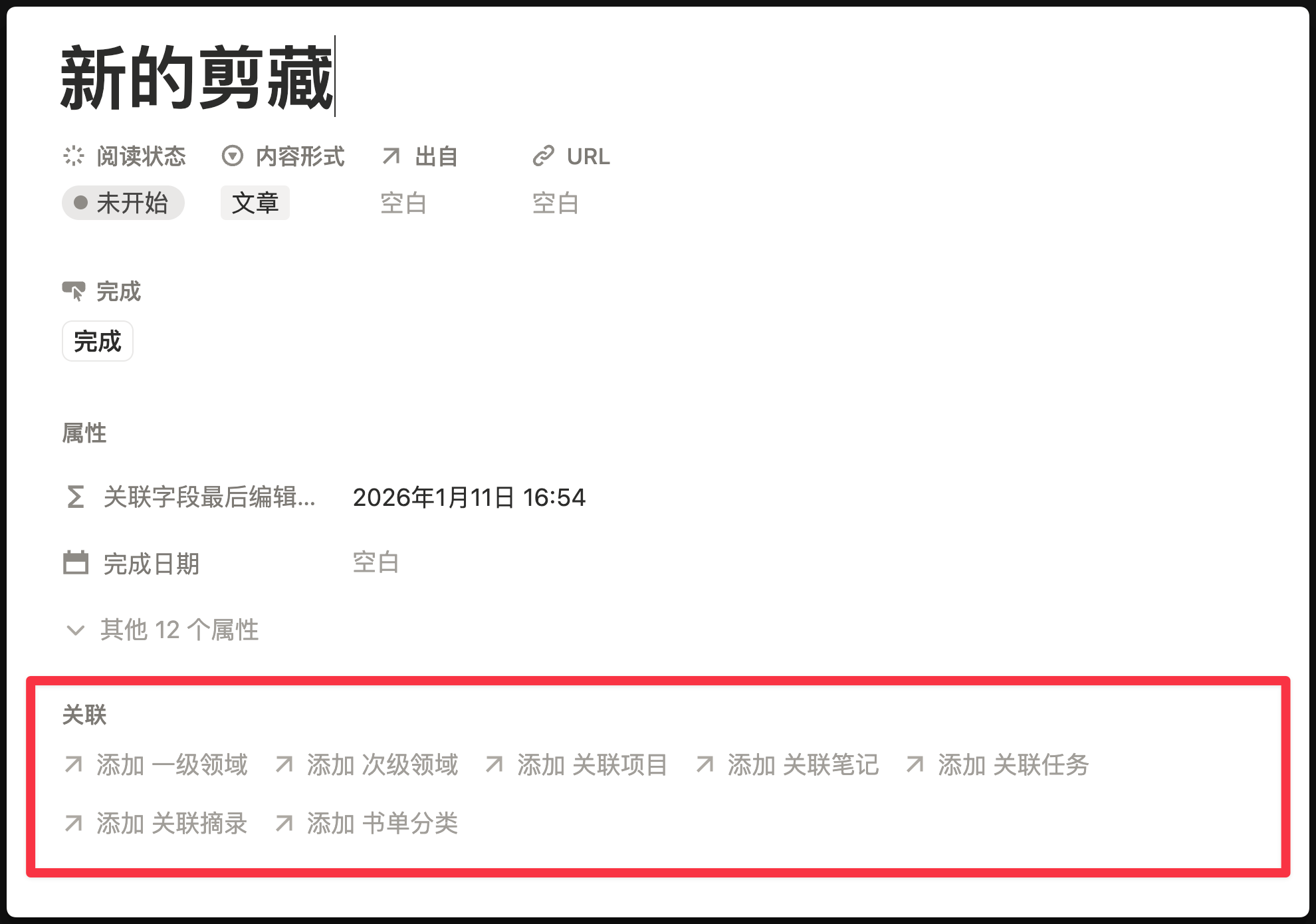
1. **Relate Note**: You can quickly create a [Note](/docs/basic-feature/note-taking) that is related to the current clipped article through the "Relate Note" Property in [Clipping](#).
2. **Relate Project/Area**: If your purpose for converting [Clipping](#) to [Note](/docs/basic-feature/note-taking) is to relate to a [Project](/docs/basic-feature/project-management), there's actually no need to do so, because [Clipping](#) can directly relate to [Project](/docs/basic-feature/project-management) or [Area](/docs/basic-feature/area).