# Task Management (https://21notion.com/en/docs/basic-feature/task-management)

import { Calendar, ArrowRight, Trash2, Bell, CheckSquare as CheckSquareIcon } from 'lucide-react';

This document will guide you on how to create, edit, and manage tasks in the FLO.W Template to improve your work efficiency.

## Task Creation Methods

Quickly understand how to create and manage tasks through the following video:

<Tabs items={['Bilibili', 'YouTube']}>
  <Tab value="Bilibili">
    <BilibiliVideo url="//player.bilibili.com/player.html?isOutside=true&aid=115223889447103&bvid=BV1HtpezrEWC&cid=32460507628&p=6" width={560} height={315} autoplay={false} />
  </Tab>

  <Tab value="YouTube">
    <YoutubeVideo url="https://www.youtube.com/embed/lY2UNcZZ9aA" width={560} height={315} />
  </Tab>
</Tabs>

## Task Properties Description

Learn about the property configuration and usage of the Task Database:

<Cards>
  <Card icon={<Calendar className="text-blue-500" />} title="Difference Between Schedule and Todo" href="/docs/properties/task#schedule-vs-todo">
    Understand the difference between fixed-time schedules and deadline-based todos
  </Card>

  <Card icon={<ArrowRight className="text-green-500" />} title="Next Action" href="/docs/properties/task#next-action">
    Set immediately executable next actions for tasks
  </Card>

  <Card icon={<Trash2 className="text-red-500" />} title="Task Cleanup" href="/docs/properties/task#task-cleanup">
    Filter and clean up tasks without Schedule Date or value
  </Card>

  <Card icon={<Bell className="text-yellow-500" />} title="Task Reminder" href="/docs/properties/task#task-reminder">
    View reminder logic and common issue descriptions
  </Card>

  <Card icon={<CheckSquareIcon className="text-green-500" />} title="Task Status Property Usage Guide" href="/docs/properties/task#status-guide">
    Understand how to use each status in the task lifecycle
  </Card>
</Cards>

## Add Daily Recurring Tasks

### What Are Recurring Tasks

Recurring tasks are fixed items that need to be executed periodically. Notion can automatically create these tasks according to the frequency you set.

**Common Scenarios**:

* Work: Daily standups, weekly reports, data entry, etc.
* Life: Exercise, reading, vocabulary review, cleaning, etc.

### Create Recurring Tasks

<Steps>
  <Step>
    <h4>
      Open the Task Template Menu
    </h4>

    <p>
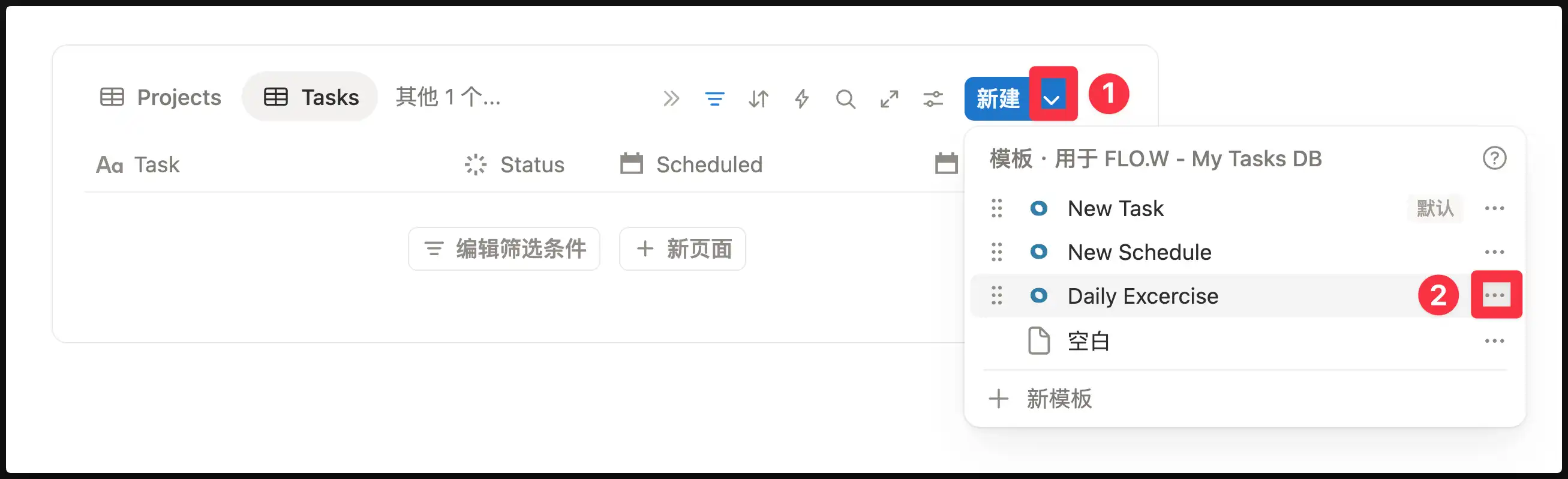
      Find "My Tasks DB", click the small arrow ▾ next to the "New" button in the upper right corner.
    </p>

    ![Open template menu](https://pic.eryinote.com/PicGo/01-en.webp)
  </Step>

  <Step>
    <h4>
      Create a Task Template
    </h4>

    <p>
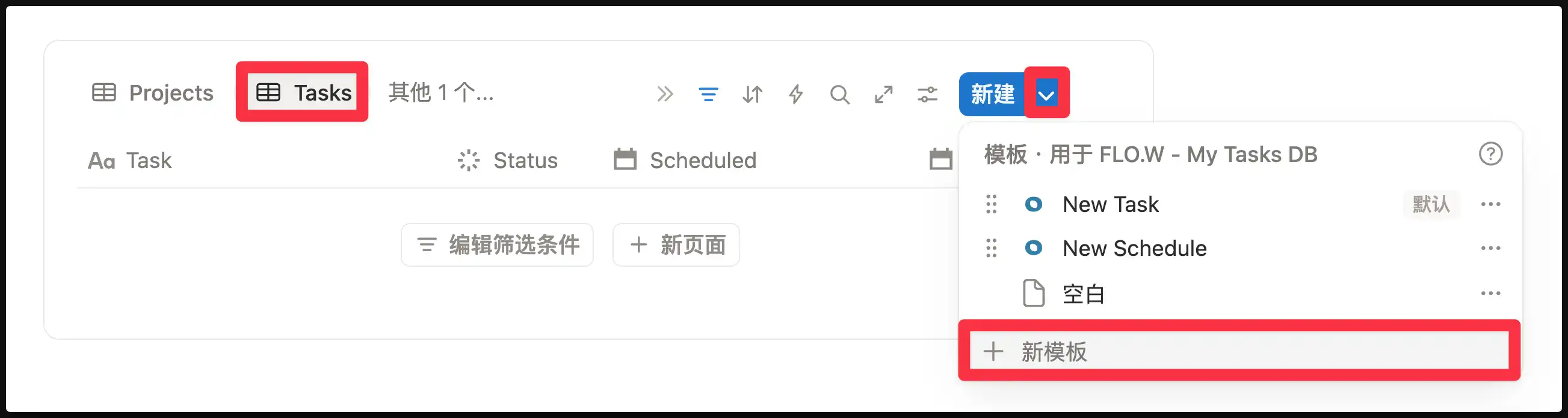
      Click "New template" to enter the template editing page. Set up the template content here:
    </p>

    <ul>
      <li>
        Set the task title (e.g., "Daily Exercise")
      </li>

      <li>
        Fill in the required properties
      </li>

      <li>
        Add body content (optional)
      </li>
    </ul>

    <p>
      After editing, click anywhere blank to close the template editing page.
    </p>
  </Step>

  <Step>
    <h4>
      Set Up Recurring Generation
    </h4>

    <p>
      Click the small arrow ▾ next to "New" again, find the template you just created (e.g., "Daily Exercise"), and click the 

      <code>⋯</code>

       button on its right.
    </p>

    ![Open template settings](https://pic.eryinote.com/PicGo/02-en.webp)
  </Step>

  <Step>
    <h4>
      Configure Generation Frequency
    </h4>

    <p>
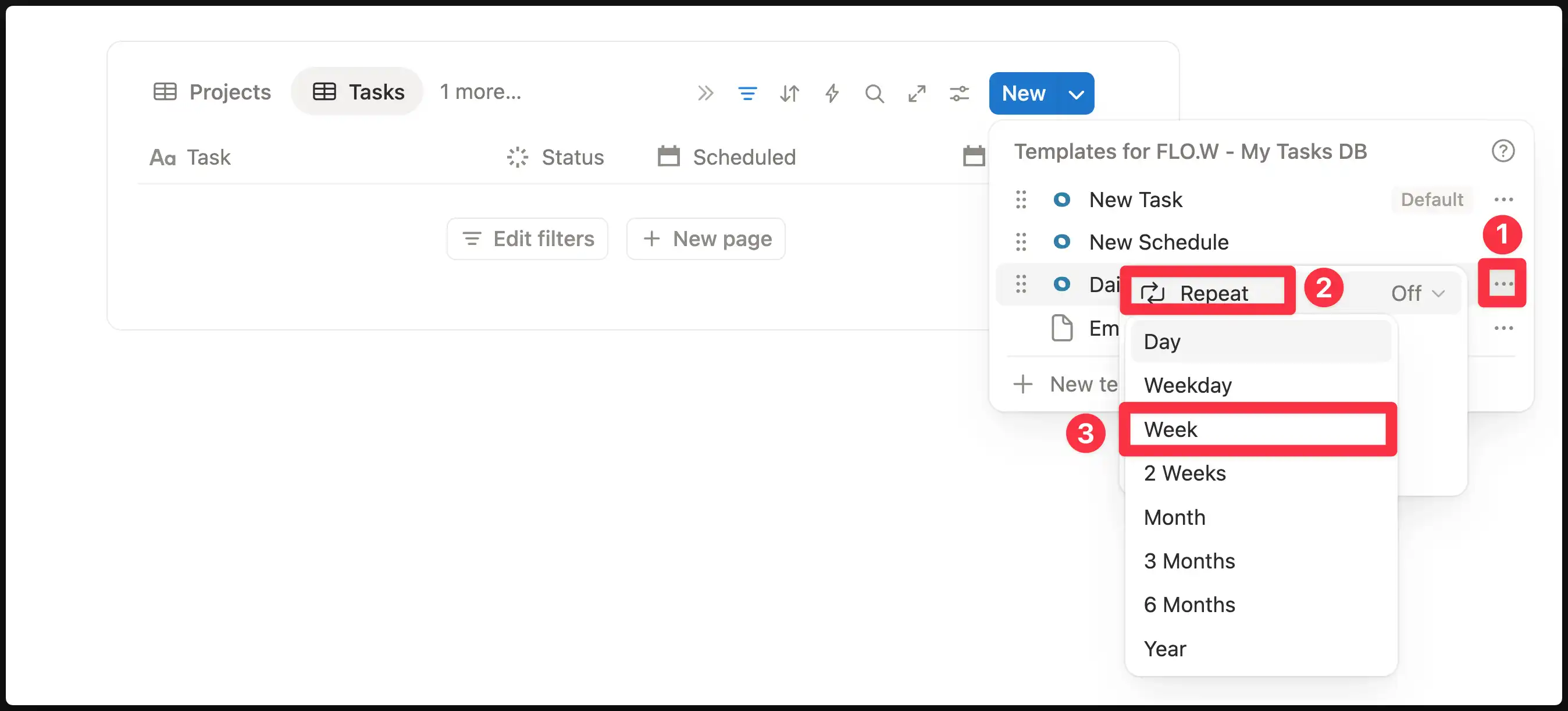
      Set the repeat cycle in the popup interface, for example:
    </p>

    <ul>
      <li>
        Every day at 8:00 AM
      </li>

      <li>
        Every Monday
      </li>

      <li>
        1st of every month
      </li>
    </ul>

    ![Configure generation frequency](https://pic.eryinote.com/PicGo/03-en.webp)

    <p>
      Once configured, Notion will automatically create tasks at the frequency you specified.
    </p>
  </Step>
</Steps>

If your task doesn't need to be linked with other FLO.W modules, you're done at this step.

### Link Recurring Tasks to Projects

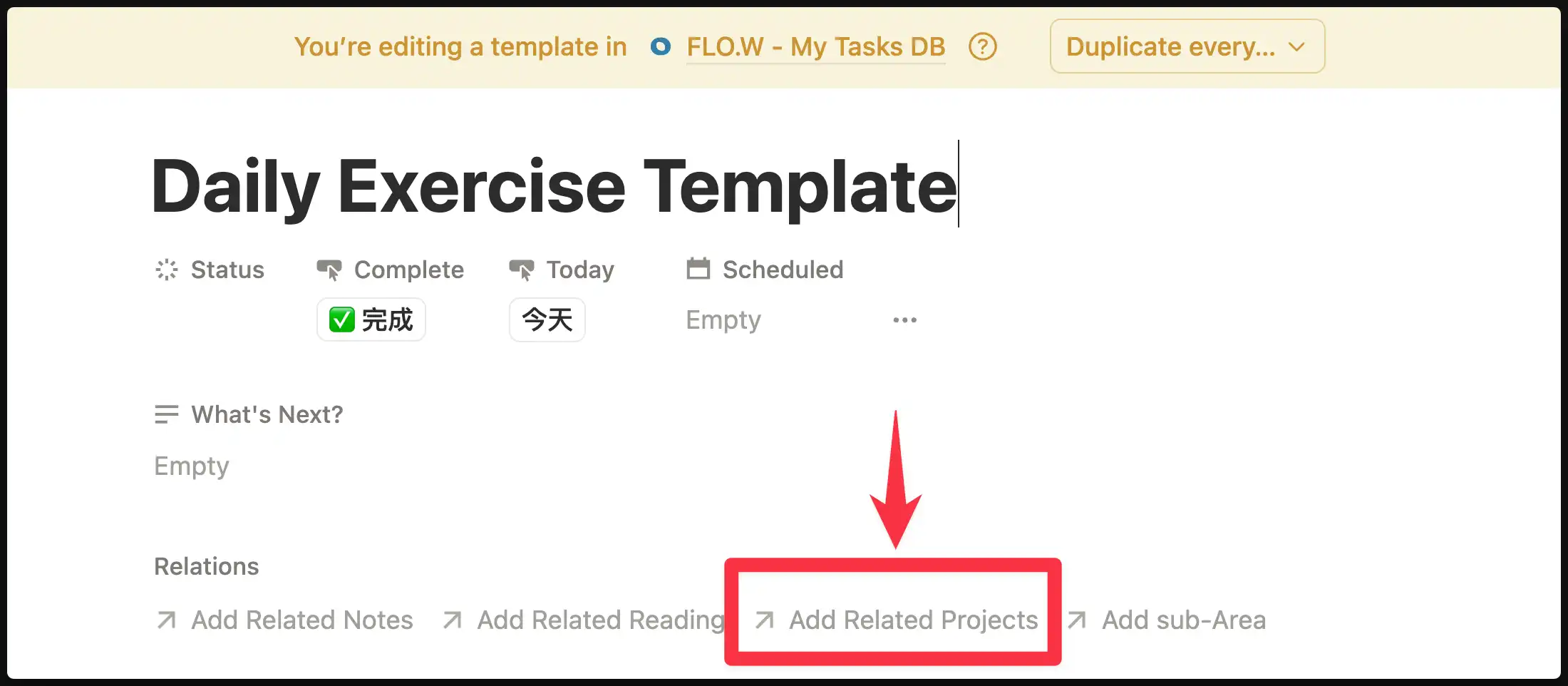
If your recurring task belongs to a specific goal (e.g., "Daily Exercise 30min" belongs to the "Lose 5kg" project), you can preset the project relation in the template.

**Method**: Select the corresponding project in the "Related Project" property of the task template.
![Link project in template](https://pic.eryinote.com/PicGo/04-en.webp)

This way, each automatically created task will be linked to that project, and task completion will count toward project progress.

### FAQ

<Accordions type="single">
  <Accordion title="Where is the Task Database?">
    Click "Tasks" in the top navigation bar to enter the Task Center, which contains "My Tasks DB". You can also find the task entry in the "Today's Todos" section on the Homepage.
  </Accordion>

  <Accordion title="How to modify or stop recurring tasks?">
    Click the small arrow ▾ next to "New", find the corresponding template, and click the `⋯` button on the right:

    * **Modify content**: Click "Edit" to modify the template content
    * **Modify frequency**: Directly adjust the repeat settings
    * **Stop generation**: Turn off the "Repeat" toggle, or delete the template directly
  </Accordion>

  <Accordion title="What if I don't want to do this task on a certain day?">
    Auto-generated tasks work just like regular tasks. You can:

    * Delete it directly
    * Change the status to "Abandoned"
    * Reschedule to another date

    This won't affect the next auto-generation.
  </Accordion>

  <Accordion title="Will tasks keep piling up?">
    Recurring tasks will continue to be generated at the set frequency. It's recommended to regularly clean up completed or unnecessary tasks to keep your task list tidy. You can use the [Task Cleanup](/docs/properties/task#task-cleanup) feature for batch processing.
  </Accordion>
</Accordions>

## Create Tasks in Notes

<Tabs items={['Bilibili', 'YouTube']}>
  <Tab value="Bilibili">
    <BilibiliVideo url="//player.bilibili.com/player.html?isOutside=true&aid=115223889447103&bvid=BV1HtpezrEWC&cid=32460508227&p=7" width={560} height={315} autoplay={false} />
  </Tab>

  <Tab value="YouTube">
    <YoutubeVideo url="https://www.youtube.com/embed/qLXPz772IKQ" width={560} height={315} />
  </Tab>
</Tabs>

## Notion Calendar Integration

### Method

Follow the operations below, click "Manage in Calendar", and the "Task Calendar" will open in Notion Calendar.

![Task calendar navigation and management interface](https://pic.eryinote.com/PicGo/202509121729793.png)

This way, task todos you create in the "Task Database" will sync to Notion Calendar

![Monthly schedule view with quick action panel](https://pic.eryinote.com/PicGo/202509121725732.jpeg)

If you find that tasks added in **Notion Calendar** are not syncing back to the **Notion app** after following the steps above, open Notion Calendar settings and check whether the correct **Notion workspace** is bound on the left side. If not, click "Add Notion workspace" to complete the connection.

![Calendar settings with Notion workspace highlighted](https://pic.eryinote.com/PicGo/CleanShot%202026-04-16%20at%2015.20.22%402x.webp)

### FAQ

<Accordions type="single">
  <Accordion title="How to download Notion Calendar?">
    Download link: [https://www.notion.com/zh-cn/product/calendar](https://www.notion.com/zh-cn/product/calendar)
  </Accordion>

  <Accordion title="Can I integrate Notion Calendar with Apple Calendar?">
    Open Notion Calendar settings
    ![Settings with iCloud calendar account linked](https://pic.eryinote.com/PicGo/202509121725312.png)
  </Accordion>

  <Accordion title="Can I integrate Notion Database with Apple Calendar?">
    1. Notion Calendar can serve as a central hub
    2. Can bidirectionally sync "Notion Database" with "Notion Calendar"
    3. Can also bidirectionally sync "Apple Calendar" with "Notion Calendar"
    4. But we currently cannot sync "Apple Calendar" through "Notion Calendar" to "Notion Database"
    5. Here "Apple Calendar" can be replaced with "Google Calendar"
  </Accordion>

  <Accordion title="Can I sync Notion Database to other calendars?">
    Besides the solutions provided above, I haven't tried other tools or methods, so I can't answer this question currently.
  </Accordion>
</Accordions>